Unity's Matter Review Rules help you manage, automate, and control the matter review process to drive efficiency, save time, and reduce costs.
Here's how to use Matter Review Rules:
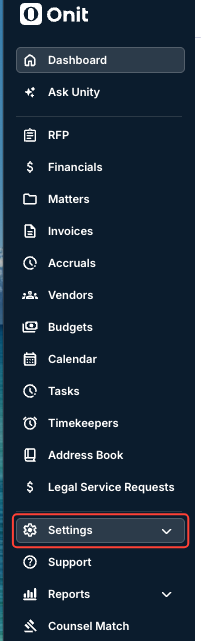
- Open up "Settings" in the left-hand side Unity menu.
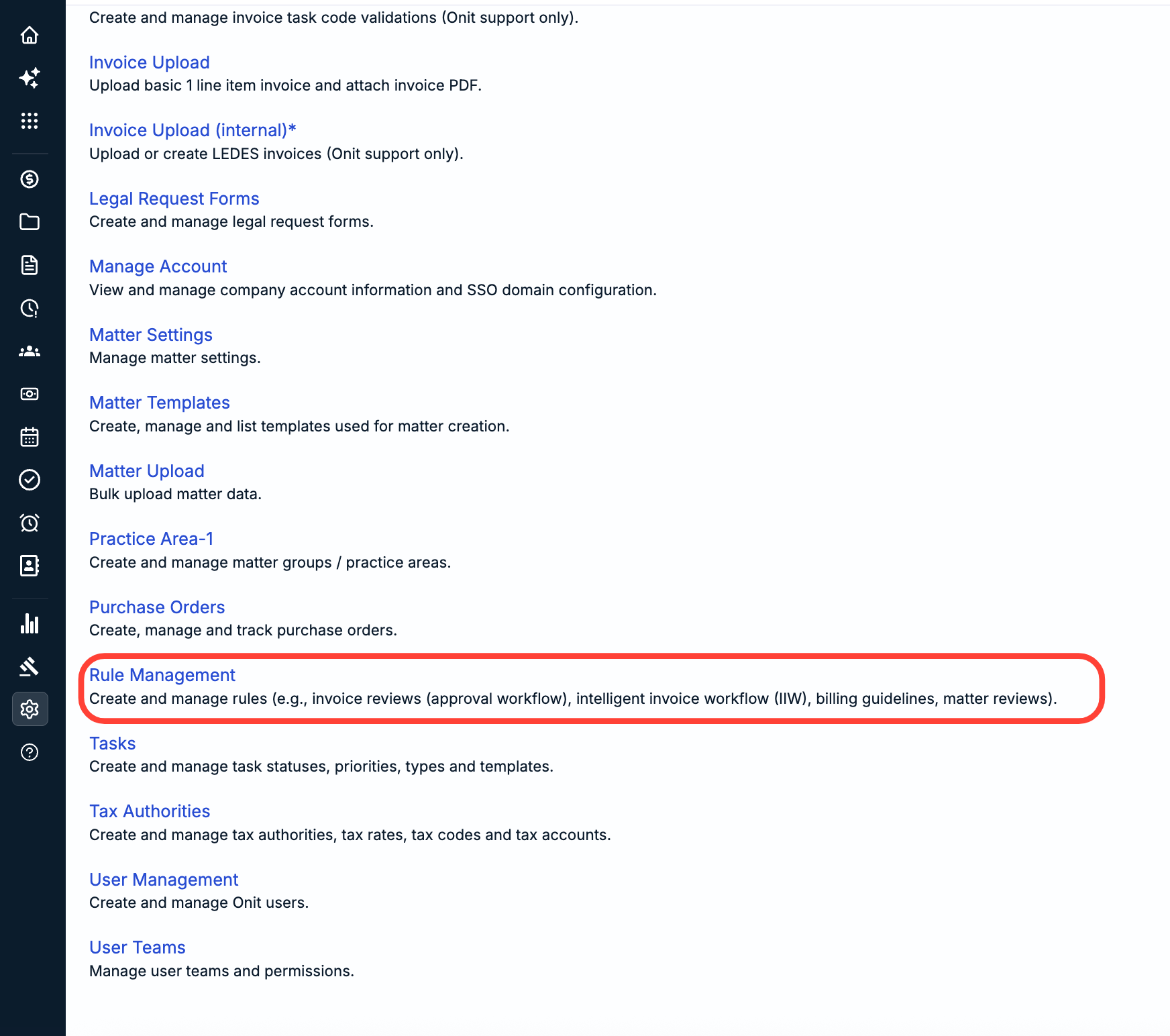
- Within Settings, go to "Rule Management."
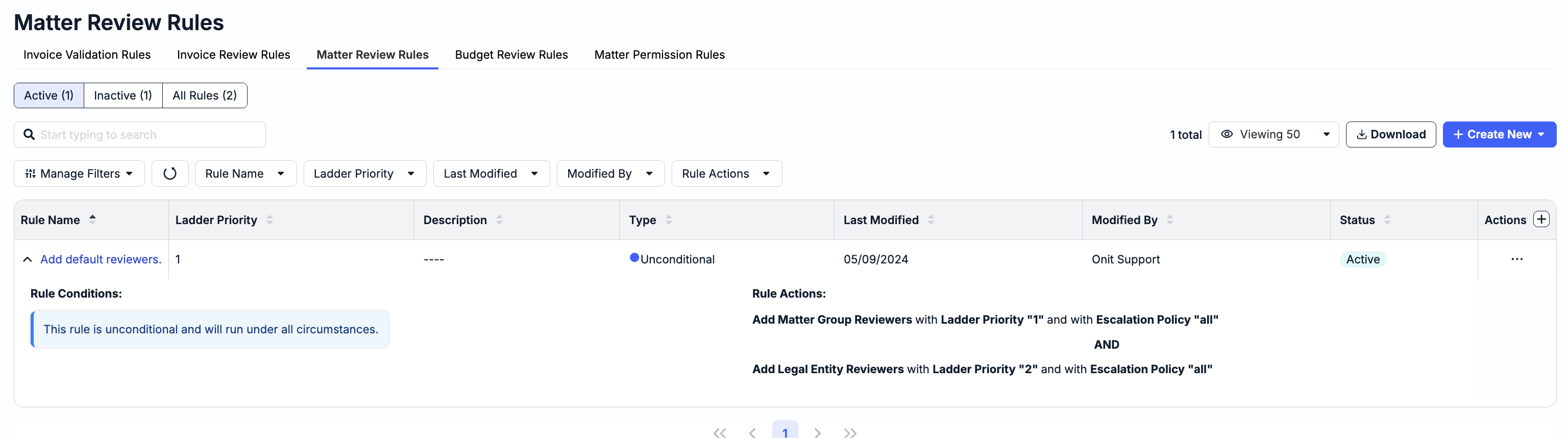
- On the Rule Management settings screen, go to the "Matter Review Rules" tab.

- The Matter Review Rules tab will open.
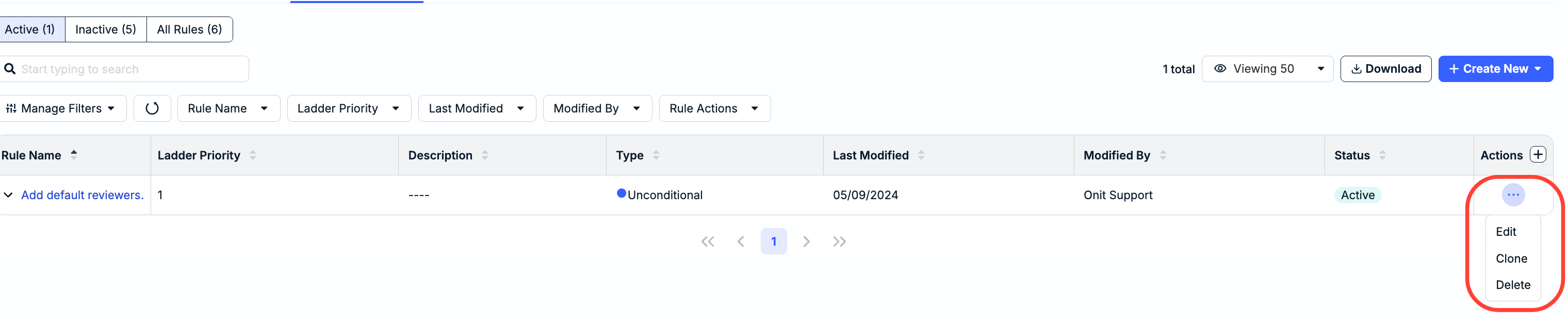
Here, you can switch between Active, Inactive, and All Rules. The Matter Review Rules directory will detail key details of the existing rules, including Rule Name, Ladder Priority, Description, Type, Last Modified, Modified By, Status, and Actions. Click on the up/down arrows next to each column title to sort by that column.
Use the search bar to search for a specific rule; use the drop-down menus and the Viewing drop-down menu to customize what you'd like to see on the screen. Click on Download to download the rules as an Excel file.
Click on the up-down arrow next to each Rule Name to see more details on the rule.
- Click on the Create New button to create either a Standard or an Unconditional rule.
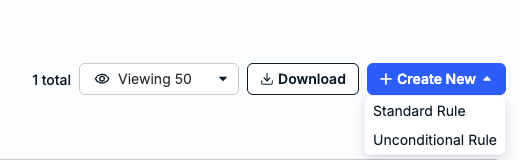
- Standard rules include conditions such as business-unit or amount thresholds.
To start, you'll have to fill out the:
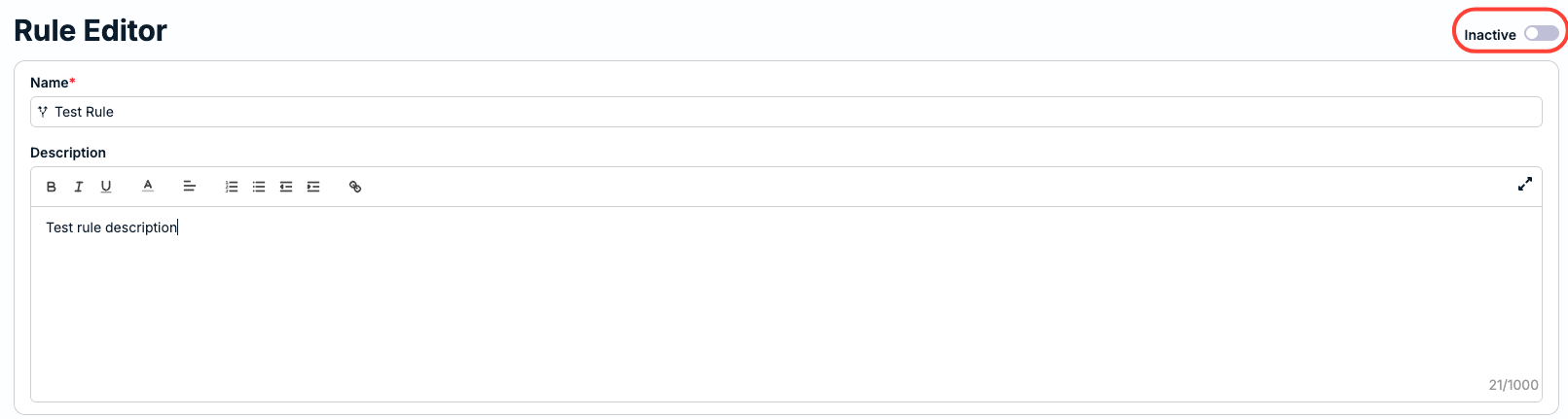
- Name
- Description (use the formatting bar to customize this text)
Click the top toggle button to make the rule Inactive or Active.
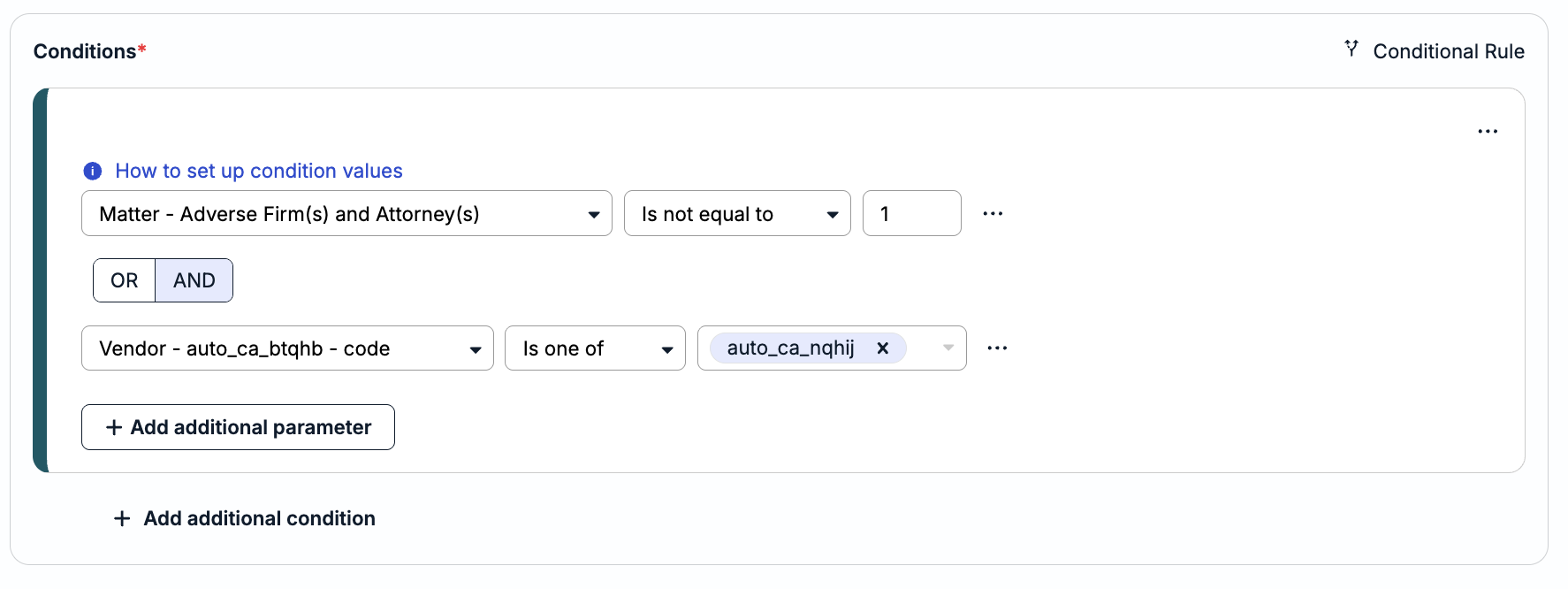
Under Conditions, you can set up the rule's conditions. Learn more about setting up condition values here. Click Add Additional Parameter and Add additional condition to add more conditions or parameters to the rule.
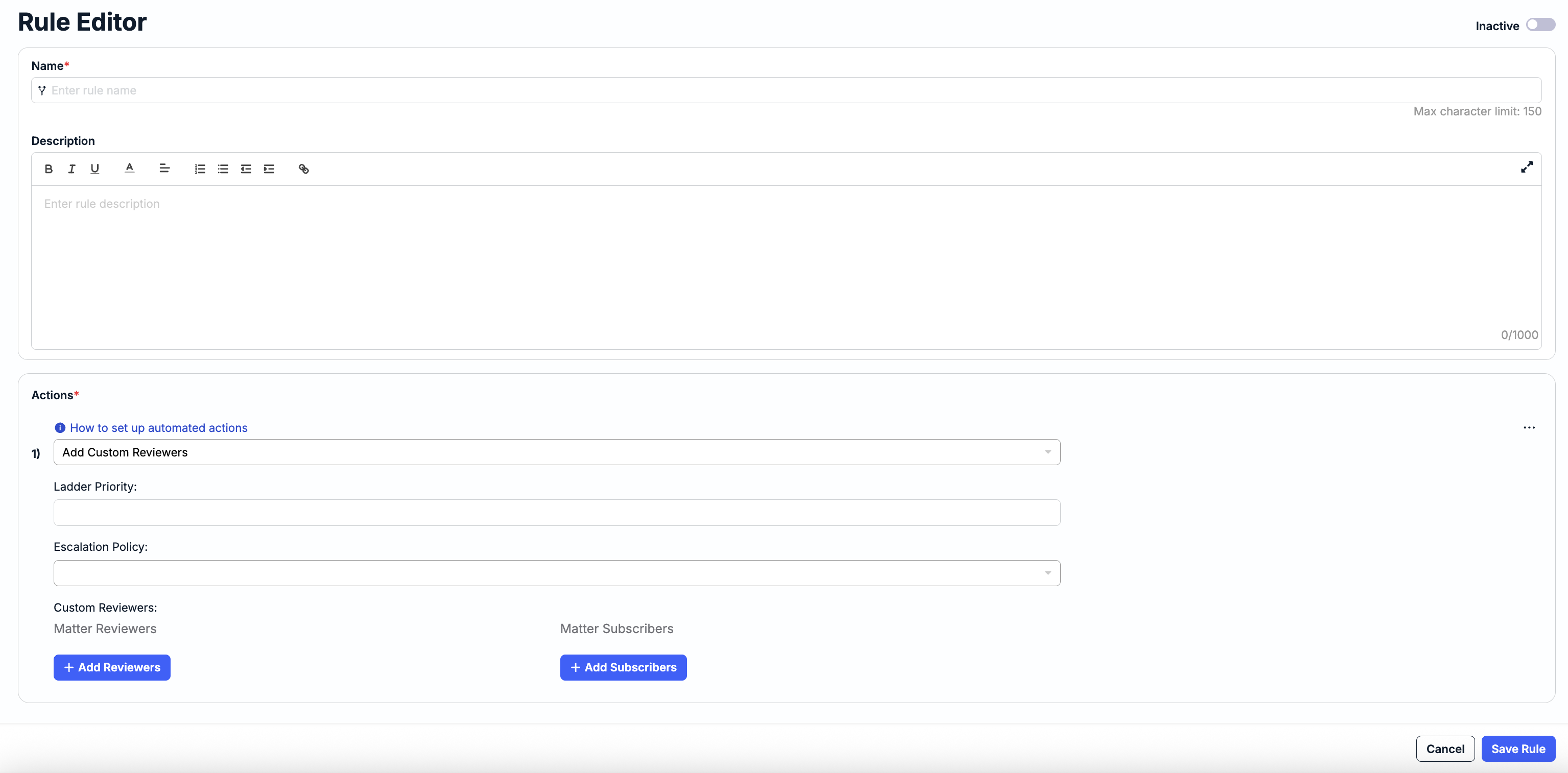
Under Actions, you can set up what happens when the matter(s) meet the defined conditions. You can choose to:
- Add Custom Reviewers. With this option, you'll have to choose the Ladder Priority and the Escalation Priority (all, none, or highest). Click the three-button menu and Delete to remove the reviewers.
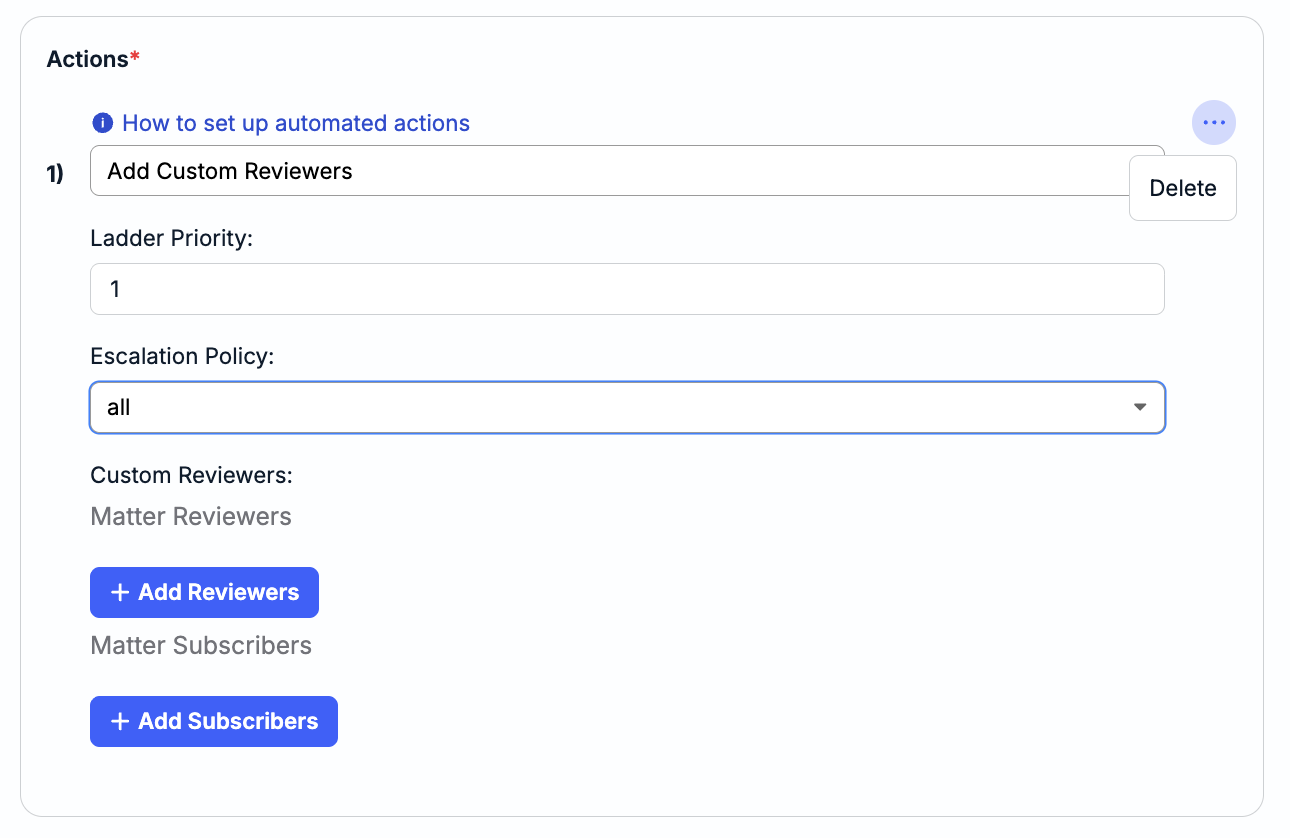
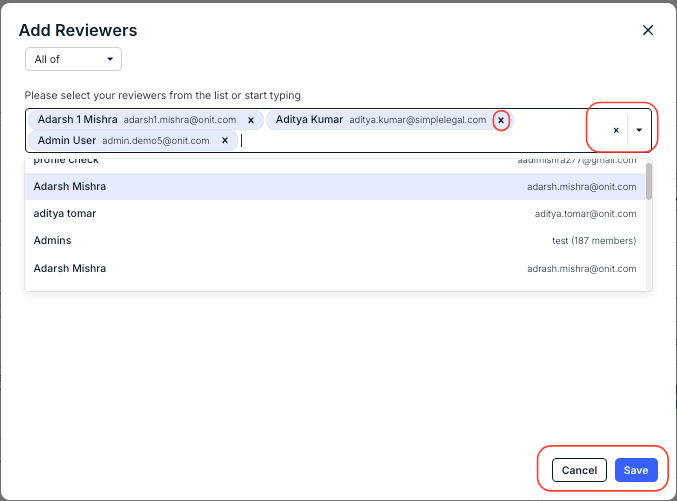
Click the +Add Reviewers button to add reviewers from the drop-down menu. You can add one reviewers or multiple reviewers en masse. Once you pick out your reviewers, they will appear on the selected list. Click the X next to the reviewer name to remove the selected reviewer. Click Save to save the added reviewers or Cancel to back out.
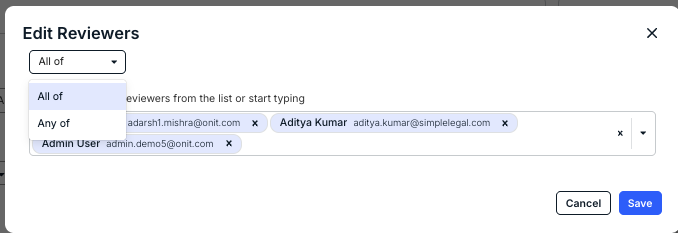
You can choose All of or Any of the selected reviewers.
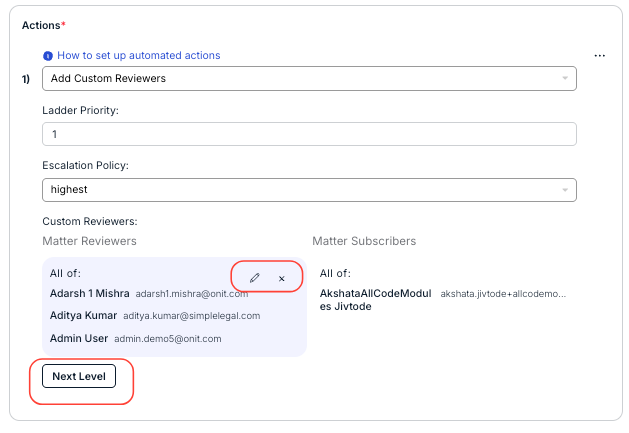
Once saved, you can click on the Edit (pencil) icon to edit or Delete (X) icon to remove.
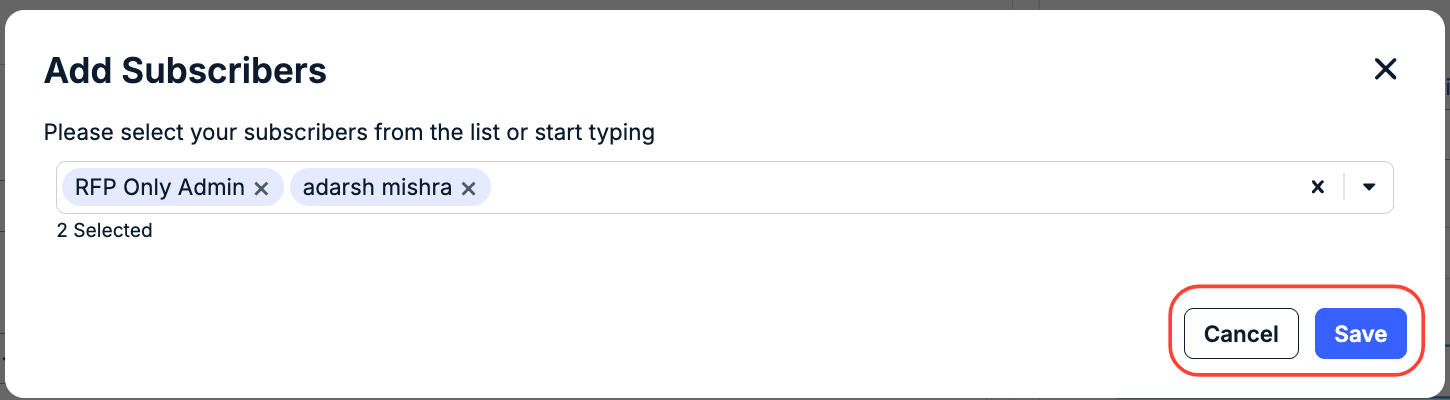
Click +Add Subscribers to add subscribers from a drop-down menu. Select the subscribers from the drop-down menu; you can use the X option to remove the selected subscribers. Click Save to save the added subscribers or Cancel to back out. Once saved, you can click on the Edit (pencil) icon to edit or Delete (X) icon to remove.

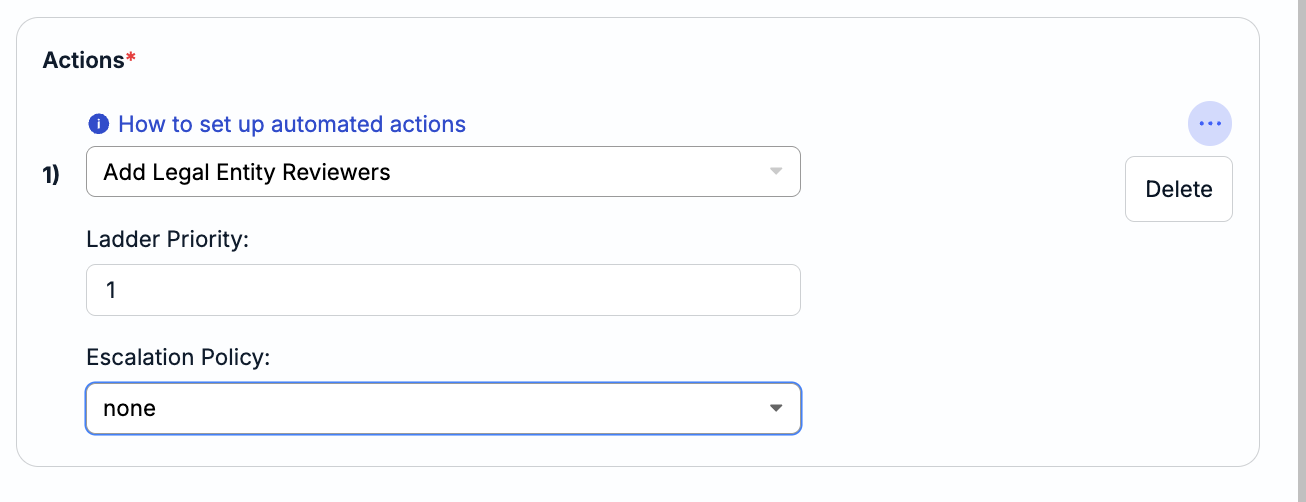
- Add Legal Entity Reviewers. This will add all of the designated legal entity reviewers to look at the matter. You'll have to choose the Ladder Priority and Escalation Priority (all, highest, none). Click the three-button menu and Delete to remove the reviewers.
- Unconditional rules run whenever a matter is created.
You'll have to fill out the Name, Description, and any Actions. You can also use the top toggle button to make it Active or Inactive. Click Save to save the rule or Cancel to back out.
- Standard rules include conditions such as business-unit or amount thresholds.
The rule will appear in the main rules directory. Click the three-button menu under Actions and then Edit to edit the rule. You can also hit Clone to copy the rule or Delete to remove the rule.
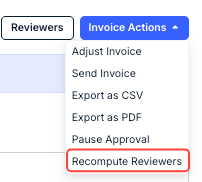
NOTE: New matter review rules added to matters do not apply retroactively. Use the Recompute Reviewers button under the Invoice Actions menu to update the matter.