Unity ELM provides legal operations software to streamline the way corporate legal departments manage their matters, track and interpret spend, and collaborate with law firms and other vendors. By combining e-billing, matter management, accruals automation, and advanced reporting into a single, comprehensive solution, we centralize the functions and data necessary to make informed decisions and manage your entire legal department more efficiently.
In this section, we'll take you step-by-step on how to get started with Unity, including accessing your account/working with your passwords, navigating the platform, customizing your user profile, and more.
Accessing and Maintaining Your Account
Activation and Password Setup
Once you're added to Unity, you'll receive an email that looks like this in your inbox. It will detail your login name and include a link to activate your account. The link is valid for three days.
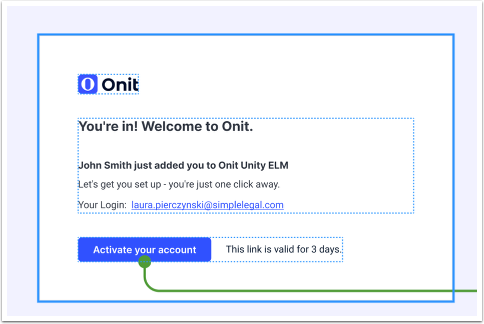
Emails are sent from [email protected] (unmonitored). Add this address to your safe-sender list if messages land in spam.
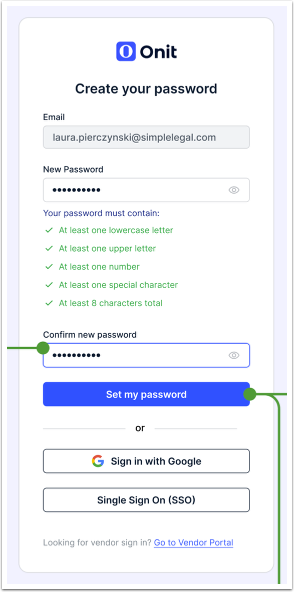
Once you click on the Activate your account link, you’ll be taken to the Create your password page. Your email will automatically be filled in; you’ll just have to create and confirm a new password.
The password must contain:
- At least one lowercase letter
- At least one uppercase letter
- At least one number
- At least one special character
- At least 8 characters in total
Once you fill in your password (note that you can click the eye symbol in each field to view what you’ve entered), you can click Set my password.
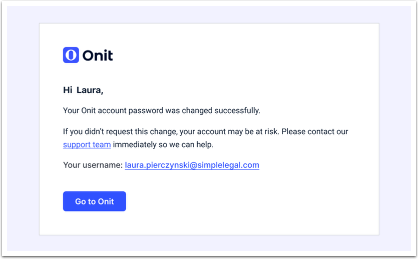
You'll receive an email confirming your new account password and containing a link to go to Unity ELM.
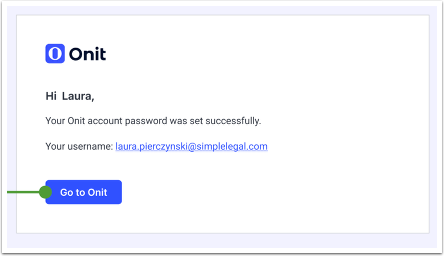
Click Go to Onit to access the login screen.
Forgot Password?
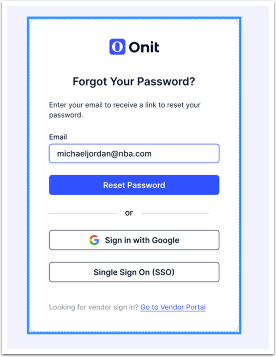
Forgot your password? To reset your Unity password, click the Forgot Password link on the sign-on screen.
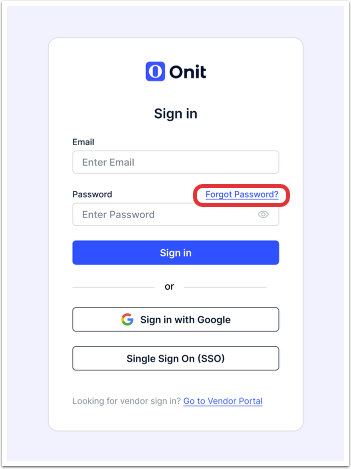
The Forgot Your Password? screen will appear. Fill in your email address and click Reset Password to receive a password reset link in your inbox.
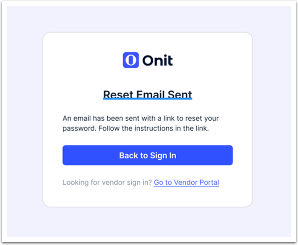
The email will contain a link to reset your password; this link expires 24 hours after it is generated for security reasons.
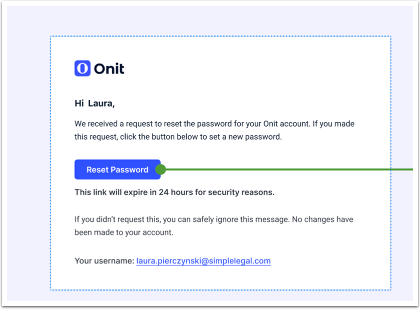
Once you click on Reset Password, you’ll be taken to the Create a new password screen. Fill in and confirm the new password. Note that you can click the eye symbol in each field to view what you’ve entered.
A reminder: The password must contain:
- At least one lowercase letter
- At least one uppercase letter
- At least one number
- At least one special character
- At least 8 characters in total
Click Save New Password to update the password.
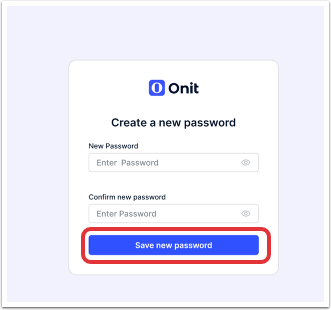
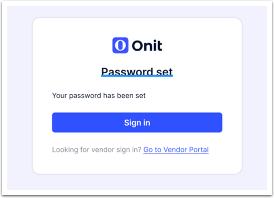
If successful, you'll receive a Password set notification on the screen along with an email confirmation.
Logging in to your Account
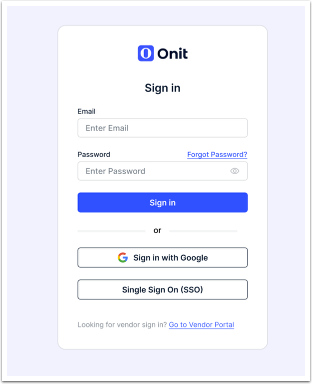
Once you navigate to the Unity platform, you'll be directed to the login page. Fill out your Email and Password to log in to the platform.
Note that you can click on the eye symbol in the password field to show what you've typed in.
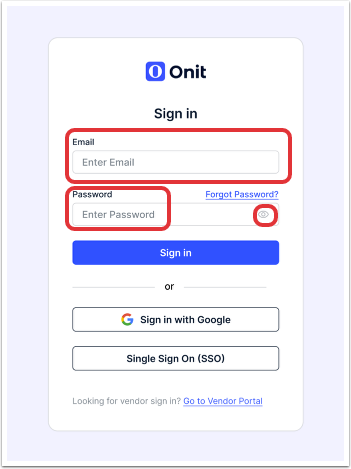
If the email and password are entered correctly, you'll go directly to the main screen.
Changing Your View (Comfortable/Cozy)
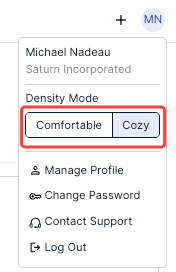
Click into the User icon at the top right of the top navigation bar to toggle between Comfortable and Cozy views.
The Comfortable view offers larger fonts, while Cozy is more compact (denser layout).
Logging out of your Account
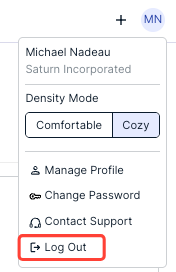
To log out of your account from within Unity ELM, go to the User icon on the top right of the top navigation bar and click on Log Out.
From there, you'll go to the standard login page.
Changing Your Password
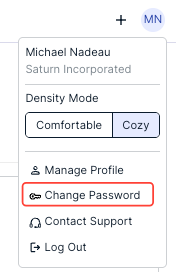
To change your password, go to the User icon on the top right of the navigation bar and click on Change Password.
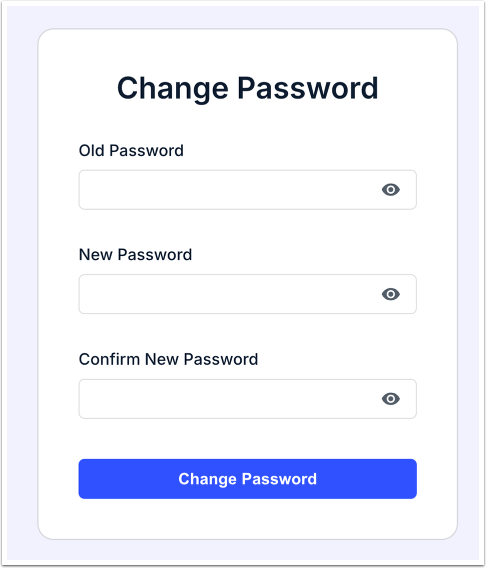
The Change Password screen will appear. You’ll need to enter your old password and then fill in and confirm a new one. Note that you can click the eye symbol in each field to view what you’ve entered.
A reminder: The password must contain:
- At least one lowercase letter
- At least one uppercase letter
- At least one number
- At least one special character
- At least 8 characters in total
Click Save New Password to update the password or Cancel to back out.
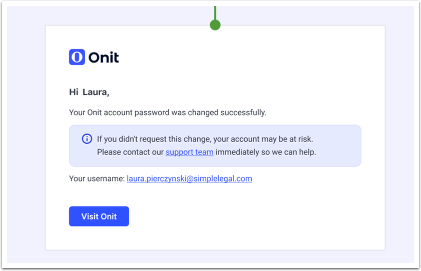
If the password change is successful, you'll receive an email confirmation of the change.
When you go back to Unity, you'll also see a top banner confirming the password change.

Session timeout
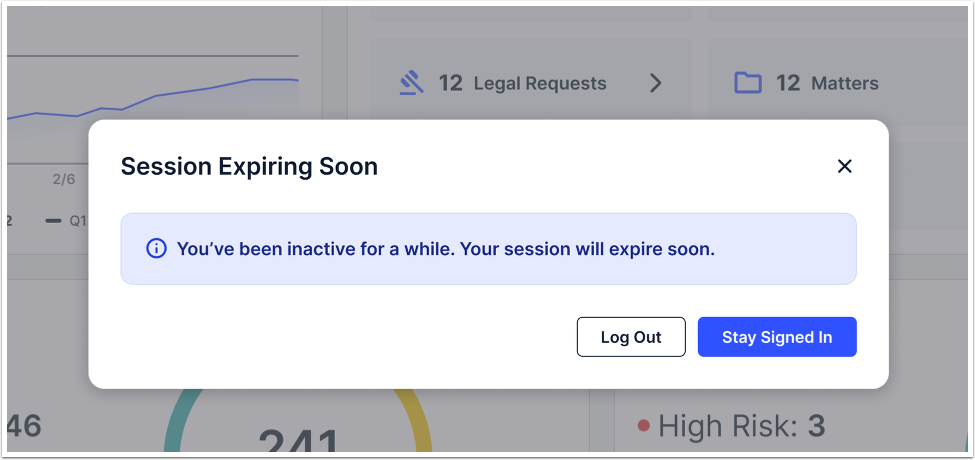
Unity users who are inactive for longer than 30 minutes are automatically logged out for security reasons.
This message will appear before the session timeout; click Stay Signed In to remain on the platform or Log Out to log out.
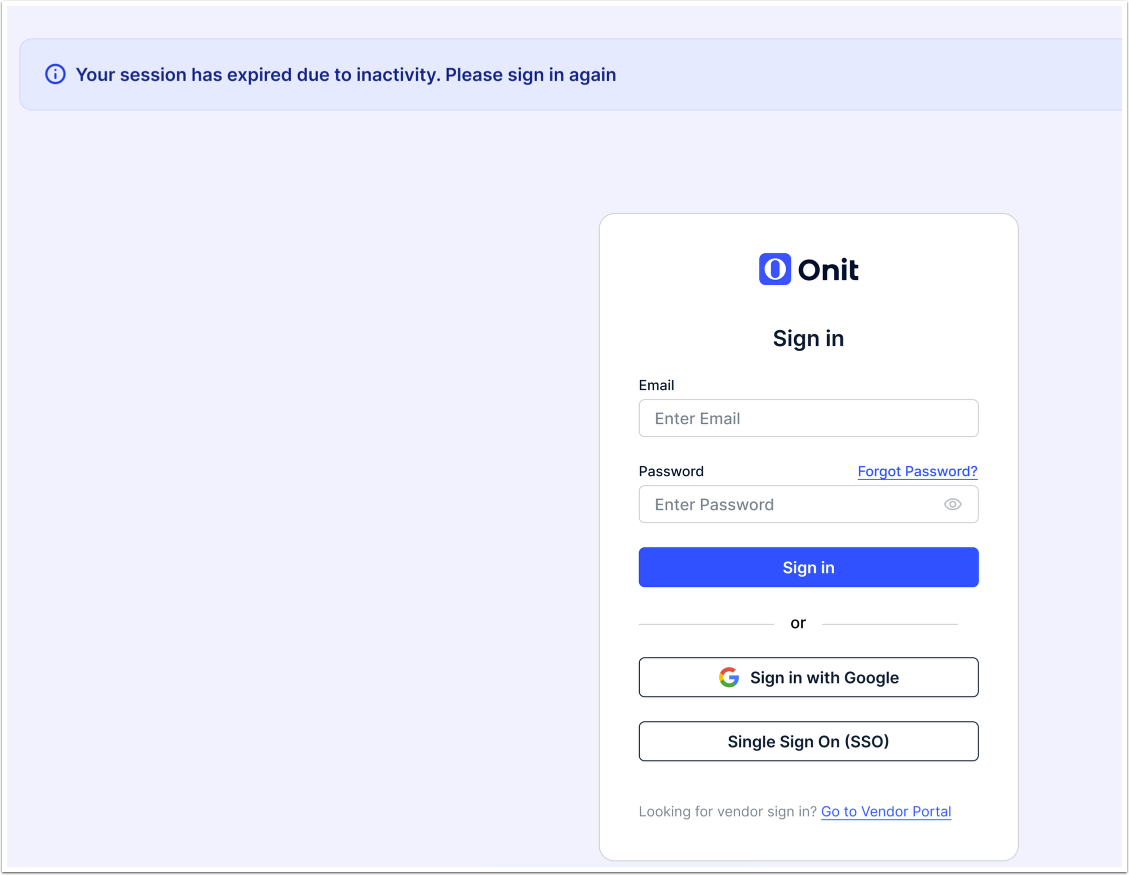
If the session expires, you'll see a banner message stating Your session has expired due to inactivity. Please sign in again. You will have to sign in again to access the platform.
Contacting Onit Support
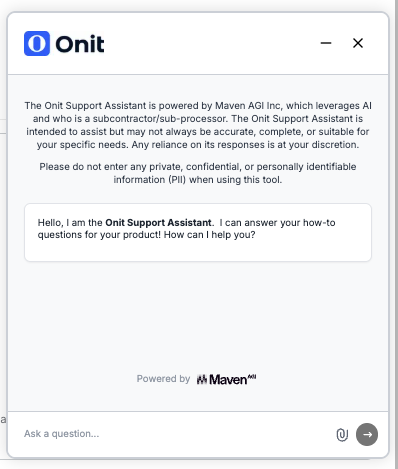
For Unity assistance, click on the Contact Support link within the user profile.
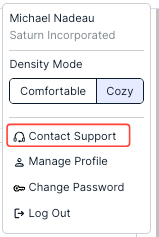
You'll open up the Onit Support chat screen. Click here to learn more about using Onit Support.
Managing Your User Profile
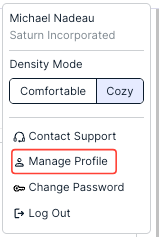
Click on Manage Profile to go to your User Profile.
On the profile, you can click the Star next to the person's name to add them to the starred tab.

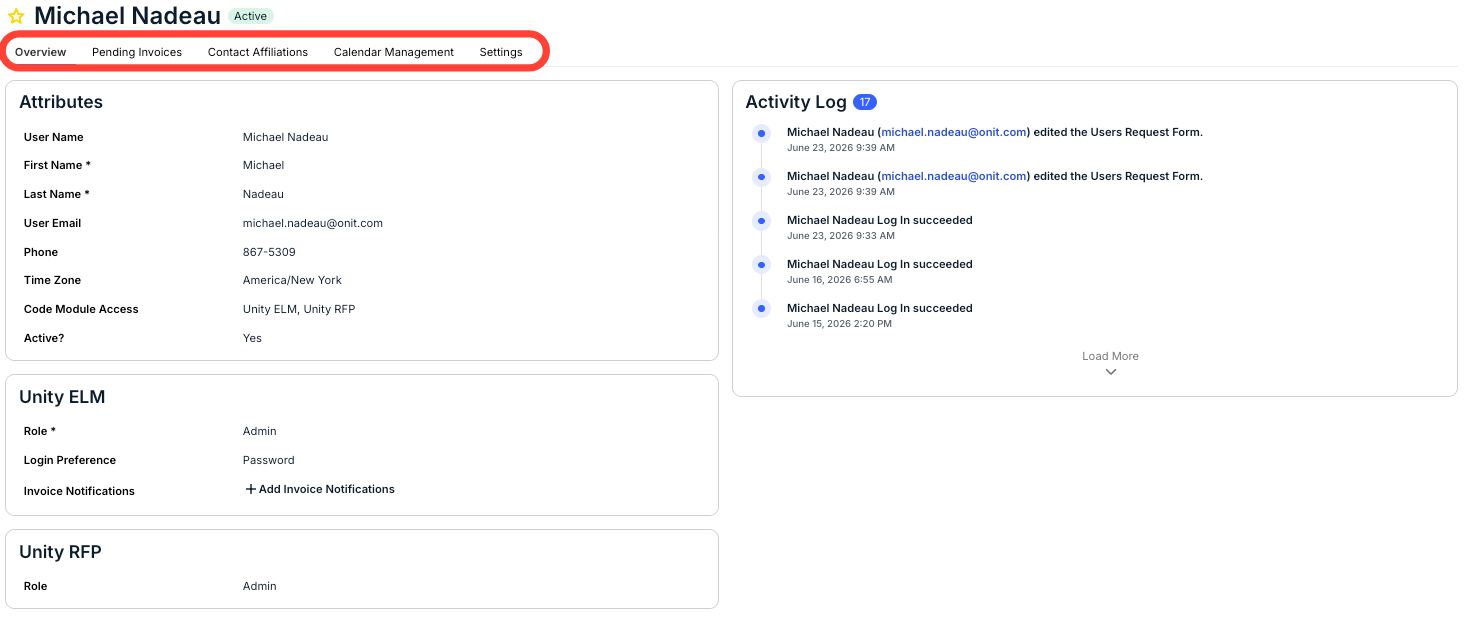
The Profile page is divided into five tabs:
- Overview
- Pending Invoices
- Contact Affiliations
- Calendar Management
- Settings
We'll go through these tabs here.
Overview
The Overview tab details key profile information, including Attributes, an Activity Log, and the Products the user has access to.
Under Attributes, you can view and edit key user information, including:
User Name, First Name, Last Name, User Email, Phone, Time Zone, Code Module Access, and Active status. Note that Code Module Access and Active fields cannot be edited.
To edit any of these attributes, click the Edit (pencil) icon as you mouse over the fields.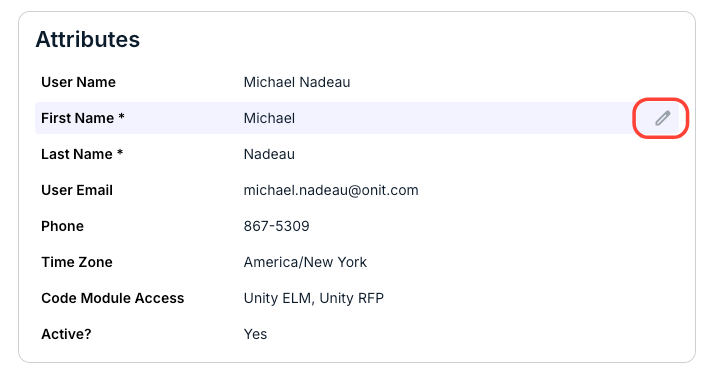
Pending Invoices
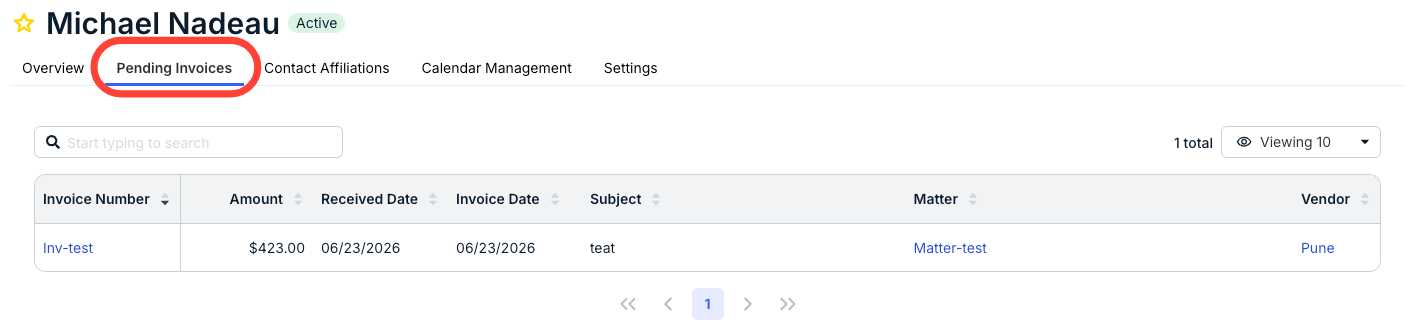
The Pending Invoices tab shows all pending invoices associated with your profile. Use the search bar to search for different invoices; you can also use the drop-down menu to display the number of invoices displayed per page.
The main page of the Pending Invoices tab will show the Invoice Number, Amount, Received Date, Subject, Matter and Vendor associated with your profile. Use the up/down arrows next to each column to sort by that column. Click on the link in the Invoice Number section or the Matter section to open that invoice or matter.
Contact Affiliations
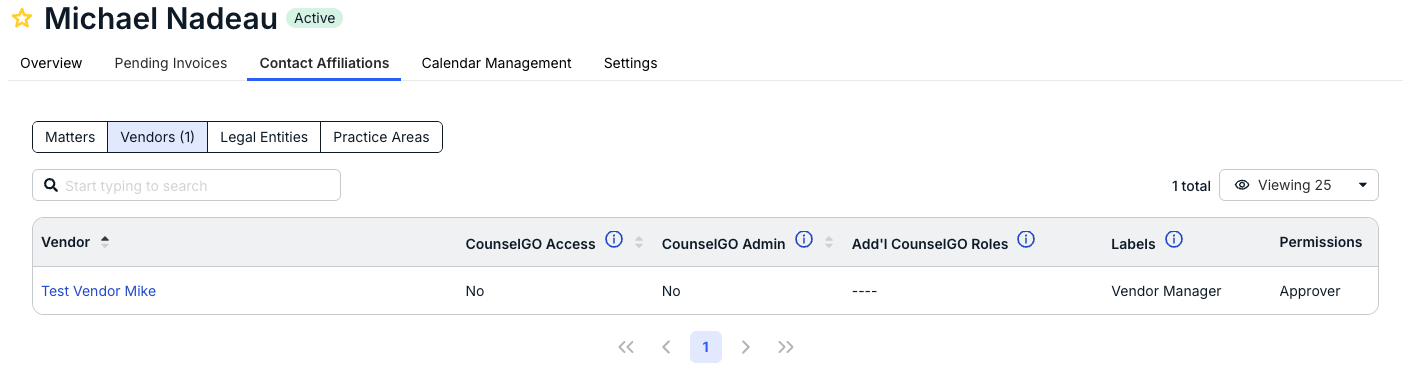
Associated matters are shown by default. Use the menu within Contact Affiliations to view which Matters, Vendors, Legal Entities, and Practice Areas the user is associated with (if applicable) along with any other important details. To open a corresponding record (e.g., matter, vendor, etc.), click on the hyperlinked name.
Calendar Management
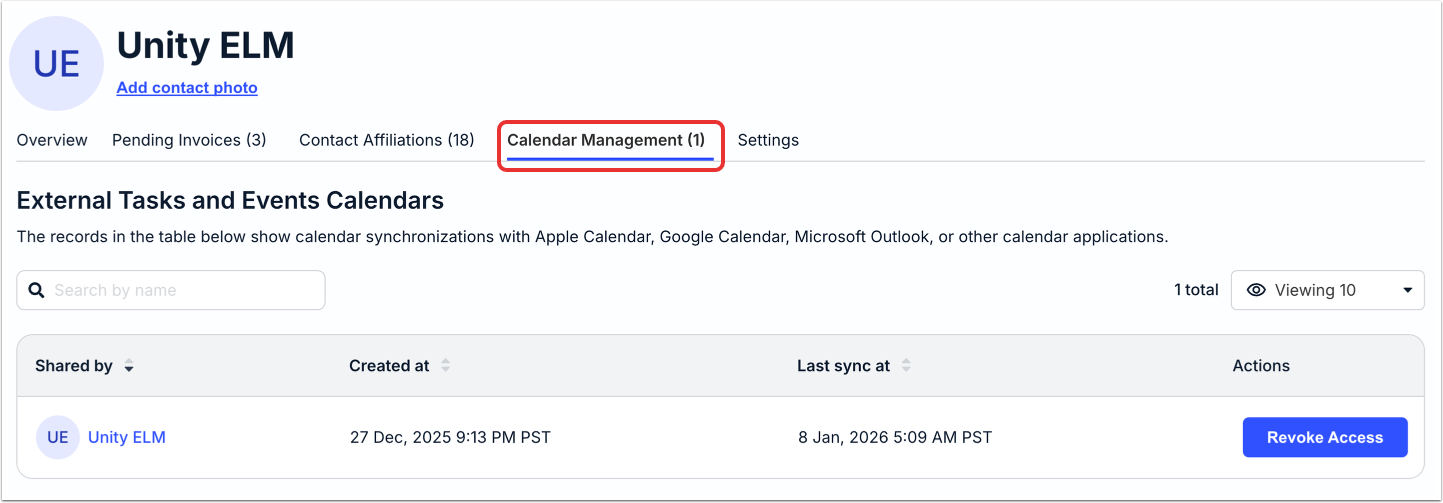
Use the Calendar Management section to view calendar synchronizations with Apple Calendar, Google Calendar, Microsoft Outlook, or other calendar applications. Use the search bar to search for different tasks and events calendars; you can also use the drop-down menu to display the number of associated tasks and event calendars on the page. Use the up/down arrows next to each column to sort by that column.
The main screen will display a Shared by name, the Created at time, the Last sync at time, and the option to Revoke Access under Actions.
Settings
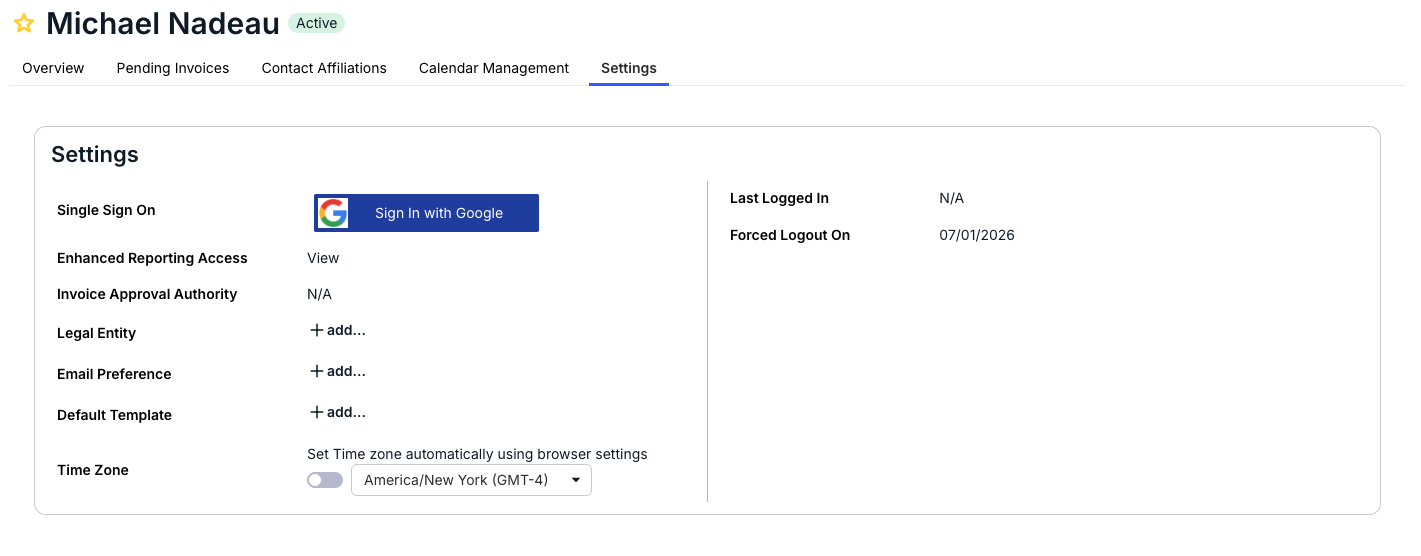
Under Settings, you'll be able to tweak some of the important contact settings. Click on the Edit (pencil) or +add buttons to edit or add:
- Single Sign On
- Enhanced Reporting Access
- Invoice Approval Authority
- Legal Entity information
- Email preference
- Default template information
- Time Zone information (you can also toggle to Set Time zone automatically using browser settings)
You can also see the Last Logged In and Forced Logout On information.
Profile Actions
Click the Actions button in the profile to open a drop-down menu that will allow you to:
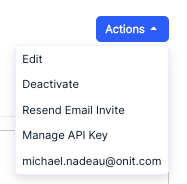
- Edit the user record
- Deactivate the user
- Resend Email invite
- Manage API Key
- Directly email the user