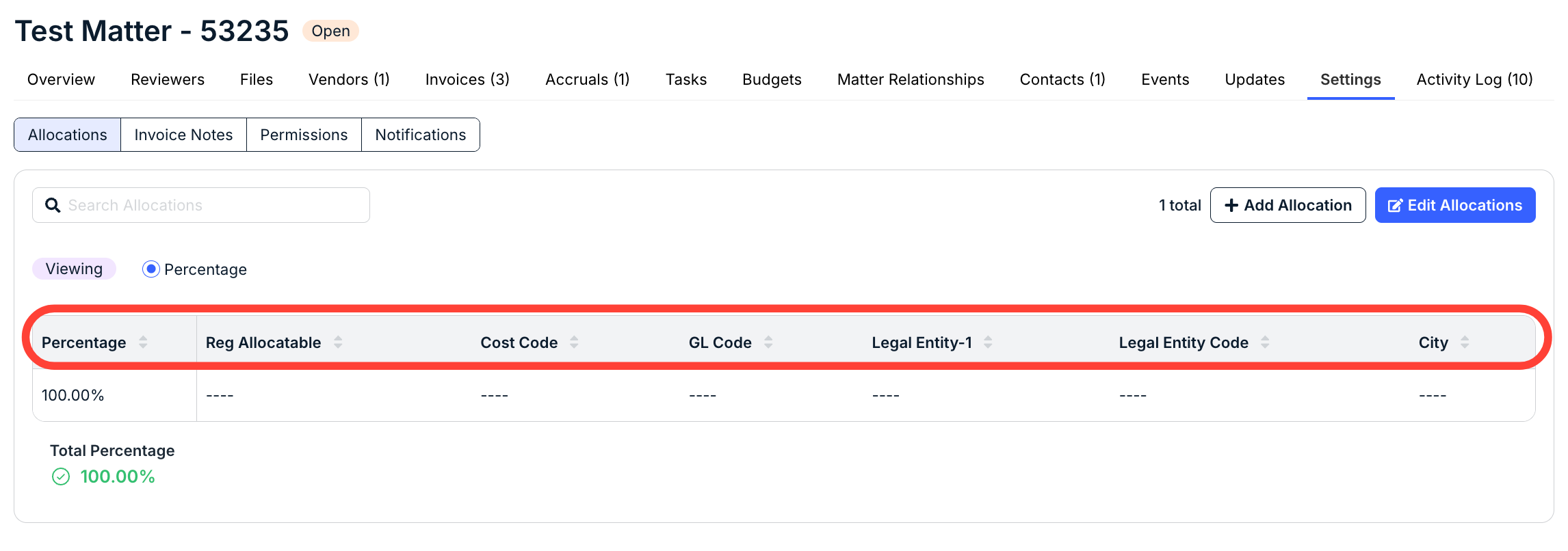
Go to Settings > Custom Labels to further customize Unity based on your organization's needs. Admins can do the following from this menu:
- Customize labels for key fields used for allocations and other data capture (i.e., Cost Code, Legal Entity, and Matter Group)
- Set a default matter template for new matter creation (users can select a different template as needed)
- Add custom contact roles for use on matter and vendor records (these are for informational purposes only)
- Change the order of allocatable custom attribute lists for allocations setup on matter templates & matters
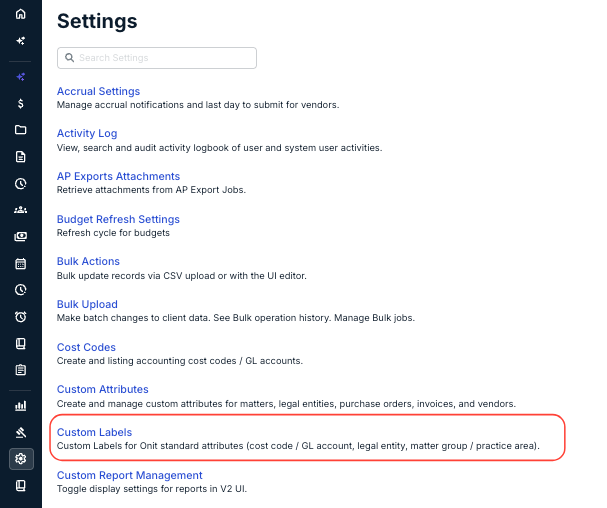
Update Labels for Key Fields
From the System Configuration tab, you can customize the default field labels to match your organization's terminology for the following:
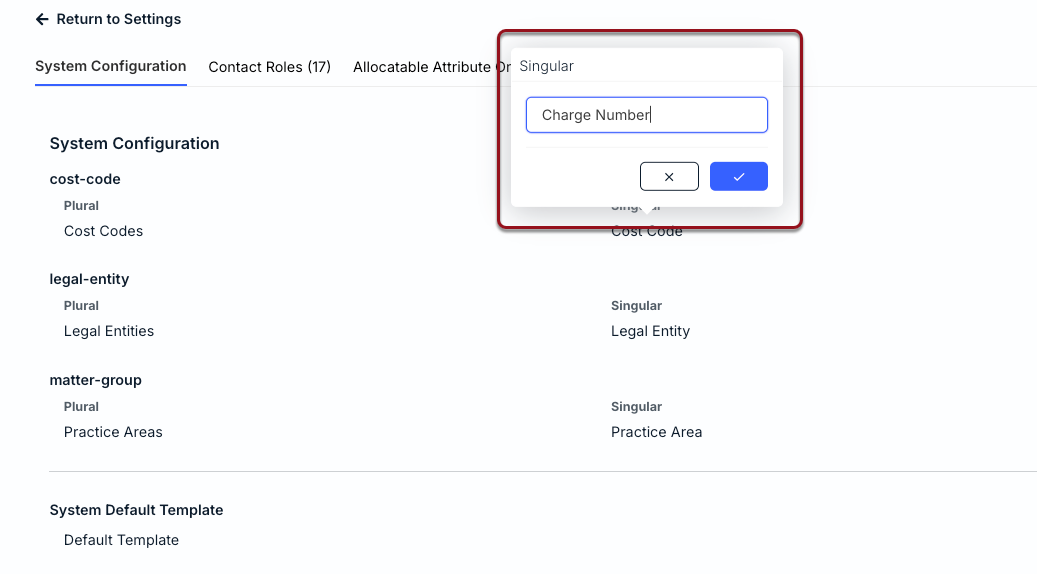
- Cost Codes (e.g., some organizations use the term Charge Number or Billing Codes)
- Legal Entities (e.g., some organizations use the term Company or Business Entity)
- Matter Group (e.g., some organizations use the term Practice Area or Practice Group)
Click on the values under Plural and Singular to modify the labels and then click the checkmark.
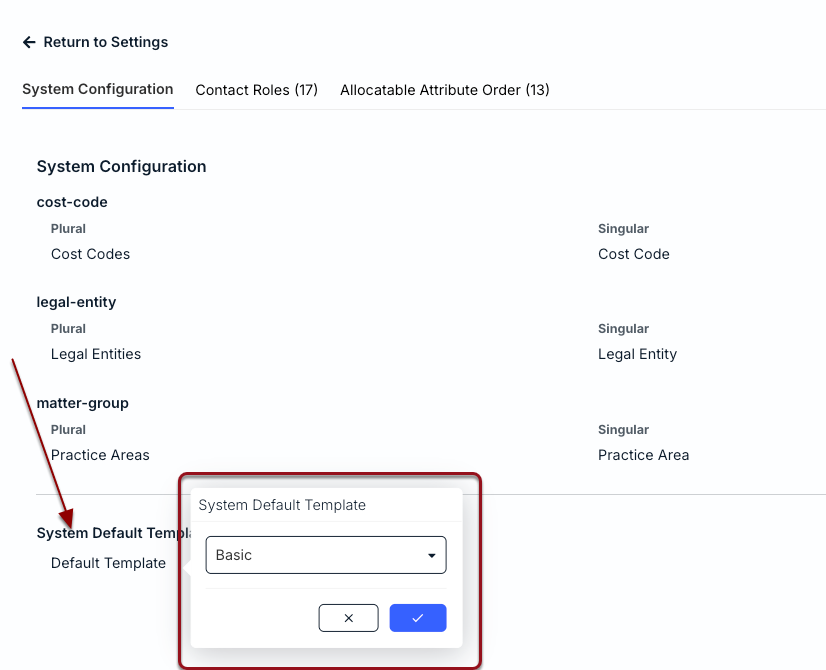
Set a Default Matter Template
From the System Configuration tab, click under System Default Template to choose the matter template that should auto-populate when users are creating new matters. Click on the checkmark to save your change.
Custom Contact Roles
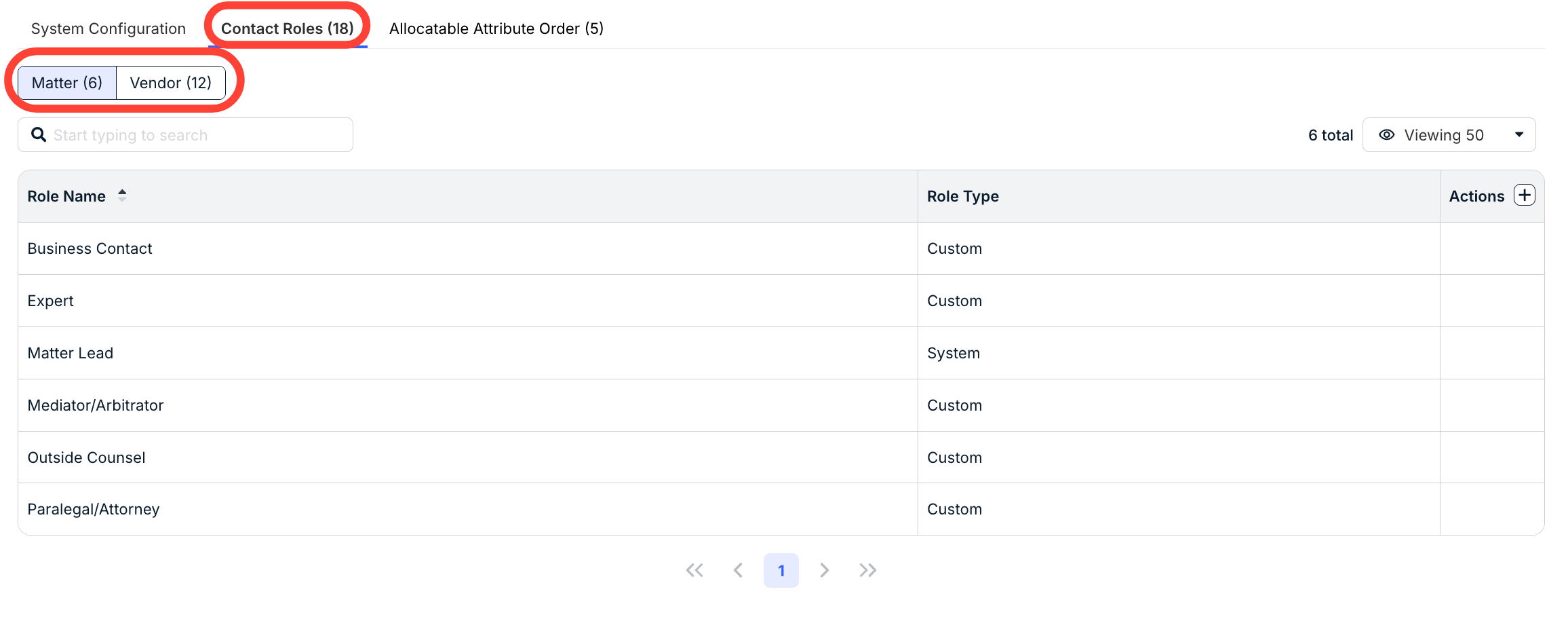
Here, you can switch between Matter and Vendor contact roles.
Under the Matter contact roles, you can see the Role Name and Role Type. Click the up/down arrow to sort by the role name. Click in the Search bar to search through the roles. Use the + button under Actions to customize table columns. Use the Viewing drop-down menu to see how many roles you want on the screen.
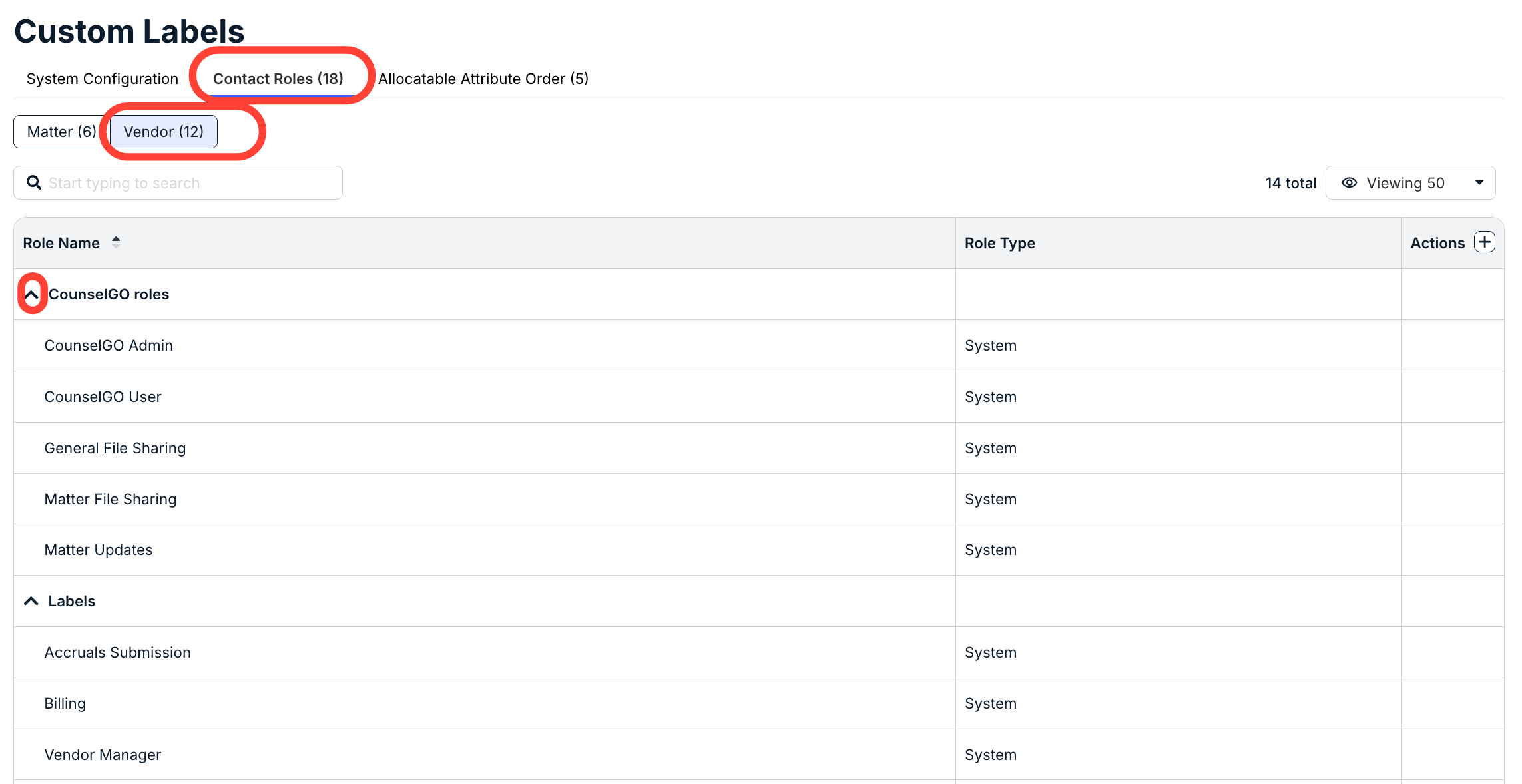
Under the Vendor contact roles, you can see the Role Name and Role Type. Click the up/down arrow to sort by the role name. Click in the Search bar to search through the roles. Use the + button under Actions to customize table columns. Use the Viewing drop-down menu to see how many roles you want to see on the screen. Use the up/down arrows under each main role grouping to expand or collapse the details.
Allocatable Attribute Order
The Allocatable Attribute Order tab displays the built-in allocatable system attributes (i.e., Legal Entity and Cost Code), along with any custom attribute lists that have been: 1) marked as allocatable and 2) scoped to matters.
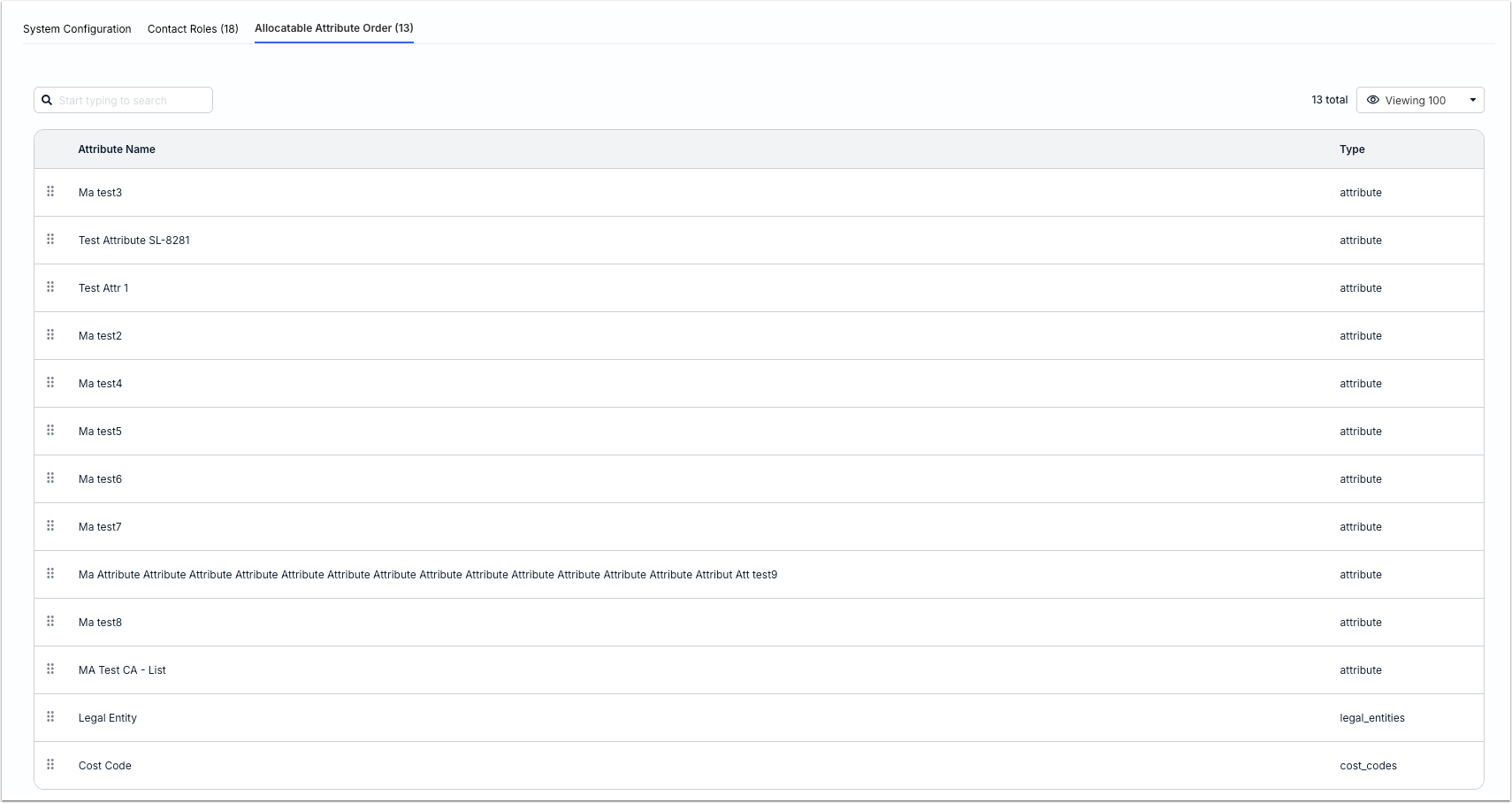
Use the drag-and-drop handles on the left to change their order. This will impact how they are displayed under the Allocations sections of the matter template form and any matter records (see image below).