User Teams are groups of users that can be assigned as invoice reviewers so that individual users do not have to be assigned each time. This can simplify tasks at the invoice level and also help avoid delays or missed invoice reviews. For example, if invoice reviews for a vendor with a high volume are always handled by one of three specific people, those three people can be added to a User Team and assigned as a reviewer under that vendor record. In addition, if one of the members of the group is on vacation or on temporary leave, this ensures that other team members are being notified when invoice reviews require attention.
This article covers the following:
- Adding a User Team
- Next Steps
- Assigning New Members to a User Team
- Exporting the User Team List
- Deleting a User Team
Adding a User Team
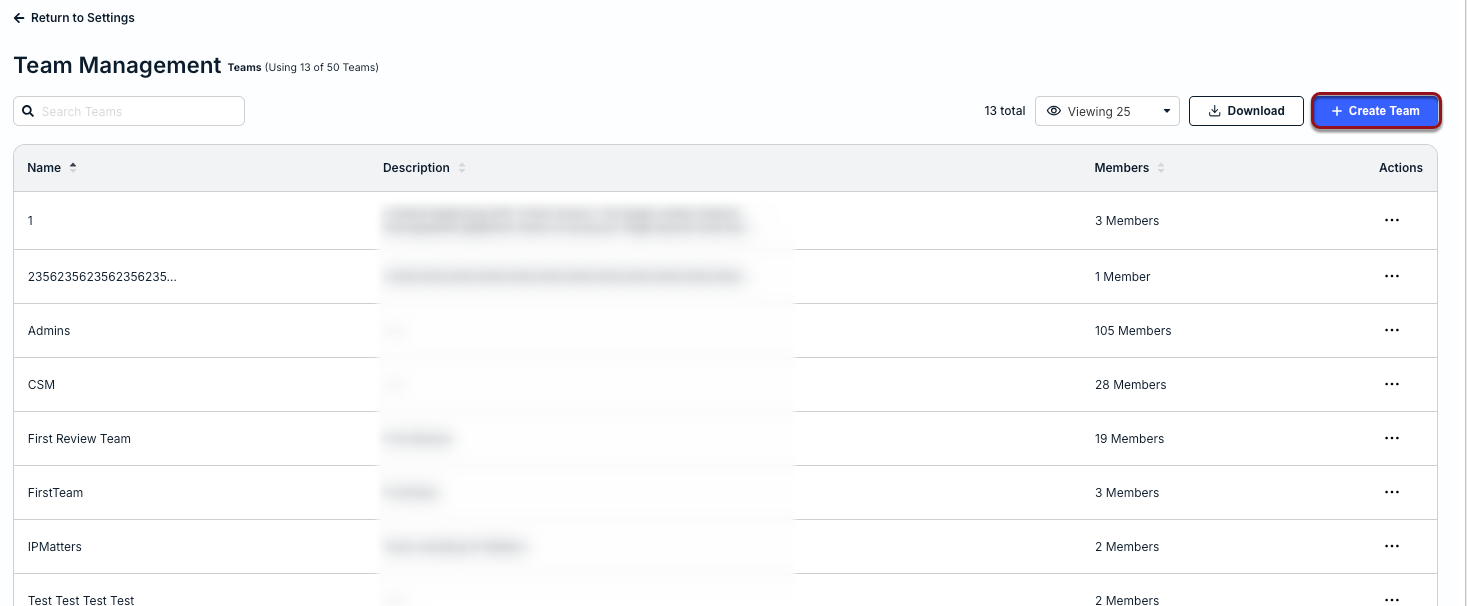
1. Go to Settings > User Teams.
2. Click + Create Team in the top-right corner.
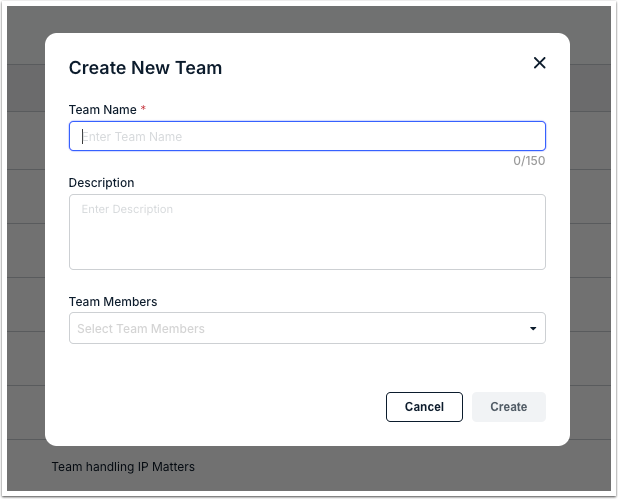
3. Enter a team name and description.
4. Choose names from the dropdown list and then click Create.
Next Steps
Once User Teams are in place, you can do the following:
- Give the User Team matter access by going to Settings > Permissions in a matter record and adjusting the group's permissions as needed.
- Assign the User Team under Invoice Reviewers from an individual invoice record.
- Assign the User Team under Invoice Reviewers OR Followers from legal entity, matter group, matter, or vendor records so that they are added to associated invoices per invoice review rules.
Assigning New Members to a User Team
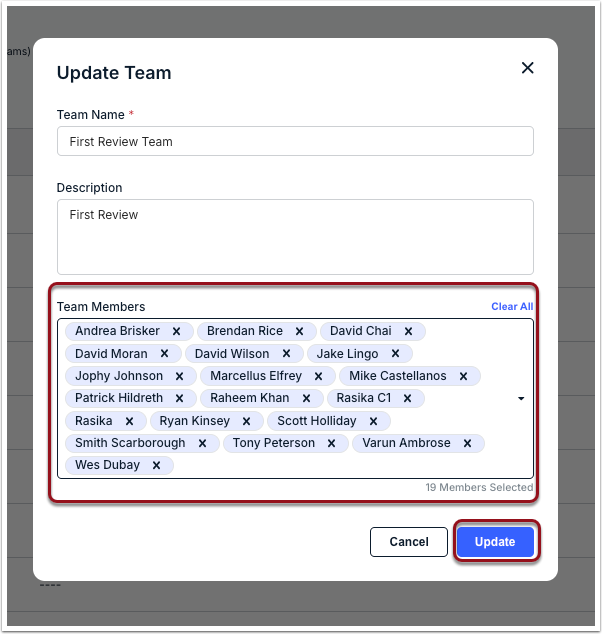
Open the User Team and add/update members under Settings > User Teams.
1. Click on the team from the list.
2. Select the user(s) from the Team Members dropdown list and then click Update.
Exporting User Teams Data
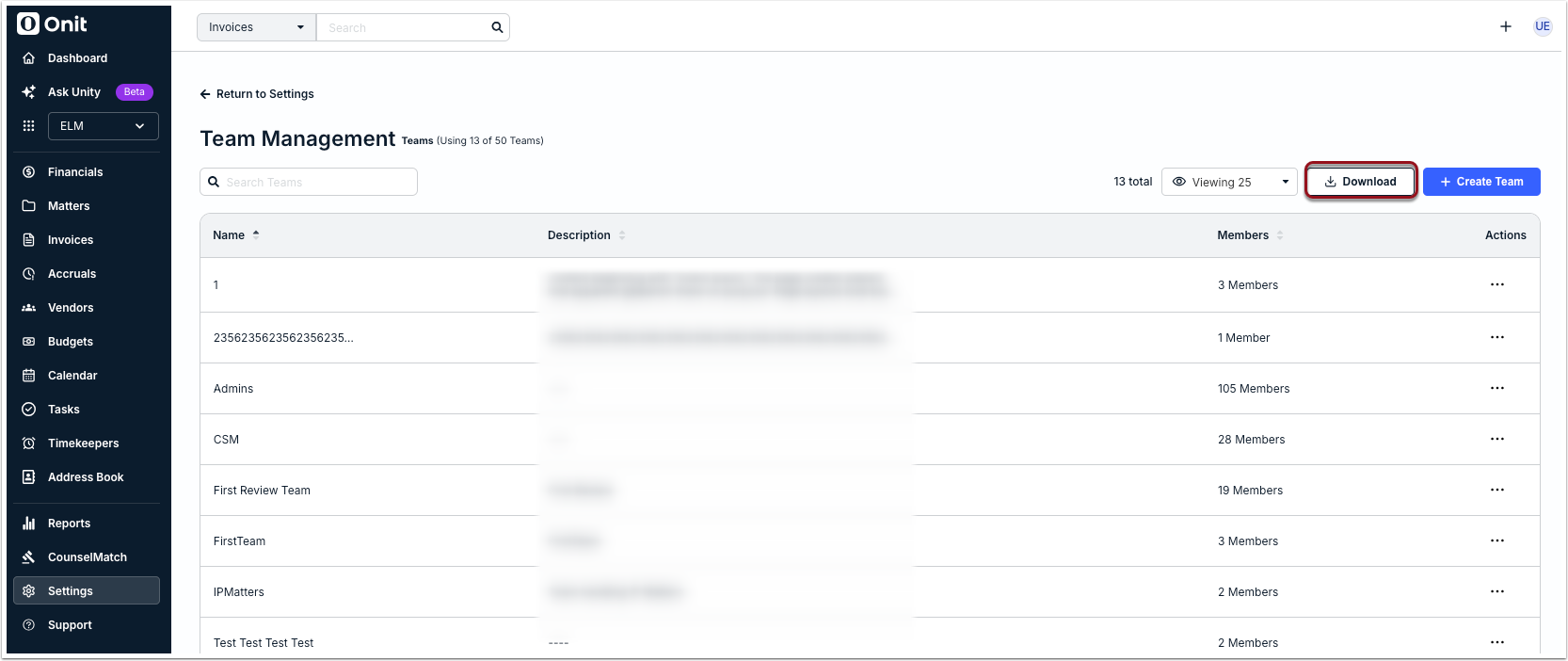
Click Download in the top-right corner to export the current view of your User Teams list. The Excel file includes the following information: Team Name, Description, Team Members, and a link to each User Team page in Unity.
Deleting a User Team
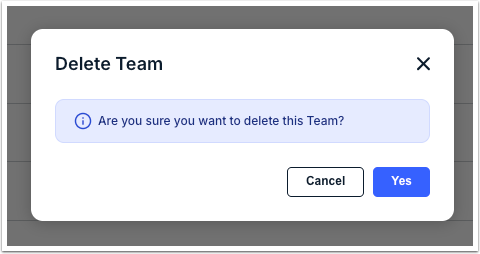
If a User Team is no longer applicable, click the ... (more) option under the Actions column and select Delete.
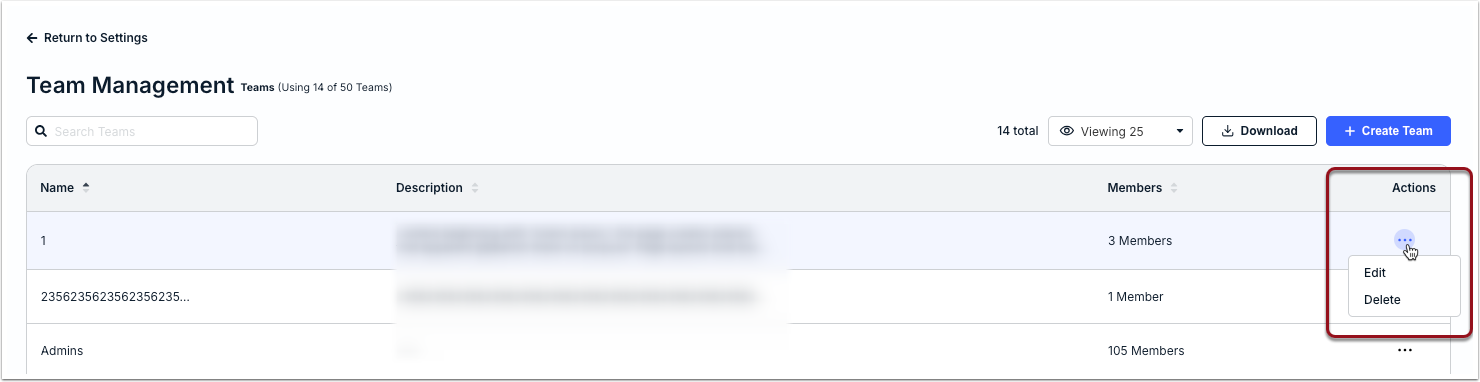
Click Yes when prompted to confirm.