All admins are notified when timekeeper rate requests are submitted by vendors, and only they can review and either approve or reject the requests. If an incoming invoice has unapproved or invalid rates, this can result in vendor payment delays, invoice auto-rejection, and other issues depending on billing rules and other settings in your environment.
In addition to standard timekeeper rates, vendors can submit matter-specific rates for approval by customers. If there are spot rates or exceptions that need to be considered based on the type of legal matter or the scope, matter-specific rates give vendors and customers more flexibility in the billing process.
Each timekeeper can have one active standard rate at a time, but matter-specific rates can be used to override the standard rate for certain matters without causing delays in invoice review or payment. For example, if a timekeeper usually bills at $500.00 but needs to support a legal matter in a different capacity, they can use a matter-specific rate for line items associated with that matter only.
This article covers the following topics:
- Viewing Timekeeper Rate Information
- Approving or Rejecting Individual Timekeeper Rates
- Timekeeper Actions in Bulk
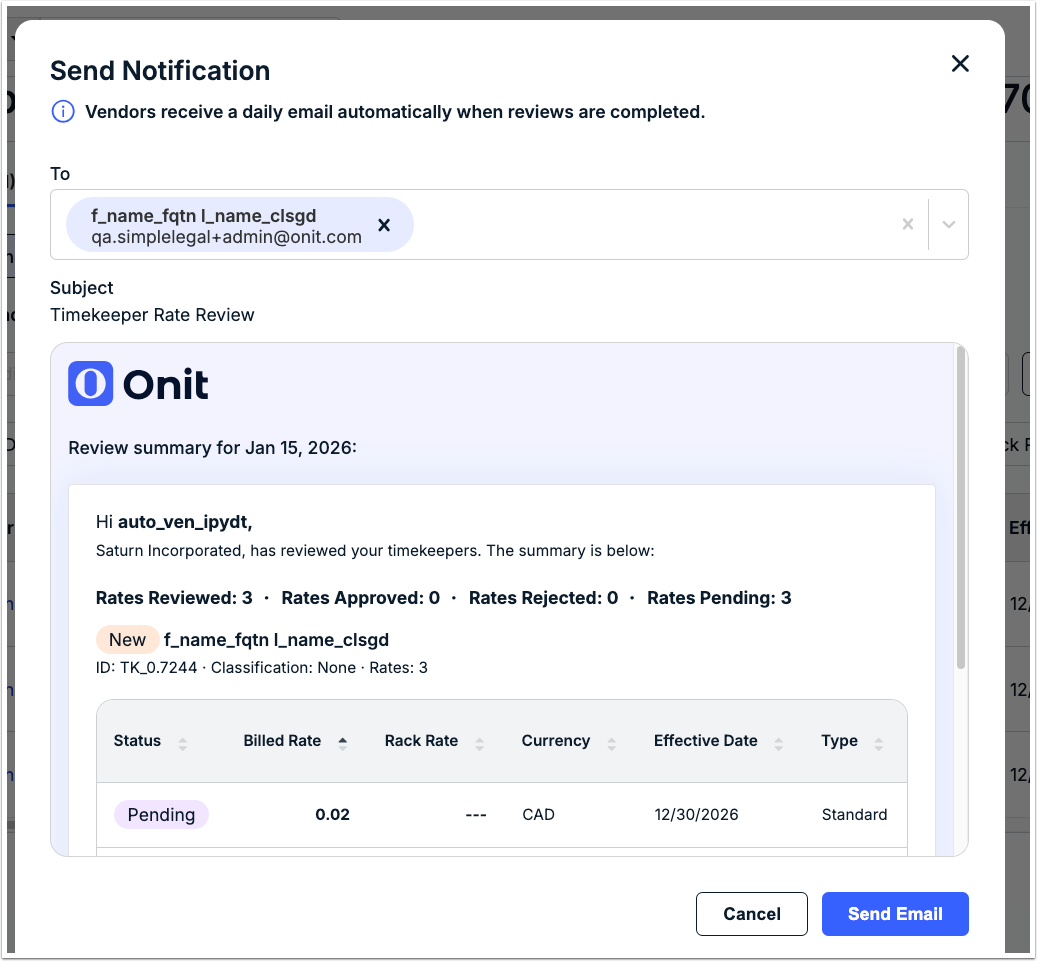
- Sending Vendor Notifications
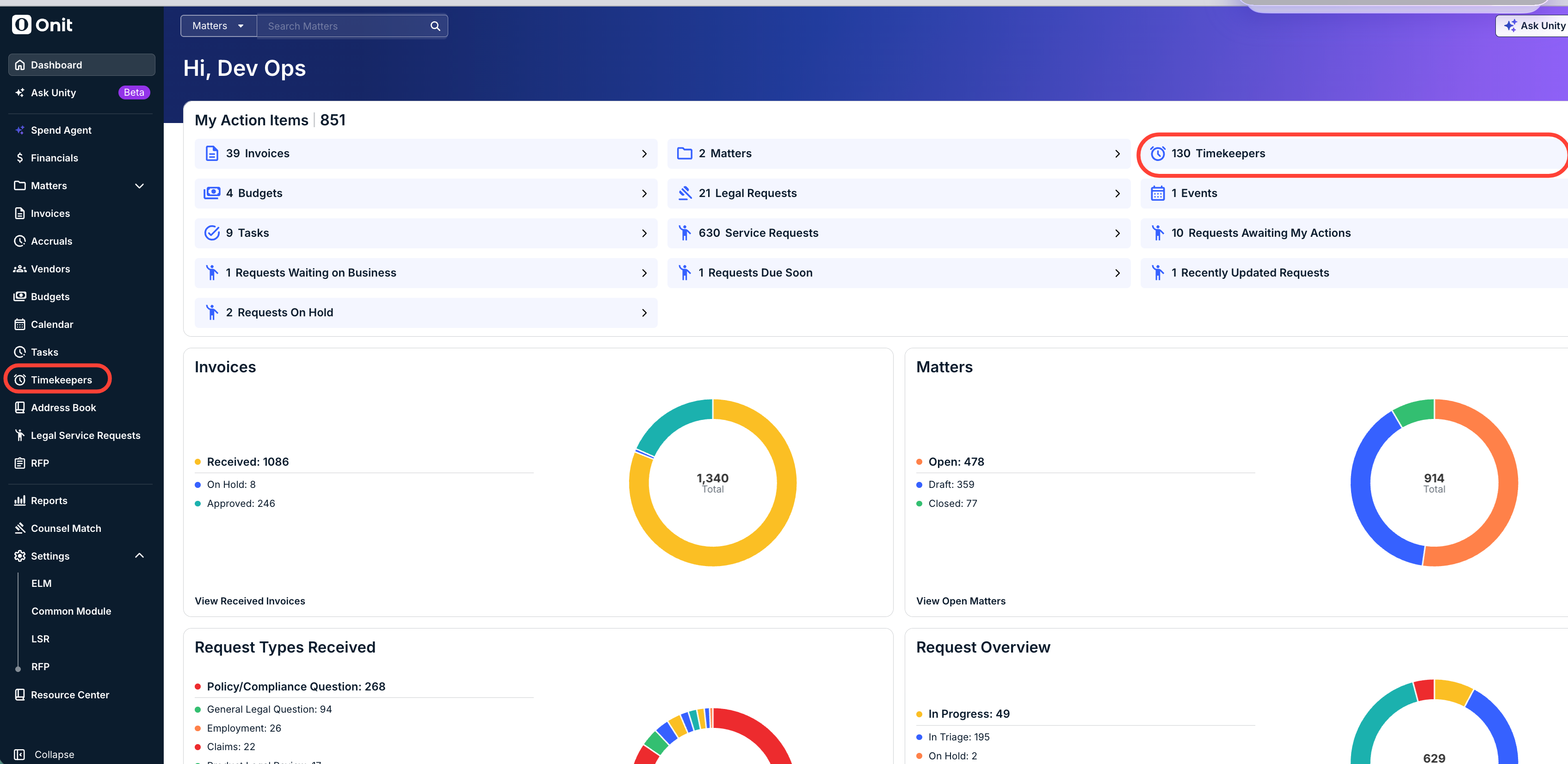
To quickly find timekeeper rates pending review, click on the Timekeepers tile under My Action Items or click Timekeepers from the left-side navigation bar.
Viewing Timekeeper Rate Information
Click on a vendor name from the Assigned to Me list to see the batch of requests.
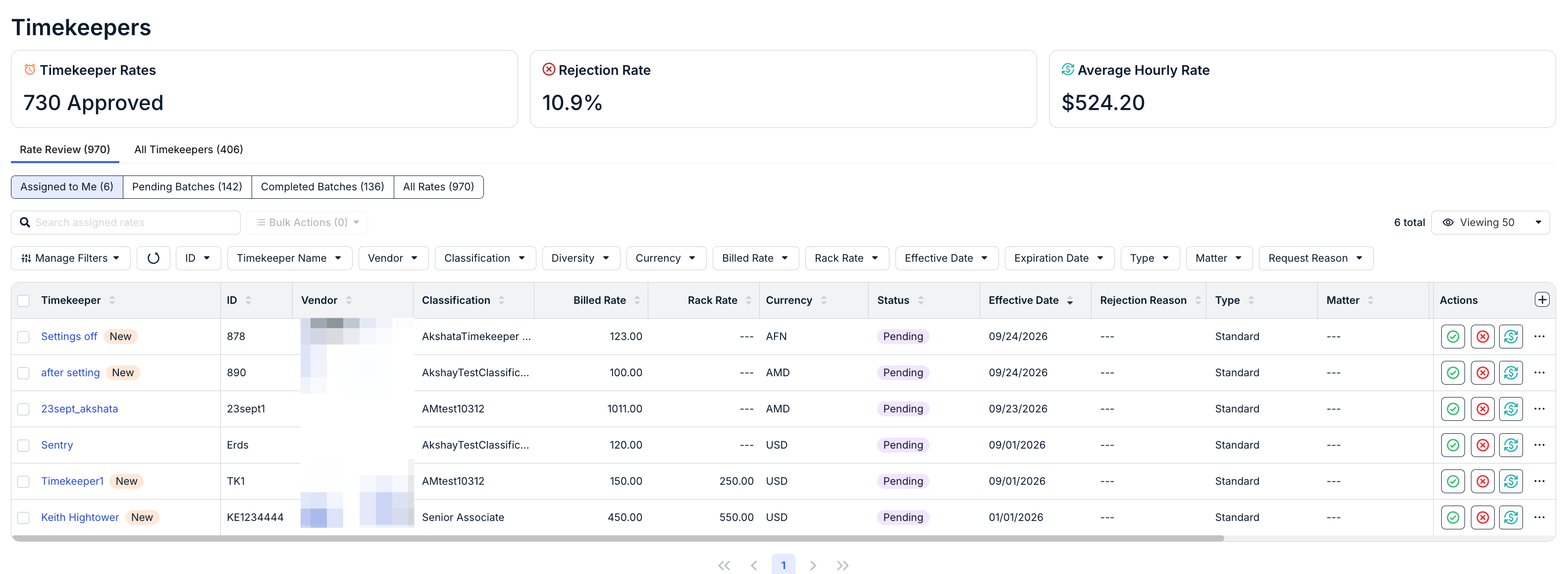
The list displays the following default columns of information for each timekeeper:
| Timekeeper | First and last name of the timekeeper. Click on the hyperlink to view their profile. |
| ID | Unique ID assigned by the vendor when the timekeeper profile was created. |
| Vendor | Vendor name. Click the link to go to that vendor's profile. |
| Classification | Role, title, or level assigned to the timekeeper (if provided). |
| Billed Rate | Hourly rate submitted for the timekeeper for review. |
| Rack Rate | Timekeeper’s official rate (greater than or equal to the Billed Rate, if provided). |
| Currency | 3-character currency code (e.g., USD, CAD, EUR, etc.) associated with the timekeeper’s Billed Rate. |
| Effective Date | Date on which the Billed Rate takes effect for billing purposes. Depending on settings in your environment, the Effective Date is used to check the validity of the timekeeper’s rate on invoice line items for flagging or other automated action. |
| Rejection Reason | Reason for the rejection. |
| Type | Displays one of the following:
NOTE: A timekeeper can have multiple matter-specific rates, if applicable. The vendor must associate the matter-specific rate by linking it to a matter name from Counsel Exchange. |
| Matter | Displays the matter associated with the timekeeper (if any) |
| Request Reason | Displays a comment icon if the vendor entered a reason for the request. Hover over the comment icon to see the notes provided. |
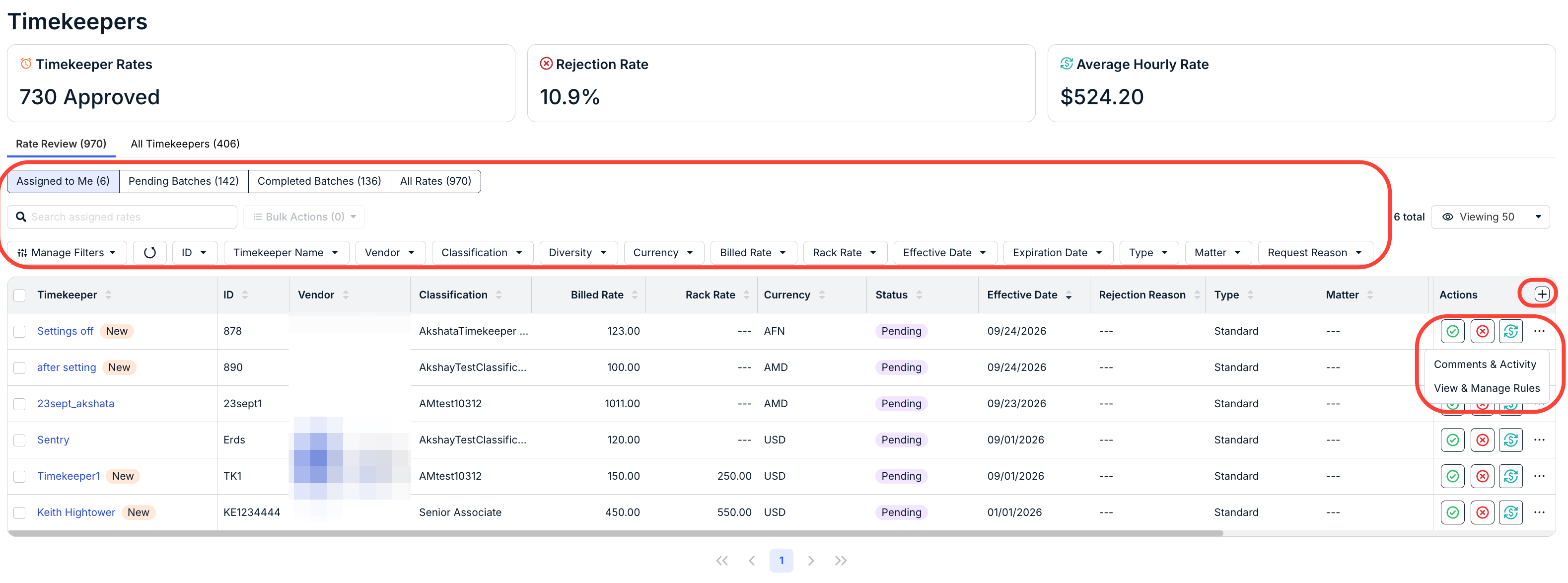
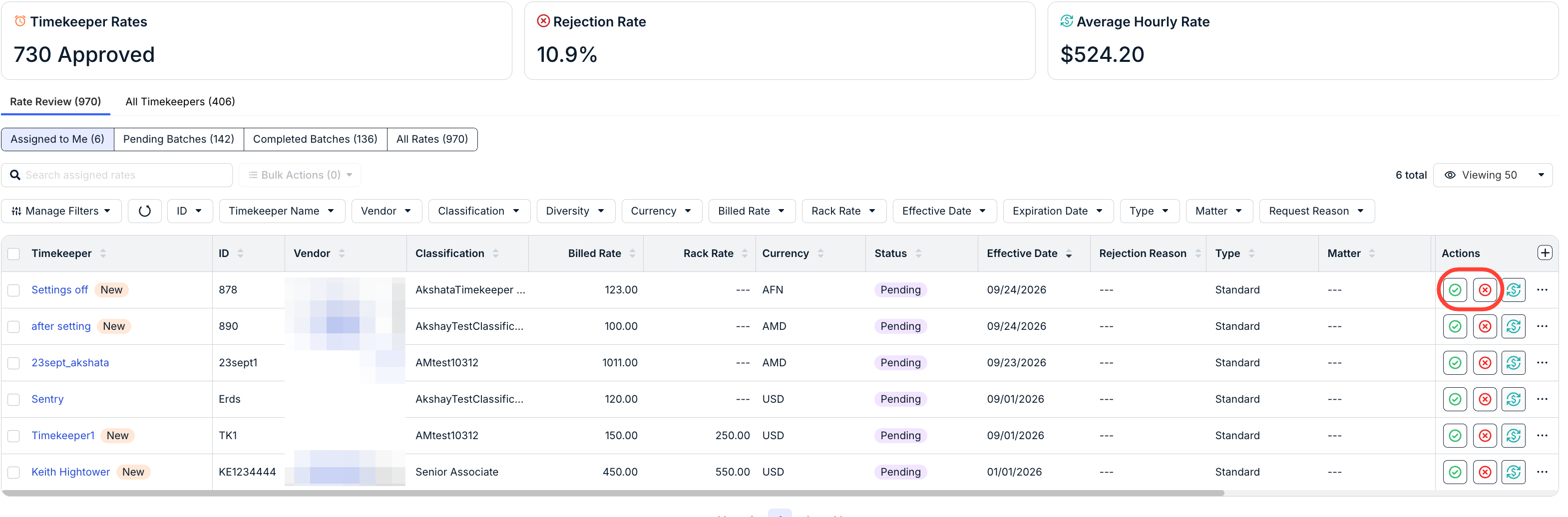
| Actions | Buttons to approve (green checkmark), reject (red ‘x’ icon), or edit an individual timekeeper rate request; use the three-button menu to view Comments & Activity or View & Manage Rules |
You can further narrow or customize this view by using the filters above the list and/or using the + (Add Columns) option at the far right to add other columns or add default columns. Click on the button to the left of the filters to hide any filters or change their order.
To further review the current list of rate requests offline in a CSV file, click on the Download button in the top-right corner. The CSV file will reflect the current view, including any applied filters and additional columns.
Approving or Rejecting Individual Timekeeper Rates
From the list view, you can click the approve or reject buttons under the Actions column. To view more information about a timekeeper before taking action, click on their name from the list to open their profile.
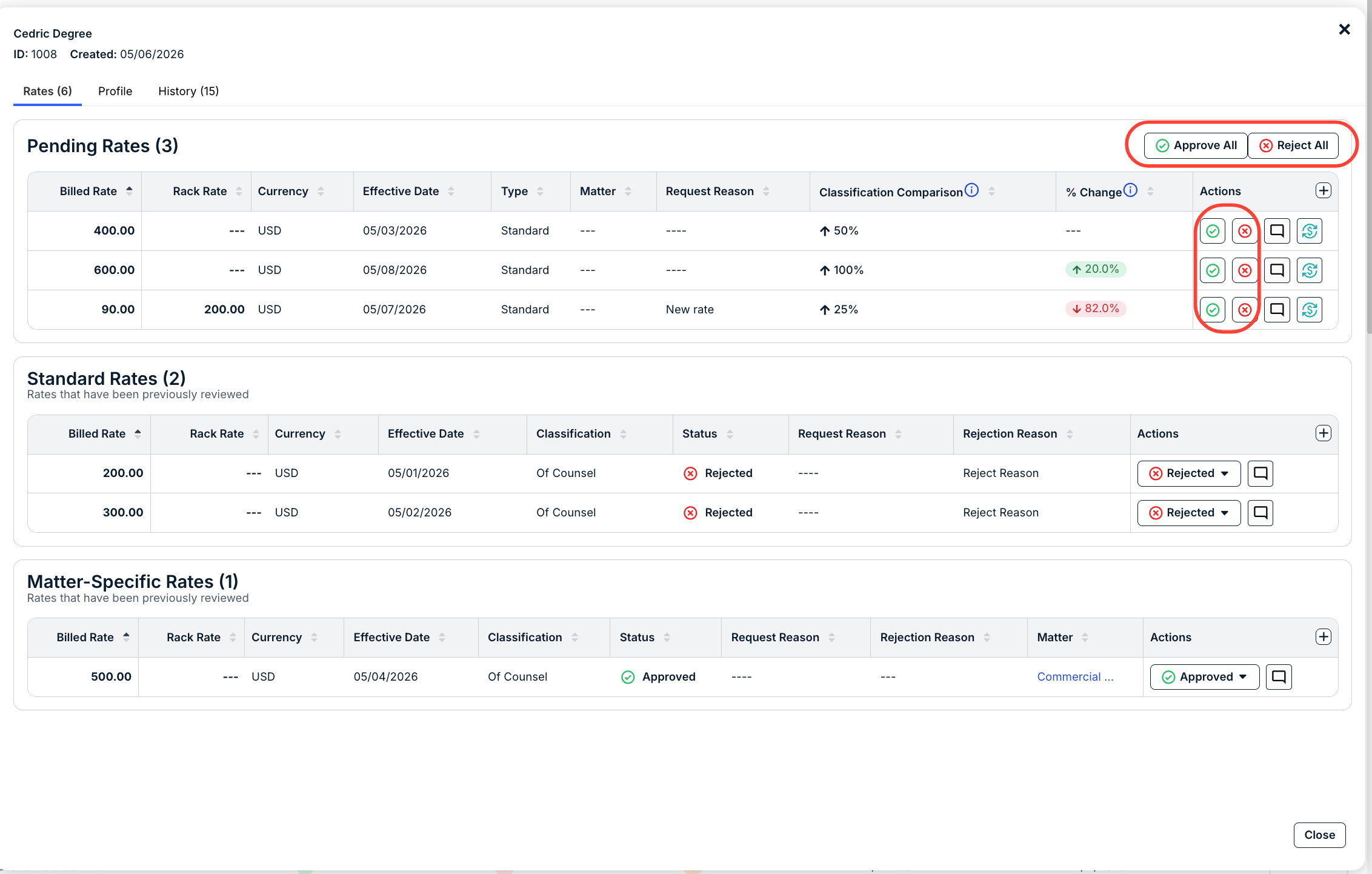
If multiple rates were submitted for the same timekeeper, you can click Approve All or Reject All from the right side of the Pending Rates section of the profile, if applicable. This may apply, for example, if a timekeeper has a new standard rate and multiple matter-specific rates.
Alternatively, you can approve or reject individual rates by using the buttons under Actions (you may need to scroll to the right to see this column in the profile).
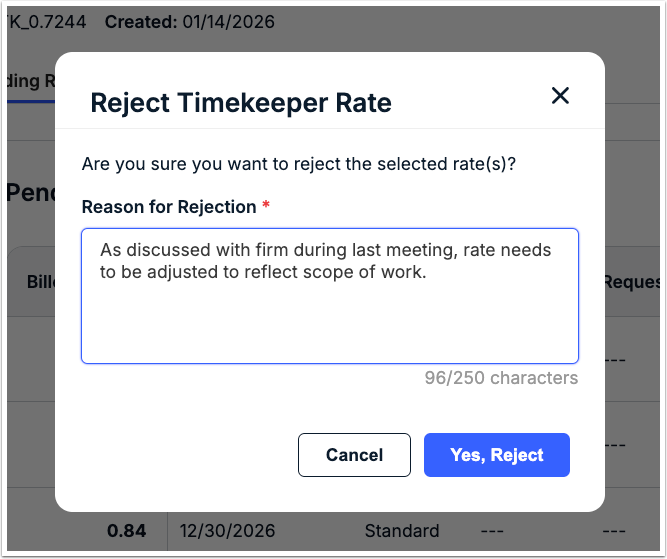
If rejecting a timekeeper rate, you will be prompted to confirm and enter a reason (required). Enter the reason in the text field (up to 250 characters, including spaces) and then click Yes, Reject.
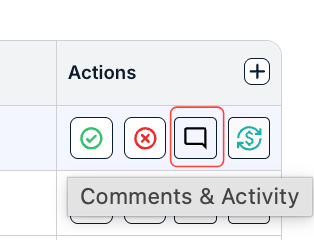
You can also click the Comments & Activity button to add comments or view activity on the rate.
Here, you can see existing comments (and you can edit and delete your own); fill in your comment and click on Comment to post a new one. The bottom of the screen will display any activity on the rate.
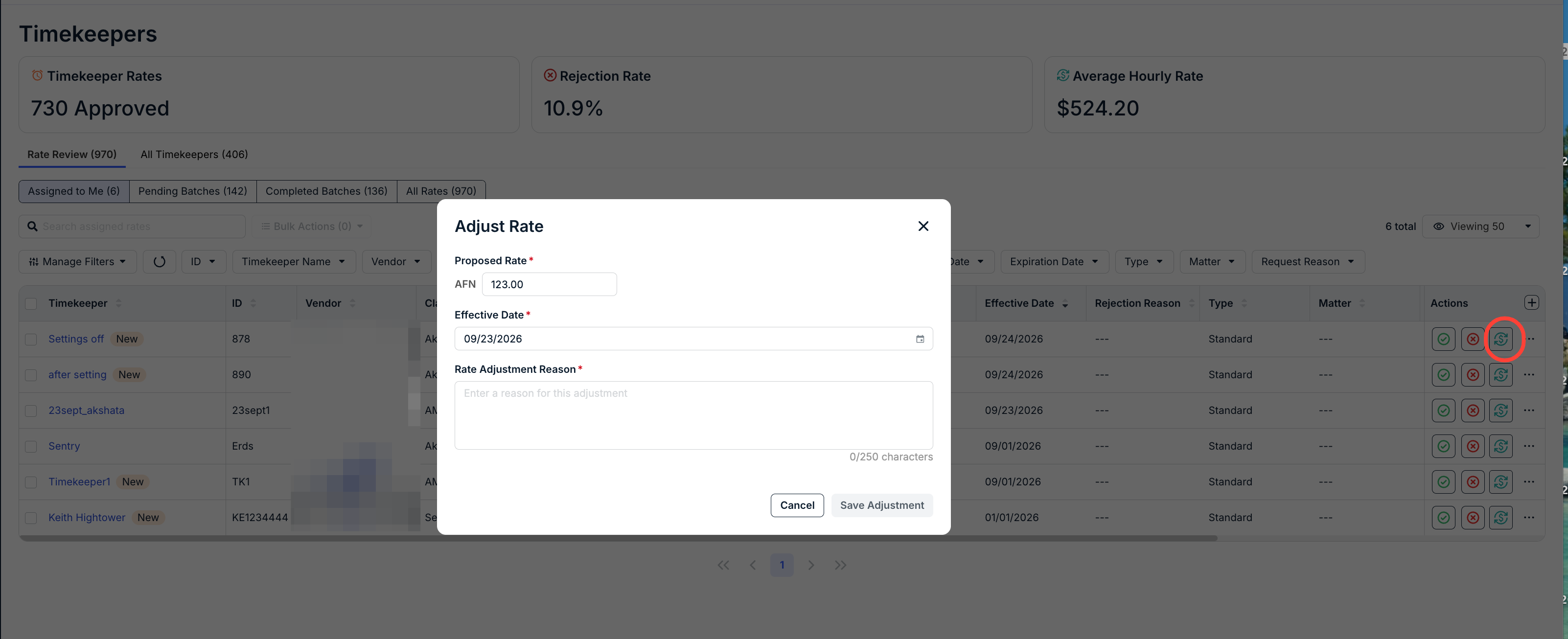
Click on the Adjust Rate option to adjust the rates as needed. The Adjust Rate screen will appear; fill in the new Proposed Rate, Effective Date, and Rate Adjustment Reason, and click Save Adjustment to finalize.
Timekeeper Actions in Bulk
If you need to apply the same action to multiple timekeepers while viewing a batch, use the boxes to the far left of the table to select multiple or all timekeepers. Click Bulk Actions above the table and select one of the following options:
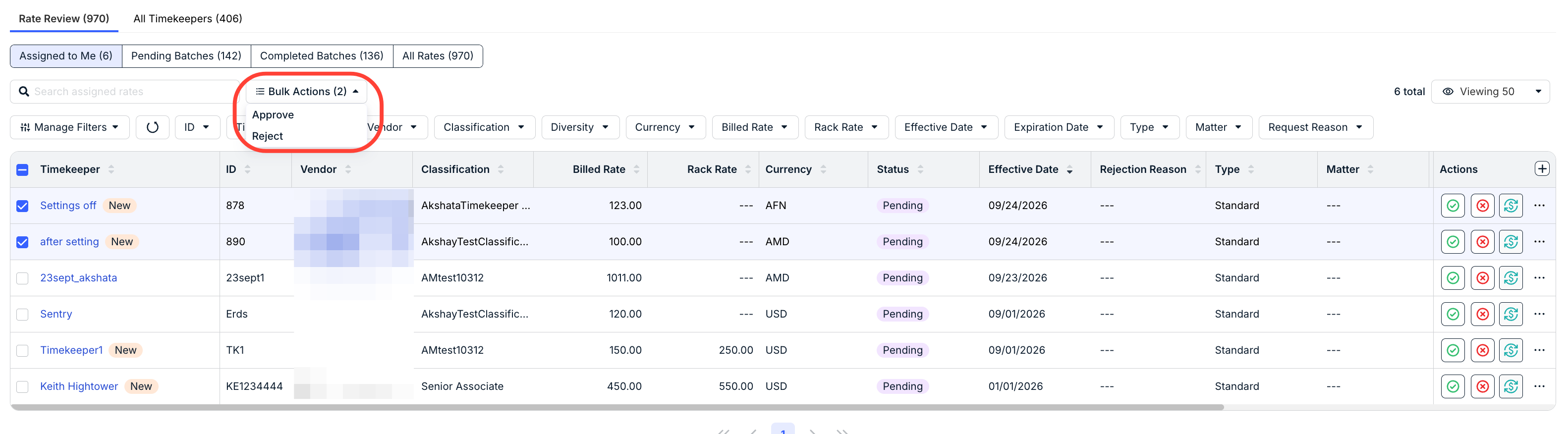
- Approve: This will update the status of all selected timekeepers you are approving in bulk. You will not be prompted to confirm this action before continuing.
- Reject: You will be prompted to confirm; enter a reason (up to 250 characters) and then click Yes, Reject. REMINDER: The same rejection reason will be applied and visible in Counsel Exchange for all selected timekeepers.
- Edit Effective Date(s): Choose a specific date from the calendar picker or select one of the pre-defined options on the left (e.g., Tomorrow, In 2 Weeks, etc.). Click Apply. REMINDER: The same Effective Date will be applied to rates for all selected timekeepers.
Send Manual Email Notification to Vendor
Click Send Notification at the top of the details page to open the email modal.

Besides adding and/or removing recipients for the email notification, the subject and body are read only and cannot be modified. Click within the To field to make changes and then click Send Email.