Invoices can go through the following statuses in Unity (click on an option for more information):
You can view invoices by status on the following tabs of the invoices list page: Received, On Hold, and Approved. (Pro Forma and Under Appeal invoices are covered in a separate section.) You can also find your starred invoices under the Starred section.
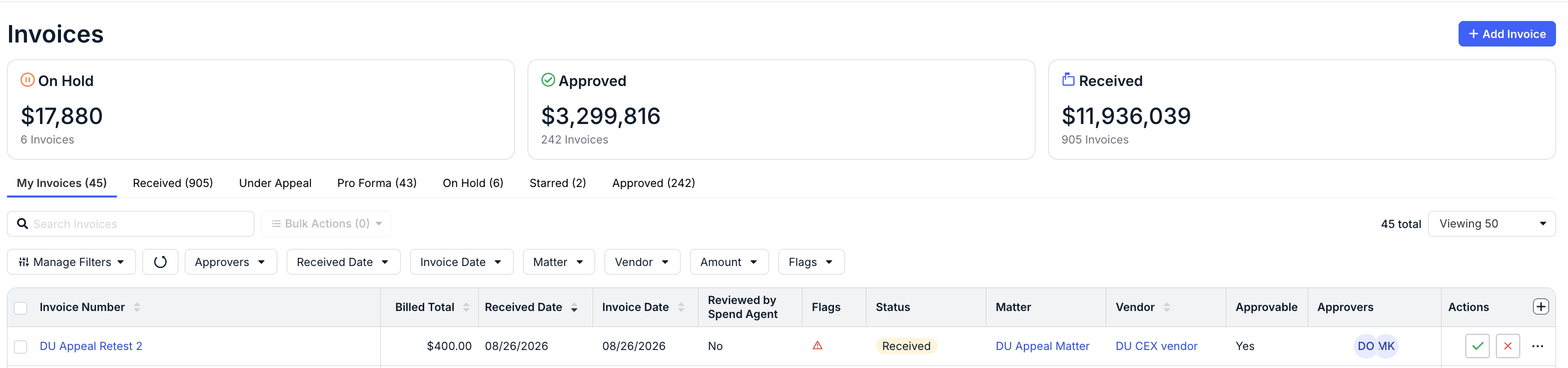
The status is also located in the header of the details page next to the invoice number.
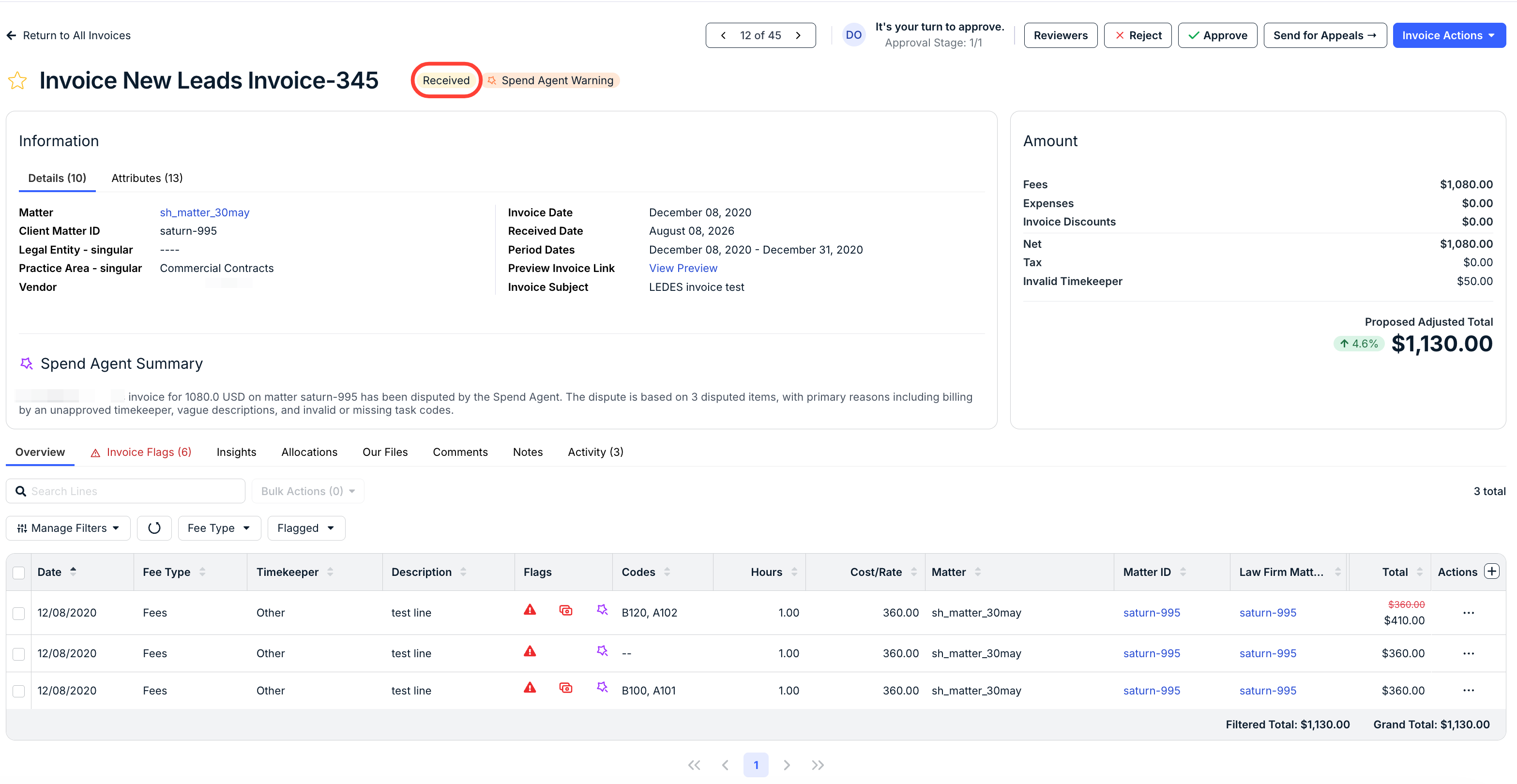
Received
The invoice has been submitted via Counsel Exchange by a vendor or added manually by an internal user, and Unity has performed initial invoice validation based on settings in your environment (e.g., timekeeper rate validation and/or automated flagging per validation rules).
Approvable vs. Not Approvable
Depending on invoice validation settings in your environment, the system determines whether the invoice meets minimum billing requirements to move through the review cycle. If an invoice passes validation, the Approvable column on the invoices list page displays Yes. If the invoice fails validation, the column displays No to indicate further review/action is required. In this case, an admin may need to set the invoice status to On Hold. You can view validation issues by going to the Invoice Flags tab and switching to Approval Requirements.
Spend Agent Invoice Flags
If you are using Onit's Spend Agent for automated invoice review/validation based on natural-language billing guidelines uploaded to your environment, you can view the detailed AI summaries by going to the Invoice Flags tab from the invoice details page. For additional information on Spend Agent for Unity, click here.
On Hold
The invoice requires some further review or research outside of Unity. This may be necessary, for example, if key pieces of information are missing or if the invoice did not pass initial system validation based on your environment's settings.
To change the status to On Hold, the current reviewer or an admin can click on the Invoice Actions dropdown in the top-right corner of the invoice's details page and select Pause Approval.
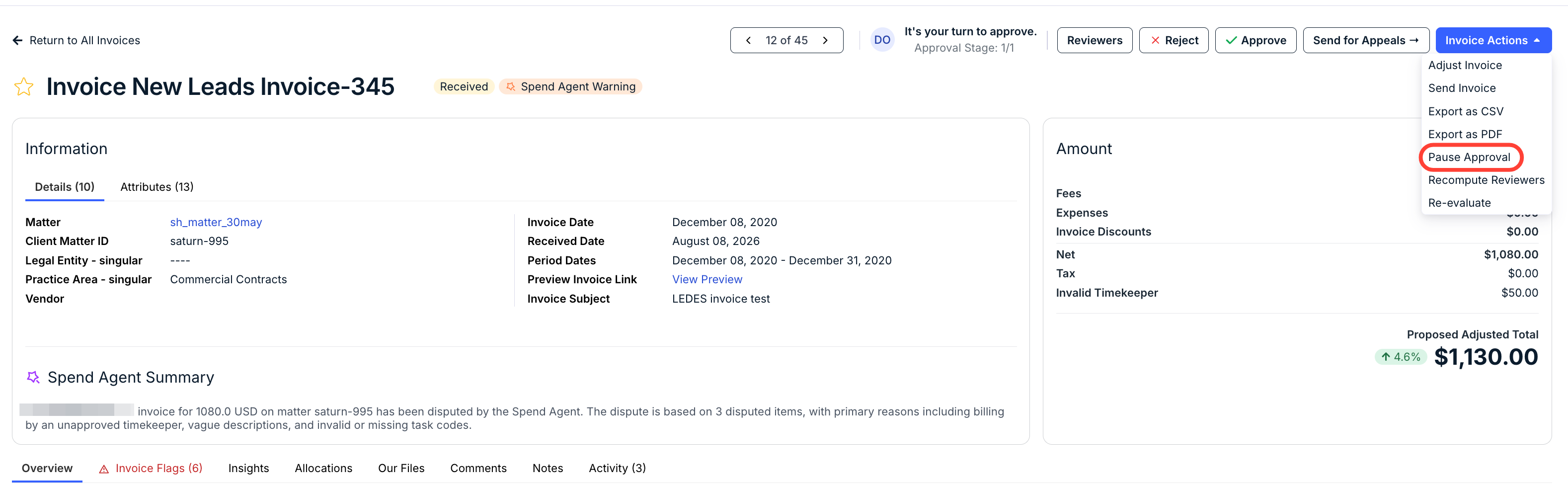
Placing an invoice on hold moves it out of the review queue. Once the necessary information is collected or verified, the user can go to the Invoice Actions dropdown and select Resume Approval to revert it to Received status and move it back to the reviewer's My Invoices list for review.
Approved
The invoice has been approved by assigned reviewers or per auto-approval validation rules in your environment (if applicable).
Once approved, invoices can be marked as Sent to AP for payment manually or via a finance system integration. You can also select one of the following options from the Invoice Actions dropdown on the details page: Mark Paid, Pause Payment, or Revert to Received.
Approved Hold
If an admin chooses Pause Payment on an approved invoice, the status changes from Approved to Approved Hold. This means the invoice will not be sent to AP via a finance system integration, if applicable.
Rejected
The invoice has been rejected manually by an assigned reviewer or automatically depending on validation rules in your environment (if applicable). Rejected invoices do not appear on the invoices list page.
You can find rejected invoices by going to Reports > Standard and viewing the Invoice List report, which displays a comprehensive list of all invoices by status. You can use the status filter to see only rejected invoices for a specified date range. Access depends on your role and permissions.

Sent to AP
The invoice is pending confirmation from the accounts payable team for payment. Invoices can be set to this status manually or automatically via a finance system integration (if applicable). To set it manually, click Invoice Actions from the details page and select Mark Sent to AP.
Paid
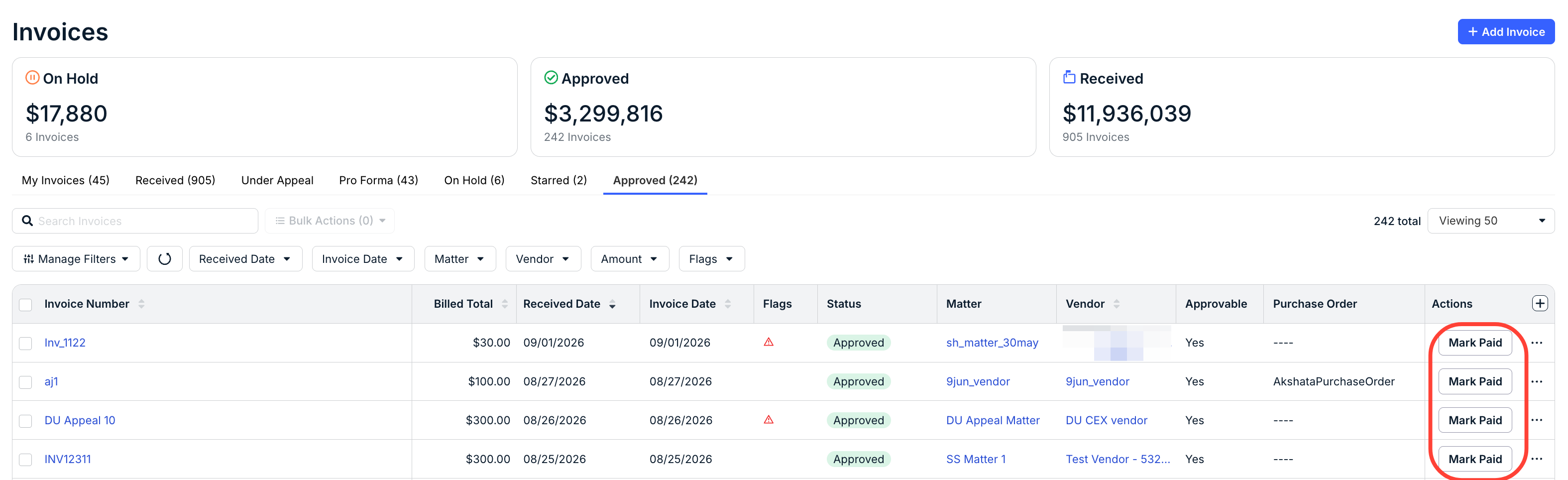
Paid invoices are those that have been marked as Paid manually by an admin or reviewer, automatically via a finance system integration (if applicable), or that were paid outside the system. To mark an invoice as Paid manually, click Mark Paid under the Actions column on the Approved tab on the invoices list page.
Additional statuses that may appear for Paid invoices include the following:
- Partially Paid. Marked as Paid via API, but the full amount was not paid (informational only).
- Over Paid. Marked as Paid via API, but the amount paid exceeded the invoice total (informational only).
Working with a Paid Invoice
To adjust a Paid invoice back to the Received state, open the Invoice Actions dropdown and select Revert to Received. You can also select Mark Sent to AP or Revert to Approved.

Status Changes in Bulk
To apply some of the status changes described in this article to invoices in bulk, select the checkboxes on the left side of the invoices list page and click Bulk Actions. You can apply the following actions in bulk:
- Approve
- Reject
- Mark Paid
- Resend Approval Emails
For additional information on applying bulk actions to invoices, click here.
Invoice Actions
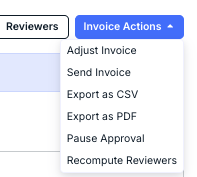
Use the Invoice Actions dropdown to:
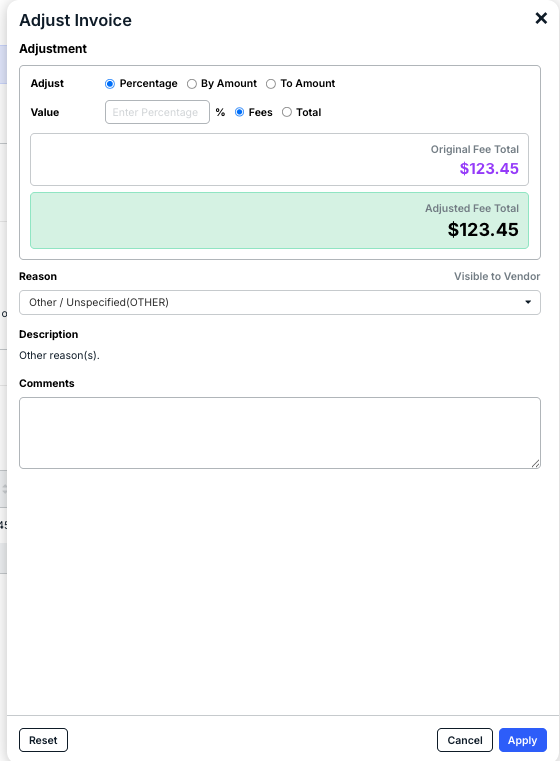
Adjust Invoice. The Adjust Invoice screen will appear. Make your changes, select a Reason from the dropdown menu, and add Comments if needed. Click Apply to save, Cancel to back out, or Reset to undo your changes.
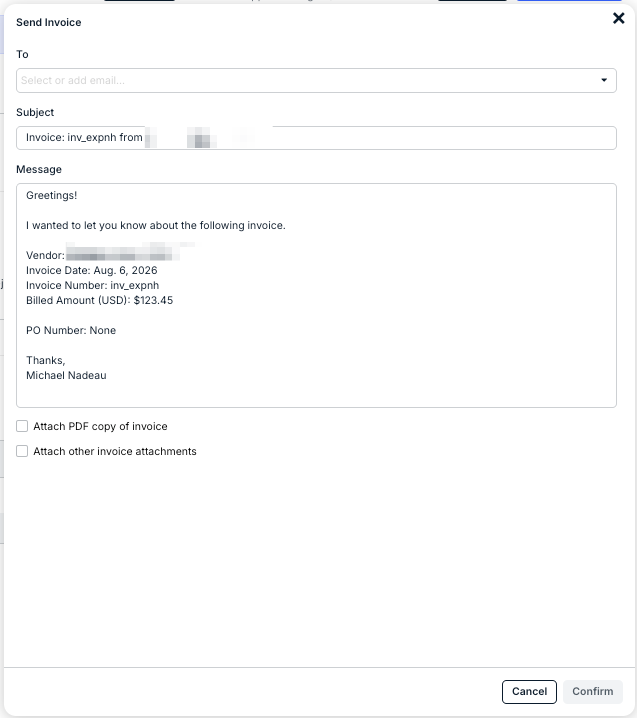
Send Invoice. Use this option to send the invoice to recipients. Choose the recipients from the To dropdown menu and customize your message; you can also choose to Attach PDF copy of invoice or Attach other invoice attachments. Click Confirm to send or Cancel to back out.
- Export as CSV / Export as PDF. Use these options to export the invoice as a CSV or PDF file.
- Pause Approval. Use this option to stop the approval process.
- Recompute Reviewers. Use this option to update the invoice after any changes you may have made to the review rules.