Unity's Bulk Actions feature simplifies manual tasks by making it easier and quicker to create and update records in bulk. There are two methods for bulk actions:
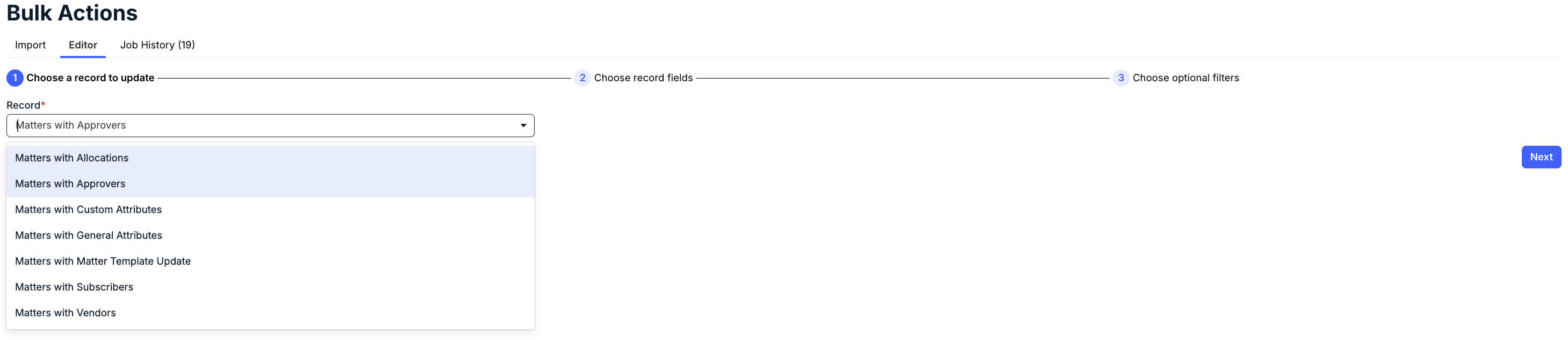
- Editor: Apply the same values to one or more fields across existing matters by using the built-in Editor to load, filter, and select matter records. The Editor can be used for bulk updates to matter records only. Skip below for information on bulk action types.
- CSV Import: Create new records or update existing records by importing a formatted CSV file with values that map to system fields. The following can be created or updated in bulk: matters, vendors, cost codes, legal entities, matter groups, and custom attribute list values.
Prerequisites & Permissions
Bulk Actions is available to Admins only and cannot be granted or restricted for individual users. If you do not see Bulk Actions under the Settings menu, contact an admin from your organization or [email protected] for assistance.
Use Cases & Scenarios
Examples of bulk action jobs include:
- Creating multiple new matter records associated with the same matter template.
- Assigning new vendors to multiple existing matter records.
- Removing one or more subscribers who no longer need to be assigned to multiple matters.
- Making changes to matters impacted by a matter template update.
- Changing the matter group for multiple matter records.
- Editing custom attributes across multiple matter records.
- Replacing the Matter Lead with a different user across multiple matter records.
- Adding or changing the allocations across multiple matter records.
- Closing a group of matters that are no longer active or needed.
- Re-opening a group of matters that need to be updated.
- Updating assigned vendors across multiple matter records.
- Creating multiple new vendor records and setting general/custom attributes.
- Creating multiple new Cost Codes and setting required fields.
- Creating multiple new Legal Entities and assigning subscribers.
- Updating invoice reviewers assigned to multiple Matter Groups.
Types of Bulk Actions
Bulk action options are categorized into record types that control which fields can be set or modified.
Bulk Record Creation
To create new records in bulk, you can use one of the following import options:
- Cost Codes: Add values for required/optional fields (e.g., Name, Description, etc.).
- Custom Attribute List Values: Add new list values to an existing custom attribute list.
- Legal Entities with General and Custom Attributes, Approvers, and Subscribers: Add values for minimum required fields and any optional general/custom attributes; assign invoice reviewers and subscribers; and assign matter reviewers and subscribers (if applicable).
- Matter Groups with Attributes, Approvers, and Subscribers: Add values for required/optional fields (e.g., Name, Description, etc.); assign invoice reviewers and subscribers; and assign matter reviewers and subscribers (if applicable).
- Matters with General and Custom Attributes, Approvers, and Vendors: Add values for minimum required fields and any optional general/custom attributes associated with the matter template; assign invoice reviewers; and assign vendors.
- Vendors with Attributes and Approvers: Add values for minimum required fields and any optional general/custom attributes, vendor-level settings, and invoice reviewers.
For new matters, each row in the import file must be associated with the same matter template. A separate import is required to create matters associated with a different matter template.
Bulk Matter Updates
The bulk actions for updates are categorized based on which field types can be modified and where they map in Unity. For example, there is a bulk action for changes to general attributes (e.g., status or matter group) and a separate bulk action for changes to assigned vendors. These rules are in place to manage overall processing time and minimize errors.
The following bulk actions are supported for updates using our built-in Editor or CSV import option:
- Matters with Allocations: Changes to values set for allocatable fields in matter records, such as Legal Entity or Cost Code (allocation percentages can be updated via CSV import only).
- Matters with Approvers: Update, add, and/or remove the invoice reviewers in matter records.
- Matters with Custom Attributes: Change values for custom attributes in matters based on field type (i.e., Editor only) or based on matter template (i.e., Import only).
- Matters with General Attributes: Change values for general attributes in matters, such as Matter Name, Matter Description, Matter Status, Close Date, or Open Date.
- Matters with Matter Template Updates: Edit values for fields in matters impacted by a recent matter template change (only applies if there is an associated template with updates).
- Matters with Subscribers: Update, add, and/or remove the subscribers in matter records.
- Matters with Vendors: Update, add, and/or remove the vendor(s) assigned to matters.
The following bulk actions are supported for updates via CSV import only:
- Cost Codes: Changes to Name, Description, Accounting Code, and/or Status.
- Custom Attribute List Values: Change the name, description, code, applicable matter groups, applicable legal entities, or status for one or more values of a custom attribute list.
- Legal Entities with Approvers: Update, add, and/or remove the invoice reviewers in legal entity records.
- Legal Entities with General and Custom Attributes and Subscribers: Change or set values for general attributes; custom attributes scoped to legal entities; invoice subscribers; and matter reviewers and/or matter subscribers (if applicable).
- Matter Groups with Approvers: Update, add, and/or remove the invoice reviewers in matter group records.
- Matter Groups with Attributes and Subscribers: Change or set values for general attributes; invoice subscribers; and matter reviewers and/or matter subscribers (if applicable).
- Vendors with Approvers: Update, add, and/or remove the invoice reviewers in vendor records.
- Vendors with Attributes: Change values for general attributes (e.g., Name, Contact Email, etc.); custom attributes scoped to vendor records; vendor-level settings (e.g., Timekeeper Rate Validation, etc.); and default fields (e.g., Default Cost Code).
Editor vs. Import for Matters
Which method to use for updates to matters depends on various factors, such as the volume of matters and whether the values need to be the same or different across matters.
For example, if the same description needs to be added to 50 matters, you can use the Editor to make the same change across all matters. This would be quicker than the import option because you can use the Editor to find/select the relevant matters and input/apply the change directly from the UI.
If, however, unique descriptions are required across 50 matters, the import option would save more time. Importing a CSV file with the ID and description for each matter would apply the changes at one time instead of requiring you to find, open, and update each record manually.
Getting Started
Go to Settings from the left-side navigation bar and click Bulk Actions.

The Bulk Actions page is separated into three tabs:
- Import: Select a method (i.e., create or update), select a bulk action type, download the CSV template or prepare your own, upload the formatted file, confirm field mapping, and submit.

- Editor (default): Select a bulk action type and which columns to use for loading/filtering the matter results, choose which matter records to update, and apply/submit changes in the modal.
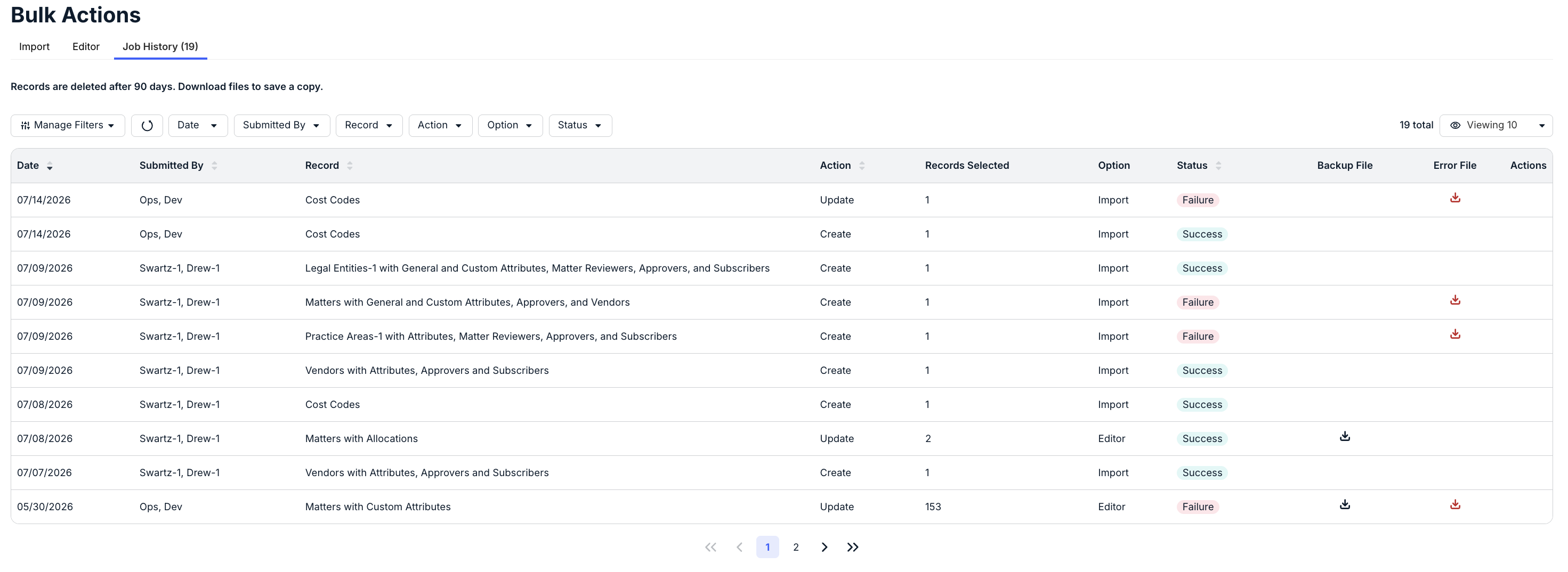
- Job History: Log of all bulk action jobs submitted over the past 90 days; lists date, username, record type, method (i.e., import/editor), status, and backup/error files (if applicable).
Activity Log
Bulk action jobs in your environment are recorded under Settings > Activity Log and display the record that was created/updated and the admin who made the change.
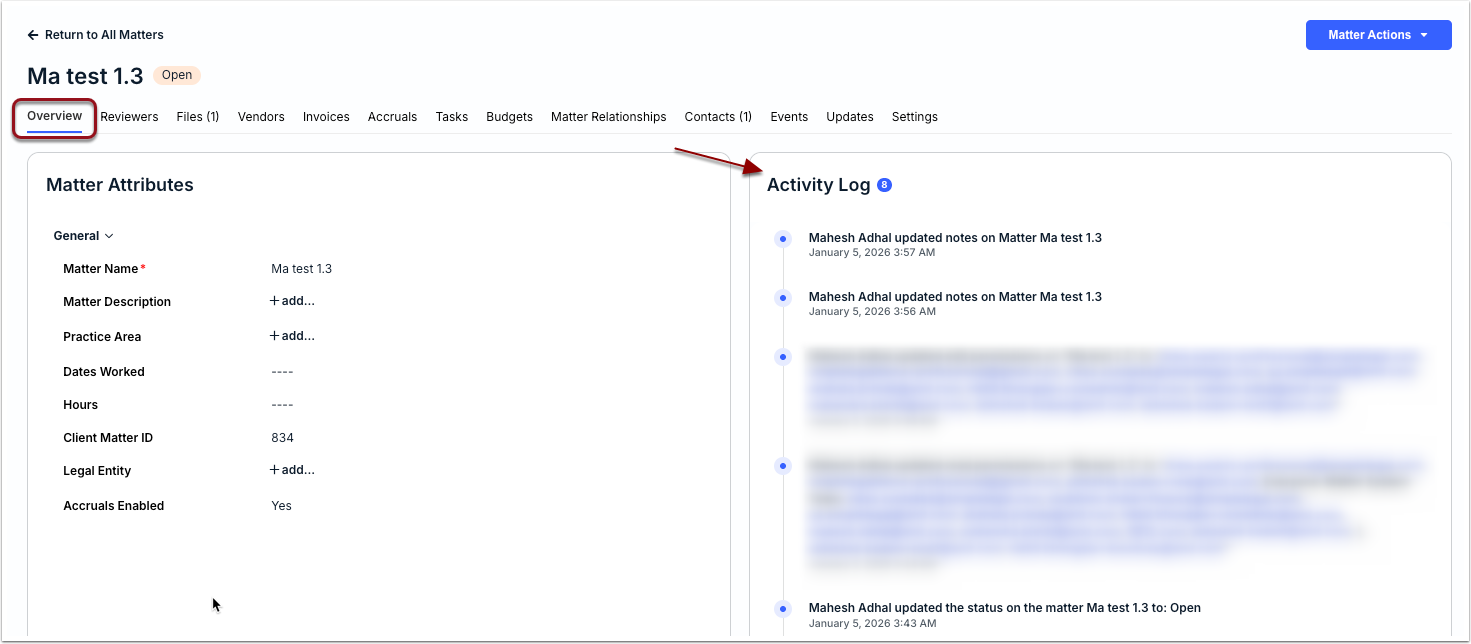
Changes made to matters via the Editor or CSV import are also automatically recorded in the Activity Log under the Overview tab of each individual matter record (see below).
Changes made to vendors via CSV import are automatically recorded in the Activity Log section under the Overview tab of each individual vendor record (see below).