This article covers the following topics for Invoice Validation Rules:
- Navigating the Invoice Validation Rules Dashboard
- Creating a New Invoice Validation Rule
- Conditions for Invoice Validation Rules
- Actions for Invoice Validation Rules
Navigating the Invoice Validation Rules Dashboard
Admins can find the list of Invoice Validation Rules by going to Settings > Rule Management > Invoice Validation Rules. By default, only active rules that are currently running against invoices in your environment are displayed.
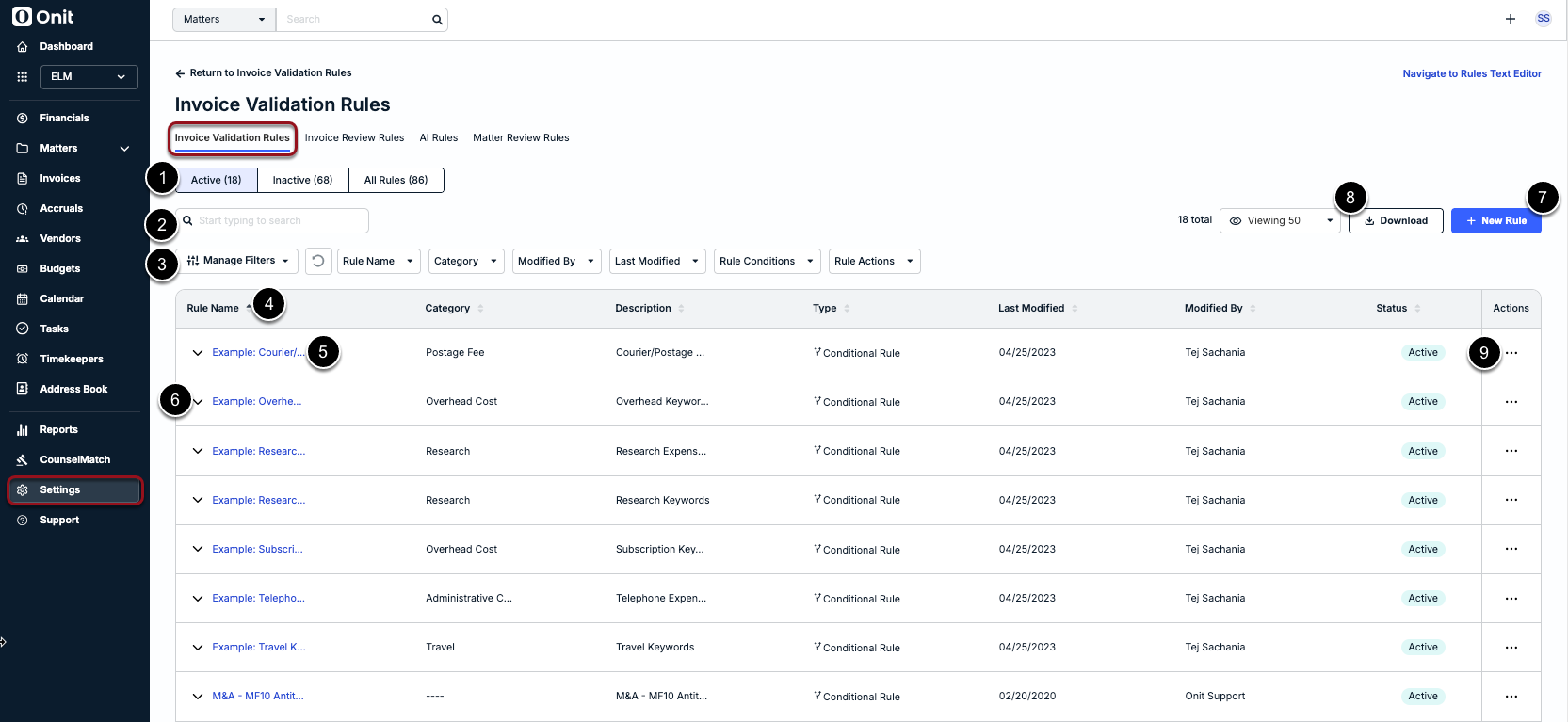
You can do the following from the Invoice Validation Rules list:
- Switch between Active, Inactive, AI Rules, and All rules by using the tabs above the list.
- Use the search box to find specific rules by entering a name or keyword(s).
- Use the filters above the list to narrow rules based on name, category, and other criteria.
- Sort the rules list by clicking on a column name.
- Click on a hyperlinked rule name to open it for review and editing.
- Click on the down-facing caret to the left of a rule to see its conditions and actions only (read-only).
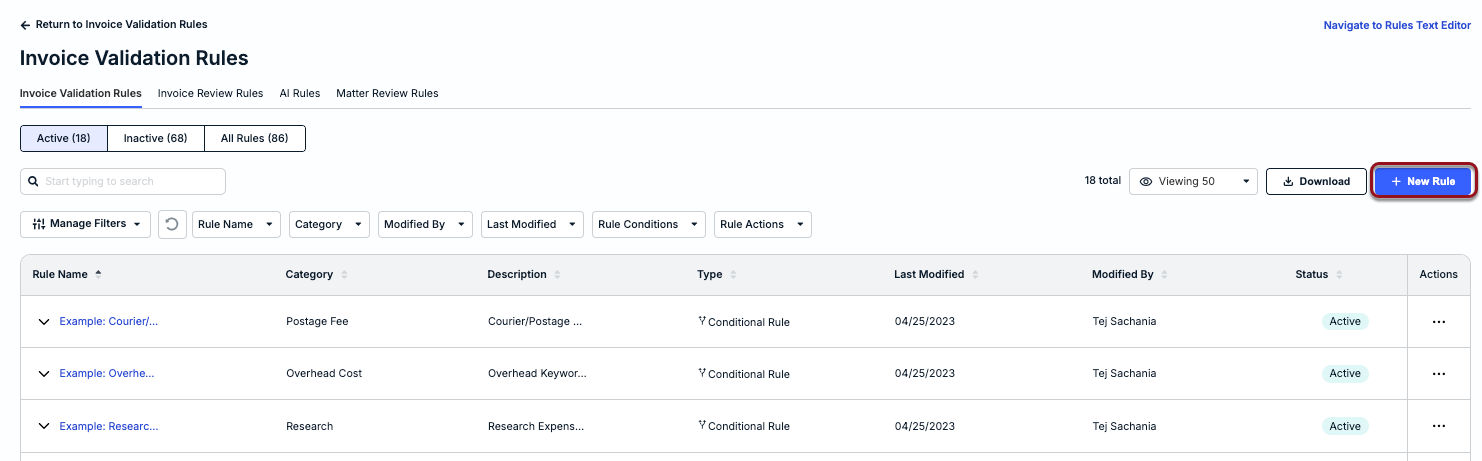
- Click + New Rule in the top-right corner to create a new rule from scratch. Click here for more details.
- Export the full or filtered list of rules to Excel for further review offline by clicking Download.
- Click the ... (more) option under the Actions column to Edit, Clone, or Delete a rule.
Creating a New Invoice Validation Rule
Creating a new Invoice Validation Rule is helpful if you need to trigger an automated action that is not addressed by existing rules and/or that would further simplify overall review tasks. This section provides step-by-step instructions for how to set up a new rule from scratch.
Notes & Other Considerations
- Make sure to determine the overall purpose and goal of a new rule, including how the automated action(s) will help your review process and if there are exceptions that need to be captured.
- Check if an existing rule addresses your need or can be modified or repurposed to avoid having rules with overlapping conditions and/or actions.
- Conditions and how they are grouped/ordered should be verified before activating a new rule to avoid unintended actions or having a rule that doesn’t trigger any action.
- To avoid losing progress while setting up a new rule, click Save Rule in the bottom-right corner of the Rule Editor periodically.
- We recommend reviewing the details under the Conditions and Actions sections of this guide before continuing.
Setting Up a New Rule
To get started, click + New Rule in the top-right corner of the rules list page.
Enter information for the following fields:
- Name (required): Up to 150 characters allowed (including spaces)
- Category* (required): Select an option from the dropdown list
- Description (optional): Useful for providing context or instructions for other admins
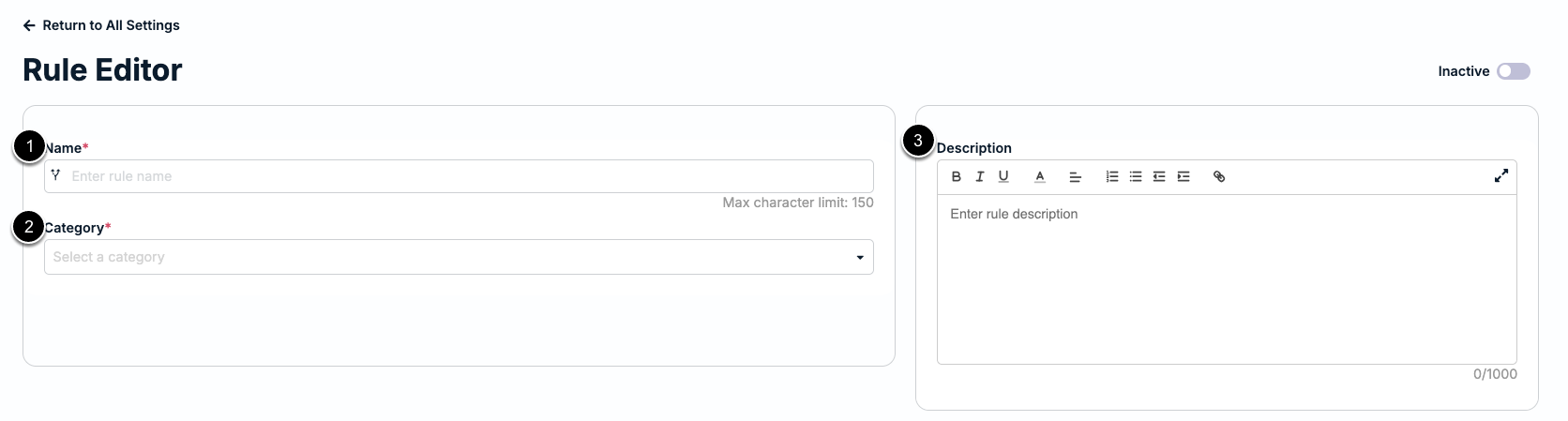
*All customers have built-in rule categories to help with organizing and reporting on rules. The list of categories can be further customized and managed under Settings > Invoice Settings. For additional information, click here.
Adding Conditions
Conditions are statements that set which criteria must be met for the action to trigger. A rule can have one or multiple conditions depending on how broad or narrow the criteria. For example, a simple rule can have a condition that looks for and flags line items with specific expense codes. A more complex rule, on the other hand, can have multiple conditions to look for and adjust line items with specific expense codes that exceed a threshold.
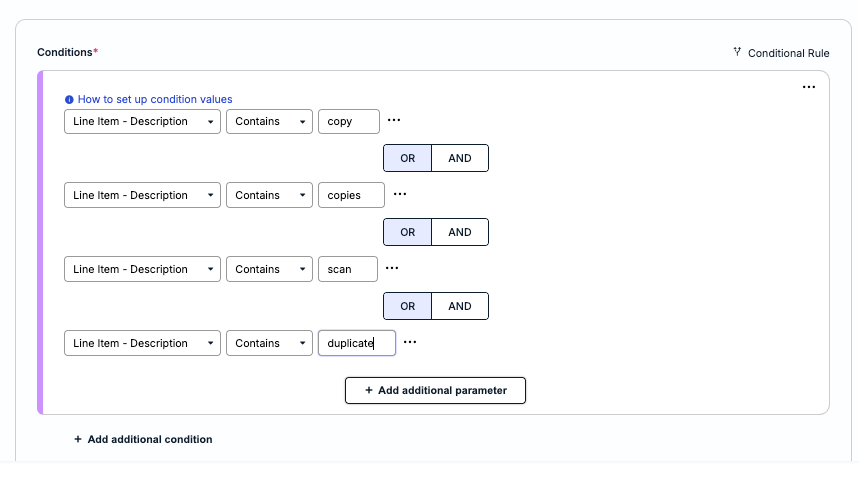
Each condition can be made up of a single statement or a group of statements. Statements under a condition are referred to as parameters and must be separated by AND/OR in the Rule Editor to indicate if all parameters must be met (i.e., AND) or if at least one parameter must be met (i.e., OR). Below is an example of a condition with multiple parameters separated by OR:
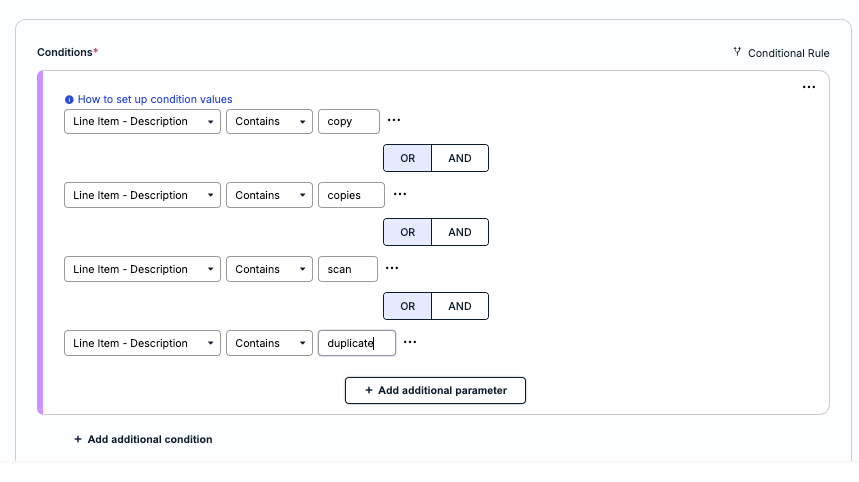
In this example, the action will only trigger if an invoice has a line item description with at least one of the specified keywords.
Before continuing, please review the following notes and other considerations:
- Each condition value requires you to select a field/attribute to further refine the criteria. In the example above, the condition value is Line Item and the field/attribute is Description.
- Some spend conditions have unique sub-conditions that can further narrow/filter which invoices are considered matches. For more details about spend conditions, click here.
- Which operators are available depend on the selected condition value. For example, condition values that search for specific keywords have operators such as CONTAINS and IS ONE OF, whereas condition values for dollar amounts have operators such as IS GREATER THAN.
- A condition can have one parameter or multiple parameters; all parameters under one condition must all have the same separator (i.e., all separated by AND or all separated by OR).
- If a rule requires more than one condition with one or more parameters, the conditions must also have the same AND/OR separator.
Follow the instructions below to set up a single condition with one parameter (i.e., no AND/OR separators needed). Using a single condition is helpful in cases where a rule is looking for an exact value. In this example, the condition is searching for line items with a specific Activity Code.
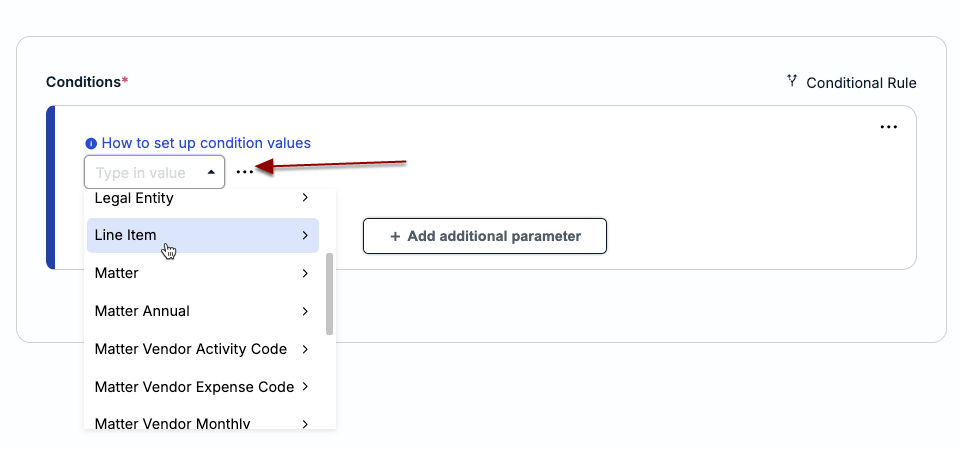
1. From the left side of the Rule Editor, choose a condition value from the dropdown list. In this example, the condition value is Line Item.
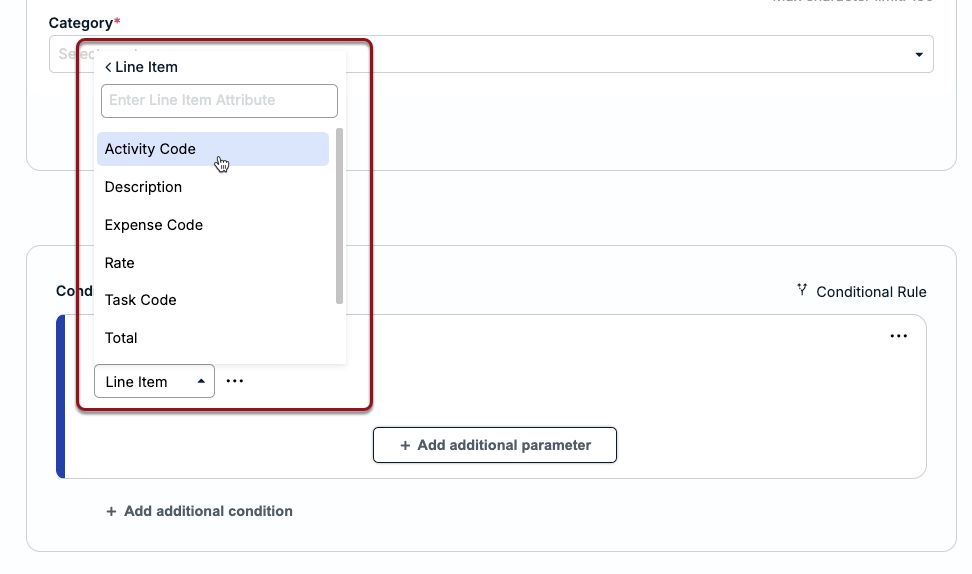
2. Select the field or attribute that should be used to look for criteria in invoices. In this example, the selected field/attribute is Activity Code. Which options are listed depend on the choice. For more information about condition values and their supported fields/attributes, click here.
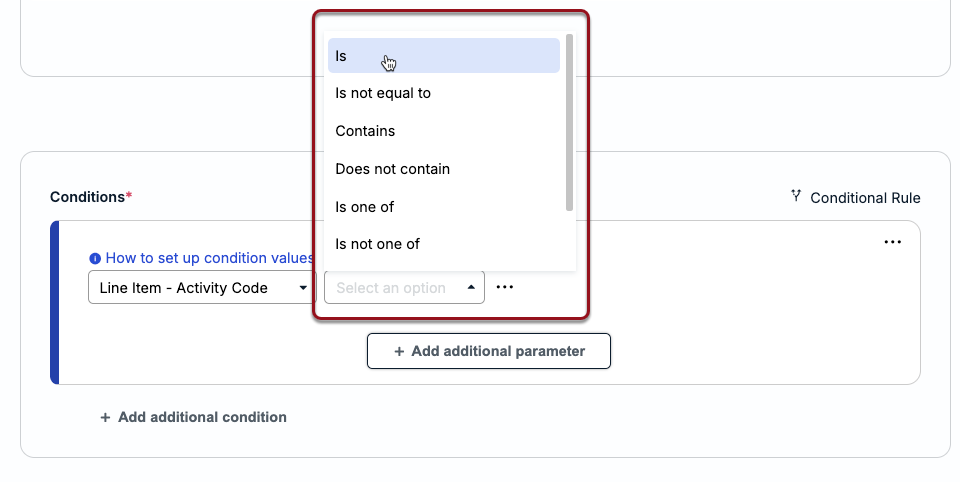
3. Choose an operator (e.g., Is greater than, Is one of, Contains, etc.). In this example, the selected operator is IS to indicate that the Activity Code for a line item must be an exact match. For more information about supported operators, click here.
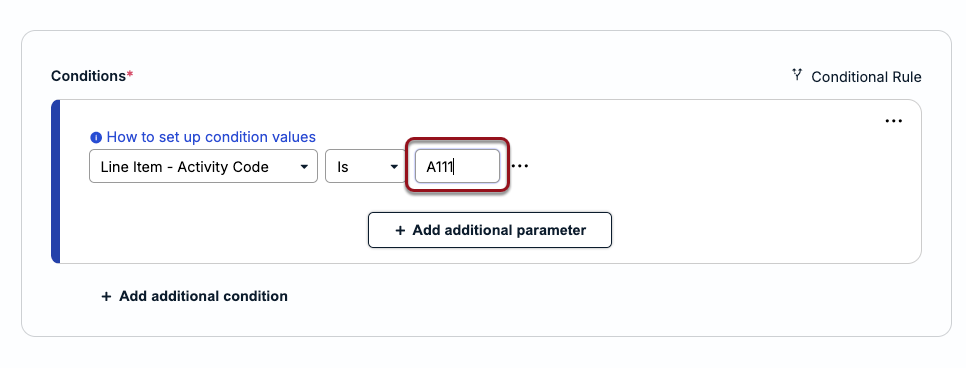
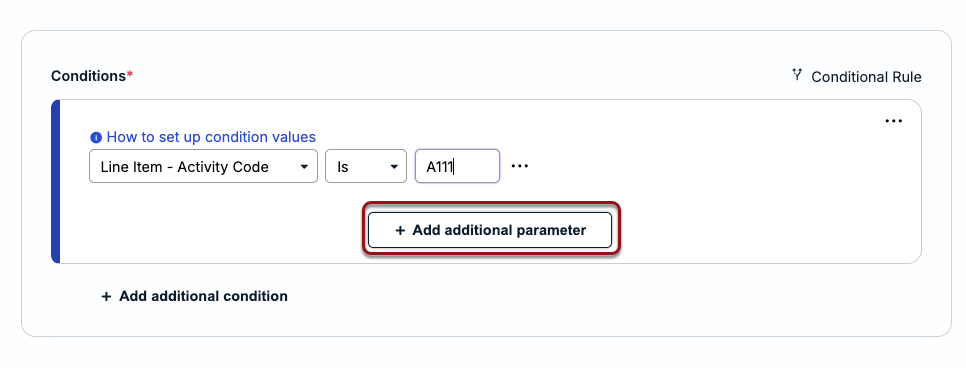
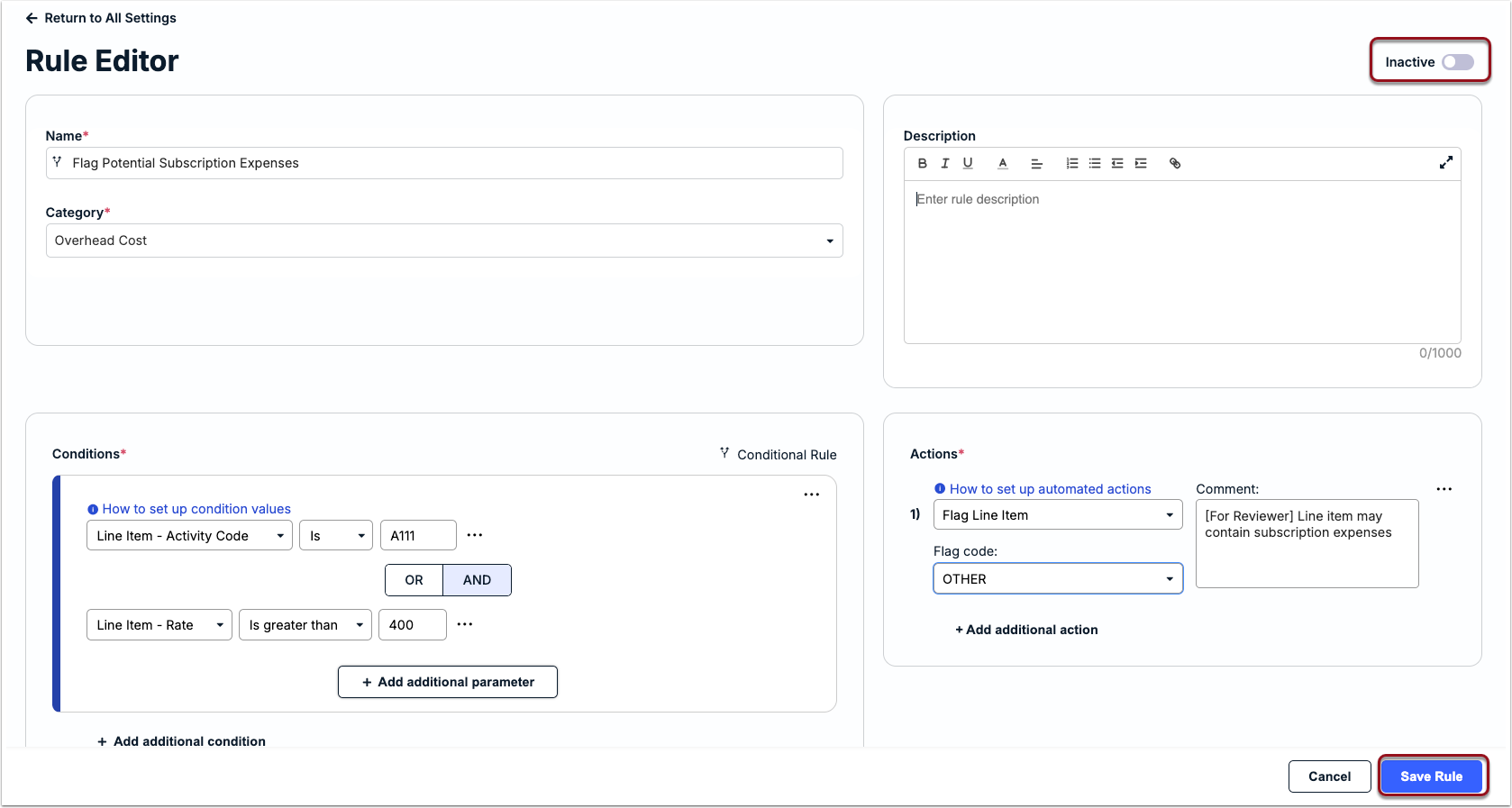
4. Enter/select the criteria value. For this example, the supported input for Activity Code is a text field, and since the selected operator is IS, this means only one value can be entered. The Activity Code used in this example is A111 (as shown below) to flag any activities categorized as "Other."
5. If the single condition addresses all scenarios, skip to the next section for instructions on adding actions. If, however, the rule needs to check for additional Activity Code or other criteria, such as keywords in line item descriptions, click + Add additional parameter.
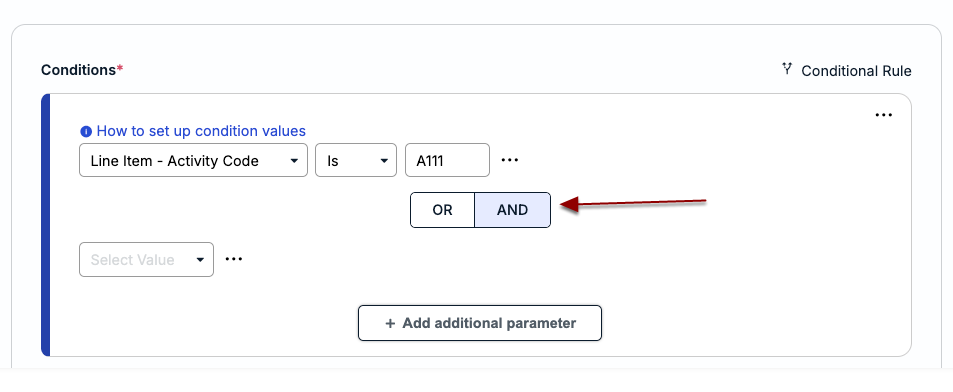
6. Leave the AND separator as-is if both parameters must be met, or click on it to change it to OR if only one of the parameters must be met. For this example, the separator is AND.
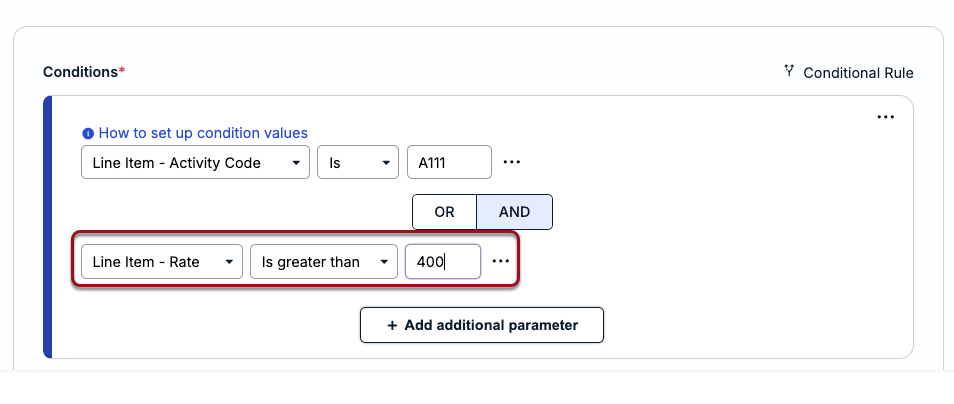
7. Select a condition value, select an operator, and enter/select the criteria value. In this example, the second parameter is check to set for line items with a rate that exceeds $400.00 (i.e., Condition Value = Line Item, Field/Attribute = Rate, Operator = IS GREATER THAN, and Criteria = 400).
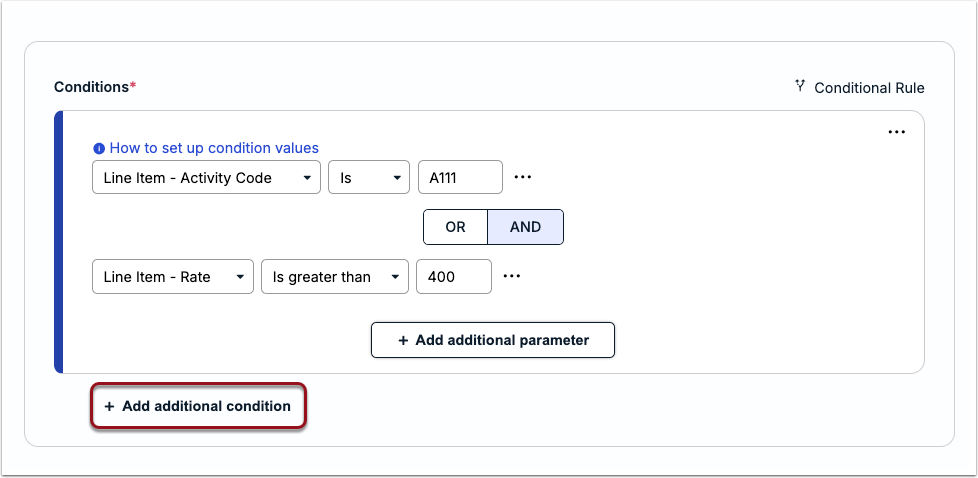
8. If additional parameters are required, repeat the steps 5-7 above, or skip to the instructions for adding actions if you are finished with your conditions. If a separate condition is required to further narrow the criteria, click +Add additional condition, choose AND/OR, and repeat the steps in this section.
Adding Actions
If you have finished setting up the conditions:
1. Click +Add actions from the right side of the Editor.
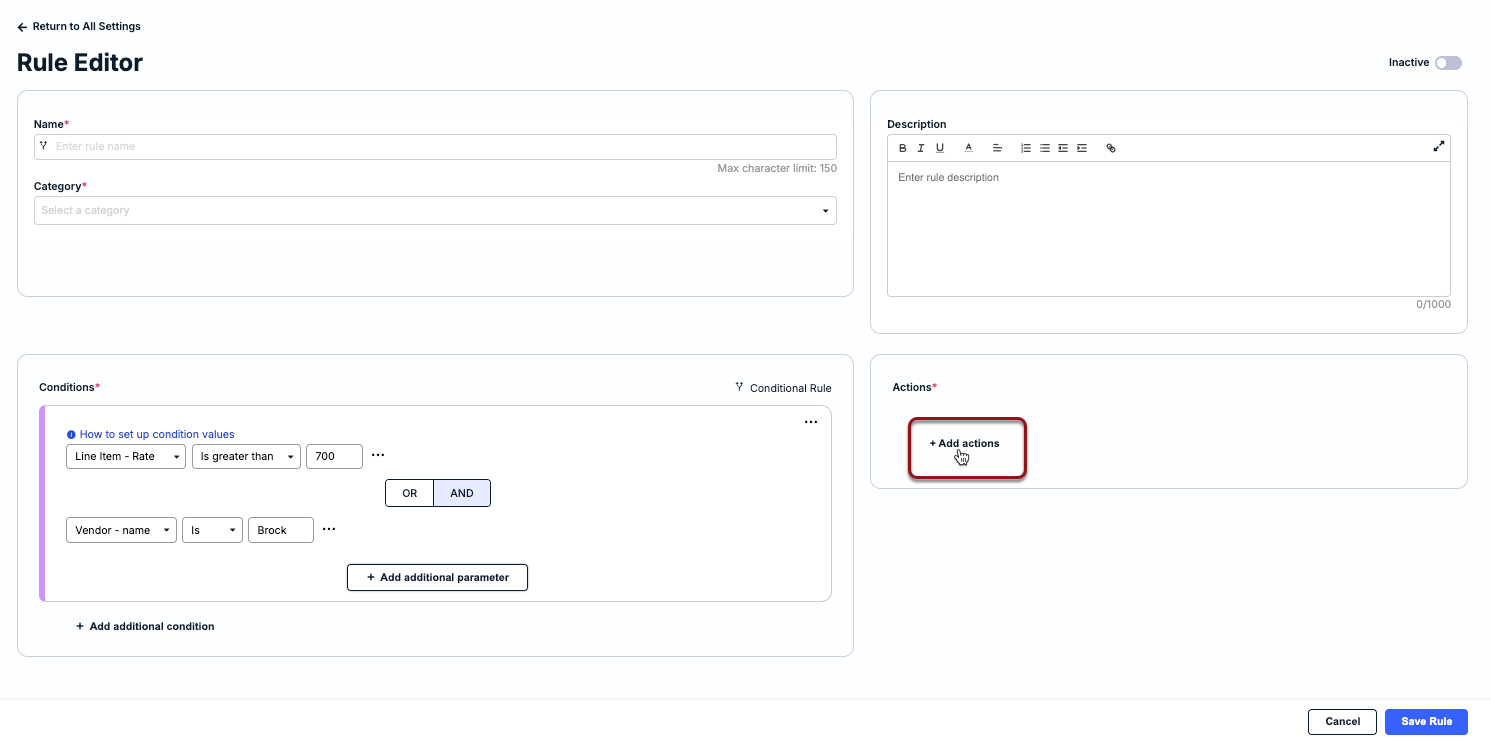
2. Select the action type (e.g., Flag Invoice, Add Activity Code, etc.). For more detailed information on supported actions, including how they are applied when a rule is triggered, click here.
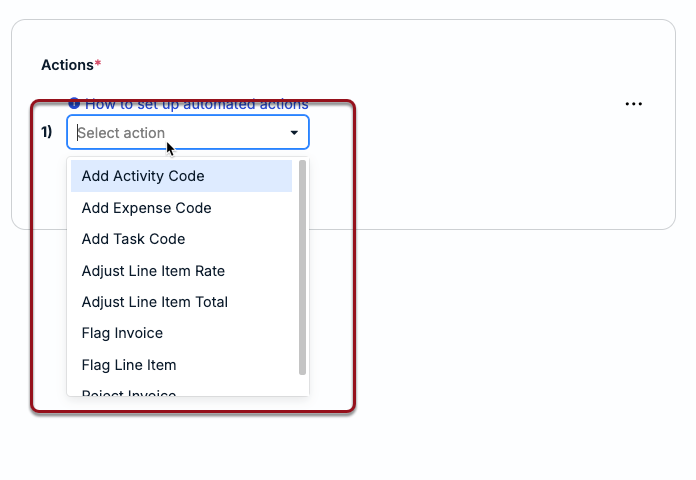
3. Complete the additional required/optional fields for the action, such as entering a default comment. Which fields appear depend on the action selected in Step 2. In this example, if a line item meets the required conditions, it will be flagged with the OTHER code and an internal comment will be added to let the reviewer know why it needs to be verified.
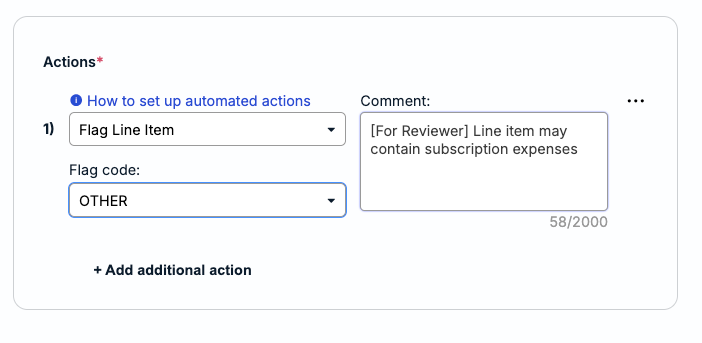
4. Click + Add additional action if another action is necessary. If you are done adding actions, skip to the next section for instructions on saving and activating rules. To remove an action, click the ... (more) icon to the right of the action and select Delete.
Saving Invoice Validation Rule
By default, the Rule Editor has the rule set to Inactive. If you want to start running the new rule against incoming invoices right away, click the toggle in the top-right corner one time. This is only recommended if you have already checked that it does not overlap with other rules and automated actions.
To move forward with saving your rule, click Save in the bottom-right corner. If the toggle is left as inactive, you can activate it by opening it from the Inactive tab.
About Conditions for Invoice Validation Rules
An Invoice Validation Rule is set up like an IF/THEN statement (i.e., if the defined conditions are met, then trigger the specified action). This article provides more details and guidance for setting up conditions, including supported condition values, fields/attributes, and operators. For general instructions on creating new rules in Unity, click here.
A condition is a statement that specifies which requirements or criteria must be met for a rule to trigger action(s) on submitted invoices. At a high level, a condition is made up of the following:
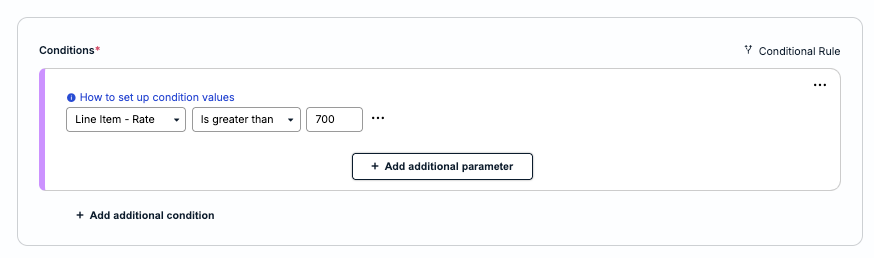
| Condition Value | The data object that will be used to specify the criteria an invoice has to meet, such as a total amount (e.g., Annual Spend) or a line item. |
| Field/Attribute | Selecting a condition value prompts users to choose an associated field or attribute to further refine the criteria. For example, the Line Item condition value allows users to choose whether the rule should look at a line item's Type, Total, Rate, Units/Hours, etc. For more information about the supported values and fields/attributes for conditions, click here. |
| Operator | Comparison operator used to consider or exclude data. For example, IS considers only data that is an exact match for the specified value, whereas IS ONE OF considers data that matches at least one of multiple values. The selected condition value and field/attribute drive which operators can be used and the supported input for criteria value. Click here for more detailed descriptions of the operators that can be used in rules. |
| Criteria Value | The value(s) that will be used to consider or exclude data based on the selected operator. The supported format for the criteria depends on the type of condition value and field/attribute (e.g., number, list of values, etc.). |
A condition can include a single statement or a group of statements, also referred to as parameters. To further refine and narrow the criteria for a rule, a condition with more than one parameter must be separated by AND or OR to indicate if all parameters must be met (i.e., AND) or if at least one parameter must be met (i.e., OR). Below is an example of a condition with three parameters separated by OR:
If you need to further narrow the criteria or add alternative criteria, you can have more than one condition with one or multiple parameters. Each additional condition must also be separated by AND/OR to indicate which items are grouped and in what order they should be read. Below is an example of a rule with two conditions separated by AND:
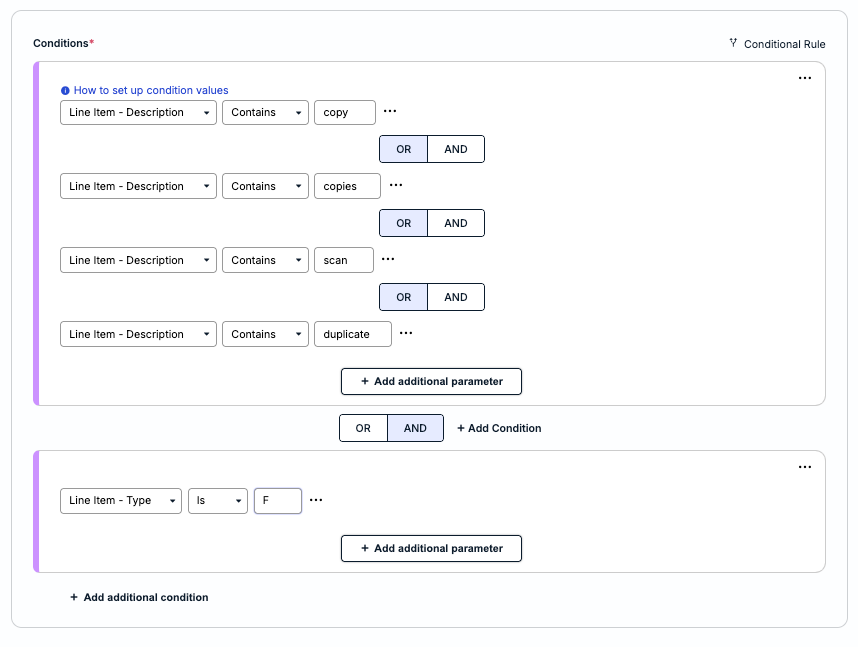
The above is a straightforward example where the first condition has multiple parameters separated by OR, and the second condition has a single parameter. The two conditions are separated by AND, which means action will only trigger if the invoice line item is of type F (i.e., Fee) AND the line item description has at least one of the specified keywords (e.g., copy, scan, etc.).
If there are exceptions or other scenarios that need to be considered before action is triggered, you can have more than one condition with one or multiple parameters. This is only recommended for more complex or involved rules that need additional restrictions. For example, below is a rule with three conditions:
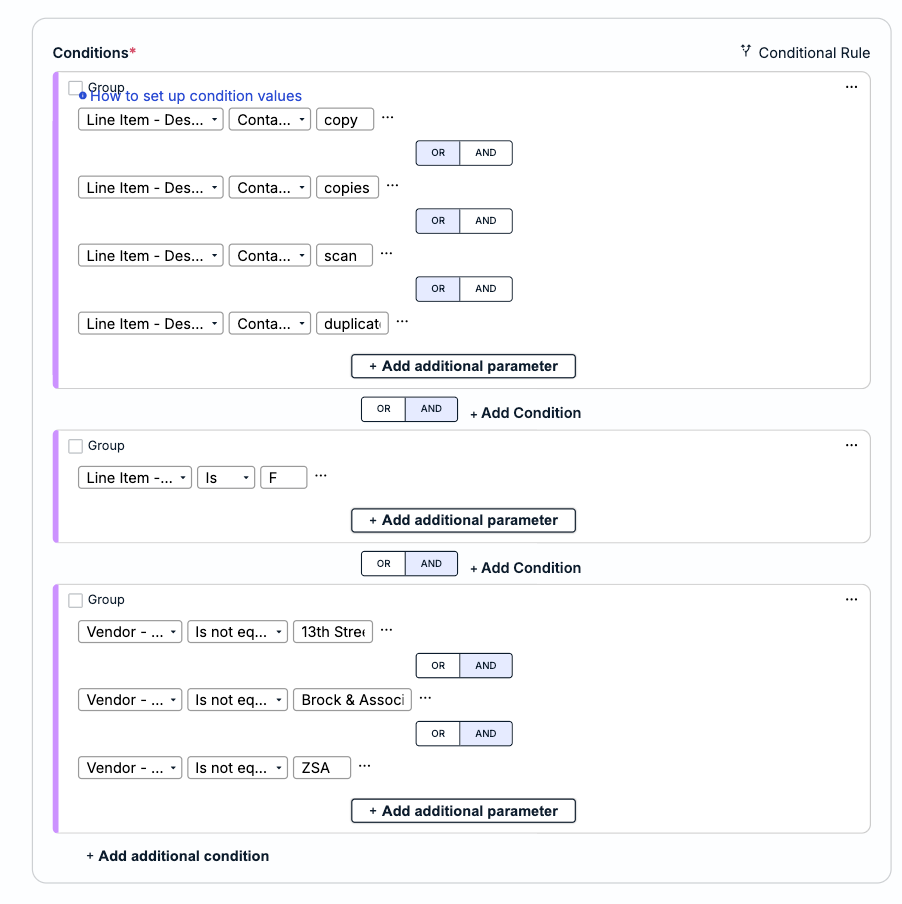
The conditions above checks for any "Fee" type line items that include at least one of the specified copy-related keywords but excludes line items from invoices submitted by any of the three specified vendors. This is useful, for example, if agreements with certain vendors have exceptions.
Before creating a rule, it is important to understand the overall objective and determine whether an automated action will truly simplify or improve the process. A rule with too many conditions or parameters may result in unintended actions or actions that never trigger.
The next section covers the options for organizing conditions and tips on when to use these options. To skip to information about the supported values for setting up conditions, click here.
Parameters vs. Conditions
To set up effective rules, you must determine how broad or restricted the criteria needs to be to address the scenario. As a best practice, first consider what the requirements are at a high level and the overall objective, and then focus on the more specific criteria or exceptions. For example:
| High-Level Requirement | More Detailed Criteria or Exceptions |
|---|---|
| Flag invoice line items for potential block billing violations. |
|
| Flag invoices submitted against matters with monthly spend that exceeds a certain amount. |
|
| Adjust the total of invoice line items for copy-related expenses that exceed a certain amount. |
|
Deciding whether to use a condition with multiple parameters and/or multiple conditions with one or more parameters depends on whether all criteria must be met or some criteria must be met. By using AND/OR separators, you can nest the criteria to control when and what a rule looks for.
For the first example in the table above, you can set up a rule to check for block billing violations from specific vendors by using two conditions separated by AND as follows:
Condition #1: Add one parameter to check for line items that bill for more than 8 hours/units.
AND
Condition #2: Add parameters separated by OR that check for specific vendor names.
If the two conditions above were separated by OR instead of AND, the rule would trigger action on any line items billing for more than 8 hours across all vendors and all line items submitted by the specified vendors.
Similarly, if the parameters under the second condition were separated by AND instead of OR, the rule would never trigger action because no line items would ever meet the criteria.
Condition Values
Condition Values refer to the data object that will be used to check for criteria, such as a line item, invoice, matter, or spend amount. Each condition value is dynamic and requires you to select from a list of one or more supported fields or attributes.
The selected field or attribute for a condition value drives the format supported for the criteria value. The table below summarizes the condition values along with their supported fields/attributes, format requirements, and operators. For more detailed descriptions of the operators, click here.
| Condition Value | Field/Attributes | Criteria Format | Operators |
|---|---|---|---|
| Allocation | Cost Code | List of values. Select from active Cost Codes. NOTE: May appear as a different term depending on custom label settings (e.g., Charge Number). | Is Is not equal to Is one of Is not one of Is empty Is not empty |
| Invoice | Currency | Text format. Enter a 3-letter currency code (e.g., USD, CAD) | Is Is not equal to Contains Does not contain Is one of Is not one of Is empty Is not empty |
| Number | Text format. | Is Is not equal to Contains Does not contain Is one of Is not one of Is empty Is not empty | |
| Subject | Text format. | Is Is not equal to Contains Does not contain Is one of Is not one of Is empty Is not empty | |
| Total | Numeric-only value; allows decimals but no commas or currency characters (e.g., enter 10000.00 instead of $10,000.00). | Is greater than Is less than Is not equal to Is empty Is not empty | |
| Invoice Discount | Total | Select one of the following: Set Value: Percentage values only. Enter a percentage value from 0 to 100 and then use the slider to adjust if needed. Set Custom Attribute: Select from the list of options, if applicable. The custom attribute must be a text type and the value must be numerical only (i.e., between 0 and 100). NOTE: A custom attribute value with letters and/or special characters will result in the rule not triggering as expected and may cause invoice processing issues. | Is greater than Is less than Is not equal to Is empty Is not empty |
| Legal Entity | ID | List of values. Select from active Legal Entities. NOTE: May appear as a different term depending on custom label settings (e.g., Company). | Is Is not equal to Contains Does not contain Is one of Is not one of Is empty Is not empty
|
| Line Item | Activity Code | Text field. Enter one or more activity codes depending on the selected operator. | Is Is not equal to Contains Does not contain Is one of Is not one of Is empty Is not empty |
| Description | Text field. Enter one or more keywords depending on the selected operator. | Is Is not equal to Contains Does not contain Is one of Is not one of Is empty Is not empty | |
| Expense Code | Text field. Enter one or more expense codes depending on the selected operator. | Is Is not equal to Contains Does not contain Is one of Is not one of Is empty Is not empty | |
| Rate | Numeric-only value. Enter the hourly or flat rate without commas (e.g., 1000.00 instead of 1,000.00). | Is greater than Is less than Is not equal to Is empty Is not empty | |
| Task Code | Text field. Enter one or more task codes depending on the selected operator. | Is Is not equal to Contains Does not contain Is one of Is not one of Is empty Is not empty | |
| Total | Numeric-only value. Enter the line item total without commas (e.g., 1000.00 instead of 1,000.00). | Is greater than Is less than Is not equal to Is empty Is not empty | |
| Type | Text field. Enter one or more abbreviated line item types depending on the selected operator (e.g., E for expense line items). | Is Is not equal to Contains Does not contain Is one of Is not one of Is empty Is not empty | |
| Units/Hours | Numeric-only value. Enter the number of hours (e.g., 1.5 or 4.0). | Is greater than Is less than Is not equal to Is empty Is not empty | |
| Worked Date | Date in MM/DD/YYYY format. Manually enter the date or use the calendar picker to choose the specific date or select from one of the pre-defined options. | Is After Is After or Equal to Is Before Is Before or Equal to Is Between Is Not Between Is Is Not Is Set Is Not Set | |
| Matter | ID | List of values. Select one or more matter names depending on the selected operator. | Is Is not equal to Contains Does not contain Is one of Is not one of Is empty Is not empty |
| Is Confidential | Select YES or NO. NOTE: Only applies if the Confidential Matters feature is enabled. | N/A | |
| Custom Attributes | Supported format depends on the custom attribute data type (e.g., list, text, date, etc.). For example, the input for date custom attributes is the calendar/date picker. Only applies if there are custom attributes scoped to matter records that are actively being used in matter templates and matters. | Is Is not equal to Contains Does not contain Is one of Is not one of Is empty Is not empty Date Attributes: Is on Is not on Is before Is not before Is after Is not after | |
| Matter Annual | Spend | Select from the list of currency codes (e.g., USD, AUD, etc.) and then enter the relevant numeric value with no commas (e.g., 25000.00 instead of 25,000.00). | Is greater than Is less than Is not equal to Is empty Is not empty |
| Matter Group | ID | List of values. Select from active Matter Group names. NOTE: May appear as a different term depending on custom label settings (e.g., Practice Area). | Is Is not equal to Contains Does not contain Is one of Is not one of Is empty Is not empty |
| Matter Vendor Activity Code | Activity Code | Text field. Enter one or more activity codes depending on the selected operator. | Is Is not equal to Contains Does not contain Is one of Is not one of Is empty Is not empty |
| Spend | Select from the list of currency codes (e.g., USD, AUD, etc.) and then enter the relevant numeric value with no commas (e.g., 25000.00 instead of 25,000.00). | Is greater than Is less than Is not equal to Is empty Is not empty | |
| Matter Vendor Expense Code | Expense Code | Text field. Enter one or more expense codes depending on the selected operator. | Is Is not equal to Contains Does not contain Is one of Is not one of Is empty Is not empty |
| Spend | Select from the list of currency codes (e.g., USD, AUD, etc.) and then enter the relevant numeric value with no commas (e.g., 25000.00 instead of 25,000.00). | Is greater than Is less than Is not equal to Is empty Is not empty | |
| Matter Vendor Task Code | Task Code | Text field. Enter one or more task codes depending on the selected operator. | Is Is not equal to Contains Does not contain Is one of Is not one of Is empty Is not empty |
| Spend | Select from the list of currency codes (e.g., USD, AUD, etc.) and then enter the relevant numeric value with no commas (e.g., 25000.00 instead of 25,000.00). | Is greater than Is less than Is not equal to Is empty Is not empty | |
| Vendor | ID | List of values. Select from the list of active vendor names. | Is Is not equal to Is one of Is not one of Is empty Is not empty |
| Name | Text field. Enter one or more vendor names depending on the selected operator. Must match the name as it appears in Unity | Is Is not equal to Contains Does not contain Is one of Is not one of Is empty Is not empty | |
| Vendor Group | List of values. Select from the list of active Vendor Groups. Only applicable if Vendor Groups are being used in your environment. | Is Is not equal to Is one of Is not one of Is empty Is not empty | |
| Custom Attributes | Supported format depends on the custom attribute data type (e.g., list, text, date, etc.). For example, the input for date custom attributes is the calendar/date picker. Only applies if there are custom attributes scoped to vendor records. | Is Is not equal to Contains Does not contain Is one of Is not one of Is empty Is not empty Date Attributes: Is on Is not on Is before Is not before Is after Is not after | |
| Vendor Annual | Spend | Select from the list of currency codes (e.g., USD, AUD, etc.) and then enter the relevant numeric value with no commas (e.g., 25000.00 instead of 25,000.00). NOTE: Vendor Annual Spend is calculated based on Line Item Worked Date. | Is greater than Is less than Is not equal to Is empty Is not empty |
Spend Sub-Conditions
The spend condition values in the table below have additional sub-conditions that can set other restrictions on whether an invoice meets the criteria. Using spend sub-conditions is optional.
For example, in the condition below, invoices will only be considered if the criteria set for Annual Spend is met AND if the spend is associated with: 1) a specific matter, AND 2) a specific vendor.
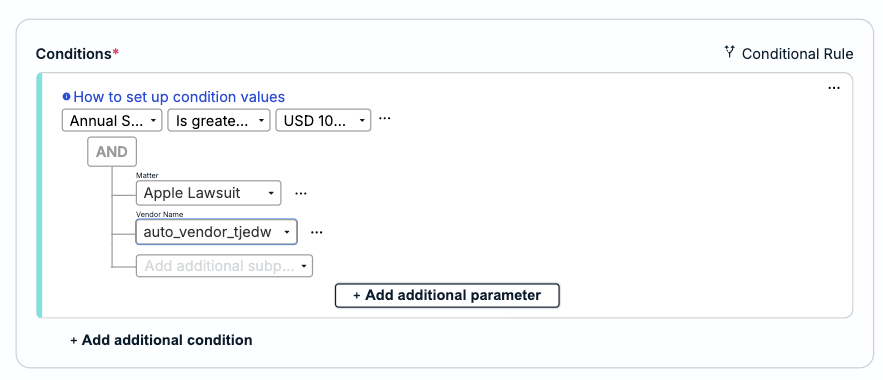
Up to 8 sub-conditions can be added under the spend condition value. You can use any combination of sub-conditions up to the maximum. See the table below for more information on the list of supported sub-conditions and the input format for each.
| Spend Condition Value | Operators | Criteria Format | Sub-Conditions | Sub-Condition Criteria Format |
|---|---|---|---|---|
Annual Spend Monthly Spend Spend | Is greater than
Is less than
Is not equal to
Is empty
Is not empty | Select from the list of currency codes (e.g., USD, AUD, etc.) and then enter the relevant numeric value with no commas (e.g., 25000.00 instead of 25,000.00).
NOTE: Annual Spend conditions are calculated based on Line Item Worked Date | Matter | Select from list of matter names, or leave as All Matters by ID. |
| Vendor | Select from list of vendor names, or leave as All Vendors. | |||
| Start Date | Select/enter a specific date or choose one of the pre-defined options on the left side of the date picker (e.g., Today, Tomorrow, etc.). | |||
| End Date | Select/enter a specific date or choose one of the pre-defined options on the left side of the date picker (e.g., Today, Tomorrow, etc.). | |||
| Activity Code | Select where to search for the code from the list of options (e.g., Invoice - Invoice Subject, Line Item - Description, etc.). | |||
| Expense Code | Select where to search for the code from the list of options (e.g., Invoice - Invoice Subject, Line Item - Description, etc.). | |||
| Task Code | Select where to search for the code from the list of options (e.g., Invoice - Invoice Subject, Line Item - Description, etc.). | |||
| Is Fee | Select one of the following: Yes No Matter is Confidential NOTE: Matter is Confidential only applies if the Confidential Matters feature is enabled. |
Operators
The table below lists general descriptions for the operators that can be used for conditions. To check which operators are supported for specific condition values, review the section above.
| Contains | Must include a specific string or keyword |
| Does not contain | Must not include a specific string or keyword |
| Is | Must be an exact match for a specific value (i.e., equals to) |
| Is not equal to | Must not match a specific value |
| Is one of | Must include at least one of the specified values |
| Is not one of | Must not include any of the specified values |
| Is greater than | Must exceed a specific numeric value |
| Is greater than or equal to | Must be or exceed a specific numeric value |
| Is not equal to | Must not be a specific value (numeric or text) |
| Is less than | Must be less than a specific numeric value |
| Is less than or equal to | Must be the same as a specific numeric value or less |
| Is empty | Value must be blank or null |
| Is not empty | Value must be present |
| Is on (date) | Must match the specified date |
| Is not on (date) | Must not match the specified date |
| Is before (date) | Must be prior to the specified date |
| Is not before (date) | Must be on or after the specified date |
| Is after (date) | Must be after the specified date |
| Is not after (date) | Must be on or before the specified date |
About Actions for Invoice Validation Rules
Once you add your condition(s), you can add one or more actions from the right side of the Rule Editor.
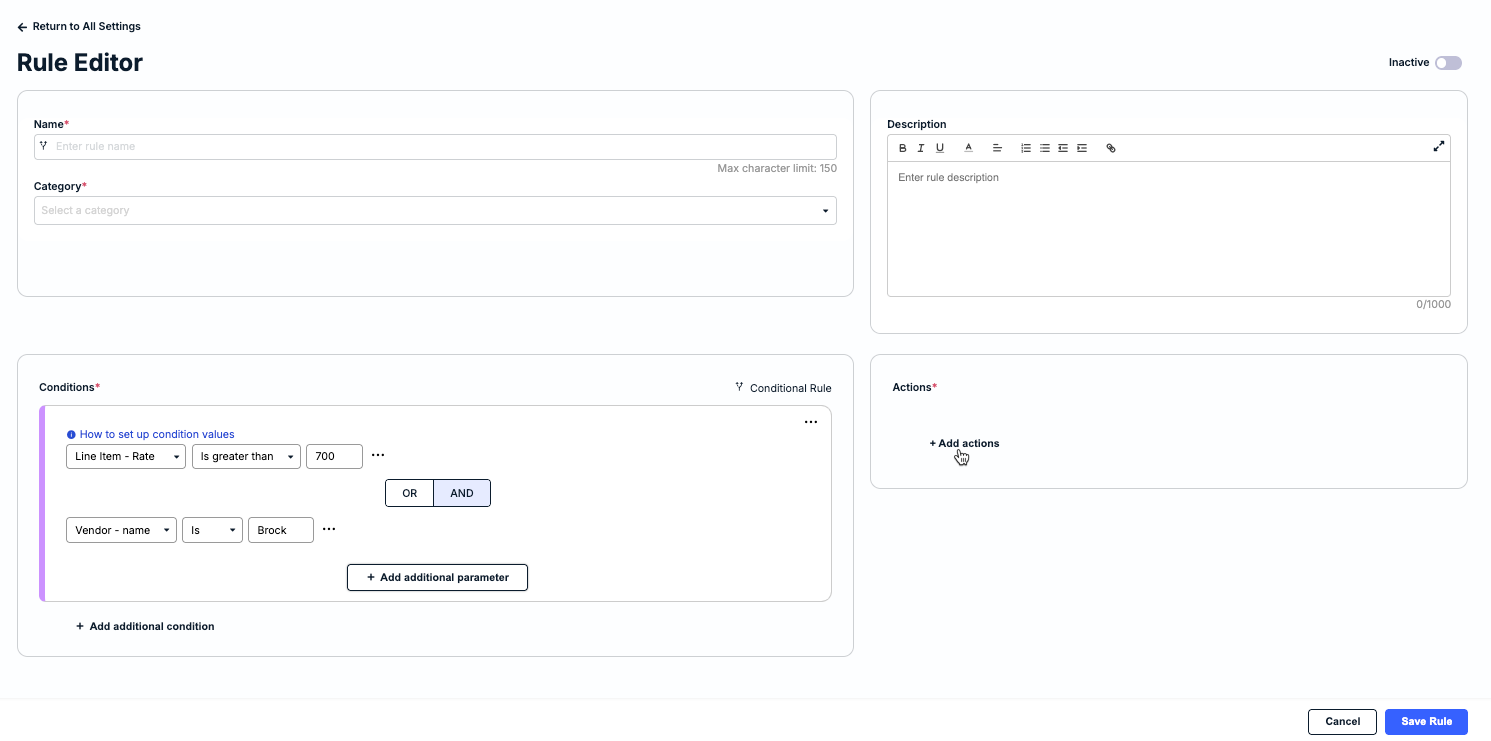
The table below summarizes each action and where the information appears in Unity if triggered for an invoice. For more detailed instructions on how to add actions, refer to the Creating an Invoice Validation Rule section.
| Action | Description/Notes |
|---|---|
| Add Activity Code | Assign an Activity Code to a line item before the invoice lands in the review queue. Required Information:
Code and comment are added to the line item in the invoice record and Invoice Notes; visible to the reviewer. Reviewer can change the code and comment before approving or rejecting the invoice. Example Use Case: If an invoice includes the keyword "research" in the line item description but the Activity Code is empty, then set the Activity Code to A102. |
| Add Expense Code | Assign an Expense Code to a line item before the invoice lands in the review queue. Required Information:
Code and comment are added to the line item in the invoice record and Invoice Notes; visible to the reviewer. Reviewer can change the code and comment before approving or rejecting the invoice. Example Use Case: If an invoice includes the keyword “copy” or “copied” in the line item description but the Expense Code is empty, then set the Expense Code to COPY. |
| Add Task Code | Assign a Task Code to a line item before the invoice lands in the review queue. Required Information:
Code and comment are added to the line item in the invoice record and Invoice Notes; visible to the reviewer. Reviewer can change the code and comment before approving or rejecting the invoice. Example Use Case: If the Matter Group for an invoice is Litigation and the line item description includes the keyword “deposition,” then set the Task Code to L330. |
| Adjust Line Item Total | Adjust the total for a line item to the maximum allowed amount before the invoice lands in the review queue. Required Information:
Information is applied to the line item in the invoice record and visible to the reviewer. Reviewer can remove the adjustment or further adjust the line item, including updating the total or comment, before approving or rejecting the invoice. NOTE: Auto-adjustments cannot be applied to non-USD invoices or international LEDES files. Example Use Case: If an invoice for US provisional patents has a line item total that exceeds $6000.00, then auto-adjust the line total to $6000.00 per AFA. If using this action to adjust the line item total to zero, any adjustments made by the vendor before submitting the invoice are calculated separately from the auto adjustment to the hours and rate. This is done to avoid ending up with negative line item amounts when these validation rules are triggered. |
| Adjust Line Item Rate | Adjust the rate for a service on a line item based on billing guidelines or vendor agreements before the invoice lands in the review queue. Required Information:
Information is applied to the line item in the invoice record and visible to the reviewer. Reviewer can remove the adjustment or further adjust the line item, including updating the rate or comment, before approving or rejecting the invoice. NOTE: Auto-adjustments cannot be applied to non-USD invoices or international LEDES files. Example Use Case: If an invoice for a litigation matter includes the keyword “discovery motion” for a line item description and the rate exceeds $400.00, then auto-adjust the line item rate to $400.00. |
| Flag Invoice | Add a comment to an invoice record to describe a potential billing guideline violation before it lands in the review queue. Required information:
Information is applied to the invoice record and visible to the reviewer. Reviewer can make an adjustment if applicable before approving or rejecting the invoice. Example Use Case: If the total for an IP invoice exceeds $6000.00, then flag the whole invoice with a comment describing the billing guideline violation. |
| Flag Line Item | Add a comment and flag to a line item to describe a potential billing guideline violation before it lands in the review queue. Required information:
Information is applied to the line item in the invoice record and visible to the reviewer. Reviewer can make an adjustment if applicable before approving or rejecting the invoice. Example Use Case: If an invoice has Task Codes for administrative tasks that are not billable, then flag the line items and add a comment. |
| Reject Invoice | Reject an invoice before it lands in the review queue if it is unacceptable based on billing guidelines. Required Information:
*The Rejection Reason lists the options that are active under Administration > Invoice Settings > Rejection Reasons in your environment. You can select one or more options depending on the scenario. If this field is mandatory for all invoices at the system level (i.e,. Invoice Settings > Preferences), you must select at least one reason to move forward with saving the rule. Automated email notification will be sent to the vendor with the selected rejection reason(s) and vendor comment (if applicable). Auto-rejected invoices will not land in the review queue for verification by a Unity user. NOTE: This action should be used sparingly to avoid repeated invoice rejections. If invoices violate billing guidelines, you may want to consider using the adjustment or flagging actions to ensure verification and accuracy. Example Use Case: If an invoice does not include a previously discussed vendor discount, then auto-reject the invoice. |