Customers using iManage for document management can integrate their iManage Workspaces with Unity. This article covers the setup requirements for connecting iManage with Unity.
Setting Up Onit's iManage Connection
To get started, contact Onit Support to enable external document management in your environment. Once enabled, Unity can be connected via the iManage web application. The following information is required to complete this setup:
- iManage Customer ID
- iManage Default Database (i.e., default library)
- iManage Server Hostname
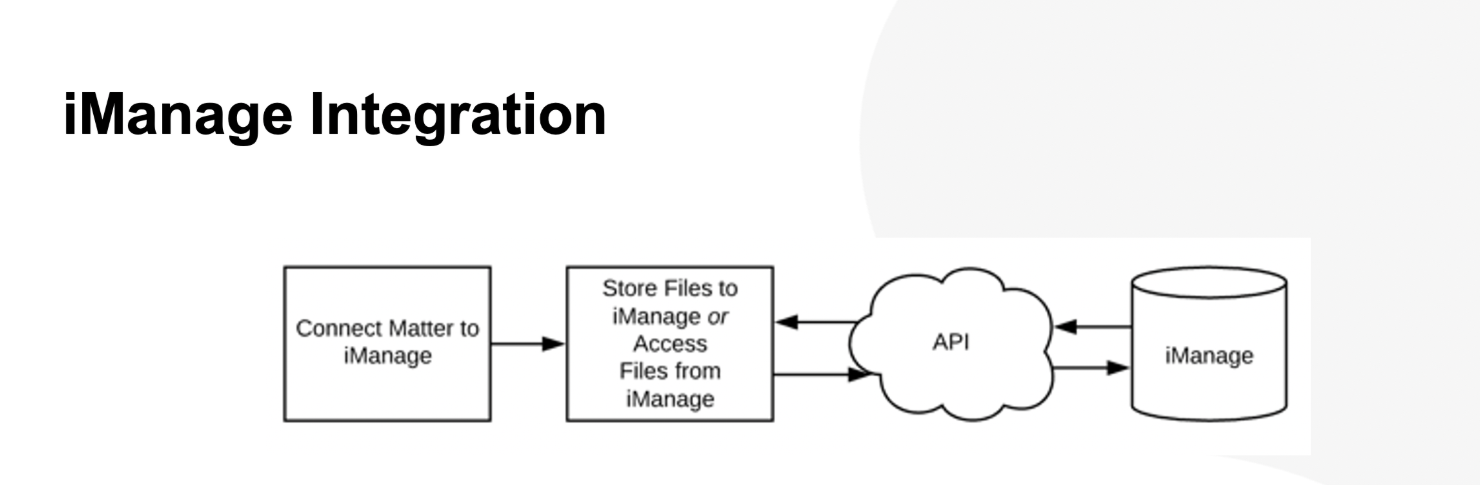
iManage Integration Visual Overview
Setting a Default iManage Template
Before users can connect individual matters to iManage, an admin must set the default iManage template in Unity. This template creates the file structure used for each new matter.
Follow the steps below to set the default iManage template:
1. Go to Settings > ELM > Matter Templates.
2. Add an iManage Workspace under iManage Templates to create the file structure.