The Standard Reports function in Unity provides users with in-depth analytics to generate informed reports that fuel insights and drive productivity.
Here, we'll take you through the basics of the Reports function within Unity ELM.
Accessing and Using the Reports Function
To access the Reports function, click on Reports on the left-side navigation bar menu.
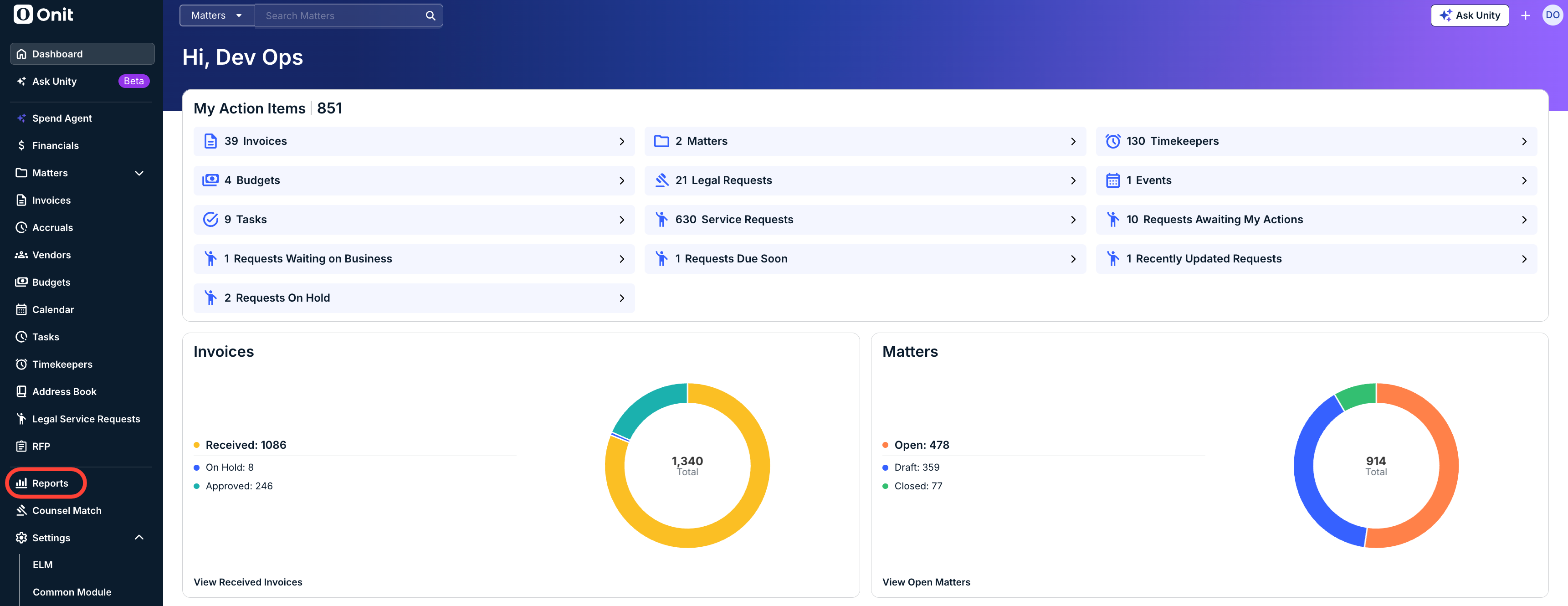
Accessing a Report
The Reports screen is divided into several different sections:
- The Recently Viewed section, which allows you to quickly go to the recently accessed report types. You can Star (favorite) these reports to show them in the Starred section. Click on View to go straight to that report.
- The Starred section, which will allow you to quickly go to your starred (favorite) reports. Click on the Star next to a report to mark it as a favorite.
The Reports detail section, which includes all of the different reports. You can click through to see the Standard, Custom, or Personalized reports, along with the Type of report and an option to Star (favorite) the report. Click on the up/down arrow next to each column name to sort by that column. Click on the drop-down menu to choose from the types of Insights or use the search bar to search for a report.
Standard Reports are pre-built reports available out of the box to all reporting users. These reports are created using HTML (real-time data) and the Enhanced Report Builder (data refreshed every 24 hours), providing immediate access to commonly needed insights without additional configuration.Custom Reports are user-created reports that allow clients to build their own charts and dashboards using the datasets available to them, or to customize, save, and reuse modified versions of standard reports. This enables greater flexibility and self-service reporting tailored to specific business needs.
Personalized Reports are add-on reports designed and built by Onit Services based on a customer’s specific requirements. These reports address unique use cases or advanced analytics needs that go beyond standard and self-service reporting capabilities.
The LIVE green button displays reports that stream real-time data. Click on Build Custom Report to create a custom report.
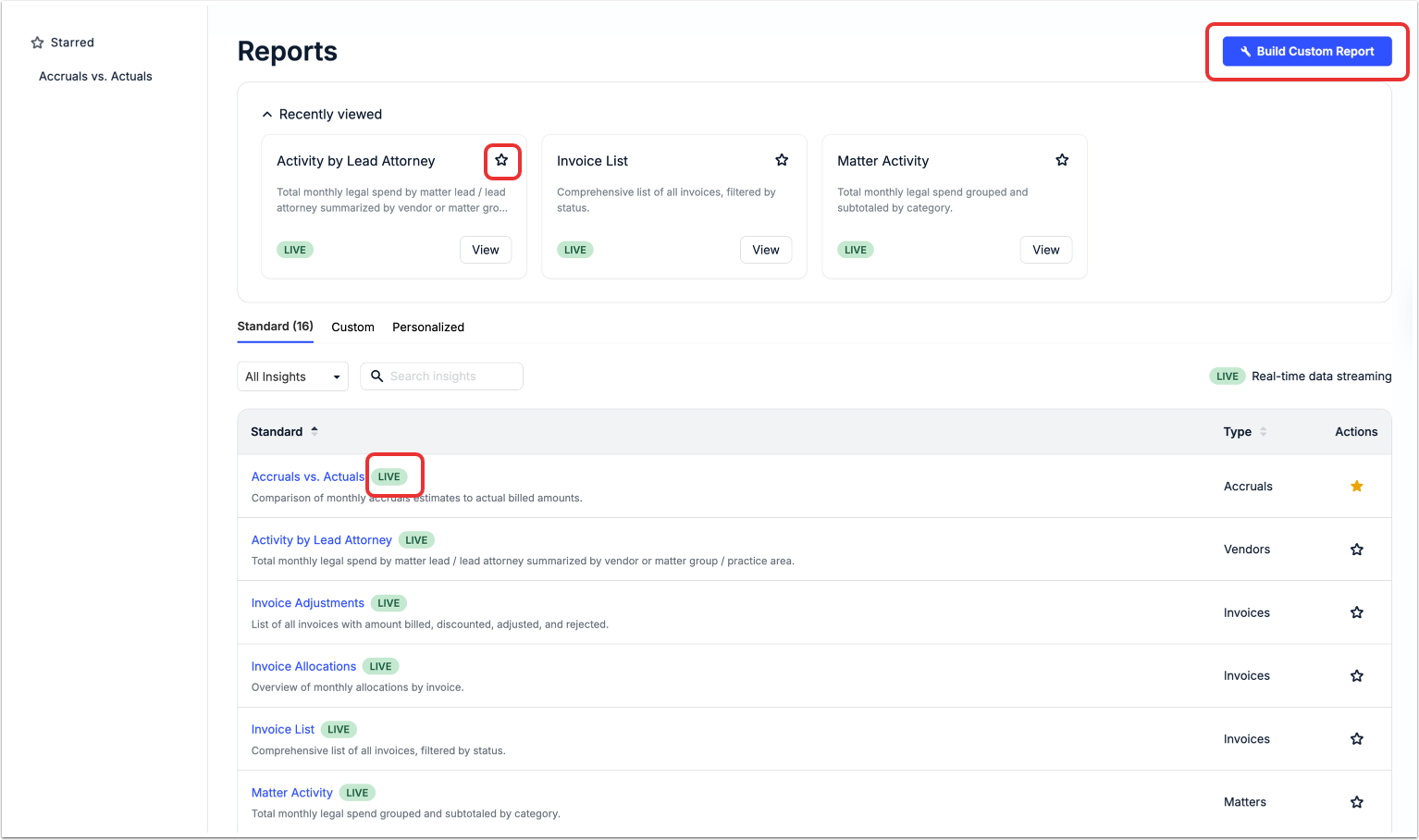
Click into each Report to see the report detail. Within each report, you'll see:
- A custom Filter, search bar and drop-down menus that will allow you to customize what you see on screen; click on Download to download any important information
- Links to the appropriate matter / vendor / invoice / etc.
- Details of different report sections
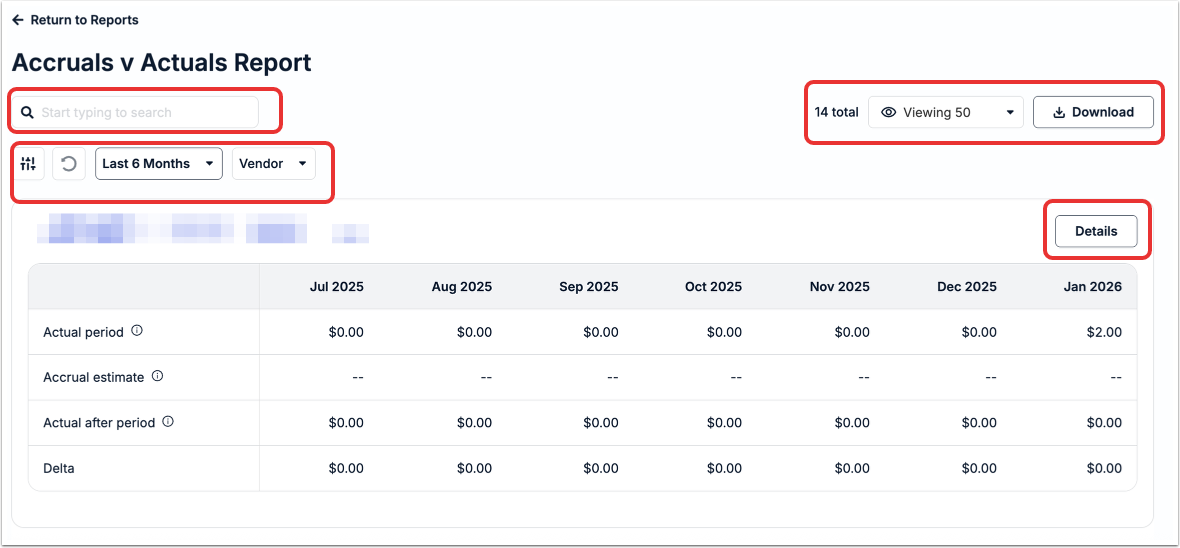
Standard reports include:
- Accruals vs. Actuals - Comparison of monthly accruals estimates to actual billed amount
- Activity by Lead Attorney - Total monthly legal spend by matter lead / lead attorney summarized by vendor or matter group / practice area.
- Invoice Adjustments - List of all invoices with amount billed, discounted, adjusted, and rejected.
- Invoice Allocations - Overview of monthly allocations by invoice.
- Invoice List - Comprehensive list of all invoices, filtered by status.
- Matter Activity - Total monthly legal spend grouped and subtotaled by category. Note that all invoices are included in the matter activity guide EXCEPT rejected.
- Matter Cost Comparison - Comparison of average monthly legal spend by matter, grouped and subtotaled by category.
- Matter File Sharing History - A list of matter files that have been shared along with the users who have downloaded them.
- Matter Inventory - Overview of open, closed and pending matter counts, and averages by matter lead / lead attorney or matter group / practice area.
- Matter Overview - List of all matters with hours, average rates and spend to date.
- Monthly Spend - High-level overview of spend by month.
- Rate Comparison - Average monthly realized rates by matter, grouped and subtotaled by category.
- Task Code Comparison - Matter-level comparison of average monthly legal spend by task code grouped and subtotaled by category.
- Timekeeper Activity - Total hours and rates by timekeeper, grouped by category.
- Timekeeper Diversity - Comparison of the representation and utilization of diverse timekeepers.
- Vendor File Sharing History - A list of vendor files that have been shared along with the users who have downloaded them.