Budget Requests allow customers to request and collaborate with vendors on budgets for upcoming work on matters. By having an approved budget, customers and vendors can have predictable accounting and better forecasting for future activities. Budget Requests in Unity are also referred to as budget proposals and external budgets.
This article covers the following topics:
- Understanding Budget Permissions
- Sending a New Budget Request
- Reviewing Budget Proposals
- Viewing External Budget Records
- Archiving an External Budget
Budget requests can be viewed and managed by going to Budgets and switching to the relevant status tab (i.e., Draft, Approved, or Archived). By default, the budgets list shows the Approved tab, which displays all internal and external budgets sorted by Start Date in descending order (i.e., newer budgets shown first). You can re-sort the list by column or type a keyword into the search field to narrow the results.
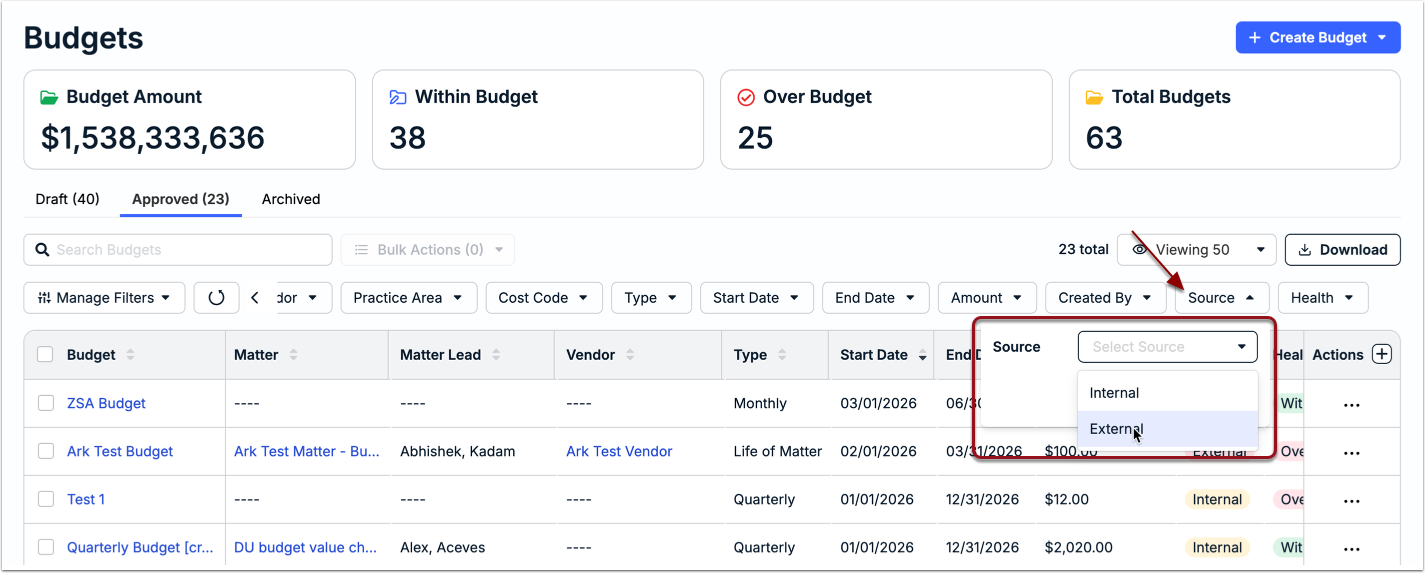
To quickly see only external budgets, use the right-facing arrow at the end of row of filters to find the Source option. Select External and select Apply. See the table below for more information on external budgets displayed under each status tab.
Understanding Budget Permissions
Customers can control which non-admin users work with matters and their budgets. When a user associates a budget with a matter, the budget inherits the permissions from that matter. This means:
- If a user can see a matter, they can also see the budget
- If a user has permissions to edit a matter, they can also edit a draft budget
In addition to the above, the Matter Lead, budget request creator, admins, and other users assigned as Internal Approvers have access to edit and reject/approve external budgets.
Sending a New Budget Request
Budget requests can be sent from the Budgets list or from the Vendors tab of matter records. Click an option below for instructions.
Budgets List
1. Go to Budgets from the left-side navigation bar.
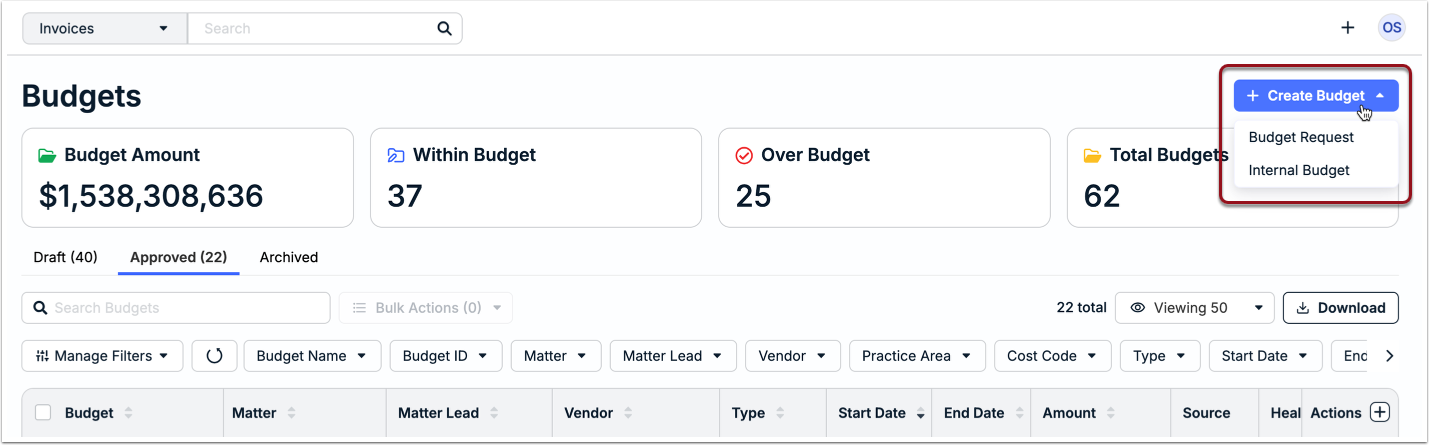
2. Click + Create Budget in the top-right corner and select Budget Request.
3. Select the relevant Matter from the dropdown list and choose a firm from the Vendor dropdown.
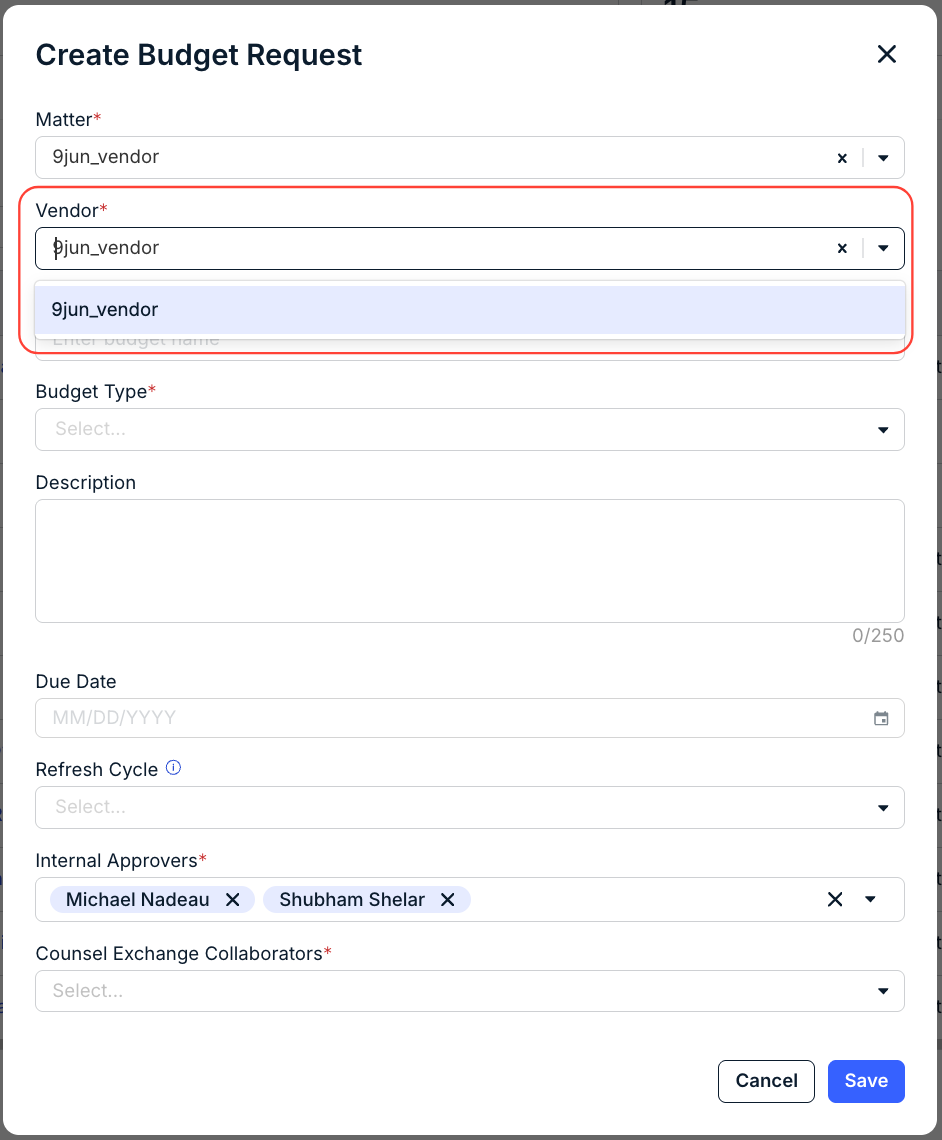
4. Fill in the required and any optional fields (see below for more information) and then click Save.
- Budget Name (required): Enter the name as it should appear in Unity and Counsel Exchange.
- Budget Type (required): Monthly, Quarterly, Annually, or Life of Matter. Date range options appear based on the selected type. Click here for additional information.
- Monthly > Select start and end dates (i.e., MM/YYYY)
- Quarterly > Enter the Quarter Year (i.e., YYYY)
- Phase > Select the Start Date and End Date, and choose the Phase Set(Counseling, Litigation Phase, Litigation Task, Mergers & Acquisitions, Patents, Trademarks, Etc.)
- Annually > Select the year
- Life of Matter > Select start and end dates (i.e., MM/YYYY)
- Description: Enter a description of up to 250 characters, including spaces.
- Due Date (optional): Select the date by which the vendor must submit the proposal.
- Refresh Cycle (optional): To request periodic updates for approved budget proposals, select how frequently the vendor should receive budget refresh requests (i.e., None, Quarterly, Biannually, etc.). For additional information about budget refresh requests, click here.
- Internal Approvers (optional): Auto-populates the names of users who have default permissions to approve the budget (e.g., Matter Lead, Vendor Manager, and budget request creator). Click within the field to add or remove users as needed; click Apply. The list displays only users who have edit access to the matter associated with the budget request.
- Counsel Exchange Collaborators (optional): Select which vendor contacts will receive notifications about the request and any refreshes (if applicable) and can access the budget record in Counsel Exchange.
Additional Internal Approvers can be assigned after the budget request is created. Review the section below for more information.
Vendors Tab in Matter Record
1. Open the matter record and go to the Vendors tab.
2. Click the … (more) option under the Actions column and select Request Budget.
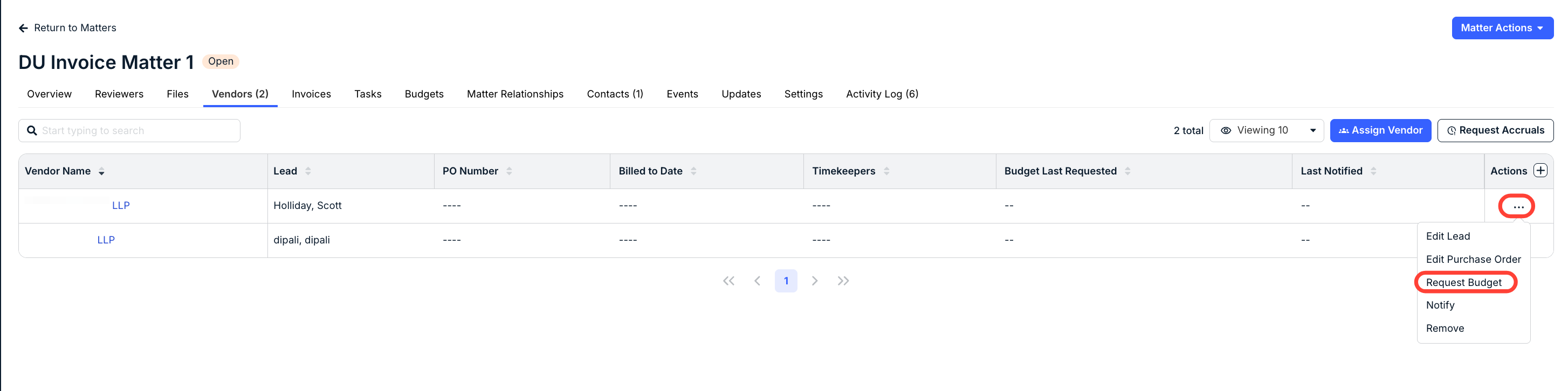
3. Fill in all required/optional fields (see below for more information) and then click Submit.
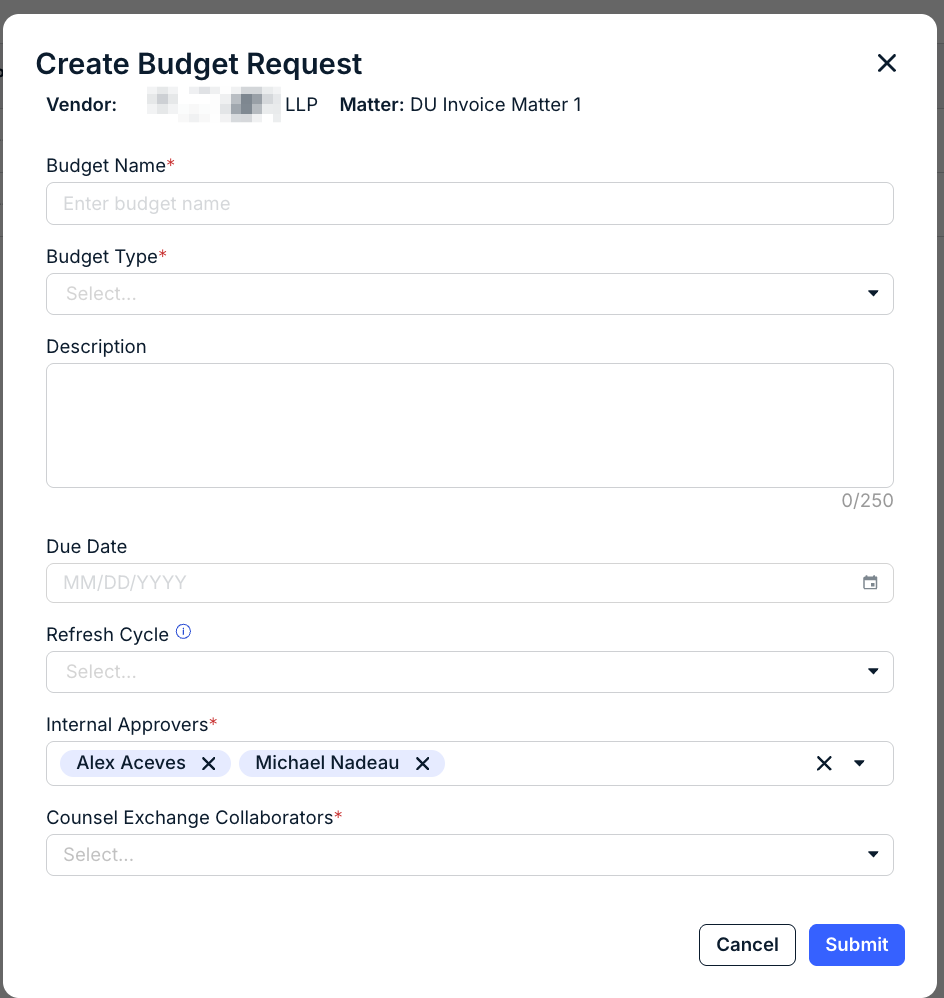
- Budget Name (required): Enter the name as it should appear in Unity and Counsel Exchange.
- Budget Type (required): Monthly, Quarterly, Annually, or Life of Matter. Date range options appear based on the selected type. Click here for additional information.
- Monthly > Select start and end dates (i.e., MM/YYYY)
- Quarterly > Enter the Quarter Year (i.e., YYYY)
- Phase > Select the Start Date and End Date, and choose the Phase Set(Counseling, Litigation Phase, Litigation Task, Mergers & Acquisitions, Patents, Trademarks, Etc.)
- Life of Matter > Select start and end dates (i.e., MM/YYYY)
- Annually > Fill in the budget year
- Description: Enter a description of up to 250 characters, including spaces.
- Due Date (optional): Select the date by which the vendor must submit the proposal.
- Refresh Cycle (optional): To request periodic updates for approved budget proposals, select how frequently the vendor should receive budget refresh requests (i.e., None, Quarterly, Biannually, etc.). For additional information about budget refresh requests, click here.
- Internal Approvers (optional): Auto-populates the names of users who have default permissions to approve the budget (e.g., Matter Lead, Vendor Manager, and budget request creator). Click within the field to add or remove users as needed; click Apply. The list displays only users who have edit access to the matter associated with the budget request.
- Counsel Exchange Collaborators (optional): Select which vendor contacts will receive notifications about the request and any refreshes (if applicable) and can access the budget record in Counsel Exchange.
Reviewing a Budget Proposal
Vendors are prompted to fill in the budget details in Counsel Exchange, including the scope, risk, assumptions, and amounts, based on the selected budget type. When the proposal is submitted, all assigned Internal Approvers receive an email notification. To review a proposal:
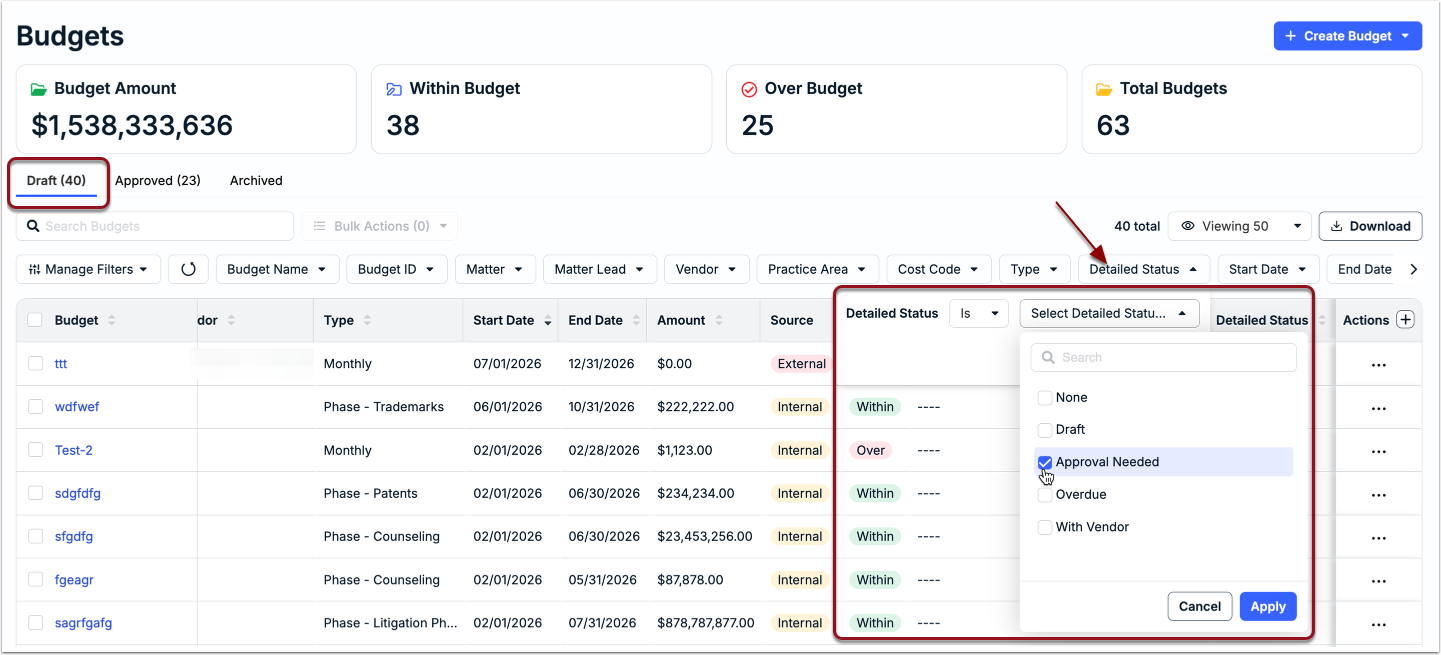
1. Go to Budgets from the left-side navigation bar and switch to the Draft tab.
2. Click on the Detailed Status filter above the list, select Is > Approval Needed, and click Apply.
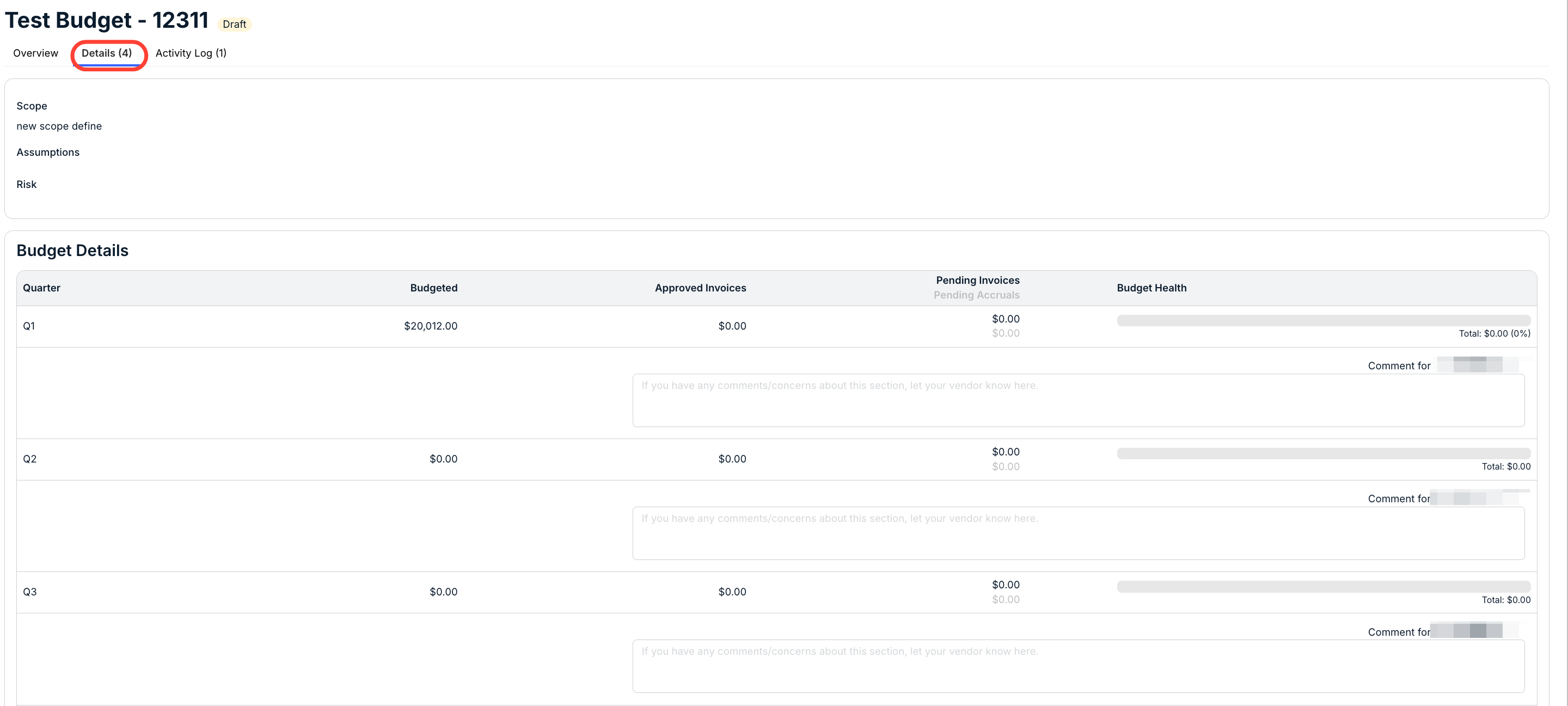
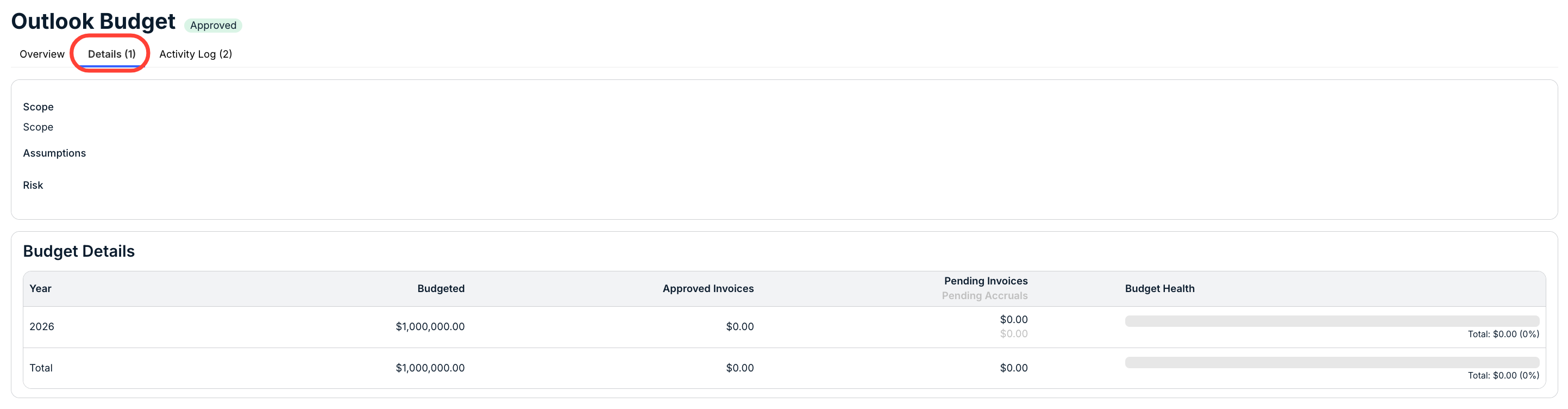
3. Open the budget and go to the Details tab to view the information and amounts submitted by the vendor. Add any comments for the vendor's entries, if applicable.
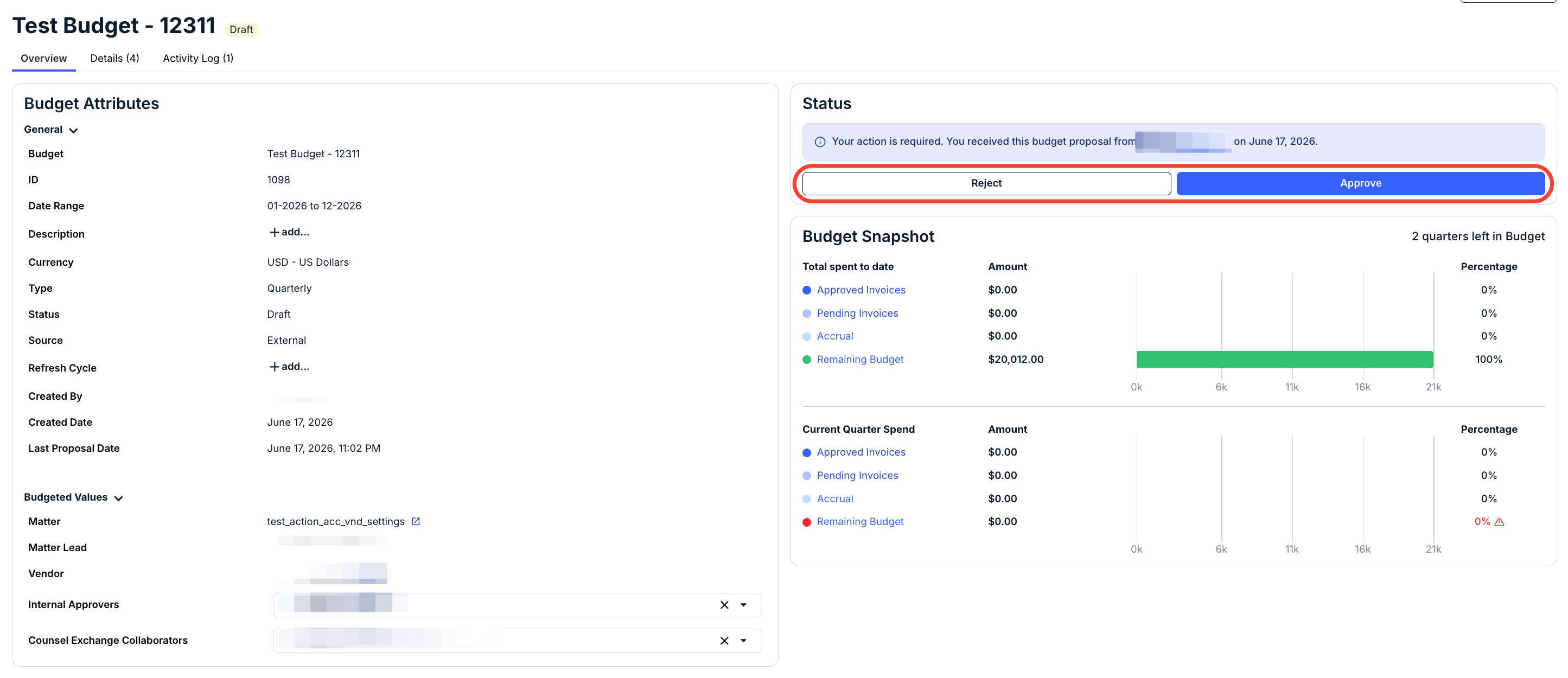
4. Switch back to the Overview tab and click Reject or Approve from the Status section on the right side.
Next Steps
The vendor is notified of the status update.
If a proposal is rejected, it remains in draft status and the designated Counsel Exchange Collaborators are notified so that they can update and resubmit the proposal for review. It will remain in the Draft > With Vendor status.
When a proposal is approved, it is moved from the Draft tab to the Approved tab and only certain fields, such as the name, description, and collaborators/approvers, can be modified by Unity users with edit permissions.
Once invoices are submitted and/or approved for the associated matter, the amounts will be displayed under the relevant columns under the Details tab. In addition, invoice amounts are included in the Budget Snapshot under the Overview tab. Click on a hyperlinked category (e.g., Approved Invoices) to see a filtered list of associated invoices.
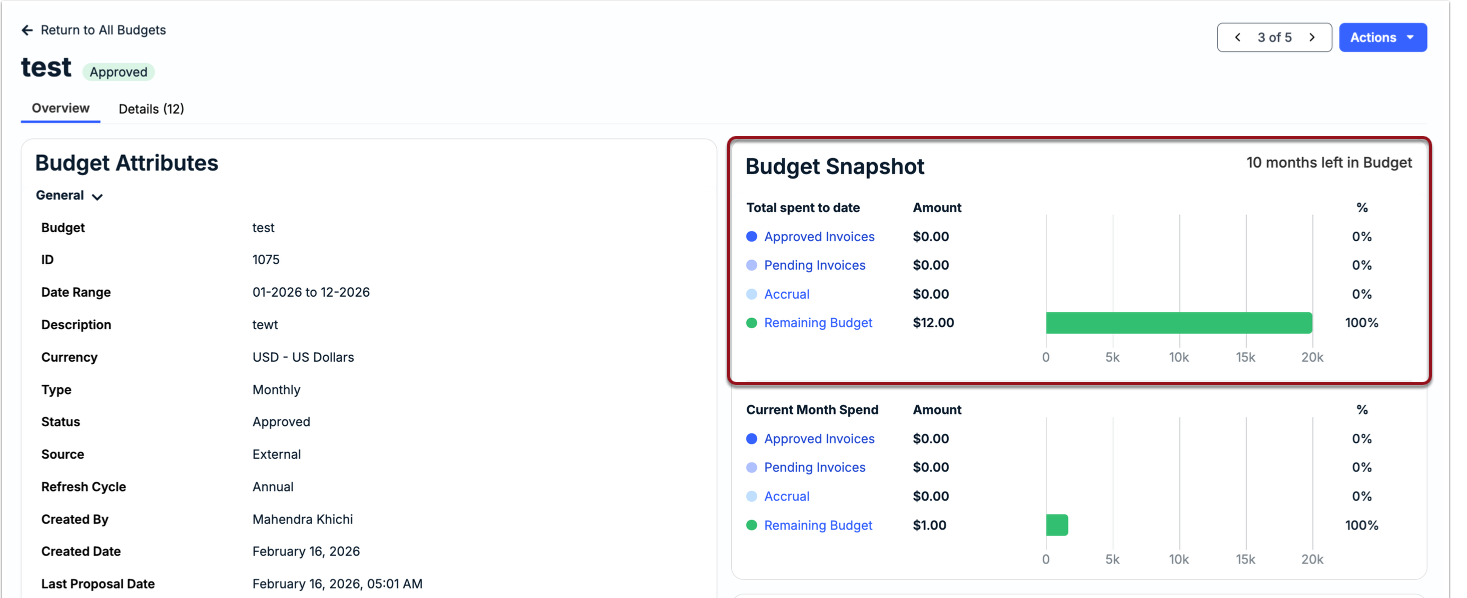
To request an update from the vendor for a specific budget proposal, you can send a budget refresh request. This is useful, for example, if the scope of work on a matter has recently changed and you would like to update your forecasting for accuracy. Click here for instructions.
External Budget Records
The information and actions available for external budgets depend on whether they are in draft or approved status. Once a budget proposal is approved, it is stored under the Approved tab of the budgets list page and tagged as external (see the Source column).
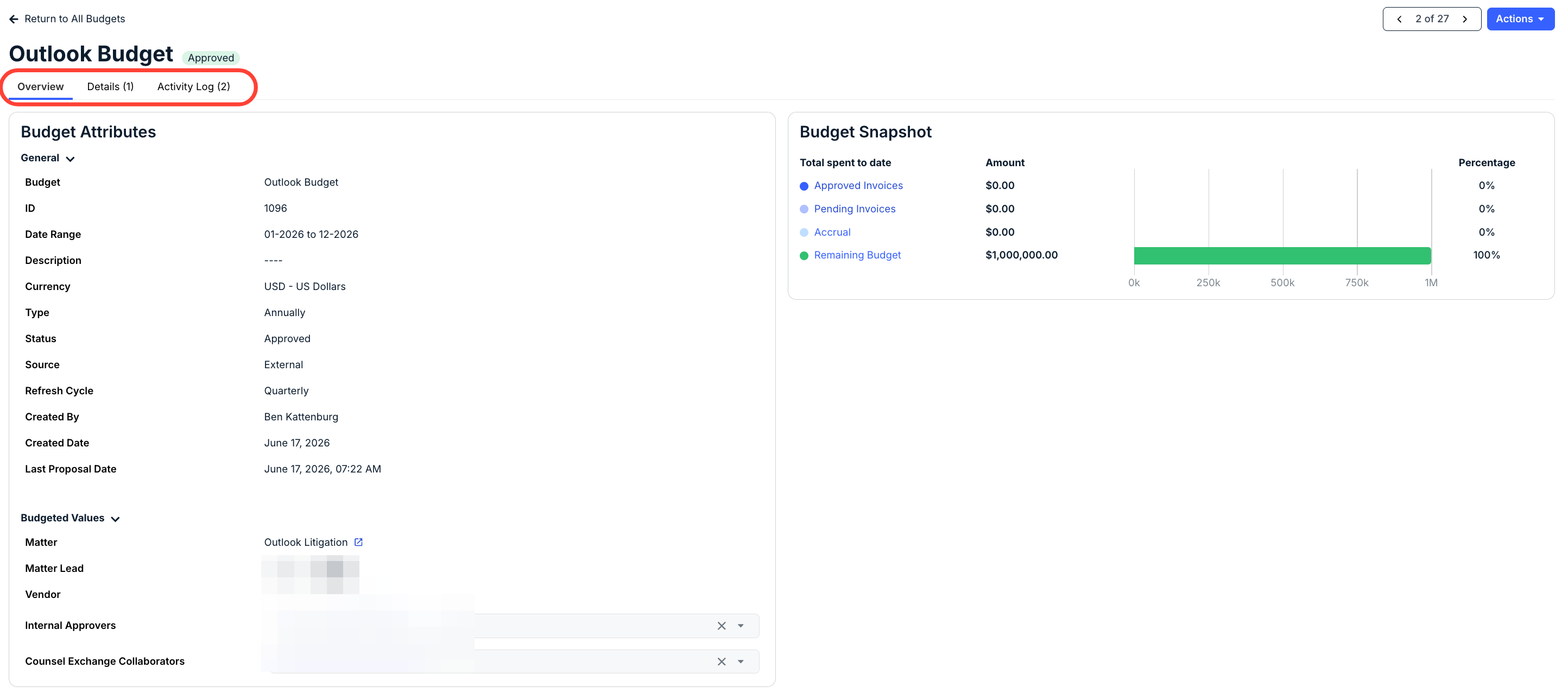
A budget record is separated into the following tabs:
- Overview: Budget Attributes, Budgeted Values, Budget Snapshot, and Activity Log. For more information on the fields and spend data shown, skip to the section below.
- Details: Information (i.e., scope, assumptions, and risks) along with proposed budget amounts submitted by the vendor. This breaks down budget amounts by approved and pending invoices. Click here for more information.
- Activity Log: Tracking all the activities on a record.
Overview
Budget Attributes
General
| Budget | Displays the name of the budget and can be edited if the external budget is in draft status. Hover over the field and click the edit icon to make any changes. This will also appear in Counsel Exchange. |
| ID | System-generated number assigned when the budget request was sent. |
| Description | Displays the description (if provided) and can be edited if the external budget is in draft status. Hover over the field and click the edit icon to make any changes (up to 250 characters). This will also appear in Counsel Exchange. |
| Date Range | Start and end date (typically driven by the budget type). |
| Currency | Three-character currency code (e.g., USD). It can be changed for external budgets in draft status only. This cannot be modified for budgets in the following statuses: Approved, Overdue, Expired, or Archived. |
| Type | Monthly, Quarterly, Phase, or Life of Matter. Cannot be modified once the budget request is initiated. For more information on budget types, click here. |
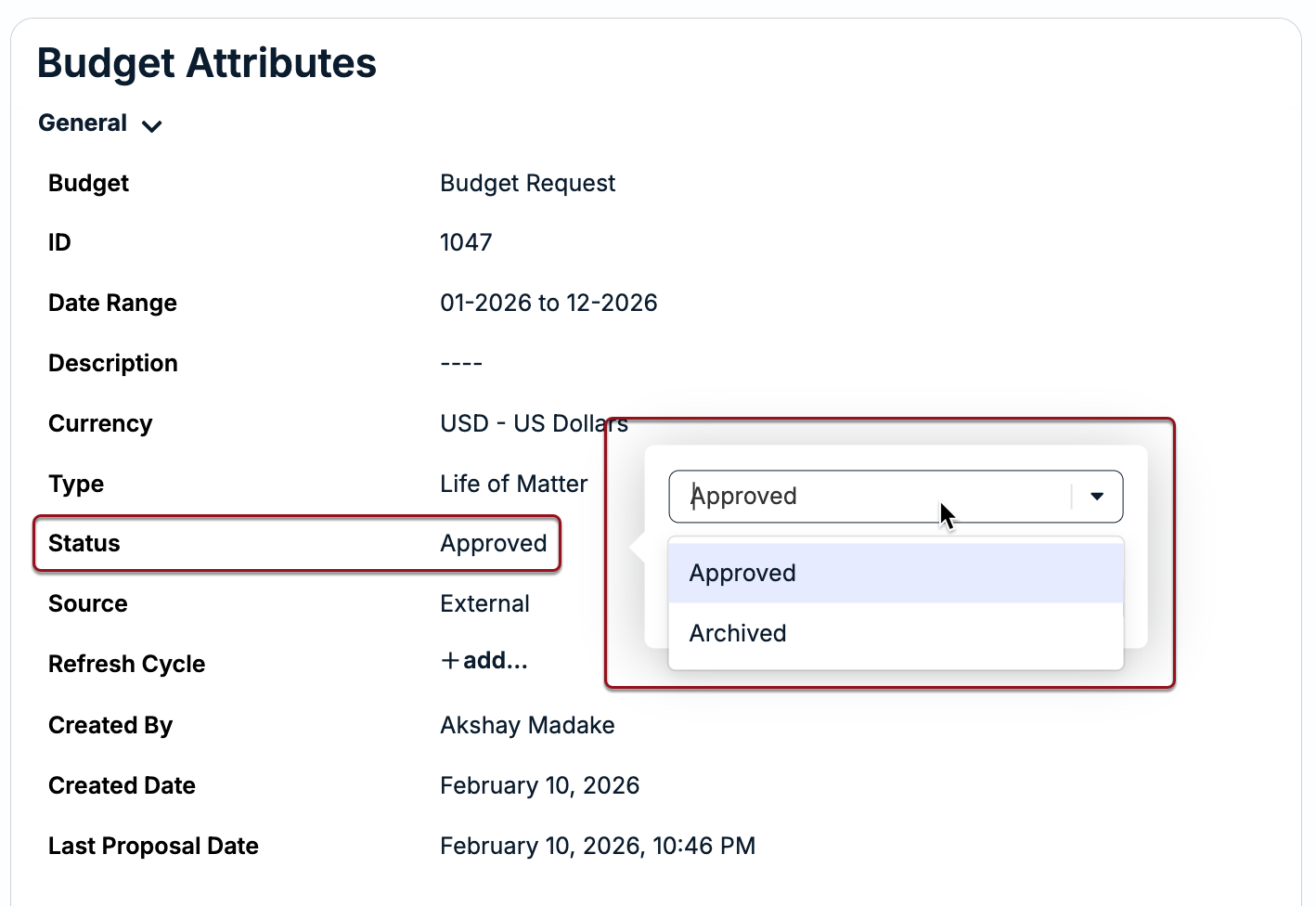
| Status | Displays one of the following statuses:
The status can only be manually changed from Approved to Archived. The status of draft budget requests cannot be manually changed. |
| Source | Displays External for all budget requests/proposals. |
| Refresh Cycle (editable) | Displays one of the following: Annual, Biannual, Monthly, Quarterly, or None to indicate how often the vendor will receive a request for updates to the proposal. Hover over the field and click on the edit icon to choose a different option. This can be updated if the budget is Draft, Overdue, Approved, or Expired. |
Budgeted Values
| Matter | Displays the associated matter. Click on the hyperlinked name to open the matter record. This cannot be changed once a budget request is sent. |
| Matter Lead | Populates the first and last name of the Matter Lead assigned to the matter. |
| Vendor | Displays the vendor to whom the request was sent. Click on the hyperlinked name to open the vendor record. |
| Internal Approvers | Displays the internal users who currently have permissions to approve or reject the proposal and will be notified of any action taken or required. Internal Approvers can be added or removed while the budget is in draft status. Hover over the field and click on the edit icon. Select or de-select names from the list and click Apply. NOTE: Other users, such as Administrators, may have default permissions to edit external budgets and approve/reject proposals. |
| Counsel Exchange Collaborators | Displays the vendor contacts with Counsel Exchange access who are assigned to work on the budget request and any refreshes (if applicable). Counsel Exchange Collaborators can be added or removed while the budget is in draft status. Click on the dropdown to select/de-select users and then click Apply. If a Counsel Exchange Collaborator is added, they will receive an email notification. |
Budget Snapshot
The Budget Snapshot section provides a high-level overview of the total spend to date:
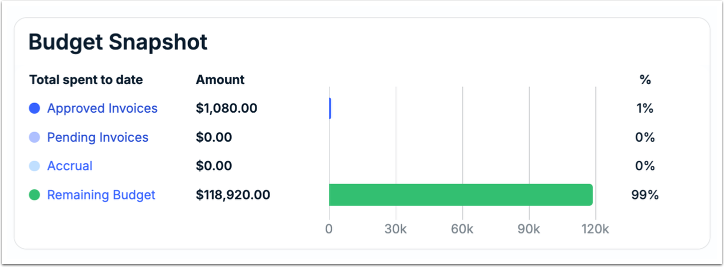
The snapshot is categorized as follows:
- Approved Invoices: Counts associated invoices that are in one of the following statuses: Approved, Sent to AP, Posted to AP, Paid, Partially Paid, or Overpaid.
- Pending Invoices: Counts associated invoices that are in one of the following statuses: Received, On Hold, or Processing.
- Accrual: Counts the accrual estimate (i.e., reported unbilled activity) minus any billing activity within the reporting period.
- Remaining Budget: Displays the remaining budget amount, minus the approved, pending, and accrual amounts.
Click on Approved Invoices, Pending Invoices, or Accrual to see a filtered list. Based on this snapshot, the budget’s health is labeled as being “Within” the amount or “Over” the amount on the budget list page for quick reference.
Details
This section provides the breakdown of proposed amounts entered by the vendor when submitting the initial proposal or a refresh. How many rows are displayed in this section depends on the selected budget type (e.g., Monthly, Quarterly, Life of Matter, etc.).
The amounts can only be modified for an approved proposal when the vendor is submitting a budget refresh per the Refresh Cycle or due to a manual request sent from Unity.
Activity Log
The section under the Overview tab lists a record of changes and other actions taken on the budget in reverse chronological order, including date, time, and username.

Archiving an External Budget
To archive an external budget, hover over the far-right of the Status field under Overview > Budget Attributes, click on the edit icon, and select Archived.