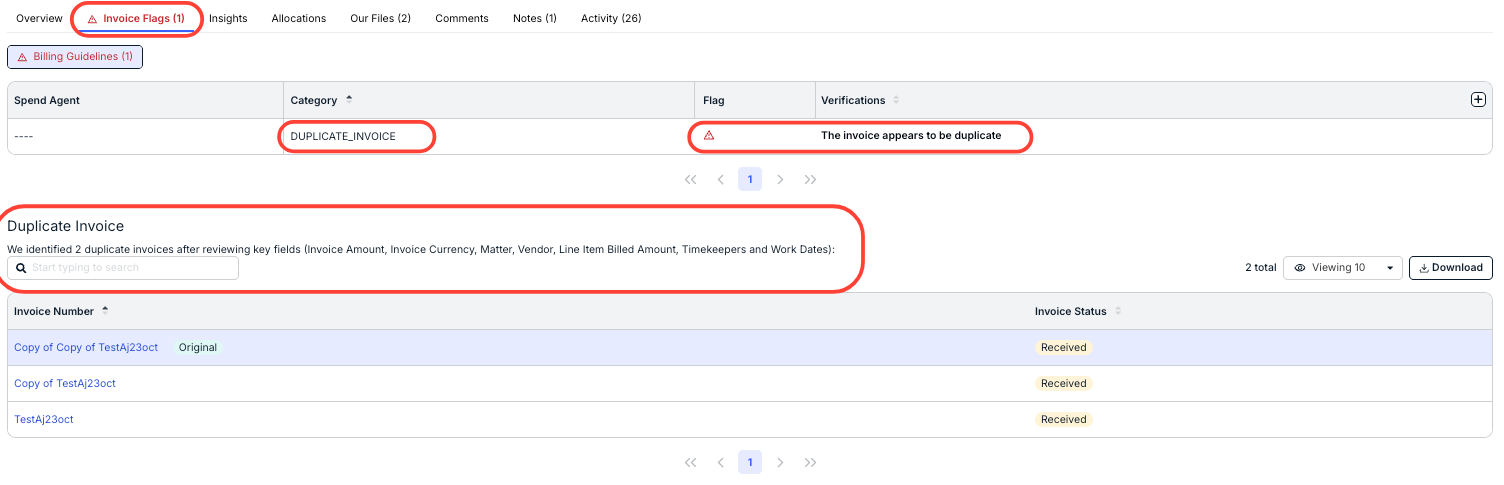
Duplication checks can be triggered at the invoice level and/or at the line item level to help reviewers quickly identify potential duplicates and minimize the risk of overpayment. The checks are completed by comparing incoming invoices against historical data in your system for specific matching criteria. Historical data includes previously submitted invoices as originally submitted (before any reviewer or system adjustments), excluding rejected invoices.
Duplication Validation Criteria
For an incoming invoice or an individual line item to be flagged as a potential duplicate, all of the following criteria must match:
| Invoice Level | Matter Name/ID Vendor Name/ID Invoice Amount and Currency For a line item:
|
| Line Item Level | Matter Name/ID Vendor Name/ID For a line item:
The Line Item Duplication Check setting allows you to review flagged line items without rejecting the entire invoice. For example, instead of rejecting the invoice, you can adjust the line item to zero and select the "Duplicate" adjustment reason. NOTE: For Timekeeper Rate, the value is compared against the line item cost actually used on the invoice and not the approved rate selected in Counsel Exchange. |
NOTE: Although the system can flag potential duplicates, it is up to the assigned reviewer(s) to further investigate and take next steps (e.g., adjusting, rejecting, or pausing review).
If an invoice or line item is flagged, you can view the details on the Invoice Verification tab.