Building Custom Reports in Enhanced Reporting
There are two options for building custom reports within Enhanced Reporting: the Adhoc Reports Builder and the Enhanced Reports Builder. We'll go over the Enhanced Builder here.
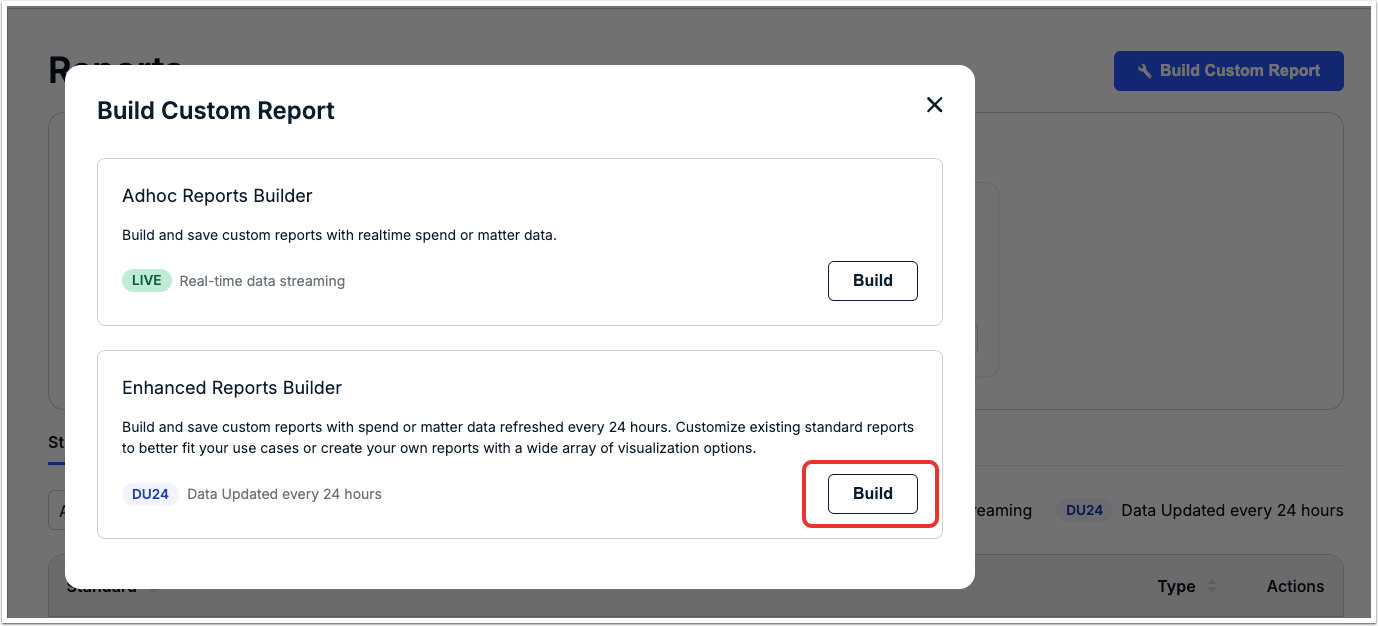
To access the Enhanced Builder, click on Build Custom Report and then on Build next to Enhanced Reports Builder.
The Onit Charts screen will open. The Charts page lists all existing charts sorted by most recently modified.
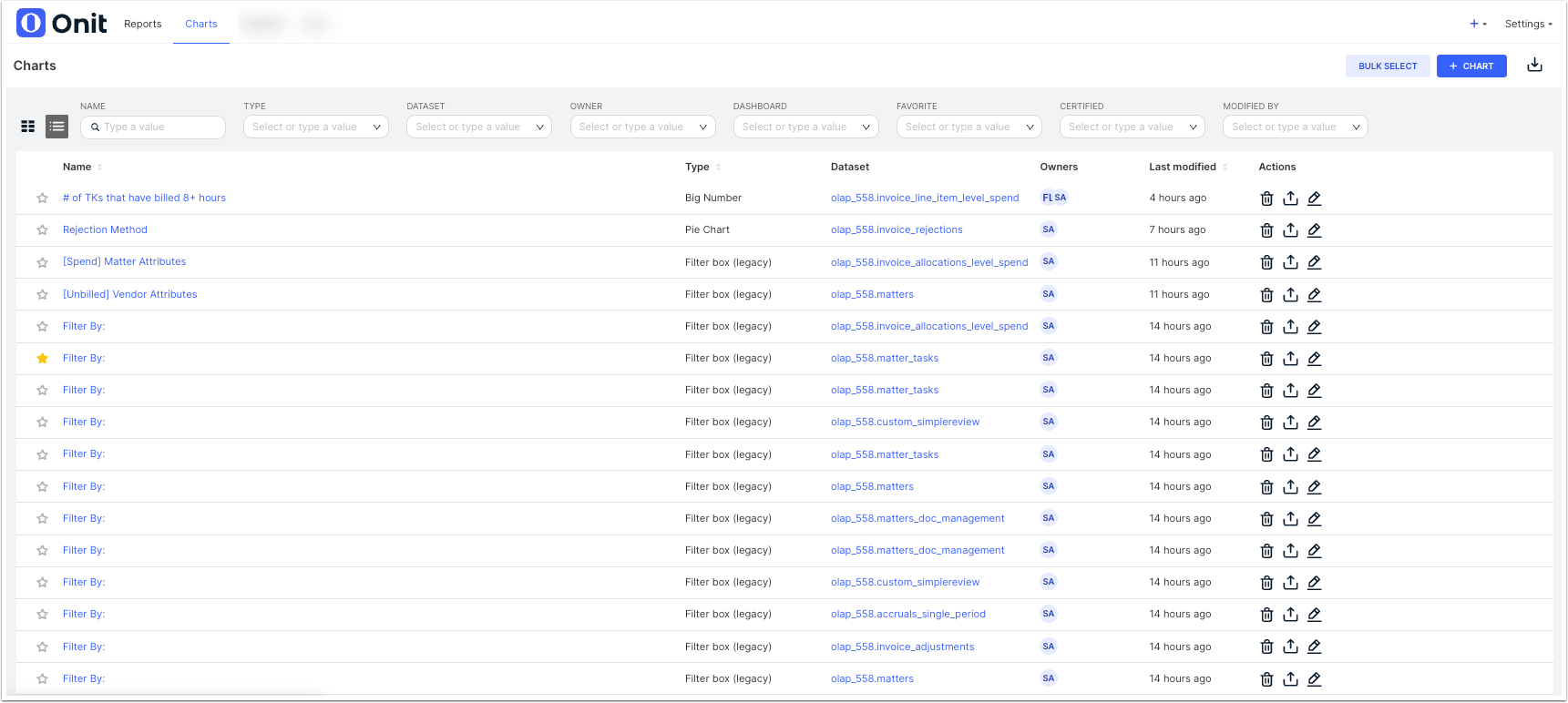
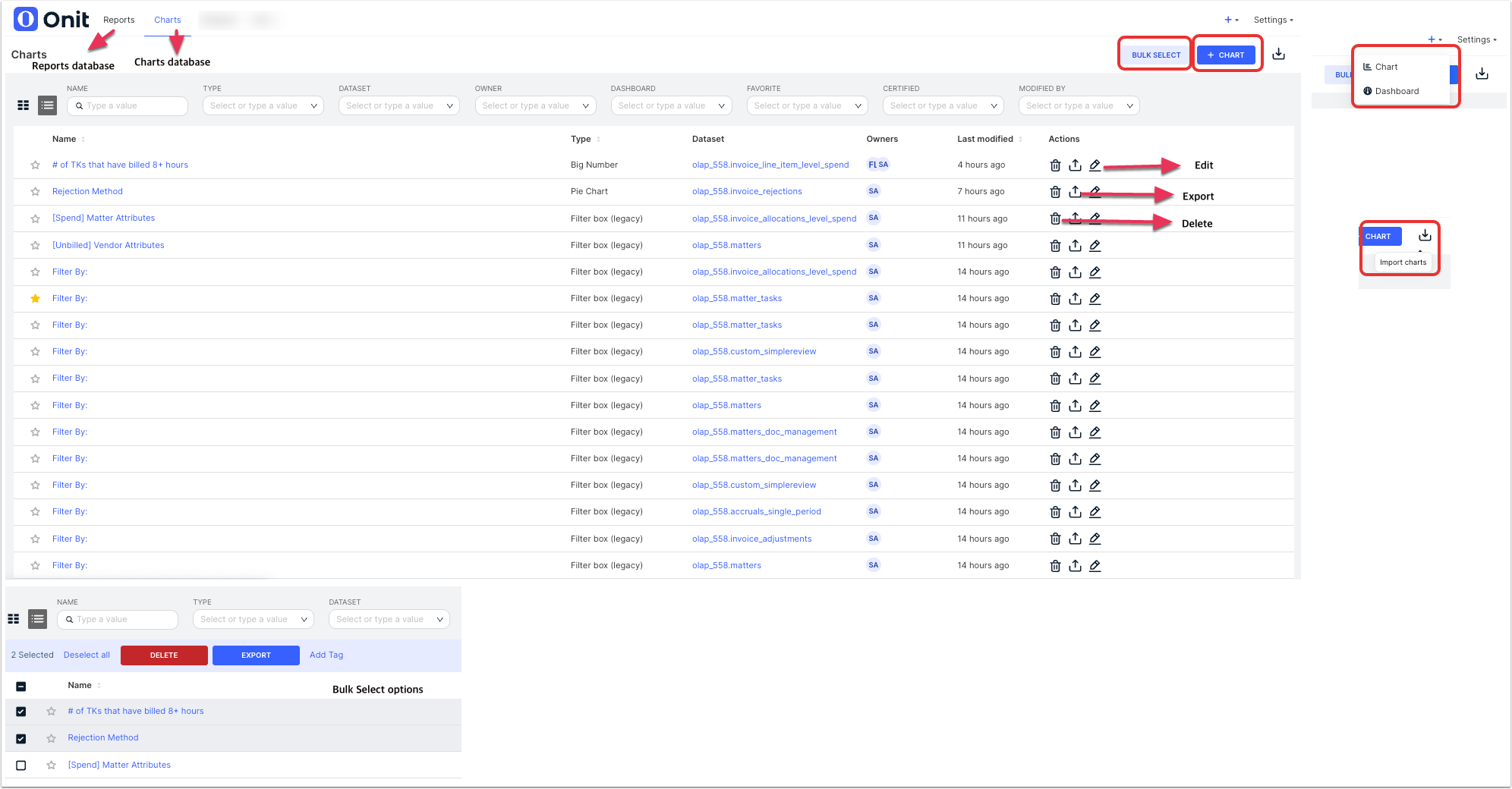
From this view, users can do the following:
- Click Reports in the top navigation bar to see and open existing draft/published dashboards.
- Click Datasets in the top navigation bar to see and open existing draft/published datasets.
- Type a keyword into the Name field and press enter/return on your keyboard, or use the filters to narrow the list of charts by various criteria, such as chart type or dataset.
- Open a chart in edit mode by clicking the chart name from the list.
- Click +in the top-right corner of the navigation bar to create a new Chart or Dashboard.
- Click +Chart in the top-right corner to build a new dashboard from scratch.
- Use the Bulk Select option to perform bulk actions on several different charts at once (Delete, Export, Add Tag)
- Click on the down arrow button to Import Charts.
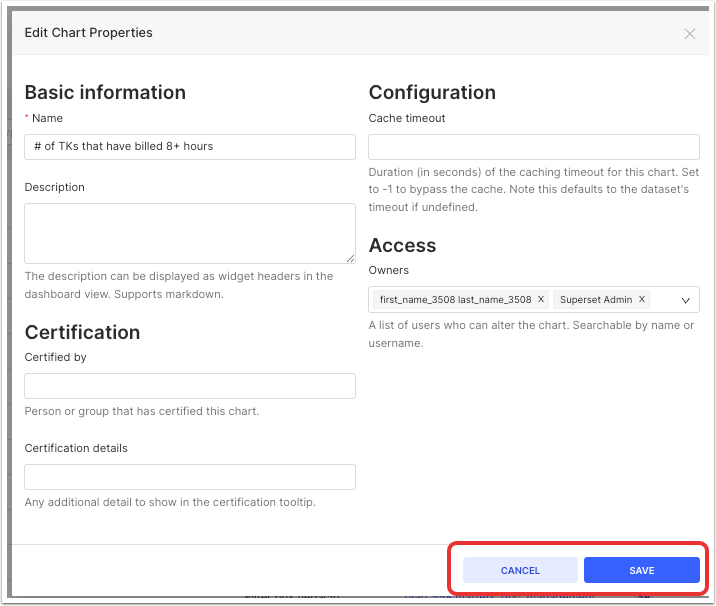
After clicking on Edit Chart, the Edit Chart screen will appear. Here, you can tweak the basic chart properties. Click Save to save or Cancel to back out.
Learn more about how to Create a new chart here.
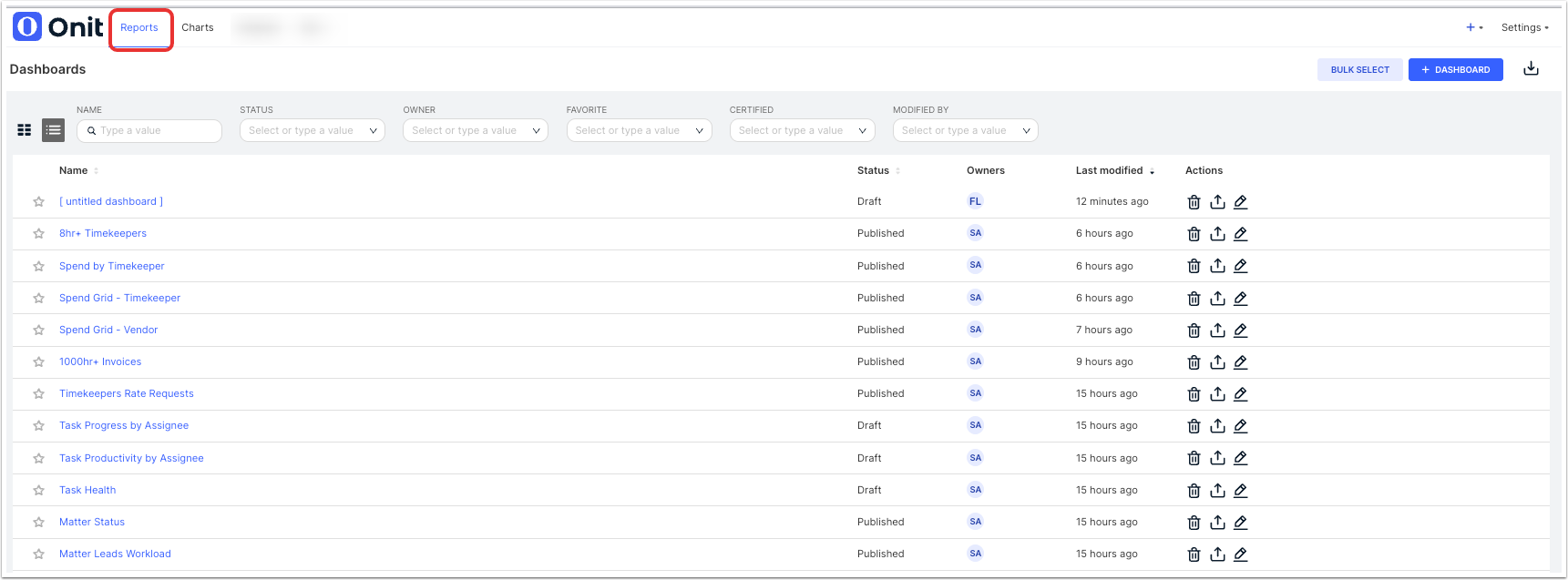
The Reports page lists all existing dashboards sorted by most recently modified. Click on a title to open the dashboard in view mode or take additional actions, such as cloning it for further editing.
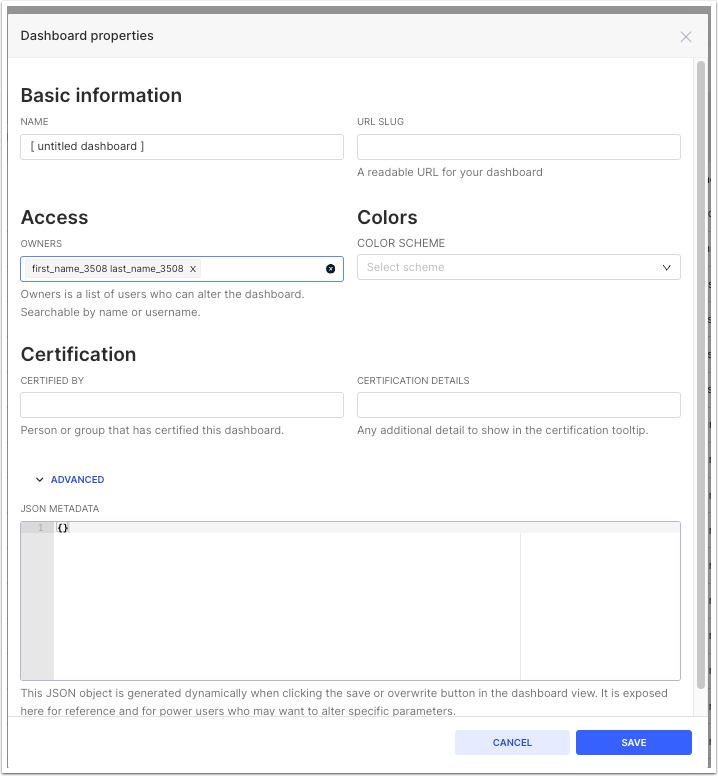
After clicking on Edit in the Reports section, the Edit Dashboard screen will appear. Here, you can tweak the basic chart properties or click on Advanced to edit the advanced metadata. Click Save to save or Cancel to back out.
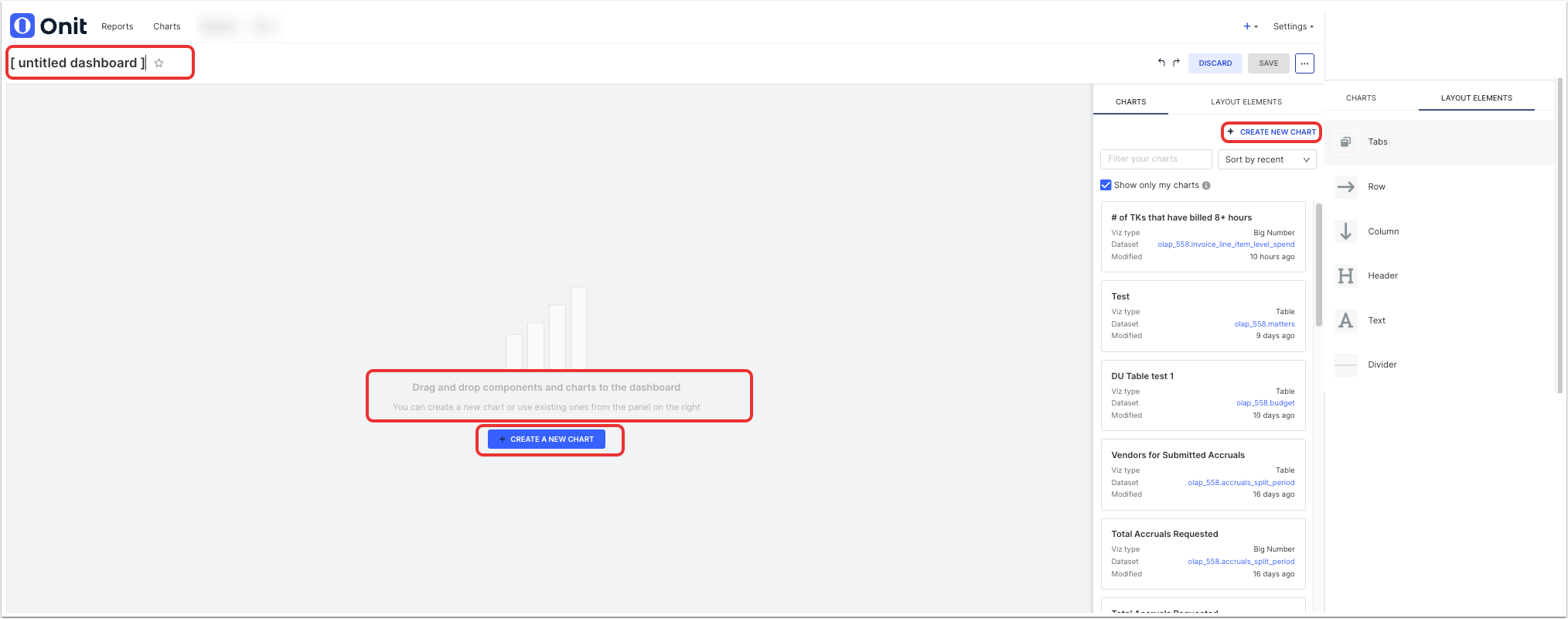
Click +Dashboard to create a new dashboard. You can drag-and-drop components and charts into the dashboard from the right-hand-side menu; use the drop-down menu and search bar to customize the types of charts you can see on the screen. Use the Layout Elements tab to add in tabs, rows, columns, headers, text, and dividers. Fill in the Name and mark the dashboard as a favorite (if necessary) at the top of the screen.
You can also create a new chart from this screen.
Enhanced Reporting Datasets
Charts can be built using the datasets described below. Click on a name below to see column definitions for each dataset (you must be logged into Unity to access).
| Dataset | Description/Notes |
| Accruals Single Period | Data for accruals in your environment at the matter and vendor levels. Useful for reporting on accruals activity and actual amounts to determine if vendors are consistently submitting estimates and if estimates are reliable for financial planning purposes. This dataset is for customers who allow vendors to submit accruals for only one (single) period at a time. This is the baseline dataset used in our out-of-the-box Accruals (Single Period) and Accruals vs. Actuals (Single Period) reports. |
| Accruals Split Period | Data for accruals in your environment at the matter and vendor levels. Useful for reporting on accruals activity and actual amounts to determine if vendors are consistently submitting estimates and if estimates are reliable for financial planning purposes. This dataset only applies to customers who have prior period accruals enabled in Unity, which allows vendors to submit accruals for a split (more than one) period at a time. This is the baseline dataset used in our out-of-the-box Accruals (Split Period) and Accruals vs. Actuals (Split Period) reports. |
| Invoice Level Spend | Data for invoice-level spend in your environment ranging from billed and final amounts to vendor-level information. Useful for reporting on upcoming spend (i.e., spend being reviewed) and approved or paid spend. |
| Invoice Line Item Level Spend | Data for invoice line items in your environment, ranging from general attributes for associated matters to spend-related totals. Useful for reporting at the line item level to determine if billed rates are consistent with billed amounts for various task, activity, and expense codes. This is the baseline dataset used in our out-of-the-box 8hr+ Timekeepers report. |
| Invoice Allocations Level Spend | Data for invoice-level allocations in your environment, ranging from general attributes for associated matters to spend-related totals. Useful for reporting on amounts allocated against accounting code sets to determine how respective allocation amounts are being tracked and utilized. This is the underlying dataset used for spend-based reports built using the Ad hoc Reports Builder and the baseline dataset used in out-of-the-box spend reports provided for Enhanced Reporting, such as Spend Grids and Billed Matters. |
| Invoice Rejections | Data for invoices that are rejected in Unity by reviewers or automatically based on billing rules. Useful for reporting on how rejection reasons are being applied across invoices to identify gaps or other areas of improvement. This is the baseline dataset used for the out-of-the-box Invoice Rejections report. |
| Matters | Data for matters in your environment, ranging from Legal Entities and Vendors to important activity/billing dates. Useful for reporting back on matter attributes to further break down or compare the distribution of legal entities, matter leads, and vendors across matters. This is the baseline dataset used in some of our matter-level out-of-the-box reports, such as Matter Status and Matter Leads Workload. |
| Vendors | Data for vendor records in your environment, such as recent billing activity and associated Vendor Groups (if applicable). Useful for highlighting or comparing matter volume across vendors or determining the distribution of matters across vendors based on location, Vendor Groups, or other attributes. This is the baseline dataset used in our out-of-the-box Active Vendors report. |
| Timekeepers | Data for timekeepers who bill for work on matters in your environment, including rates and spend totals. Useful for showcasing rates over time for comparison and providing better visibility into approvals vs. rejections for submission. This is the baseline dataset used in our out-of-the-box Timekeeper Rate Requests report. |
| Budgets | Data for approved budgets in your environment, including information related to budget health. Only applies if the budgets feature is enabled in Unity. Useful for providing better visibility into amounts/performance for both internal and external budgets (if applicable) at the matter or firm level. This is the baseline dataset used in our out-of-the-box Budget Health report. |
| Legal Requests | Data for legal requests submitted by users in your environment, including current status, reviewer names, form names, and associated matter names (if applicable). Only applies if the Legal Requests feature is enabled. This is the baseline dataset used in our out-of-the-box Legal Requests report. |
| AI-Powered Invoice Review | Data recorded for AI rules in your environment, including rule performance and vendor insights. Only applies if SimpleReview is enabled for AI-driven invoice review. Useful for seeing the potential savings associated with flagged line items and which rules yield the largest and smallest potential savings. This is the baseline dataset used in our out-of-the-box AI-powered invoice review report. |
| Events | Data captured for events created for matters in Unity. This dataset is only available for customers with the Max Matter Management plan. |
| Matters Document Management | Data captured for files uploaded to matters in Unity and/or shared with/by CounselGO users for specific matters. This is the baseline dataset used in our out-of-the-box Document Management Status and Matter Files Shared reports. This dataset is for customers who are using Unity's Document Management System (DMS). |
| General Files | Data captured for files uploaded to vendor records in Unity and/or shared with/by CounselGO users. This is the baseline dataset used in our out-of-the-box General Files Shared report. |
Custom Attributes
Custom attributes can be used to build new charts for the following datasets: Invoice Line Item Level Spend, Invoice Allocations Level Spend, Matters, Vendors, and Timekeepers.
Go to Administration and then Custom Attributes in Unity to see the list of custom attributes in your environment and relevant information, such as field type and associated record types.
To export custom attributes as a spreadsheet for reference and further filtering, click Download above the list.
Review the following notes and other considerations about custom attributes before moving forward with chart configuration:
- New custom attributes added to Unity will not be pushed into datasets until:
- The custom attribute is present inat least one record(e.g., at least one matter)
- The 24-hour data refresh cycle for Enhanced Reporting has passed
- A custom attribute will only appear as a column option if the following applies:
- It is active in Unity
- It is scoped to at least one record type (i.e., Attribute Scope)
- It is present inat least one record (e.g., at least one matter)
- If a custom attribute used in a chart is later edited or deleted in Unity, the chart will no longer work. Make sure to edit charts accordingly when custom attributes are updated.
- Whether a custom attribute is available as a column option depends on the selected dataset.
The table below shows the naming convention for custom attributes that appear in datasets. The naming convention is driven by the Attribute Scope, which can be found in the last column under Administration > Custom Attributes and specifies the type (s) of record(s) the custom attribute is designated for in Unity. For more information about custom attributes, click here.
| Attribute Scope | Column Naming Convention |
| Matter | Matter Attribute [Attribute-Name] (e.g., Matter Attribute Department) |
| Legal Entity | Legal Entity Attribute [Attribute-Name] (e.g., Legal Entity POC) |
| Purchase Order | Purchase Order Attribute [Attribute-Name] (e.g., Purchase Order Attribute Expense Code) |
| Invoice | Invoice Attribute [Attribute-Name] (e.g., Invoice Attribute Department) |
| Vendor | Vendor Attribute [Attribute-Name] (e.g., Vendor Attribute Region) |
If a custom attribute has more than one record type under Attribute Scope, there will be separate instances of it under the column names to help users choose the relevant option. Each one will be prefixed with the record type. For example, if a custom attribute "Project Type" is scoped for both matters and vendors, the columns would show "Matter Attribute Project Type" and"Vendor Attribute Project Type." See the image below as an example:
The list below shows which custom attributes are available for each Enhanced Reporting dataset:
- Invoice Line Item Level Spend: Matters, Vendors, Invoices, Purchase Orders & Entities
- Invoice Allocations Level Spend: Matters, Vendors, Invoices, Purchase Orders, Allocatable Attributes & Entities
- Invoice Level Spend: Vendors, Invoice, Purchase Orders & Entities
- Accruals: Matters & Vendors
- Matters: Matters & Vendors
- Vendors: Vendors
- Legal Requests: Matters
- Budgets: Matters & Vendors
- Timekeepers: None
Using Custom Attributes
Admins can customize Unity environments to record additional details beyond those captured and tracked by our general attributes (e.g., Matter Name, Description, Matter Group, Legal Entity, and Cost Code). These additional data fields are referred to as custom attributes and can be associated with matters, vendors, invoices, and other types of records, depending on customer needs.
Before moving forward, think through the information your company needs to record and report on. What data do you need beyond what is already set up in Unity?
Some ways our customers use custom attributes include the following:
- Setting custom attributes as allocatable to assign portions of spend to accounting-type attributes other than our built-in fields (e.g., Cost Codes or Legal Entity).
- Scoping custom attributes to matters, invoices, legal entities, vendors, and/or purchase orders (if applicable) to capture and link datapoints across various types of records.
- Adding custom attributes to matter templates so that they automatically populate as required or optional fields when new matters are created.
- Categorizing similar/relevant custom attributes into display groups for better organization.
Supported Field Types
When creating a custom attribute, you must give it a name and select a field type based on its function and purpose. Supported field types are listed below with examples.
| Type | Description | Example |
| List | Dropdown field with a defined list of values users can choose from, such as an office location, region, or department name. | |
| Text | Open text field for shorter inputs, such as names, titles, or brief descriptions. Supports input of letters, digits, and other symbols. | |
| Text Area | A multi-row open text field, such as notes or instructions. Supports input of letters, digits, and other symbols. | |
| Date | Date field that allows manual input or use of a calendar picker. | |
| Yes/No | Allows users to select fromYesorNovalues only. | |
| Currency | Consists of two fields: one for currency code (list of values) and one for currency value (numeric field). |
Custom Attributes Management Page
This section covers how to manage data fields under Administration > Custom Attributes.
The Custom Attributes Management page displays the following information:
- Display Group: Category the attribute is associated with. By default, new custom attributes are stored under the built-in Custom display group unless additional display groups are created.
- Attribute: Name of the custom attribute as it appears to users. If provided, the description is listed under the name.
- Type: Selected field type (e.g., List, Date, Text, Currency, etc.).
- Allocatable: Whether the attribute is set as allocatable. Shows Yes or No for list-type attributes only; shows n/a for all other field types.
- Attribute Scope: Which record type(s) the custom attribute can be associated with (e.g., Matter, Vendor, Legal Entity, etc.).
You can do the following from this page:
| Click Download to export the list of custom attributes as an Excel file for further review and filtering. | |
| Click Manage Groups to view, manage, or add categories for custom attributes (i.e., display groups). Click here for more information. | |
| Click Manage Relationships to view, manage, or add hierarchical relationships between non-allocated list-type custom attributes. Click here for more information. NOTE: This only applies if the Conditional Custom Attributes feature is enabled. | |
Click Add Attribute to create a new custom attribute. NOTE: If this button is disabled, it means you have reached the maximum number of allowed custom attributes per your Spend and/or Matter Management plan. Contact support to upgrade or consider deleting unused custom attributes. | |
| Click on an attribute name from the list to open it for editing, such as updating the Attribute Scope, adding a description, or changing the associated Display Group. | |
Use the checkboxes on the left side of the table to select one or more custom attributes and see available bulk actions (e.g., delete attribute or update display groups).
|
Creating Custom Attributes
In addition to the general attributes built into , customers can create custom attributes to capture and track additional details for matters, vendors, and other record types. For example, custom attributes can be added to matter templates so that they appear on associated matters as required or optional fields.
Before Continuing
Review the following notes and tips/suggestions before creating new custom attributes:
- You must have admin permissions to create or manage custom attributes.
- Confirm which field type (e.g., list, type, etc.) is needed before creating the custom attribute; once it is created, the field type cannot be changed.
- It is important to think through the additional information your company needs to capture and why. If needs are not addressed by general attributes, how would custom fields help?
- To avoid overlap and maintain data integrity, we recommend checking whether there are any existing custom attributes that already address the need.
- Depending on your organization's Unity Spend and/or Matter Management plans, there may be a limit to how many new custom attributes can be added. For unlimited custom attributes, contact support to upgrade.
1. Go to Administration > Custom Attributes and click Add Attribute in the top-right corner.
NOTE: If the Add Attribute button is disabled, this means you have reached the maximum number of allowed custom attributes per your Unity Spend and/or Matter Management plans. Contact customer support to upgrade or consider deleting unused custom attributes.
2. Enter or select the following:
- Attribute Name: The custom attribute name as it should appear to users.
- Attribute Description (optional): Any optional text as a guide to other admins.
- Type: Select from List, Yes/No, Date, Currency, Text, or Text Area. If creating a list-type attribute, refer to the next section for instructions on how to create the list of values.
- Display Group: Select a display group (if available) to store the custom attribute under a specific category.
IMPORTANT: Once a custom attribute is created, the Type (e.g., list, date, etc.) cannot be changed. Verify you selected the intended field type before moving forward.
3. Click Add and View Attribute.
4. Set the following fields and review/update other details if needed (e.g., name, display group, etc.):
- Attribute Scope: Click add...to specify which record types the custom attribute can be associated with (i.e., Matter, Vendors, Invoice, Legal Entity, and/or Purchase Order).
- Allocatable: This only applies to list-type custom attributes and is set to No by default. Change this to Yes to set it as allocatable. See more information about allocations below.
List-Type Attributes
If you chose List as the field type:
1. Click Add Value under the list section of the attribute details page.
2. Enter a list value, description (optional), and code (optional), and then click Submit.
3. Repeat Steps 1 and 2 for each value in the list.
4. Hover over the ... (more) option at the end of a row for a value and select Edit.
5. Update the value's name, description, or code, if applicable.
6. Select values for the following optional fields, if applicable, and then click Submit.
- Applicable Matter Group (or Practice Area): Select one or more options.
- Applicable Legal Entities: Select one or more options.
- Status: Choose Not Active to exclude the value from the list on scoped records.
A Note About Allocations
Allocations are used to divide expenses based on accounting-type attributes assigned to a matter, such as a Cost Center or GL Code. If our default allocatable attributes (i.e., Legal Entity and Cost Code) do not address your needs, you can set up relevant custom attribute lists as allocatable to assign portions of spend. The option to set a custom attribute as allocatable is unavailable for fields of type Text, Date, Yes/No, Text Area, or Currency.
Next Steps
If the custom attribute is scoped to Vendors, Invoices, Legal Entities, and/or Purchase Orders (if applicable), it will automatically appear on the associated records.
Custom attributes scoped to Matters, however, still need to be added to one or more matter templates in order to appear on new or existing matter records.
Attribute Scope
Custom attributes can be scoped to one or more of the following types of records: Matters, Invoices, Legal Entities, Vendors, and Purchase Orders (if applicable). See the table below for an overview of how custom attributes are applied when scoped to the supported record types.
| Attribute Scope | Record Placement |
| Matters | For a custom attribute to appear on a matter, it must first be added to a matter template. Where it appears on a matter record and whether it is optional, required, or read-only depends on the template setup. |
| Vendors | Custom vendor-scoped attributes are optional and appear at the bottom of the Settings section on the right side of the record. |
| Invoices | Custom attributes scoped to invoices are optional and appear in the top section of the invoice details page. |
| Legal Entities | Custom attributes scoped to legal entities are optional and appear under the Settings section of the record. |
| Purchase Orders (if applicable) | Custom attributes scoped to purchase orders are optional and appear under thePurchase Order Settings section of the record. This only applies if thePurchase Orderfeature is enabled. |
Matter Templates
You can make a custom attribute appear on matters by adding it to the matter template as a required, optional, or read-only field. Custom attributes that are scoped to matters appear on the left side of the matter template form under the relevant display group(s), as shown in the image below.
To add a custom attribute to a matter template, drag it from the left side of the form and drop it under the relevant section.
Display Groups
Display Groups are labels that can be created in Unity to categorize similar custom attributes based on certain criteria or qualities, such as matter type. New custom attributes are stored under the built-in Custom display group unless additional display groups are created.
Using display groups helps organize larger numbers of custom attributes. To view or add display groups in your environment, go to Administration > Custom Attributes and click the Manage Groups button at the top of the Custom Attributes Management page.
Allocations
Allocations are used to divide expenses based on accounting-type attributes assigned to a matter, such as a Cost Center or GL Code. If our default allocatable attributes (i.e., Legal Entity and Cost Code) do not address your needs, you can set up relevant custom attribute lists as allocatable to assign portions of spend. The option to set a custom attribute allocatable is not available for fields of type: Text, Date, Yes/No, Text Area, or Currency.
Additional Notes
For best results when building or editing charts:
- Be familiar with the datasets available in your environment (including custom attributes)
- Know your goal and/or which insights your chart is intended to provide
- Determine which chart type is best suited to visualize your data
- Confirm whether any existing charts address your need or can be cloned/customized
Data Types
Column names available for datasets are separated into the types described below. This applies to general attributes, standard system fields, and custom attributes.
- Dates: Dates or timestamps recorded in Unity for various activities or actions, such as Invoice Received Date, Matter Opened Date, or Effective Date. If the date value is null for a column or datapoint in a chart, the value is displayed asN/A.
- Text: Text-based or alphanumeric values added or selected by users in Unity or automatically generated by the system, such as statuses, descriptions, or other attributes.
- Numeric: Numeric-only values for quantities, financial amounts, or system-generated IDs, such as Invoice Total, Final Spend, Billed Hours, or Matter ID.
- T/F: Refers to fields that show TRUE/FALSE values to indicate whether a feature/functionality is enabled or disabled (e.g., Accruals Enabled) or whether a field is populated or blank.
- Functions: Applies only to metrics used in out-of-the-box reports provided by Unity. These metrics cannot be used or selected when building new charts from scratch.
URL Attributes for Tables
For some Enhanced Reporting datasets, customers can add columns with URL attributes that link to relevant records in Unity, such as matters, vendors, legal entities, or invoice numbers, as shown in the example chart below. This allows viewers to quickly open associated records while reviewing reports without having to manually search for the information in Unity.
When building or editing charts, users with "create" permissions can add the URL attribute by dragging and dropping column names with the link icons to row or other query configurations as shown below:
Which column names have the URL attribute depend on the selected dataset and the record type.
Adding hyperlinked record names to charts is not required; you can still choose the standard column name labeled with the "ABC" data type if the URL is not applicable or desired.
NOTE: When exporting table charts to CSV, the columns for hyperlinked record names display the full URL markup tag and may not be readable/helpful for users. We recommend excluding the hyperlinked column names and/or adding the standard column names for reports that are frequently exported if the markup tag is not desired or ideal for Enhanced Reporting users.