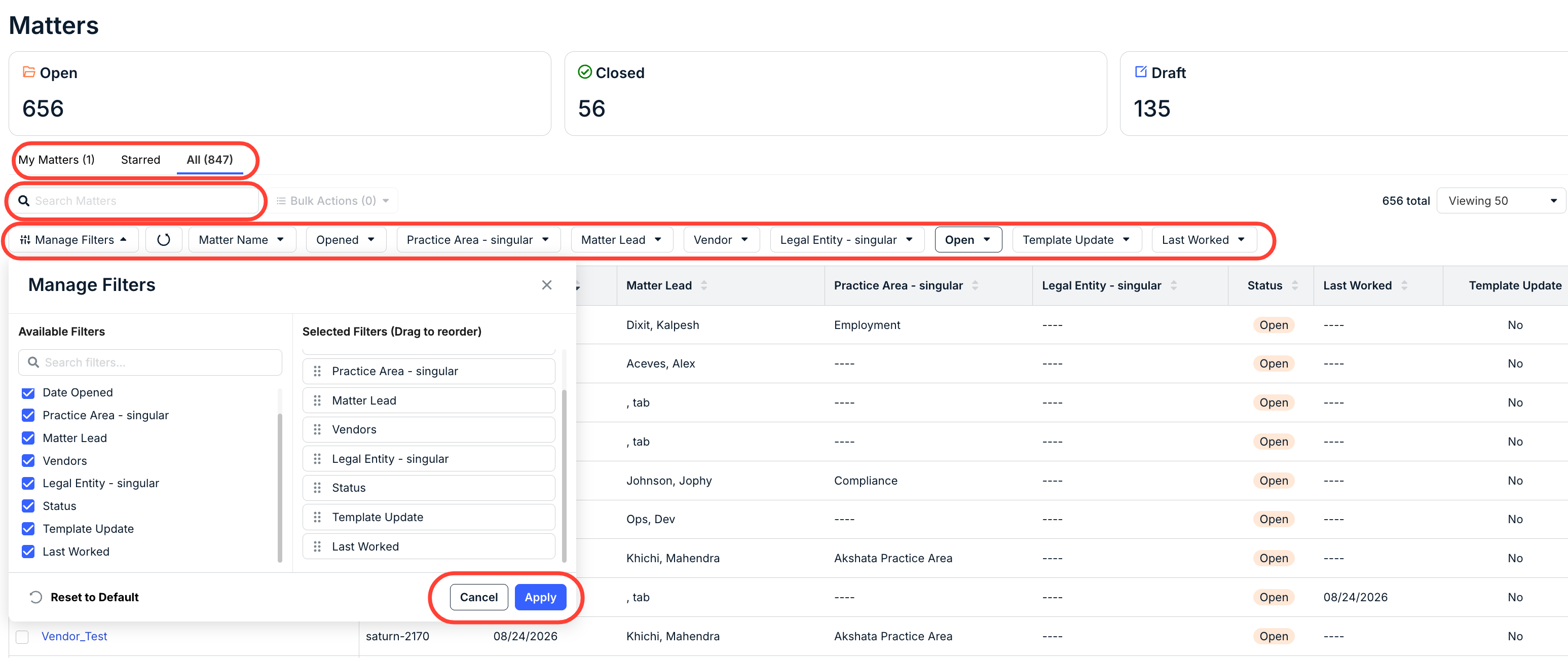
Here's how to view specific matters in Unity using filters on the main Matters page:
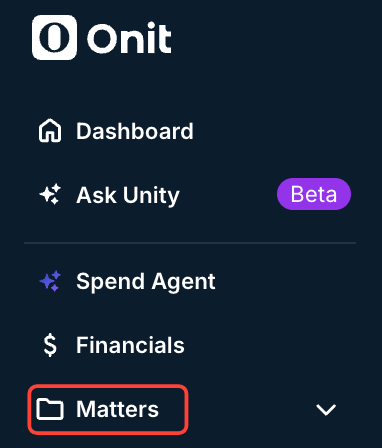
- Click Matters in the left-hand menu in Unity to open the Matters directory.
- The main Matters directory will open. Here, you can use filters and other options to view exactly the matters you need.
Use the Search Matters field at the top of the screen to search for a specific matter.
You can also use the drop-down filters to narrow the list. You can filter by Matter Name, Date Opened, Practice Area, Vendor, Legal Entity, Status, Template Update (Yes/No), and Last Worked Date.
Click Manage Filters to search for available filters and choose which ones appear on the screen. Drag filters in the Drag to Reorder section to change their order.
Click Apply to save your changes, or Cancel to discard them.