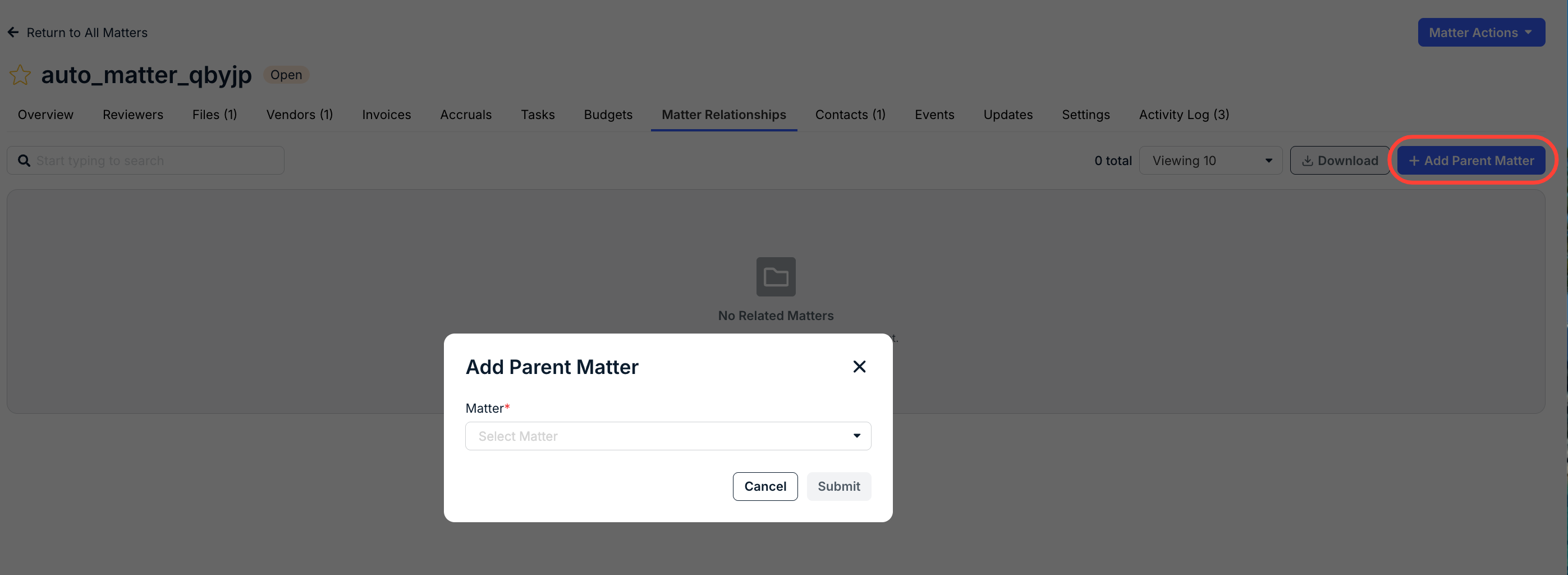
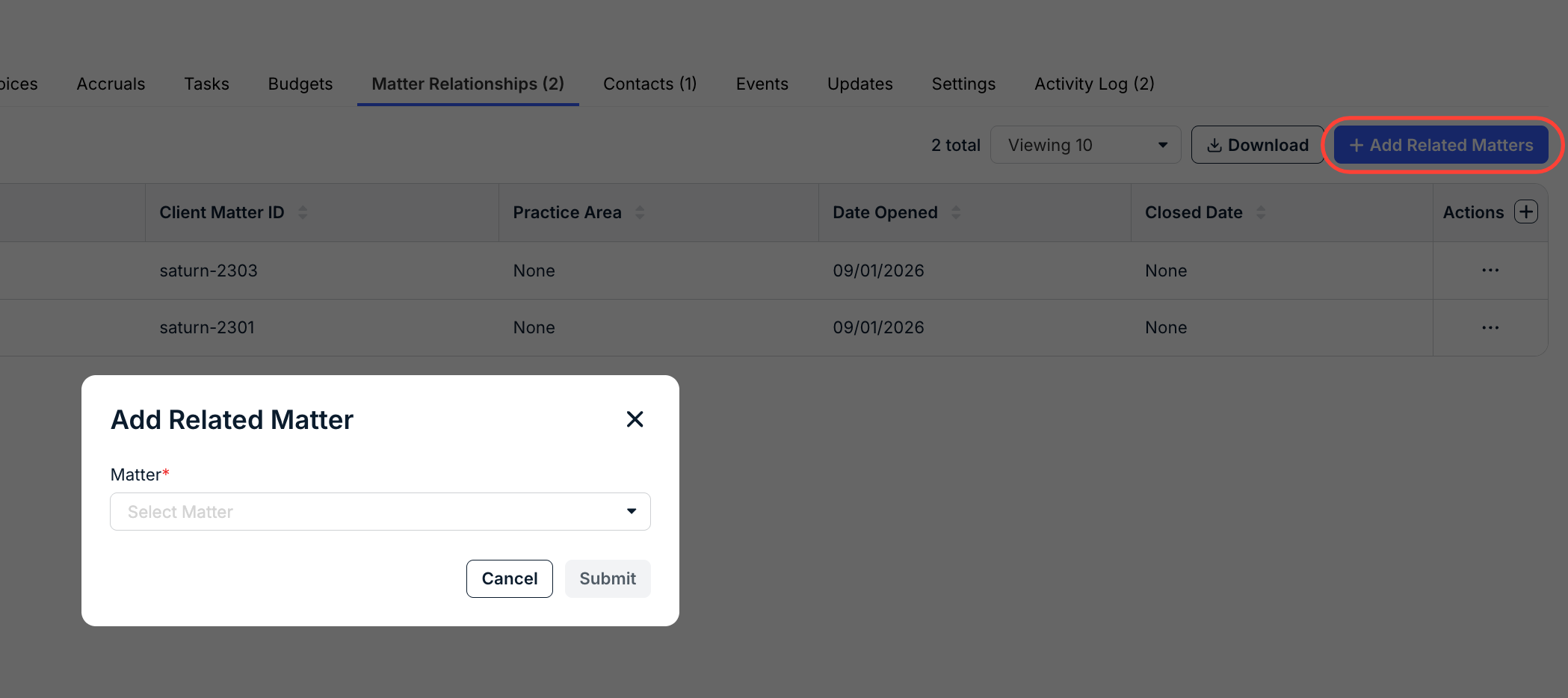
You can use the Matter Relationships feature within an individual matter to create different parent or related relationships between matters.
Here's how to use it:
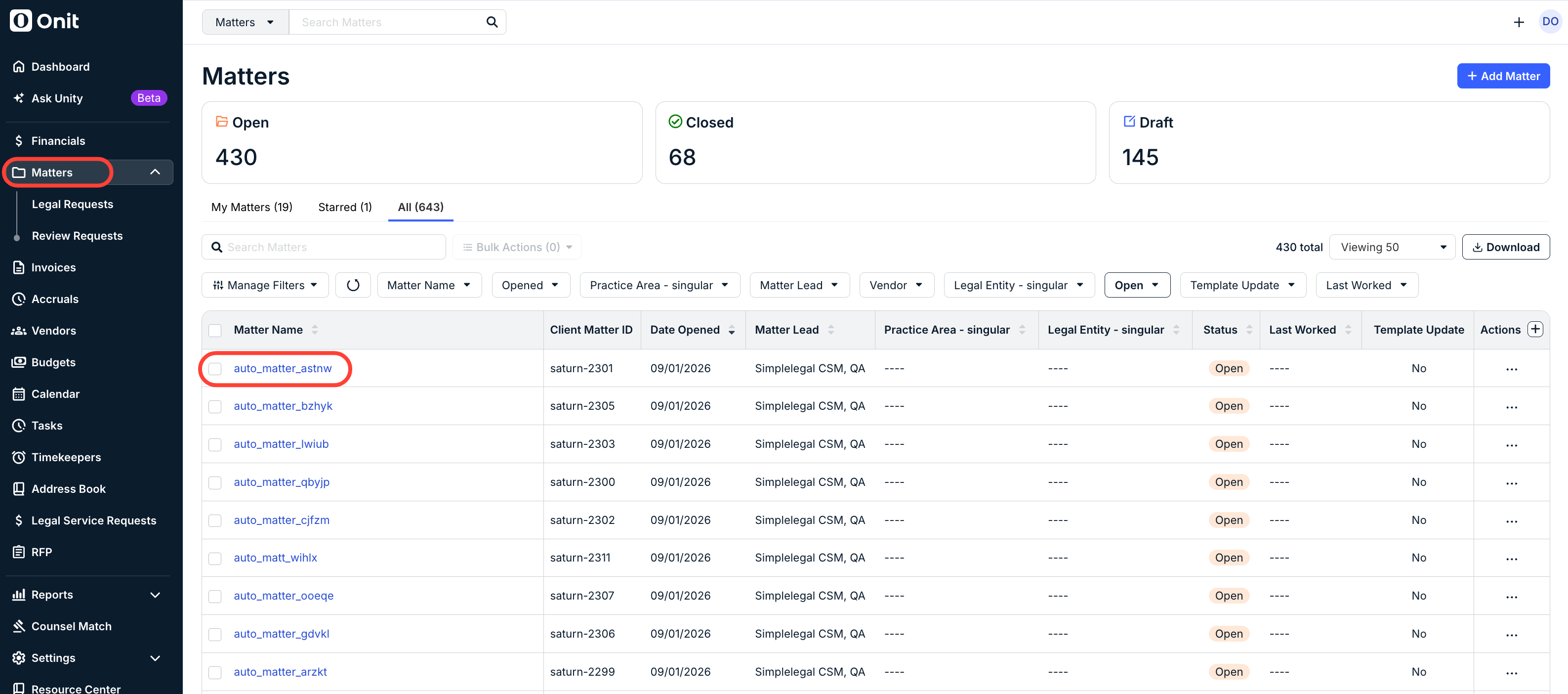
- Click on the "Matters" section in Unity and open the desired matter.
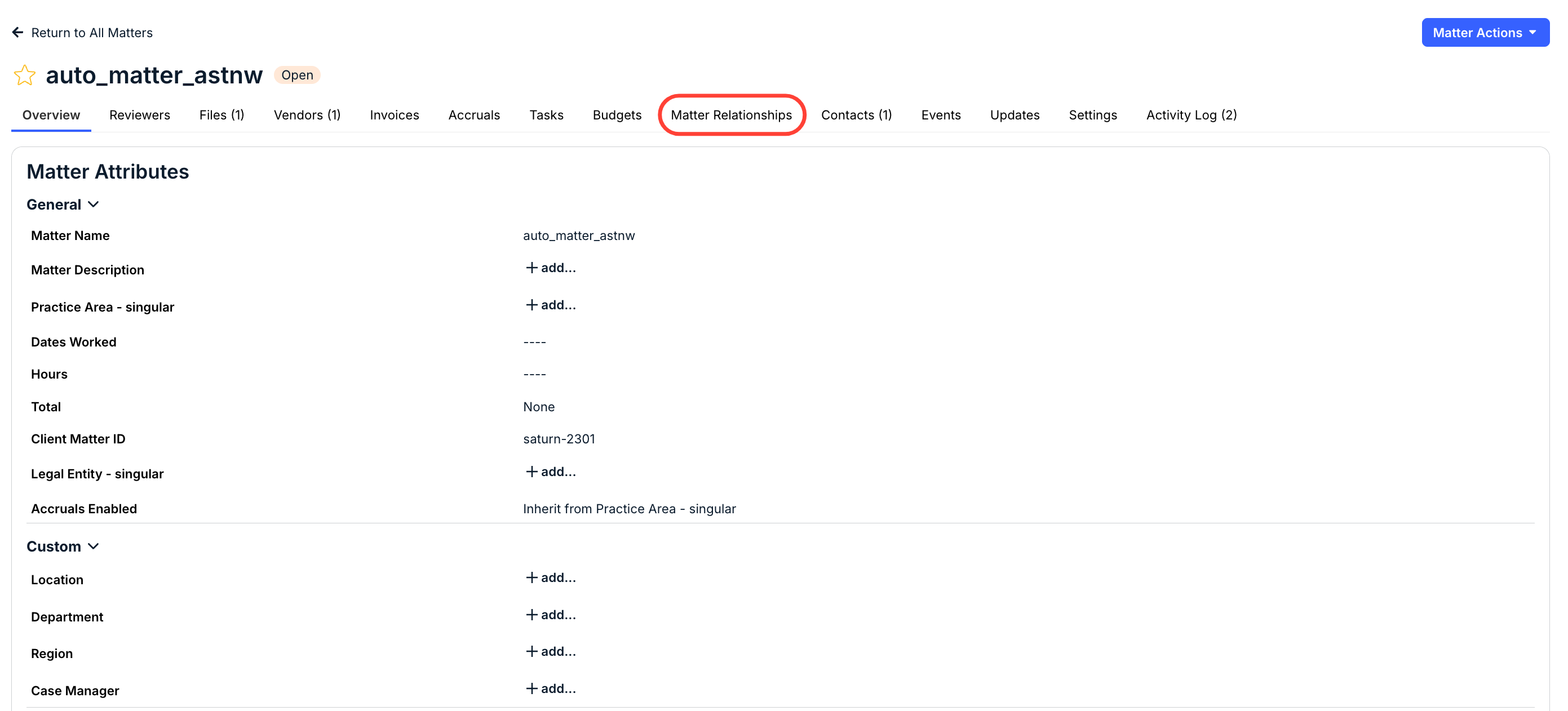
- On the "Matter Details" screen, open the "Matter Relationships" tab.
- Here, you'll see any existing matter relationships.
In the relationships table, you'll see:
- Name of the relationship
- Type of relationship (related/parent)
- Client Matter ID
- Practice Area
- Date Opened
- Closed Date
Use the up/down arrows in the column header to sort by that column. Use the search bar to search for a specific matter relationship.
You can also use the three-dot Actions menu to delete a relationship.

- Here, you'll see any existing matter relationships.
- Use the "Add Parent Matter" or "Add Related Matter" buttons to add matter relationships.
On the Add Related Matter or Add Parent Matter screen, select the matter you want to relate and click Submit to save or Cancel to back out.
The available buttons vary depending on the matter's existing relationships.