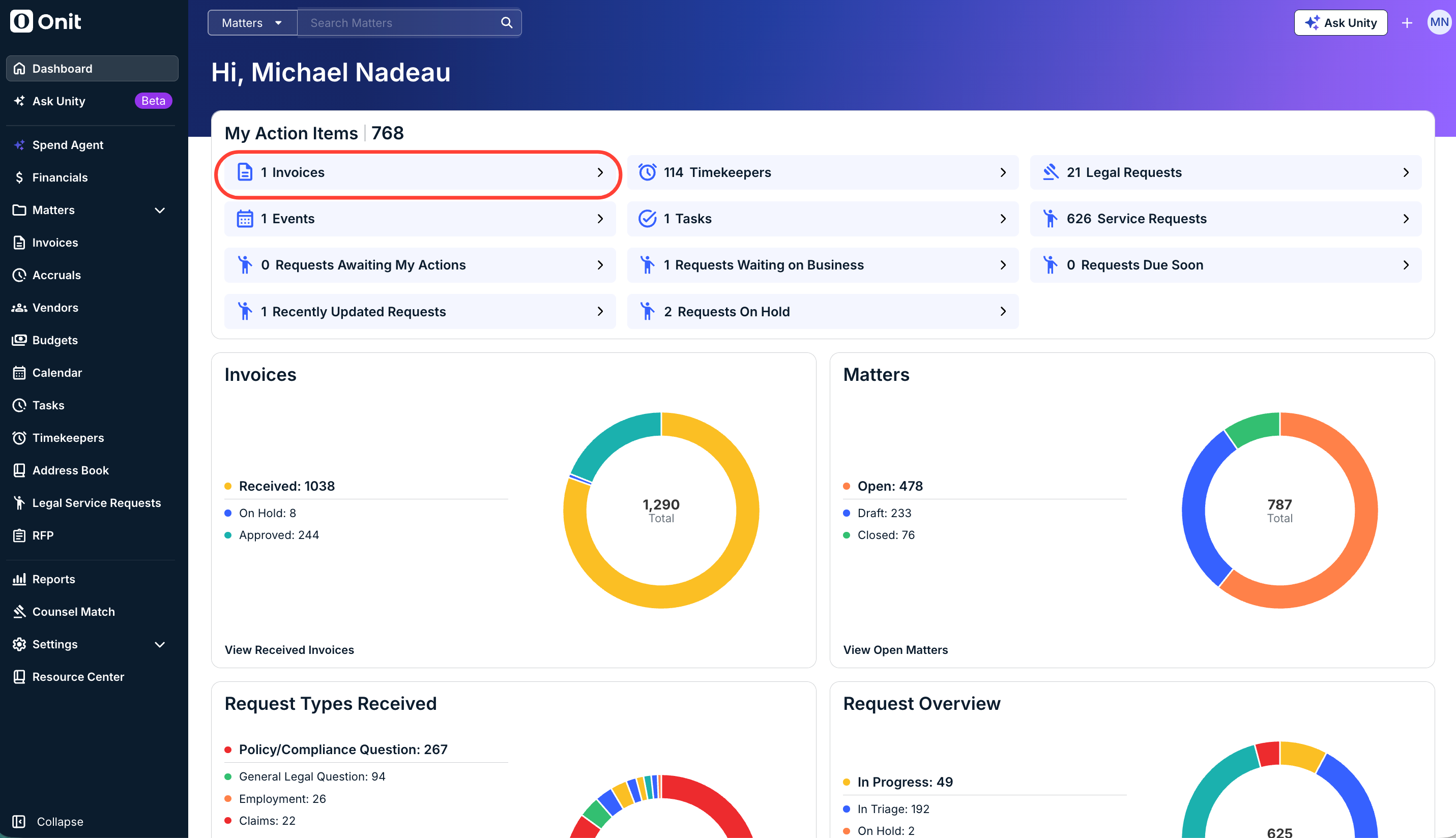
The option to approve an invoice only appears if you are assigned as a reviewer and it is your turn to review. To quickly check for invoices pending your review, click Invoices in the My Items section of your dashboard.
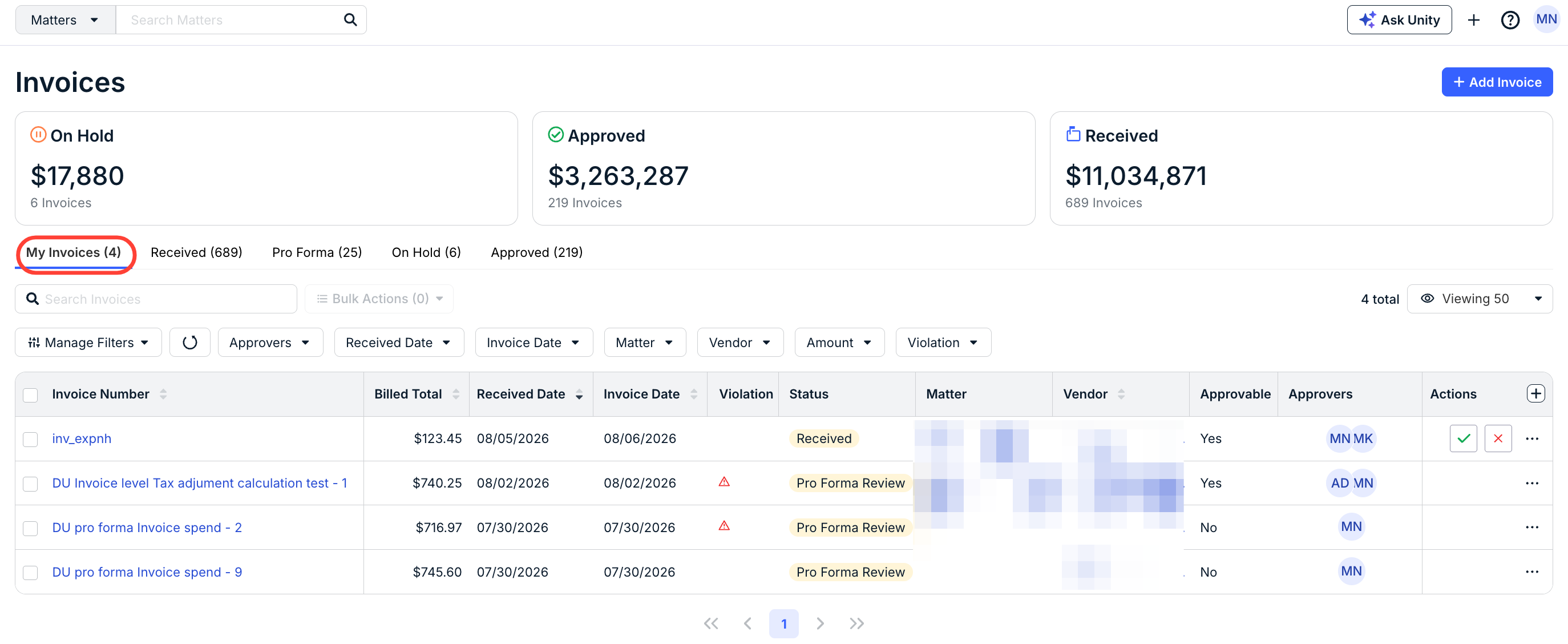
To view an invoice's details, click the hyperlinked invoice number on the My Invoices tab.
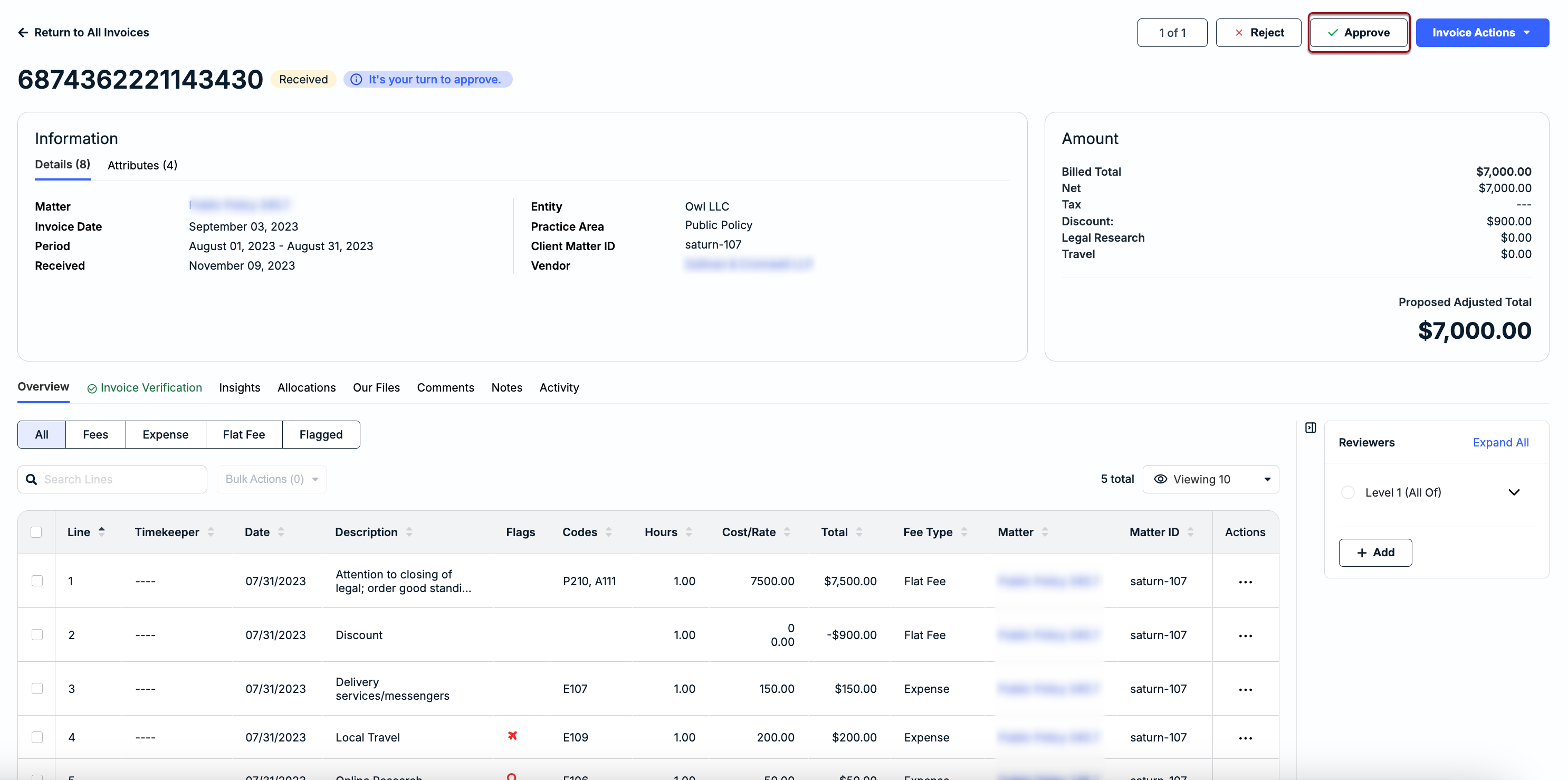
Review the invoice and verify it is ready for approval, including checking the Invoice Verification tab or other sections and making any required adjustments to line items or the total. Click the Approve button in the top-right corner of the invoice details page when ready.
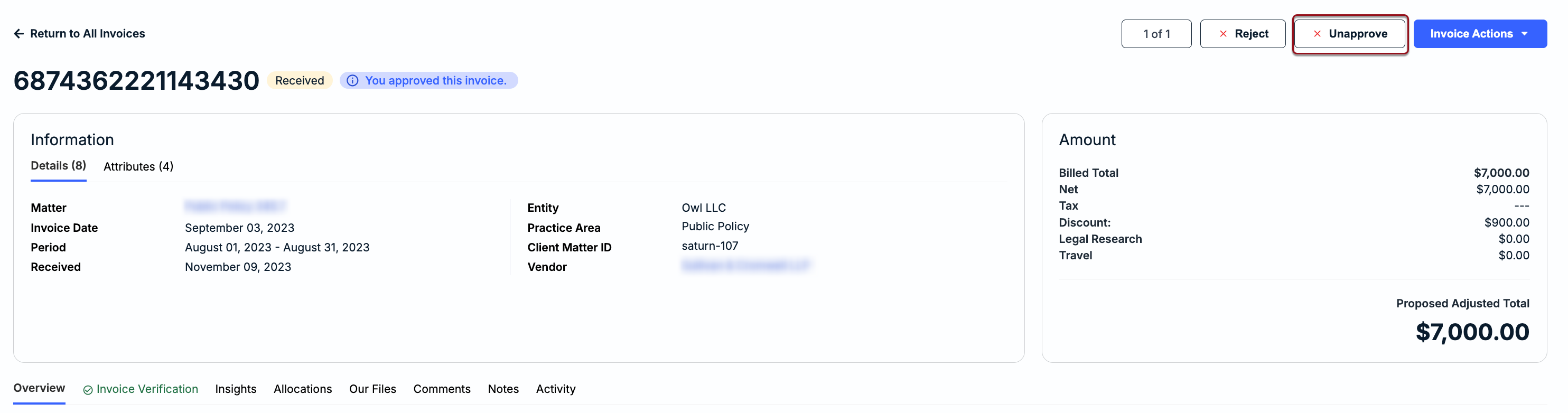
Approving an invoice will move the invoice to the next assigned reviewer's queue or end the review cycle if no other reviewers are assigned. If you need to revert the invoice status to Received for additional adjustments or further review, click the Unapprove button in the top-right corner of the invoice details page. Reverting the status to Received will push the invoice back into the review queue.