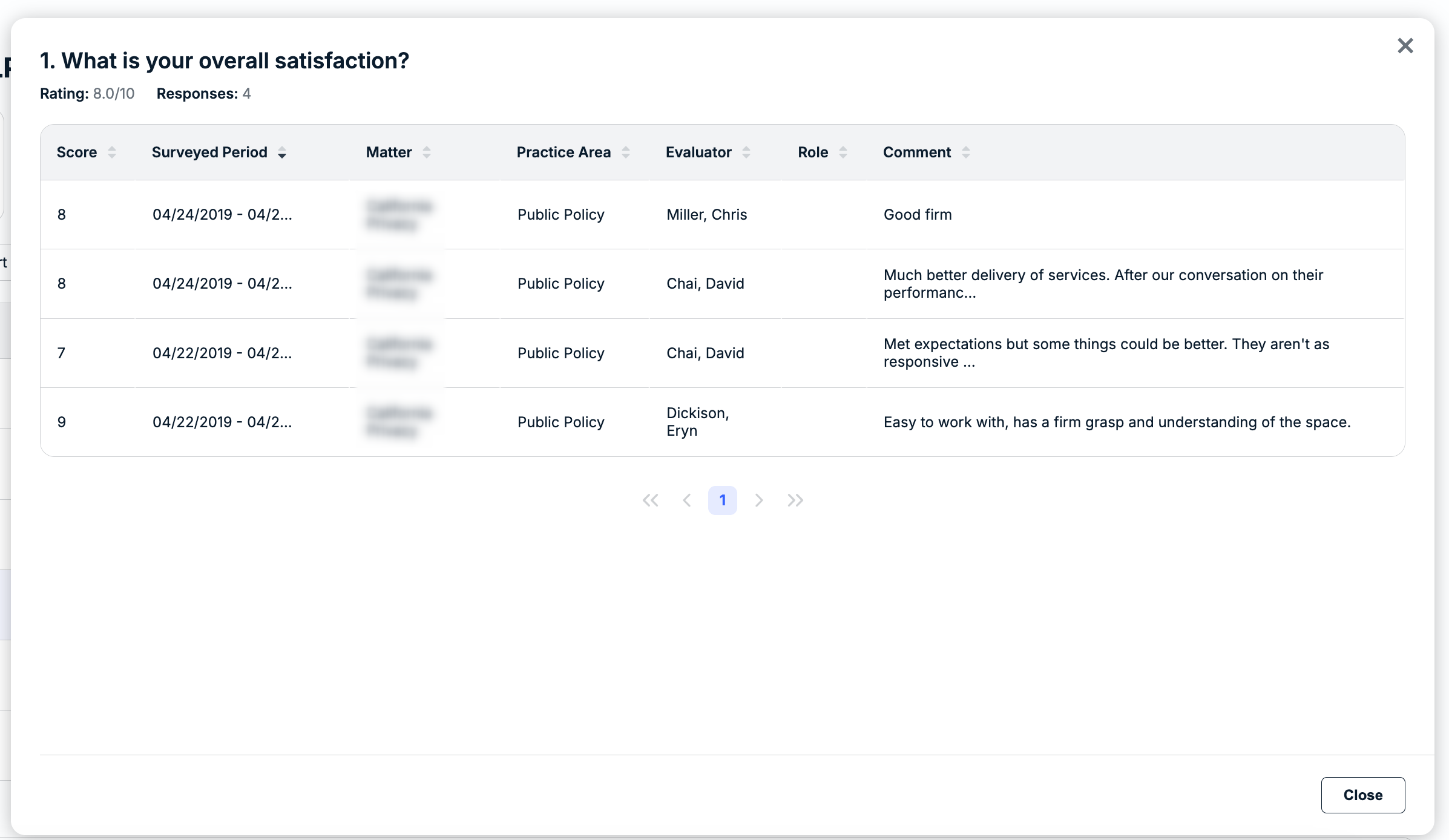
Vendor Surveys enable you to collect feedback from internal users on their experience working with specific vendors. This feedback can be used to make decisions on vendor selection, renegotiate agreements, and strengthen your overall partnership with outside law firms. Internal users who are assigned to receive these vendor surveys are referred to as evaluators in Unity.
This article covers the following topics:
- Vendor Survey Configurations
- Survey Contents
- Including Vendor Surveys on Matter Templates
- Vendor Surveys at the Matter Level
- Reviewing Surveys Sent & Results
- Viewing Vendor Scorecards
Vendor Survey Configurations
The survey schedule and settings described can remain at their default system settings or can be customized by reaching out to your Customer Success contact or [email protected].
- Survey Schedule: Default setting sends vendor survey requests to internal evaluators 90 days after a matter has been open/published in Unity. Requests will continue to be sent to evaluators every 90 days thereafter until the matter is closed.
- Survey Expiration Window: Default setting gives internal evaluators 14 days to respond to the request before the survey link expires.
- Survey Request Reminder Schedule: Default setting sends an email reminder 7 days after the initial request to internal evaluators who have not submitted responses.
Evaluators can click on the survey link from the request email or access the survey from the My Action Items section on the Unity dashboard.
Survey Contents
The survey consists of six questions that prompt the evaluator to rate the vendor on a scale of 1 to 10 and open text fields for additional comments. The first question is required but the remaining questions are optional.
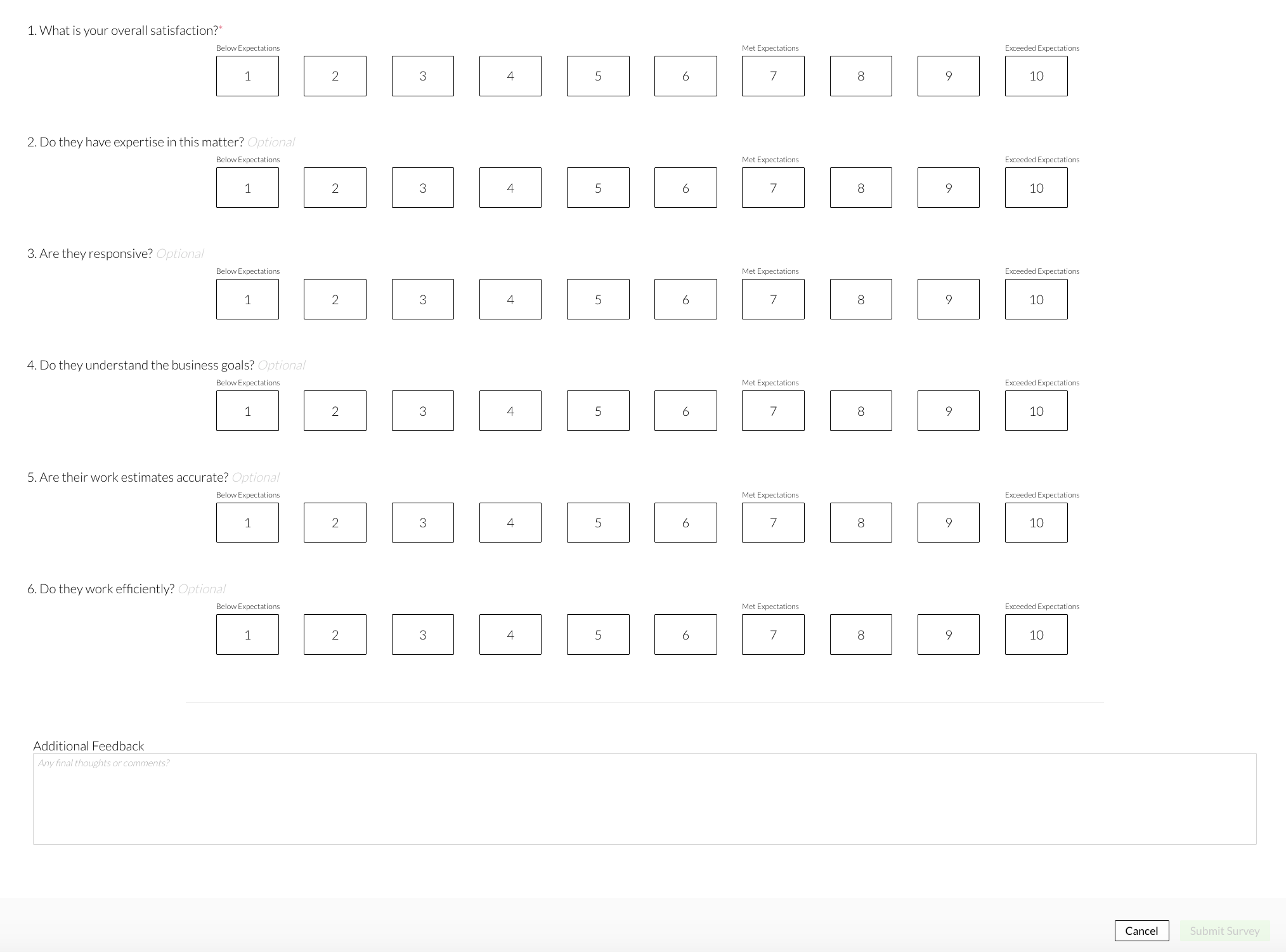
Once the user selects a rating for a question, they are given the option to enter additional comments. The user is also given the option to enter additional feedback in the text field at the bottom of the form. The user must click Submit Survey in the bottom-right corner to record their answers.
Setting Vendor Surveys as Active on Matter Templates
Vendor surveys can be configured on matter templates by admins so that they are automatically enabled when new matters are created. Once this feature is turned on, you can activate vendor surveys on existing templates and/or set them up on new templates moving forward.
The Surveys section is located towards the bottom of the matter template form (under the Allocations section). From here, you can set the surveys as Inactive (default), Active, or Hidden, as well as choose which default Unity roles and/or specific users will receive requests to evaluate the vendor(s).
Follow the steps below to set the vendor surveys on associated matters to active by default:
1. Go to Settings > Matter Templates and click on the relevant template from the list or create a new one.
2. Scroll to the Surveys section (under the Allocations section).
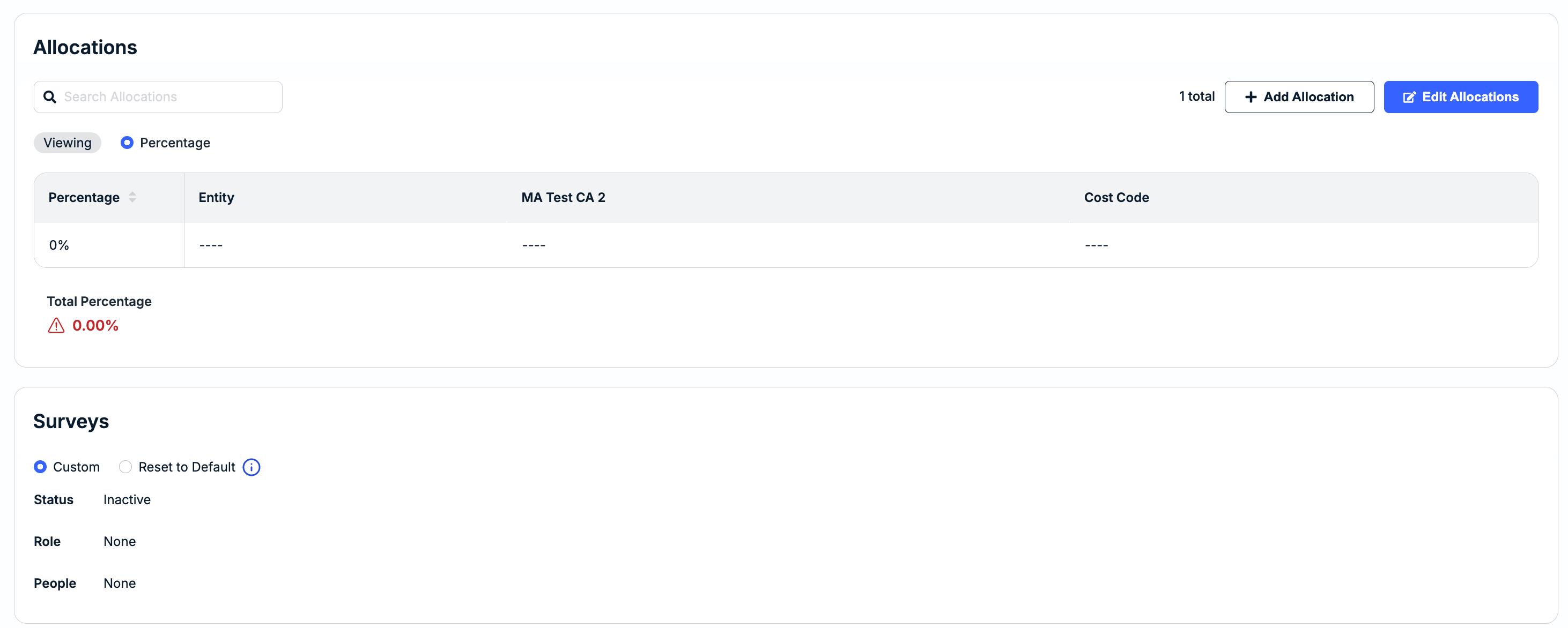
3. Hover over the Status field and click the edit icon.

4. Set the dropdown to Active.
5. Click the edit icon to set the default roles and/or specific users who should receive survey requests (i.e., called evaluators) for all new matters associated with the template. For example, you can set the Matter Lead role as the default evaluator. Leave this None if these details should be managed by users for individual matters.
6. Make any other necessary updates to the template and click Save or Save & Publish.
For more details on matter template setup, click here.
Vendor Surveys at the Matter Level
Open the matter record, go to the Vendors tab, and scroll down to the Vendor Surveys section. Click the Active drop-down in the top-right corner of the section and switch it to Inactive if you want to turn off survey requests for all vendors assigned to this specific matter.
OR
Go to the Configuration sub-tab and look for the Additional Evaluators section to adjust settings for individual vendors assigned to the matter as follows:
- Click on the toggle under the Survey On? column for a specific vendor to disable survey requests from being sent for this vendor per the schedule set at the system level.
- Click on the value(s) under the By Role column for a specific vendor to update which default Unity user roles are sent survey requests.
- Click on the value(s) under the By Person column for a specific vendor to remove or add individual internal users who should receive survey requests
Reviewing Surveys Sent & Results
From the matter record, go to the Vendors tab to see the following:
- Completed: Shows survey results, including the evaluator's Unity user role. Click on the number under the Satisfaction column to view the submitted form and responses.
- Pending: Shows survey requests that have been sent but not completed.
Vendor Scorecards
Survey metrics for a vendor also appear at the top of the Overview tab in their vendor record in Unity, including the average overall satisfaction score, the number of submitted surveys, and yearly spend. Click See Scorecard in the top-right corner to see more details.

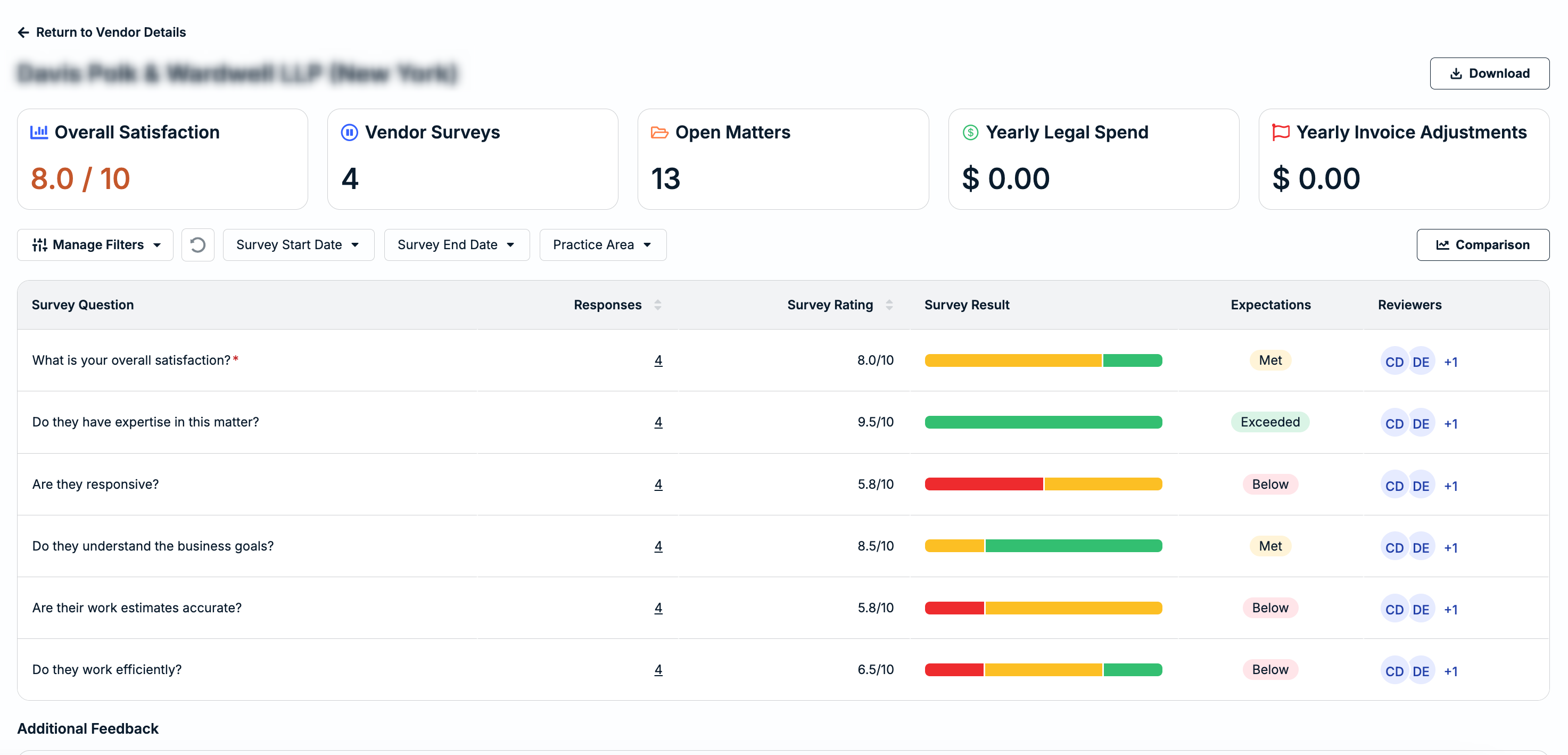
Click on the hyperlinked number under the Responses column to view more details for a specific question. The survey comments are visible only to users with access to the associated matter. Comments will be replaced with a default message for users who do not have access to a specific matter.