Timekeepers are people from vendor law firms who bill for work on legal matters using hourly rates or flat/fixed fee arrangements depending on customer billing guidelines or requirements. Your vendors must submit timekeeper rates for review via Counsel Exchange.
This article refers to the following workflow in Unity:
- Vendors submit lists of timekeepers and their rates via Counsel Exchange
- Admins in Unity approve or reject the rates
- Vendors use rates to submit invoices with hourly line items for review in Unity
- Unity automatically validates timekeeper rates by comparing approved rates against rates on submitted invoices to flag discrepancies or take other automated actions
- Users in Unity can report on rate details by matter or practice area
Considerations for New Timekeepers and Rate Updates
Vendors can submit three types of requests for customer approval:
- new timekeepers,
- new standard rates for existing timekeepers, and
- matter-specific rates.
Once a timekeeper rate is submitted to the customer by the vendor, any changes to name, classification, rate, currency, state, or country will be connected to the timekeeper's unique ID and appear under their consolidated profile.
Only admins are notified when there are rates for review and have the permissions to approve or reject them. An admin email notification is not triggered if a vendor only makes changes to non-rate fields, such as name, classification, and location, for one or more timekeepers. Since these changes do not require approval, they will be highlighted in the profile but not included as part of the batches. For more information on viewing timekeeper profiles in Unity, click here.
Standard Rates vs. Matter-Specific Rates
If a timekeeper's standard rate changes due to a promotion or standard increase, the vendor must submit the rate with a new Effective Date for review and approval. Submitting an invoice with an unapproved timekeeper rate can result in validation issues or payment delays. See below for additional information on how these types of flows are triggered in Unity.
Alternatively, if a timekeeper needs to bill at a different rate for a specific matter, the vendor can submit a modified rate and associate it with the matter name. Using a matter-specific rate allows the vendor to keep the timekeeper's standard rate in effect for invoices submitted against other matters. For example, this is helpful if a timekeeper is supporting a matter in a different capacity and needs to bill at a higher or lower rate. Matter-specific rates give firms and customers more flexibility in the billing process based on the type of matter or the scope.
Finding Timekeeper Rate Requests
New timekeepers or rates that require review are grouped into batches in Unity. To find pending requests, go to Timekeepers from the navigation bar on the left.
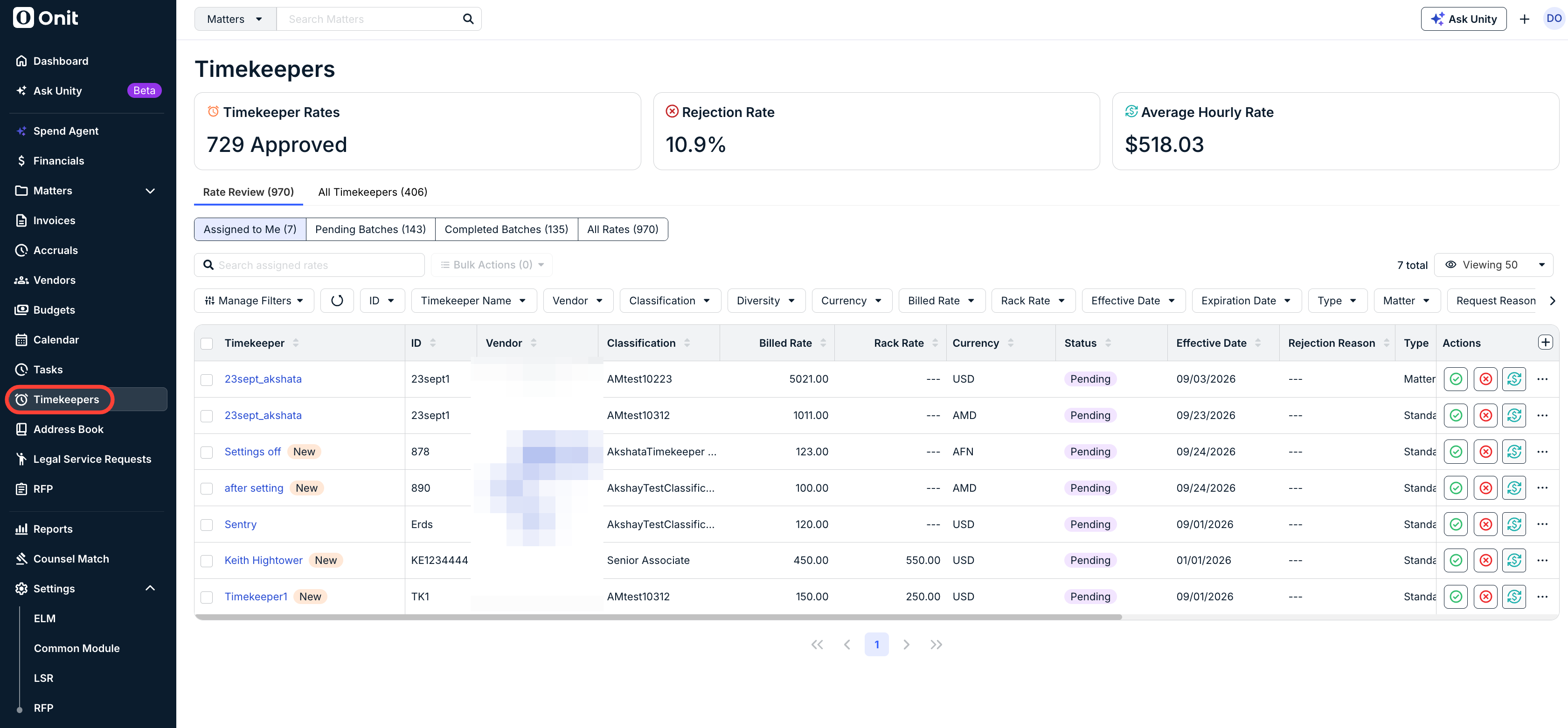
The Pending Batches list displays one row per vendor with pending requests. Requests are listed in ascending order (i.e., oldest listed first). You can re-sort the list by clicking on a column name or use the search field. The list shows the following columns of information:
- Timekeeper
- ID
- Vendor: Hyperlinked vendor name that takes you to the batch of requests for review. NOTE: The same vendor appears more than once on the list if they submitted separate batches of rates on the same or a different day.
- Classification: These are custom to the user and are set within the Timekeeper Settings.
- Billed Rate
- Rack Rate
- Currency
- Status
- Effective Date
- Rejection Reason
- Type
- Matter
Alternatively, all Unity admins receive an email notification when there is a new batch of rates to review. You can click on the link from the email notification to go directly to the batch.
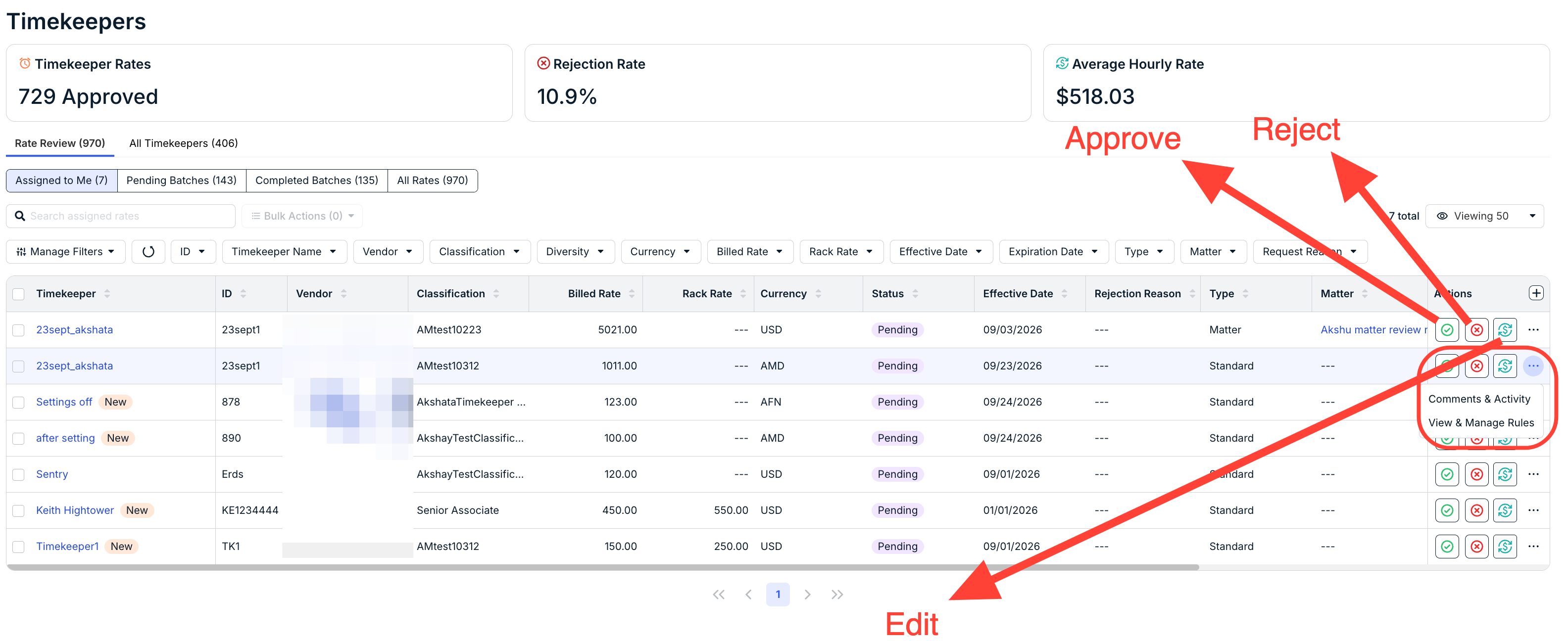
Click on the hyperlinked vendor name from the Pending Batches list to start your review.
From this view, you can click on a timekeeper name to view their full profile and perform several quick actions, including:
- Approve the rates.
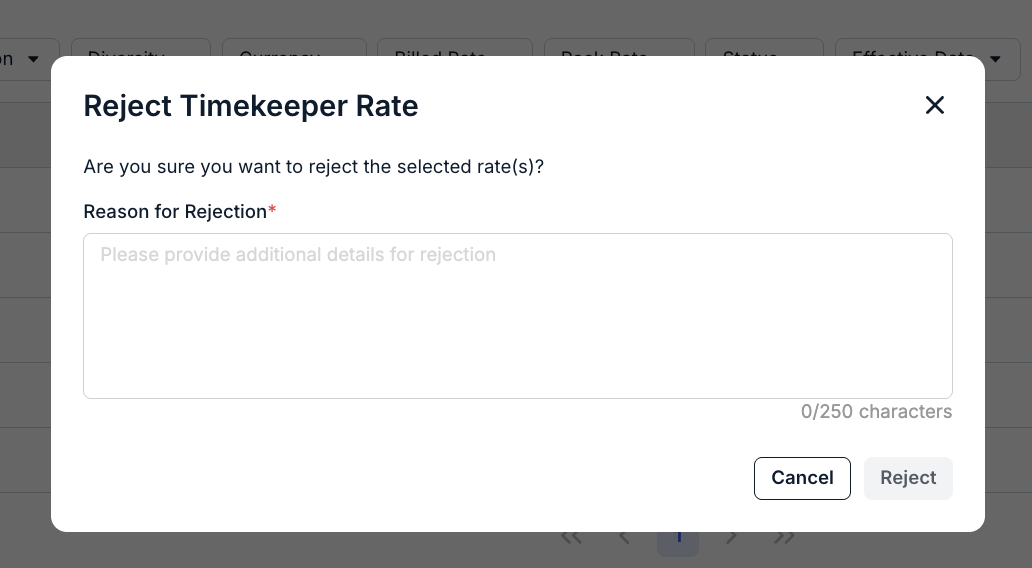
- Reject the rates. You'll need to fill out a reason for rejection and click Reject.
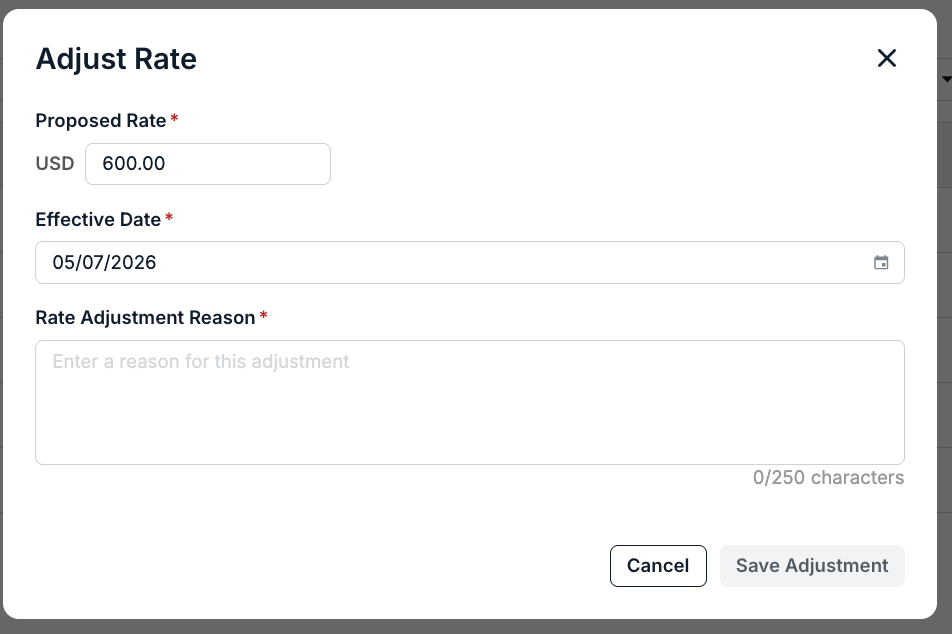
- Adjust Rate. Fill out the Proposed Rate, Effective Date, and Rate Adjustment Reason; click Save Adjustment to send in the adjustment or Cancel to back out.
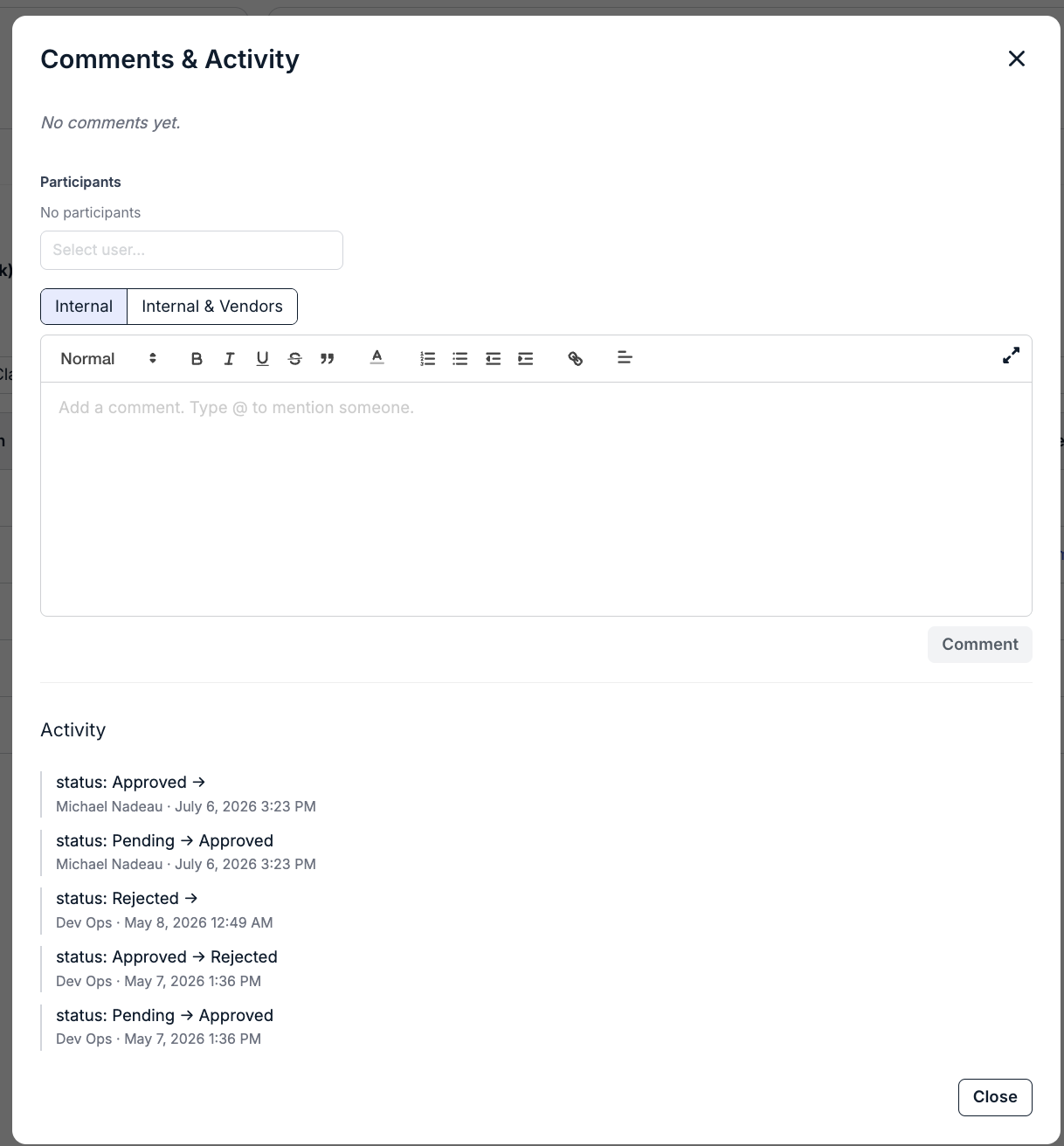
- See/write in Comments & Activity. You can sort by Internal or Internal & Vendor comments and add in Participants for the comments (click Comment to send in the comment); the bottom of the screen will show the Activity on the rate.
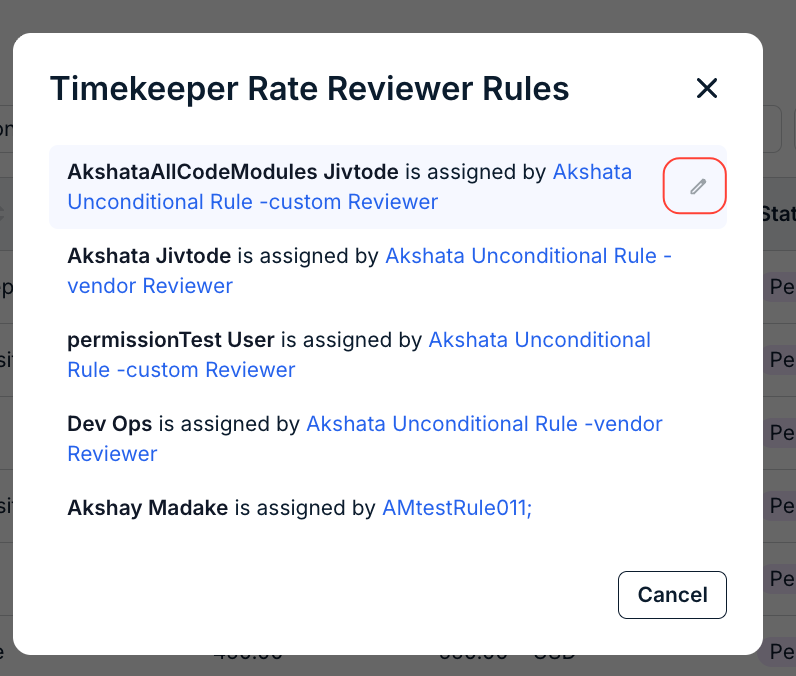
- Adjust Timekeeper Rate Reviewer Rules. Click here for more information on Timekeeper Rate Reviewer Rules.
For detailed instructions on how to view and take action on submitted rate requests, click here.
Billing Validation Rules
When timekeeper and invoicing features are enabled, the system can enforce billing guidelines, validation, or other automated actions. For example, if a line item on a submitted invoice has a timekeeper rate that has not yet been approved, the system can flag the line item as a billing guideline violation or automatically reject the entire invoice and notify the vendor.
Timekeeper Rate Validation
If enabled, this automatically flags any line items with a timekeeper rate that does not match the approved rate on record. In this case, the invoice is flagged with a reason code that lets the invoice reviewer know there is a billing violation that needs to be addressed.
This does not automatically reject invoices or adjust line items, but it helps minimize the risk of overpayment by letting customers know when there are rate discrepancies. The reviewer can manually adjust the line item, contact the vendor, reject the invoice, or approve the invoice.
For additional information on invoice line items and reason codes, click here.
Enabling Timekeeper Rate Validation for Individual Vendors
If Timekeeper Rate Validation is enabled at the system level, this setting can be managed for individual vendors. It is turned off by default for all new vendors. You can turn this on/off for individual vendors or in bulk without impacting system-level settings per the instructions below:
Individual Vendors
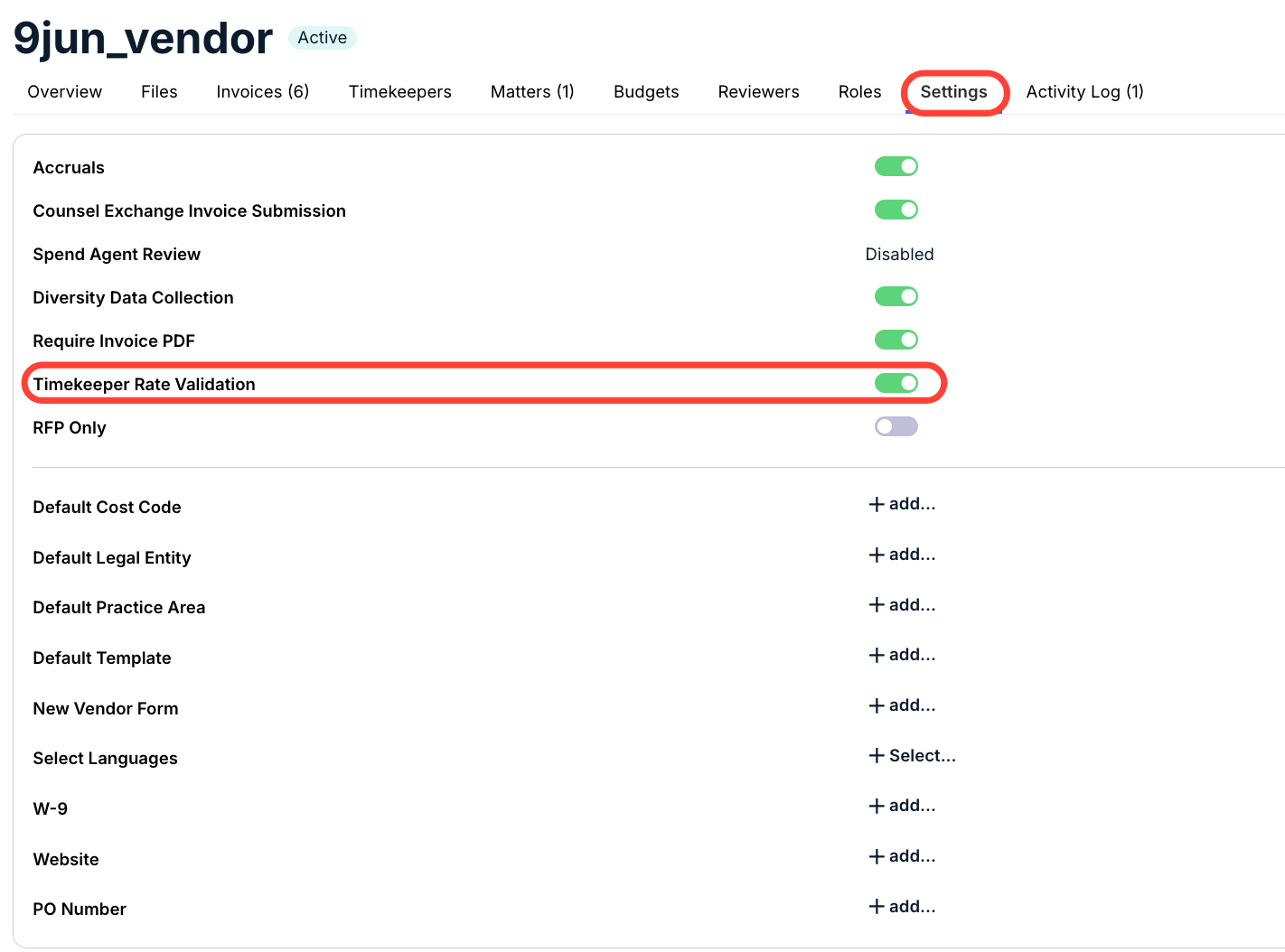
1. Open the vendor record in Unity and go to the Settings tab.
2. Click the toggle to ON (green) for Timekeeper Rate Validation.
Vendors in Bulk
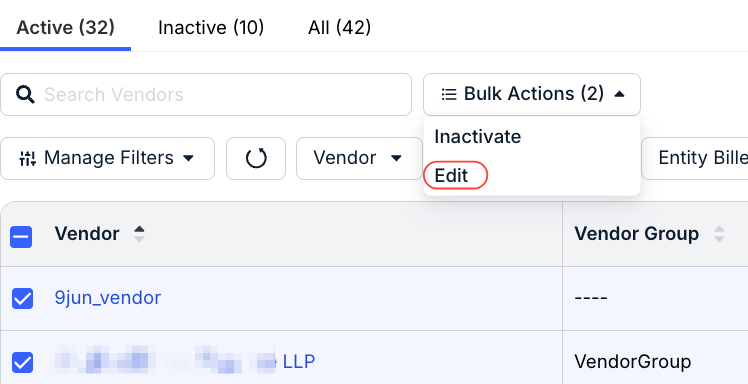
1. Click Vendors from the left-side navigation bar.
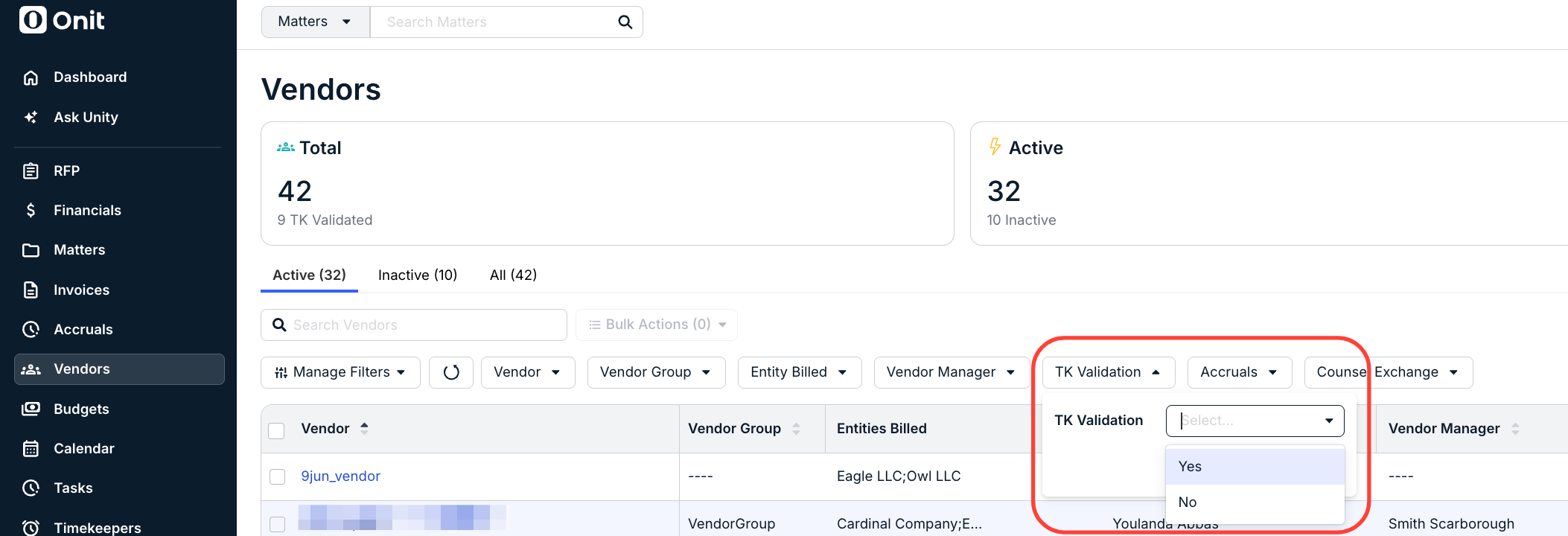
2. Click on the TK Validation filter, select No, and click Apply to narrow the list.
3. Select boxes for relevant vendors, or click the box above the table to select all vendors on the current page.
4. Click Bulk Actions above the list and select Edit.
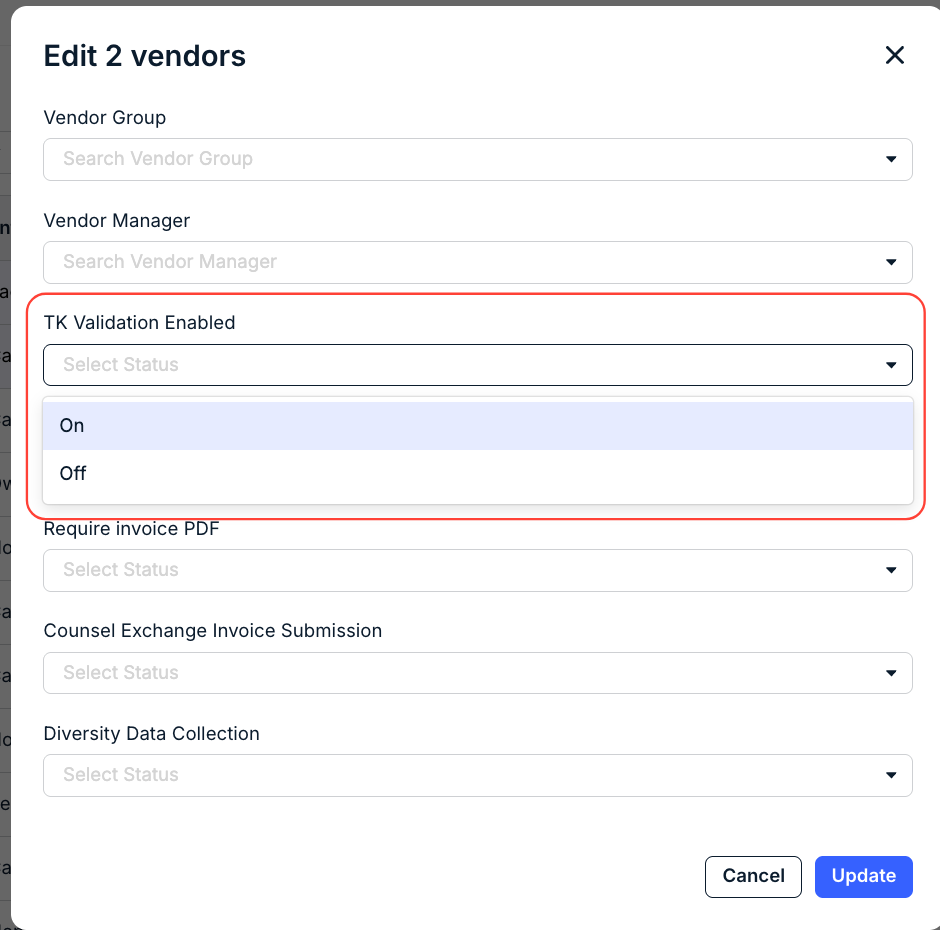
5. Select On from the TK Validation Enabled dropdown and then click Update.
Auto-Adjust Line Items with Invalid Timekeeper Rates
If enabled, this automatically adjusts the hourly/cost rate for a line item if it does not match the approved timekeeper rate on record. It will automatically adjust the amount to reflect the approved rate (i.e., approved hourly rate multiplied by units/hours).
The auto-adjustments will reflect in the proposed total of the invoice and the line item will reflect the associated Invalid Rate adjustment reason. The reviewer has the opportunity to manually change the line adjustment or move forward with invoice approval or rejection.
Adjust Line Items to Zero for Unapproved Timekeeper Rates
If enabled, this automatically adjusts a line item to zero (0) if the hourly/cost rate for a timekeeper on the invoice has not been approved in Unity or has previously been rejected.
This means that the proposed total of the invoice will reflect the deduction and the line item will reflect the associated Invalid Timekeeper adjustment reason. For example, if a line item for an unapproved timekeeper had an hourly rate of US$500.00 multiplied by 2 units/hours (i.e., US$1000.00), then a total of US$1,000.00 would be deducted from the invoice amount.
The reviewer can manually adjust the line item if needed before approving or rejecting the invoice.
Auto-Reject Invoices with Invalid Timekeeper Rates
If enabled, this automatically rejects an invoice with a timekeeper rate that does not match the approved rate on record. This means the entire invoice will be rejected, regardless of having other line items with approved/matching timekeeper rates.
Depending on settings in your environment, invoice auto-rejection can trigger an automated email notification to the main vendor contact on file. This additional setting must be enabled.
An admin can revert the status of an auto-rejected invoice to Received if it needs to be further reviewed manually and/or investigated by going to the Admin Actions menu in the invoice and selecting Undo Autorejection.
Auto-Reject Invoices with Unapproved Timekeeper Rates
If enabled, this automatically rejects an invoice with a timekeeper rate that has not been approved in Unity or has previously been rejected. This means the entire invoice will be rejected, regardless of having other line items with approved timekeeper rates.
Depending on settings in your environment, invoice auto-rejection can trigger an automated email notification to the main vendor contact on file. This additional setting must be enabled.
An admin can revert the status of an auto-rejected invoice to Received if it needs to be further reviewed manually and/or investigated by going to the Admin Actions menu in the invoice and selecting Undo Autorejection.
FAQs
How do vendors submit timekeepers rates for approval?
Vendors submit rates for approval via our portal Counsel Exchange. This requires vendors to associate each timekeeper with a unique ID so that any subsequent updates are linked to the timekeeper profile.
Who is notified when timekeeper rates are submitted?
All Unity admins are notified via email when new timekeeper rates are submitted. Only admins can access and approve/reject the rates. For detailed instructions, click here.
Can Unity users delete approved timekeepers?
For auditing reasons, timekeepers cannot be deleted. To effectively disable a timekeeper and their active rate, we recommend changing the Effective Date to a date in the future so that they are no longer active.