Only Unity admins can add Counsel Exchange users. If all users should be able to grant access to Counsel Exchange, please contact us at [email protected] to request this adjustment.
For security and audit reasons, vendors should not use role-based email addresses. Please ask vendors to use individual user email addresses for each Counsel Exchange account.
Counsel Exchange users can be added by creating a new contact or by updating an existing external contact from the vendor record per the steps below. This article covers how to create both non-admin and admin Counsel Exchange users.
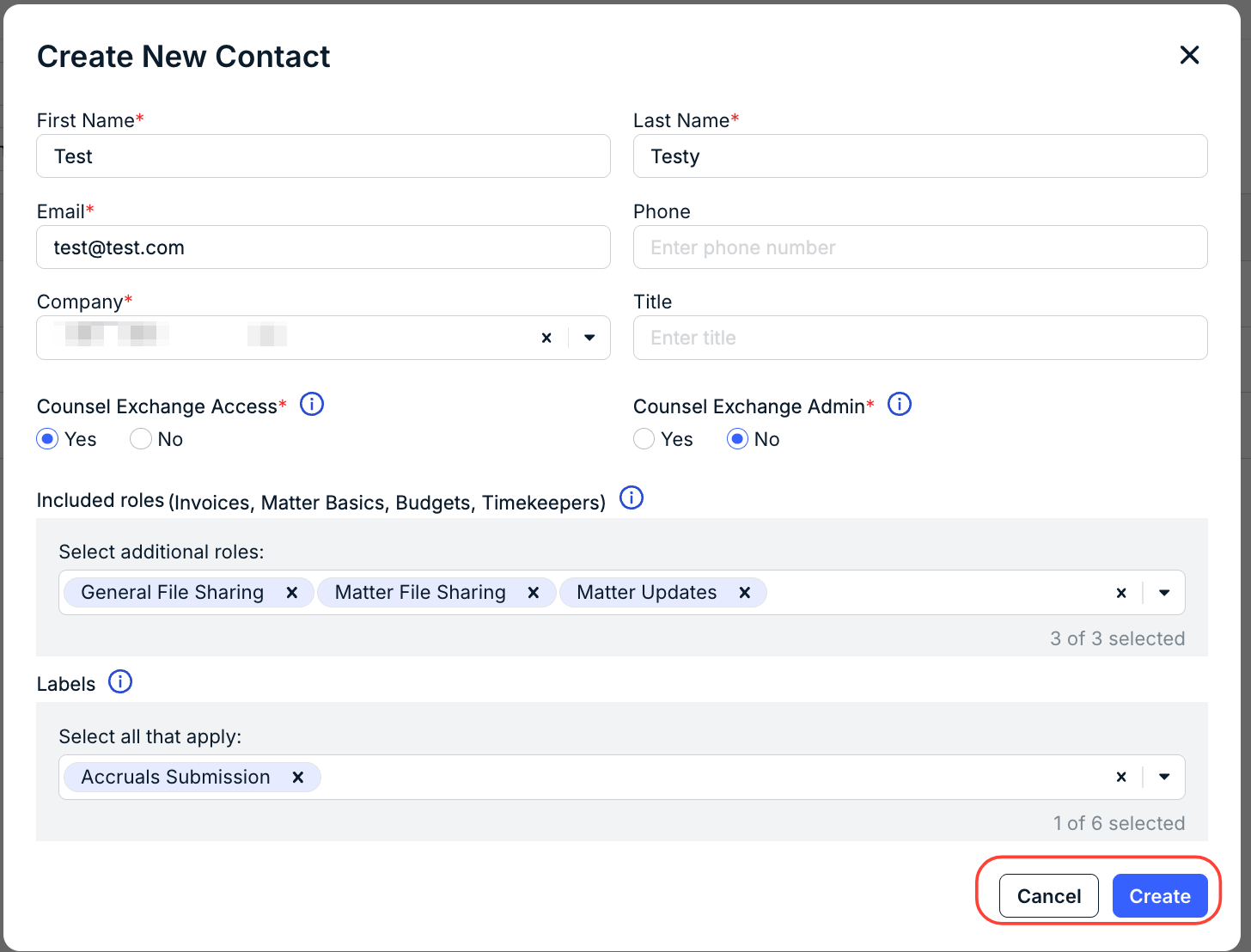
Creating a New Contact as a Counsel Exchange User
1. Open the vendor record in Unity and go to the Roles tab.
2. Click + Create New Contact in the top-right corner.
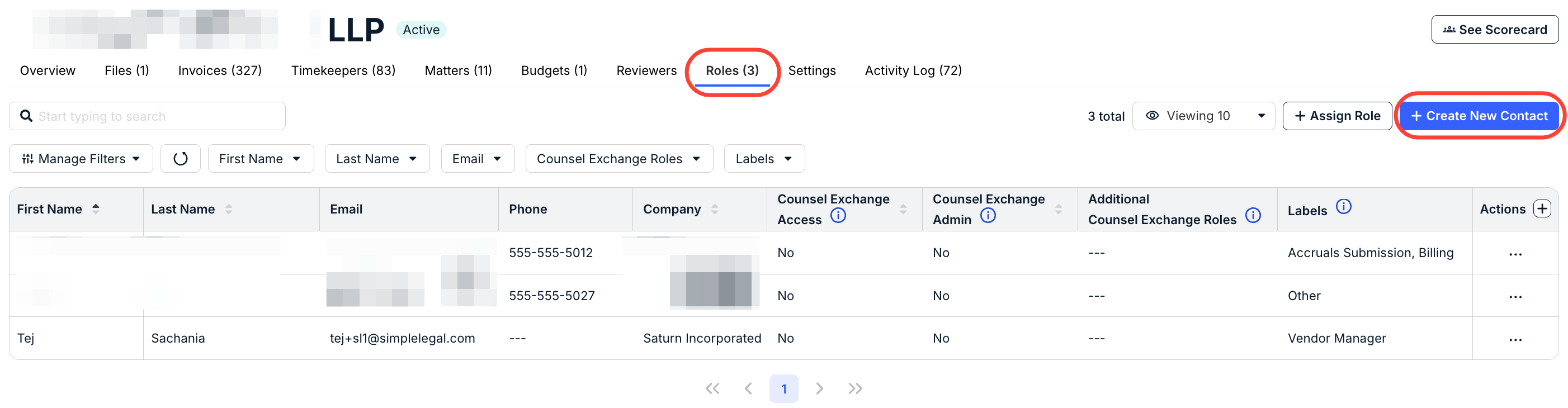
3. Fill in the required fields (i.e., First Name, Last Name, and Email) and optional details.
4. Select the vendor name from the Company dropdown list.
5. Confirm Counsel Exchange Access is set to Yes.
6. Select Yes for Counsel Exchange Admin, if applicable; leave as No to create a non-admin user.
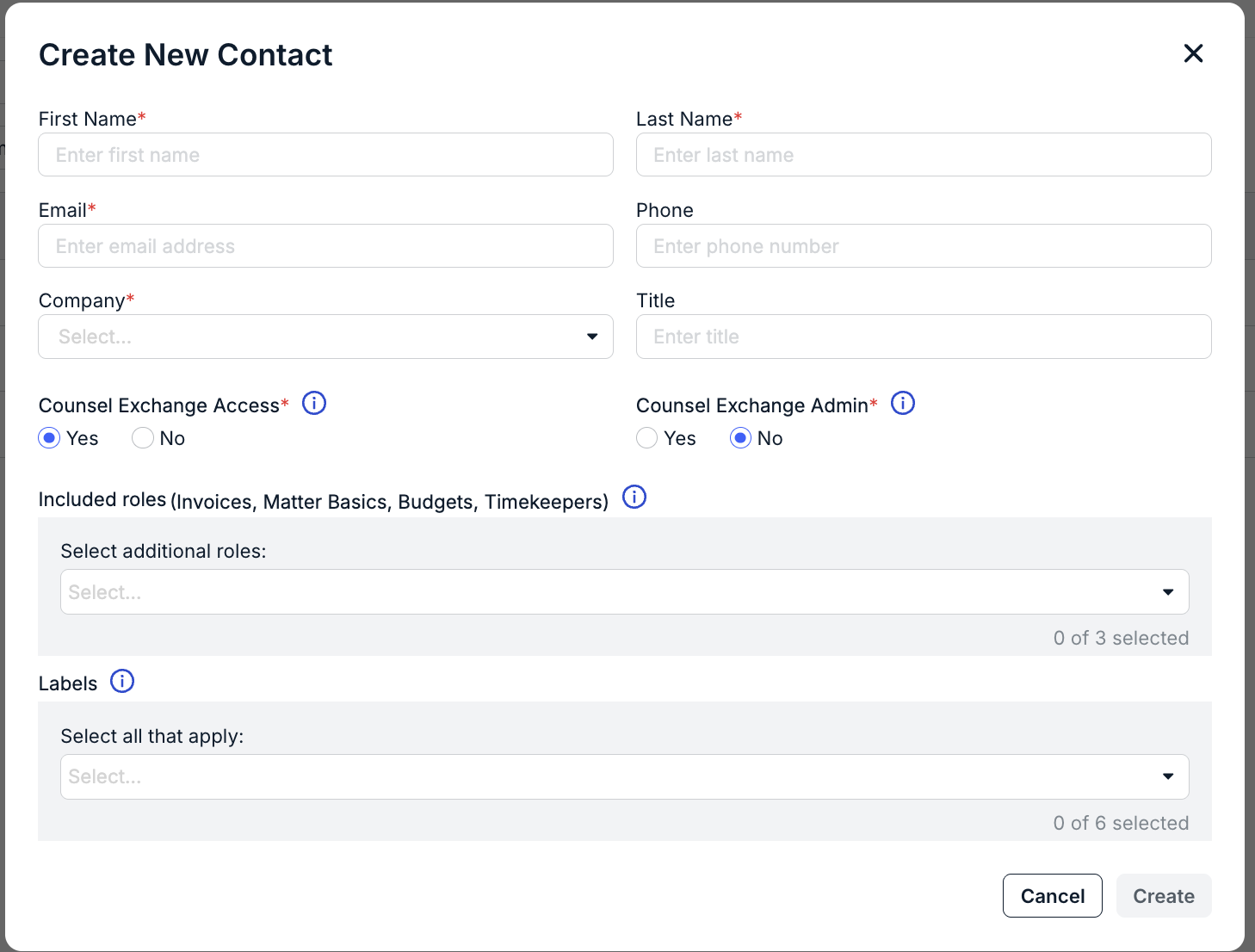
7. Select any additional roles, such as permissions for Matter Updates, Matter File Sharing, and/or General File Sharing. For additional information about Vendor Collaboration, click here.
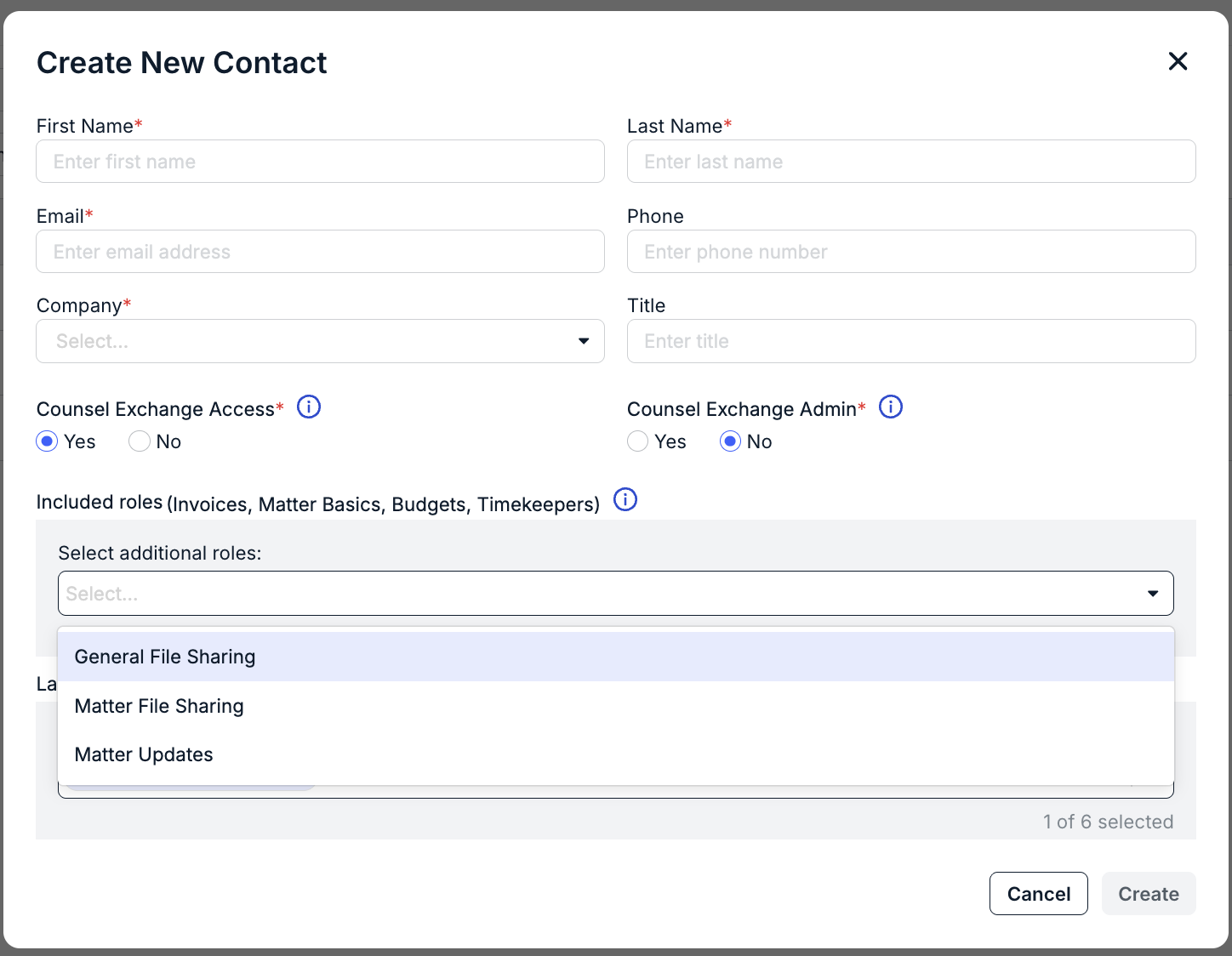
8. Select any additional labels, if applicable. For example, select Accruals Submission if the user should receive monthly accruals requests.
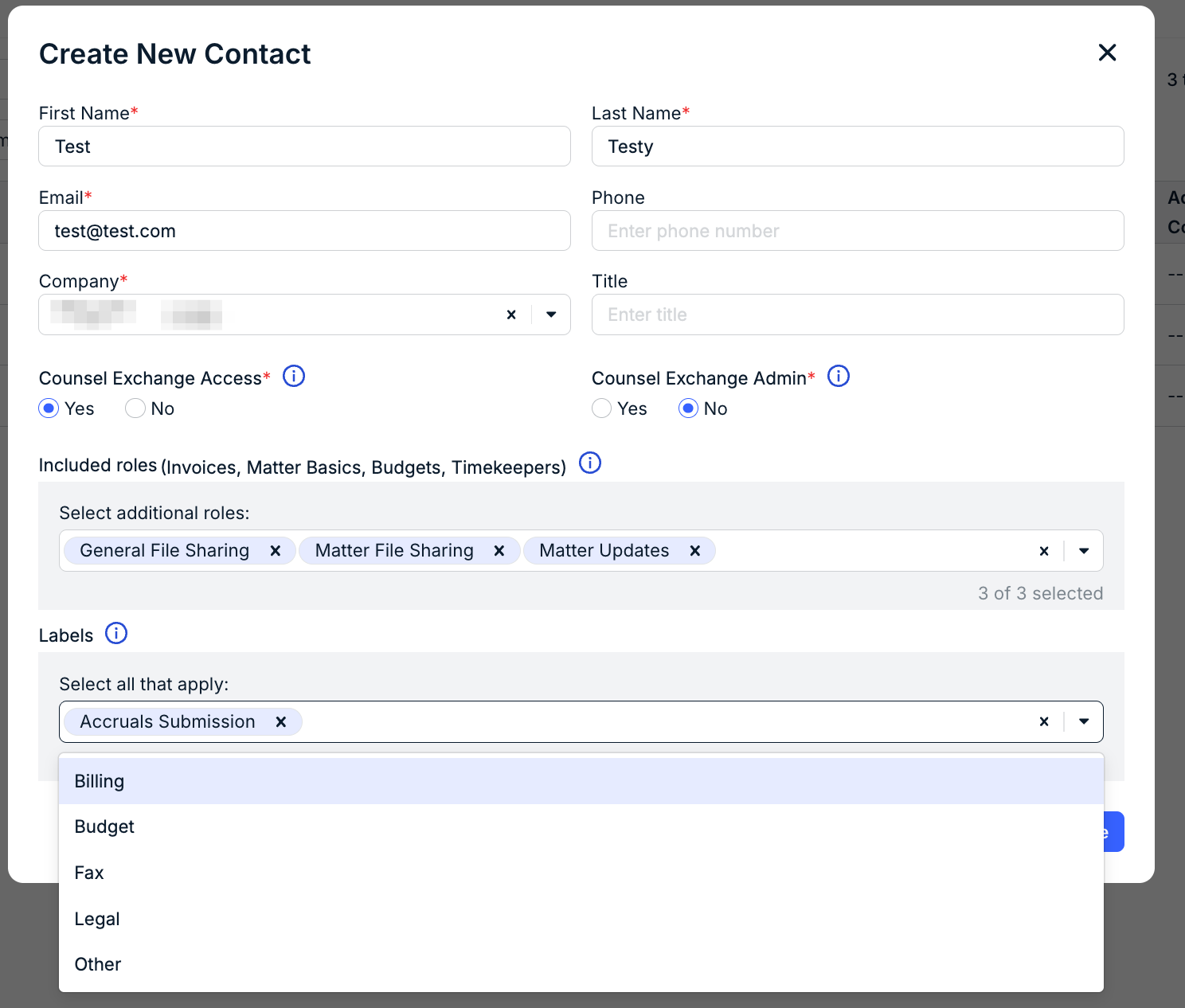
9. Click Create in the bottom-right corner.
Updating an Existing External Contact
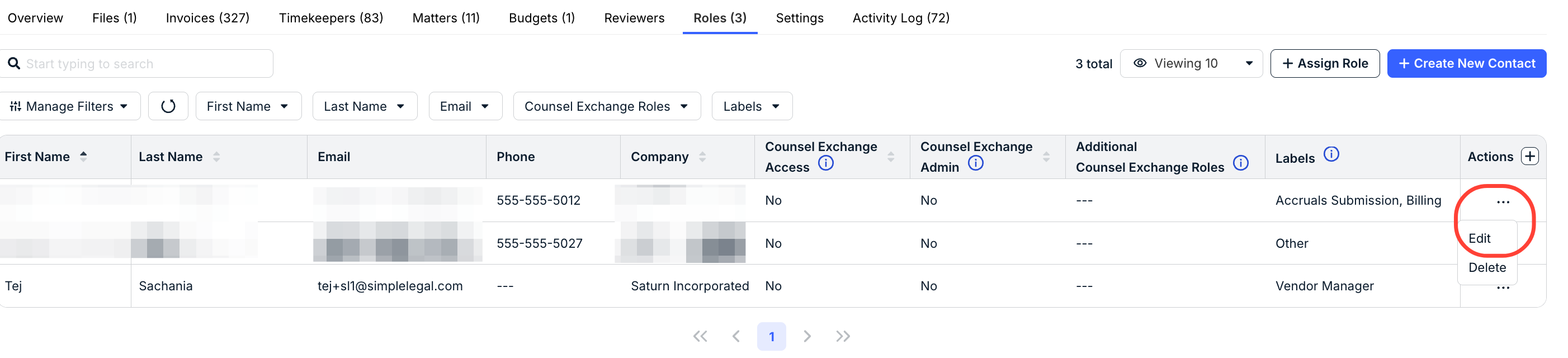
1. From the Roles tab, click on the ... (more) option under the Actions column and select Edit for the relevant contact.
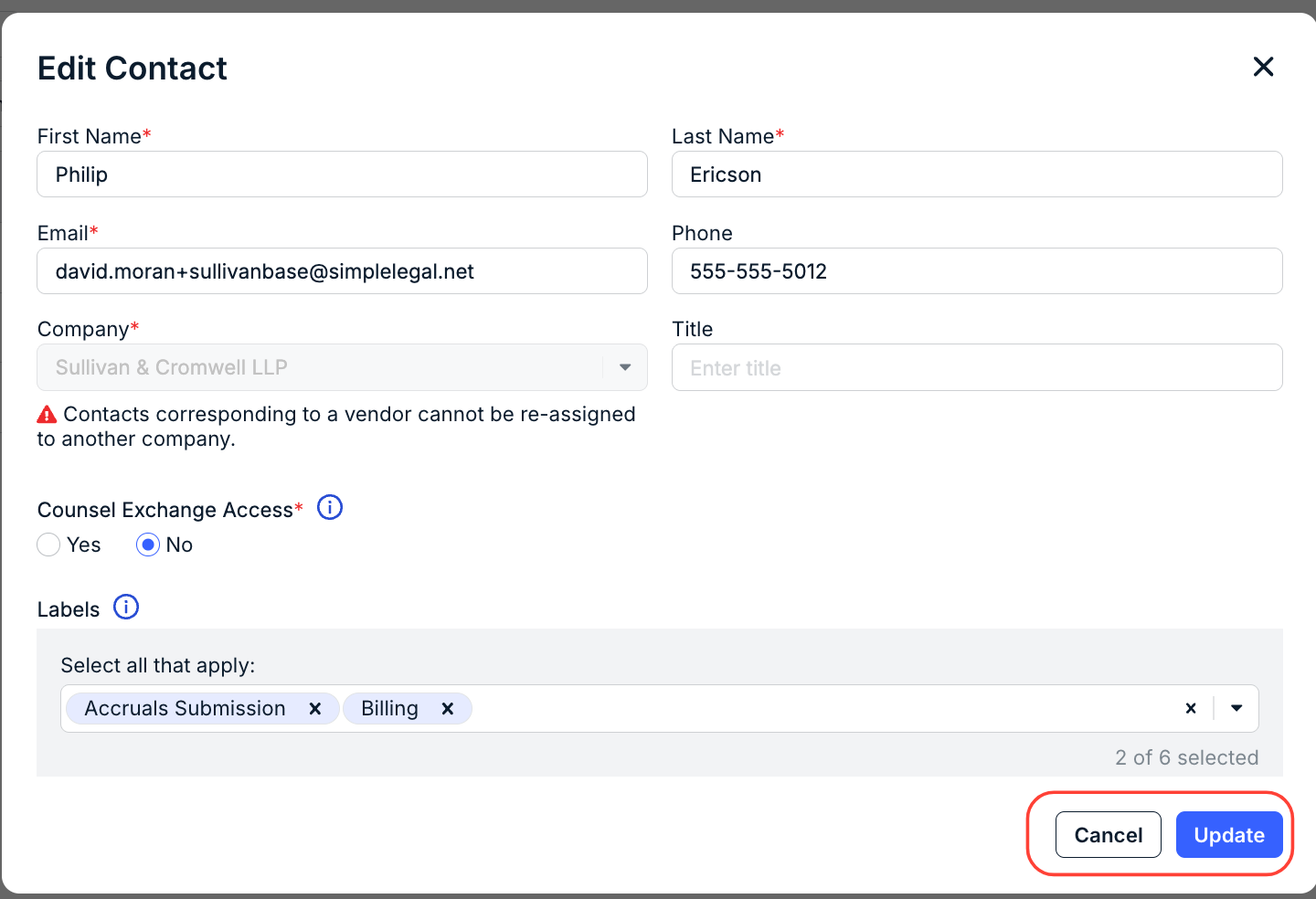
2. Set the Counsel Exchange Access and/or Counsel Exchange Admin buttons to Yes or No as needed.
3. Make any additional updates to name, phone, title, roles, or labels, if applicable, and click Update.
Notes and Other Considerations
- If the vendor contact is new and/or was granted Counsel Exchange access for the first time, the user will receive an activation link to set their password; the link expires after 5 days of receipt.
- If the user already has a Counsel Exchange account for another Onit customer, the user will receive an email notification and your company name will appear on the user's client list.
- If a new Counsel Exchange user misplaces the activation email, click on the ... (more) option under the Actions column from the vendor record and select Resend Invite. A Counsel Exchange Admin for that vendor can also do this from Counsel Exchange if needed.
- If you will be requesting accruals (i.e., estimates for unbilled work) from vendors, you can assign the Accruals Submission label to the contact in the vendor record.