Unity offers multiple ways to control user access to matters, invoices, vendor information, budgets, and more through standard user roles that range from Admin and Power User through Filtered (i.e., Non-Admin) to Email Only. Once given a role, the user can be assigned to work on specific invoices, matters, vendors, and legal entities.
Beyond basic provisioning via standard roles, Unity offers Advanced Permissions for customers that need more granular control or flexibility over permissions for particular items while still retaining user roles. This article covers the following topics:
Role-Based Permissions
Role-based permissions refer to privileges and broad access granted to users who need to work on or access specific types of records.
- Standard user roles include Admin, Power User, and Filtered.
- Users who need limited access or only need to remain informed of activities, such as Accounts Payable (AP) team members, can be assigned the Email-Only or Finance roles.
- Staff members who are external to the legal department can be granted the Legal Requests Only role if they need to submit and track requests for legal work (this only applies if the Legal Requests feature is turned on).
Standard roles assigned will cover most of the activities users can complete in Unity, but the Advanced Permissions give admins the additional option of granting extra permissions or restricting standard permissions on individual matters for specific users or teams.
Function-Based Permissions
Function-based permissions refer to the individual privileges users can be granted for matters. This includes creating new matters, editing existing matters, viewing existing matters (i.e., read-only access), and giving other users access to matter records.
With standard user roles, admins have no control over the associations built between records in Unity. The lack of control may make matter-level permissions too broad based on a user's default access to another type of record. For example, linking a new matter with a Legal Entity means that subscribers assigned to the Legal Entity may be granted extra permissions to the matter.
Advanced Permissions are useful for customers who need the flexibility of provisioning that fits their environment and need to break the standard chain of association between records.
Default Permissions
Your admins can assign default permissions to ALL users (i.e., Everyone), specific groups of users (e.g., Admins or Entity Users), custom User Teams, and individual users. These default permissions are inherited by all matters and restrict/enable activities users can perform. These permissions, however, can be further managed on a matter-by-matter basis under the Settings tab. Click here for more information.
See the table below for descriptions of default permissions that can be granted/restricted.
| Create | User can create new matters. |
| Grant | User can change permissions on a matter and grant other users access to the matter. |
| Read | User can only view the matter (e.g., overview, budgets, files, updates, etc.). |
| Edit | User can modify attributes and other sections of the matter. |
The above permissions can be managed by going to Settings > Default Permissions. In the image below, you can see the four columns of permissions with checks assigning default access to built-in groups of users (e.g., Everyone, Legal Entity Users, Matter Users, etc.). Any individual users who have been assigned default permissions appear after the built-in groups.
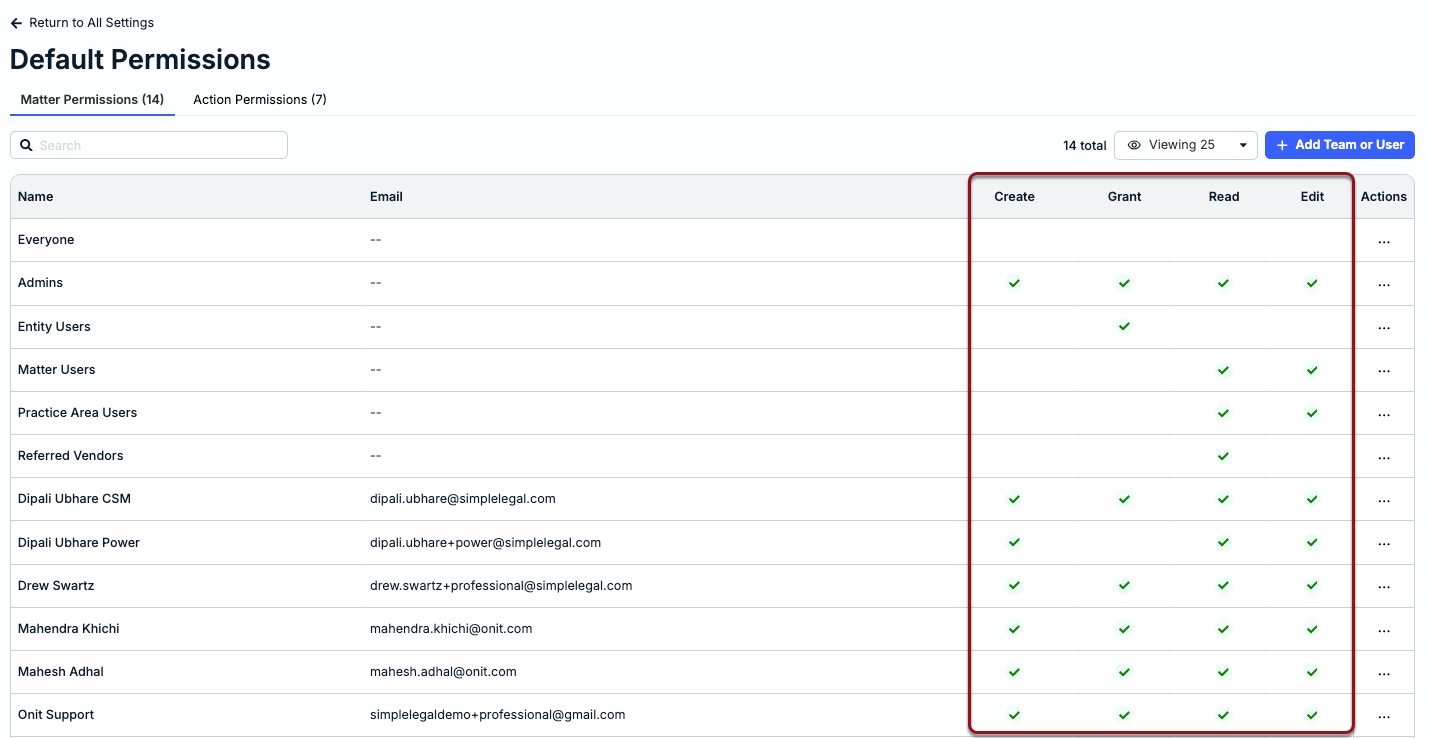
The built-in groups being assigned permissions are as follows:
- Everyone refers to all users who have access to Unity (e.g., Filtered, Admins, etc.).
- Legal Entity Users are subscribers associated with a matter because of its legal entity assignment.
- Matter Users are Unity users associated with a matter.
- Practice Area Users are Unity users associated with a matter because of its Practice Area assignment.
- Referred Vendors are those subscribers who have access to the matter based on access to a vendor that is assigned to a matter.
To assign permissions to a specific user or User Team, click + Add Team or User in the top-right corner. Select the relevant permissions, choose the users and/or teams from the dropdown list, and click Save.
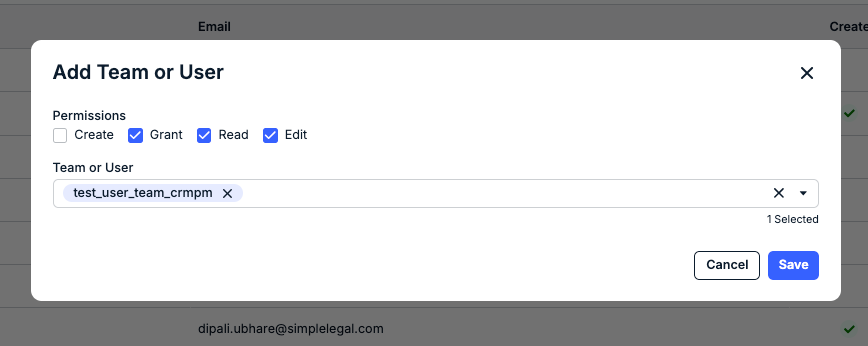
To modify the default permissions for a group or user on the list, click the ... (more) option under the Actions column.
Available Matter-Level Permissions
See the table below for descriptions of permissions that can be granted/restricted for individual users or User Teams from matter records depending on configurations for Default Permissions.
| Read | User can only view the matter (e.g., overview, budgets, files, updates, etc.). |
| Edit | User can modify attributes and other sections of the matter. |
Budget-Level Permissions
The activities a user can perform on a budget are controlled by permissions. For environments with Advanced Permissions enabled, access to a budget and the ability to edit it are controlled through the user's association with the budget's content. Specifically:
- If a budget is linked to a matter, the users who can view the matter can also view its budget. If a user can edit the matter, they can also edit its draft budget.
- Beyond these conditions, standard user roles apply. For instance, admins can see all budgets (unless the Confidential Matters feature is enabled and the admin does not have access).
User Teams
A User Team is assigned function-based permissions. Some User Teams are created by Onit for your environment (e.g., Legal Entity Users, Matter Group Users, etc.), but your admins can also create custom User Teams based on the needs of your environment.
We recommend creating custom User Teams so that the same permissions can be granted to a group of users instead of having to customize permissions for each user one by one.
See below for descriptions of default permissions assigned to the built-in User Teams at a high level. These permissions can be changed by going to Administration > Default Permissions.
| Team | Description |
|---|---|
| Everyone | Onit creates this team and puts all users except the Support user into this group. |
| Legal Entity Users | Matter Lead, Approvers, and Viewers associated to the matter via the matter's legal entity. |
| Practice Area Users | Matter Leads, Approvers, and Viewers associated to the matter via the assigned Matter Group/Practice Area (name depends on custom labels). |
| Matter Users | Matter Lead, Approvers, and Viewers on the matter. |
| Referred Vendors | Matter Lead, Approvers, and Viewers associated to the matter through the Vendors tab on a matter. The subscriber has access to the matter via the vendor to which they are assigned. |
Custom User Teams
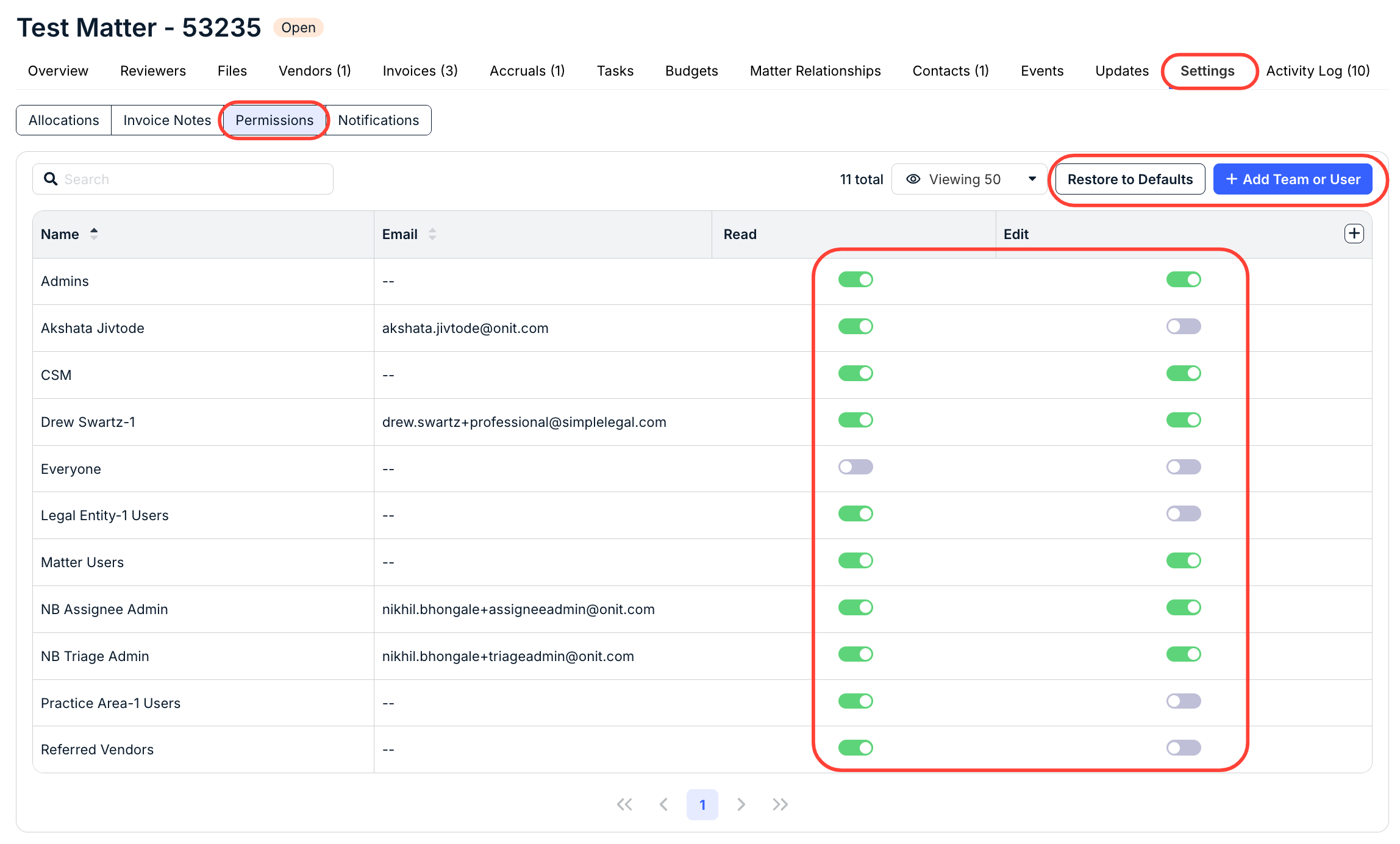
If admins create custom User Teams, then users with the relevant matter-level permissions can grant read and/or edit access to those User Teams for individual matters under the Settings > Permissions section of the matter record. Consider these important details:
- If all admins should have access to matters and the permission to create new matters, you must add them to a custom Admin User Team and assign them the relevant default permissions.
- User Team permissions are additive. If a user, for example, has READ access through a Legal Entity but is on a User Team given EDIT access, the user will have READ/EDIT access.
- When changing permissions, you can click Restore to Defaults to revert a change.
- If working with Confidential Matters, the matter creator will initially be the only user with access. The creator must grant permissions to each individual who needs access to the matter.
Below is an example of the Settings > Permissions section in a matter with the access granted to the standard groups of users, custom User Teams, and individual users.
Reviewers & Followers
This section covers default permissions for users who are assigned as reviewers or subscribers at various record levels. For more information about reviewers and subscribers, click here.
| Matter | Users assigned as reviewers or subscribers at the matter level have access to the matter and its invoices. |
| Matter Group | Users assigned as reviewers or subscribers at the matter group level have access to the matter and its invoices. |
| Legal Entity | Users assigned as reviewers or subscribers at the legal entity have access to associated invoices but not the matters. NOTE: Above applies when the entity is assigned to a matter, under a matter's allocations, and/or as the allocation for an individual line item. |
| Vendor | Users assigned as reviewers or subscribers at the vendor level have access to associated invoices but not the matters. |
| Invoice | Users assigned as reviewers or subscribers at the invoice level have access to the invoice but not the associated matter. |
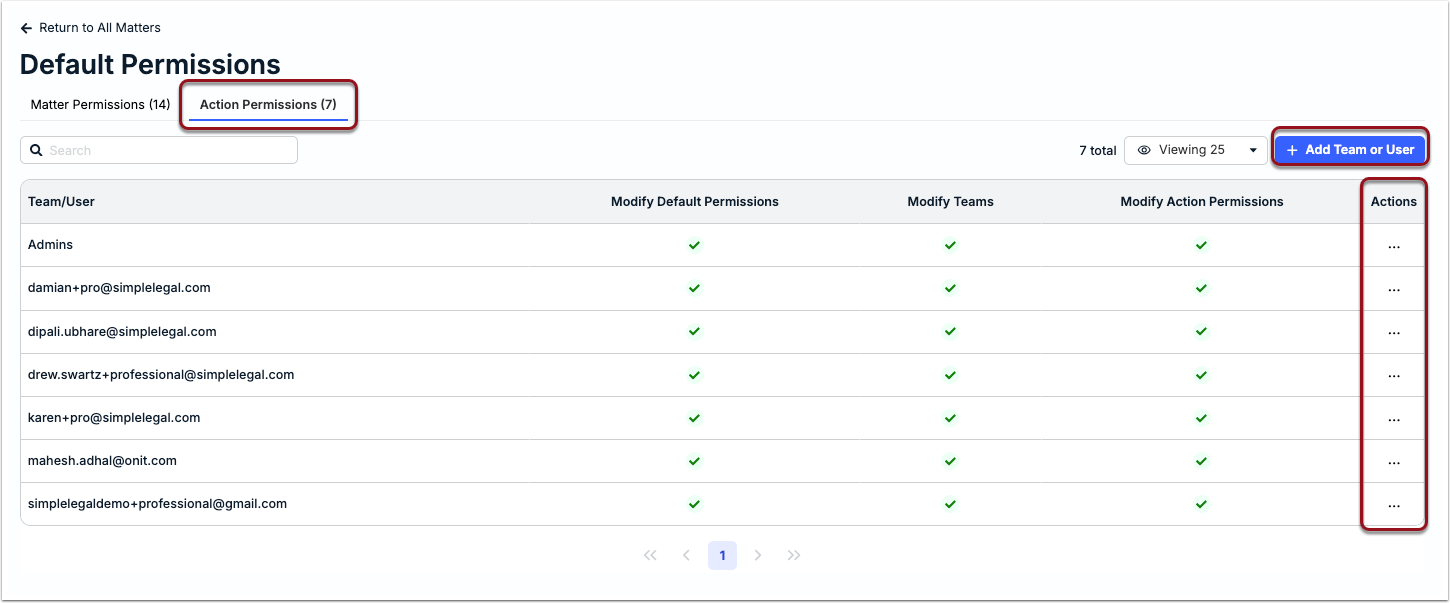
Action Permissions
The Action Permissions tab under Settings > Default Permissions allows admins to control modification permissions for custom User Teams or individual users. This refers specifically to controls for modifying Default Permissions, User Teams, and Action Permissions.