Multi-Factor Authentication (MFA) in Unity ELM adds a second layer of security to your login. Users with MFA enabled will receive a one-time security code by email after entering their email and password. With MFA, even if a password is compromised, an attacker cannot access your account without also gaining access to your email.
This guide will outline how users will use MFA within the Unity environment.
Logging In with MFA
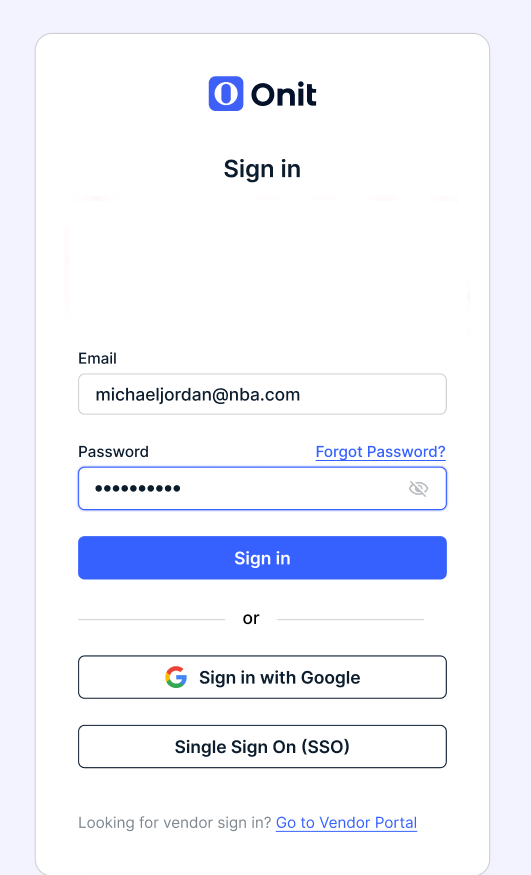
- Enter your credentials.
Go to your organization's login page and enter your email and password as you normally would.
- Check your email.
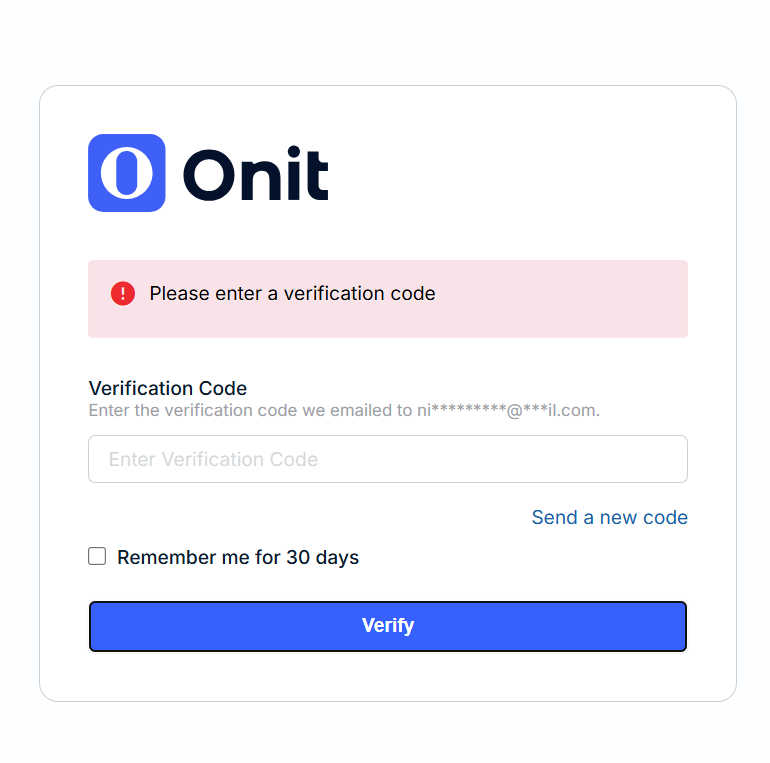
If your credentials are correct and MFA is enabled for your organization, you'll be redirected to a verification page with this message:
We sent a security code to the email address used to login.
Open the email from [email protected]. It contains an 8-digit security code and a magic link that completes verification automatically, with no typing required.
- Enter the code or click the magic link.
Option A: Enter the code:
- Copy the 8-digit code from the email.
- Paste or type it into the Security Code field on the verification page.
- Click Verify.
Option B: Click the magic link:
- Open the email.
- Click the verification link.
- You will automatically be signed in.
- You'll go to the home page.
Once the code is accepted, you'll be signed in and taken to the Unity home page.
Code Expiration
Security codes are valid for a limited time set by your administrator (default: 5 minutes). If your code expires before you enter it:
On the verification page, click Resend Code.
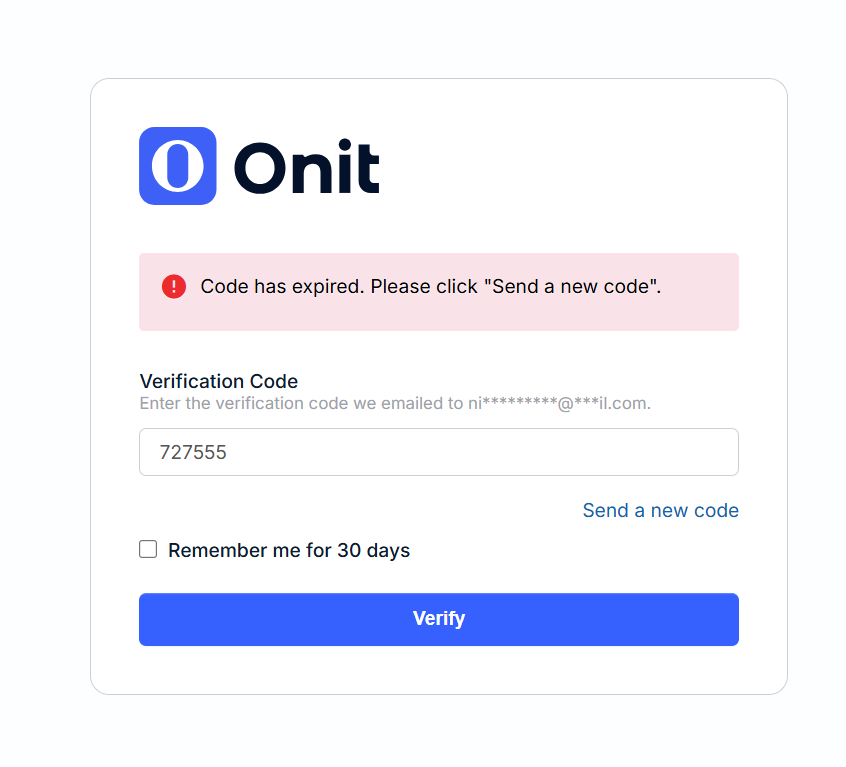
- A new code is sent to your email.
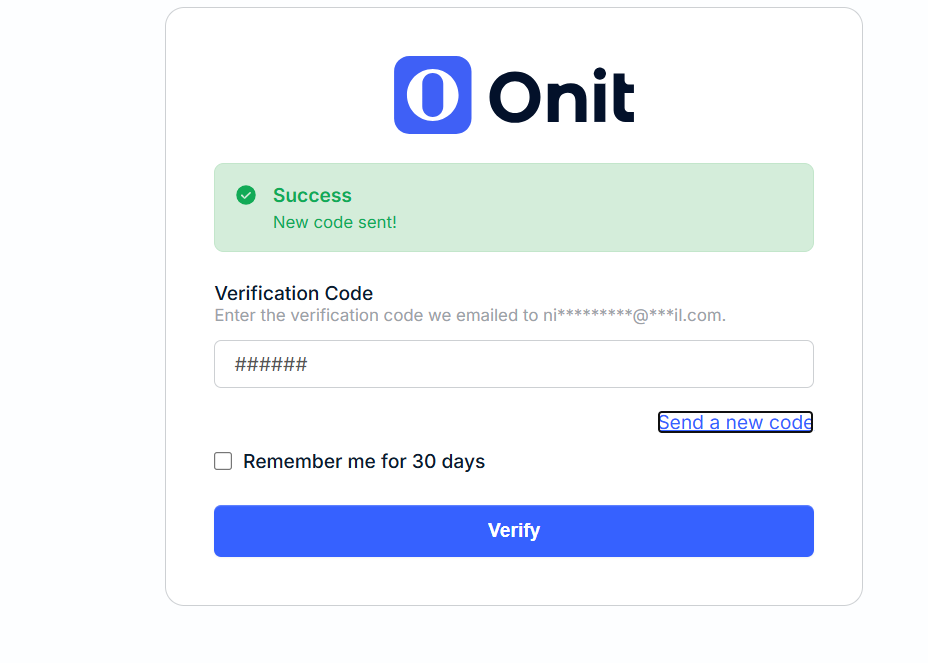
- Enter the new code within the expiration window.
The magic link in any previous email also expires with the code — always use the most recently sent email.
Failed Attempts and Account Lockout
To protect against unauthorized access, the system limits the number of times you can enter an incorrect code.
Attempts What happens 1–4 incorrect attempts An error message is shown; you can try again. 5 incorrect attempts Your account is locked. You are signed out and cannot try again. If your account is locked, contact your administrator for assistance.
Remembered Devices
After a successful MFA login, your browser is trusted for 24 hours. During that window, signing in from the same browser does not prompt for a code again. When you log out, this trust is cleared; the next login will require a code.
FAQ
I never received the email. What should I do?
Check your spam or junk folder. If it is not there, wait 1–2 minutes and click Resend Code on the verification page. If you still do not receive it, contact your administrator to confirm the email address on your account is correct.
The code I entered is not working.
Make sure you are using the code from the most recent email — older codes are invalidated when a new one is sent. Also verify the code has not expired (watch the expiration time set by your admin). If the problem persists, click Resend Code to get a fresh one.
I clicked the magic link but got an error.
Magic links are single-use and expire with the code. If you already used the code in the form, or if the code expired, the link will no longer work. Return to the verification page and click Resend Code.
Does MFA apply when I log in with SSO (Single Sign-On)?
No. MFA only applies to password-based logins. If your organization uses SSO (e.g., SAML), your identity provider handles authentication and the MFA step is skipped.
I am locked out after too many attempts. What do I do?
Contact your organization's administrator. They can unlock your account from Settings > Common Module > Users.
Can I use an authenticator app (like Google Authenticator or Authy)?
Support for time-based authenticator apps (TOTP) exists in the platform infrastructure. Whether it is available in your organization's configuration depends on your administrator's settings. Contact your administrator for details.