In addition to uploading a system-level default guideline file from the Invoice Settings menu, you can tag a file uploaded to an individual vendor record in Unity so that it is used by Spend Agent for the AI-powered review and validation of that vendor's submitted invoices. For additional information on how Spend Agent is used for invoice review and validation, click here.
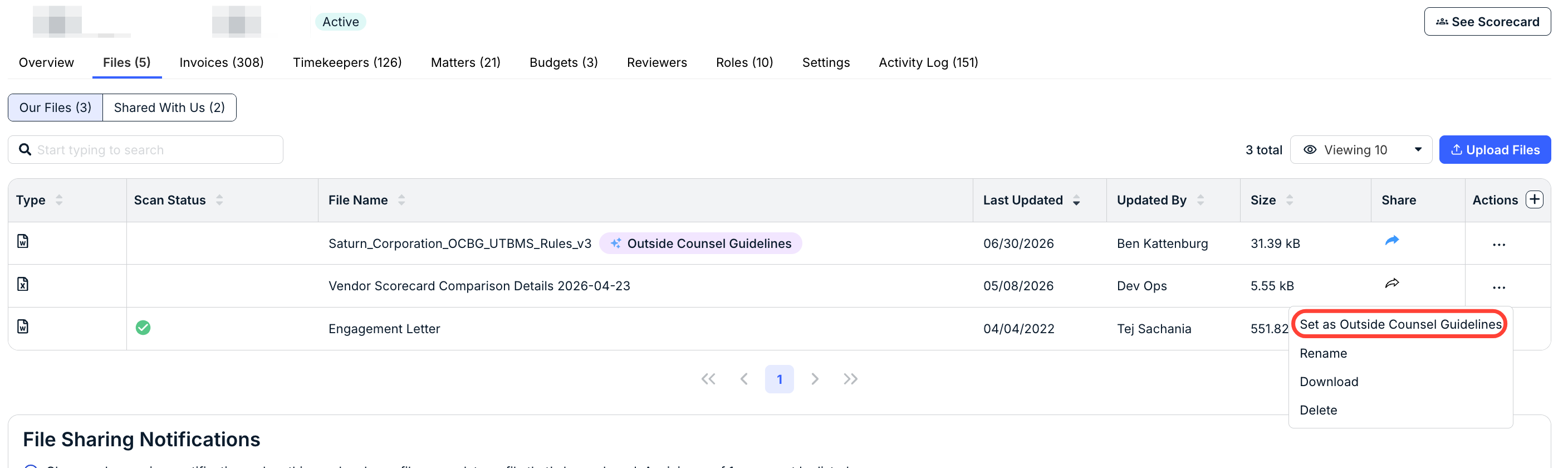
1. Go to the Files tab in the vendor record to find or upload the guidelines document.
2. Click on the ... (more) option under the Actions column and select Set as Outside Counsel Guidelines.
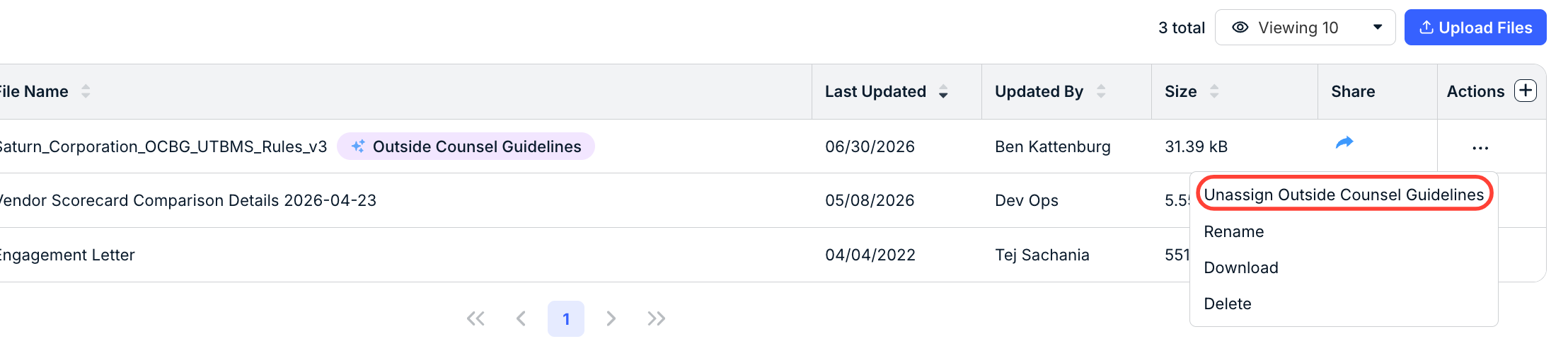
Note that you can also Unassign Outside Counsel Guidelines through the same menu.
docs.onit.com contains proprietary and confidential information owned by Onit, Inc. that is subject to copyright. Onit presents it exclusively to you for your sole use in conjunction with using Onit products. No portion of the materials contained herein may be used for any other purpose. No portion of the materials contained herein may be shared with third parties or reproduced in any form.