The Budget Review Rules add a review process for incoming budgets. Note that this replaces the internal approver field from the initial budget request page.
Here's how to use the Budget Review Rules:
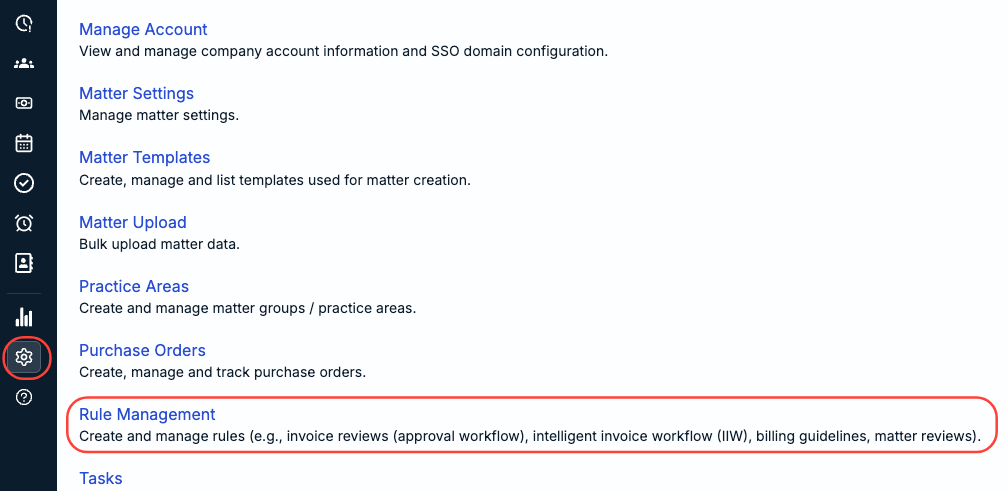
- In the "Settings" section, scroll down to "Rule Management."
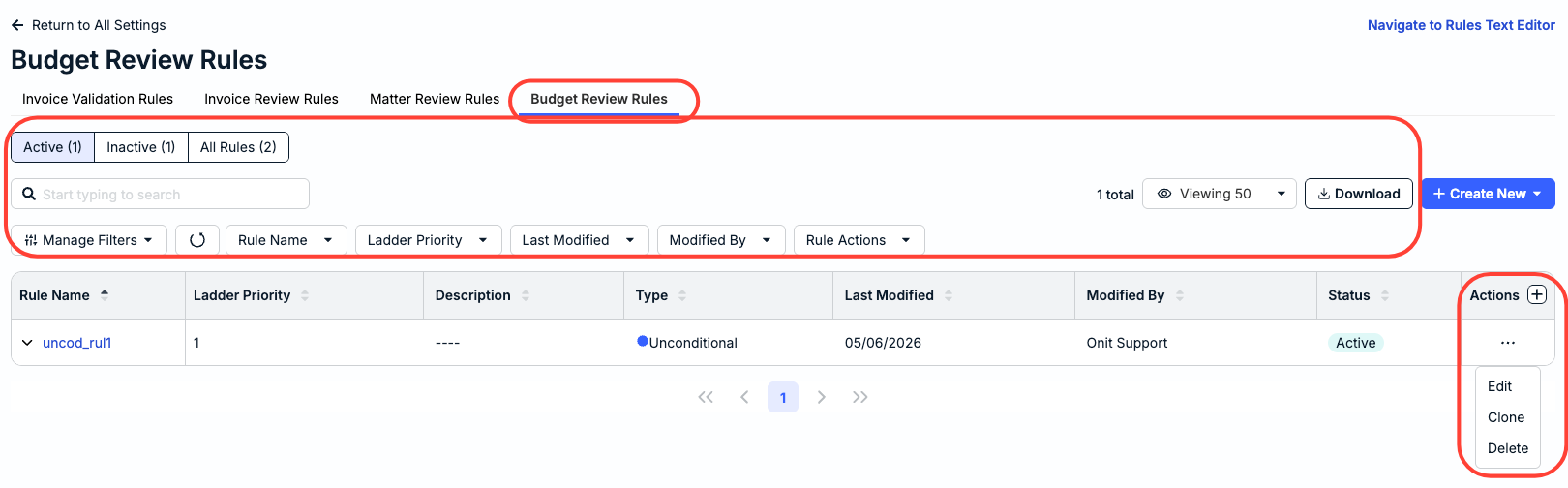
- Click on the "Budget Review Rules" tab.
The Budget Review Rules directory will appear. In it, you'll see key details including Rule Name, Ladder Priority, Description, Type, Last Modified date, Modified By name, and Status.
You can use the top tabs to switch between Active, Inactive, and All Rules. Use the Manage Filters drop-down menu and the other filter menus, and the Viewing drop-down bar to customize what you want to see on the screen. Use the search bar to search for specific rules. Click the Download button to download the rules as an Excel file.
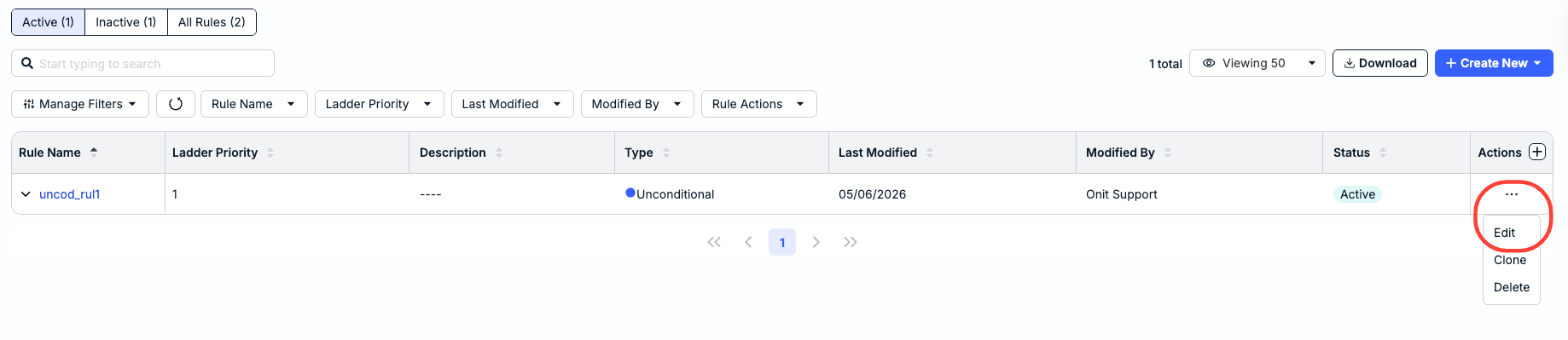
Use the three-dot menu under Actions to Edit, Clone, or Delete a rule.
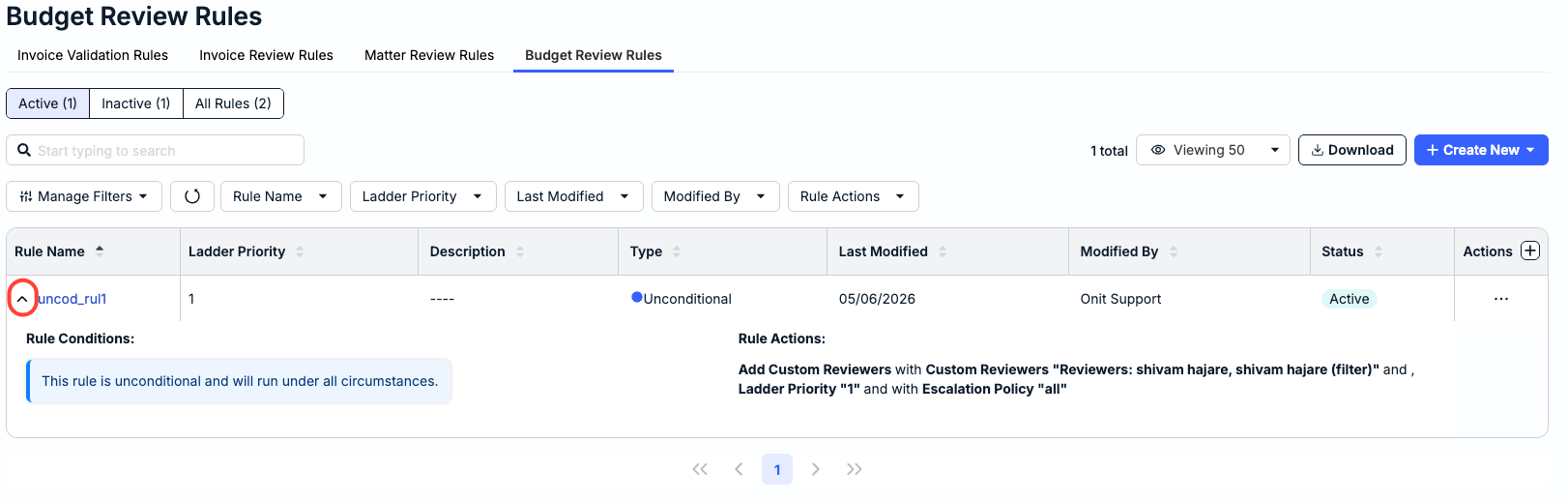
Click on the arrow next to the rule name to display more information about the rule.
- Click on the Create New button to create either a Standard or an Unconditional rule.
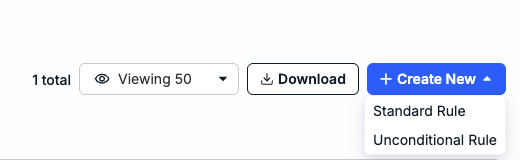
- Standard rules include conditions such as business-unit or amount thresholds.
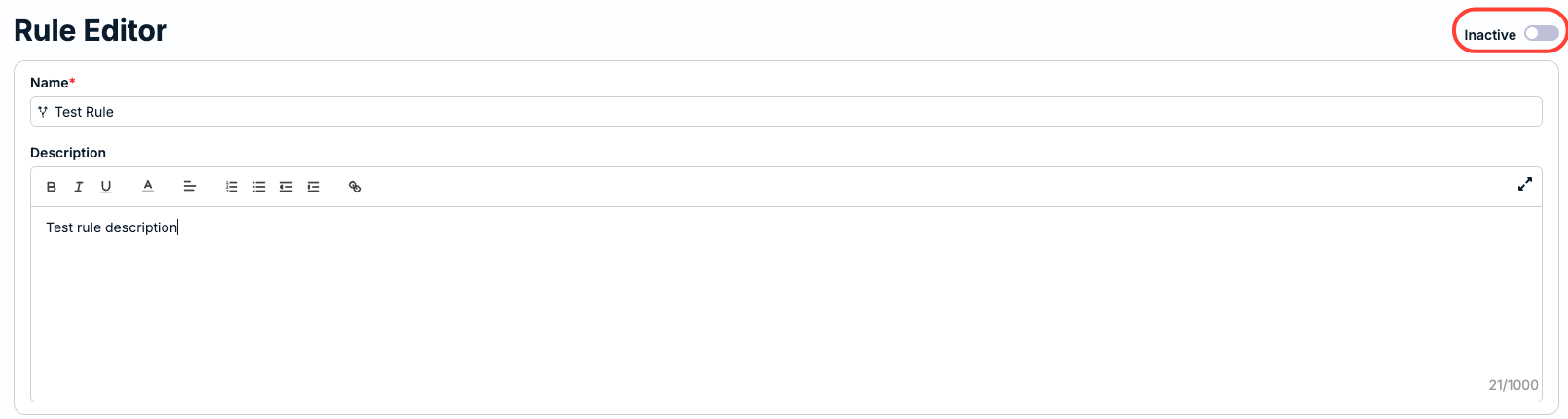
To start, you'll have to fill out the:
- Name
- Description (use the formatting bar to customize this text)
Click the top toggle button to make the rule Inactive or Active.
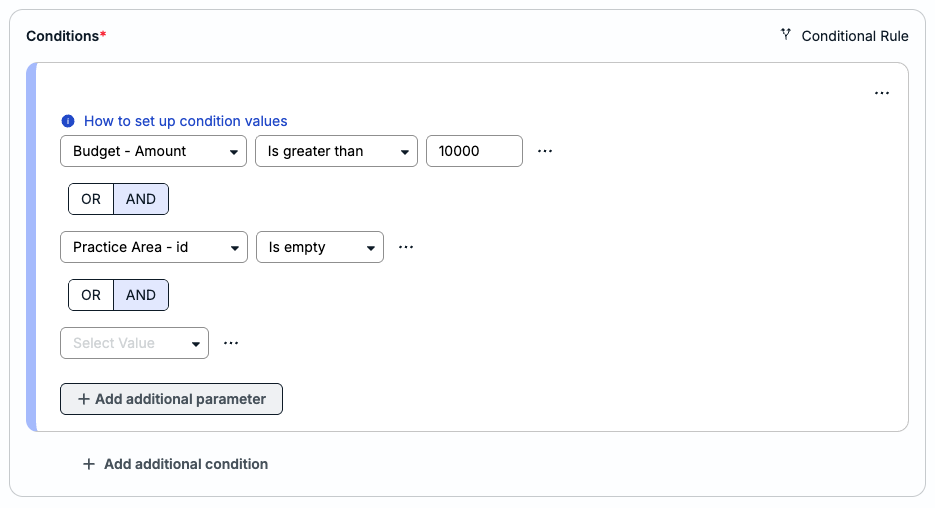
Under Conditions, you can set up the rule's conditions. Learn more about setting up condition values here. Click Add Additional Parameter and Add additional condition to add more conditions or parameters to the rule.
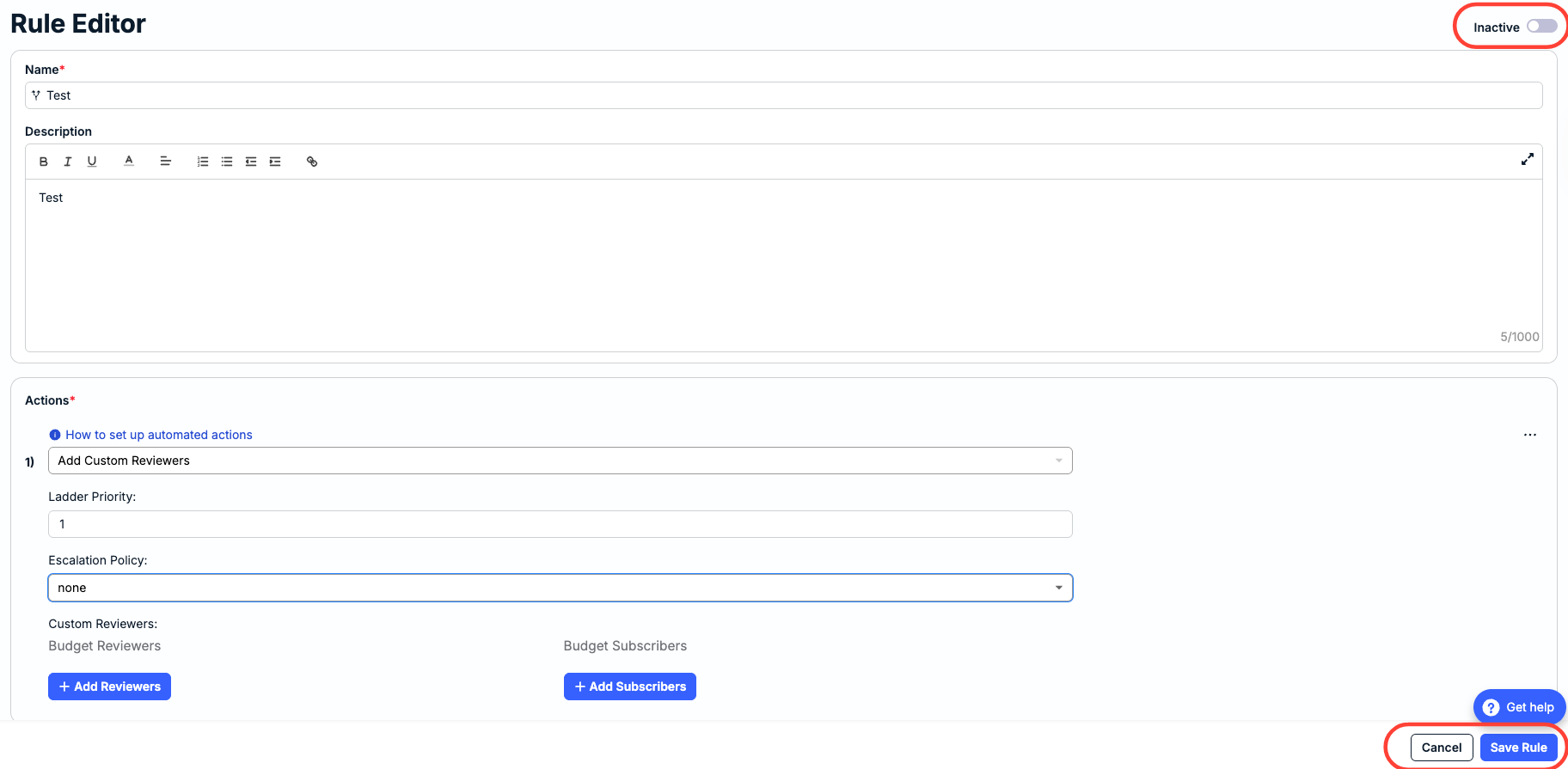
Under Actions, you can set up the rule's actions. Learn more about setting automated actions here.
After adding custom reviewers, you can edit the Ladder Priority, Escalation Policy, and add Budget Reviewers and Budget Subscribers. Click on Save Rule to save the rule or Cancel to back out.
- Unconditional rules run whenever a budget is created (e.g., GC review for all budgets)
You'll have to fill out the Name, Description, and any Actions. You can also use the top toggle button to make it Active or Inactive. Click Save to save the rule or Cancel to back out.
- Standard rules include conditions such as business-unit or amount thresholds.
The rule will appear in the main rules directory. Click the three-button menu under Actions and then Edit to edit the rule.