Each invoice is associated with one matter and one vendor. An invoice can also be associated with a practice area, legal entity, and/or other relevant attributes in your environment. In addition to manually assigning reviewers to invoices, invoice reviewers can be automatically assigned based on these specified attributes by using our Invoice Review Rules.
In Unity ELM, you have the option to assign one or more people to review each invoice and the option to escalate reviews to higher tiers based on the billed amount. Our Invoice Review Rules help you manage, automate, and control the invoice approval process to drive efficiency, save time, and generate cost savings.
Customers have four built-in invoice review rules that enable admins to assign reviewers based on their familiarity or involvement with one or more of the following attributes or components:
- Legal Entity
- Matter
- Practice Area (or Matter Group)
- Vendor
This article covers the following topics:
- Components of Invoice Review Rules
- Managing Invoice Review Rules
- Creating a Custom Invoice Review Rule
Components of Invoice Review Rules
Admins can manage existing rules and create custom rules that determine who can review, accept, and/or reject submitted invoices. For example, a custom rule can automatically assign specific users to invoices submitted to specific matters based on the total invoice amount. Invoice review rules are made up of the following:
- Approvers (also referred to as "invoice reviewers")
- Conditions (if Unconditional, this means the rule triggers for all incoming invoices)
- Actions (what happens when the rule is triggered for an incoming invoice)
- Ladder Priority (whether reviewers are assigned in parallel or hierarchical order)
- Escalation Policies (whether reviewers should be added based on any established escalation policies)
Approvers refer to invoice reviewers who are assigned to review/approve incoming invoices. These rules can be applied at the matter level or to various other characteristics attached to invoices, such as vendors, legal entities, or practice areas (also referred to as matter groups).
Managing Invoice Review Rules
Admins can work with invoice review rules by going to Settings > Rule Management > Invoice Review Rules. Here you can see the four built-in rules, which are available to help you control invoice assignment. Whether they are active/inactive depends on how long your organization has been using Unity ELM and if other admins have made changes to default settings.
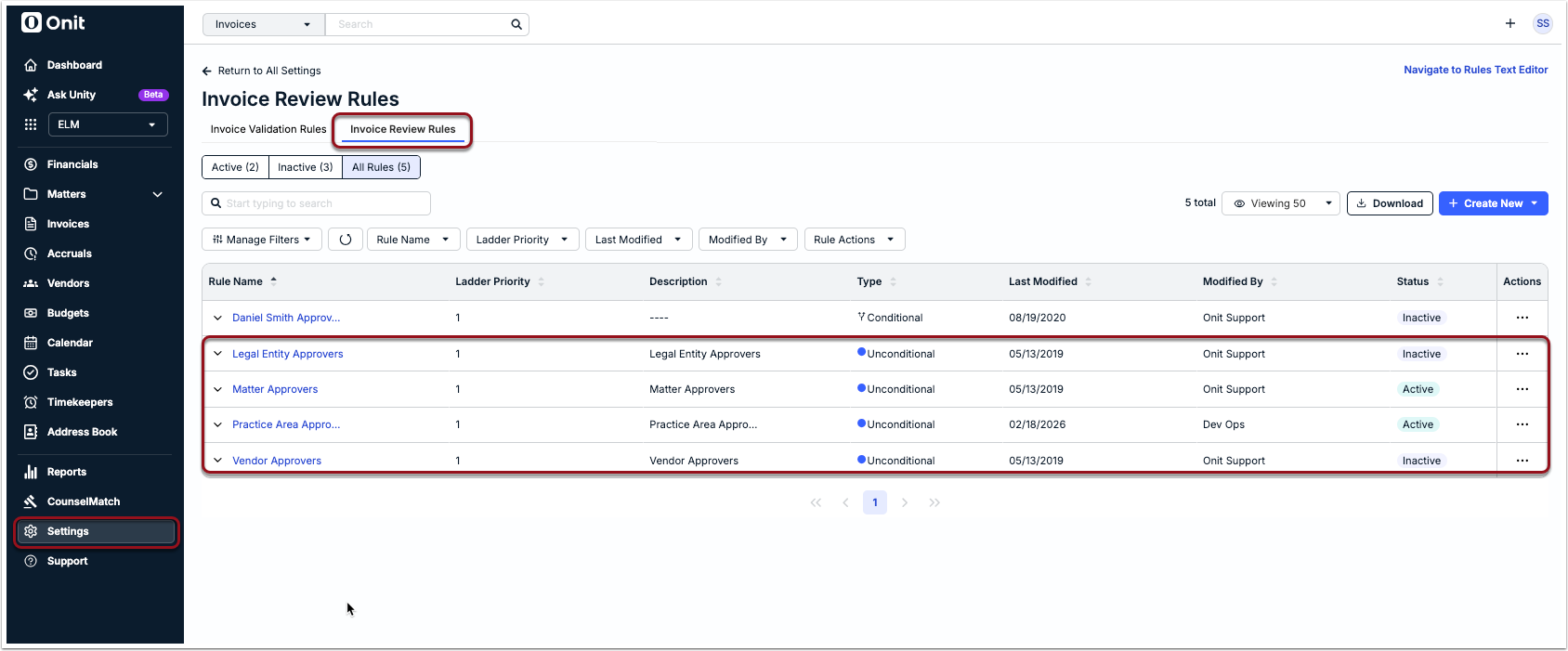
The Invoice Review Rules page displays the following information for each rule:
| Rule Name | Name of the rule. Appears as help text on the invoice details page when a user clicks 'Why?' from the reviewers section to see why a specific user or User Team was assigned to the invoice. |
| Ladder Priority | Designates in what order the Invoice Review Rules trigger. |
| Description | Short description of the rule to provide context for other users. |
| Type | Conditional means that the rule only triggers when certain criteria is met, while Unconditional means that the rule triggers in all circumstances for submitted invoices. |
| Last Modified | Date the rule was last updated by an admin. |
| Modified By | First and last name of the admin who last updated the rule. |
| Status | Whether the rule is Active or Inactive. NOTE: Onit recommends that you make rules inactive that you do not expect to use in order to avoid overcomplicating your invoice review workflow. Click here for instructions. |
| Actions | Click on the ... (more) option to select one of the following options: Edit, Clone, or Delete. |
Editing a Rule
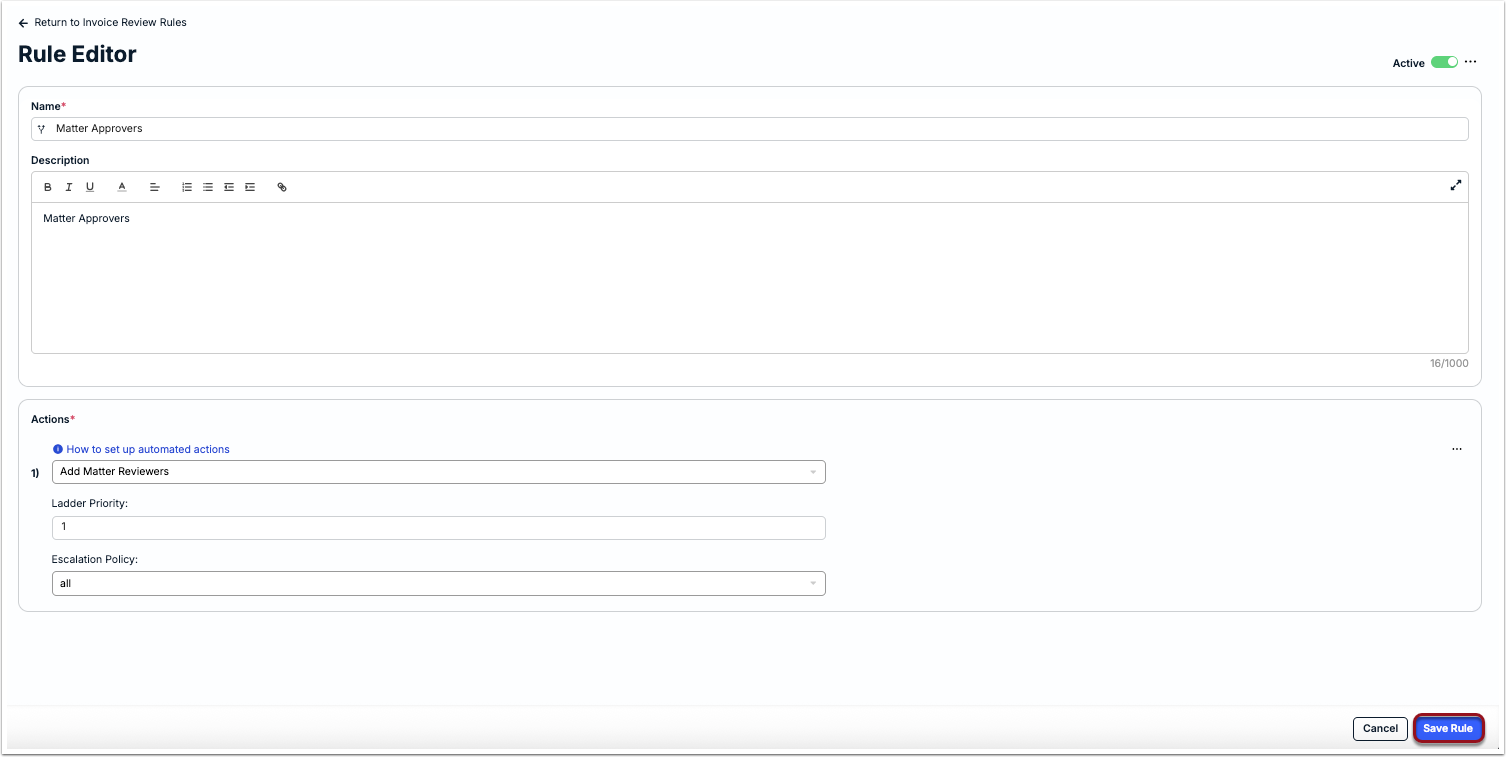
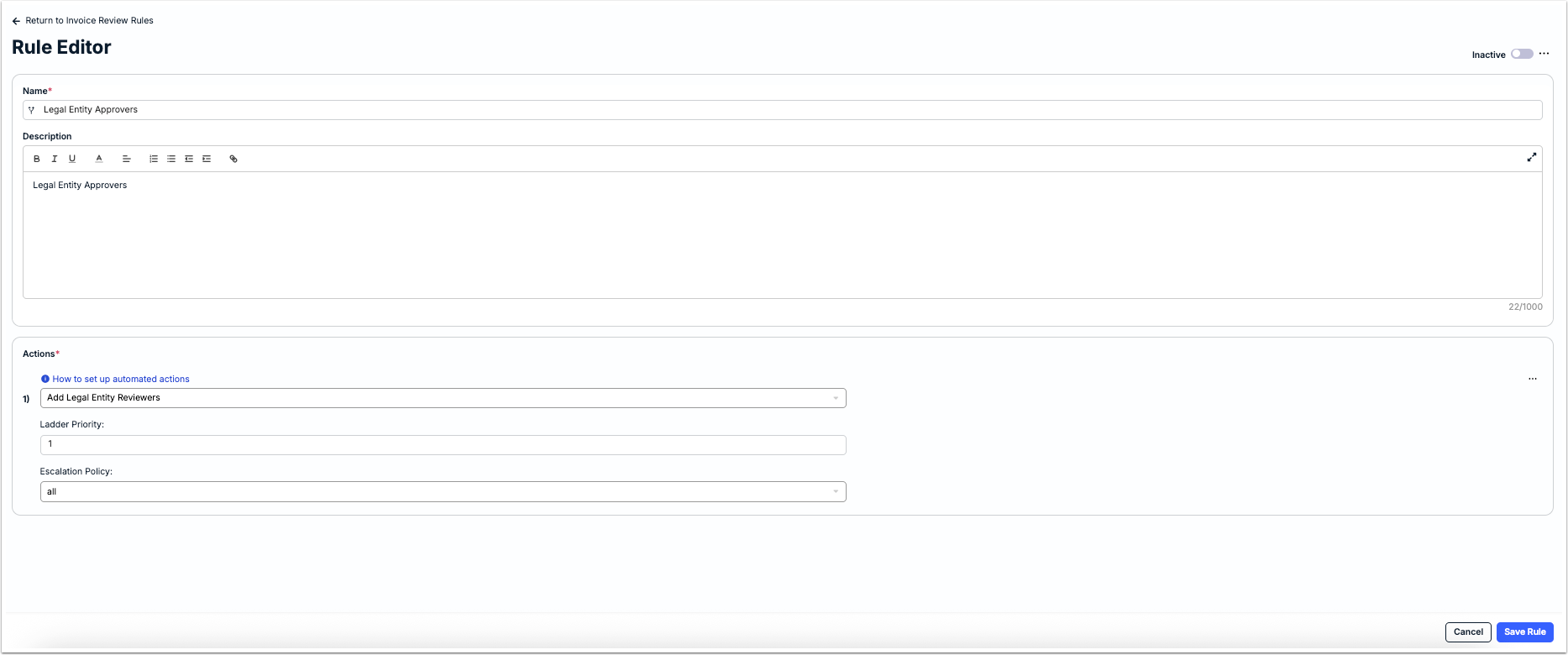
Click on the rule name from the list to open the Rule Editor. Which options are available in the Rule Editor depend on whether it is a conditional or unconditional rule. The image below shows one of the built-in unconditional rules to add reviewers at the matter level.
From here, you can update the name, description (rich text editor available), and actions. This includes assigning Ladder Priority and Escalation Policy options, if applicable. Click Save Rule in the bottom-right corner.
Activating or Deactivating a Rule
If built-in rules do not apply to your reviewer assignment needs, we highly recommend deactivating them to avoid unintended automated actions or prevent overcomplicating your approval flow.
To activate or deactivate a rule, click on its name from the Invoice Review Rules tab to open the editor and then click the Active toggle in the top-right corner.

Viewing Version History
If you need to check or revert recent changes made to a specific invoice review rule, click on its name from the Invoice Review Rules tab to open the editor, click on the ... (more) option in the top-right corner, and select Version History.

Creating a Custom Rule
Admins can use the built-in rules as-is, customize an existing rule to fit their organization's needs, clone a rule and repurpose it, or a create a new rule from scratch (i.e., either standard or unconditional).
Standard Rules (Conditional)
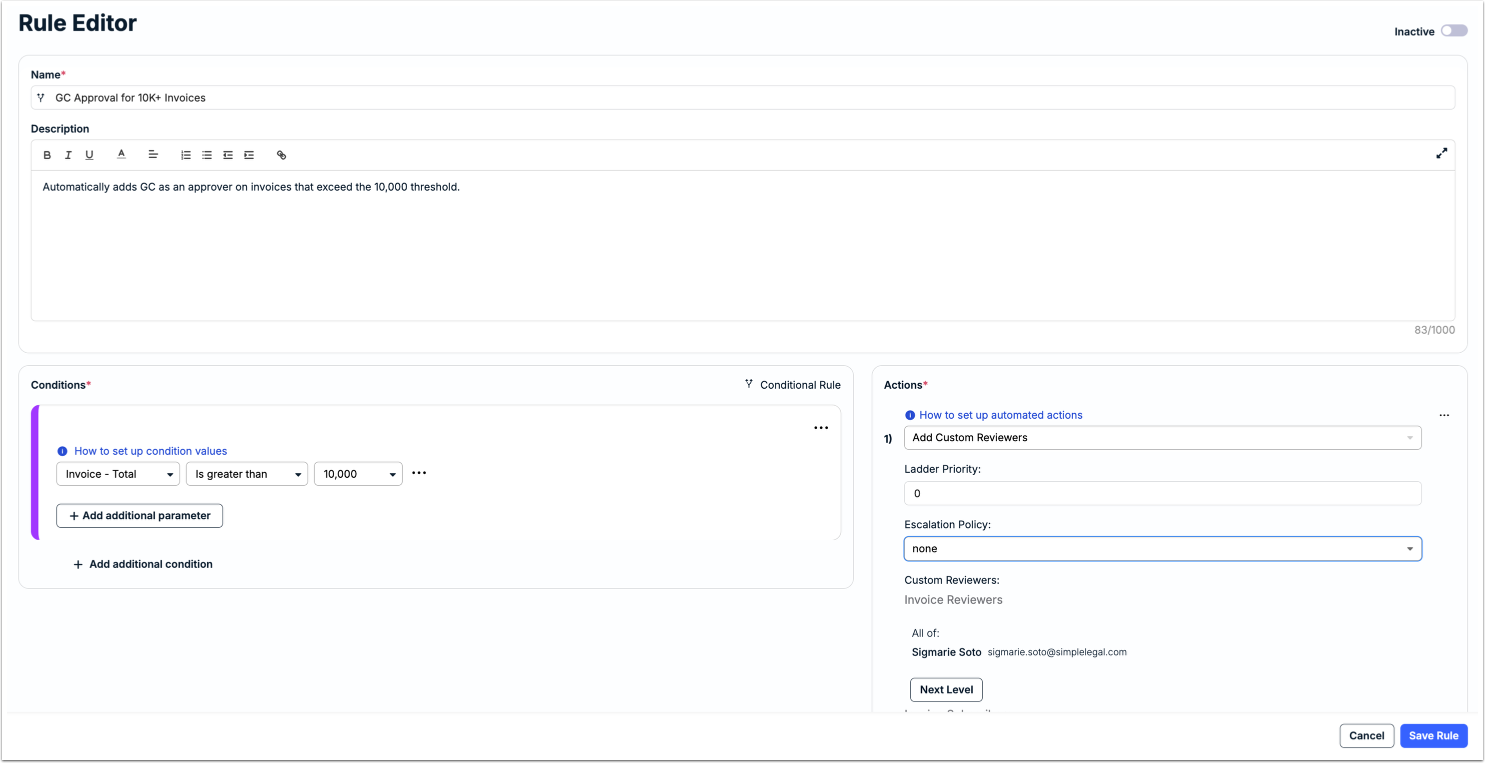
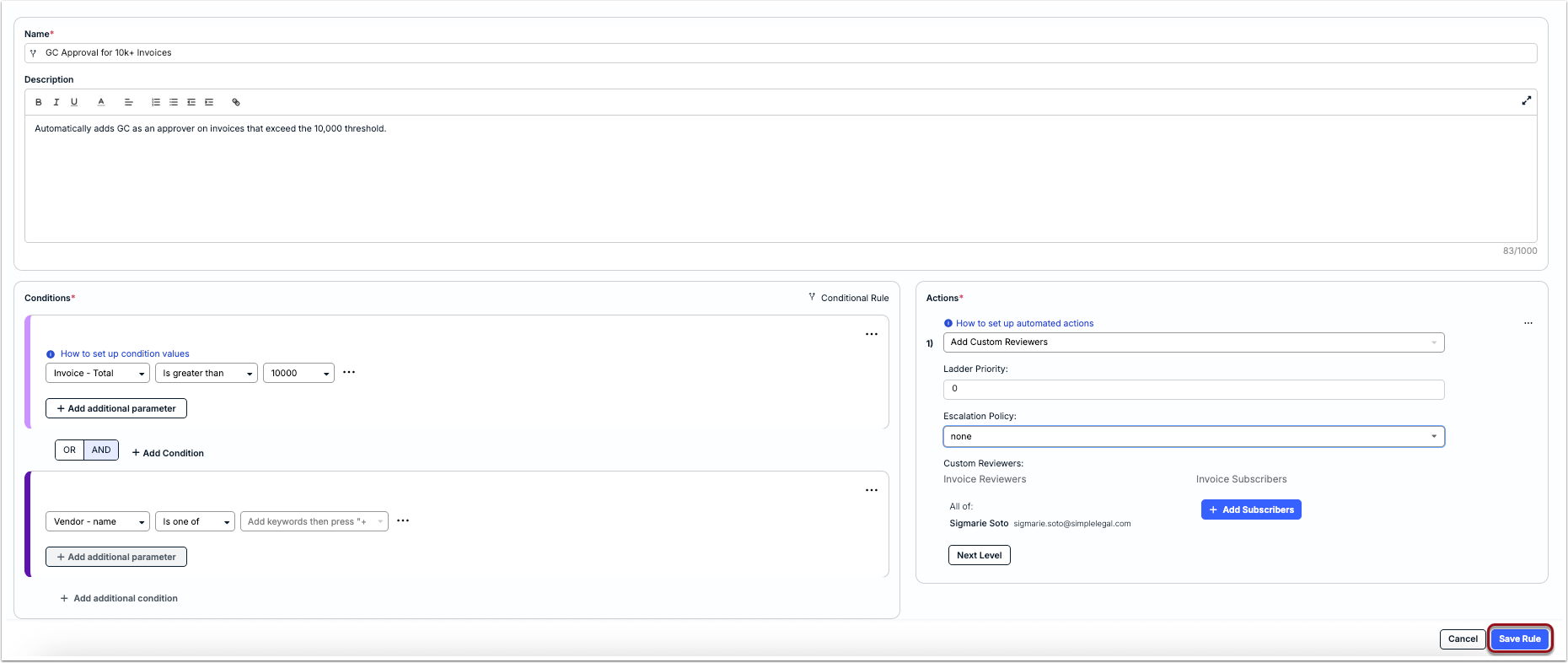
A conditional rule only runs when specified conditions are met. In the example rule shown below, the rule triggers and adds the GC to the approval ladder only for invoices amounts of 10,000.00+.
To create a conditional rule:
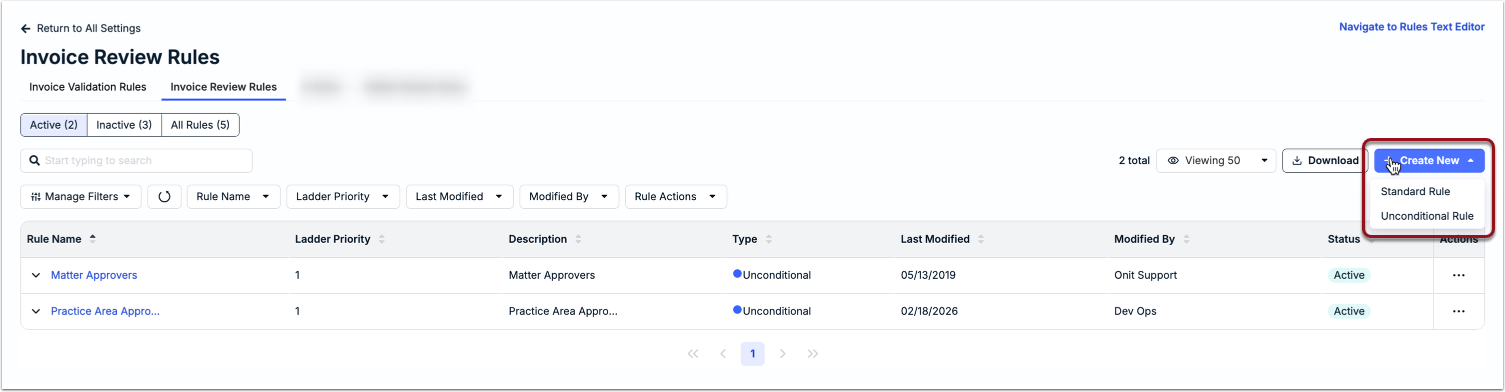
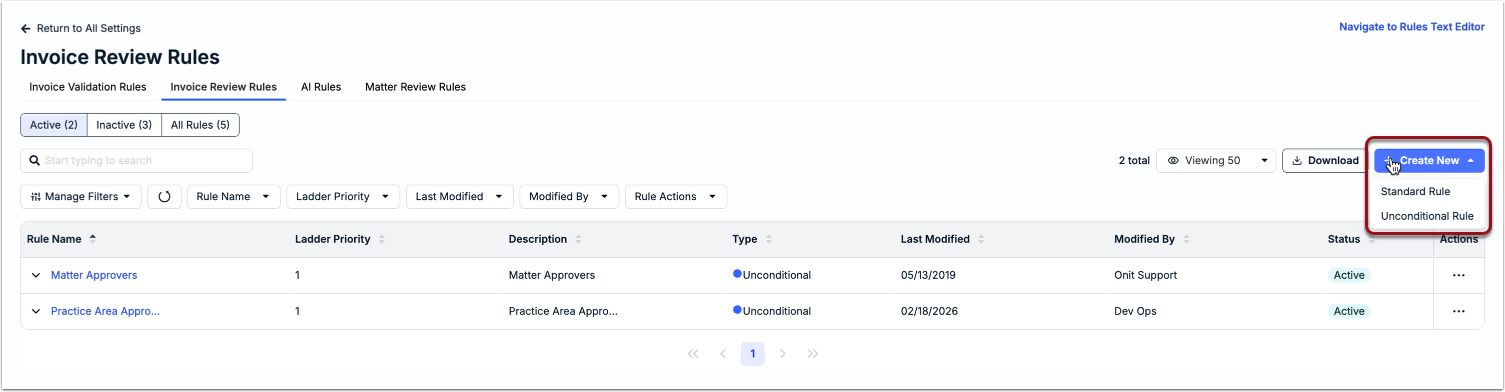
1. Click + Create New in the top-right corner of the Invoice Review Rules tab and select Standard Rule.
2. Enter a Name and Description for the rule.
3. Select the characteristic that will be used to trigger this workflow (e.g., Cost Code, Allocation, Invoice, Legal Entity, etc.) under the Conditions section. For a list of available conditions, skip to the bottom of this article.
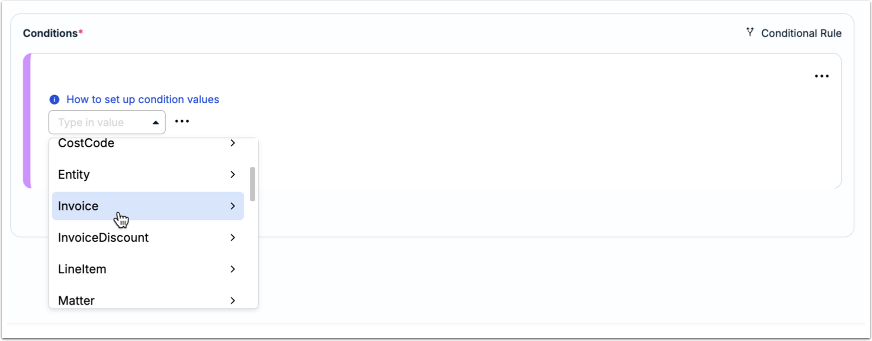
4. Select the corresponding sub-parameter for the condition. For example, if you select Invoice, you can choose from Age, Currency, Number, Subject, or Total.
5. Choose an operator, such as Is greater than or Is not equal to, and set a value for the rule to evaluate. For example, Invoice > Total | Is greater than | 10000. Click Set Value to save it.
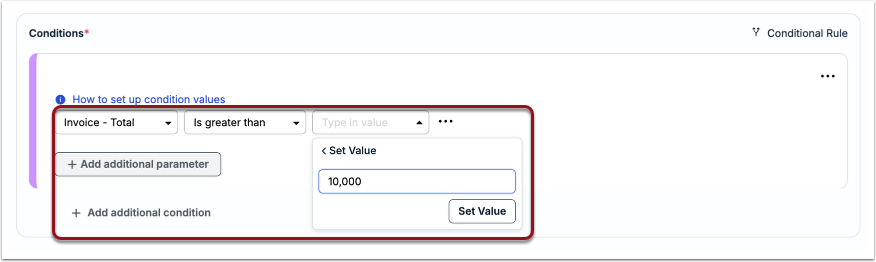
6. If applicable, you can nest parameters under the same condition by clicking + Add additional parameter. Choose if all parameters must be met (AND) or only one condition must be met (OR) to trigger the rule.
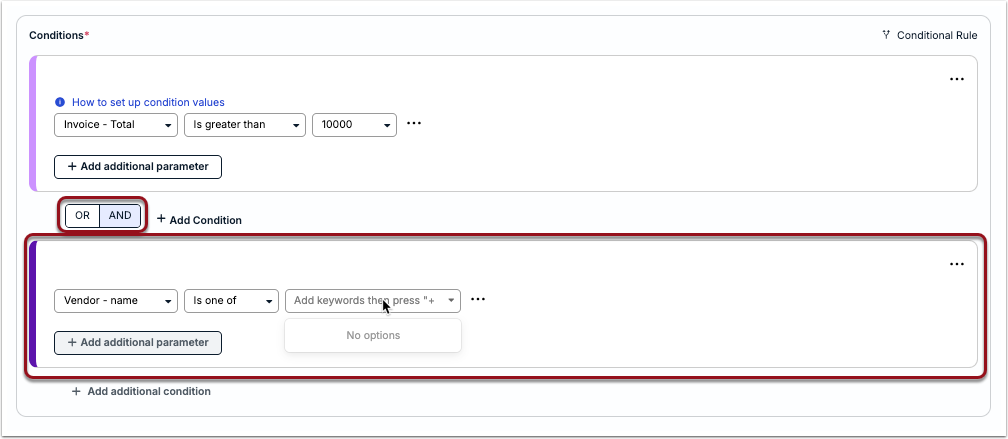
7. If applicable, click + Add additional condition to add a separate group of condition(s). Choose AND or OR in between the first and second conditions to specify whether all conditions must be met or only if only one condition must be met to trigger the rule.
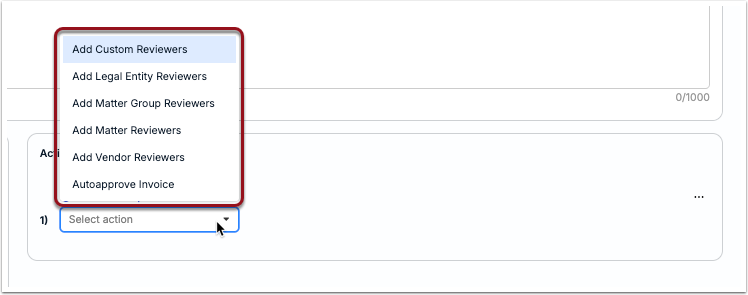
8. Click + Add actions on the right side to select which action the rule should perform. You can select from the following:
- Add Custom Reviewers
- Add Legal Entity Reviewers
- Add Practice Area Reviewers
- Add Matter Reviewers
- Add Vendor Reviewers
- Autoapprove Invoice
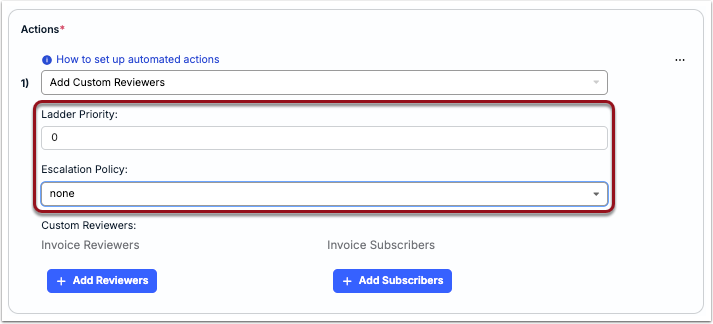
9. Add a number to the Ladder Priority field to designate in what order users are added to the invoice. The ladder progresses from zero (0) up. Example:To add the GC as the last reviewer, you could make the GC rule's ladder priority 99.
10. Choose whether users should be added to the invoice based on your company's Escalation Policy, which adds users when invoices surpass financial thresholds. Choose whether to incorporate the escalation policy criteria into this rule by selecting one of the following options:
- All: Add standard users and users who could be triggered by an established escalation policy.
- Highest: Add the highest user to this invoice who could be triggered by an established escalation policy.
- None: Add only standard users to this invoice; disregard escalation policies.
11. Click Save Rule in the bottom-right corner.
12. When ready to turn on this rule, click the toggle in the top-right corner to set it to Active.

Unconditional Rules
Unconditional rules run against all incoming invoices and are less complicated to set up. For example, setting up an unconditional rule to assign Legal Entity Reviewers means that invoices will inherit any reviewers assigned to the associated Legal Entity.
1. Click + Create New in the top-right corner of the Invoice Review Rules tab and select Unconditional Rule.
2. Enter a short but descriptive name for the rule. This name will appear on the invoice records if a user clicks Why? to see why a specific reviewer was assigned to the invoice.
3. Enter a short description in the text field to provide context to other users.
4. Click + Add actions to select which action the rule should perform. You can select from the following:
- Add Custom Reviewers
- Add Legal Entity Reviewers
- Add Practice Area Reviewers
- Add Matter Reviewers
- Add Vendor Reviewers
- Autoapprove Invoice
5. Click Save Rule in the bottom-right corner.
12. When ready to turn on this rule, click the toggle in the top-right corner to set it to Active.

Adding Custom Reviewers
For custom reviewers, you choose whom to add as Invoice Reviewers and Invoice Subscribers (if applicable) and at what level of ladder priority each reviewer receives notification to approve/reject. Again, you can select multiple users per level or choose user teams.
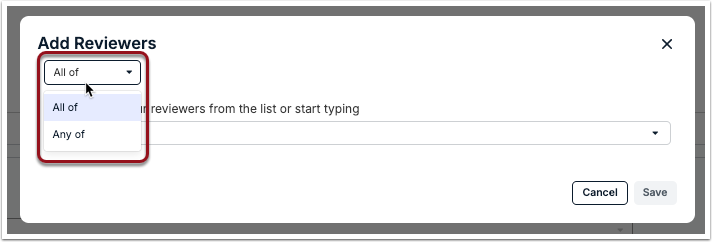
Click the + Add Reviewers button and select who will review. If you choose to Add Custom Reviewers to this rule, you can add one or more users (or user teams) to the same level. When doing so, you must select the option All Of or Any Of.
- All Of: All approvers on this level must approve the invoice.
- Any Of: Any one of the approvers on this level must approve the invoice.
Autoapproving Invoices
Onit provides the option to build a rule that autoapproves invoices. We recommend using this sparingly if, for example, you have recurring lower amounts submitted from trusted vendors.
Admins may still unapprove these invoices, which will apply the other invoice rules immediately. This adds approvers to the invoice and notifies the initial users of their responsibility to approve/reject.
Available Conditions
- AdjustmentCodeClassification
- Allocation
- AnnualSpend
- CostCode
- Invoice
- InvoiceDiscount
- Legal Entity
- LineItem
- Matter
- Matter Group
- MatterAnnual
- MatterVendorActivityCode
- MatterVendorAnnual
- MatterVendorExpenseCode
- MatterVendorMonthly
- MonthlySpend
- Rejection Reason
- Spend
- Vendor
- VendorAnnual
- VendorGroup