There are four ways to view approved timekeepers in Unity:
- Use the All Timekeepers List
- Use the All Rates List
- View the Timekeepers tab in the associated vendor record
- Use the global search field located in the top navigation bar
All Timekeepers List
Go to Timekeepers from the left-side navigation bar and switch to the All Timekeepers tab. The list is sorted by Last Updated in descending order (i.e., most recently updated first) and shows one row per timekeeper, including the number of rates with Approved, Rejected, and Pending statuses to date.
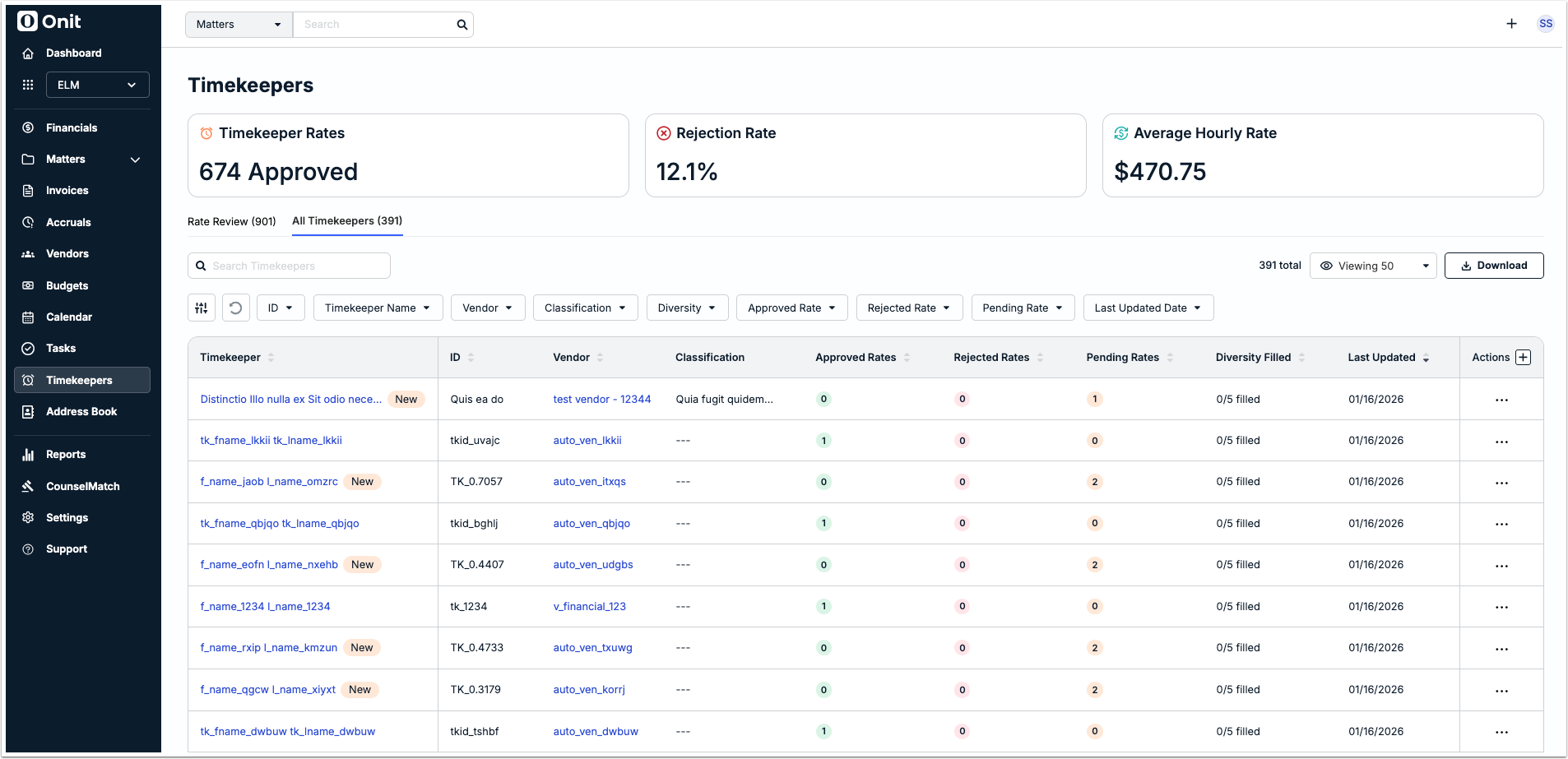
Click the Approved Rates column header to re-sort the list so timekeepers with at least one approved rate appear first, or use the search box to narrow the list based on keywords (e.g., name, vendor, etc.).
You can further narrow and customize your view by using the filters above the list (e.g., classification, last updated, etc.) or the + (Add Columns) option to the right of the Actions column header.
Click Download in the top-right corner to export the default or customized view of the timekeeper list as a CSV file for further review offline.
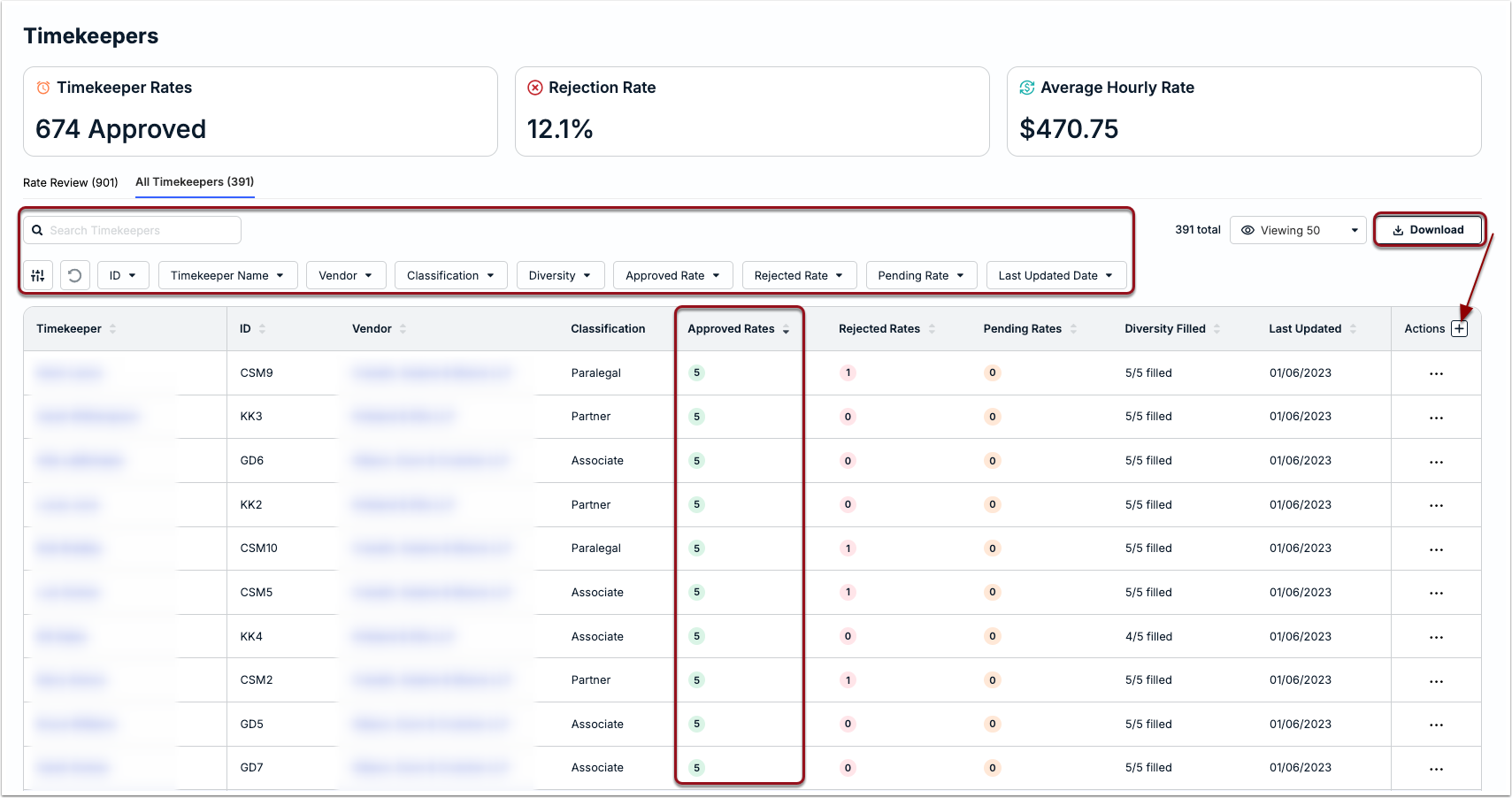
To see a specific timekeeper's profile, click their hyperlinked name from the list. For more information on what is stored in each timekeeper's profile, see Reviewing Timekeeper Rate Updates and Profiles.
All Rates List
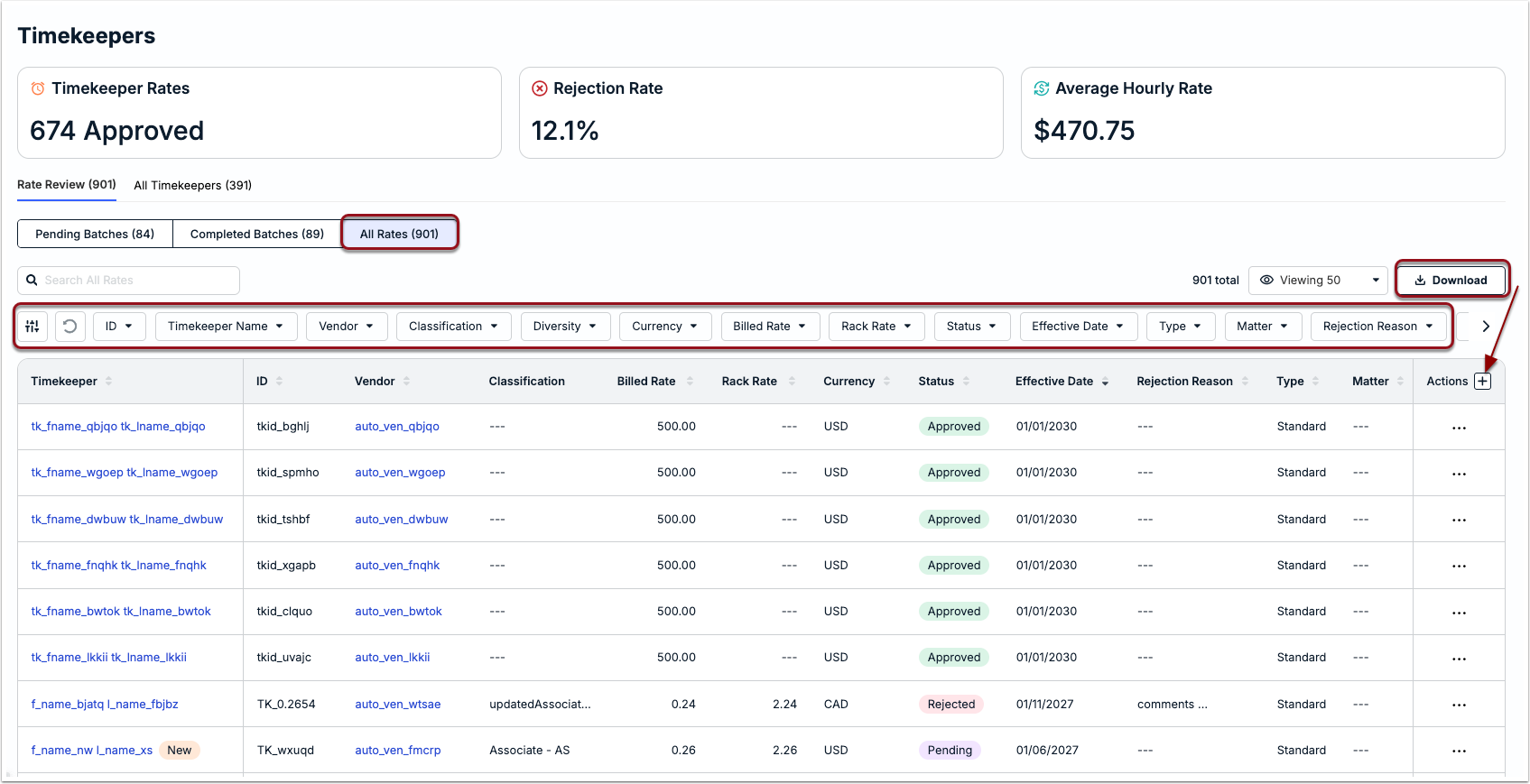
For an alternative view, go to Timekeepers from the left-side navigation bar and switch to the All Rates sub-tab from the default Rate Review section. This shows one row per rate submitted to date sorted by Effective Date in descending order.
To customize and further narrow the list based on status and other criteria, use the filters above the list and/or click the + (Add Columns) option to the right of the Actions column header. For example, you can filter by approved status.
Click Download in the top-right corner of this section to export the information as a CSV file for further filtering offline.
Timekeepers Tab in Vendor Records
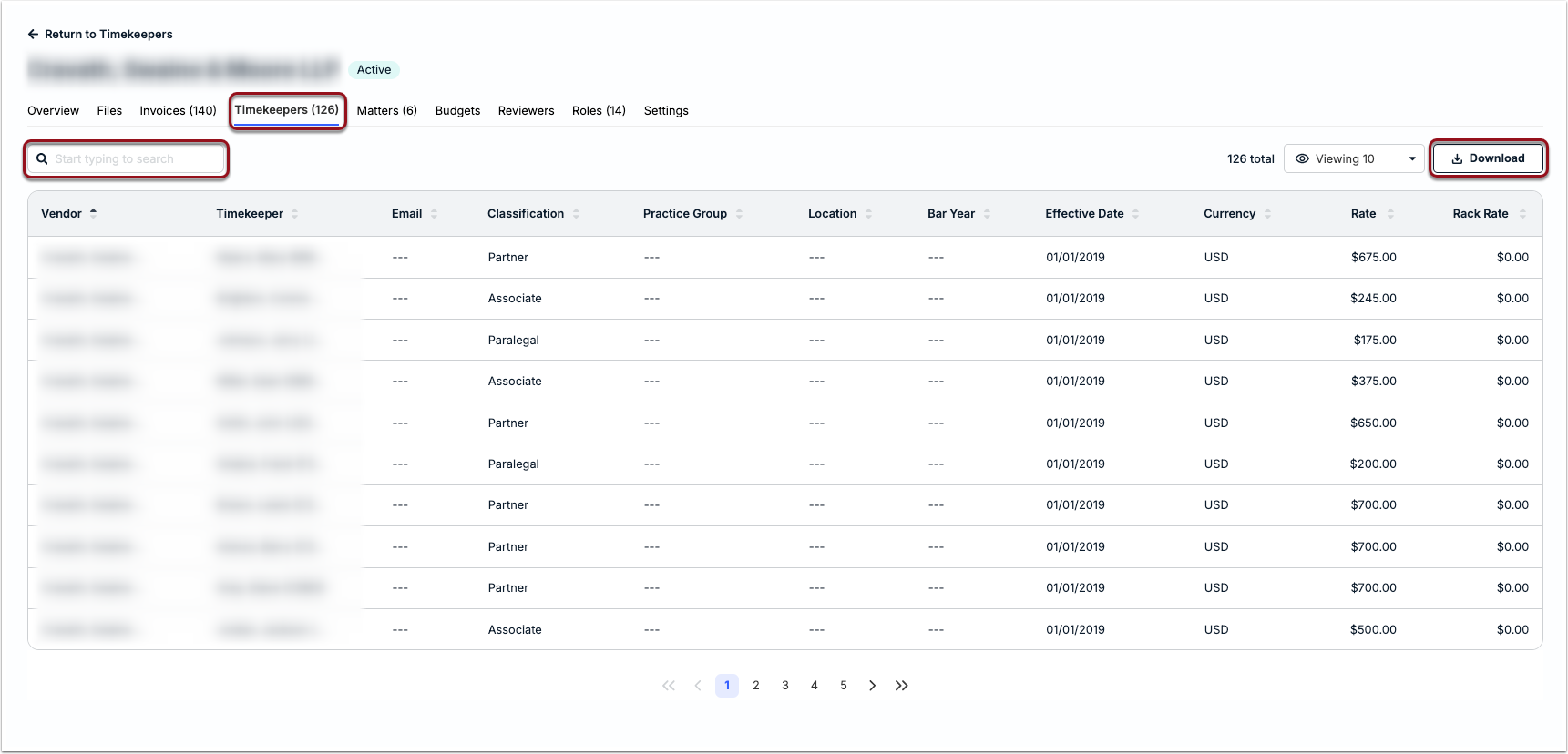
Open the associated vendor record and go to the Timekeepers tab. A timekeeper appears in the list more than once if they have more than one approved rate.
From here, you can view basic information about each approved timekeeper, including name and ID, classification, email address, effective date, and rate. You can click a column name to re-sort the list or use the search field to narrow the list based on search terms.
Click Download in the top-right corner of this section to export the information as an Excel file for further filtering offline.
If you are looking for timekeepers with pending rates for review, see Overview of Timekeeper Rates & Billing Validation for instructions.
Global Search Field
When using the global search field, switch the record type to Timekeepers and search by invoice number, matter, vendor, or timekeeper ID. Press Enter to load the results.

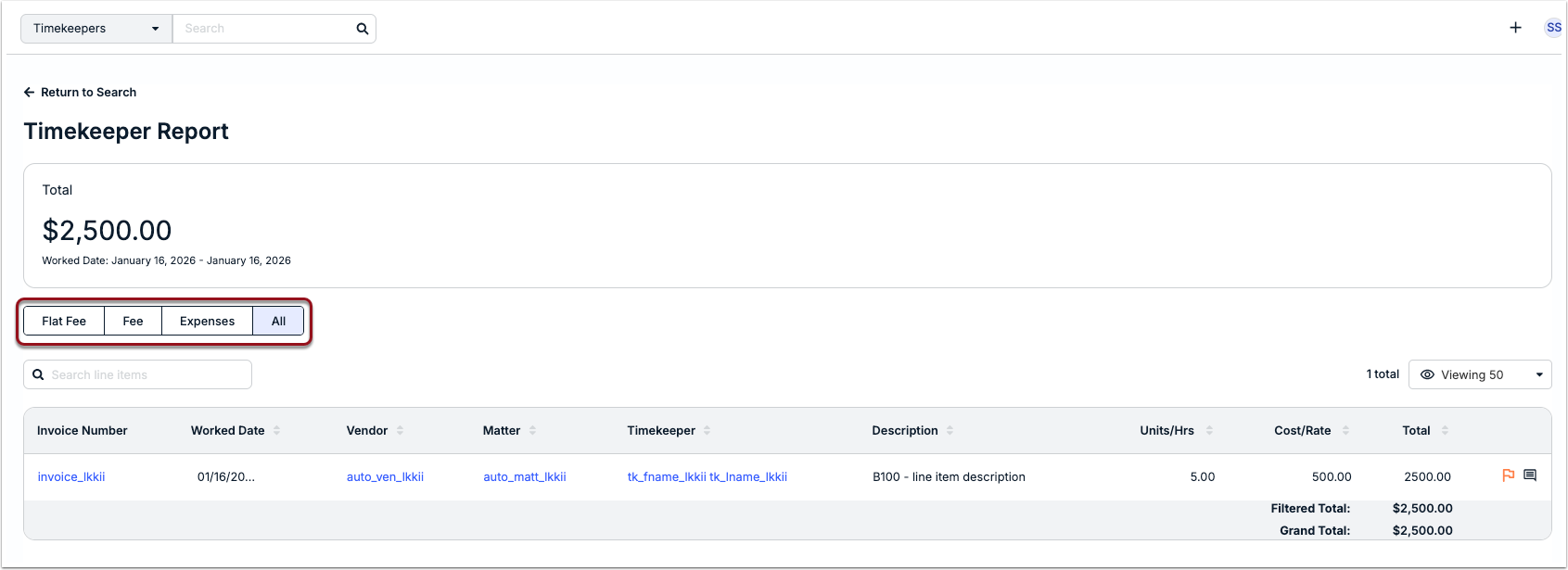
Click the timekeeper's name in the search results to open the timekeeper record. This displays the following for billing activity tied to the timekeeper: date range and total amount. The list table shows all invoice line items associated with the timekeeper. You can use the tabs above the list to filter line items based on the type (i.e., Flat Fee, Fee, or Expenses).