The Calendar feature in Unity provides a consolidated calendar view of Tasks, Events, and Court Rules (if applicable). Go to Calendar from the left-side navigation bar to see the view.
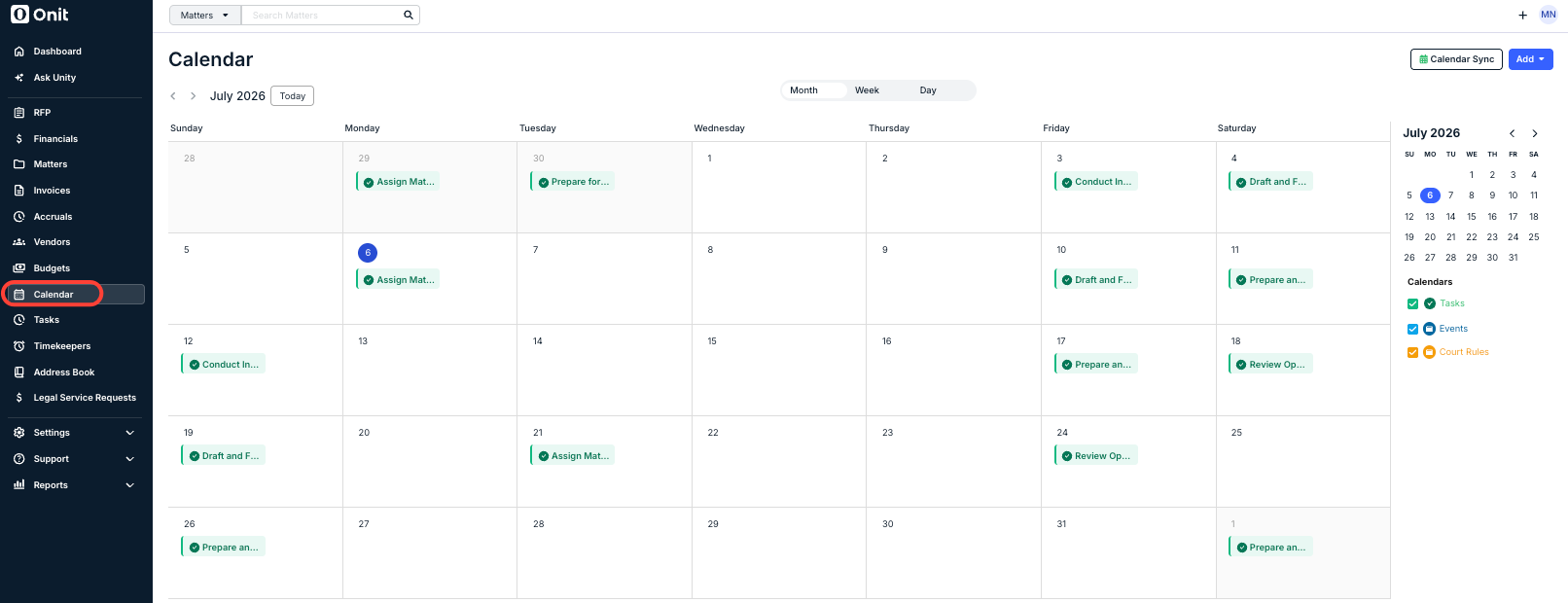
From this consolidated calendar view, you can do the following:
- Use the arrows on the far left to go forward or back a month.

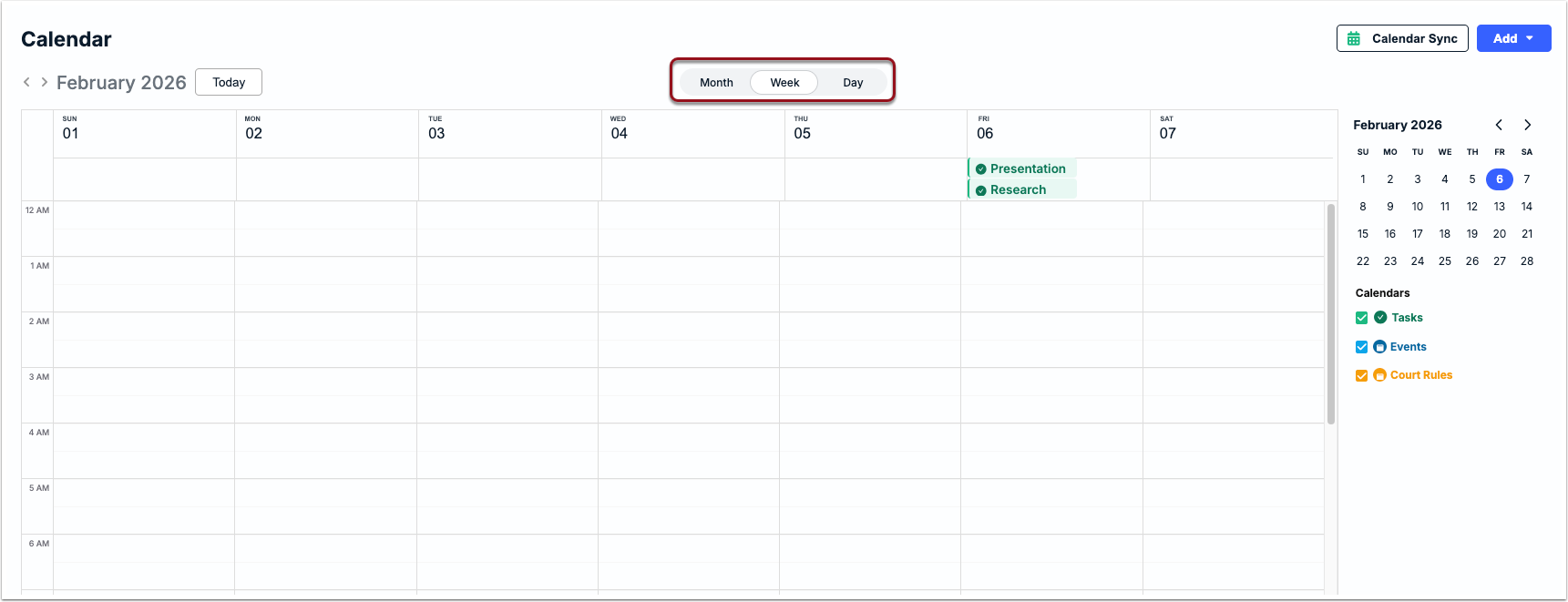
- Use the tabs above the monthly calendar to switch to a Week or Day view.
- Click on an item from the calendar to see a preview and take other actions.
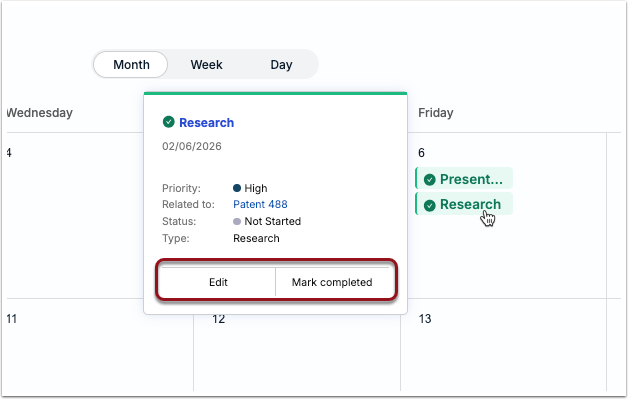
You can see general information about the task, event, or Court Rule, such as the name, time, and associated matter. Which additional options are available, however, depend on the type of item. For example, you can edit or mark a task as completed but can only edit an event.
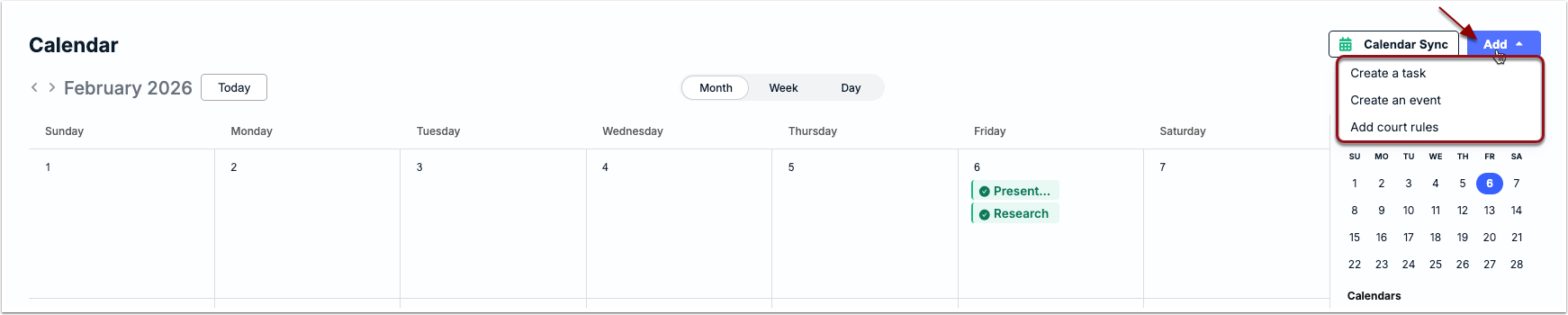
- Click Add in the top-right corner to create a new task, event, or Court Rule.
- Click Calendar Sync to set a one-way integration between your external calendar & Unity.

For instructions on how to integrate your calendar for tasks and events, click here.