Accruals are estimates for unbilled work that can be collected from vendors to anticipate fees and expenses for the reporting period. Before continuing with this article, please confirm that an admin has configured the accruals notification and expiration schedule (if applicable).
How Vendors Work with Accruals
Vendors receive periodic reminders to submit unbilled estimates per the accruals schedule defined under Settings > Accruals Settings. Designated vendor contacts who receive these requests require Counsel Exchange access to receive the email notification and submit the information.
From the email notification, the recipient can click Submit Unbilled Amount to view the accruals form. This prompts the vendor to validate recent invoice activity and add unbilled amounts for each matter.
After a matter is closed, accrual notifications are sent to the vendor until the date specified in the Invoices Accepted Prior To date in the matter record (Overview > Details), which is the cutoff date for invoicing. If the run-off period at the system level is set to the default of 0 calendar days, the Invoices Accepted Prior To date is automatically set to the same date the matter was closed, and the notifications will no longer be sent.
Accruals List
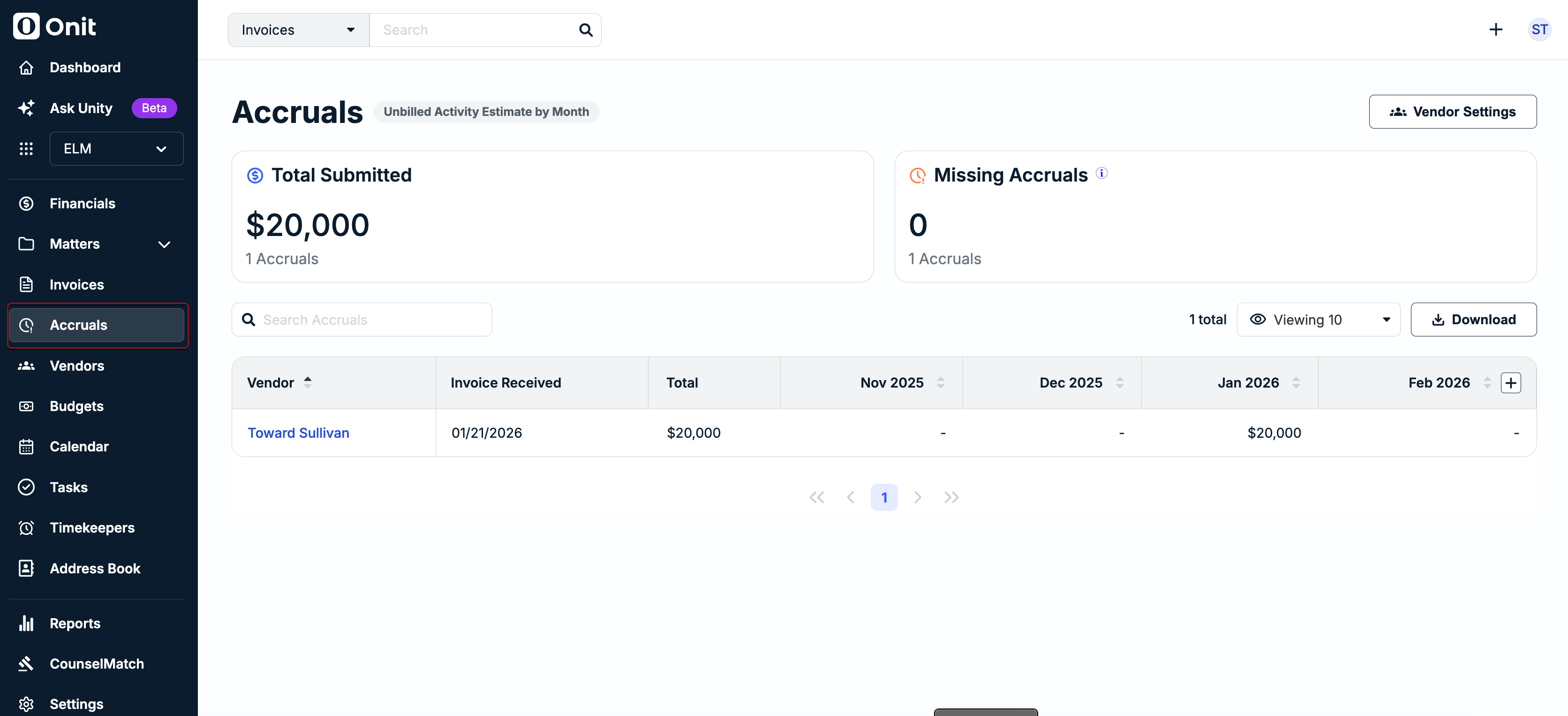
Go to Accruals from the left-side navigation bar to see submitted accruals by vendor for the last four reporting periods.
You can do the following from the accruals page:
- View individual accrual records by clicking on a vendor name from the list
- Export the list for further review/filtering by clicking Download in the top-right corner.
- View/update additional settings by clicking Vendor Settings in the top-right corner (click here for more details).
To ensure users see only pertinent and current information, the following vendors are excluded from the accruals list page:
- vendors with accruals turned off
- vendors who have not submitted accruals within the past 4 months
- vendors whose records are inactive/disabled.
Assigning an Accruals Contact for a Vendor
Assigning an accruals contact to vendor records helps customers estimate unbilled work and collect information on expected fees/expenses from vendors for reporting periods.
Notes and Other Considerations
- If an accruals contact is not assigned, the requests will automatically go to the primary contact listed under Overview > Vendor Attributes in the vendor record.
- Vendor contacts require Counsel Exchange user access or admin permissions to respond to requests. They will receive an email notification with a link to submit a response.
Open the vendor record and go to the Roles tab to create a new vendor contact or assign the role to an existing vendor contact. You must select the Accruals Submission label for the contact to receive the notifications.
Viewing Accruals by Matter
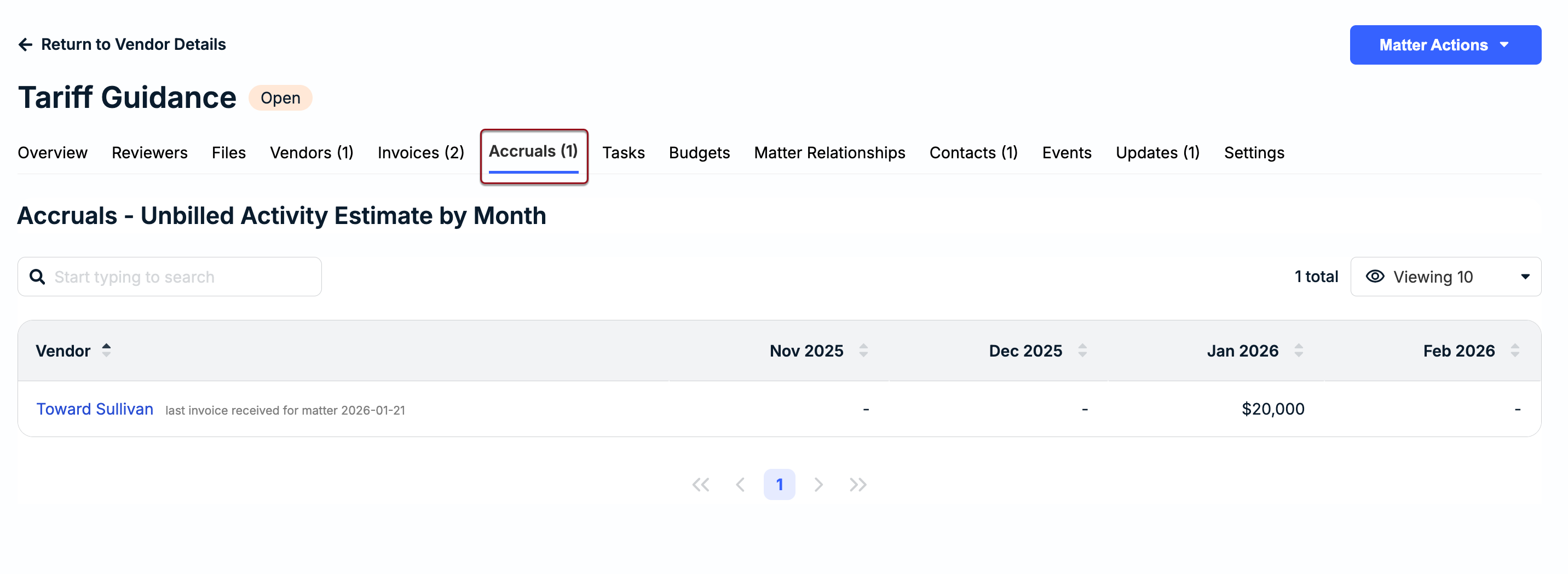
Viewing accruals by matter rather than by vendor may be useful if the same vendor(s) work across multiple matters. Open a matter record and go to the Accruals tab to see unbilled estimates submitted by assigned vendors over the past four reporting periods.