With Unity's invoice review features, users receive assignments to review and approve invoices that relate to their area of familiarity. Additional oversight, however, may be desired for higher value invoices. By using escalation policies, you can provide a maximum financial value for an approver and prompt Unity to add a second approver when an invoice exceeds that threshold.
To implement this flow, an admin first needs to set up the escalation policy and then apply that policy to relevant invoice review rules.
Escalation Policy Setup
1. Go to Settings > Escalation Management.
2. Use the Filter box to search for the relevant reviewer.
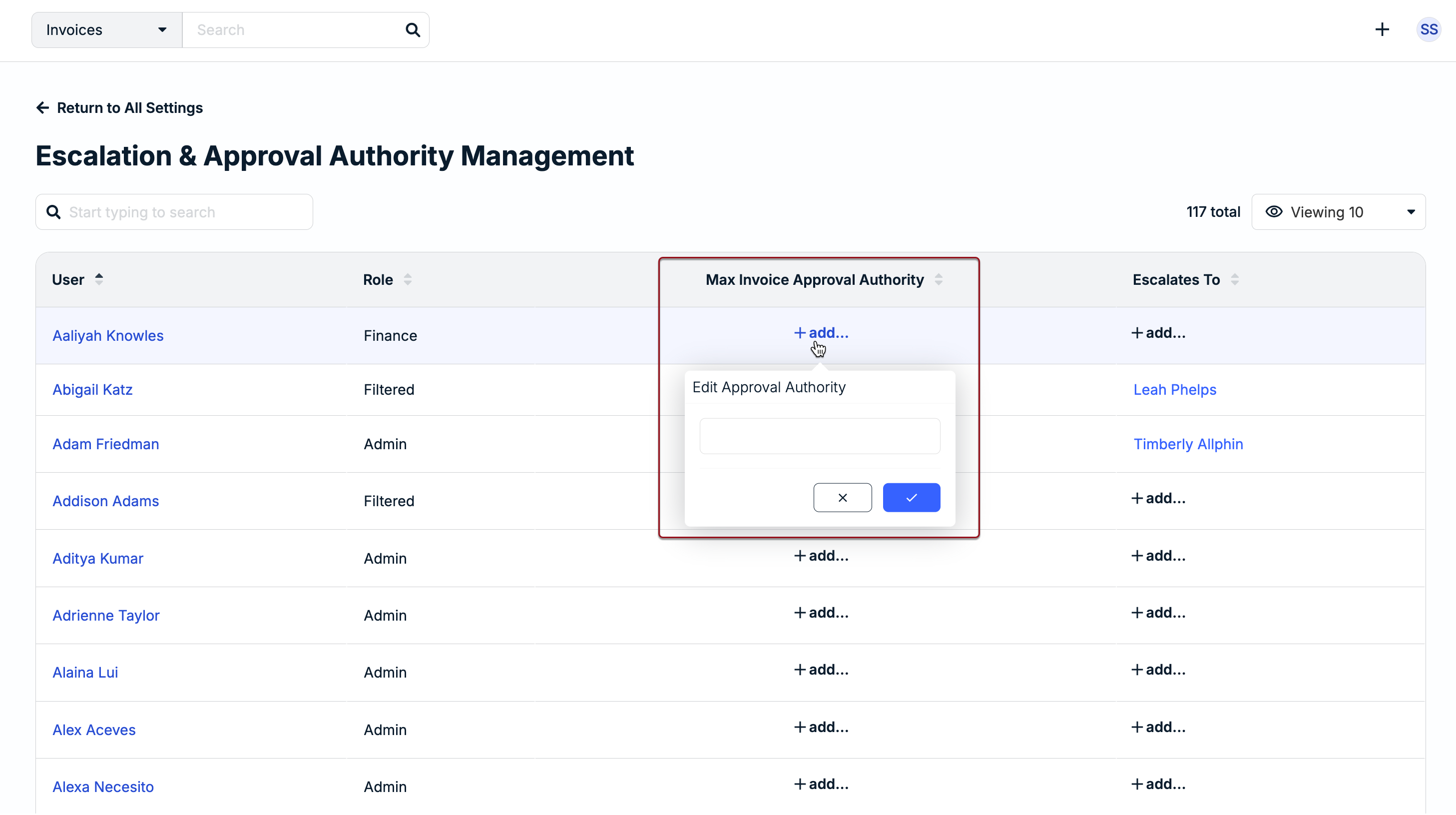
3. Under the Max Invoice Approval Authority column, click +add... and enter the highest amount (no decimals or commas) the user is authorized to approve and then click the checkmark.
4. Under the Escalates To column, click +add..., select the additional approver, and click the checkmark.
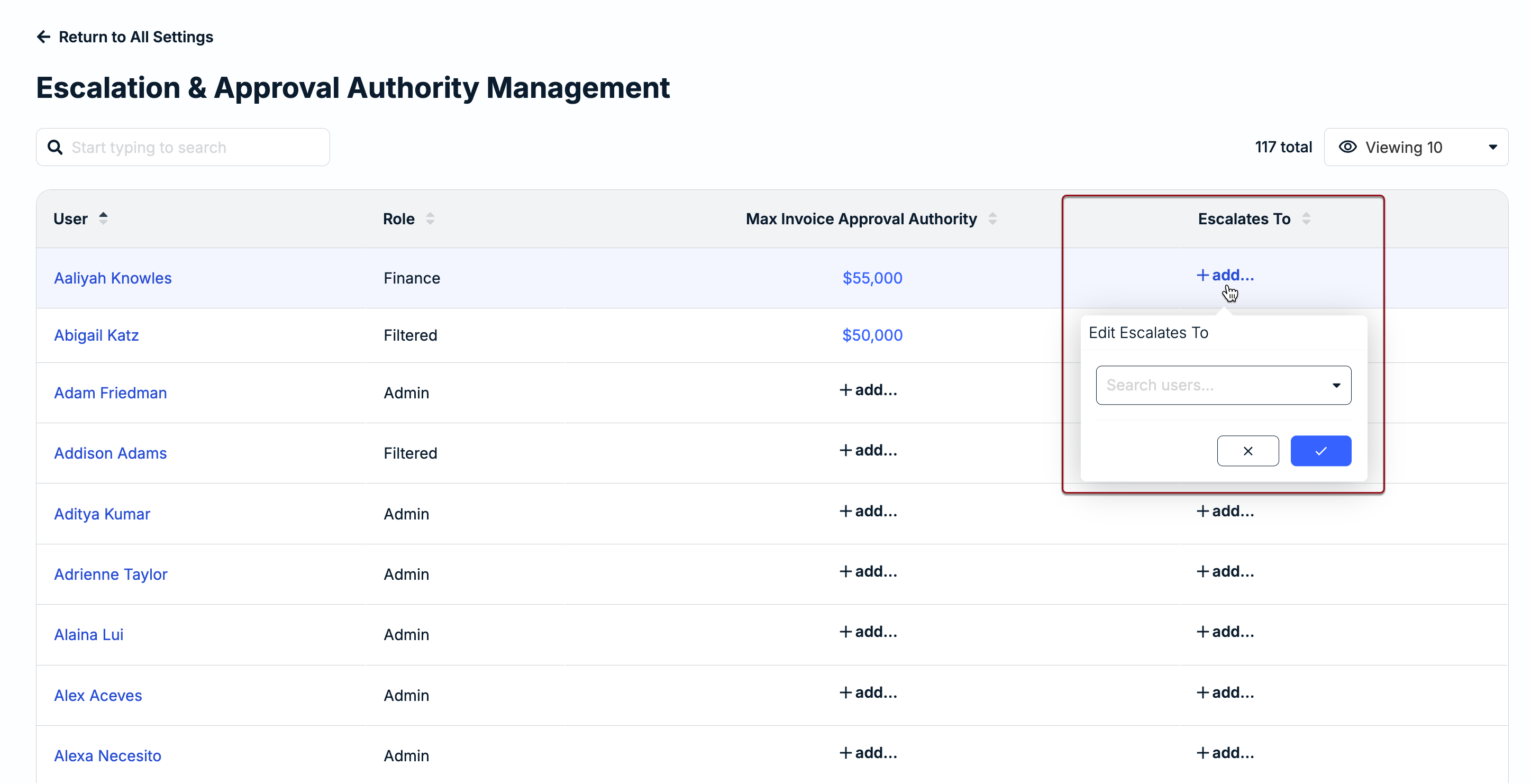
Once this is set up, any time the user is assigned to review an invoice that exceeds the max approval amount, the user under Escalates To will also automatically be added to the invoice. For instructions on using escalation policies on Invoice Review Rules, click here.
Removing Escalation Policy
To remove a user's max approval authority amount, click on the value under the Max Invoice Approval Authority column, clear out the amount, and click the checkmark.
If you want to remove the escalation point, select None under the Escalates To column.
Adding an Escalation Policy to an Invoice Review Rule
Invoice Review Rules populate who can review an invoice and who can accept or reject it. The rule assigns reviewers to invoices based on the users' relationship to the corresponding matter, vendor, legal entity, or other attribute.
When building an Invoice Review Rule under Settings > Rule Management, you can choose whether to add Escalate To approvers when the rule triggers under Actions.
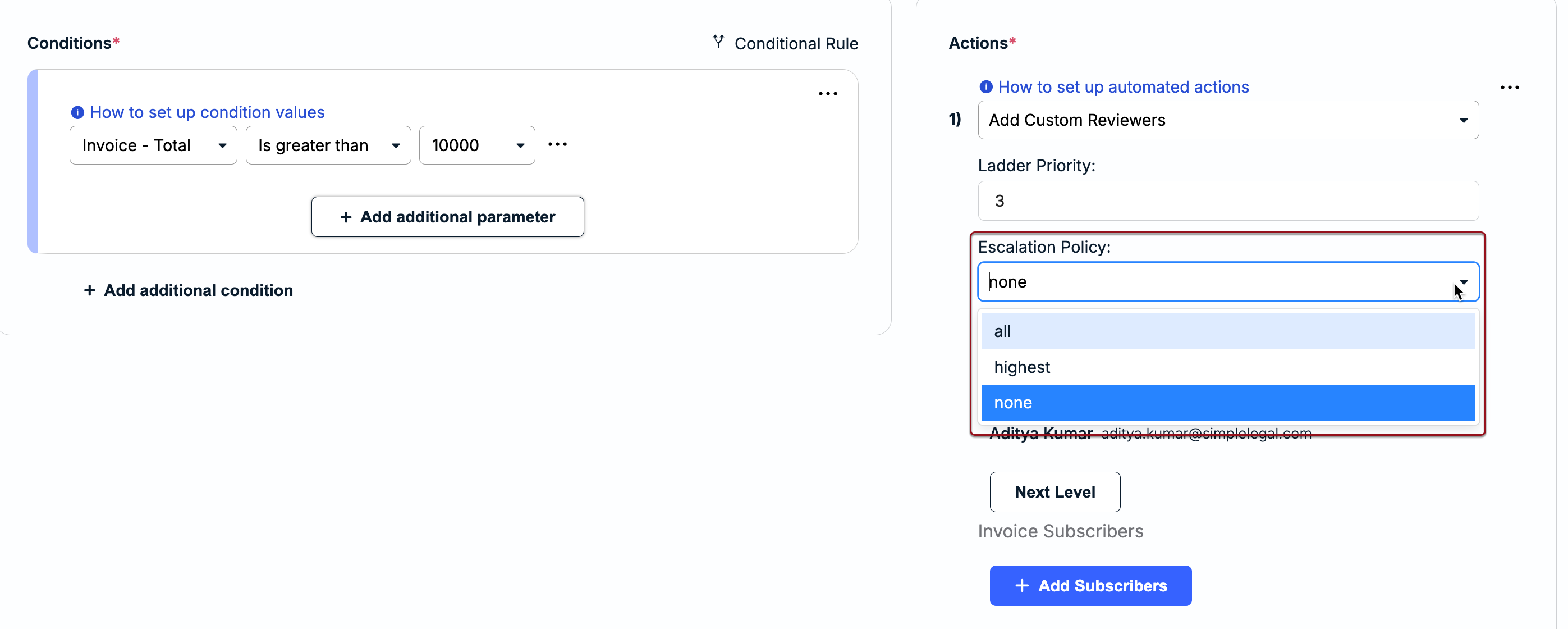
You have three options for how Unity should apply the escalation policy:
- All: Add all standard approvers plus the Escalate To users to the invoice.
- Highest: Add all standard approvers plus identify the last person on the rule's configuration and add that Escalate To user to the invoice.
- None: Add all standard approvers but no additional users to the invoice.
Depending on your selection here, the Escalate To users may automatically be added to invoices when the corresponding rule triggers. For more details about setting up or modifying Invoice Review Rules, click here.