Budgets in Unity eBilling are used by legal and finance departments to forecast and track spend based on various allocatable attributes and other criteria, such as matter, vendor, matter group, or spend/invoice status.
This article covers the following:
General Budget Terms
| Term | Definition |
|---|---|
| Internal Budget | Standard budget records created by users to allocate/track spend internally. |
| Budget Requests | If enabled, allows users to request budget proposals from vendors for review and approval. Click here for additional information. |
| External Budget | Alternative term for Budget Requests sent to vendors, if applicable. |
| Budget Proposal | See Budget Requests & External Budget. This is the proposal for matter spend submitted by a vendor via Counsel Exchange in response to a Budget Request, if applicable. |
| Budget Refresh | Periodic requests sent to vendors to update proposals for active external budgets or confirm current amounts if Budget Requests, if applicable. |
| Refresh Cycle | Frequency of budget refresh requests sent to vendors (e.g., monthly, quarterly, etc.), if applicable. |
| Health | Whether an internal or external budget is within or over the allocated amount. |
| Allocated | Category in a budget indicating the amount allocated to fees/expenses for a specific reporting period (e.g., month or quarter) or the budget’s date range. |
| Approved | Category in a budget for fees/expenses from associated invoices that have a status of Approved, Sent to AP, Posted to AP, Partially Paid, or Overpaid. |
| Pending | Category in a budget for fees/expenses from associated invoices that have a status of Received, On Hold, or Processing. |
| Source | Whether a budget is internal or external. |
Budget Types
There are five budget types: Monthly, Quarterly, Phase, Life of Matter, and Annual. Each budget type has its own number of “buckets” or categories that show how funds are distributed for specific periods or the budget’s full date range. For example, a monthly budget shows a line per month with amounts for fees and expenses and whether those amounts are currently categorized as Allocated, Approved, or Pending.
Monthly Budget
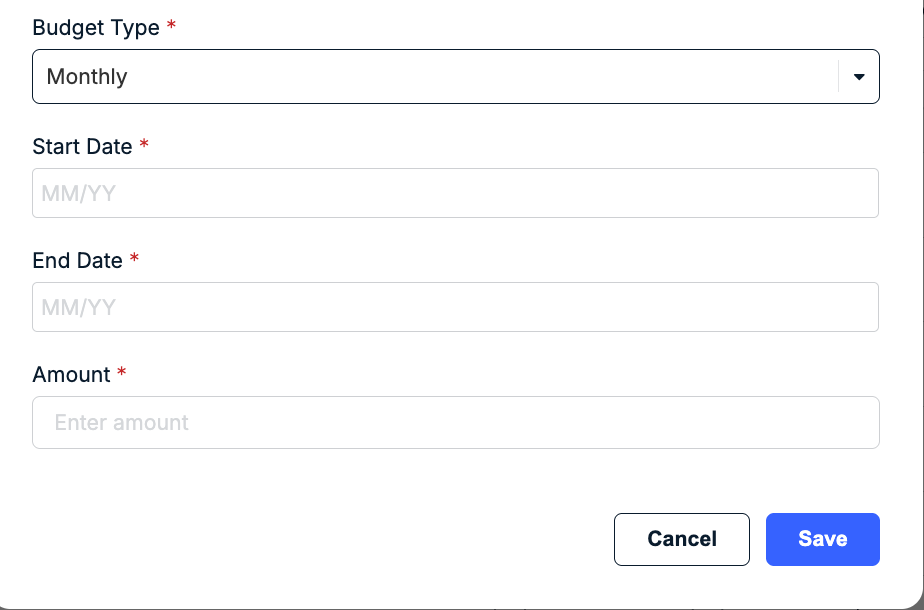
The monthly budget prompts users for a start date, end date, and budget amount. The dates are entered/selected using MM/YY format (e.g., 12/01/2025) and can extend more than one year (e.g., 05/26).
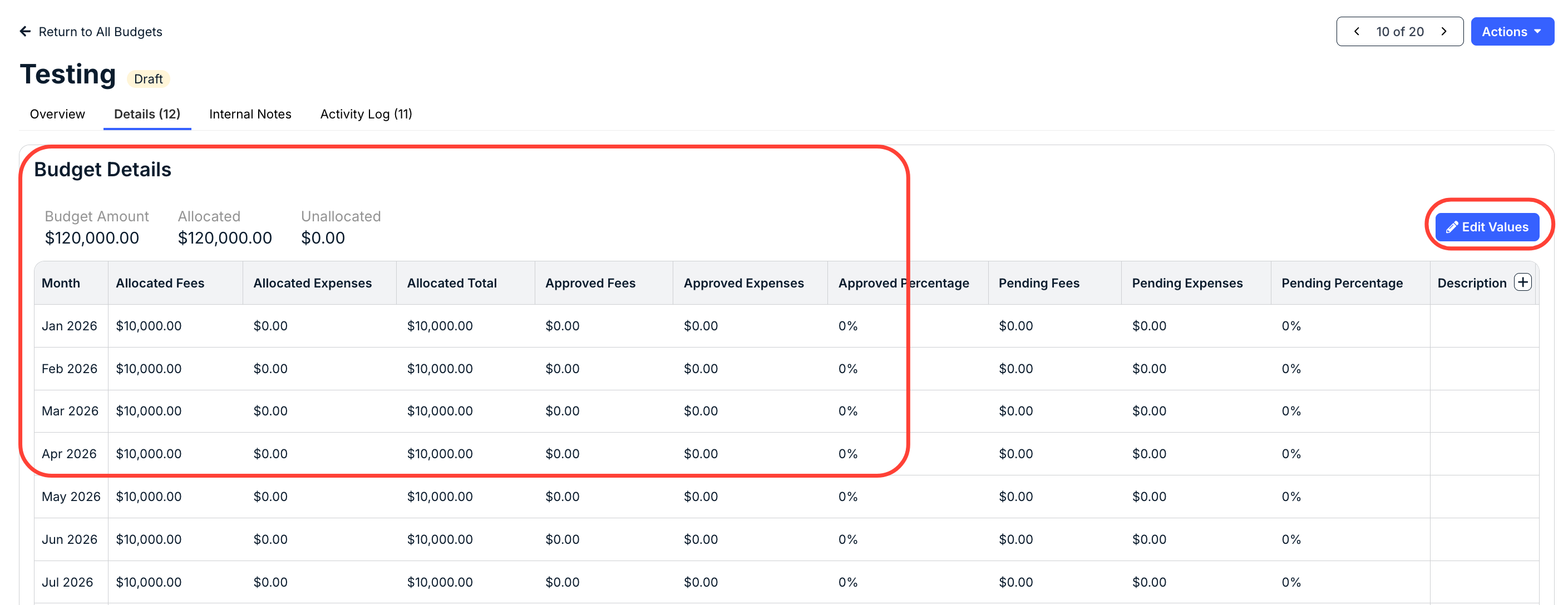
The Details tab in the budget record breaks down the amount into equal allocated fee values (i.e., one number per calendar month by default). The allocated fees/expenses can be adjusted using the Edit Values button in the top-right corner depending on the status (e.g., draft and approved).
Quarterly Budget
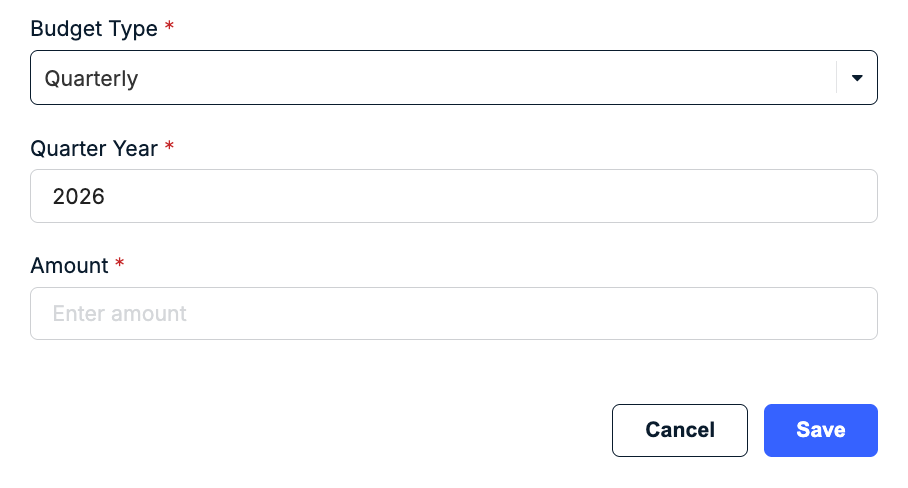
Enter the current or future calendar year in the Quarter Year field. The length of each quarter is set by calendar months. For example, Q1 is January 1 through March 31.
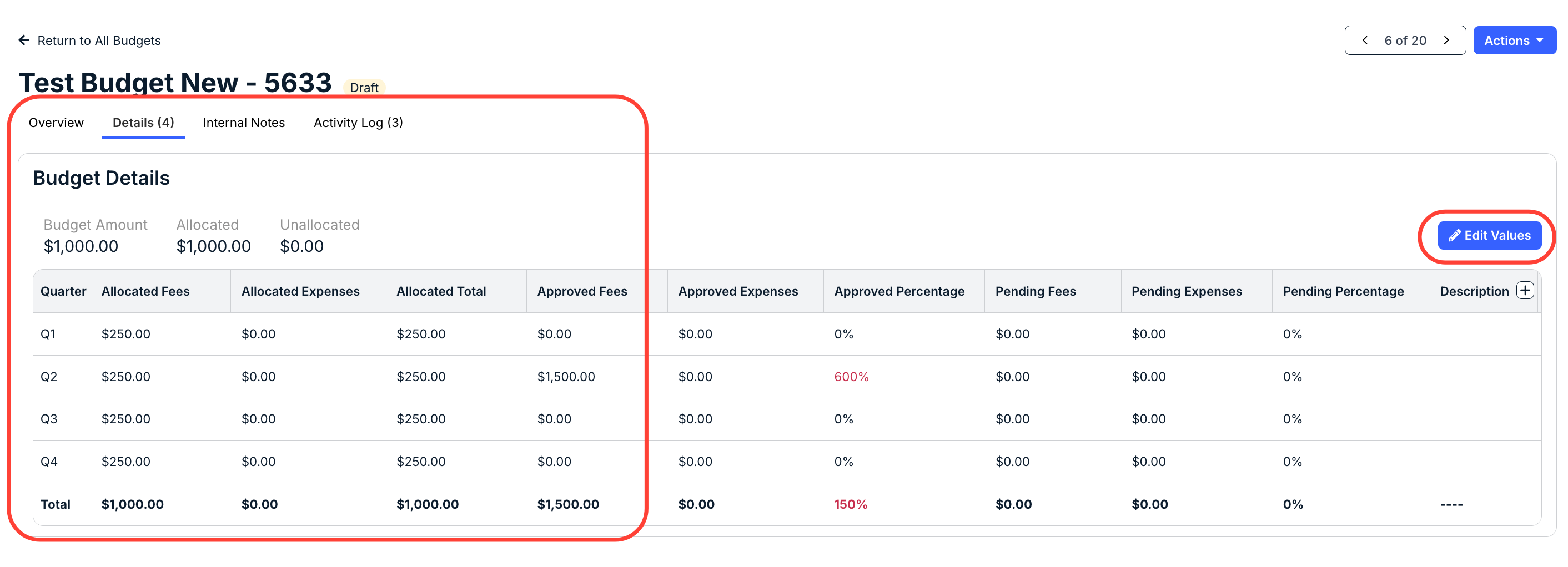
The Details tab in the budget record breaks down the amount into equal allocated fee values (i.e., one number per quarter). The allocated fees/expenses can be adjusted using the Edit Values button in the top-right corner depending on the budget status (e.g., draft and approved).
Life of Matter
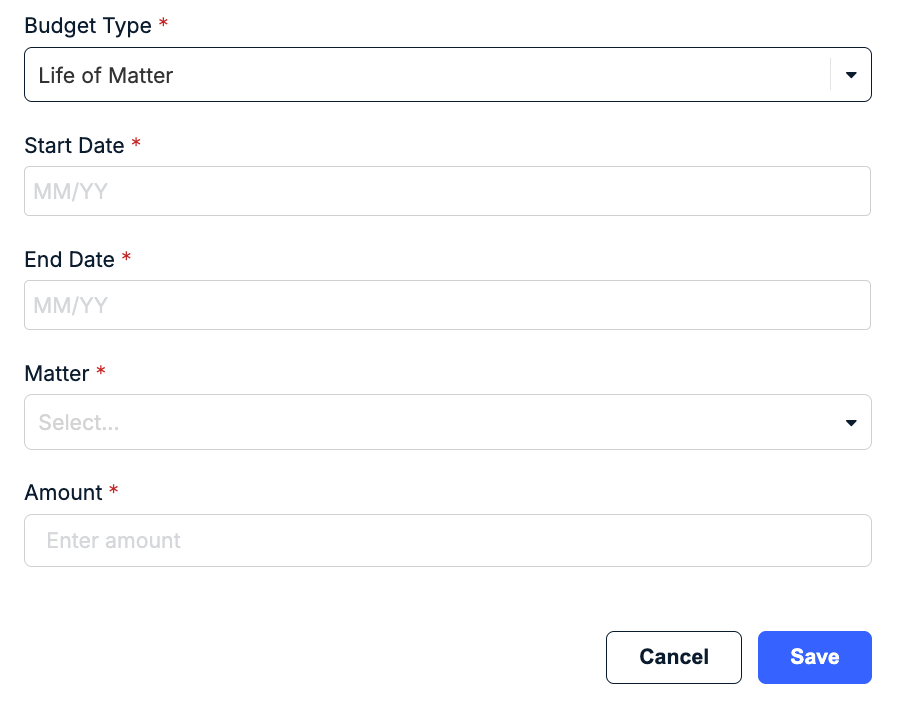
A life of matter budget is used to track overall spend for a specific matter record instead of separating and tracking fees/expenses from invoices by month, quarter, or phase. When creating a life of matter budget, users are prompted to enter the amount and select a start date and matter name.
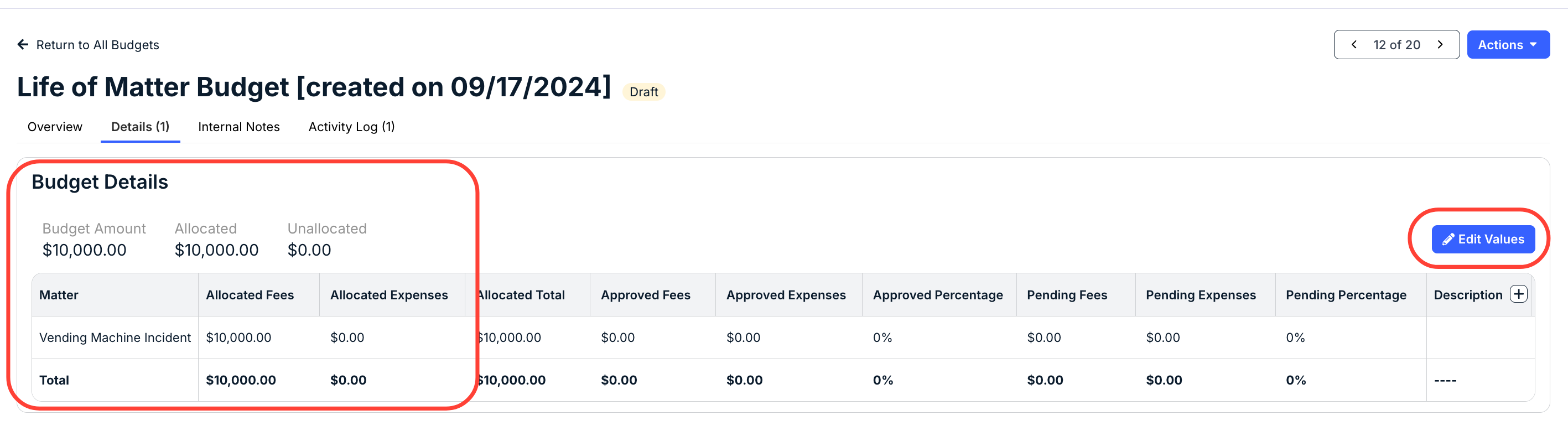
The spend is categorized into one spend bucket instead of by month, quarter, or phase. The allocated fees/expenses can be adjusted using the Edit Values button in the top-right corner depending on the budget status (e.g., draft and approved).
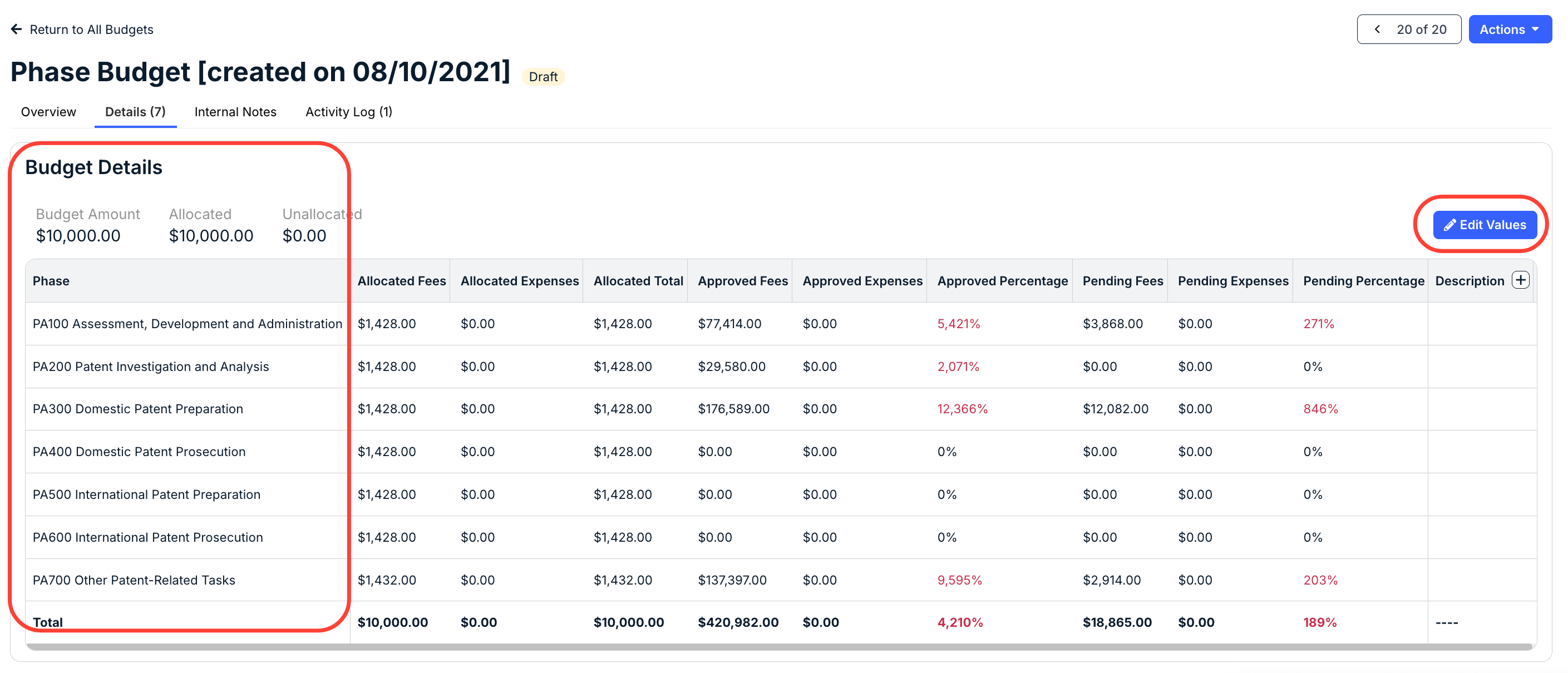
Phase Budget
Phase budgets break down the amount into groups of tasks/activities instead of date ranges. The phases are based on standard codes published in the Uniform Task-Based Management System (UTBMS Reference). For example, a budget for “Counseling” would separate spend buckets into activity-based categories, such as Fact Gathering, Research, and Analysis.
When creating a phase budget, users are prompted to enter the amount and select a start date, end date, and phase. There are six phase sets built into Unity eBilling.
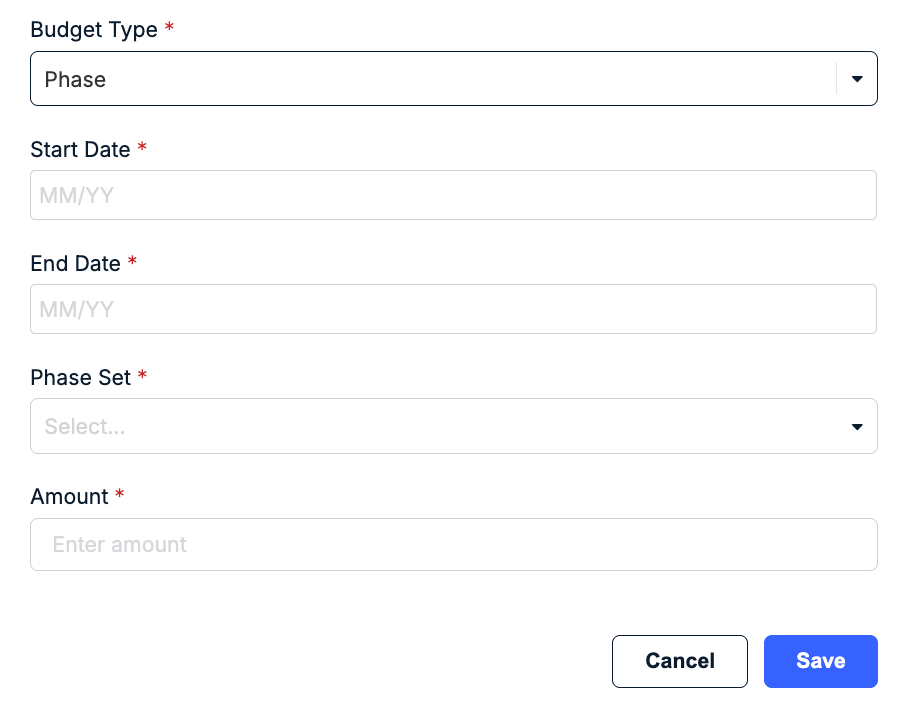
The dates are entered/selected using the MM/DD/YYYY format (e.g., 12/01/2025) and can extend more than one year like monthly budgets.
The Details tab of the budget record displays a row for each phase (e.g., specific task code or group of task codes) established in the phase set. The funds can be allocated across phases by using the Edit Values button in the top-right corner depending on the budget status (e.g., draft and approved).
Annual Budget
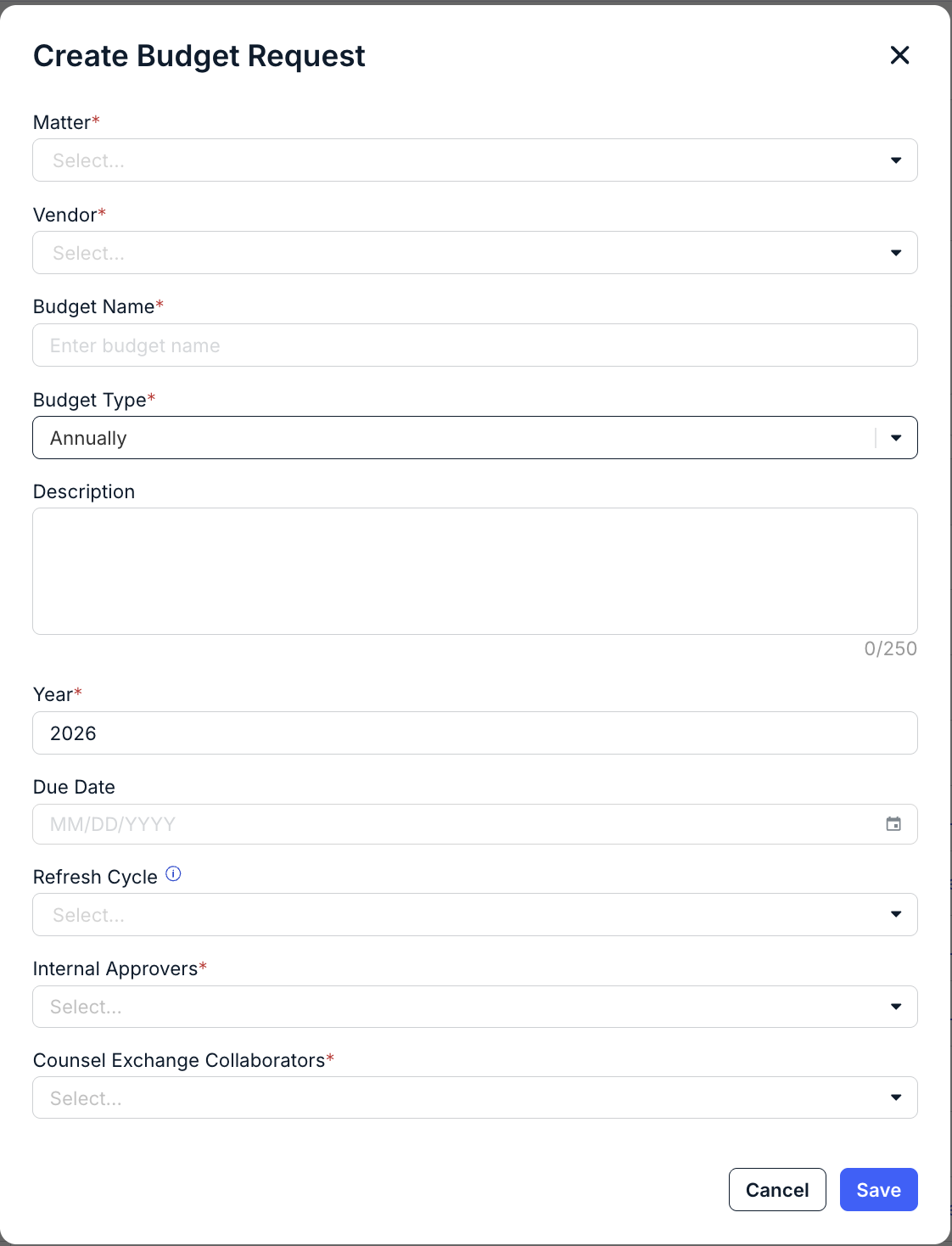
An annual budget allows users to request a single, yearly budget value instead of 12 monthly values. When creating an annual budget, users are prompted to enter the matter, vendor, budget name, description (if necessary), due date, refresh cycle, and collaborators.
Budget Statuses
See below for possible statuses that apply to both internal and external budgets.
All Budgets
The following three statuses make up the primary budget lifecycle:
| Draft |
|
| Approved |
|
| Archived |
|
External Budgets Only
If using Budget Requests, requests that are pending certain actions from vendors are automatically moved into other secondary status and cannot be manually changed by users.
| Proposed (Counsel Exchange) |
|
| Rejected (Counsel Exchange) |
|
| Overdue* |
|
| Expired* |
|
*The designated collaborators will still have access to the budget record and can still submit proposals for requests in Expired or Overdue statuses. If submitted, the budget will appear as Draft > Approval Needed in Unity to indicate action is required.
Budgets List Page
Go to Budgets from the left-side navigation bar to access budget records. The budgets list is separated into the following tabs: Draft, Approved (default view), and Archived. See below for more details on how to navigate the tabs and available actions.
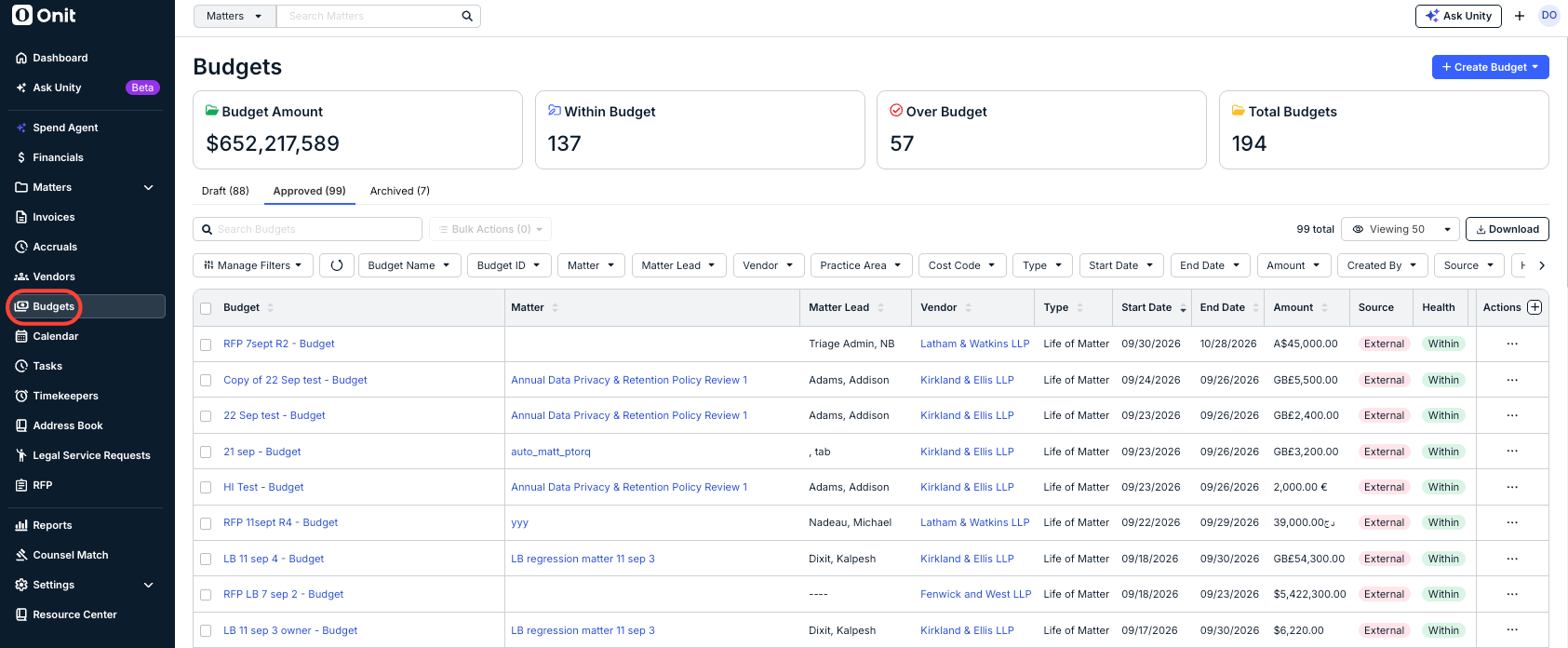
- Draft: Internal budgets that have not been approved and/or external budgets pending vendor response or customer approval.
- Approved (default view): Internal budgets that have been approved and active external budgets that have been finalized in collaboration with vendors.
- Archived: Internal budgets and external budgets that have been archived because they are no longer needed or the matter is closed.
Navigating Budgets List
You can do the following from the Budgets list page:
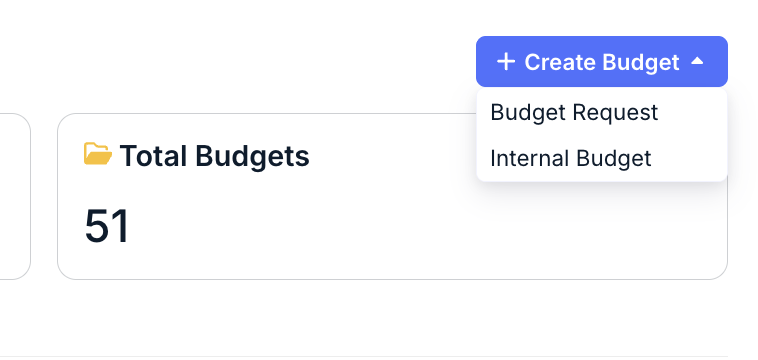
Create New Budget: Click on + Create Budgets in the top-right corner and select Budget Request or Internal Budget.
Search: Use the search field above the list to find budgets by name, type, or other keywords, such as vendor name or matter lead. Terms entered only apply to the tab you are viewing, and the list filters as you type.

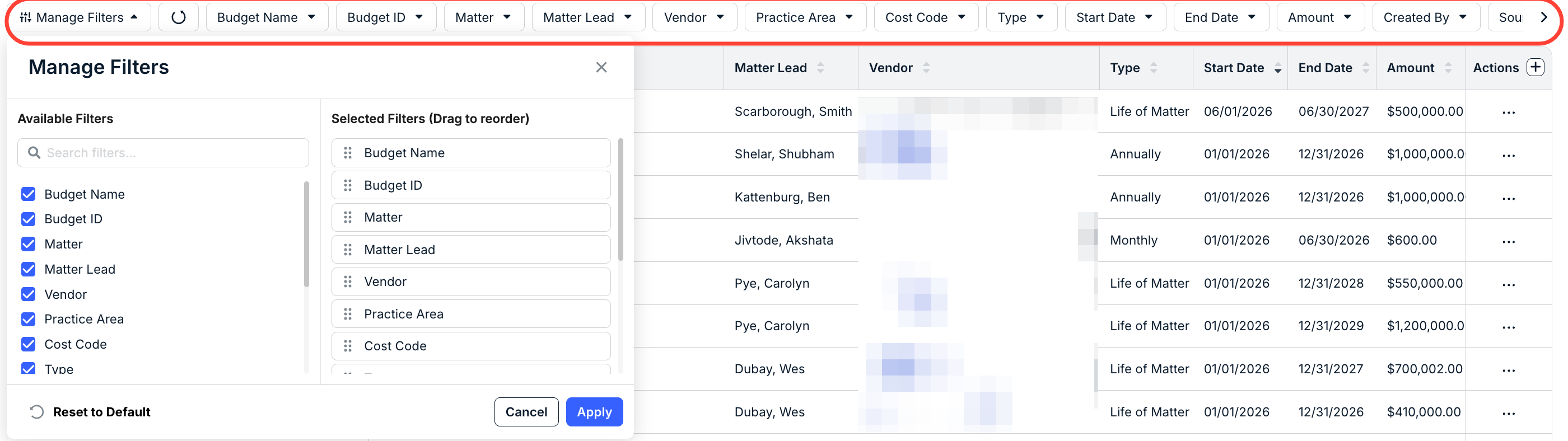
Filters: Use the filters above the list to narrow the budgets by various criteria, such as vendor, budget health, or end date. To hide or change the order of any filters, click Manage Filters on the left.
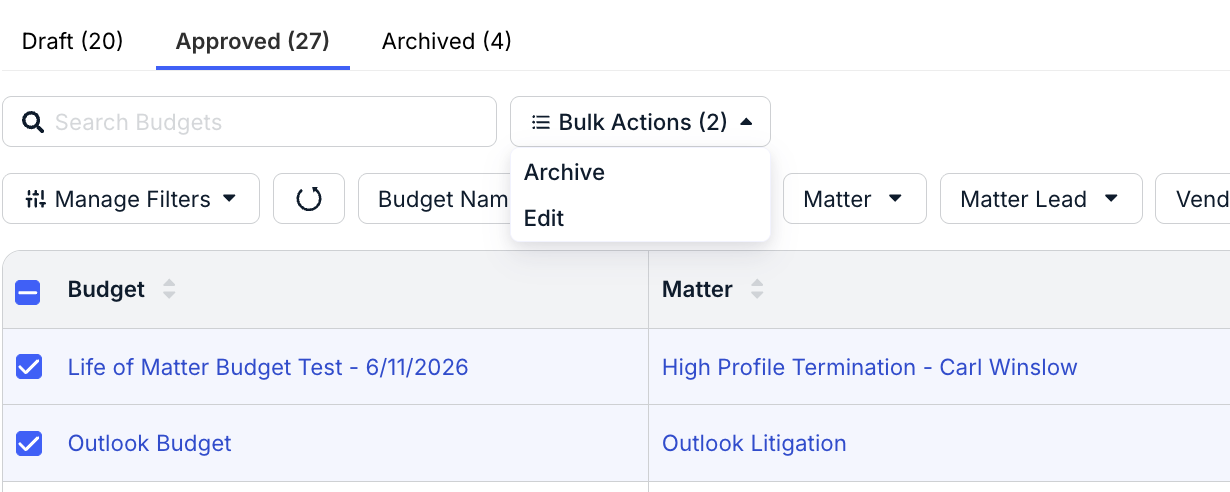
Bulk Actions: Select boxes for multiple budgets to apply actions in bulk, such as archiving unused/inactive budgets.
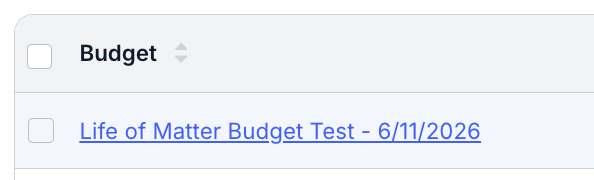
Open Budget Record: Click on a hyperlinked budget name to open the record and view its information, such as general attributes, budget snapshot, activity log, and allocation/spend details.
Download List: Export your current view (i.e., Draft, Approved, or Archived budgets) for further review offline.

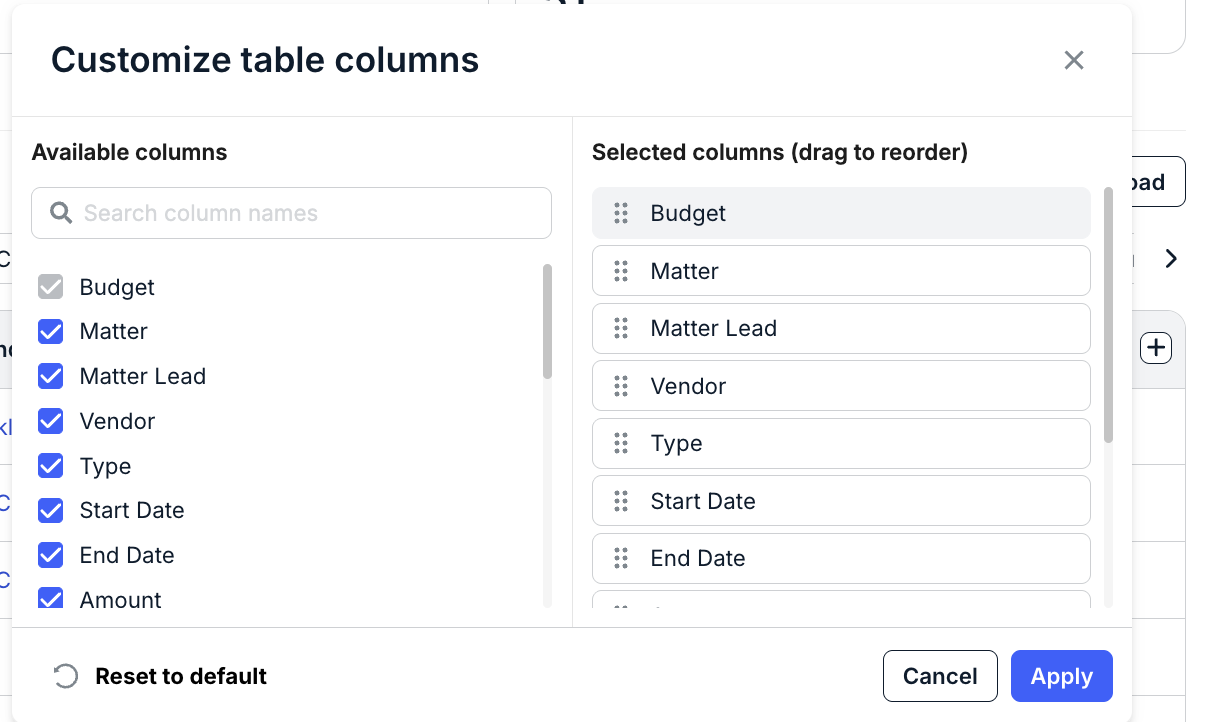
Customize List Columns: Click the + icon at the far right to hide default columns or change the other.
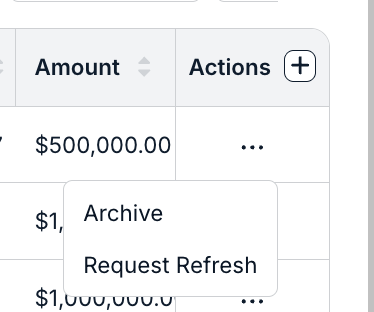
Actions Menu: The options available from the ... (more) menu depend on which tab you are currently viewing and whether the budget is internal or external. For example, Send Reminder only applies to external budgets pending vendor response.