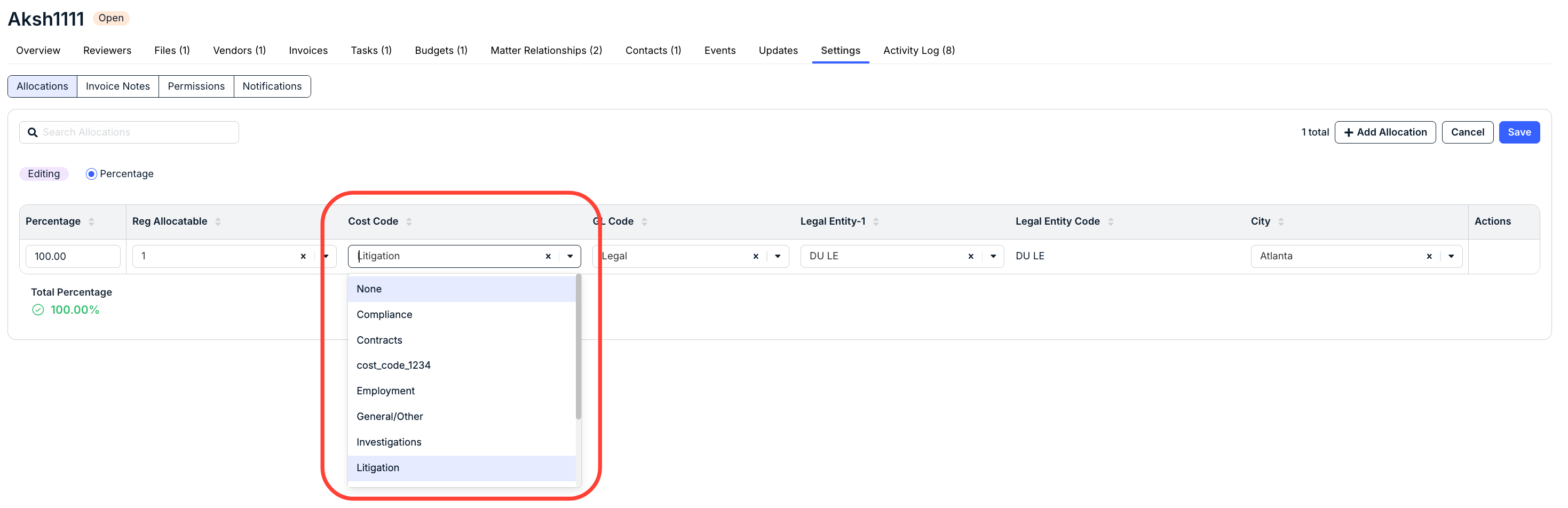
Cost Codes are used to represent organizations to which legal costs may be allocated or charged for accounting purposes. Invoices can inherit several attributes of this type to help categorize and track spend. Generally, an organization has a Cost Code system with multiple codes, each associated with a specific cost.
Unity includes two out-of-the-box allocatable attributes: Legal Entities and Cost Codes. On matters, a specific percentage of costs can be assigned to one, both, or none of these attributes. If allocated, this means that invoices submitted against that matter will automatically inherit those allocation settings.
For example, 50% of each corresponding invoice’s amount can be allocated to Cost Code 1 and the other 50% can be allocated to Cost Code 2. How and if allocations are used depends on your organization’s needs.
This article covers the following:
Creating a Cost Code
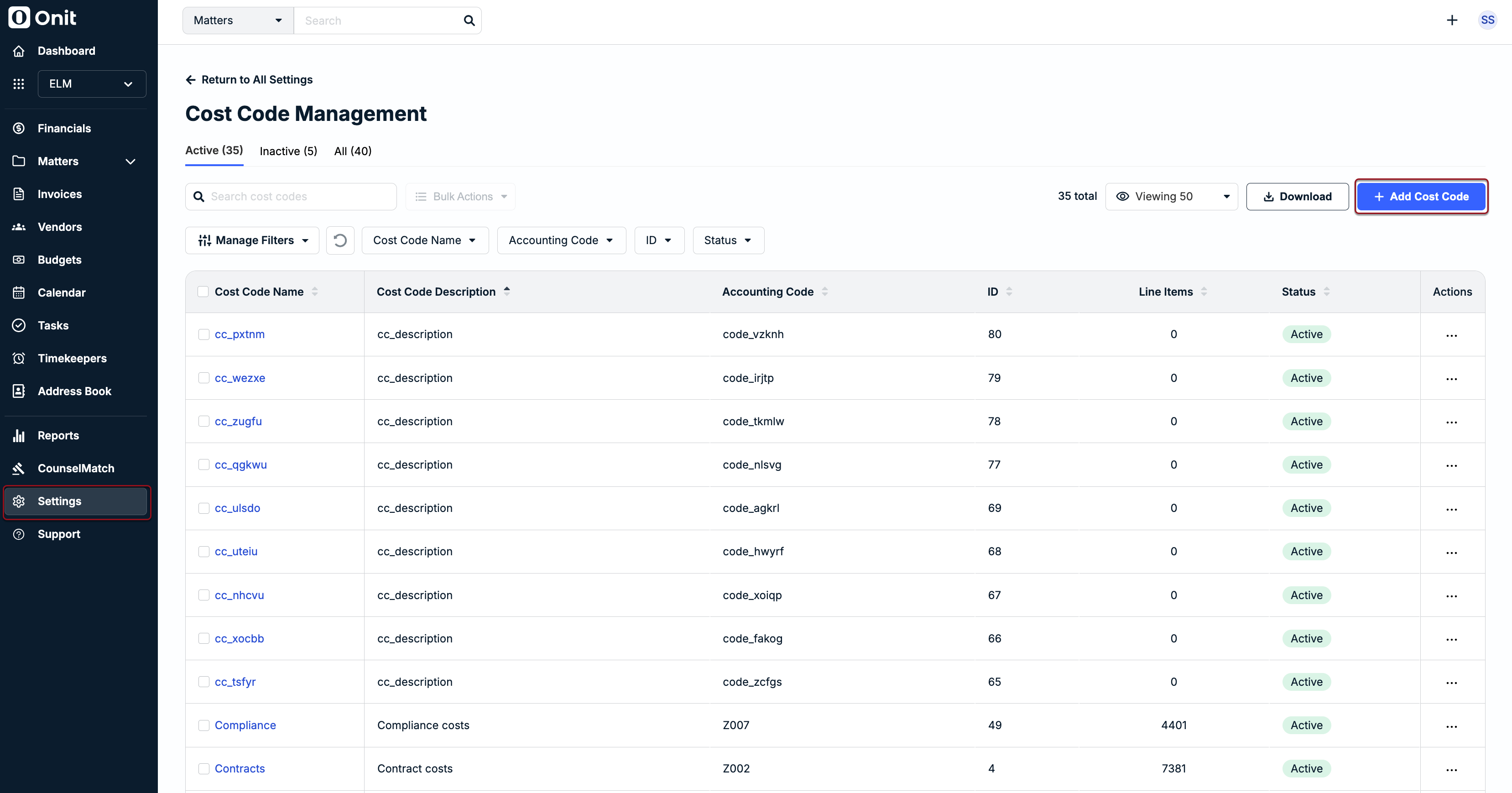
1. Go to Settings > Cost Codes.
2. Click +Add Cost Code in the top-right corner.
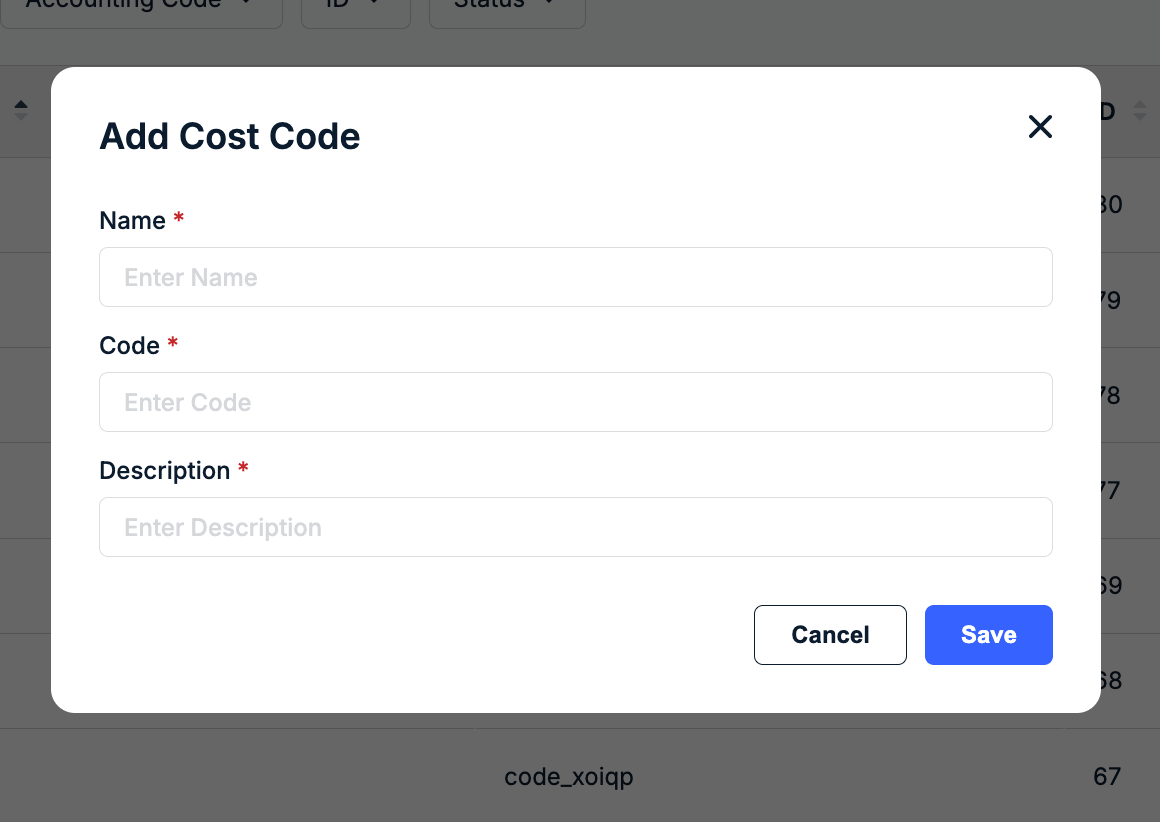
3. Enter the Name (required), Code (required), and Description (required), and then click Save.
4. Repeat Steps 1-3 to add more Cost Codes.
The following columns of information are displayed for each Cost Code on the list page:
- Cost Code Name: Name as it appears in lists of values on records where a Cost Code can be assigned (e.g., matters, invoices, etc.).
- Cost Code Description: Brief description that provides context or additional information for other users.
- Accounting Code: Code used for other identification purposes.
- ID: System-generated ID assigned when the Cost Code was created.
- Line Items: Number of line items with which the Cost Code is currently associated.
- Status: Whether the Cost Code is ACTIVE or INACTIVE.
- Actions: Click the ... (more) option to select one of the following: Edit or Inactivate.
You can re-sort the list in ascending or descending order by clicking on any column name. By default, the list is sorted by Cost Code Name in ascending order.
Managing Cost Codes
From the Settings > Cost Codes page, click the ... (more) option under the Actions column to select one of the following: Edit or Inactivate.

Editing and Viewing Cost Code Details
There are two ways to edit a Cost Code:
- Click on the hyperlinked name from the list to open the Cost Code details page for editing and also view associated line items.
- Click ... (more) under the Actions column and select Edit to quickly modify Name, Code, and/or Description.
From the details page, you can hover over any of the following fields and click the edit icon: Name, Description, Status, and Accounting Code.
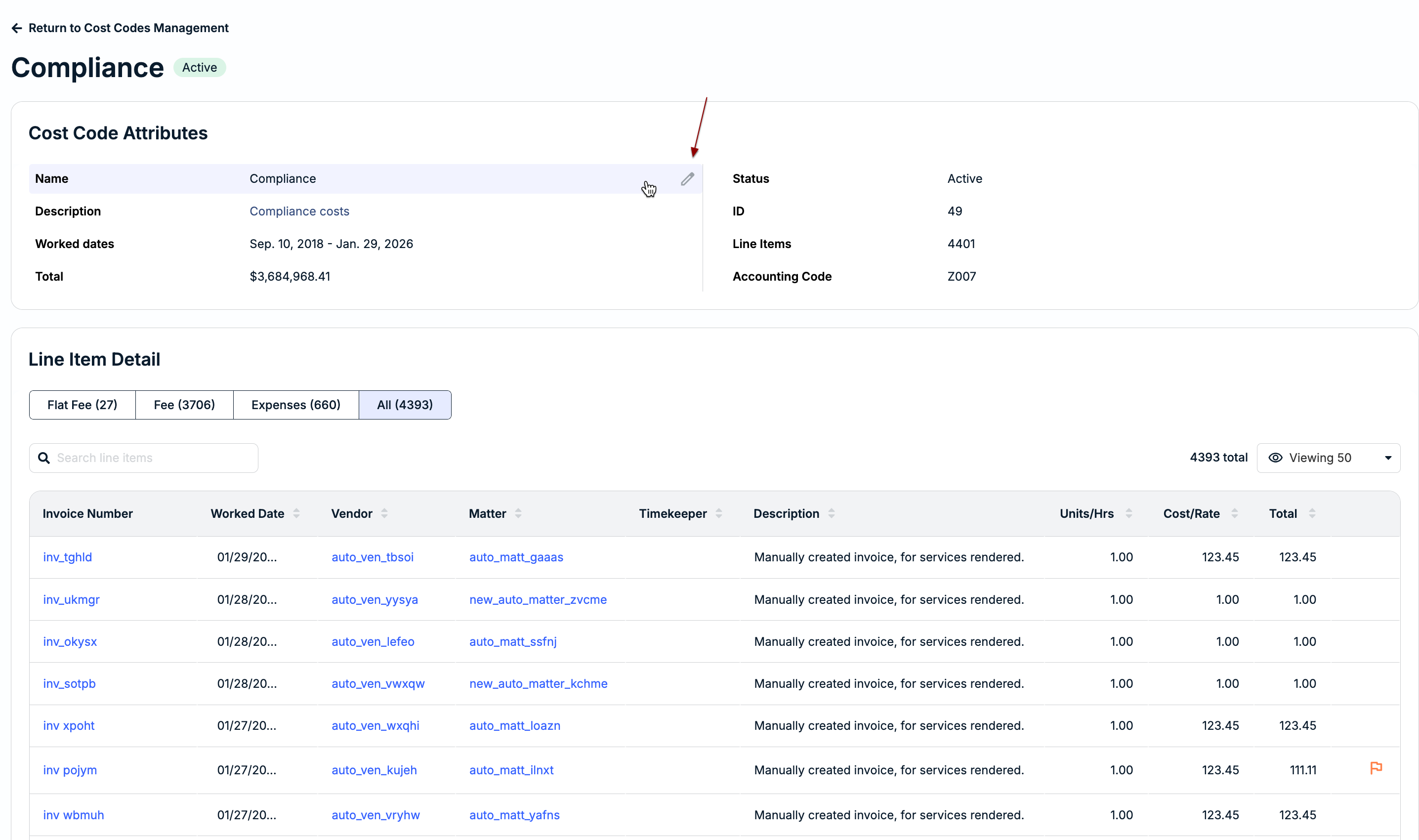
This page also gives a quick overview on the Cost Code's usage (i.e., worked dates, total, and number of line items). You can drill down into individual line items, including filtering by line item type (e.g, Flat Fees, Expenses, etc.). Click on a hyperlinked invoice number, vendor, or matter for additional information.
Inactivating a Cost Code
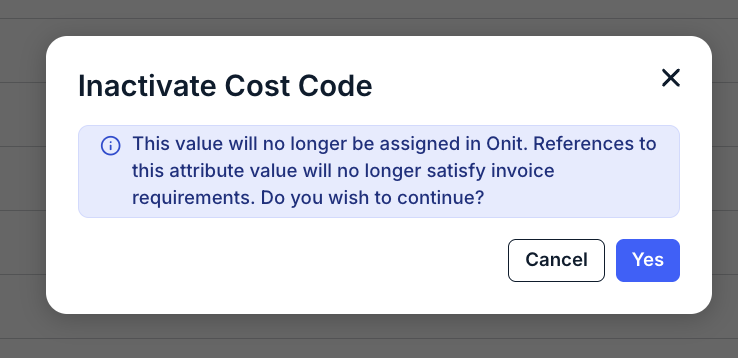
Clicking Inactivate for a Cost Code will prompt you to confirm; click Yes to move forward.
Applying Bulk Actions
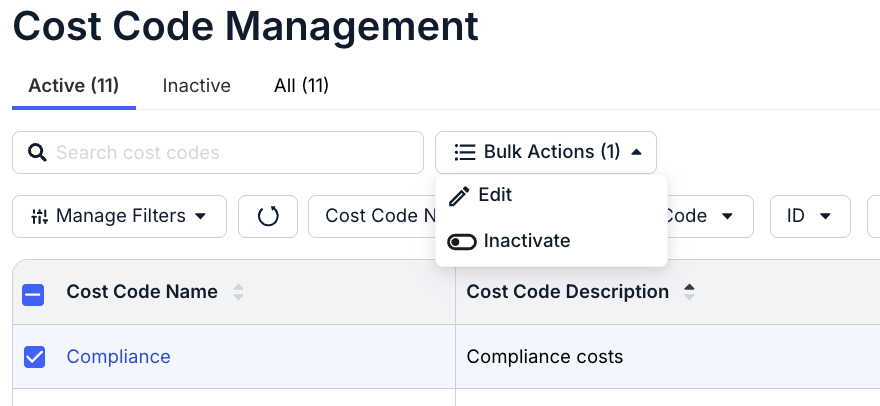
Select boxes for Cost Codes on the left side of the table and then click Bulk Actions. You can apply the following bulk actions: Edit or Inactivate.
Allocating Cost Codes on Matters
To allocate some or all invoice spend to a specific Cost Code, open the matter record, go to Settings > Allocations, and click Edit Allocations in the top-right corner.
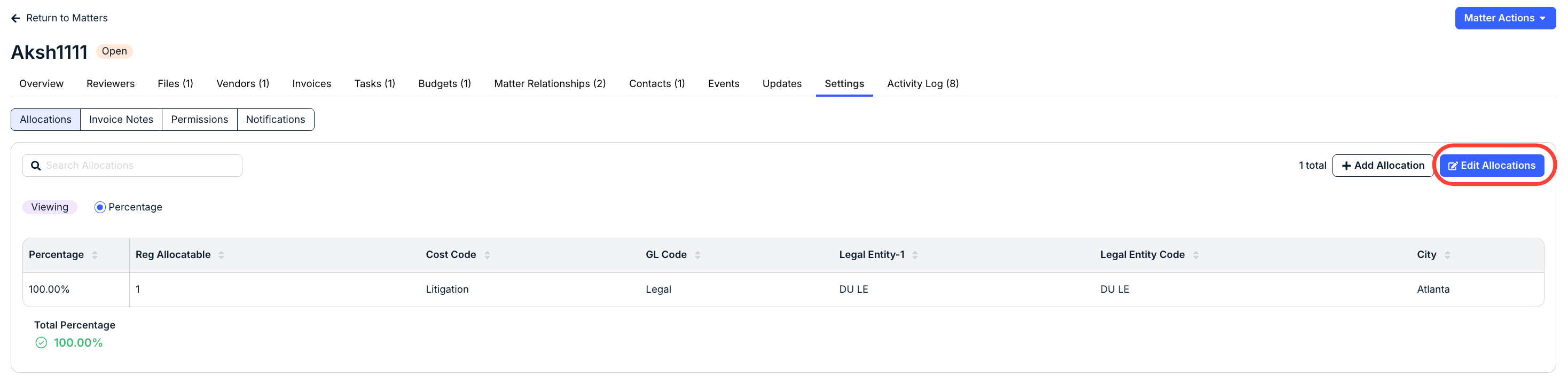
Choose the Cost Code from the dropdown and update the Legal Entity and/or Percentage fields as needed. Click Save in the top-right corner. For more detailed instructions on adding/editing allocations at the matter level, click here.