The Matter Review Workflow
Customers have three permission options for matter creation in Unity:
- Only admins can create and publish matters (default setting)
- Any Unity user can create and publish matters (optional)
- Any Unity user can create draft matters for admin review/publishing (optional)
The third option is called the Matter Review workflow in Unity.
Allowing non-admin users to create draft matters can be helpful in various ways, such as:
- Saving time for admins by offloading the task of initial matter creation
- Minimizing duplicate/overlapping matters by requiring review before publishing
- Ensuring new matters follow specific business standards and guidelines
Whether this workflow fits your environment depends entirely on the volume of work and the number of admins vs. non-admin users. For example, if you have only a few admins and many users, it is important to consider whether this workflow will create more work for admins or save time.
Reviewing a Drafted Matter
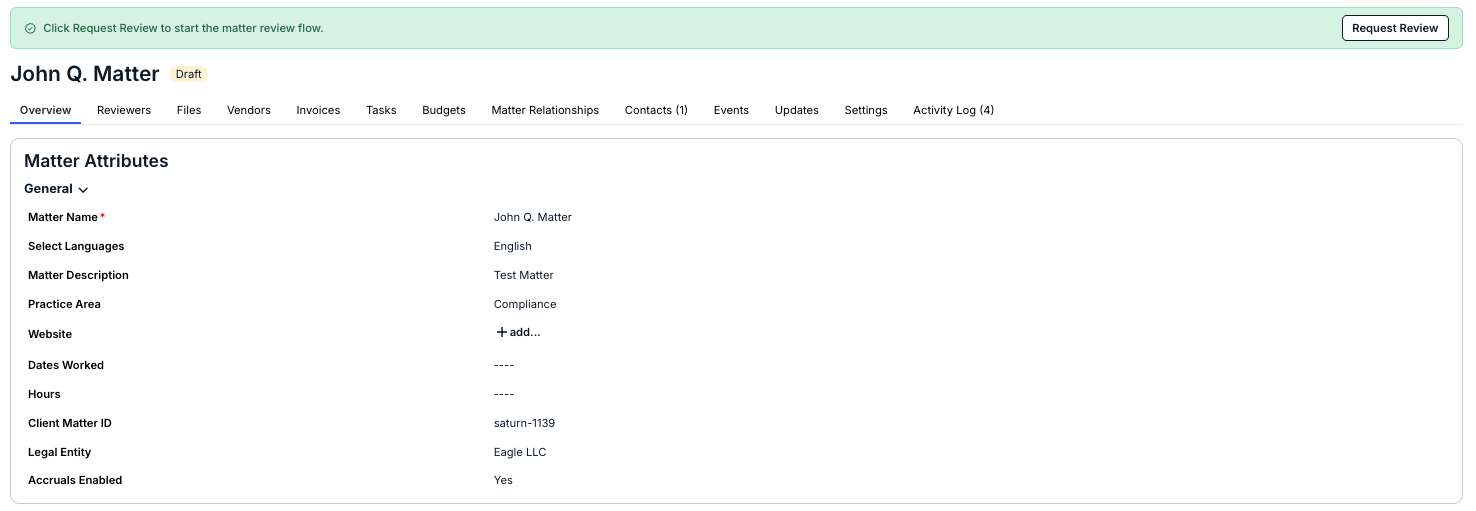
Once a matter is created, the user will click on the Request Review button to send it to the reviewer. The reviewer will receive an email notification.
NOTE: Reviewers for draft matters are NOT the same as invoice reviewers assigned to a matter. If you are looking for information about invoice reviewers, click here.
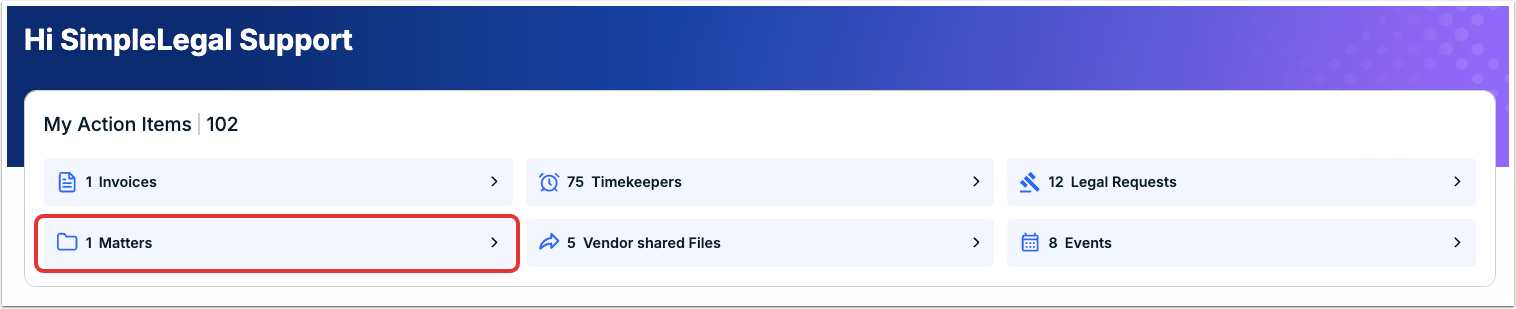
On the main dashboard screen - under My Dashboard Items - you'll see that the Matters section will link users directly to the matters they need to review.
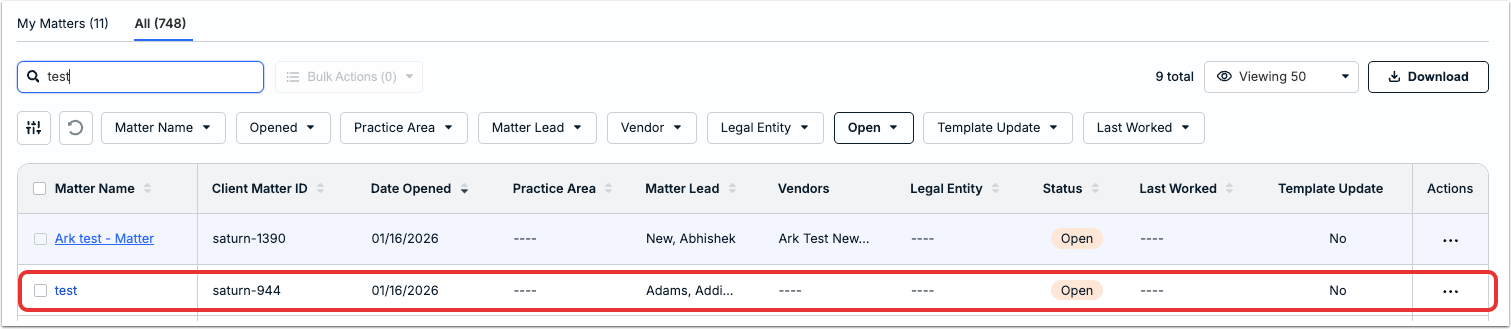
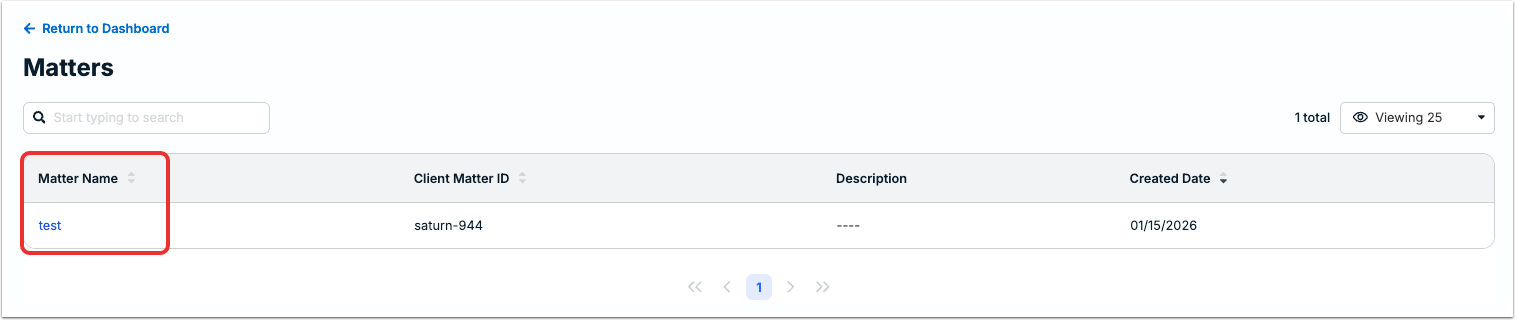
Click on the Matters folder to go directly to the matters you need to review. Click on the matter Name to open the matter and start the review process.
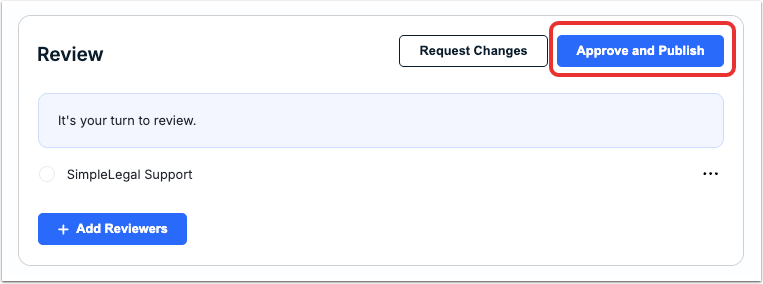
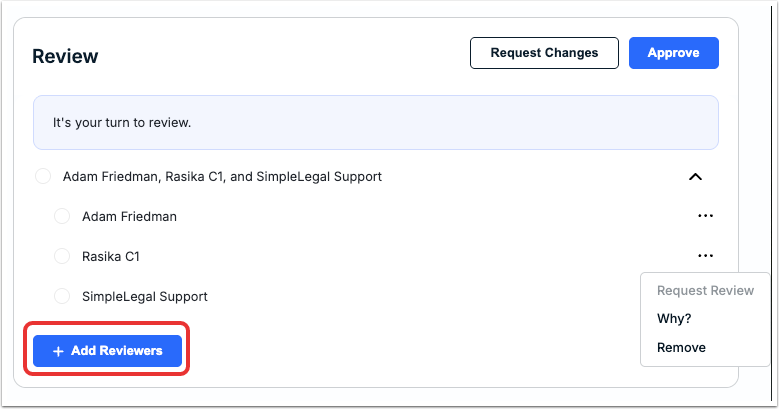
In the upper-right-hand corner of the screen, you'll see the Review panel. You'll see the It's your turn to review message when it's your time to approve the matter.
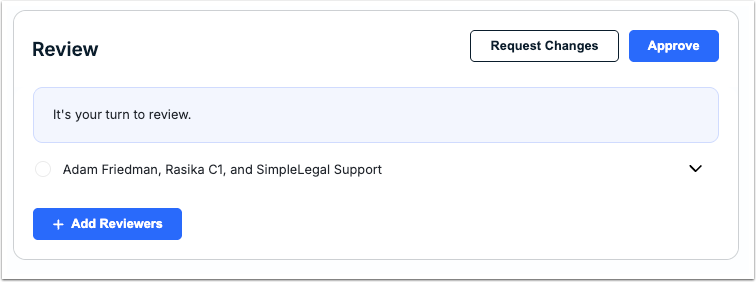
Here, you have several options:
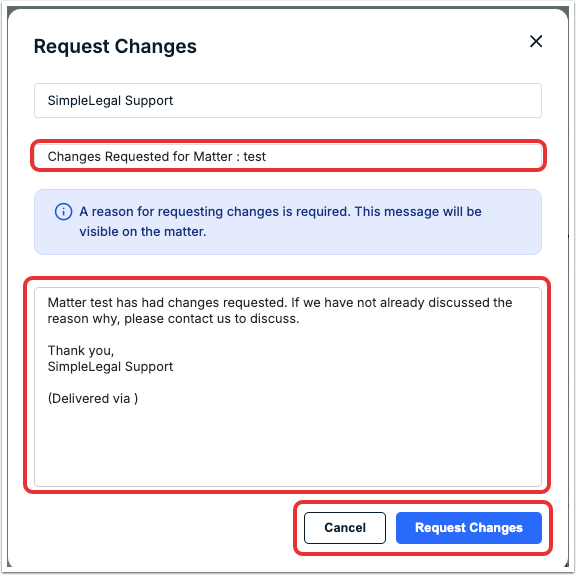
1. You can Request Changes from the review section. If you do this, the Request Changes screen will pop up. Fill out the Subject Line and a Message to the matter creator. Click on Request Changes to send the matter back or Cancel to back out.
The matter creator will be notified via email about the request. Repeat the steps above if the user updates the matter but additional changes are still required before approval.
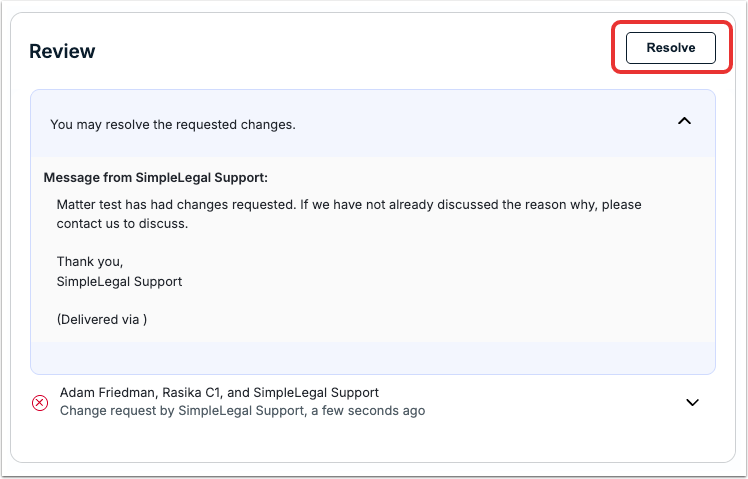
Once the matter creator updates a draft matter per your requested changes - and you're ready to approve the changes - click Resolve to restart the review workflow.
Click Approve to send to additional reviewers. You'll see the Approve and Publish if the review is completed.
2. If you do not have any changes, you can click on Approve to send to the next reviewer.
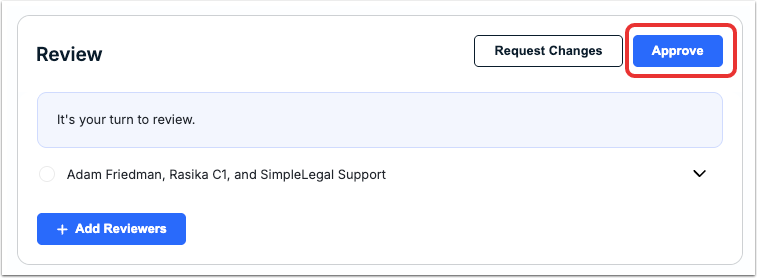
You can see the list of reviewers on the main Review panel. Click the up/down arrow to see more details about the reviewers and see the different options.
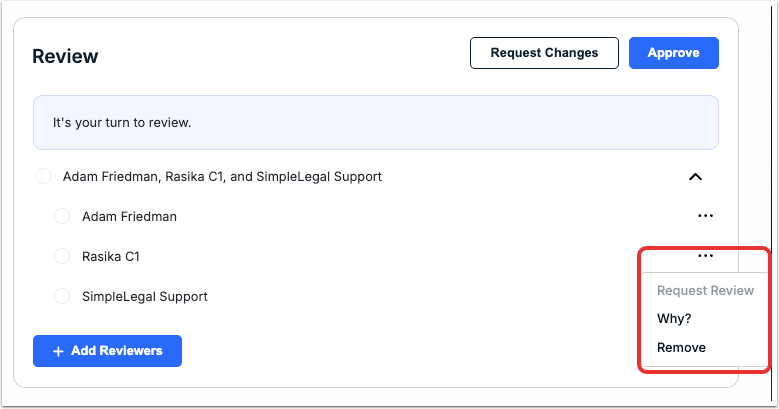
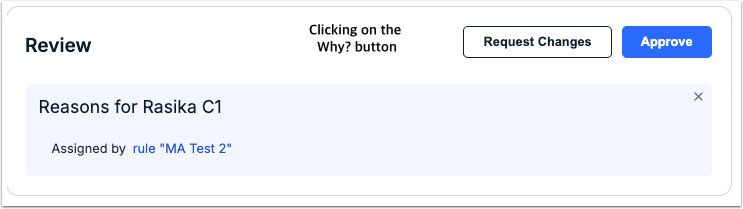
Under the three-dot menu, you can ask Why? to display the reasons that the reviewer is assigned to the matter or click on Remove to remove the reviewer from the workflow.
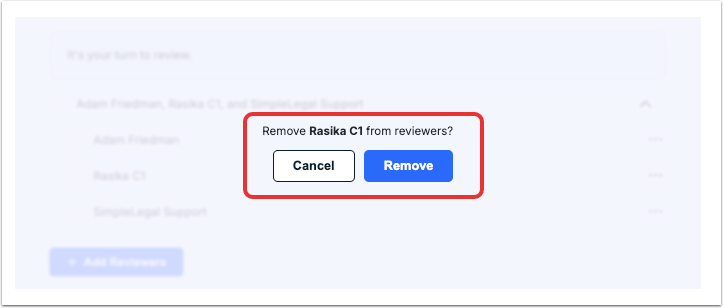
Click on Remove to remove the reviewer or Cancel to back out.
You can also Add Reviewers to the workflow by clicking on the Add Reviewers button.
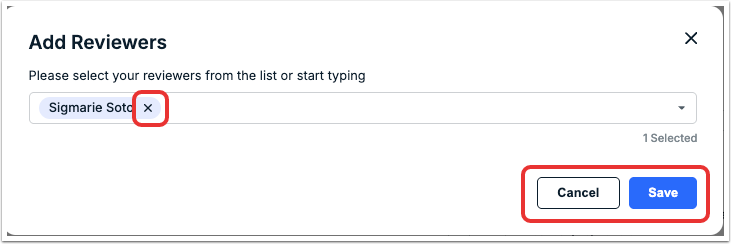
Select your reviewers from the drop-down list or start typing to find the reviewer. Click the X to remove that reviewer from the selection. Click Save to save the selection or Cancel to back out. The new reviewer will get an email notification of the addition.
3. If you're the last (or only) admin prompted to review a matter, you can click on Approve and Publish to publish the matter to the main matter directory.