The Locking Budgets feature is part of Unity's enhanced budgeting options and allows customers to set and "lock" baseline budget values for automatic approval in order to better track changes over time. This is primarily useful for customers with high volumes of budgets.
Benefits of Locking Budgets
- Customers with large-scale budget reviews can set and approve baseline values for many draft budgets at once to monitor variations over the course of the year.
- Customers who need to edit the amount after approval can still maintain a clear record of what was changed, who changed it, and when it was changed.
- Finance teams who want to better understand legal expenses in line with standard processes (i.e., initial budget value is set and changes that occur are re-forecasted).
Enabling the Locking Budgets Feature
Locking budgets means that any draft budgets with a start date in the current year are automatically approved and disabled for editing by non-admin users for the remainder of the calendar year.
How Locking Budgets Works
The overall flow for locking budgets works as follows:
- An "effective date" is set at the system level for budget locking
- Draft budgets are created with original baseline amounts
- An admin locks all draft budgets once they are finalized and/or ready for approval
- Values for Original Amount and Locked Date are recorded on all locked budgets
- Locked budgets are automatically set to approved for the remainder of the calendar year
- Only admins have permissions to edit the Original Amount on locked budgets
- Changes made by an admin after locking are tracked at the budget and system level
The purpose of "locking in" the Original Amount and Locked Date is to help customers monitor variations in budget amount from the date it was approved through the remainder of the calendar year. Since editing "locked in" amounts is restricted to admins, this gives finance teams better insight into what was changed, who changed it, and when it was changed for planning purposes.
Notes and Other Considerations
Please review the following before enabling and using the Locking Budgets feature:
- Budget locking is typically done once per year depending on customer needs.
- Only internal draft budgets can be locked. This does not apply to Budget Requests that are sent to vendors so that they can submit a proposal for review and approval (if applicable).
- Only admins can edit budget amounts during the year once draft budgets are locked.
- A locked budget can be archived but it cannot be unlocked or reverted to draft.
Locking Draft Budgets
- Go to Budgets from the left-side navigation bar and switch to the Drafts tab.
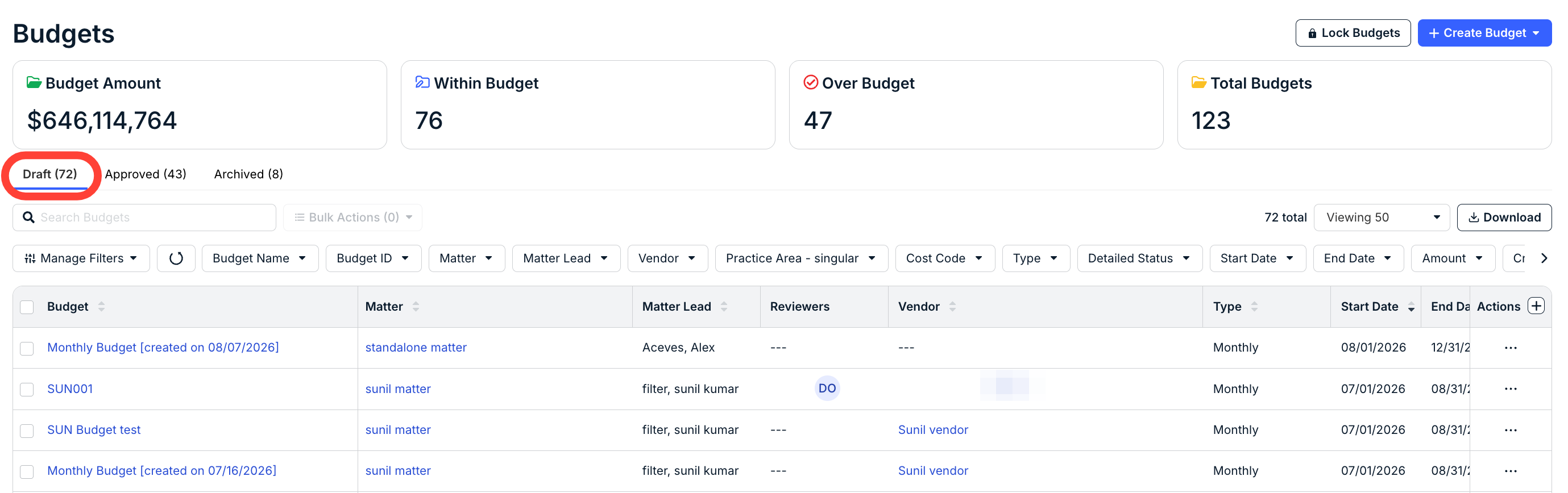
- Confirm that all expected budgets are listed and correct baseline amounts have been entered.
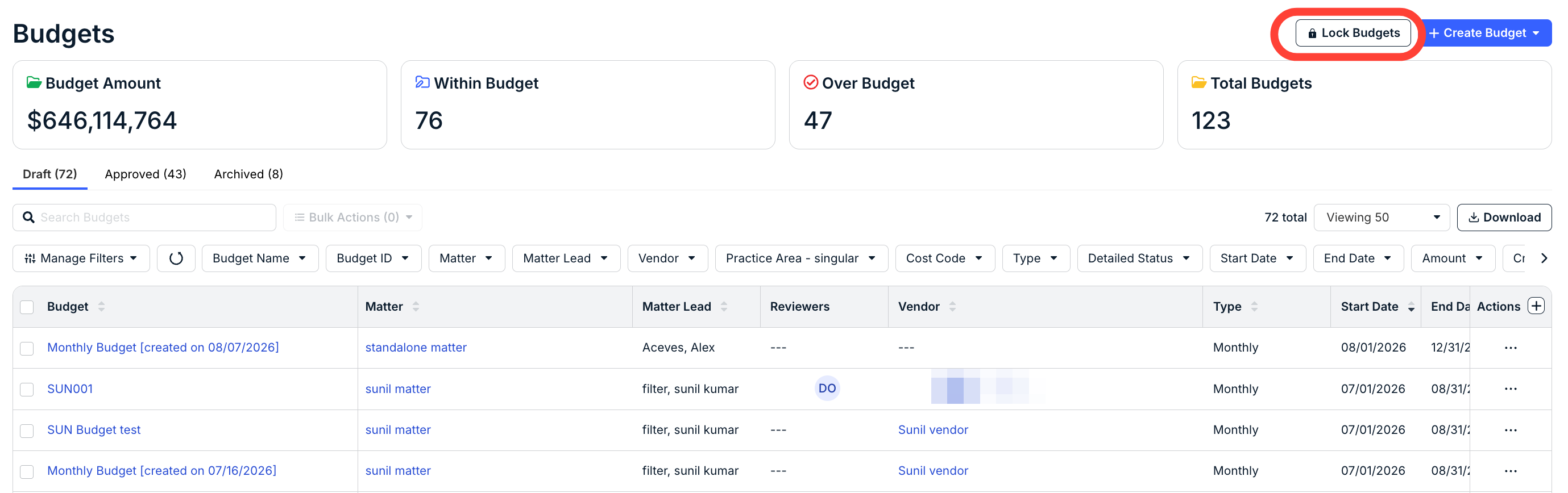
- Click Lock Budgets in the top-right corner.
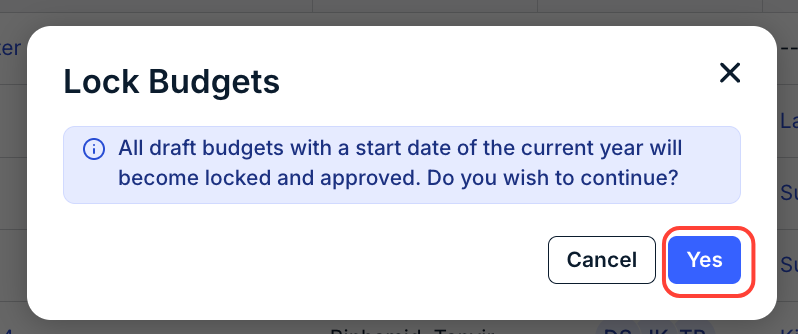
- Click Yes when prompted to confirm.
You can also click Cancel to back out.
- Click OK in the confirmation window.
The window will detail how many budgets have been locked.
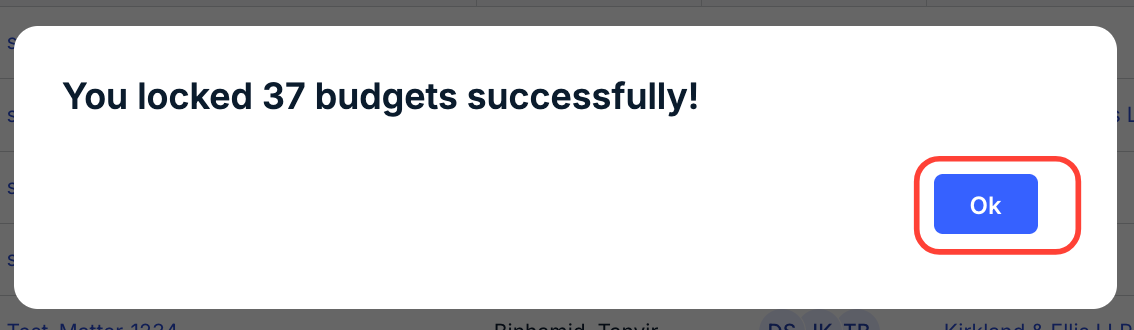
If you receive an error message that budgets could not be locked, please refresh your browser and try again. For assistance with budget locking errors, contact Unity support.
The following happens once the budgets are locked:
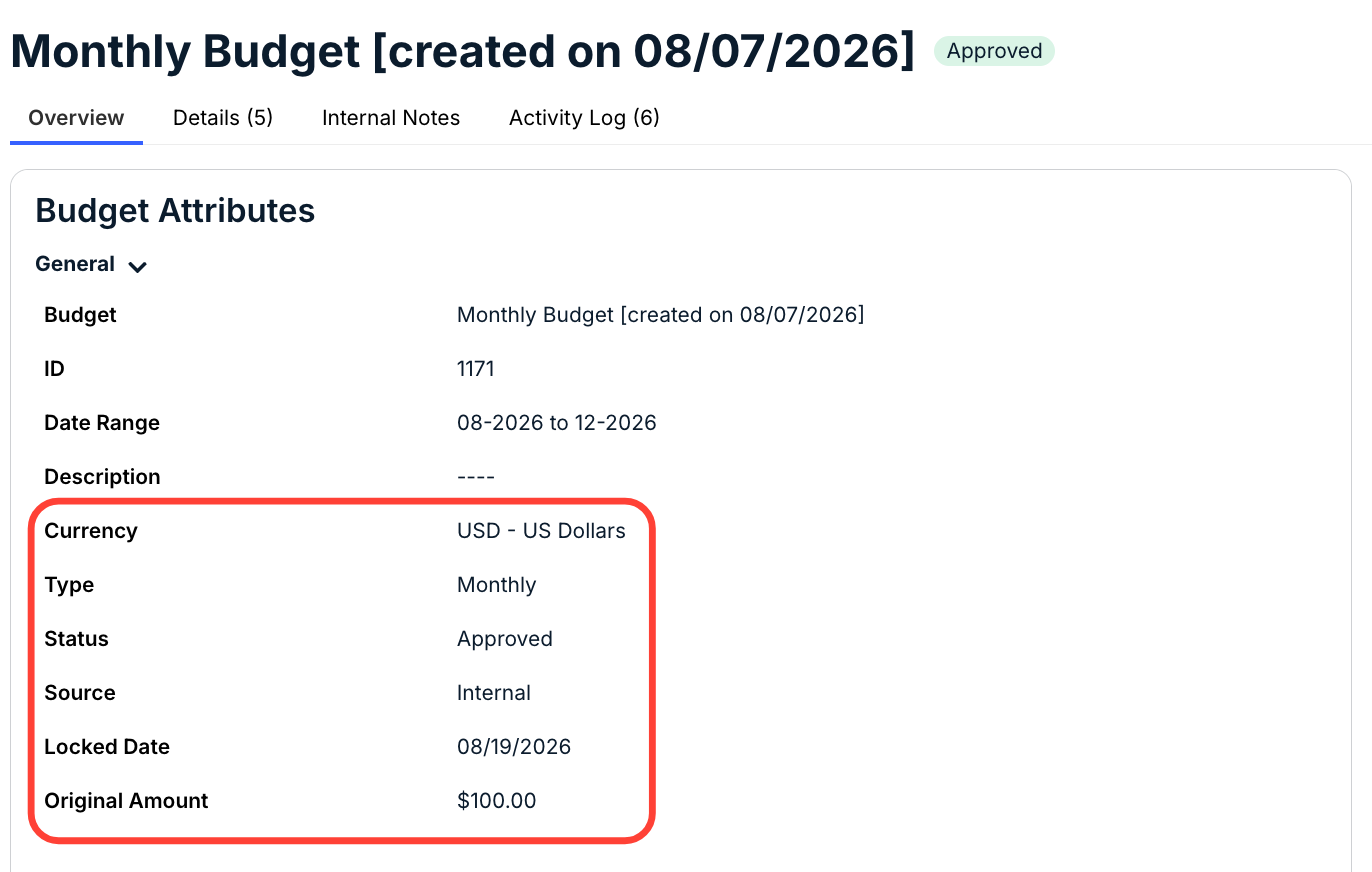
- A date is recorded for the Locked Date field under attributes
- An amount is recorded for the Original Amount field under attributes
- The status is changed from draftto approvedfor the remainder of the calendar year
- Values for Locked Date and Original Amount appear in the budget page Excel download
- The budget locking action is recorded under the system activity log
- The option to revert a locked budget to draftstatus is not available for locked budgets
Admin Permissions for Locked Budgets
Only admins can update the original amount saved to a locked budget for the remainder of the calendar year.
Tracking Changes to Locked Budgets
Changes made by admins to locked budgets are tracked in the following ways:
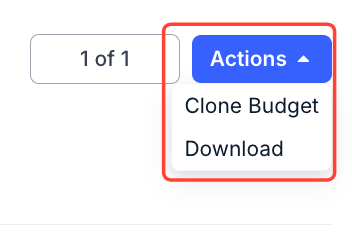
Budget Details Excel Download: Variations in the Original Amount for a locked budget can be viewed and verified by opening a budget record and clicking the Download button in the top-right corner.
This export shows the following information:
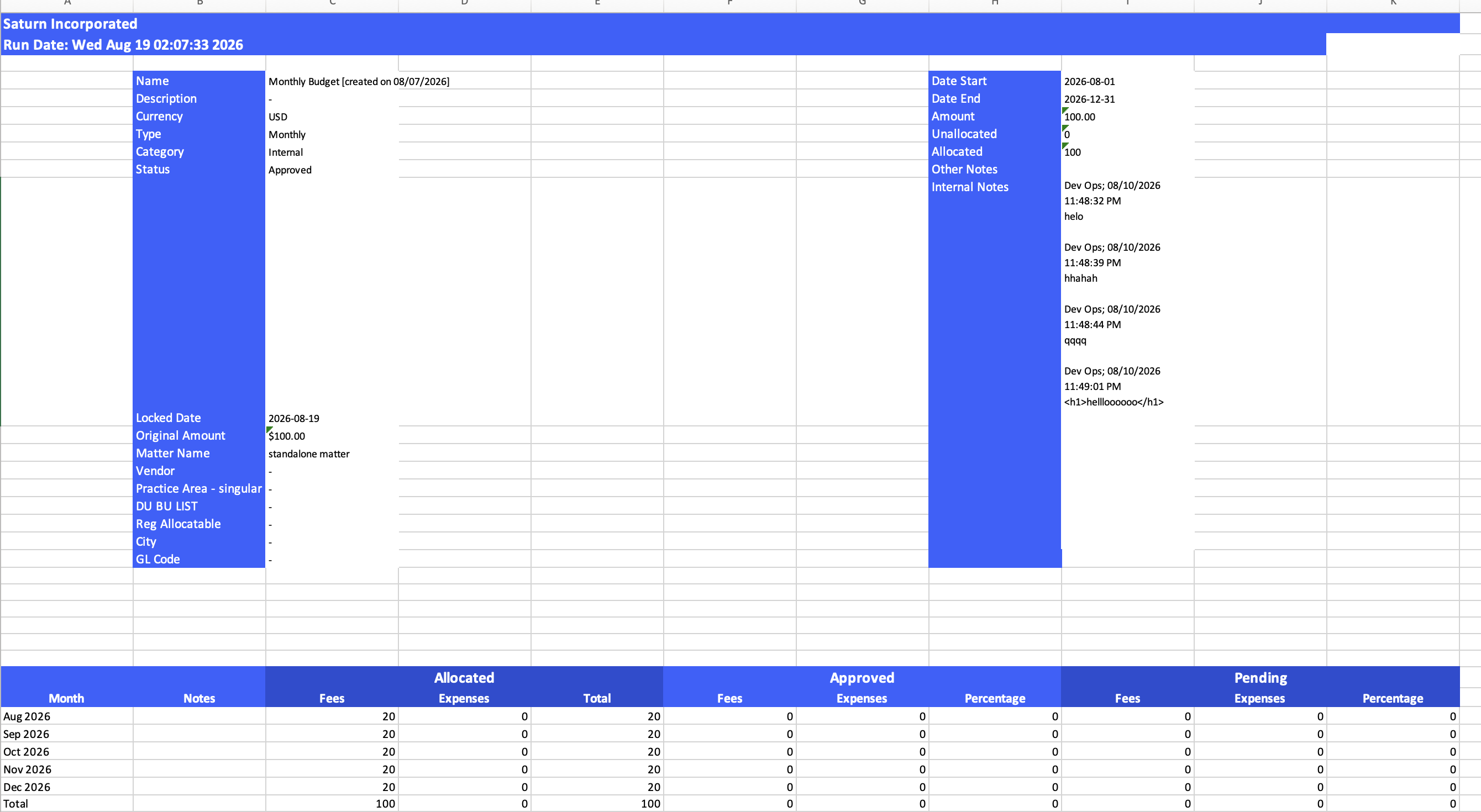
If the original amount was modified by an admin, the modified amount is shown on the left side of the file and the original amount is retained on the right side of the file.
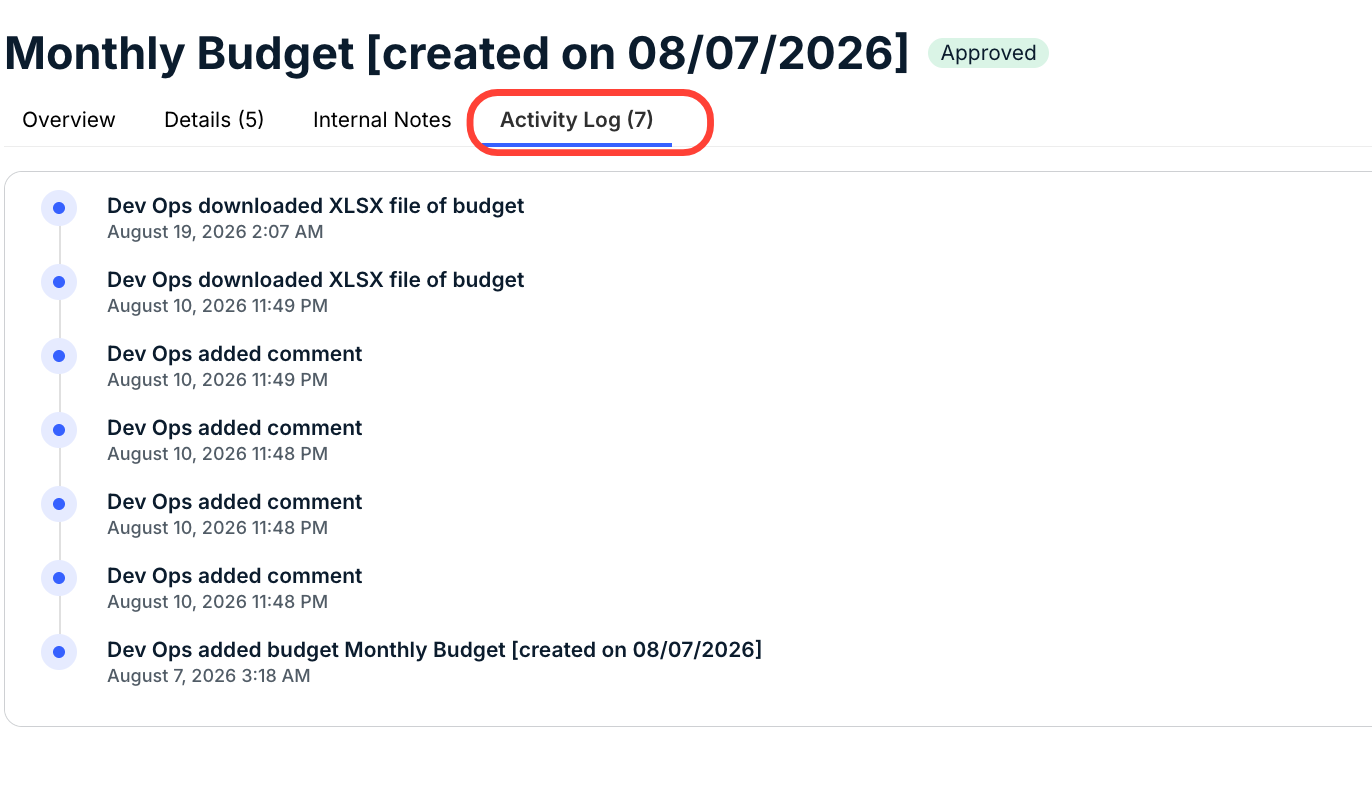
Budget Details Activity Log: Changes made to a locked budget record are captured under the Budget Activity tab on the right side of the budget's details page.