Timekeeper rate cards let you set a standard rate schedule per practice area or matter template, so most timekeepers submitted by vendors get approved automatically instead of one by one.
Here's how to work with timekeeper rate cards:
Enabling Timekeeper Rate Cards
Onit Support is required to enable timekeeper rate cards. As part of the configuration, Onit will be able to configure:
- Rate Card Expiring Soon Days: The number of days before expiration when a rate card is designated as "Expiring Soon."
- Rate Card Expiring Soon Email Enabled: Whether to send expiring-soon or renewal reminder emails for rate cards.
- Rate Card Scoping Mode: Either the Practice Area or Matter Template scoping dimension.
Connect with Onit support to enable and configure timekeeper rate cards.
Reviewing and Approving Rate Cards
- Rate card approvers will see a Rate Cards number under My Action Items on the dashboard.

- Clicking the Rate Cards action item will open up the Rate Cards Needing Review page.

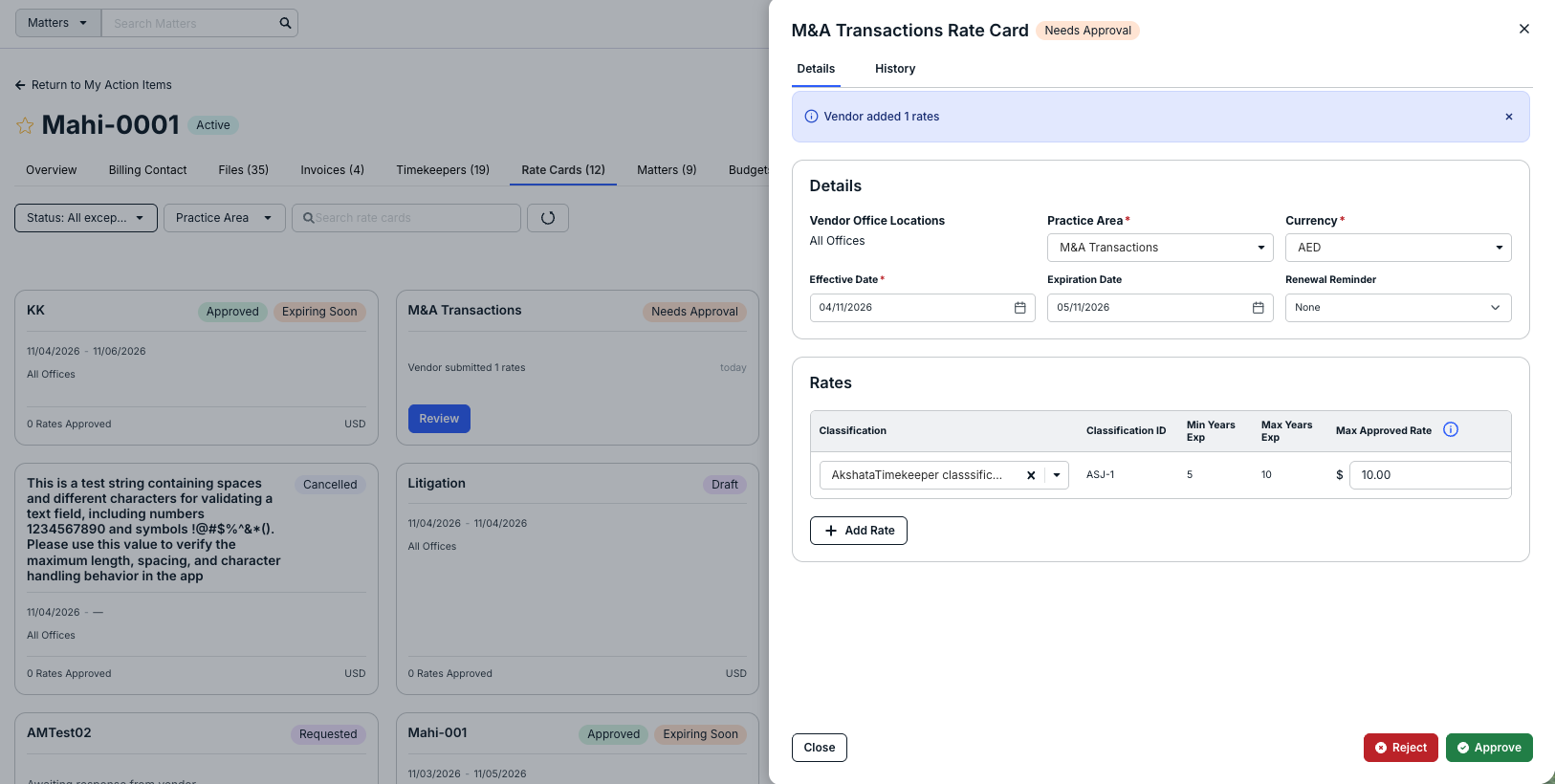
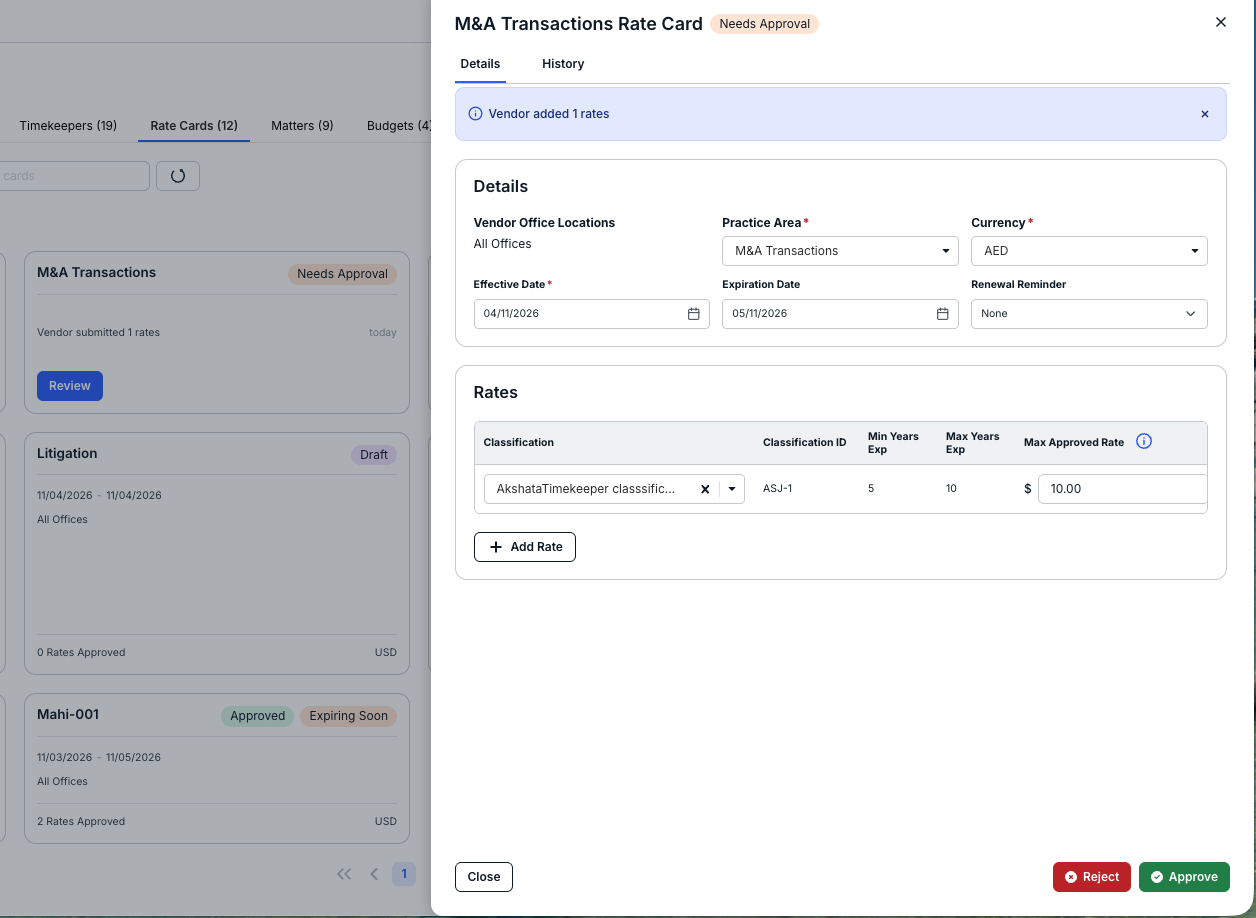
- Click the rate card to review it; the rate card screen will appear.
You can review and adjust the:
- Practice Area
- Currency
- Effective Date
- Expiration Date
- Renewal Reminder (if necessary)
Adjust any rates or classifications in the Rates section; you can also use the +Add Rates button to add more rates to the card.
Click Approve to approve the rates or Reject to send them back to the vendor.
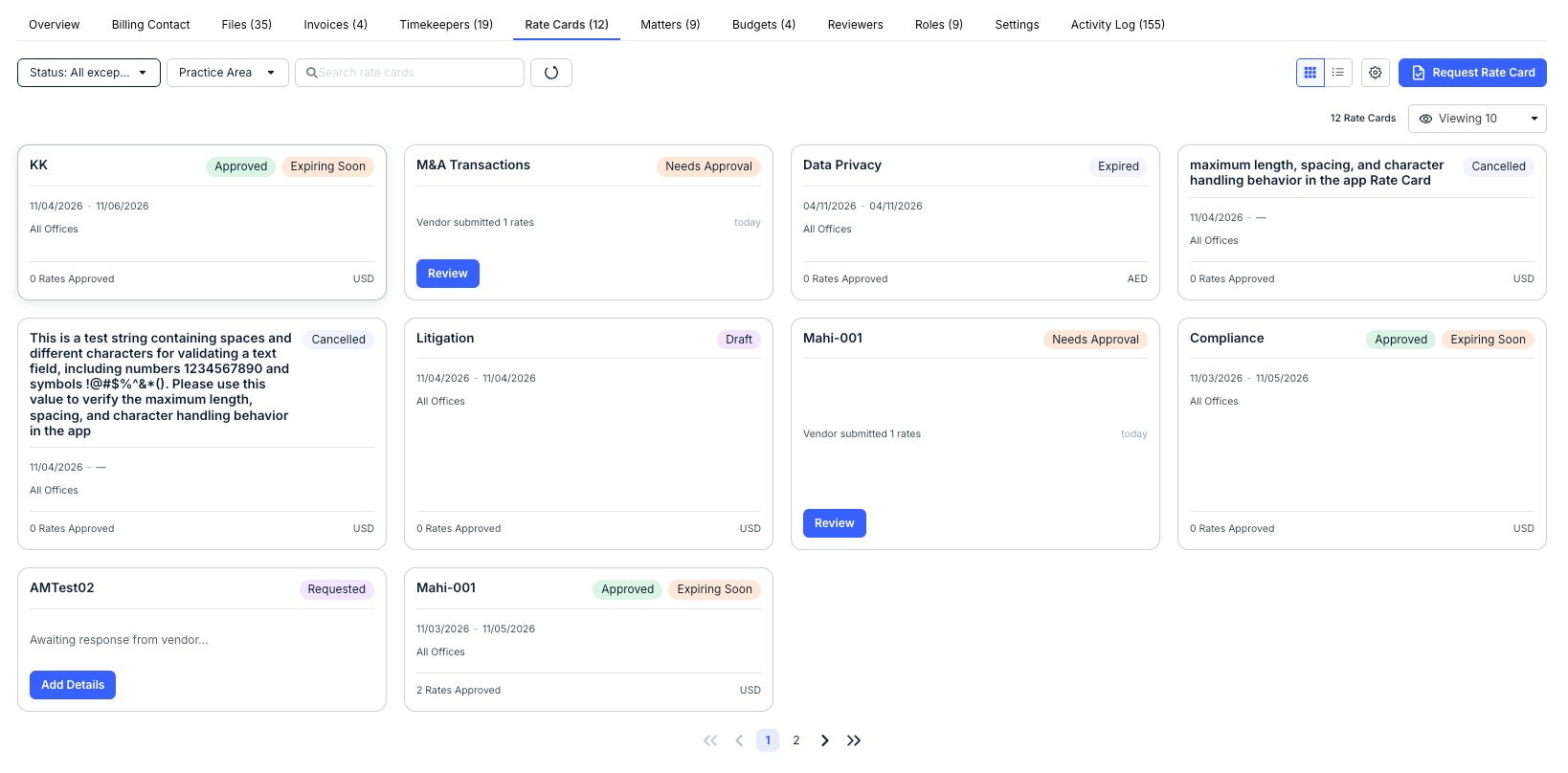
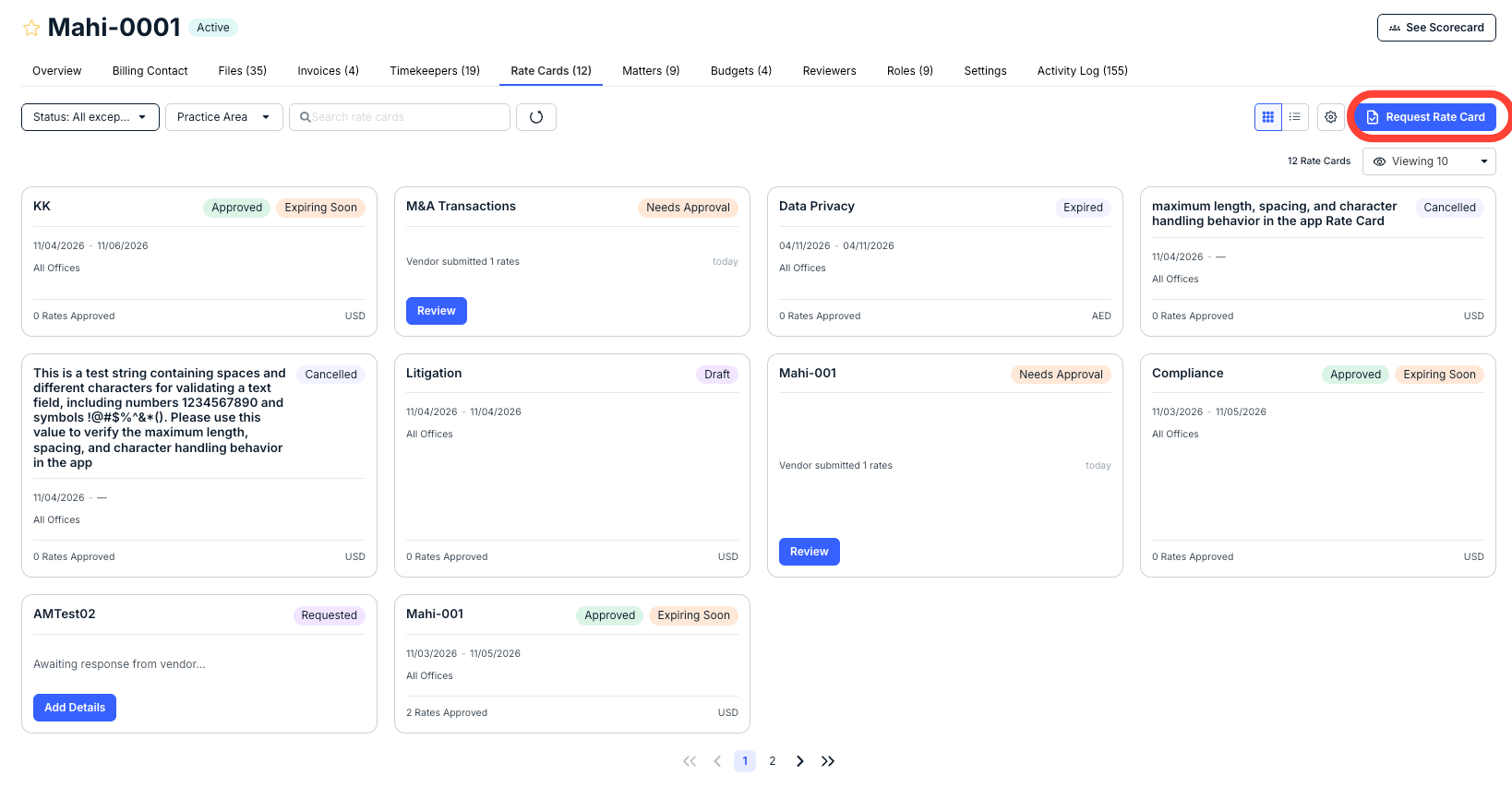
The main Rate Cards screen shows a list of all the rate cards associated with the vendor. Each rate card shows its status (Approved, Needs Approval, Cancelled, Requested, Draft), along with other essential information (Date Range, Offices, Rates Approved, Financial Total). Use the Status and Practice Area drop-down menus to filter by those options; use the Search rate cards box to search through the rate cards. Use the Viewing drop-down to customize how many rate cards you want to see on the screen.
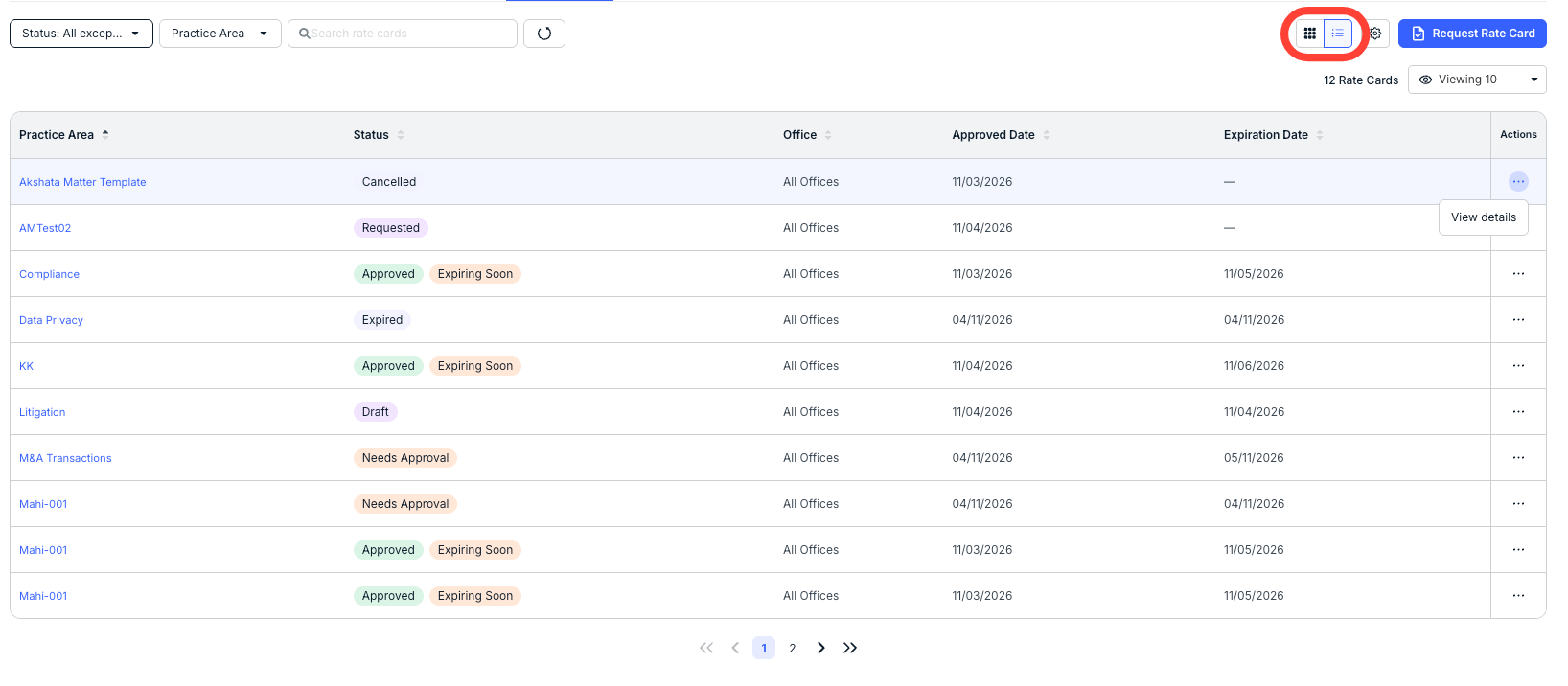
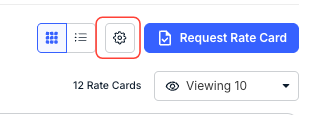
You can use the top Views options to toggle between a card and list view. On the list view, click the three-dot Actions menu to View Details.
Click the Settings button to go to the Rate Cards screen in Timekeeper Settings. Learn more about that page here.
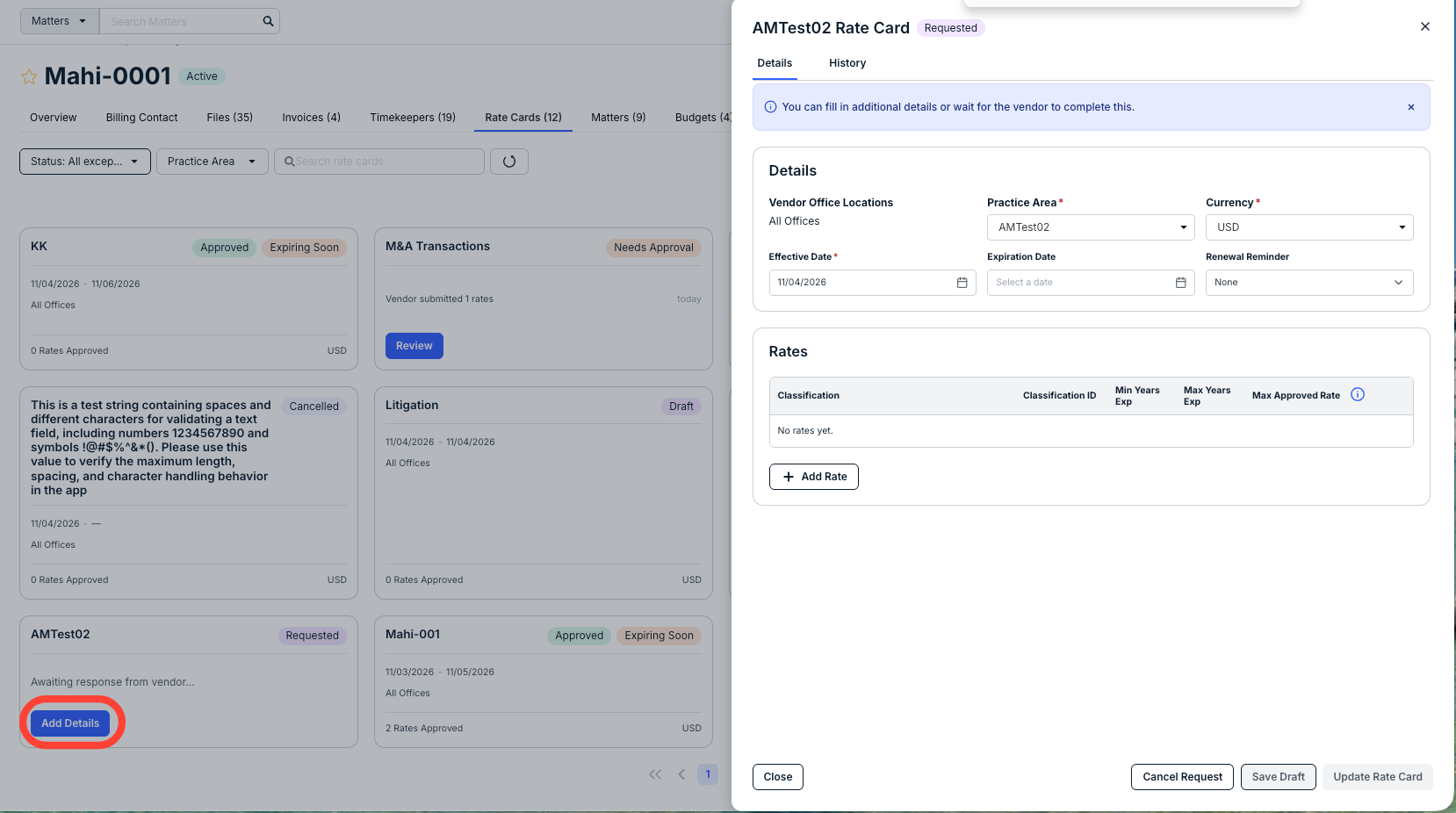
You can click the Add Details button for any rate card that has been Requested; there, you can fill in any additional details and click Update Rate Card to send the updated card to the vendor. You can also click Cancel Request to cancel the request, Save Draft to save the draft and finish later, or Close to close the screen.
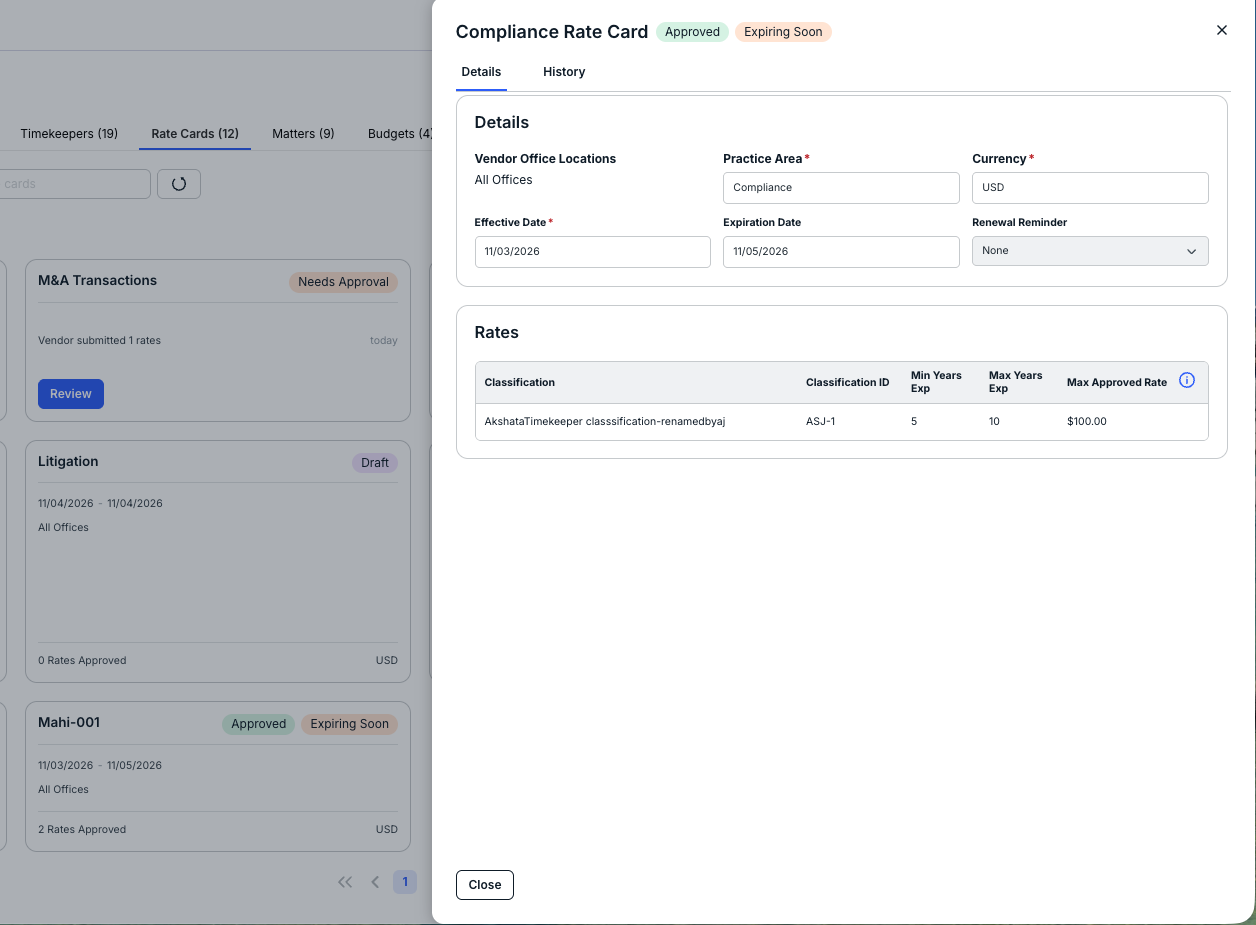
You can click any card not in Needs Approval status to open the rate card details page.
Click Review to reject or approve rate cards in Needs Approval status, as detailed above.
Requesting a New Rate Card
Click the Request Rate Card button on the Rate Cards tab to request a new rate card from the vendor.
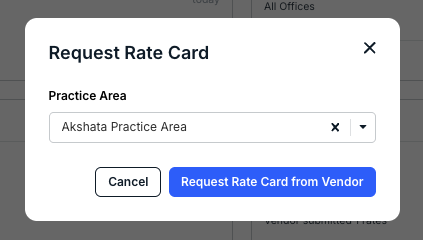
Select the Practice Area (or Matter Template) from the drop-down menu and click Request Rate Card from Vendor.
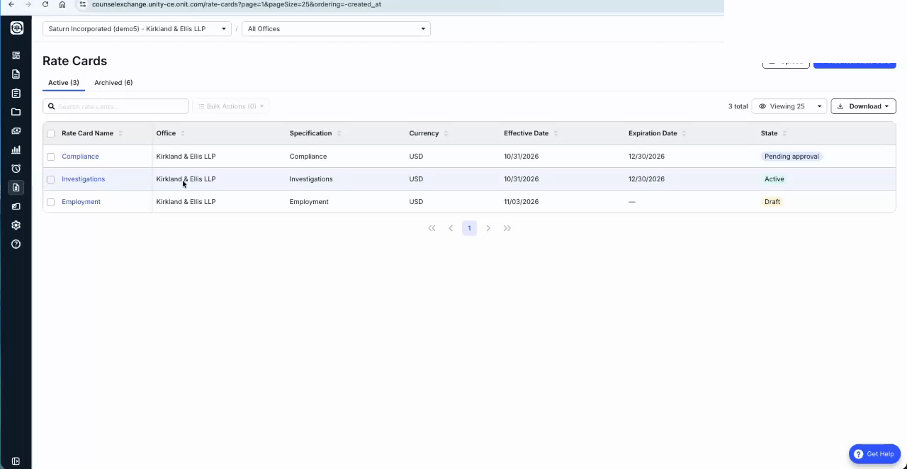
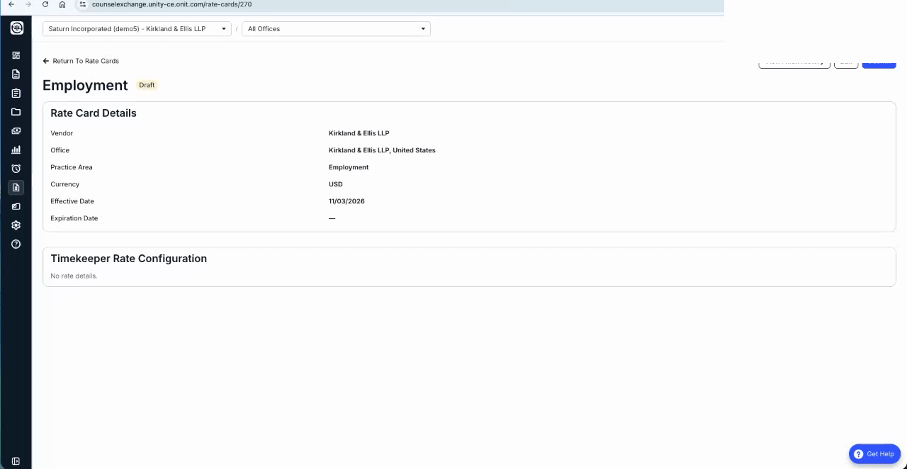
Vendors manage cards in Counsel Exchange under the Rate Cards feature (Active and Archived tabs). Card states include Pending Approval, Active and Draft. Vendors respond to client requests or add cards using the same Practice Area list as the client.
How Submitted Timekeepers Are Checked
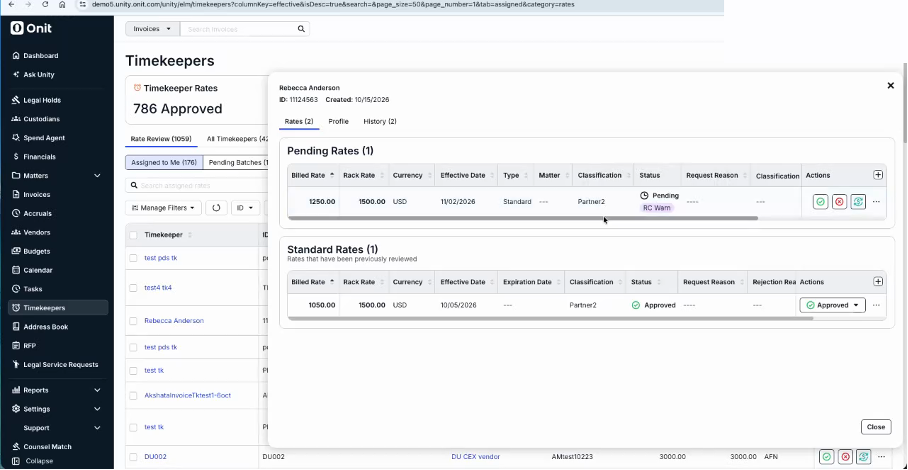
When a vendor submits a timekeeper, the rate card is applied first. If the rate falls within the card, it is automatically marked Approved.
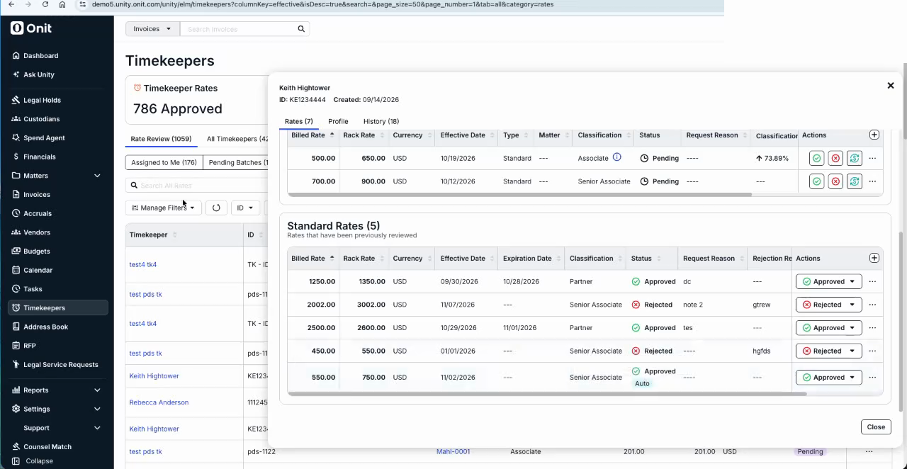
If a rate comes in too high, the rate is not rejected automatically; it goes to an Assigned to Me status with a rate card warning ("Exceeds the rate...") so exceptions can be handled.