This section includes information on Single Sign-On (SSO) and other authentication options for Unity Users.
SSO
With SSO, a user logs in to a central authentication service that verifies their access to other connected applications. This provides an enhanced experience by reducing the number of login credentials they must remember to access their everyday tools and applications.
When SSO is enabled, users typically log in to Unity (and their other applications) by navigating to a central launch page that lists all their connected applications. Using SSO increases overall security by reducing the number of entry points to tools and making it easier to update and revoke user access to one or more applications at the same time.
SSO with FusionAuth
Customers can implement SSO by connecting their enterprise identity access management (IAM) system to our platform. We leverage the third-party application FusionAuth to provide the framework for integrating with a variety of IAM systems.
Unity supports multiple authentication protocols such as SAML and OIDC and providers such as Okta, OneLogin, Ping, Microsoft Entra ID, Google Auth and Auth0, making it a great option for managing user access in your organization.
Most commonly, customers manage their own IAM systems using options such as Windows Active Directory, or they use third-party providers such as Okta, OneLogin, Ping, or Azure. Unity is listed as a preconfigured integration option for several IAM providers.
SSO & User Accounts
Customers have two options when creating user accounts in Unity.
NOTE: Both options require an admin to configure the user role.
Default
When your organization grants user account access through your enterprise IAM system, Unity automatically creates a new account for them on our platform. Then your Unity admin would update or modify the user's profile with the appropriate permissions (if applicable).
Alternative Option
Your admin can create user accounts directly in Unity and adjust their permissions before granting them access via your enterprise IAM system.
Until the admin adds a new account, the user will not be able to log into Unity until they're set up in the enterprise IAM system. This method might be useful if you want better control over permissions/access to matters for all new users added to the environment.
Authentication Requirements
When a customer sets up SSO for Unity, we require that the enterprise IAM system pass us three attributes: first_name, last_name, and email.
These attributes enable us to match the user passed in with the user established in Unity.
How to Open Unity via SSO
How users access Unity depends on your IAM system and configurations. See notes and other considerations about potential SSO user experiences:
- Some IAM systems have a tile on their SSO dashboards that links to the application.
- In cases where there is no dashboard, users can bookmark the Unity login page and automatically access it if they have already signed into their IAM system (e.g., Google).
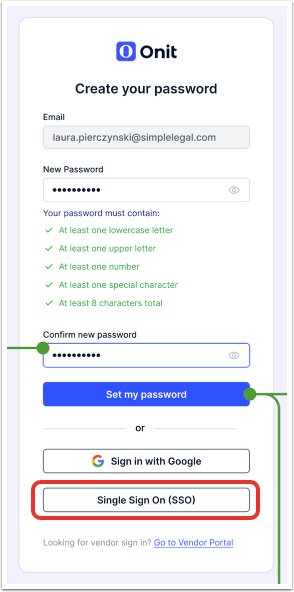
- Users can go directly to our login page and click the Single Sign On (SSO) button to complete authentication and access Unity.
Deactivating an SSO User
Users appear active in Unity even after they are disabled in your enterprise IAM system. You must directly deactivate them in Unity to ensure access is restricted. For instructions on deactivating users in Unity, click here.
Password Authentication for Users in SSO Environments
In addition to authenticating Unity users via SSO, your organization can also authenticate certain users using usernames and passwords. This method is useful for external resources or short-term staff who need temporary/limited access to your Unity environment.
For example, some legal departments hire external organizations for initial review of invoices or contract temporary resources to provide other types of support on legal matters. In this case, these types of users do not require a corporate email address or standard IT configurations.
When the above applies, providing these users with a Unity username and password is more efficient than requiring SSO access.
To enable this SSO enhancement in your environment, open a support ticket.
Once this is configured, an admin can: 1) go to a user's record and manually change the Login Preference from SSO to Password, or 2) select this option when creating a new user. This will enable the user to enter a username and password directly from the Unity login page without receiving an SSO error message.
For additional information about creating or updating users in Unity, click here.
SSO Domains Configuration
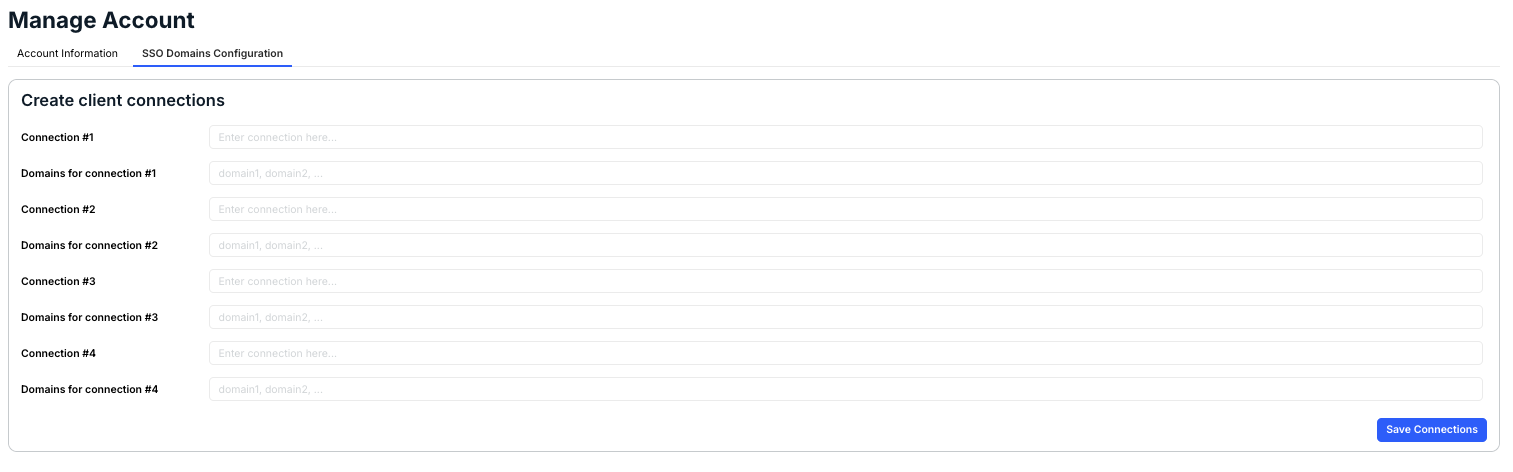
Admins can view and manage SSO domains under Settings > Manage Account > SSO Domains Configuration.