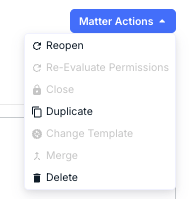
After opening up a matter, you'll see the Matter Actions button in the upper-right-hand corner of your screen. The button provides several options:
- Reopen a matter
- Re-Evaluate Permissions on a matter
- Close a matter
- Duplicate a matter
- Change the matter Template
- Merge the matter
- Delete the matter
We'll go over all these options in this section.
Reopening a Matter
The first option on the screen to Reopen a closed matter. Note that you will only see this on Closed matters.
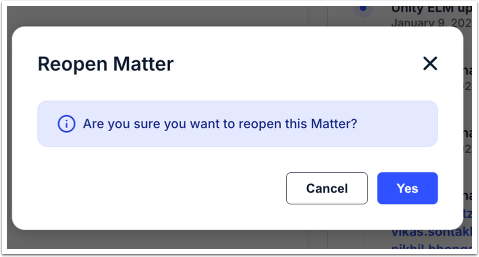
If you'd like to Reopen a matter, you'll see this screen. Click Yes to reopen the matter or Cancel to back out.
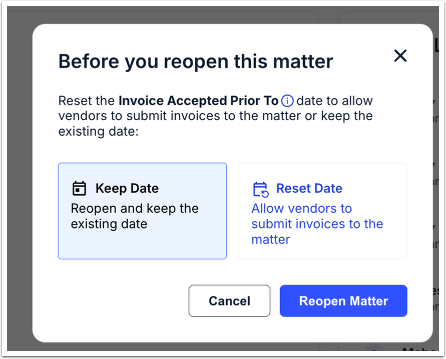
You'll also have to choose what you want to do for the Invoice Accepted Prior To option.
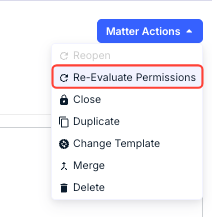
Re-Evaluating Permissions
Click Re-Evaluate Permissions to update permissions based on your matter permission rules.
Closing a Matter
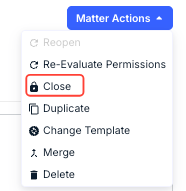
Click Close to close a matter.
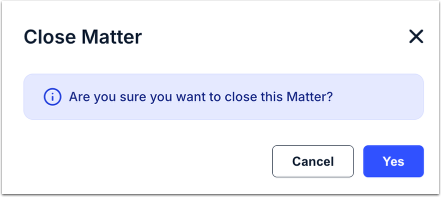
When you Close a matter, you'll get this message. Click Yes to close or Cancel to back out.
Duplicating a Matter
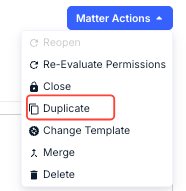
Use the Duplicate option to quickly create a copy of an existing matter.
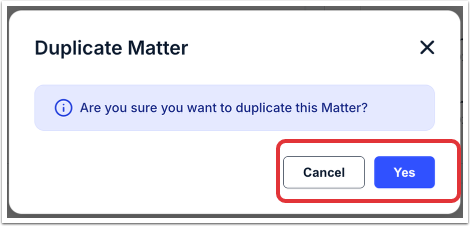
After you click on Duplicate Matter, you'll get this screen. Click Yes to duplicate or Cancel to back out.
You'll see the duplicated matter on the main Matter screen.
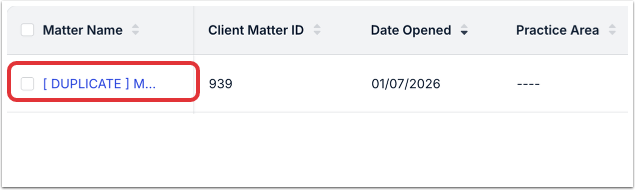
Changing a Template
Click the Change Template option to change the template for the matter.
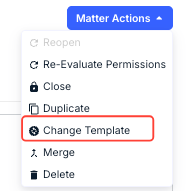
You'll get this message; click Yes to change the template or Cancel to back out.
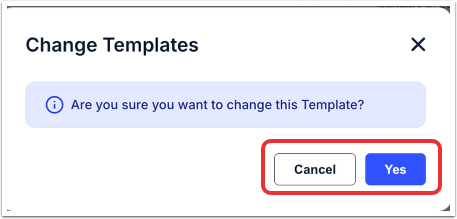
You'll go through the Create New Matter screen. Find out more on that here.
Merging a Matter
To Merge a Matter, click on the Merge option. Select the matter from the drop-down menu.
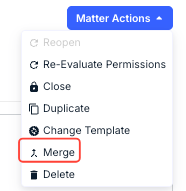
Click Submit to merge the information or Cancel to back out.
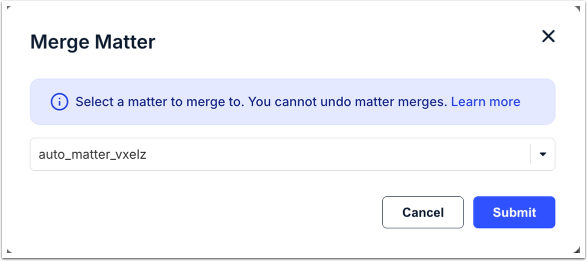
IMPORTANT: Once a matter is merged, the action cannot be undone.
If two or more matter records are created by different users for the same legal matter or otherwise overlap, you can merge the duplicates into the "original" or "destination" matter.
Merging is only recommended if invoices have already been submitted to the duplicate matter(s). If invoices have not been submitted, consider deleting the duplicate matter(s) instead. For additional help with deciding between merging and deleting matters, click here.
Before Continuing
Review the impacts and other considerations for merging matters before moving forward:
- Files uploaded to the duplicate matter will not automatically be moved to the destination matter. If files need to be retained, they will need to be uploaded to the destination matter.
- Invoices attached to the duplicate matter are moved to the destination matter but will not inherit the custom attributes from the destination matter.
- Dates worked, hours worked, and total amount of invoices from the duplicate matter will be added to the values shown in the destination matter.
- The last modified dates on the destination matter and the invoices from the duplicate matter will reflect the date of the merge action.
- Vendors from the duplicate matter will be added to the destination matter.
- The activity log in the destination matter will display the merge action.
- Once merged, the duplicate matter will no longer be searchable in Unity. Searching for it will return a "matter not found" message.
- The following applies to merging matters created from Legal Requests, if applicable:
- Two matters that were both created from Legal Requests cannot be merged.
- A matter created from a Legal Request cannot be merged into a non-Legal Request.
- A non-Legal Request can be merged into a matter created from a Legal Request.
Deleting a Matter
Use the Delete matter option to delete the matter from the Unity system.
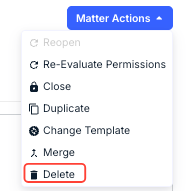
After you click on Delete, you'll get this screen. Click Yes to delete or Cancel to back out.
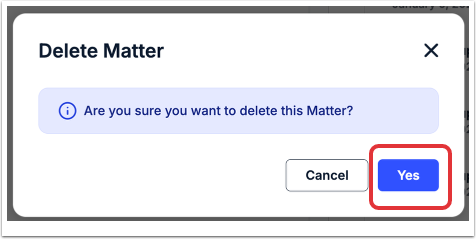
The matter will be removed from the main Matter directory.