A budget refresh prompts a vendor to submit any updates to an approved, active budget or confirm that nothing has changed. These requests help customers in multiple ways, including ensuring forecasting accuracy and effectively managing budget health.
The budget refresh requests in Unity can be triggered by an automated flow or can be sent manually by a user with relevant budget permissions. The email schedule for the automated flow is driven by the Refresh Cycle selected for a budget request (e.g., None, Annually, Biannual, etc.).
To confirm the budget type and refresh cycle, open the budget record and check under the Budget Attributes > General section.
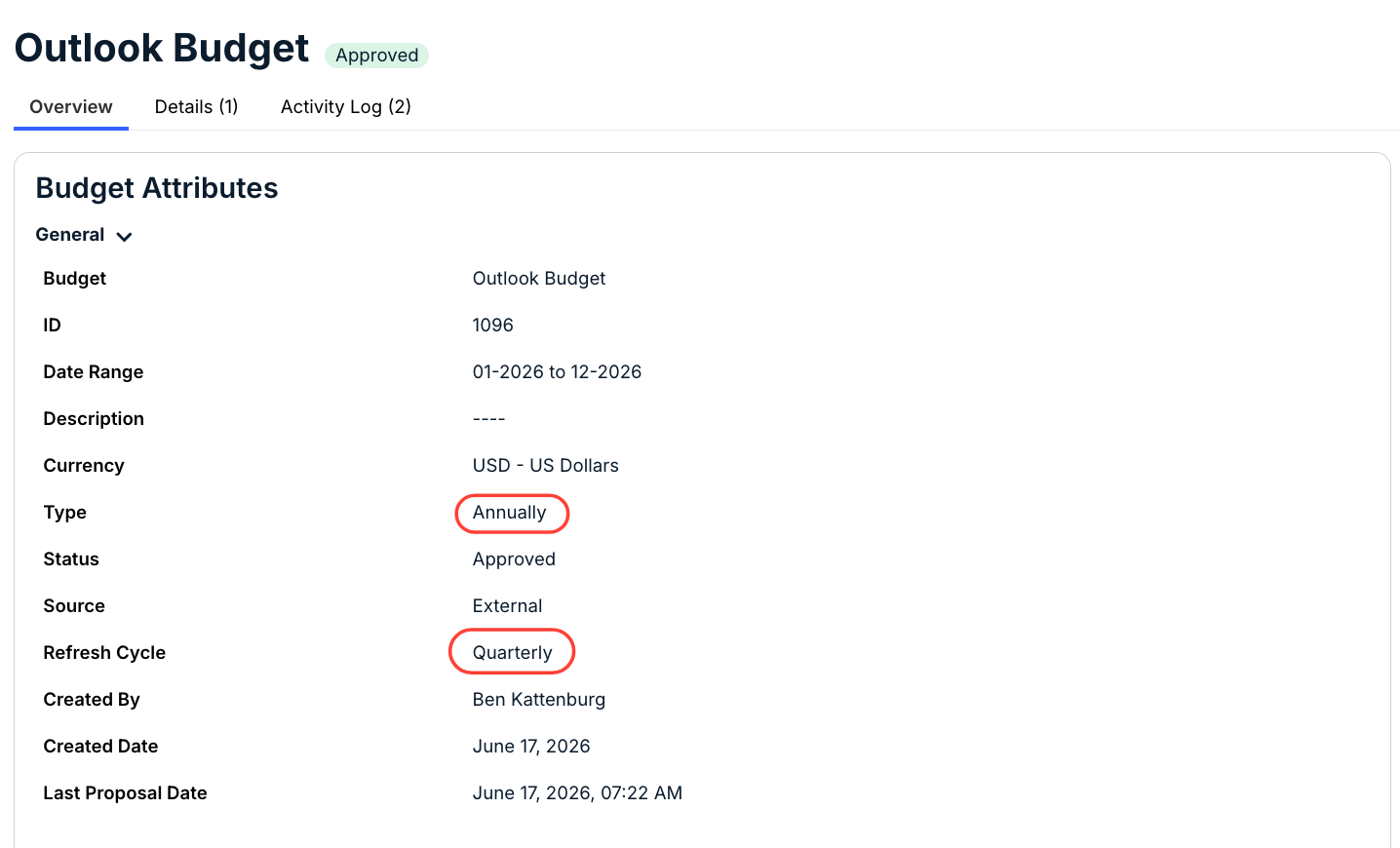
To manually send a budget refresh request:
1. Go to Budgets from the left-side navigation bar.
2. Find and open the budget record by clicking on its name under the Approved tab.
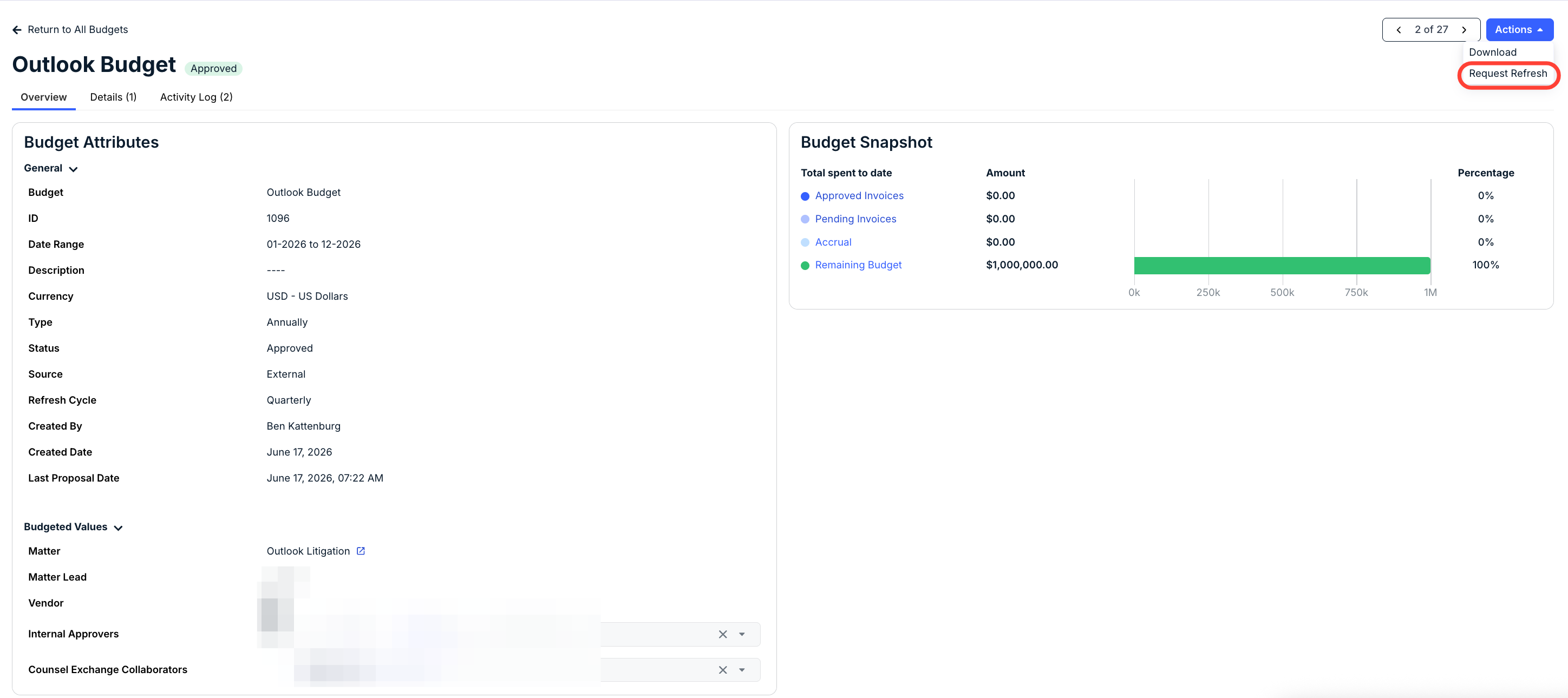
3. Click Actions in the top-right corner and select Request Refresh.
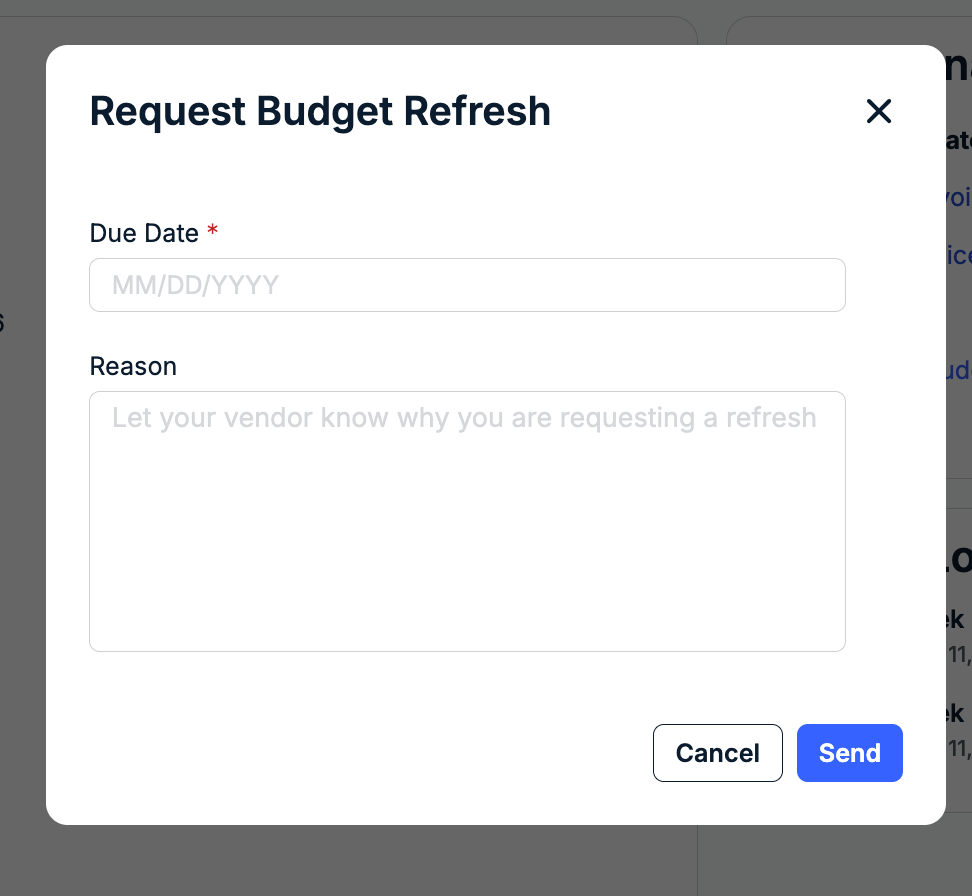
4. Select a due date, enter the reason for requesting a refresh, and click Send.
The requestor and any assigned Internal Approvers will be notified when a vendor submits a refresh proposal for review. For instructions on how to approve or reject a proposal, click here.
Notes and Considerations
Vendors must submit the budget refresh even if there are no changes or updates.
The status of the external budget is automatically changed to Expired if the vendor does not respond by the due date specified for the refresh request. Once the status is set to Expired in Unity:
- The previously approved budget will be moved back to the Draft tab.
- The designated Counsel Exchange Collaborator(s) will still be able to access the budget record in Counsel Exchange and can also submit the proposal even after the due date.
- The status of an expired budget refresh cannot be manually changed to Approved; the vendor must submit the proposal for the budget to be reviewed and approved.
Make sure to confirm the refresh schedule for the specific budget type and to inform vendors someone from their firm must respond by the due date even if no changes are required. If the vendor submits the refresh after the due date, it will appear under the Draft tab with Approval Needed displayed under the Detailed Status column. The assigned Internal Approvers will also receive an email notification.
Admins can view and manage the automated refresh notification and the cadence of the refresh cycles from the Settings menu in Unity. Click here for more information.