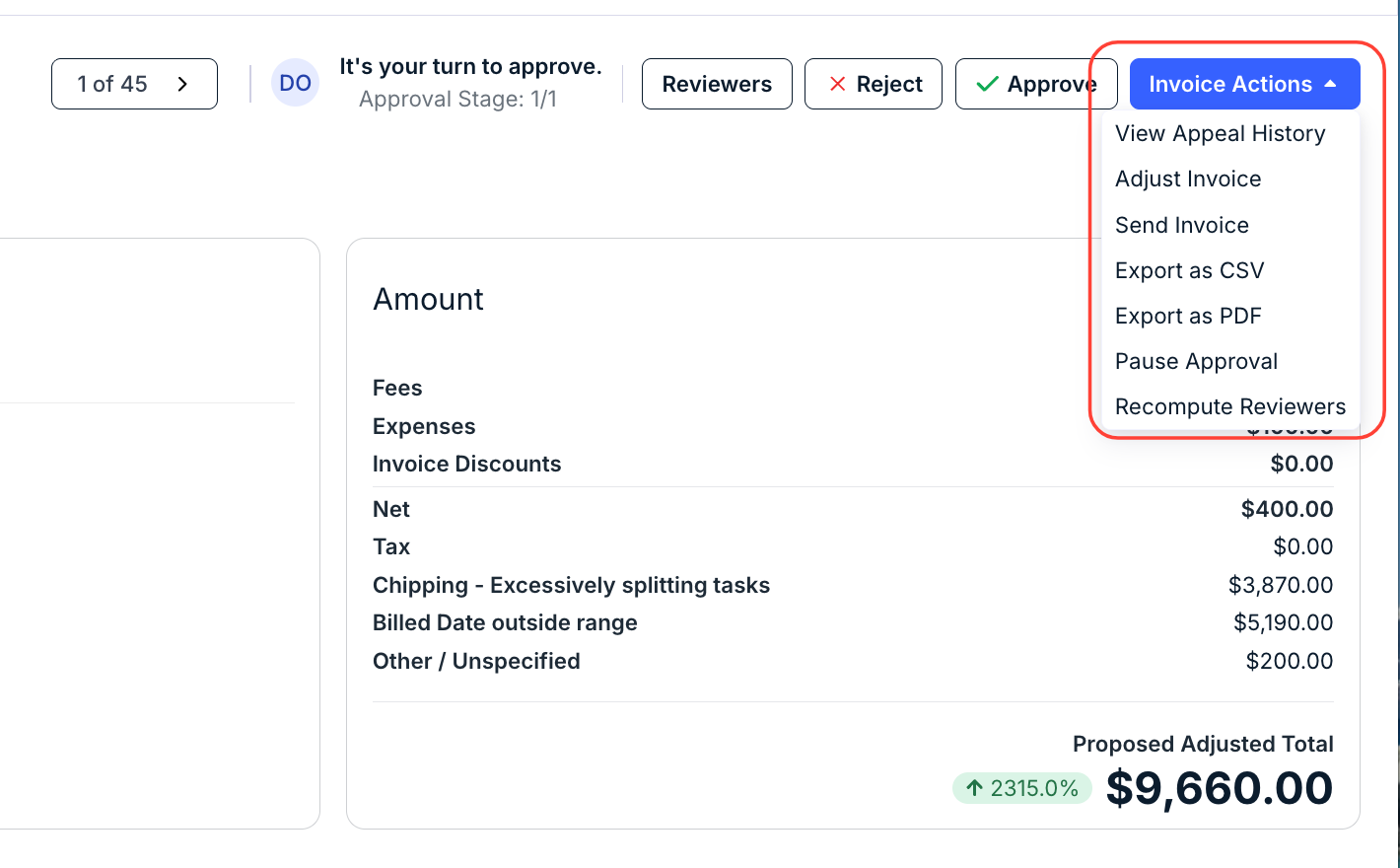
Use the Invoice Actions button in the top-right corner of an invoice's details page to apply the options described below. The options available depend on your role, the invoice's status, and whether certain features and/or settings are enabled.

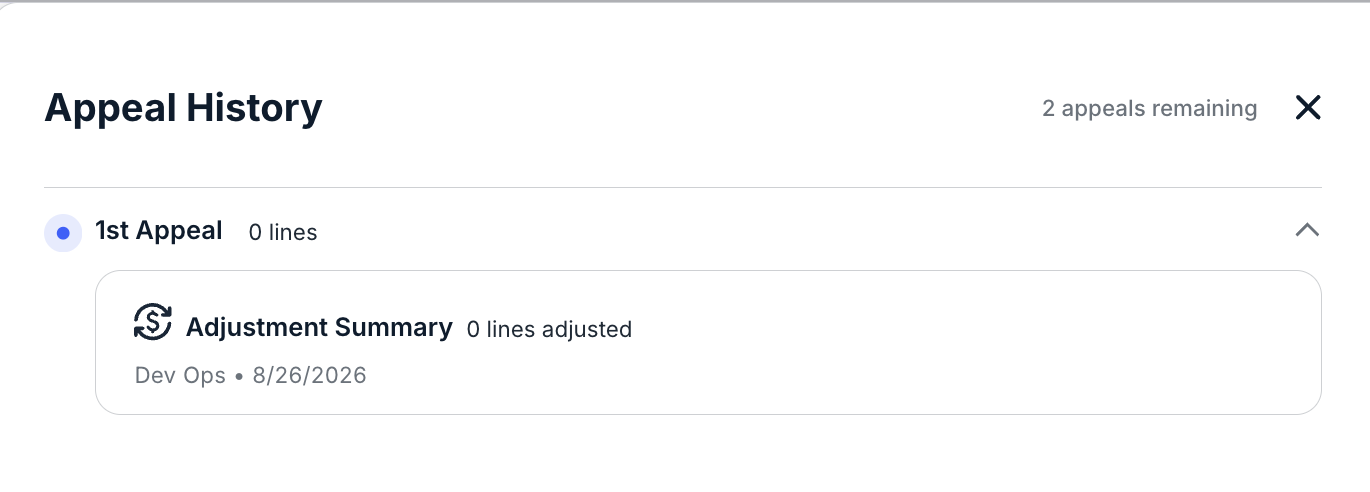
- View Appeal History: View the appeal history, if applicable. The following screen appears:
- Adjust Invoice: Adjust the total or line items of an invoice. See Adjusting Invoice Total or Line Items for instructions.
- Send Invoice: Email the invoice details to internal users or vendor contacts. From the email modal, you can modify the subject line, add more details or comments in the body of the email, and choose to attach a PDF copy and/or any associated attachments.
- Export as CSV: Download an invoice in any status as a CSV file.
- Export as PDF: Download an invoice in any status as a PDF file.
- Pause Payment: Temporarily hold payment on the invoice. Appears only on invoices that are Approved but not yet Paid .
- Pause Approval: Change the status from Received to On Hold if further investigation or research is required.
- Resume Approval: Change the status from On Hold to Received.
- Revert to Received: Move an invoice back to Received. Appears only for invoices in the following statuses: Approved, Sent to AP, or Paid.
- Revert to Approved: Move an invoice back to Approved. Appears only after the invoice has been Paid.
- Mark Sent to AP / Mark Paid: Manually change the status from Approved to either Sent to AP or Paid.
- Resend to AP: Send the invoice back to Accounts Payable. Appears only for invoices in Approved, Paid, or Sent to AP status, and only administrators can select it.
- Undo Autorejection: Move an invoice from Rejected to Received if it was automatically rejected due to billing guidelines.
- Recompute Reviewers: Recalculate the invoice's assigned reviewers based on the current Invoice Review Rules. Only applies if those rules are active and have recently been updated.
- Re-evaluate: Only applies if your organization is using Onit's Spend Agent for AI-driven validation and flagging. This option prompts Spend Agent to rerun the validation check on the invoice (e.g., if billing guidelines have changed or other updates have been made).