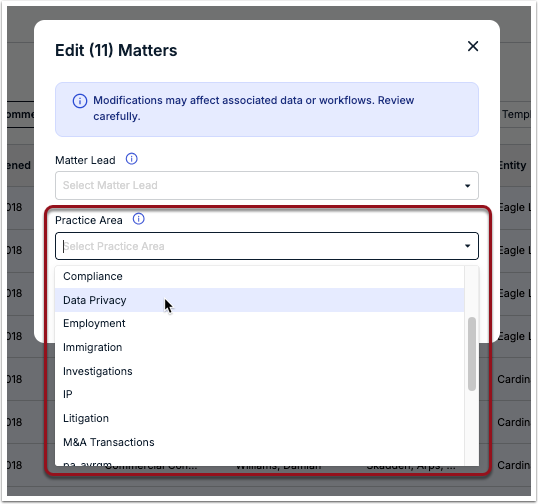
Practice Areas are used to categorize matters by type or area of focus for better searching, filtering, and reporting. For example, adding an "Employment" Practice Area can be used to categorize all matters related to employment law and similar areas. Practice Areas can be associated with various records, including invoices, matters, and vendors.
NOTE: Practice Area is the default label used in Unity, but it may appear as Matter Group, Practice Group, Area of Law, or a similar term depending on custom label settings in your environment.
This article covers the following:
- Adding Practice Areas
- Managing Practice Area Details
- Assigning Reviewers & Subscribers
- Bulk Actions for Practice Areas
- About Deleting Practice Areas
Go to Settings > Practice Areas to view, manage, or add Practice Areas.
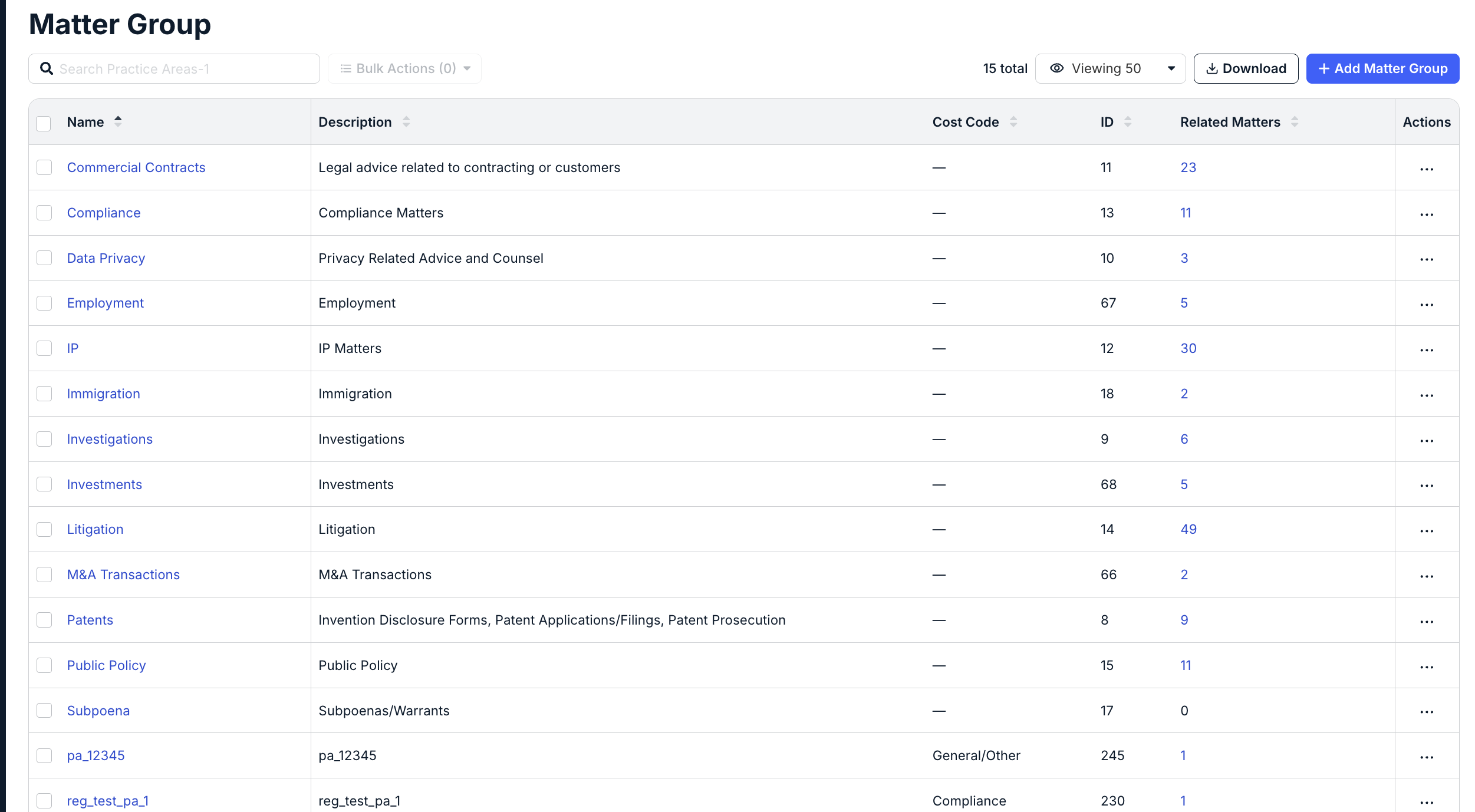
The following columns of information are listed for each Practice Area:
- Name: Click on the hyperlinked name to view additional details about the Practice Area.
- Description: Additional context or notes, if provided.
- Cost Code: Cost Code associated with the Matter Group, if applicable.
- ID: System-generated ID assigned when the Matter Group was created.
- Related Matters: Number of matters associated with the Matter Group.
- Actions: Click on the ... (more) option to edit specific fields (e.g., description) or delete the Matter Group.
Adding a Practice Area
1. Click + Add Practice Area in the top-right corner.

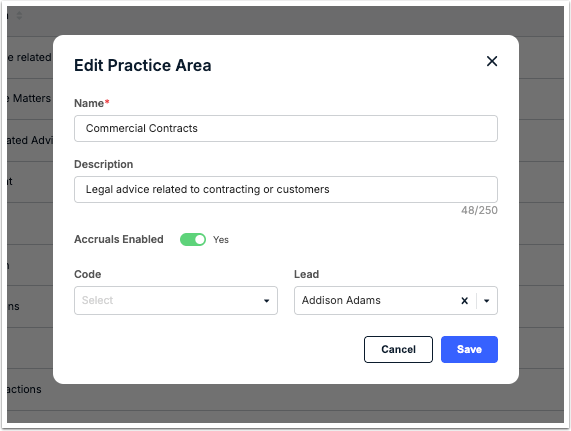
2. Fill in the requested information and click Save (see the table below for more information on required/optional fields). To fill in or update other details later (e.g., description, cost code, etc.), skip below.
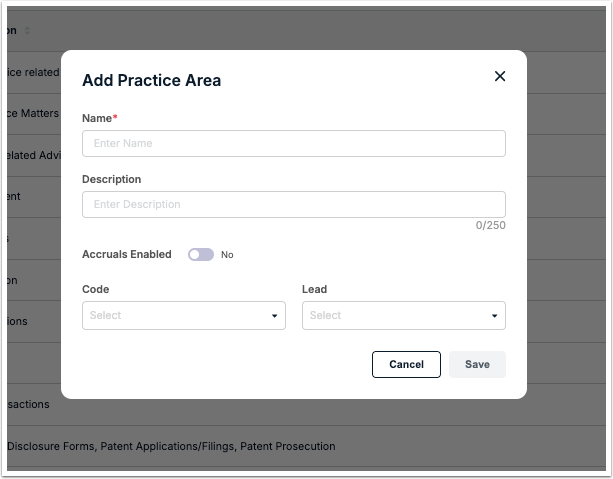
| Name (required) | Name as it will appear in the list of values shown to users in records across Unity, such as matters, vendors, and invoices. |
| Description (optional) | Brief description up to 250 characters to provide context or additional information to other users. |
| Accruals Enabled (optional) | Accruals are turned off by default. Click the toggle once if accruals should be turned on for matters associated with the Practice Area. |
| Code (optional) | Assign an existing Cost Code to the Practice Area, if applicable. |
| Lead (optional) | Select an internal user to assign as a lead for informational purposes only. |
Editing Practice Area Details
1. Click on the ... (more) option under the Actions column from the Practice Areas list and select Edit.
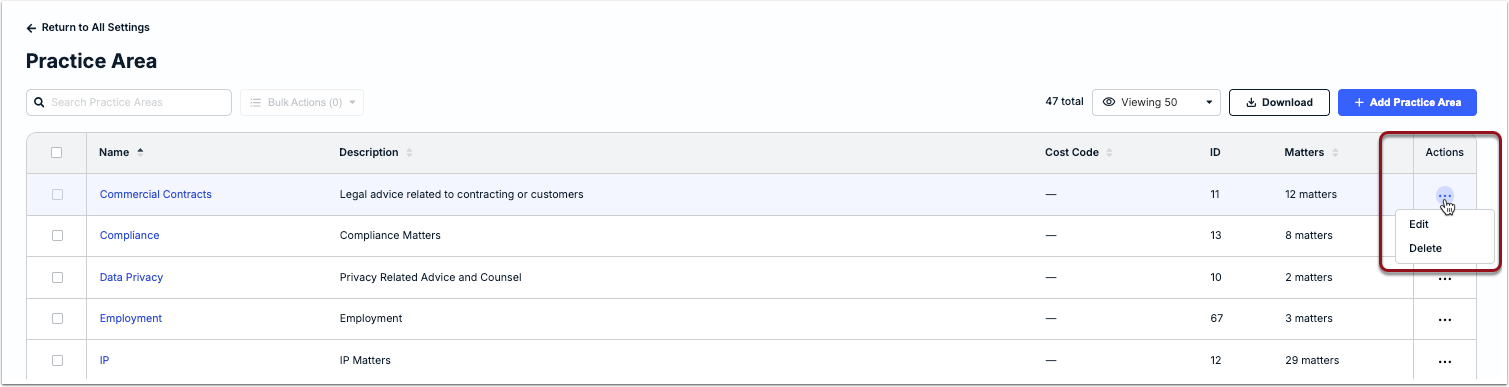
2. Update values for fields in the edit window (e.g., Name, Code, Description, etc.) and click Save.
Assigning Reviewers & Followers
Users and/or User Teams can be assigned as reviewers to a Practice Area so that they are automatically assigned as reviewers on associated matters and/or invoices. This applies if your organization is using Onit's built-in Invoice Review Rules and/or Matter Review Rules for automated assignment.
In addition to reviewers, admins can also assign internal users as followers if they need to remain informed of billing activity associated with the Practice Area but do not need to review or approve the invoices.
To assign reviewers and/or followers, switch to the Reviewers & Followers tab from the Practice Area details page:
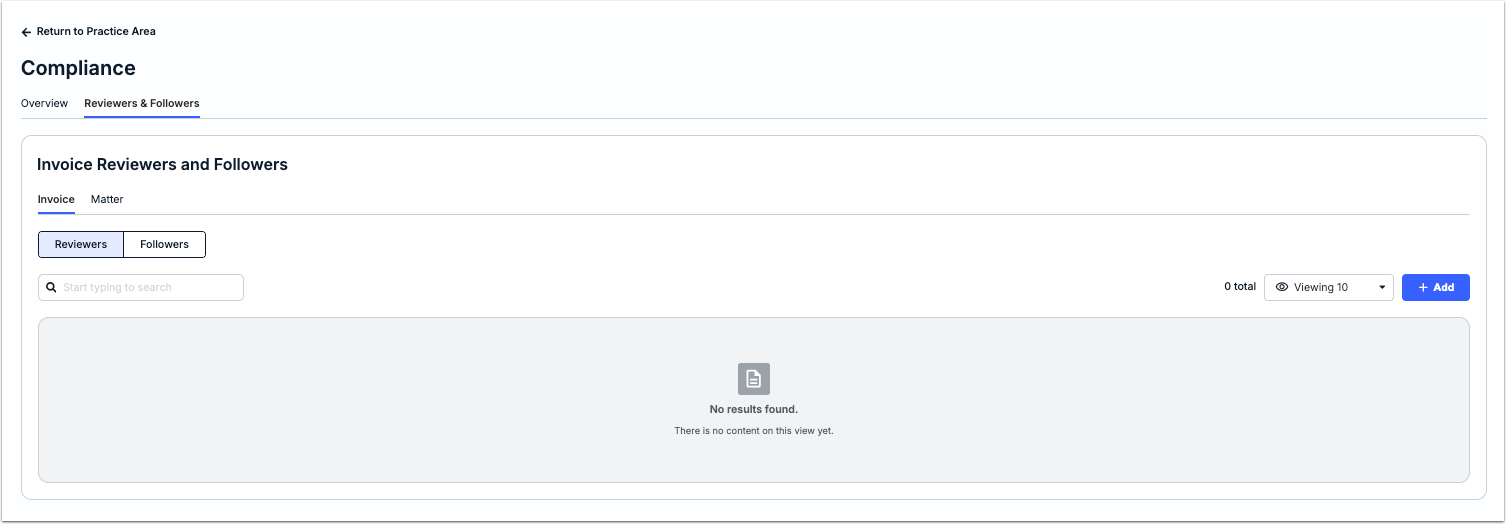
The Reviewers and Followers sub-tabs are separated into two sections: Invoice and Matter. This means you can assign reviewers and followers so that they are linked to all invoices submitted directly against the Practice Area or to invoices submitted only against matters associated with the Practice Area. For additional information about reviewers and followers in Unity, click here.
Bulk Actions for Practice Areas
Select boxes for Practice Areas on the left side of the table and then click Bulk Actions. You can apply the following bulk actions: Edit or Delete.
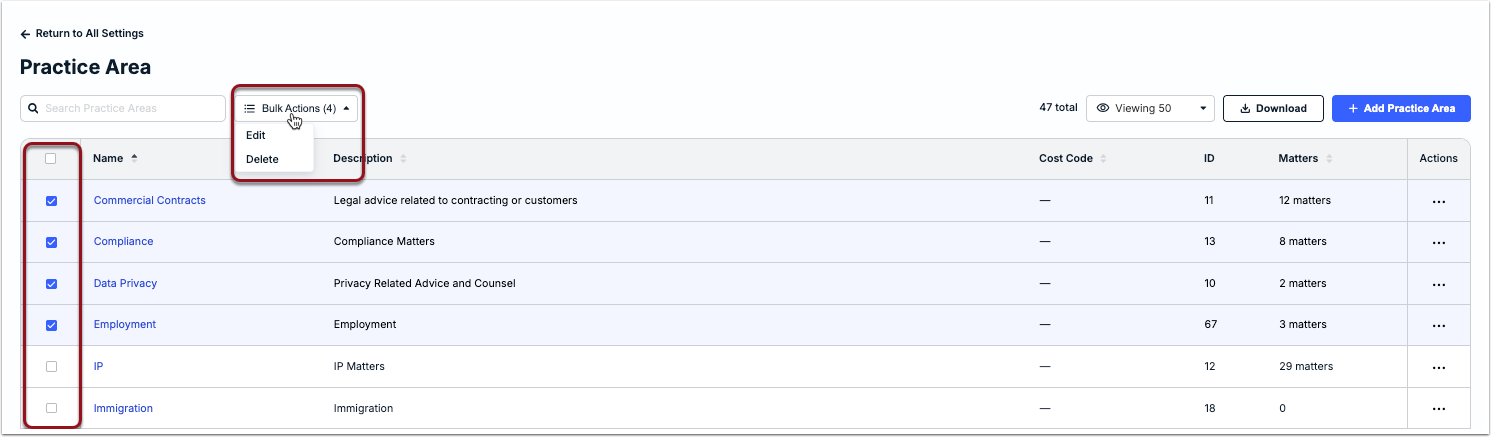
Choosing Edit will allow you to modify values for the following fields across the selected Practice Areas: Description, Accruals Enabled, Code, and Lead. The same changes will be applied to all selected Practice Areas and may impact review workflows. Make sure you are only selecting and editing the intended Practice Areas before moving forward.
About Deleting Practice Areas
Before deleting a Practice Area, you must update the Practice Area for associated matters and/or matter templates. You can delete a Practice Area by clicking ... (more) under the Actions column and selecting Delete.
Finding & Reassigning Impacted Matters
1. Go to Matters from the left-side navigation bar and filter the list by the relevant Practice Area(s).
2. Select boxes for the impacted matters on the left and then click Bulk Actions > Edit.
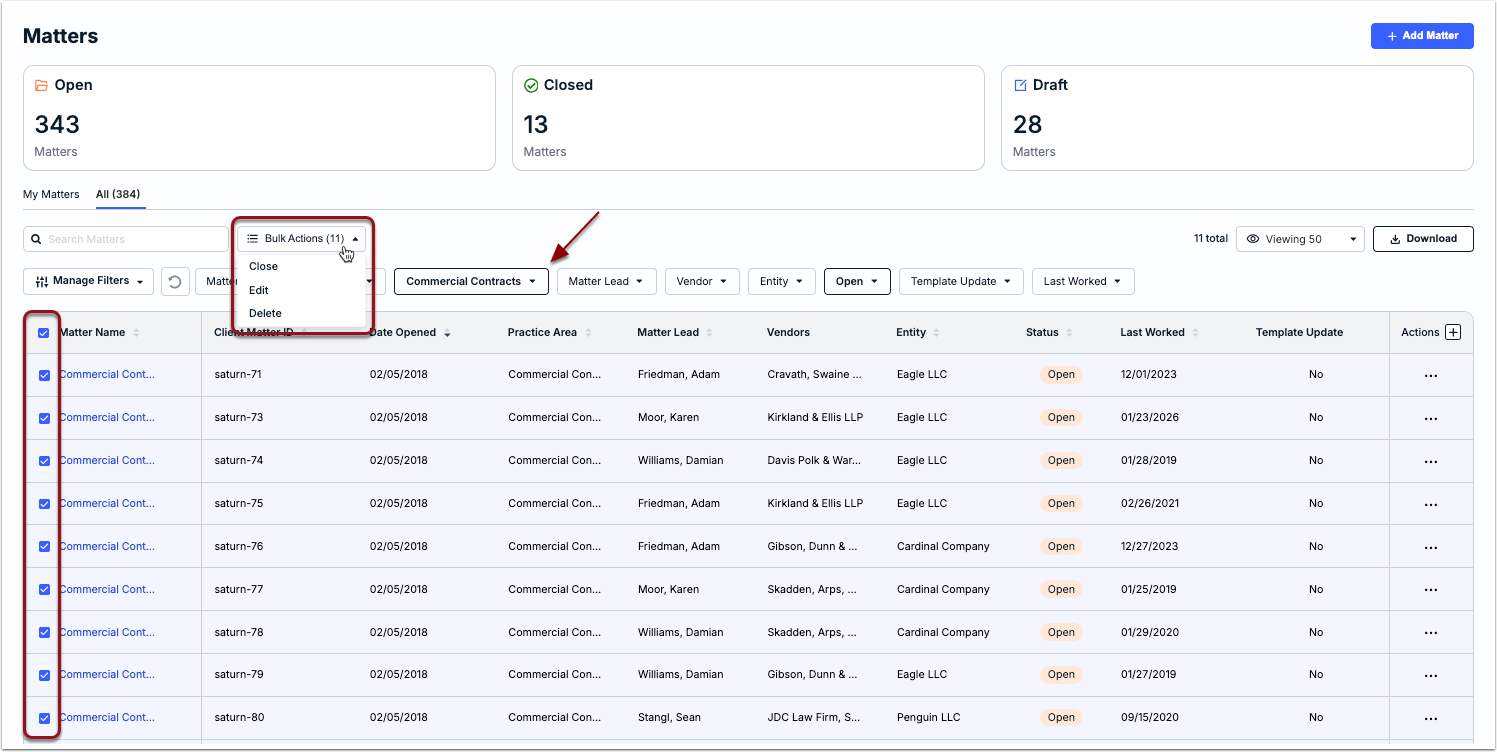
3. Select the replacement Practice Area and click Save.