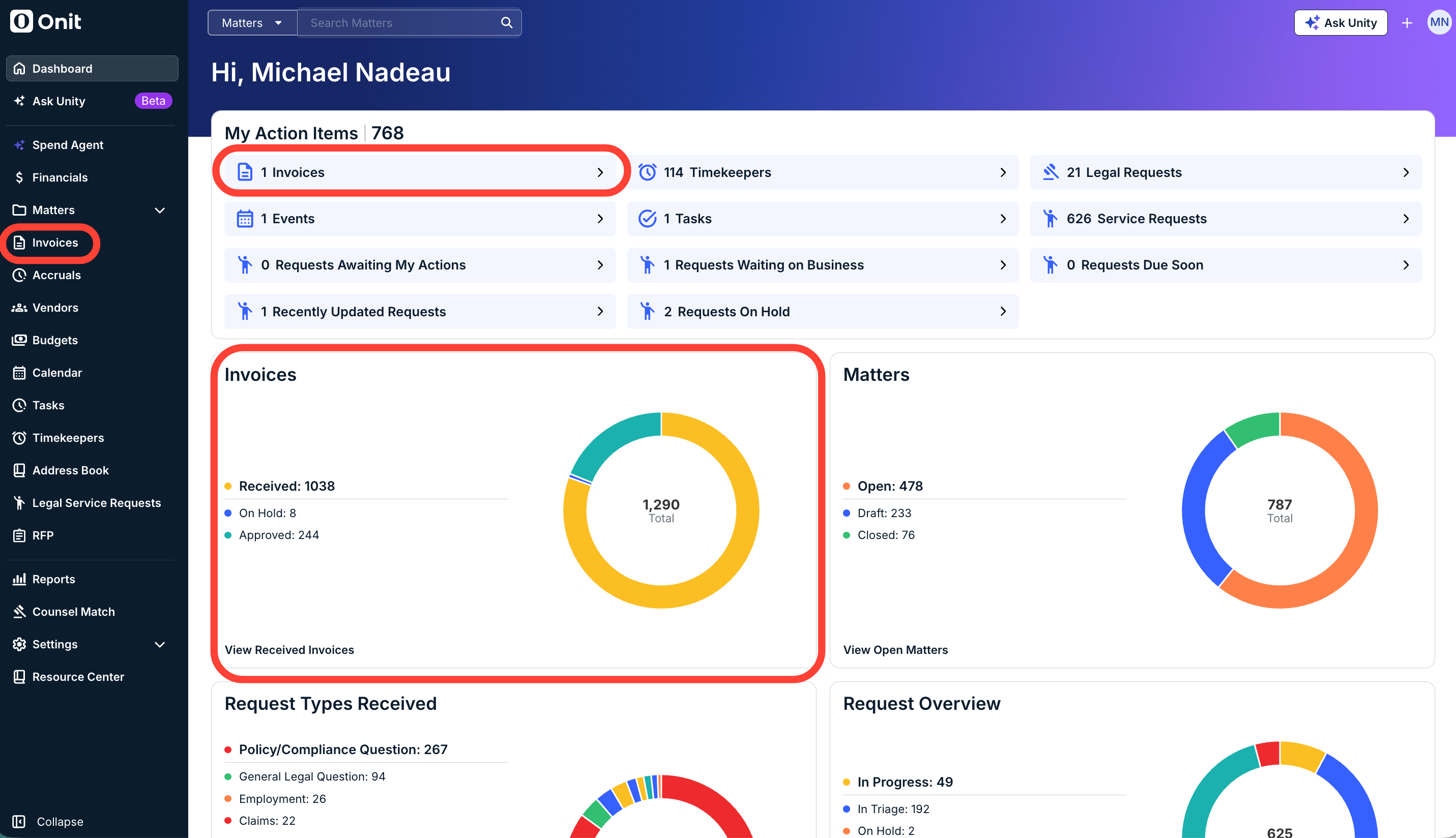
The Invoices page in Unity is where reviewers and admins can access submitted invoices that require review, approval, or other action. This includes invoices submitted via Counsel Exchange by vendors, as well as those submitted manually by other internal users on vendors' behalf.
There are three quick ways to access invoices:
- Go to Invoices from the left-side navigation bar to see the invoices list
- Click Invoices from the My Items section of your dashboard to open the list of invoices currently pending your review
- Click View Received Invoices from the metrics tile to see invoices currently pending review from any reviewer.
From the Invoices list, you can navigate the status tabs (e.g., Received, On Hold, Under Appeal, Pro Forma, etc.), apply filters to narrow the list, search for invoices, or click an invoice number to view its details page. See the table below for more information on how to view and navigate the invoice list page.
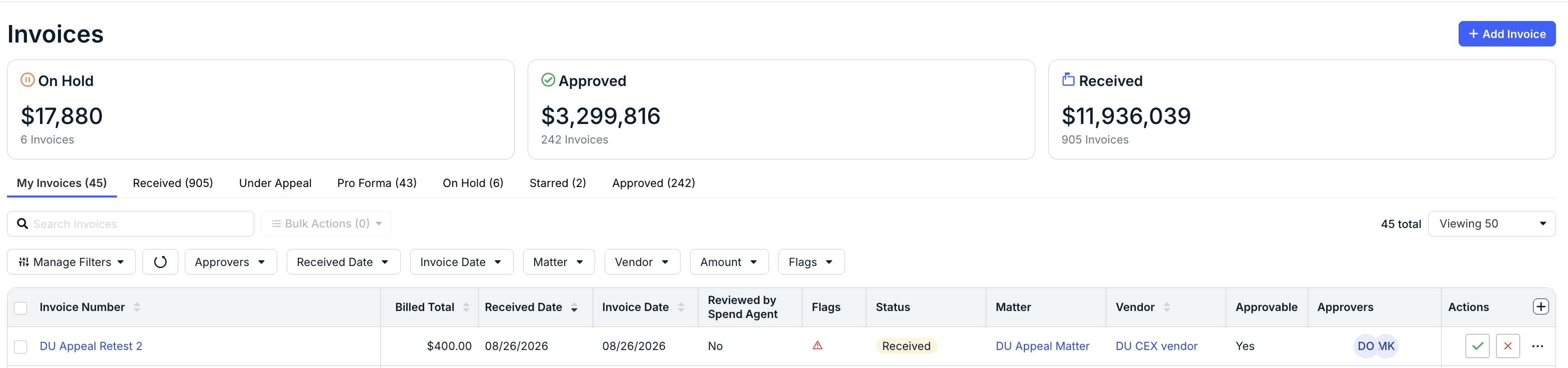
| 1 | The top row lists the number of invoices by status (e.g., Received, On Hold, and Approved). These numbers are for informational purposes only. 
|
| 2 | The tabs group invoices based on pending review (i.e., My Invoices) and by status. If you got to the invoices list by clicking Invoices from the left-side navigation bar, you will see the My Invoices tab only if you have any invoices pending review. 
|
| 3 | Use the search field above the table to find or narrow invoices by matter name, invoice number, or vendor name. The list filters as you type.  |
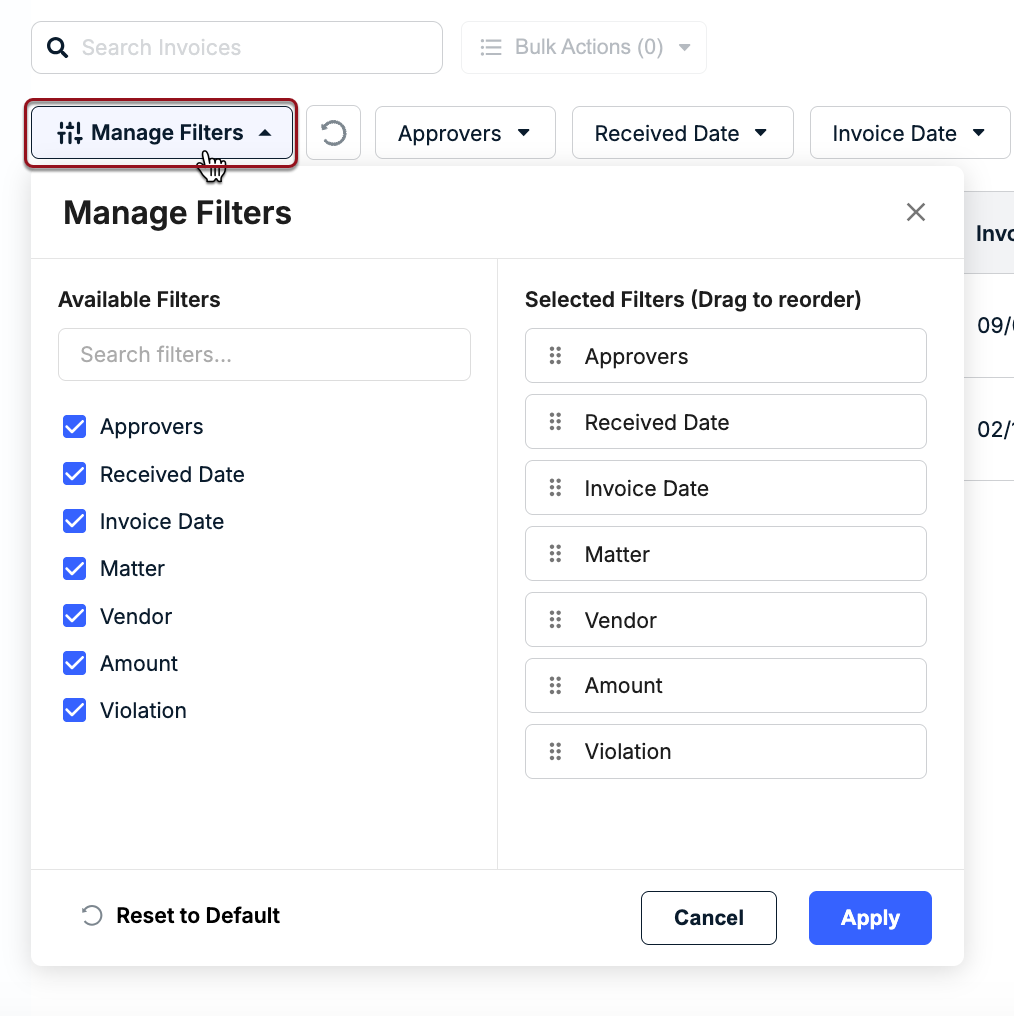
| 4 | Click Manage Filters to hide filters or change the default order of the filters. Click Apply to save your changes.  |
| 5 | The filter options can be used to narrow the list by various criteria, such as Received Date or Billing End Date. Applied filters carry over from tab to tab; click Reset to revert to the default list.  |
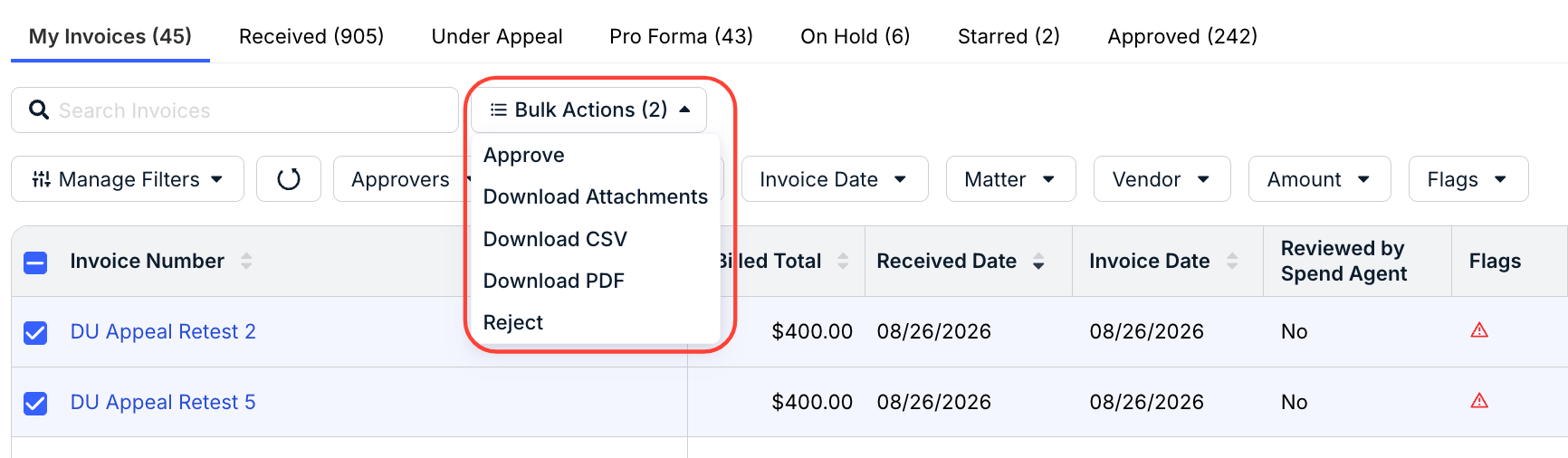
| 6 | To apply bulk actions to invoices, select boxes on the left side of the table and then click on the Bulk Actions menu to select one of the following options: Approve, Reject, Mark Paid, Download Attachments, Download CSV, or Download PDF. Which options are displayed depends on your role, invoice access permissions, and the invoice status. 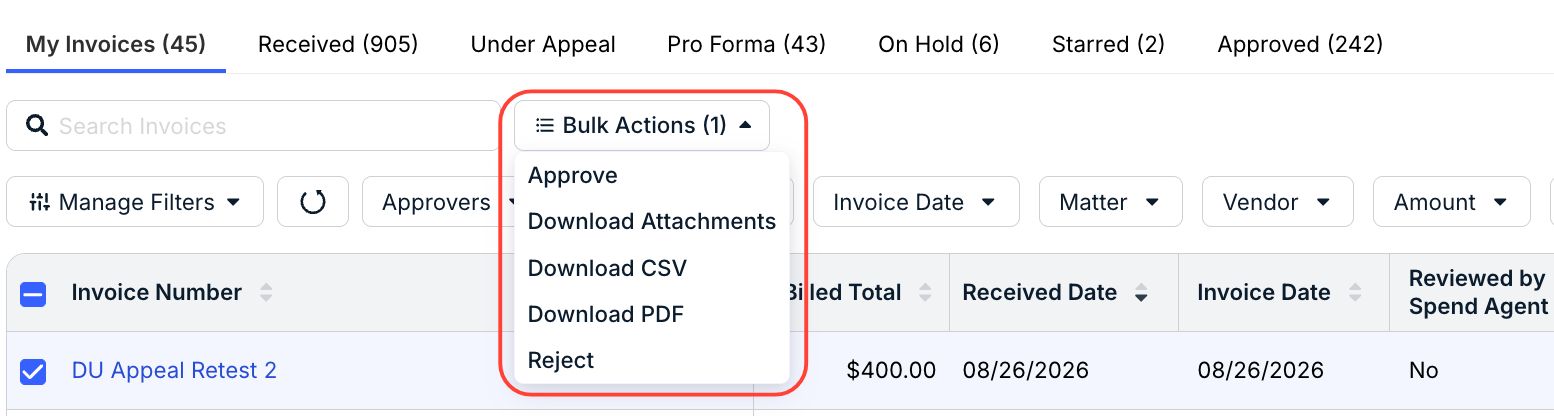 |
| 7 | Click an invoice number in the table to view its details page and take other actions, such as making adjustments, placing the invoice on hold, or approving or rejecting it. Which actions you can take depend on your role. For example, you can only approve/reject invoices if you are listed as a reviewer and it is your turn to review. 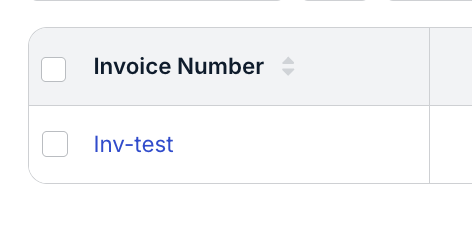 |
| 8 | Click … (more) under the Actions column to select an action (e.g., Export CSV, Download PDF, or Resend Approval Emails). If you are assigned as a reviewer and it is your turn in the cycle, you can also approve (checkmark) or reject (x icon) an invoice from here if it has already been reviewed. 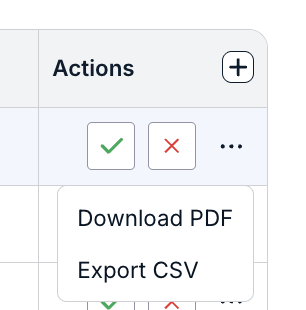
|
| 11 | Click +Add Invoice in the top-right corner to manually enter invoice information (e.g., invoice number, description, and dates) if the vendor cannot upload it in Counsel Exchange.  Alternatively, you can click the quick-add menu (+) in the top navigation bar and select New Invoice. For instructions on manually adding an invoice, click here. 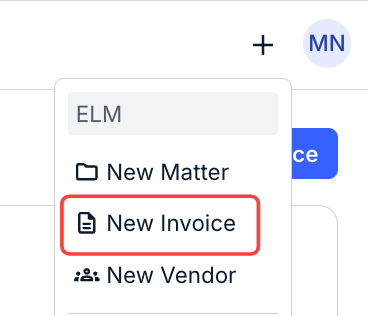 |
| 12 | The Spend Agent tab will show you the Reviewed by Spend Agent detail and any Flags marked by Spend Agent. Hover over the Spend Agent flags to get more detail. 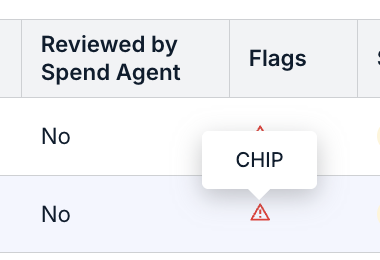 |
Status Tabs
This page is separated into several tabs:
- My Invoices (default view): Invoices that are pending your review or approval because it is your turn in the review cycle. This tab is blank if there are currently no invoices requiring your attention.
- Received: Invoices that are in "open" status. This tab may display additional invoices you are not assigned to review depending on your role/permissions (e.g., admins) and matter-level access.
- Under Appeal: Invoices that are under appeal.
- Pro Forma: All pro forma invoices. Pro Forma invoicing gives vendors a straightforward way to add tax considerations and calculations to their invoices before submission, allowing you to make any necessary adjustments and edits and track those during the submission process before finalization.
- On Hold: Invoices that have been placed on hold by reviewers or admins (i.e., Pause Approval). This means the invoices require additional review or investigation prior to approval, adjustment, or rejection.
- Approved: Invoices that have been approved for payment. Which invoices are displayed under this tab depend on your user role and matter-level access.
Default Columns
The default information shown for the invoice list under each tab is summarized below.
- Invoice Number: Unique number given to the invoice for identification purposes. Click the hyperlink to view the invoice details.
- Billed Total: The invoice's billed amount submitted by the vendor for review/approval, including fees, expenses, and any deductions.
- Received Date: Date the invoice was received/submitted in Unity.
- Invoice Date: Date the invoice was created in Counsel Exchange or Unity.
- Reviewed by Spend Agent: Shows if the invoice has been reviewed by Spend Agent (Yes/No)
- Flags: Details issues flagged by Spend Agent. Hover over the icon to get more details.
- Violation: Shows a warning icon to indicate the invoice has a billing violation that requires further review or adjustment. This is blank if the invoice has no billing violations.
- Status: Whether an invoice is in Received, On Hold, Rejected, Approved, Sent to AP, or Paid status. This applies only when you are viewing the Received, On Hold, or Approved tabs on the list page.
- Matter: Name of the matter against which the invoice was submitted. Click on the hyperlinked name to open the matter record.
- Vendor: Name of the vendor that submitted the invoice. Click on the hyperlinked name to open the vendor record.
- Approvable: Displays Yes if the invoice meets all customer requirements and can go through the review cycle, or No if minimum requirements are not met.
- Approvers: Initials of assigned reviewers whose turn it is to take action on an invoice. This only lists initials of the reviewers from the current level/cycle (not all assigned reviewers).
- Actions: Click the ... (more) option to select an action (e.g., Download PDF or Export CSV). If you are viewing the My Invoices tab, you also have the option to approve (checkmark) or reject ('x' icon) invoices from this column.
Customizing, Sorting, and Filtering the Invoices List
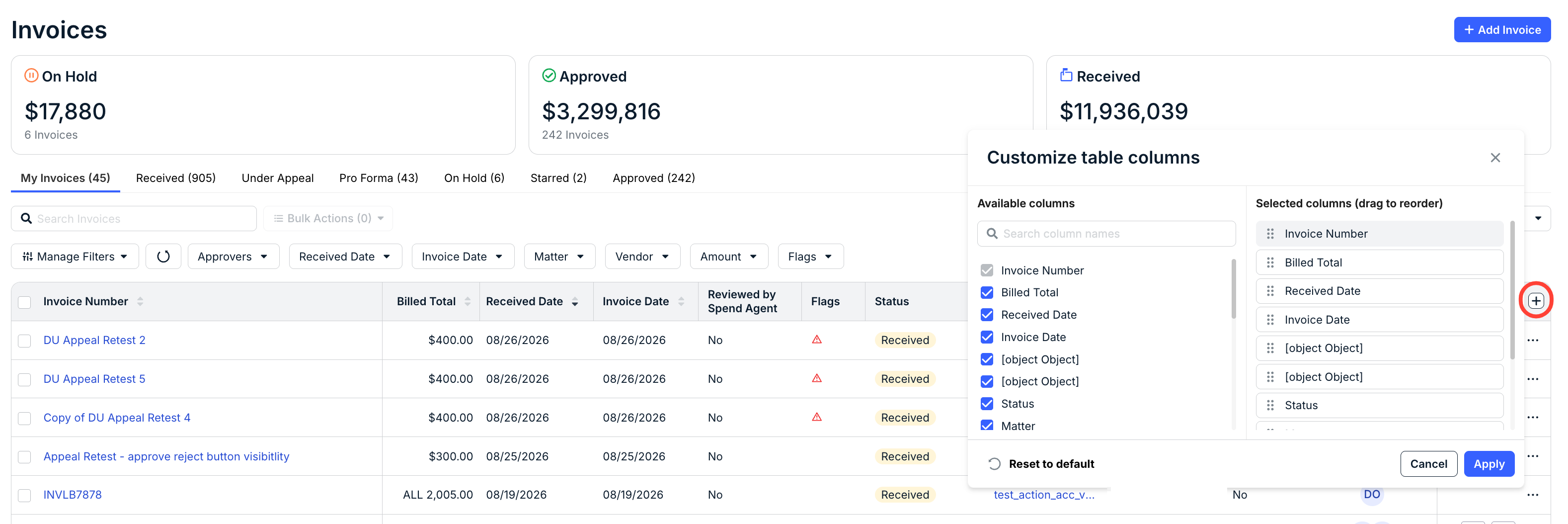
You can re-sort the list in ascending or descending order by clicking on a column name. By default, the list is sorted by Invoice Number in descending order. You can further narrow or customize this view by using the filters above the table (e.g., Vendor, Matter, etc.) and/or using the + (Add Columns) option at the far right to hide/add columns (left side) and change the order of the columns (right side). Click Apply to save your changes.
Click on Manage Filters above the list to hide any default filters (left side) or change the order of the filters (right side), and then click Apply.
Applying Bulk Actions to Invoices
You can apply the same changes across invoices, such as approving multiple invoices at once if they have already been reviewed or downloading them in bulk. Select boxes for one or more invoices and click Bulk Actions above the list. Which options are available depend on the tab and statuses. For example, you can only approve/reject invoices in bulk if you are a reviewer and it is your turn in the cycle.