Adding a Matter
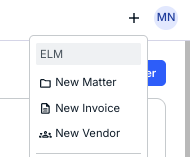
There are two ways to add a new matter to the system. The first is to go through the Quick Add (plus sign) menu on the top of the screen and click on New Matter.
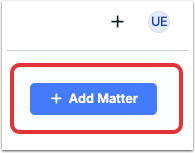
The other option is to click on the Add Matter button on the Matters page.
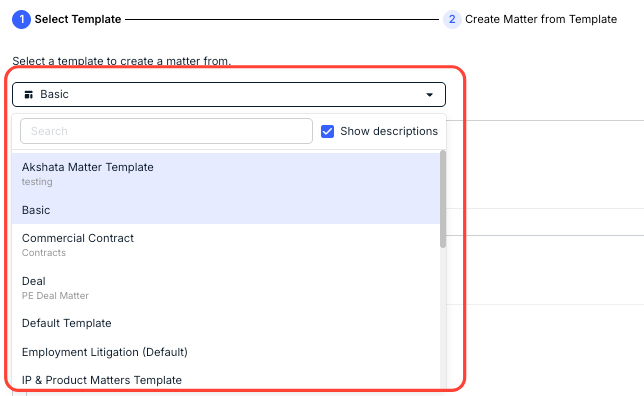
From either option, the Add to Matters screen will appear. Select the Matters Template from the drop-down menu. You can click on the Show Descriptions box to display a description of the template. You can also use the Search bar to search for a specific template.
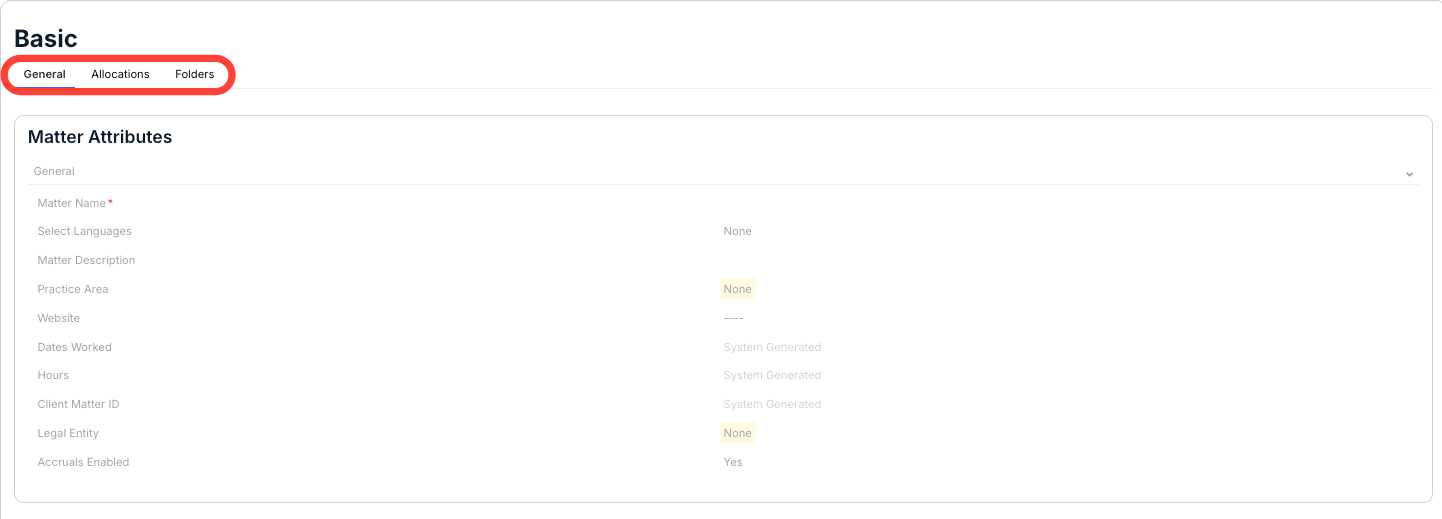
The main Create New Matter template screen will show General, Allocations, and Folders information within separate tabs.
Click Next to move on to the next step, the Create Matter from Template screen.
Fill out the fields as necessary (they will vary depending on the template).
Note that this is where you'll enter the Approvers and Reviewers, as well as the Matter Lead.
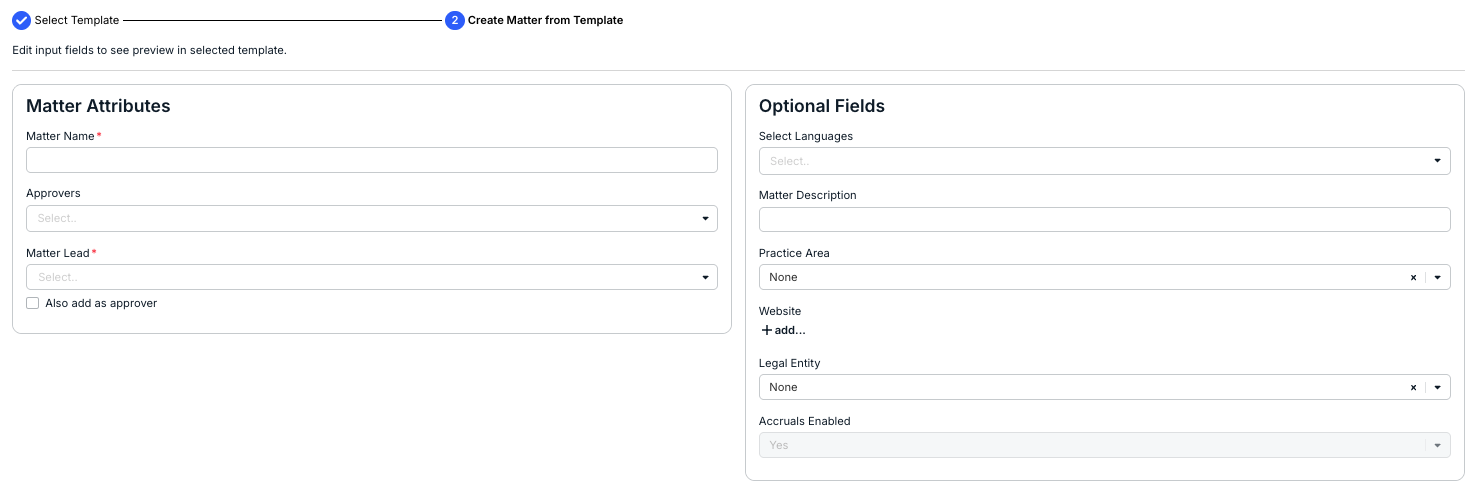
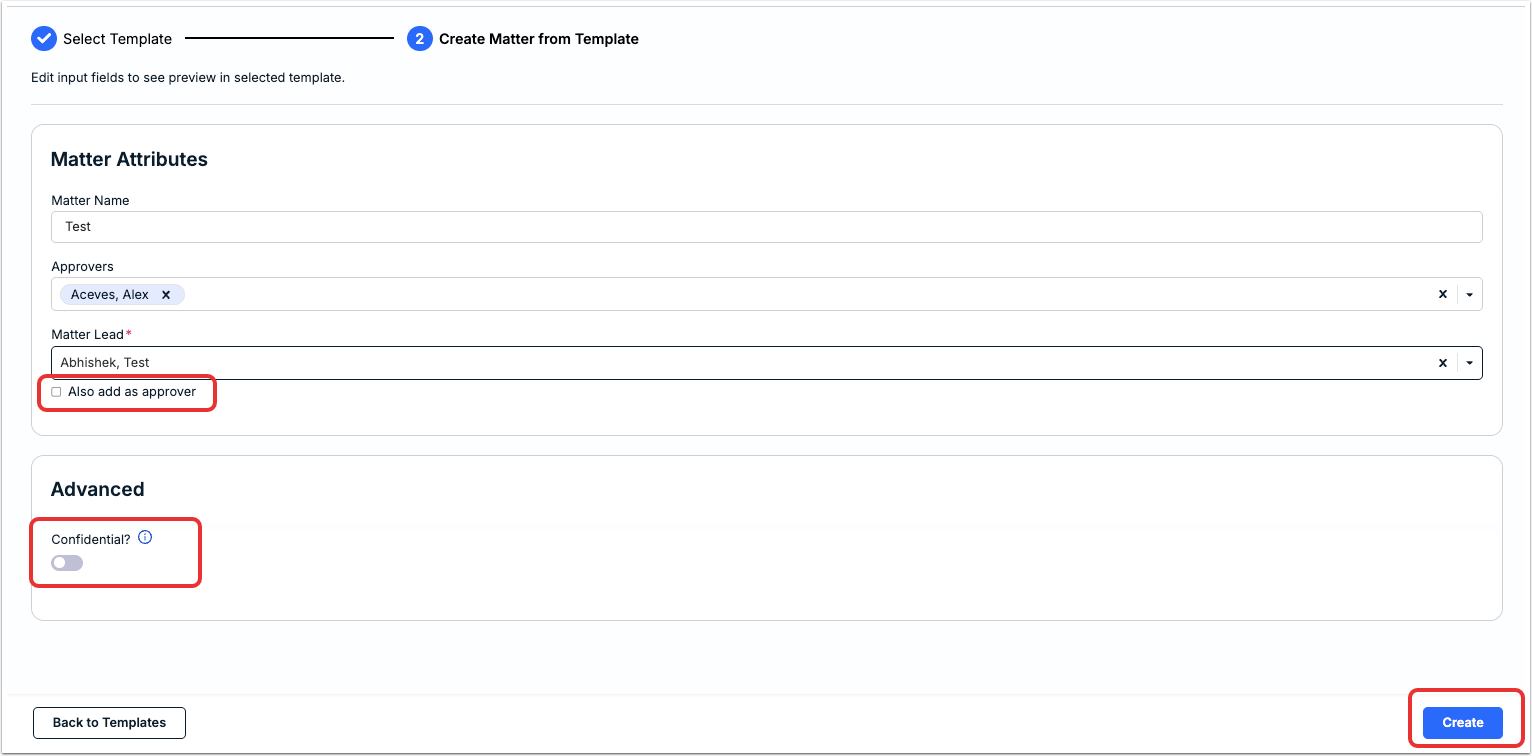
Under the Advanced screen, you can mark the matter as Confidential. Confidential is defined as matters only visible to you and others explicitly added. For more information, go to the Creating a Confidential Matter section.
Click Create to create the matter. You'll see the matter appear on the main matter page.
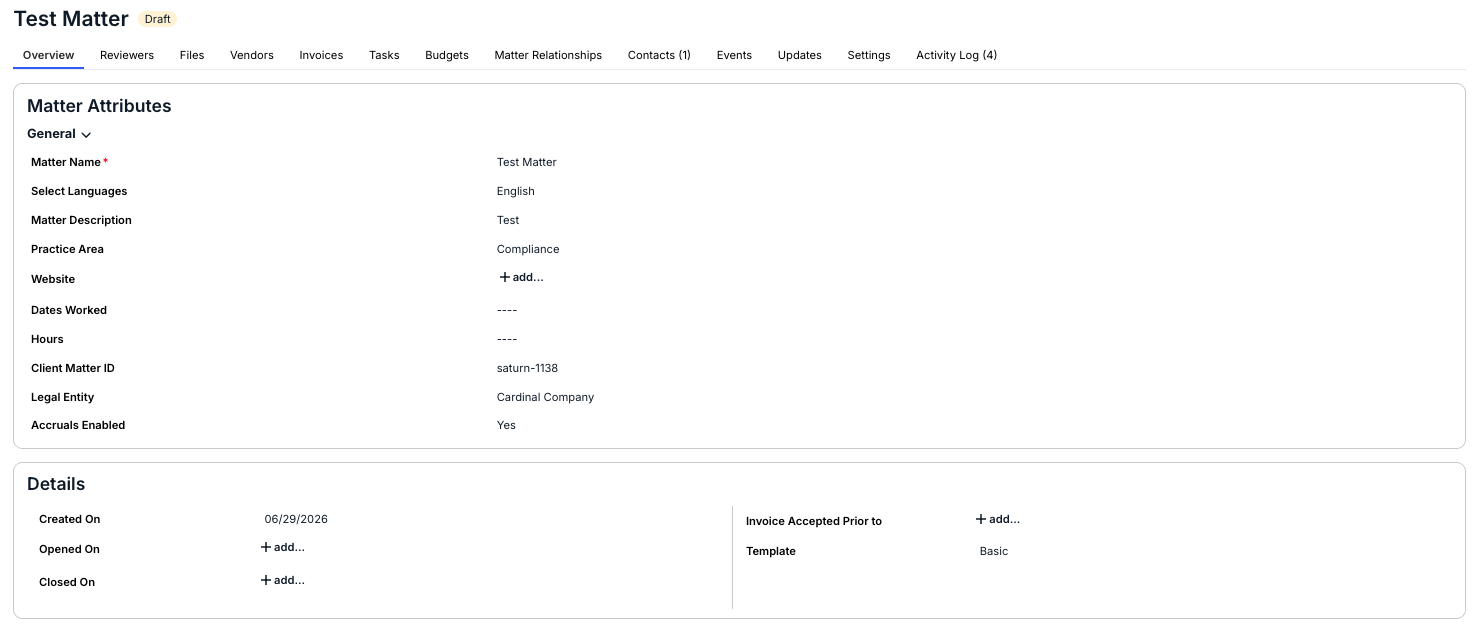
After you create the matter, you'll be taken to the Matter Overview page. This will detail important Matter Attributes and Details.
Here, you can Request Review (if applicable) to start the Review process. The matter is saved in draft status, and an email notification is sent to the admin(s) designated as matter reviewers/approvers.
You will be notified via email if the reviewer requests any changes to the matter before moving forward with approval or publication.
Head to the Matter Review Process section to learn more.
Creating a Confidential Matter
Unity's Confidential Matters functionality enables your legal department to restrict access for your most sensitive matters. This means that users can only access a confidential matter and its associated invoices if they are explicitly granted permissions.
In this case, regardless of role, admins, power users, and other users would not see the matter in Unity or in reports unless the matter creator manually adds them under Settings > Permissions in the matter record.
Prerequisites & Other Considerations for Confidential Matters
- Advanced Permissions must be enabled to use Confidential Matters in Unity; access and visibility are controlled at the matter level and is not driven by system-level user roles.
- Budgets cannot be associated with confidential matters.
- Adhoc Reporting & Enhanced Reporting data does not include confidential matters regardless of permissions or access (i.e., does not appear to the matter creator).
- Confidential matters cannot be bulk updated using the Bulk Actions feature.
- Sharing matter updates with vendors is not available for confidential matters.
- Confidential matters cannot be cloned or marked as a "related" matter.
- Name given to a confidential matter is still visible to the assigned vendor(s) in Counsel Exchange and in their accrual submission forms.
- Matters must be set as "confidential" during matter creation in SimpleLegal; once created, they cannot be changed to a non-confidential matter or vice versa.
- When a confidential matter is created, only the user who created it has initial access. It is up to the matter creator to grant access to other users from the matter record.
- SimpleLegal Support does not see confidential matters unless the support agent is manually granted access to the matter.
- Invoice review ladders/levels are automatically adjusted if default invoice reviewers are not explicitly granted access to the confidential matter.
- Before moving forward with confidential matters, please make sure the following is completed:
Assigning Contacts & Invoice Reviewers/Subscribers to a Confidential Matter
Users added as contacts, invoice reviewers, or subscribers to a confidential matter are granted the following permissions:
- Access to the matter record and any submitted invoices.
- Retrieval of the confidential matter in results using Unity's global search.
- Ability to see the confidential matter and its invoices in the assigned vendor's page.
- Ability to see the confidential matter on the vendor's accruals page.
- Ability to see the confidential matter on the associated matter group page (if applicable).
To add contacts to a confidential matter, go to the Contacts section. To add an invoice reviewer and/or subscriber to a confidential matter, go to the Reviewers section.
Invoices for Confidential Matters
Invoice line items for a confidential matter cannot be associated with a different matter. This is why we recommend single-matter invoicing when the Confidential Matters feature is used.
Once a vendor submits an invoice for a confidential matter, the invoice subject and line-item descriptions are redacted in Counsel Exchange.
Managing Permissions for a Confidential Matter
You can manage permissions for specific user groups or individual users for a confidential matter by going to Settings > Permissions.