Here's how to assign a vendor to a matter:
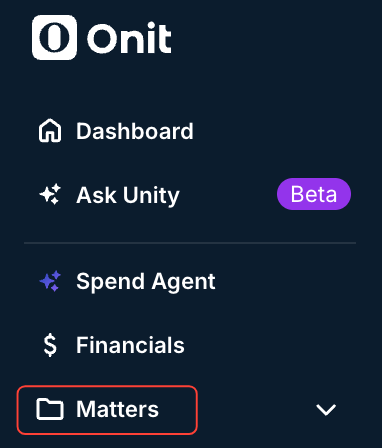
- Click on the "Matters" link on the left-hand side of the Unity screen.
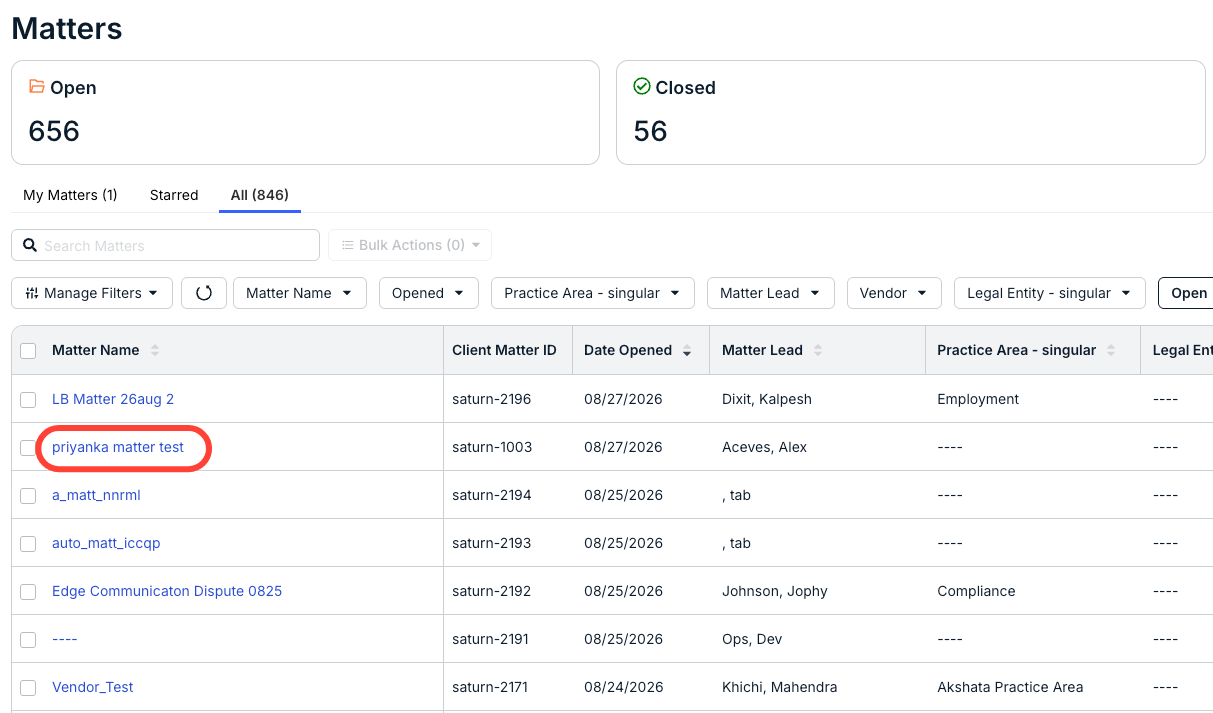
- Click on the matter you want to assign the vendor to.
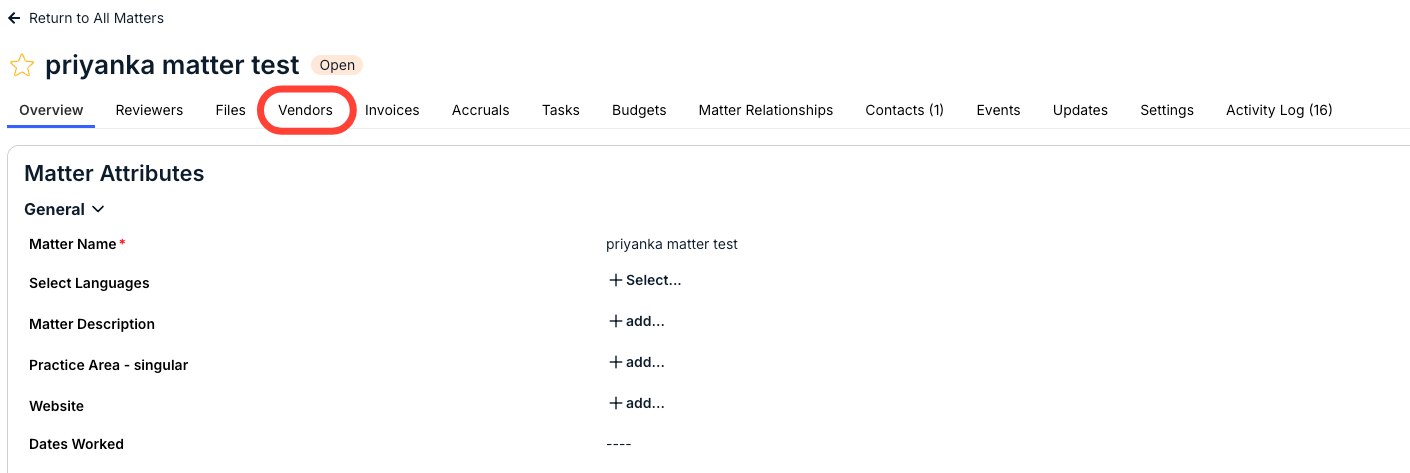
- On the matter details screen, click on "Vendor."
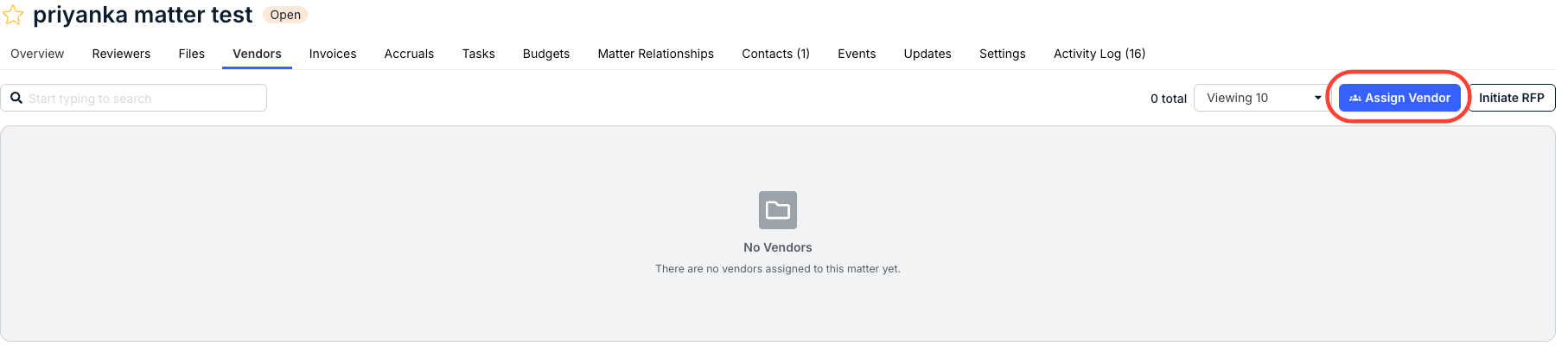
- Click on "Assign Vendor" in the right-hand corner.
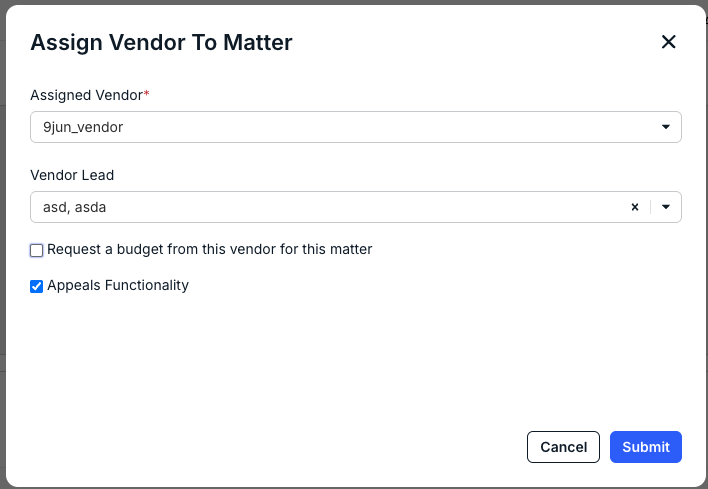
- The "Assign Vendor to Matter" screen will appear.
Fill out the Assigned Vendor and Vendor Lead option from the drop-down menu.
You can also choose if you want to Request a Budget from this vendor for this matter and if you want to enable Appeals Functionality (if applicable).
If you choose to Request a budget from this vendor for this matter, you can fill out the
- Budget Name (required)
- Budget Type (required) - Available as Quarterly, Phase, Life of Matter, or Annually.
- Description
- Due Date
- Refresh Cycle (the frequency for sending automated requests to the vendor to keep your budget up to date) - Available as None, Annually, Biannually, Quarterly, or Monthly.
- Counsel Exchange Collaborators - Click X to remove collaborators after you've selected them.
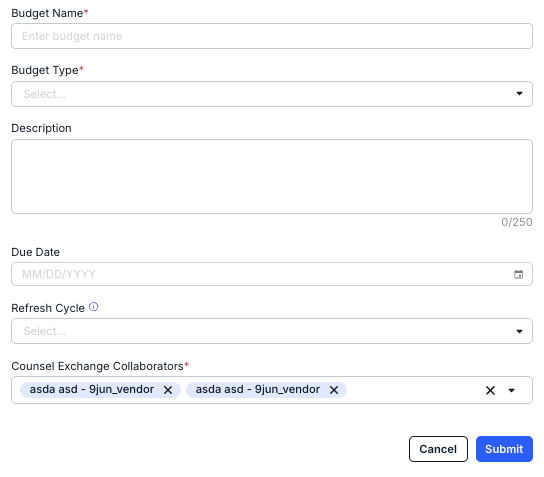
Click Submit to send in the budget or Cancel to back out.
- After you assign a vendor, the vendor will appear in the "Vendors" section.
