Here's how to submit a new timekeeper rate in the Counsel Exchange:
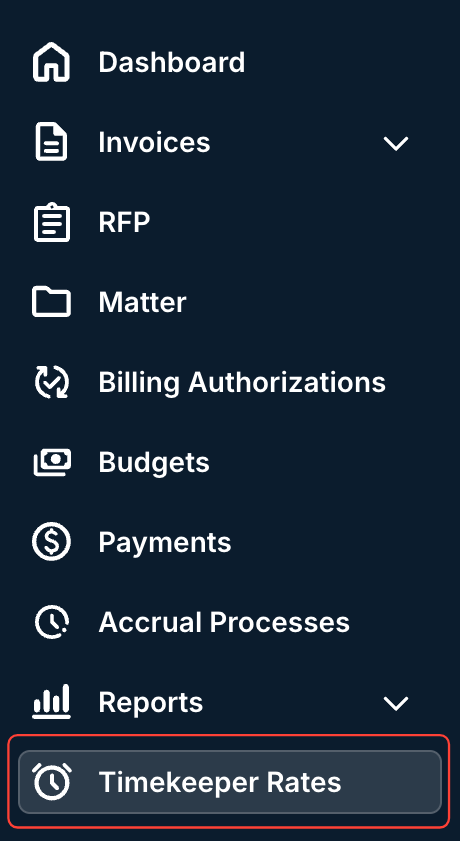
- Go to the Timekeeper Rates section of the left-hand side menu within the context of the client.
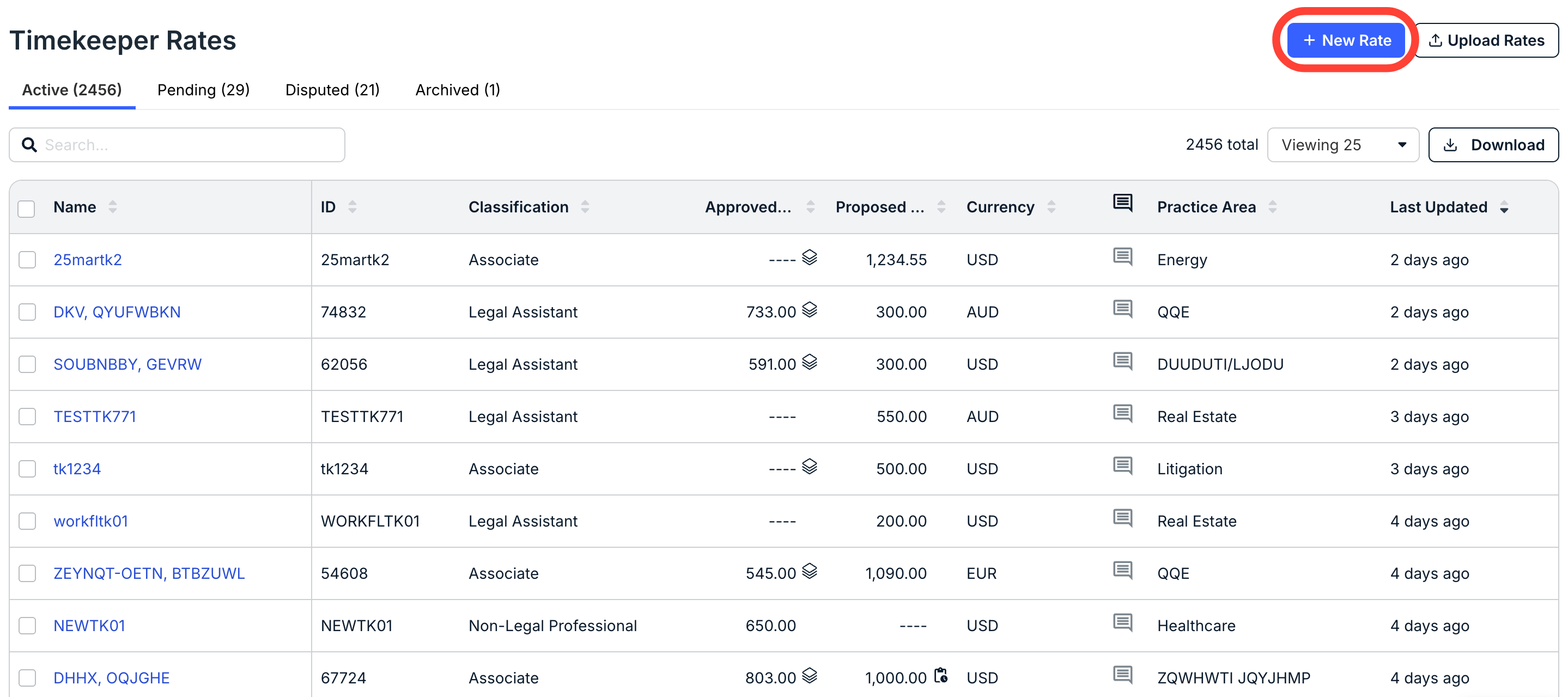
- The full Timekeeper Rates directory will appear. Click on "New Rate" in the upper-right-hand corner.
You can also bulk upload timekeeper rates; click here to learn more about the process.
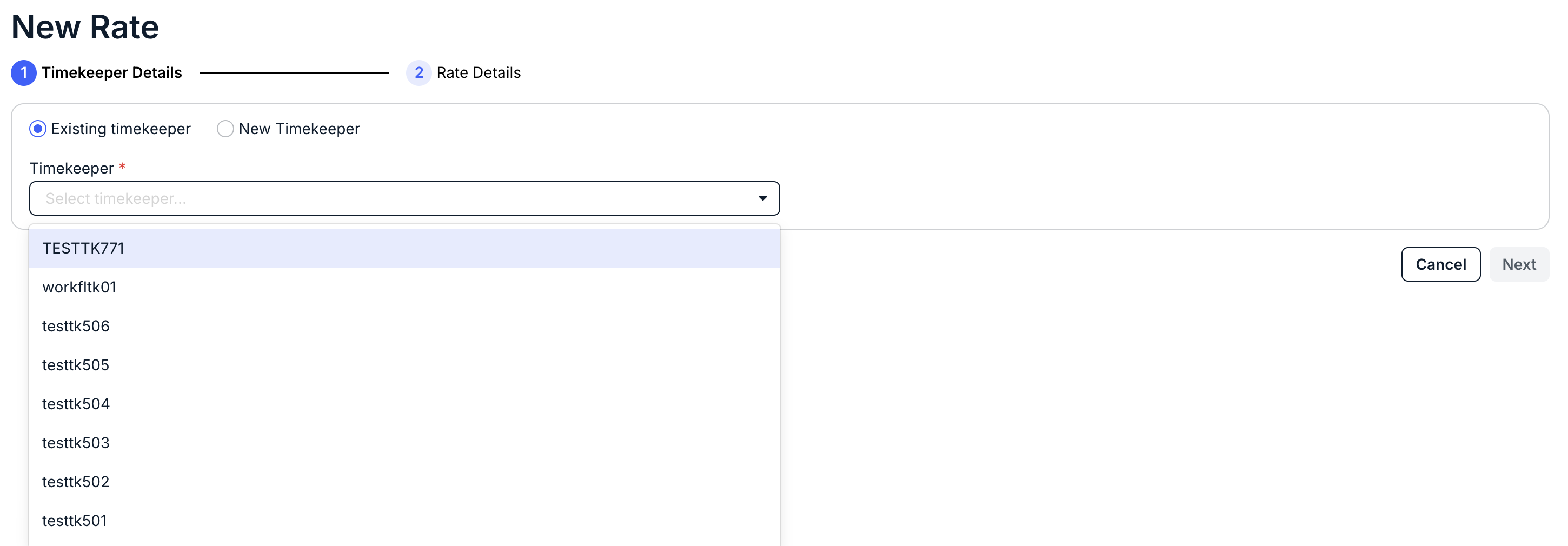
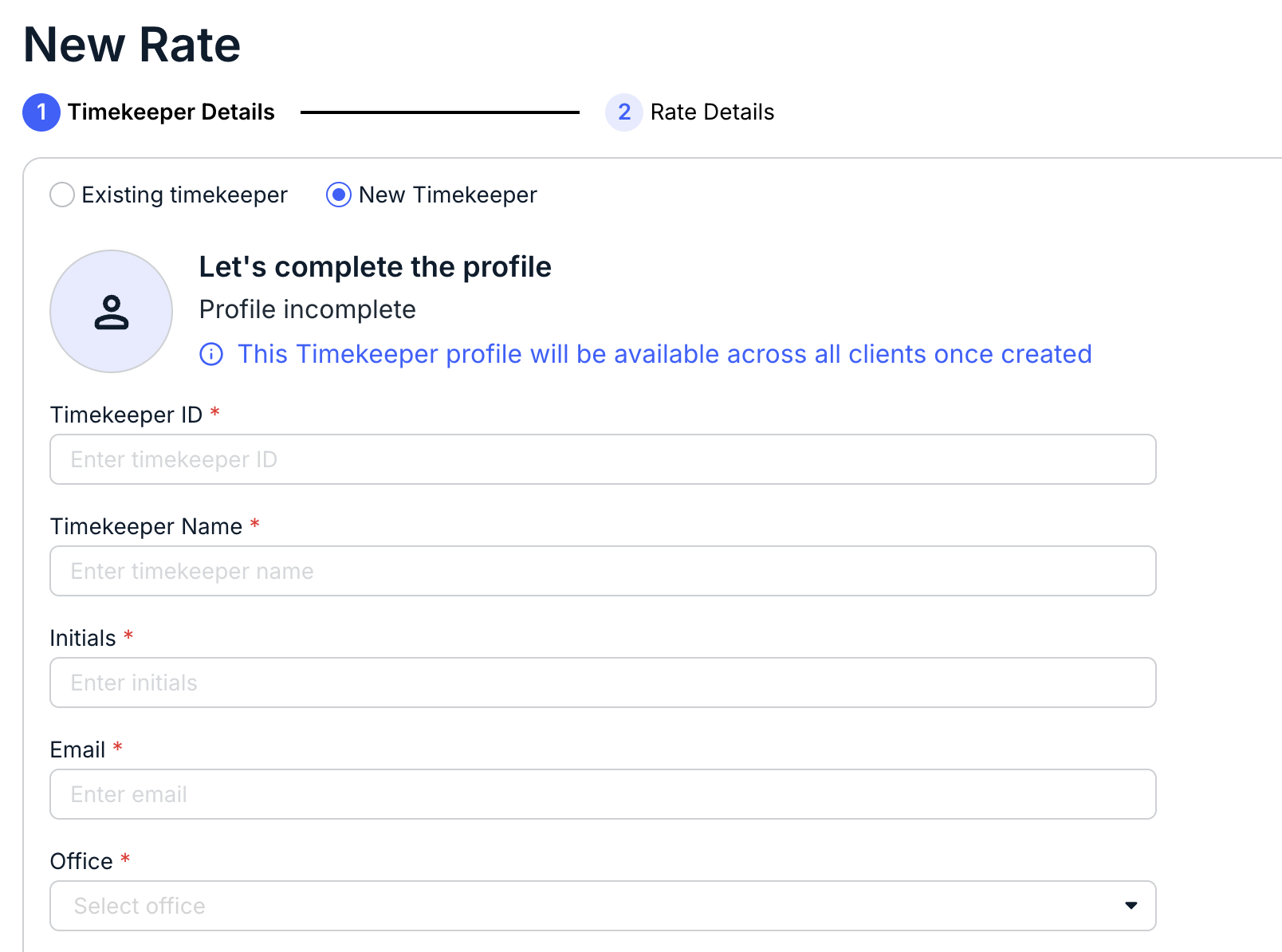
- The New Rate screen will appear. Choose either an "Existing Timekeeper" or a "New Timekeeper."

- If you choose "Existing Timekeeper," pick the timekeeper from the drop-down menu.
After you select the timekeeper, their details will appear; you can edit the timekeeper's details if necessary. Learn more about that process here.
Click Save and Next to move on to the next screen.
- If you choose "New Timekeeper," you'll have to fill out the new timekeeper information.
Learn more about the new timekeeper process here. Note that this timekeeper profile will be available across all clients once created.
Click Save and Next to move on to the next screen.
- If you choose "Existing Timekeeper," pick the timekeeper from the drop-down menu.
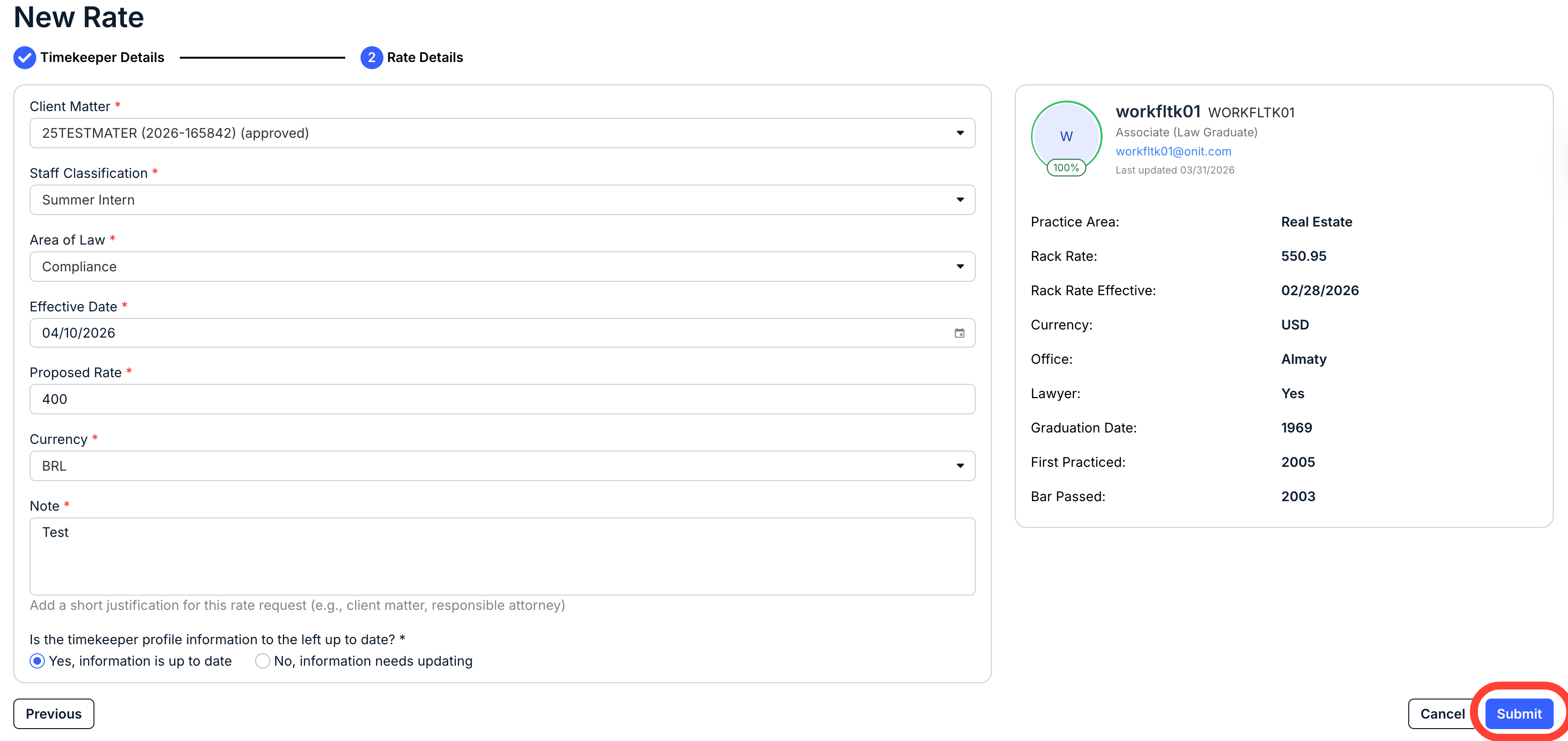
- Fill out the Rate Details.
Current information for the timekeeper is on the right-hand side of the page.
You'll have to fill out the:
- Client Matter (drop-down menu)
- Staff Classification (drop-down menu)
- Area of Law (drop-down menu)
- Effective Date
- Proposed Rate
- Currency (drop-down menu)
- a Note (a short justification for this rate request; 250 character max)
You'll also have to certify that the timekeeper information on the screen is up to date. If not, go back and revise.
Click Submit to submit the new rate or Cancel to back out; you can also click Previous to go back to the prior screen and revise the timekeeper.
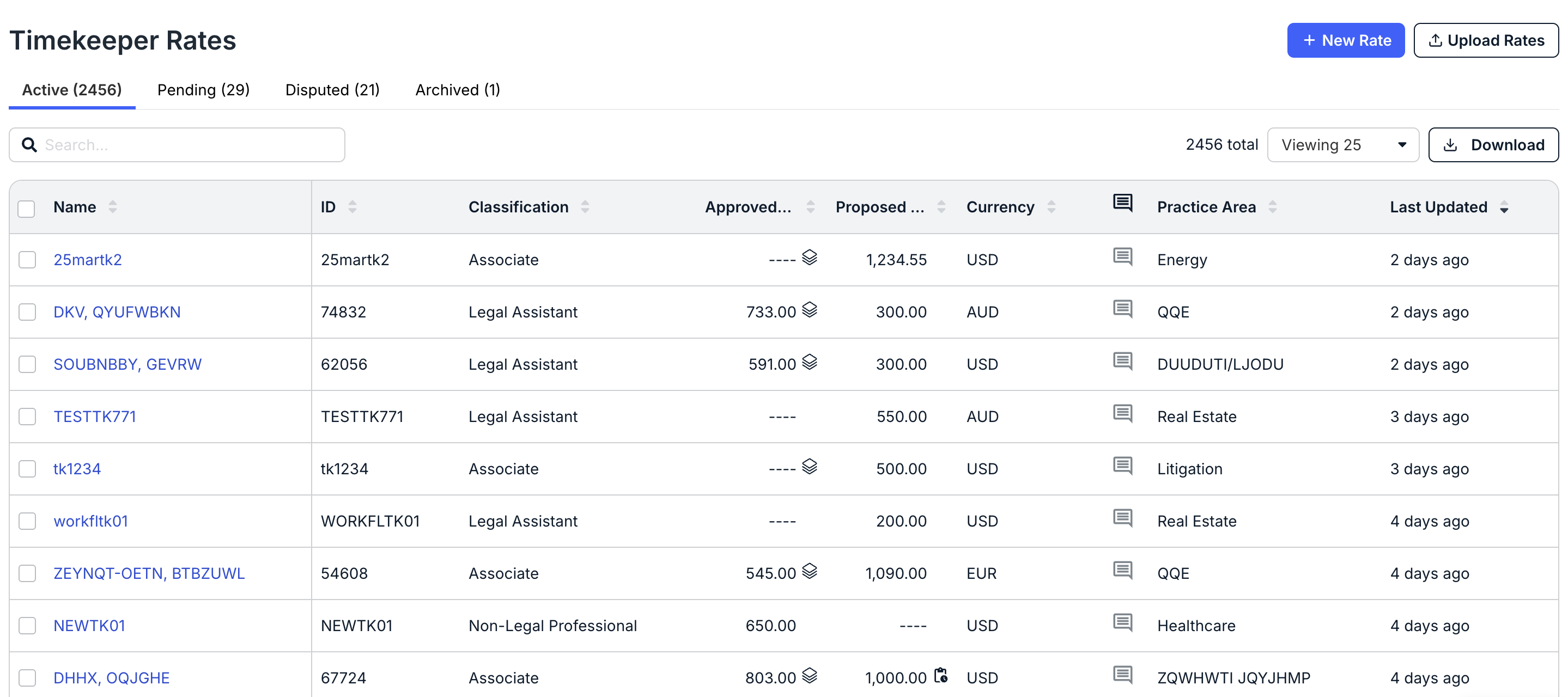
The new timekeeper rate will appear on the main Timekeeper Rates screen.
FAQ
Who approves timekeepers?
The customer appoints a representative, or a group of representatives, who approve timekeeper rates.
Does a timekeeper rate need to be approved before you can submit an invoice with that timekeeper?
While it ultimately depends on your customer's configuration, most customers do require that a timekeeper rate to be approved before you can submit an invoice with that timekeeper on a line item.