You can go to the Billing Authorization Requests section in Counsel Exchange to view, edit, and submit new and existing Billing Authorization Requests. Here's what you need to know:
Accessing and Viewing Billing Authorization Requests
- To view Billing Authorization Requests, after selecting your client in Standard Client View, click on "Billing Authorizations" in the left-hand-side menu.
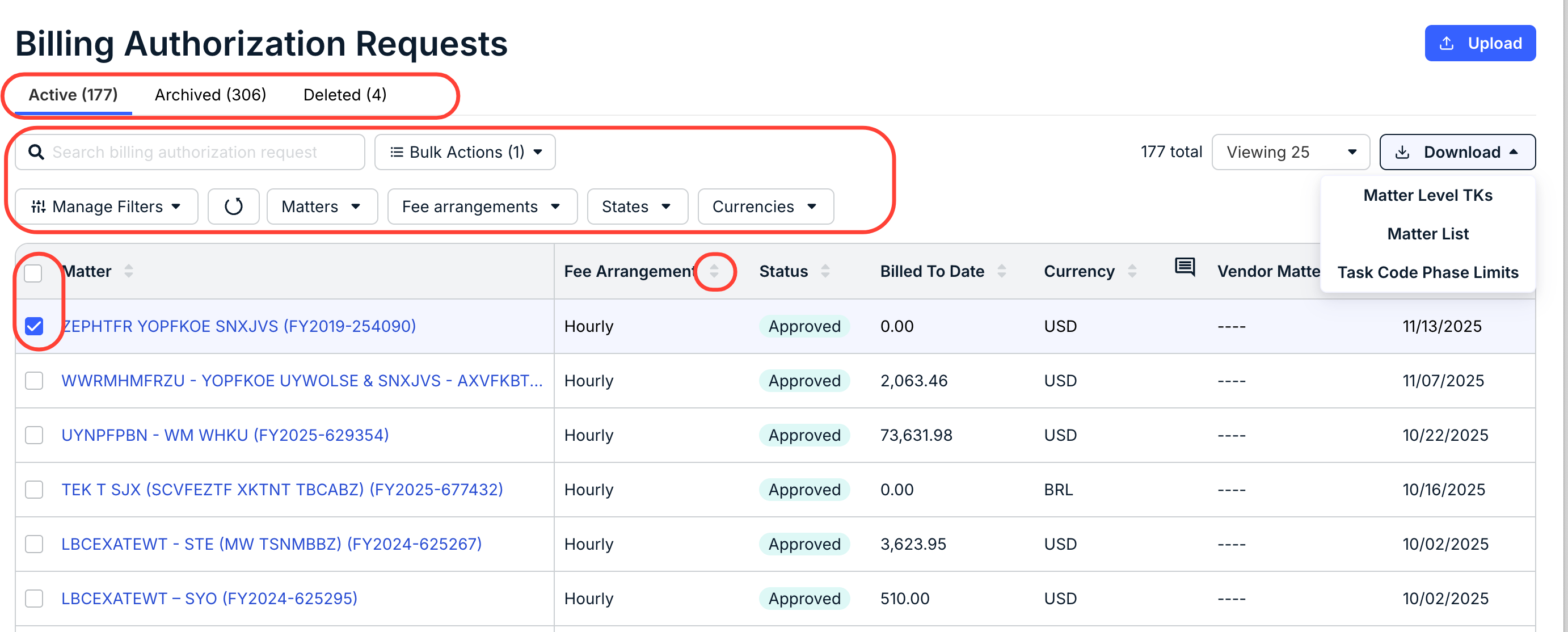
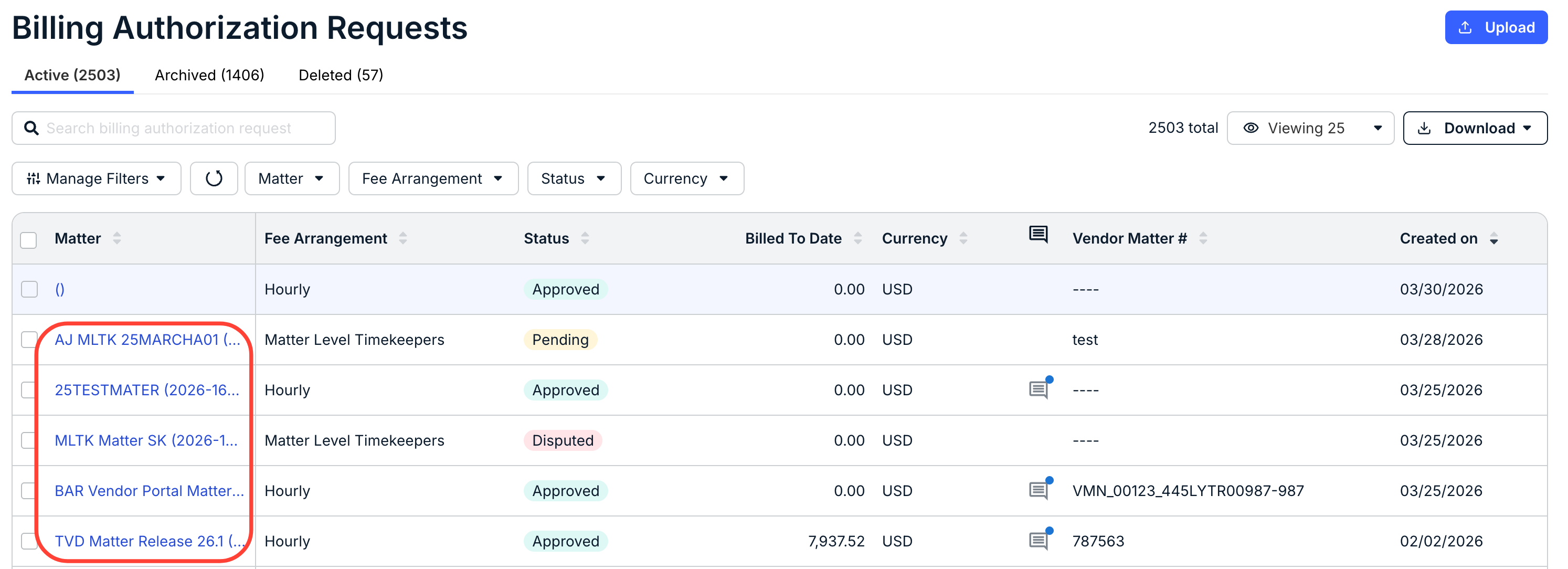
- The main Billing Authorization Requests directory will display key details of all requests.
Click between the Active, Archived, and Deleted tabs to see Authorizations that belong to those categories.
Use the up/down arrows next to every column to sort by that column. You can also use the Manage Filters and other drop-down categories to customize what you see on your screen. Use the search bar to search for a specific Authorization.
Click on an individual link in the Matter column to edit and view specific Authorization information.
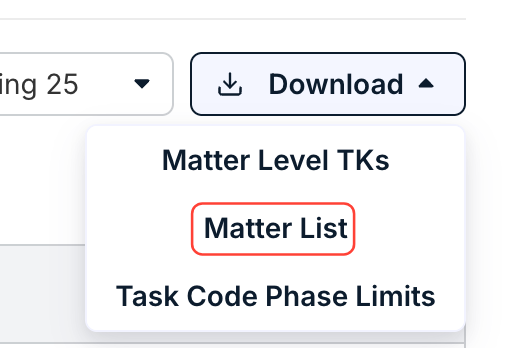
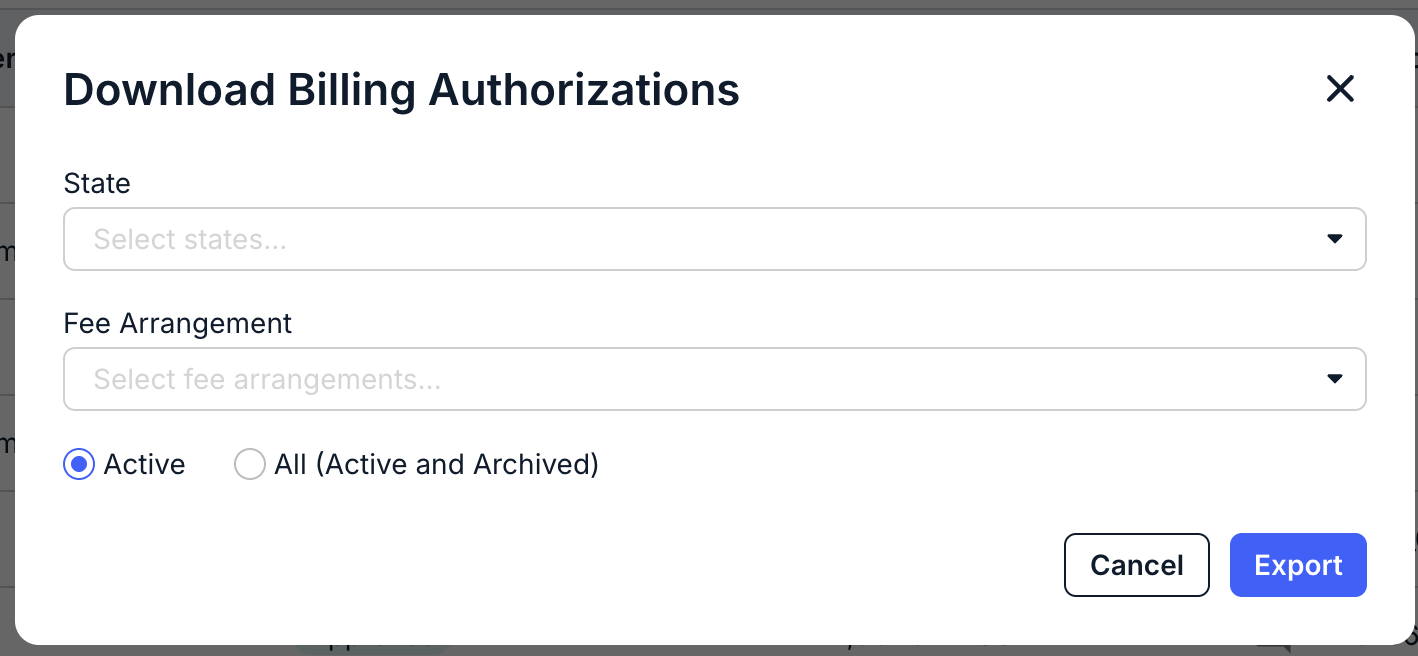
Click on Download and then on Matter List to filter exactly what Billing Authorizations you'd like to download. You can filter by State and Fee Arrangement in the drop-down menus and then by either Active or All (Active and Archived).
Click Export to export the information as an Excel file.
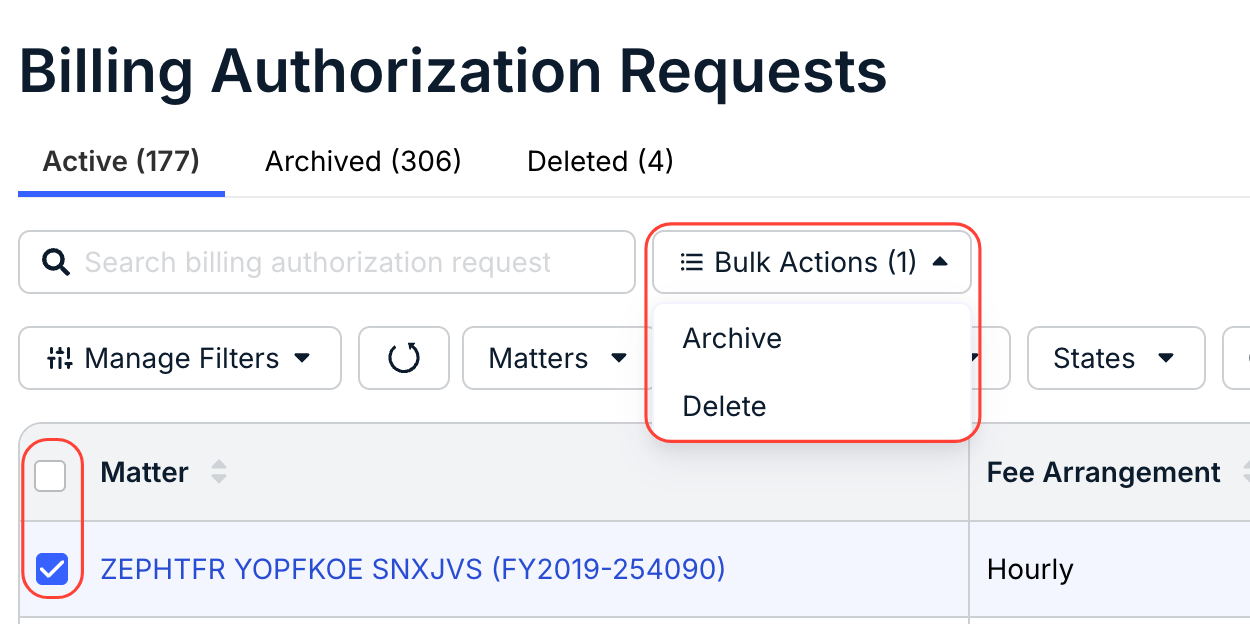
You can also Archive or Delete Authorizations by clicking on individual authorizations (or by using the top check box to select all of them) and using the Bulk Actions drop-down menu.
Note that you can also use the Download button to download blank Matter Level Timekeeper and Task Code Phase limit templates for Upload.
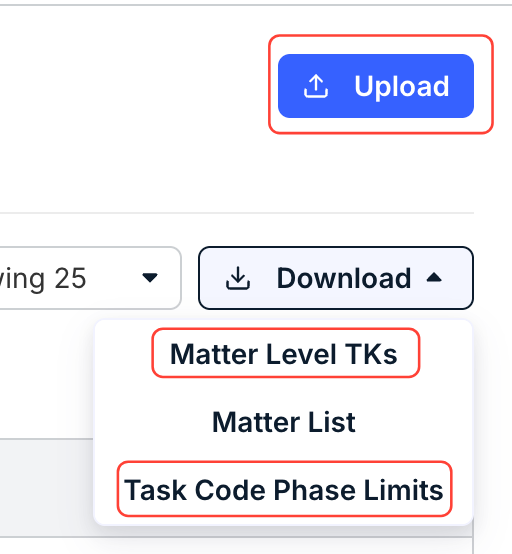
You can learn more about uploading Matter Level Timekeepers and Task Code Phase Limits in their user guides:
- To view and edit existing Billing Authorization Requests, click the link under the Matter column. Based on the Status and Fee Arrangement, different information may or may not be editable.
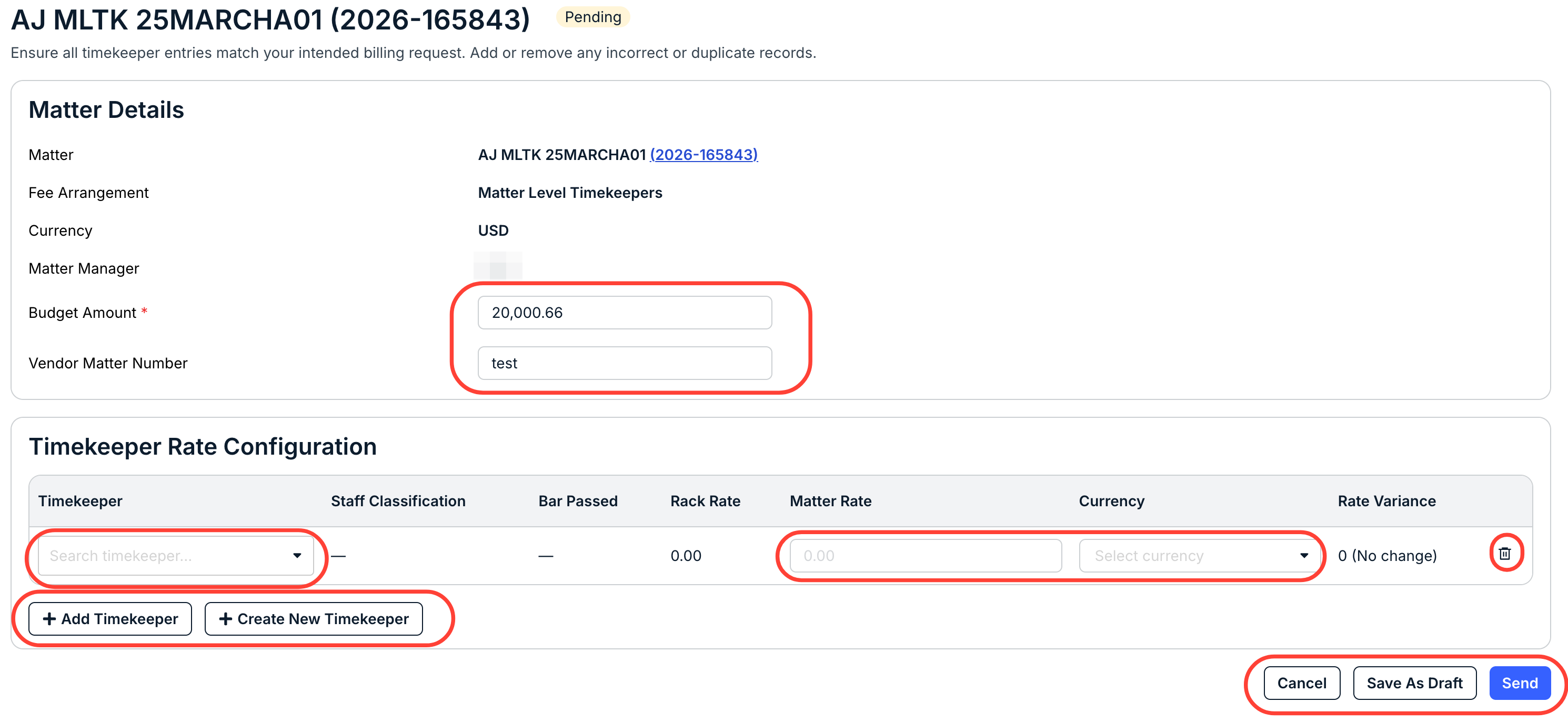
- For "Pending" and "Disputed" requests, you're still able to edit key information.
For these Billing Authorization Requests, you can edit the Budget Amount and Vendor Matter Number under Matter Details.
Under Timekeeper Rate Configuration, you can add a Timekeeper from the drop-down menu, add in the Matter Rate, and select the Currency from the drop-down menu. Click the Delete (trash can) icon to delete a timekeeper.
Click the Add Timekeeper and Create New Timekeeper buttons to add existing or new timekeepers.
Click on Send to send the details in, Save as Draft to save your work for later, or Cancel to back out.
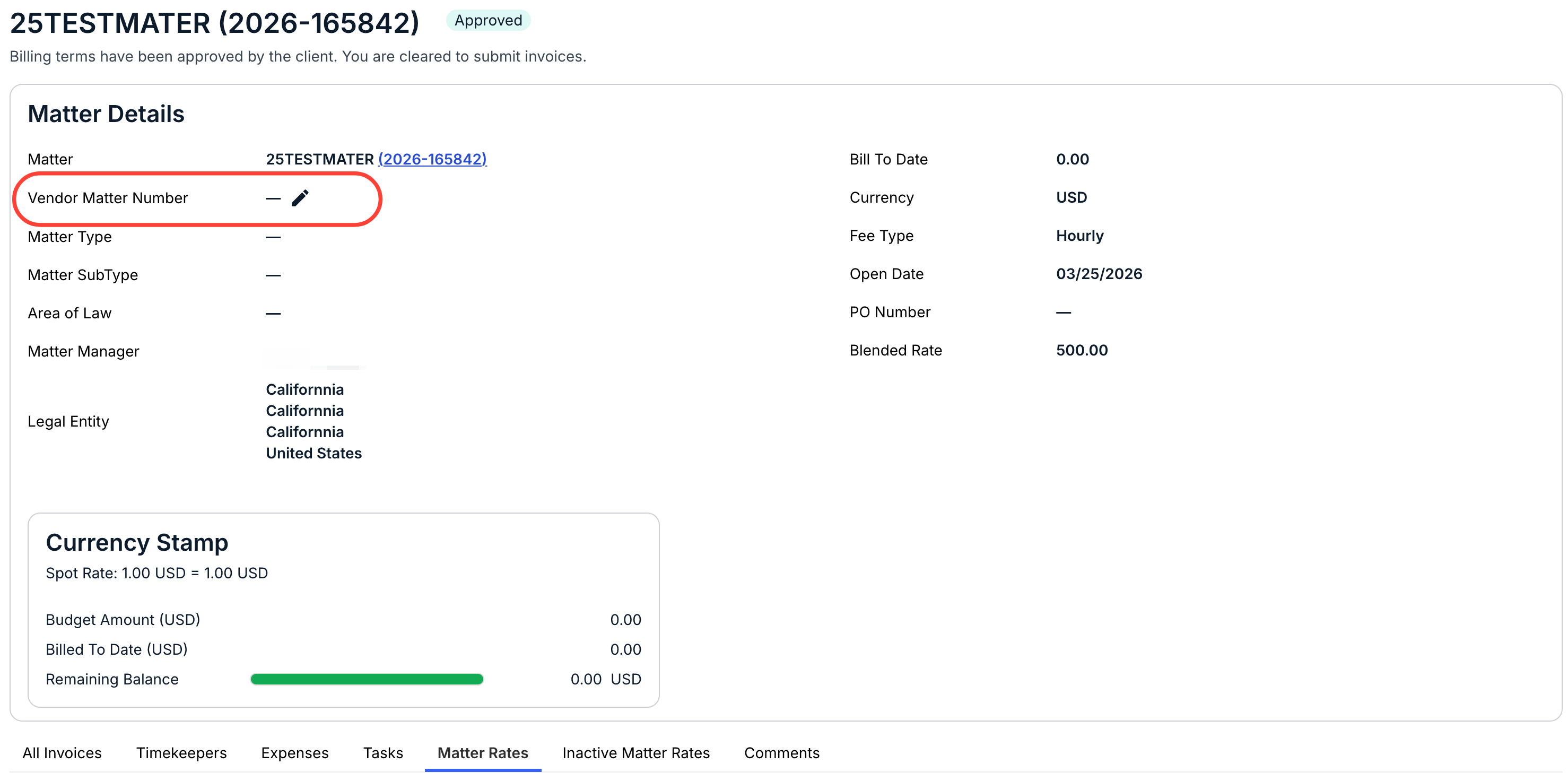
- For "Approved" and "Pending Approval" requests, you can adjust the Vendor Matter Number.
The Matter Details and Currency Stamp will show key details of the request. Click the Edit (pencil) button to add your customized internal matter number.
- For "Pending" and "Disputed" requests, you're still able to edit key information.
FAQ
How do Billing Authorizations work with Unity?
The Billing Authorization tab is only available to Onit customers inside Counsel Exchange. Unity customers work within the matters tab.