PDF Invoice Upload and Conversion in Counsel Exchange
by Michael NadeauUpdated on
The PDF-to-Invoice Conversion feature in Counsel Exchange converts simple PDF invoices into a digital format. This guide provides step-by-step instructions for using the feature.
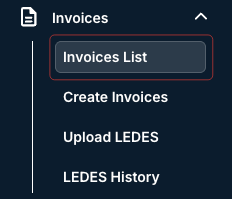
Under the Invoices menu, click "Invoices List".
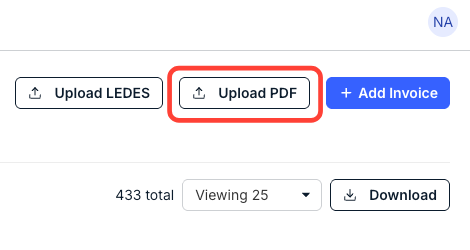
Click "Upload PDF" on the right side of the screen.
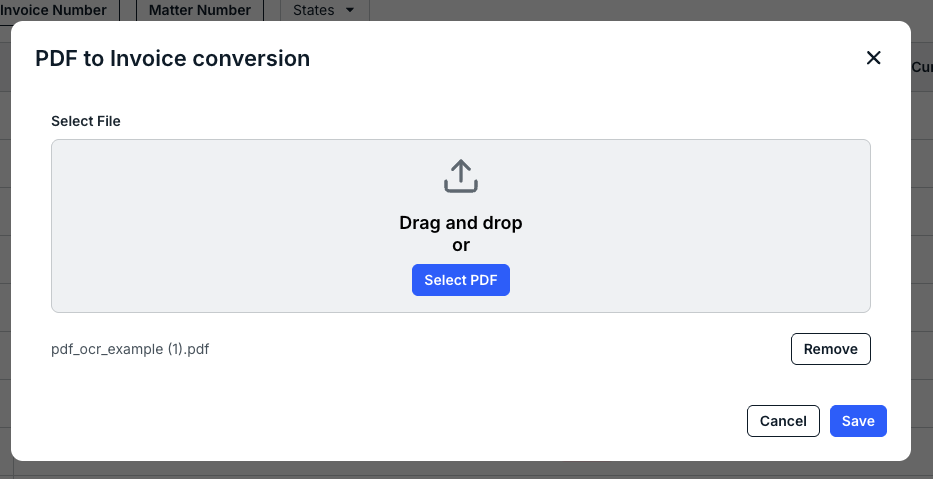
Drag and drop or select the PDF you'd like to convert. Click "Save" to start the conversion process.
The file will take a few moments to upload and convert. You can also click "Remove" to remove the selected file or "Cancel" to exit.
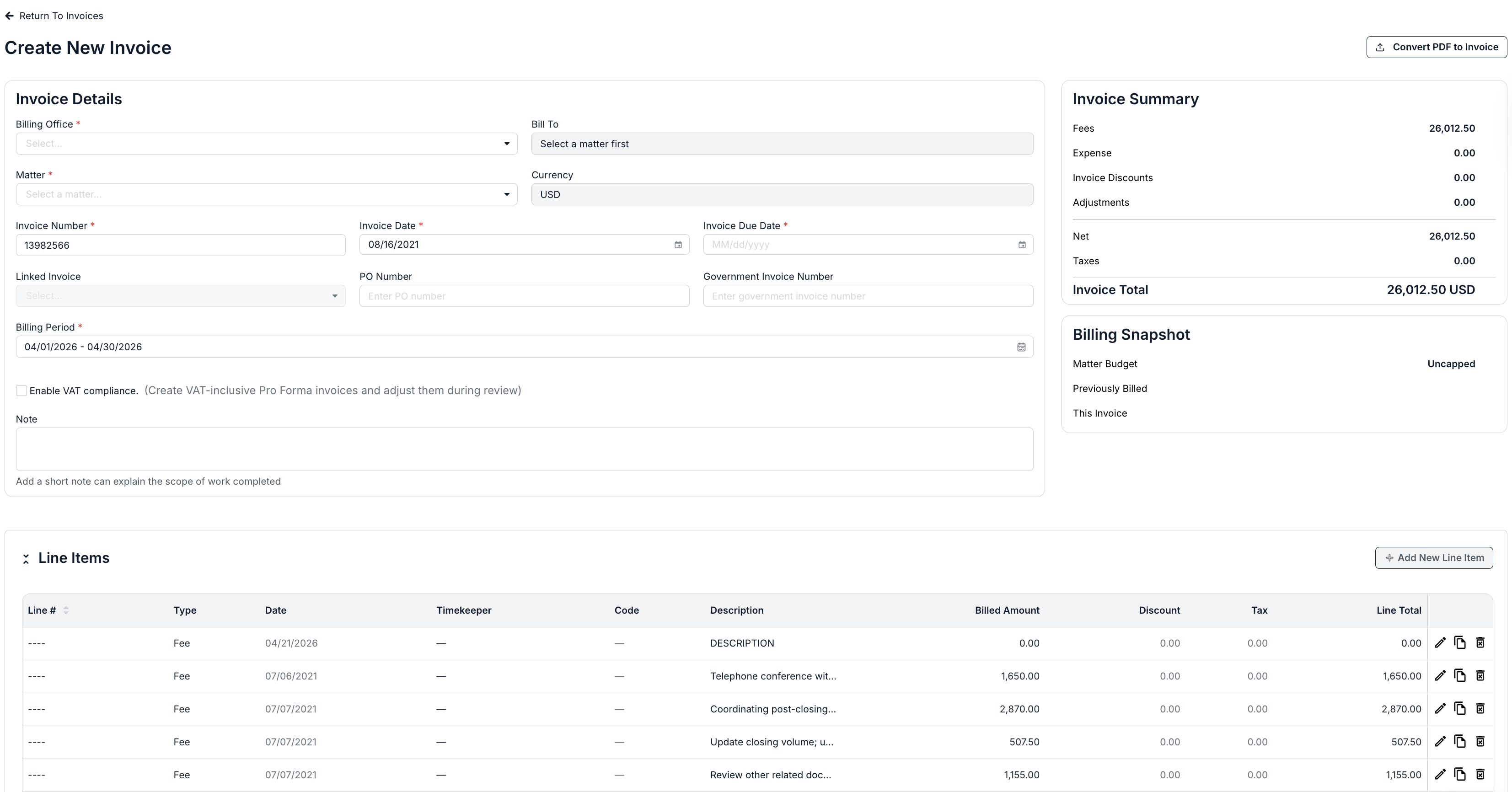
Review the uploaded document on the Create New Invoice screen. Fill in any missing data fields, correct any extracted data, and remove any incorrect line items.
After you're finished, click "Submit to Client" to send it to the client, "Save Invoice" to save the invoice for later, or "Cancel" to exit.
The system will run validation checks on the invoice.
docs.onit.com contains proprietary and confidential information owned by Onit, Inc. that is subject to copyright. Onit presents it exclusively to you for your sole use in conjunction with using Onit products. No portion of the materials contained herein may be used for any other purpose. No portion of the materials contained herein may be shared with third parties or reproduced in any form.