Here's how to upload a LEDES invoice file in Counsel Exchange:
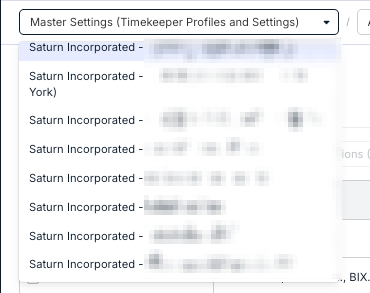
- Select your client from the top of the menu
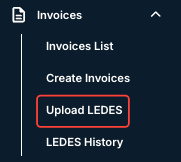
- Go to the Invoices section in the left-hand menu and click Upload LEDES.
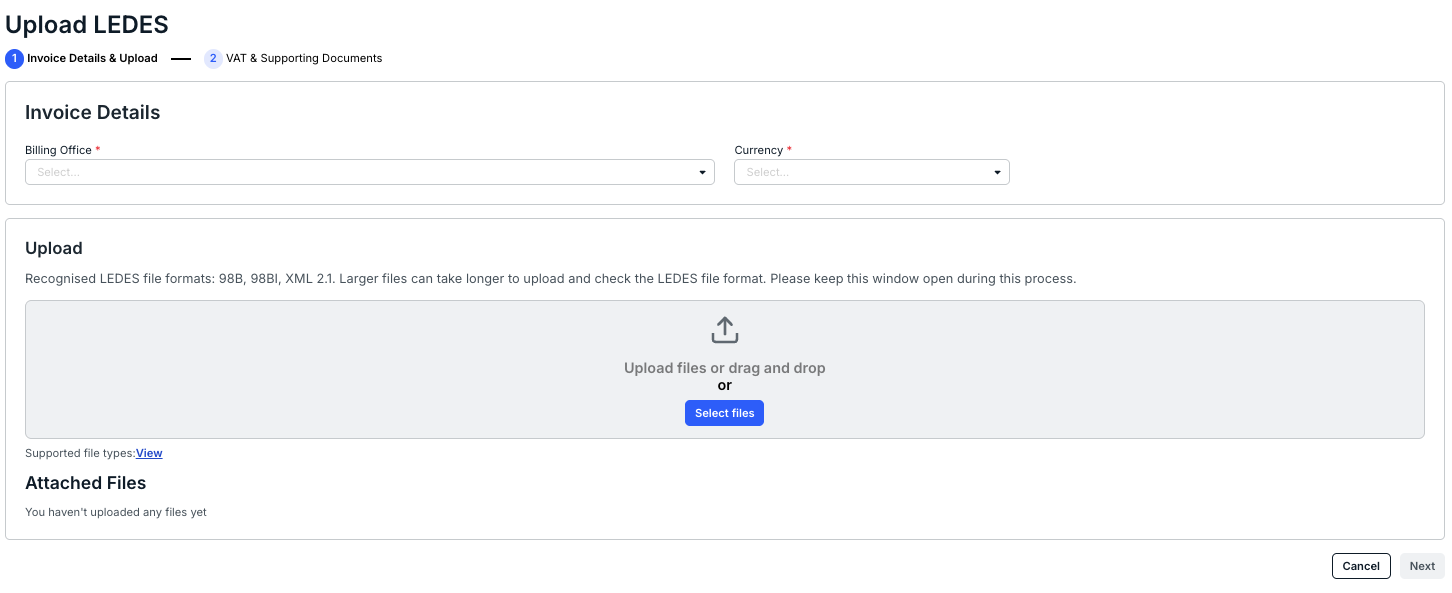
- Fill out the Invoice Details & Upload screen.
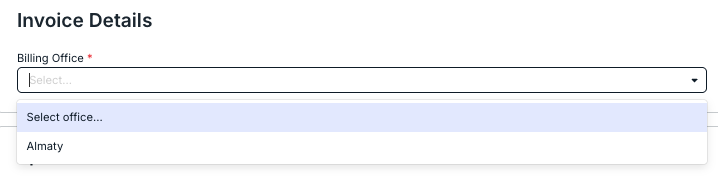
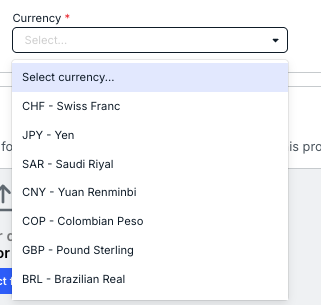
- Select the Billing Office and Currency from the drop-down menu.
- Upload the LEDES file.
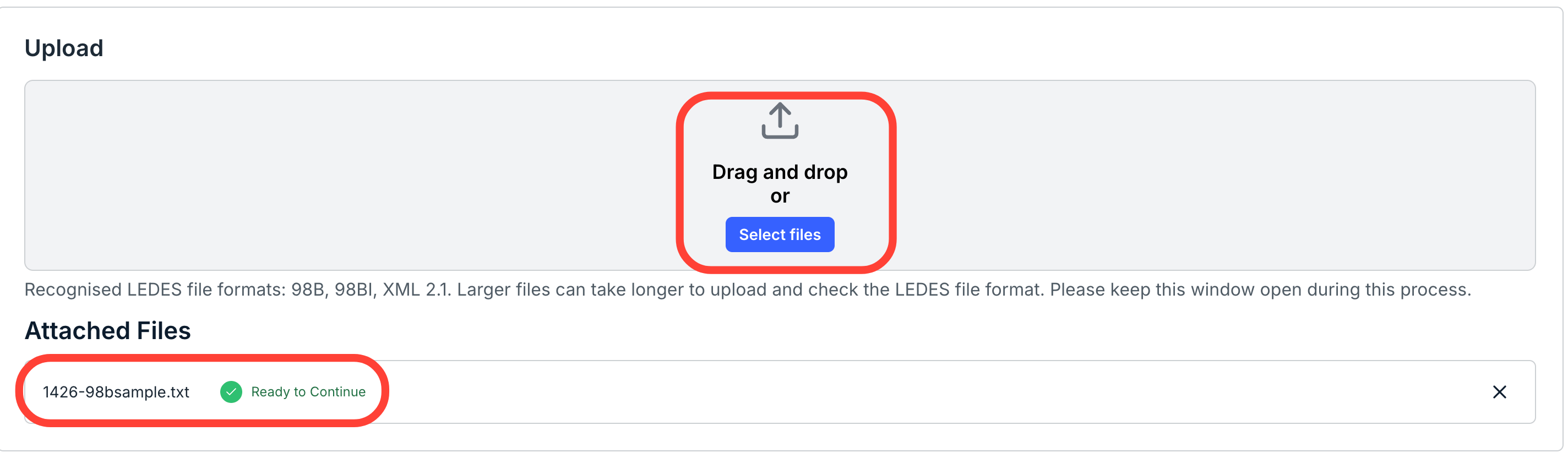
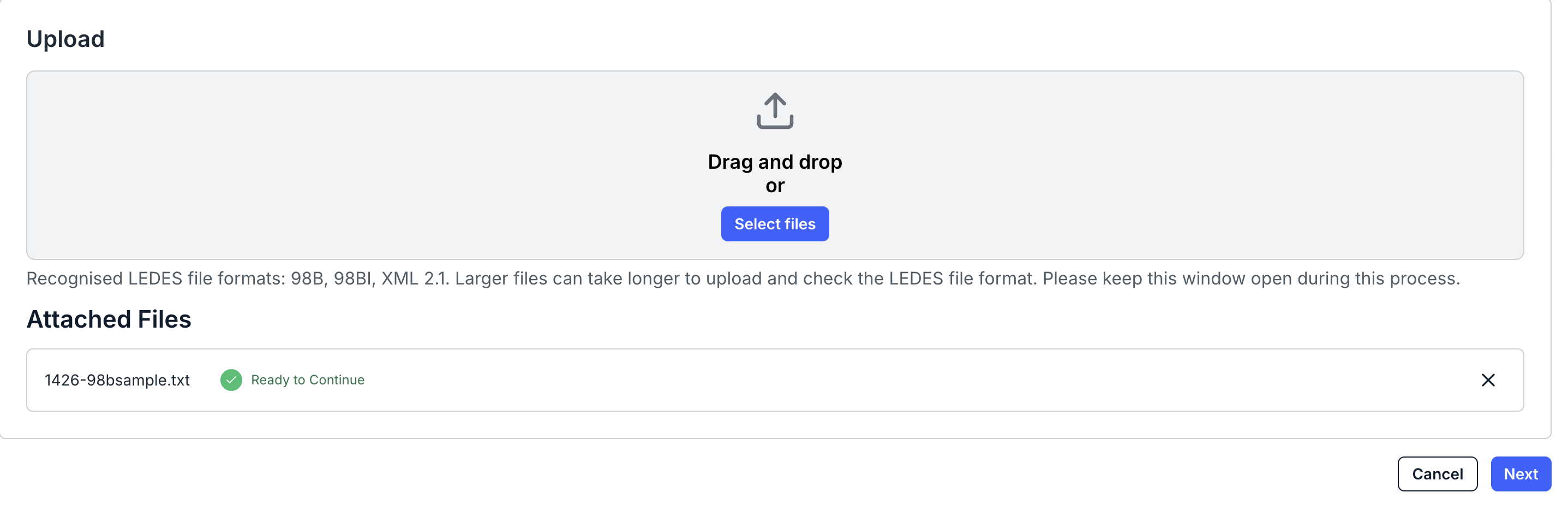
You can either drag-and-drop the LEDES file or click Select Files to find and upload the file. Supported files include: 98B, 98BI, and XML 2.1 (XML coming soon). Larger files can take longer to upload and validate against the LEDES file format. Please keep this window open during this process.
A successful LEDES upload will appear in the Attached Files section with the Ready to Continue message. Click the X to remove the upload.
Unsuccessful LEDES uploads will show a Critical Error message. Toggle Show Details to see the details of the error. Resolve the error and re-upload the file.


- When you're ready to upload the file, click on Next.
You can also click on "Cancel" to back out.
- Select the Billing Office and Currency from the drop-down menu.
- Fill out the VAT & Supporting Documents Screen.
Select the invoices that include VAT and add appropriate attachments.
You can toggle Save/Submit, Link to a Related Invoice from the drop-down menu, and Upload any appropriate attachments.

- Click on Submit to finish uploading the LEDES file.
You can also click on Cancel to back out. Click Previous to go to the prior screen.

The invoice will appear in the main Invoice directory.
- Click on Submit to finish uploading the LEDES file.
Viewing LEDES History
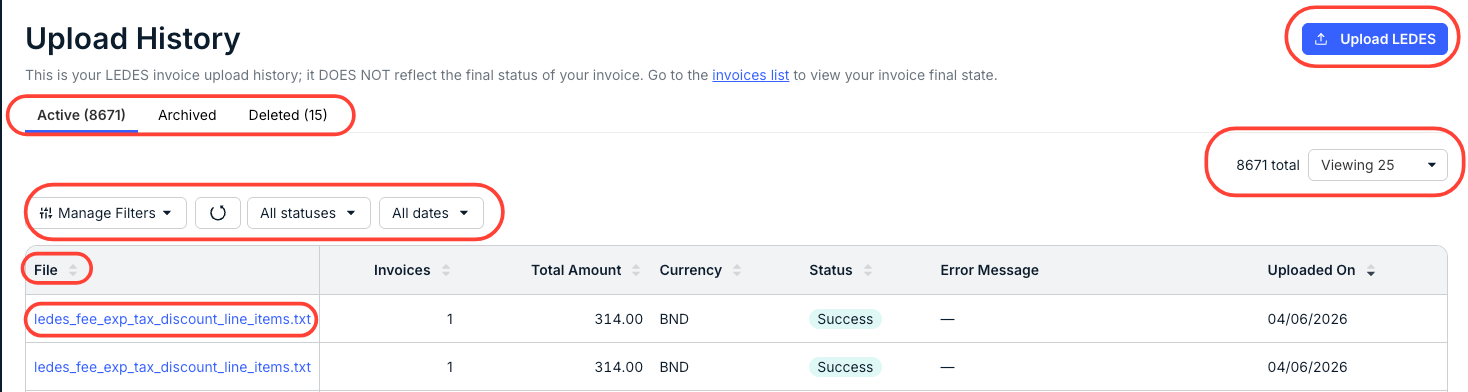
To view the LEDES history, click on the LEDES History link under the Invoices menu.
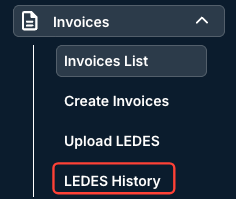
There, you'll see a full Upload History. This shows your LEDES invoice upload history; it doesn't reflect the final status of your invoice. Go to the invoices list to view your invoice's final state.
On this page, you can:
- Toggle between Active, Archived, and Deleted LEDES uploads.
- Use the Manage Filters, All Statuses, All Dates, and Viewing drop-down menus to customize exactly what you'd like to see on the screen. You'll also see a Total of all the LEDES files uploaded.
- View a directory of uploads with key details, including File Name, Invoices amount, Total Amount, Currency, Status, any Error Message (if there is one), and an Uploaded On date.
- Click on any linked LEDES file to download it to your computer.
- Directly Upload LEDES files (view the above directions for more information)
Common LEDES Errors
- If you do not see any timekeepers populating on an invoice on the line items, but you do have timekeepers on line items in your LEDES file, there is likely a formatting issue with the file that must be address. Double-check the file format and attempt to upload again. Check this guide for examples to work off of. If the issue persists, submit a support ticket.