The Budget feature provides an efficient, collaborative way to submit requested budgets within Counsel Exchange. In this how-to guide, you’ll get a step-by-step overview of how to work with the Budget feature within Counsel Exchange.
- When the budget is requested, the specified Vendor Billing Contact will receive an email (and all users will see the budget request in their Counsel Exchange account).
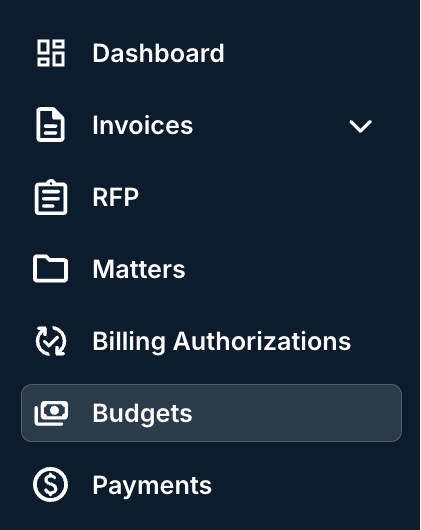
- To submit the requested budgets, navigate to the Budgets section in Counsel Exchange's left-hand-side menu.
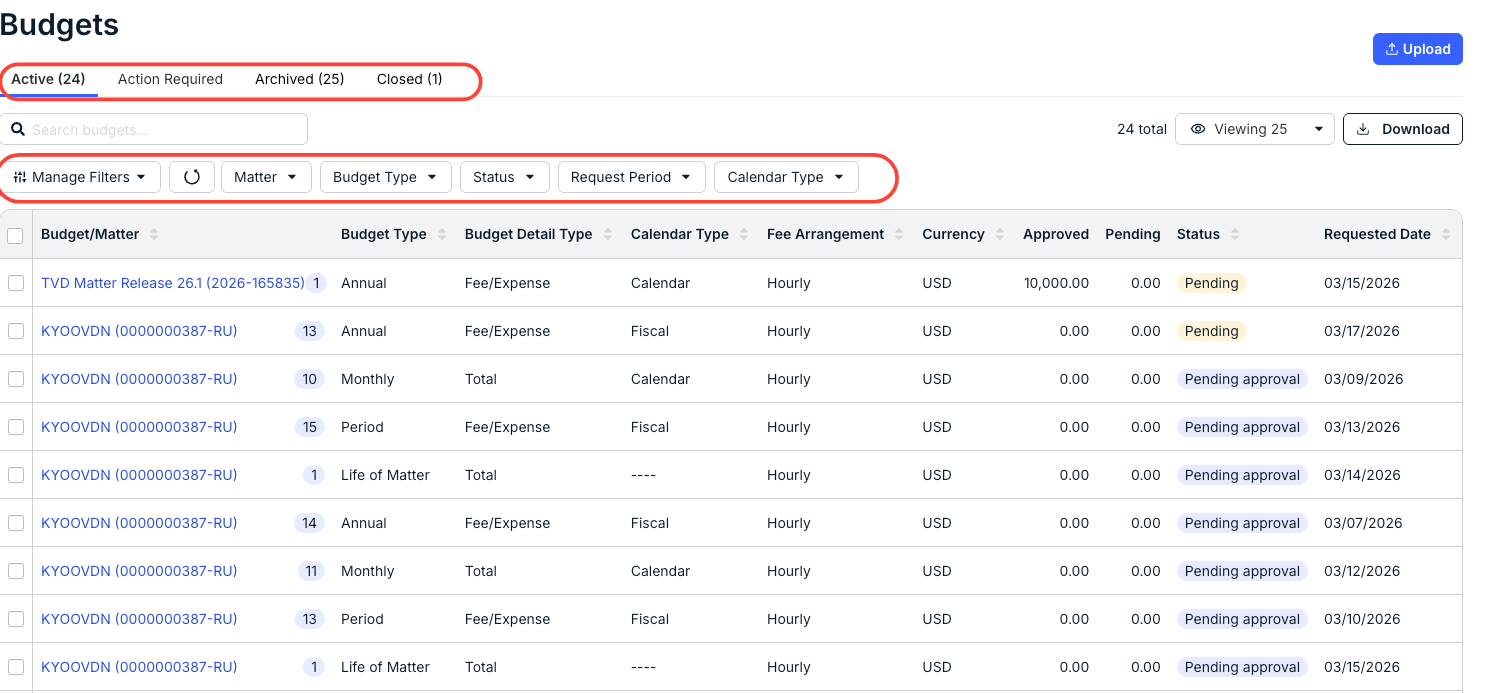
- You'll see the main Budgets screen appear.
Matters for which budgets are requested will appear there. You'll see important information on this page, including the Budget/Matter name, Budget Type, Budget Detail Type, Calendar Type, Fee Arrangement, Currency, Approved, Pending, Status, and Requested Date. Click the up/down arrow to sort by each column. Use the search bar to search for a specific column. Use the Manage Filters and other drop-down columns, along with the Viewing drop-down menu to customize exactly what you want to see on the screen.
Use the top tab to switch between Active, Action Required, Archived, and Closed budgets.
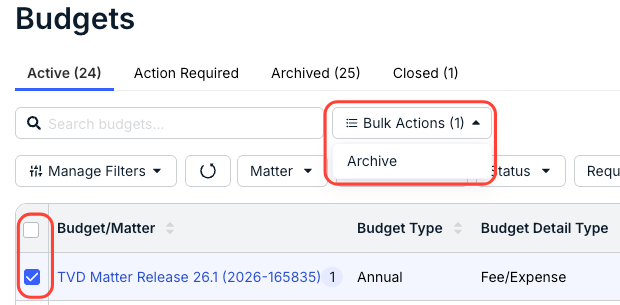
To archive a budget/matter, click on the check box next to a budget/matter (or click on the top check box to select all budgets/matters) and then click on Bulk Actions and then Archive.
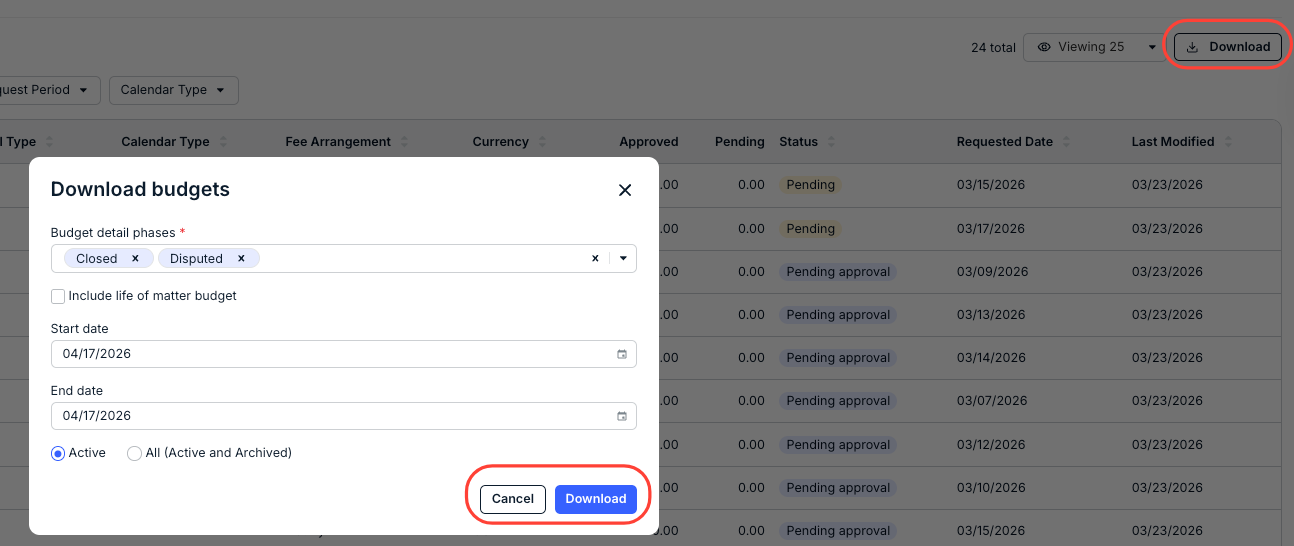
Click Download Budgets to download budget information in an Excel file. You can include different Budget Detail Phases (click the X to remove), choose to Include life of matter budget, choose a Start and End date, or choose between Active and All (Active and Archived). Click Download to download the file or Cancel to back out.
- For budgets in the Pending and Pending Approval (along with the Archived and Closed) statuses, you can click into the link under Budget/Matter to see and edit their details.
Here, you'll see:
- A Budget Summary, with key details including Matter name, Budget Type, Budget Detail Type, Calendar Type, Currency, Matter Manager name, Total Budget, Requested Date, Submitted Date, Client Notes, and Legal Entity details.
- A Budget Snapshot, with Approved and Pending Amount details.
- Any Additional Budget Fields, including Scope, Assumptions, and Risk
- Budget Details, including Period, Fee Budget, Expense Budget, Fee Spend, Expense Spend, Total Budget, Remaining Balance, Status, and Note
- The Pending Submission fields, where you can fill out the Fee Budget, Expense Budget, and Note.
Click on View Audit History to view the full audit history.
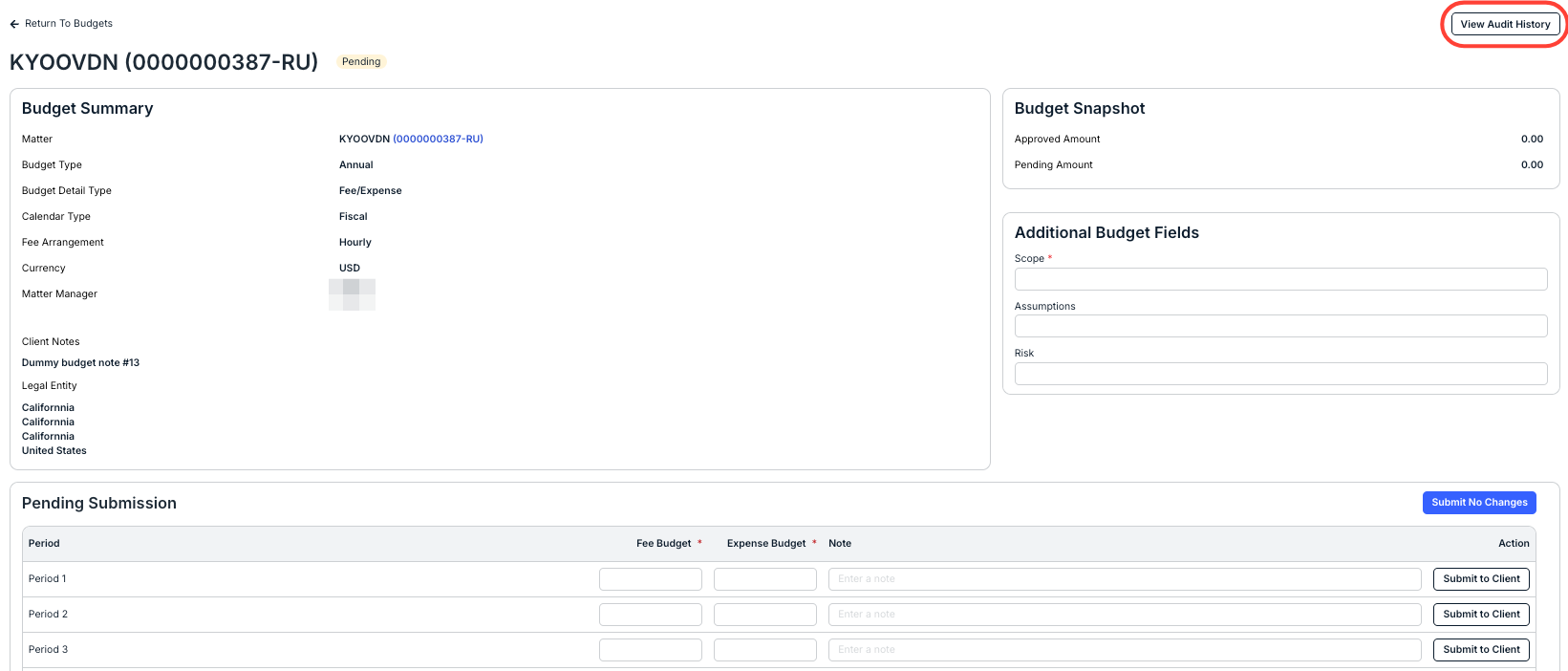
For budgets in the Pending status, you can edit the Scope, Assumptions, and Risk; for those in the Pending and Pending Approval statuses, you can also fill out the Fee Budget, Expense Budget, and add a Note to each period.
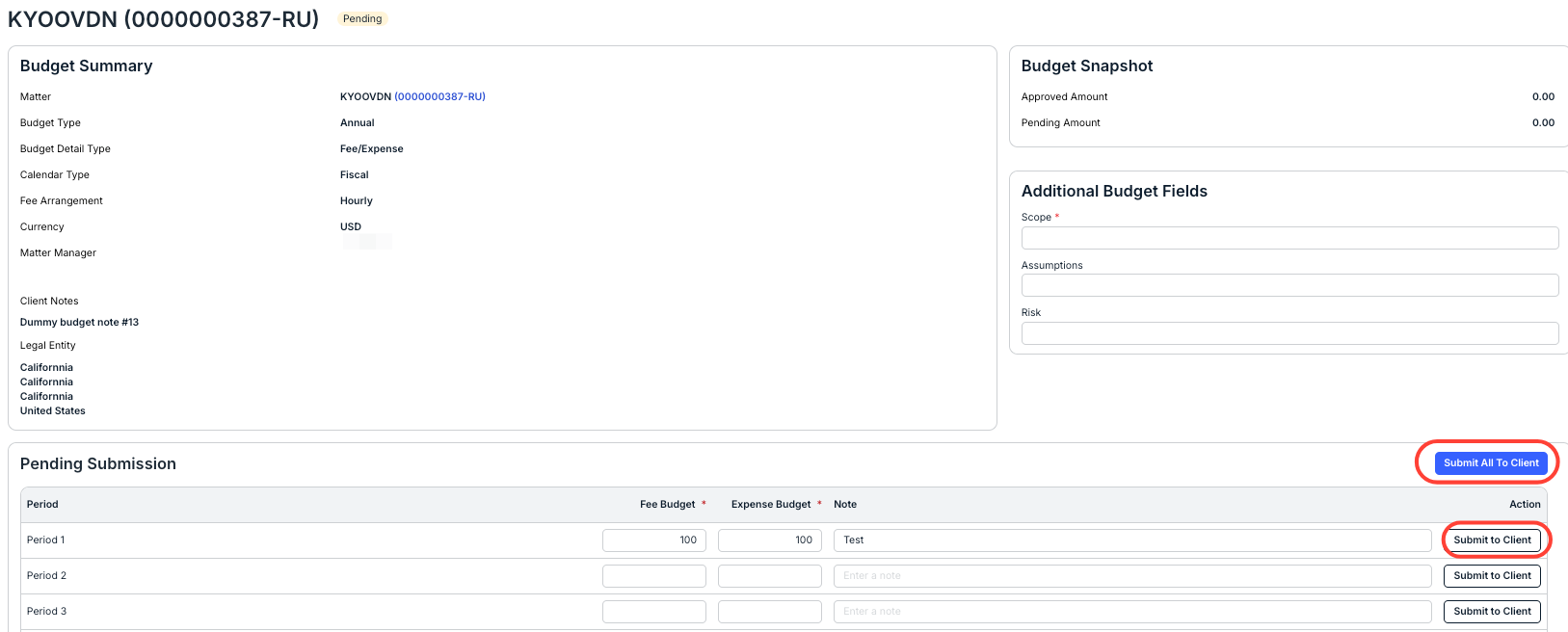
Once you're done working, you can click Submit to Client on an individual line item to send them one by one, or click Submit All to Client to send all the updates at once. Note that the button will appear as Submit No Changes if you don't make any updates.
- You'll see the main Budgets screen appear.