Here's how to build a credit invoice/credit memo directly in the system.
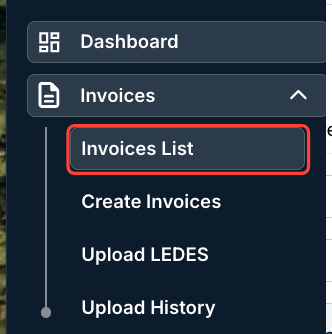
- After logging into the standard client view, click on "Invoices" and then on "Invoices List."
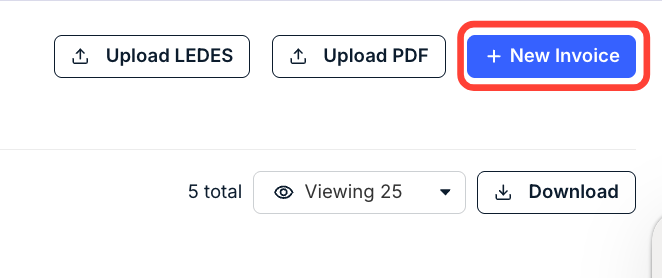
- Click on "New Invoice" to start a new invoice.
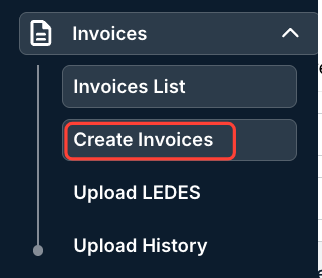
Note that you can also click on Create Invoice straight from the "Invoices" menu.
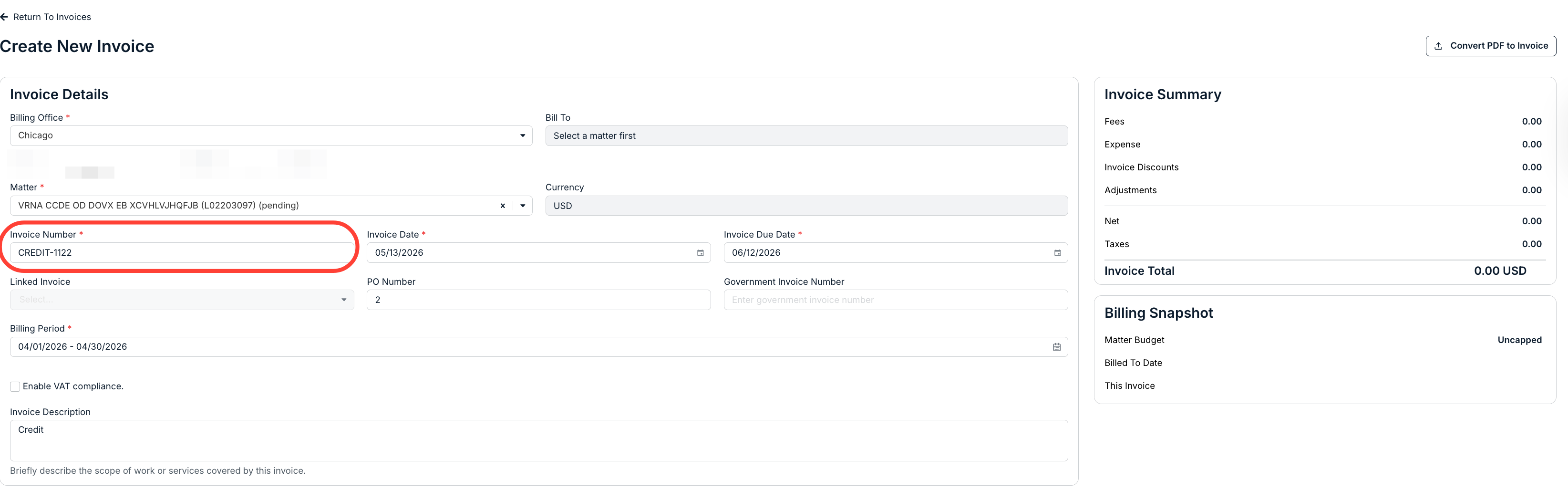
- Complete the required fields for the invoice.
For more information on creating a new invoice, read this user guide.
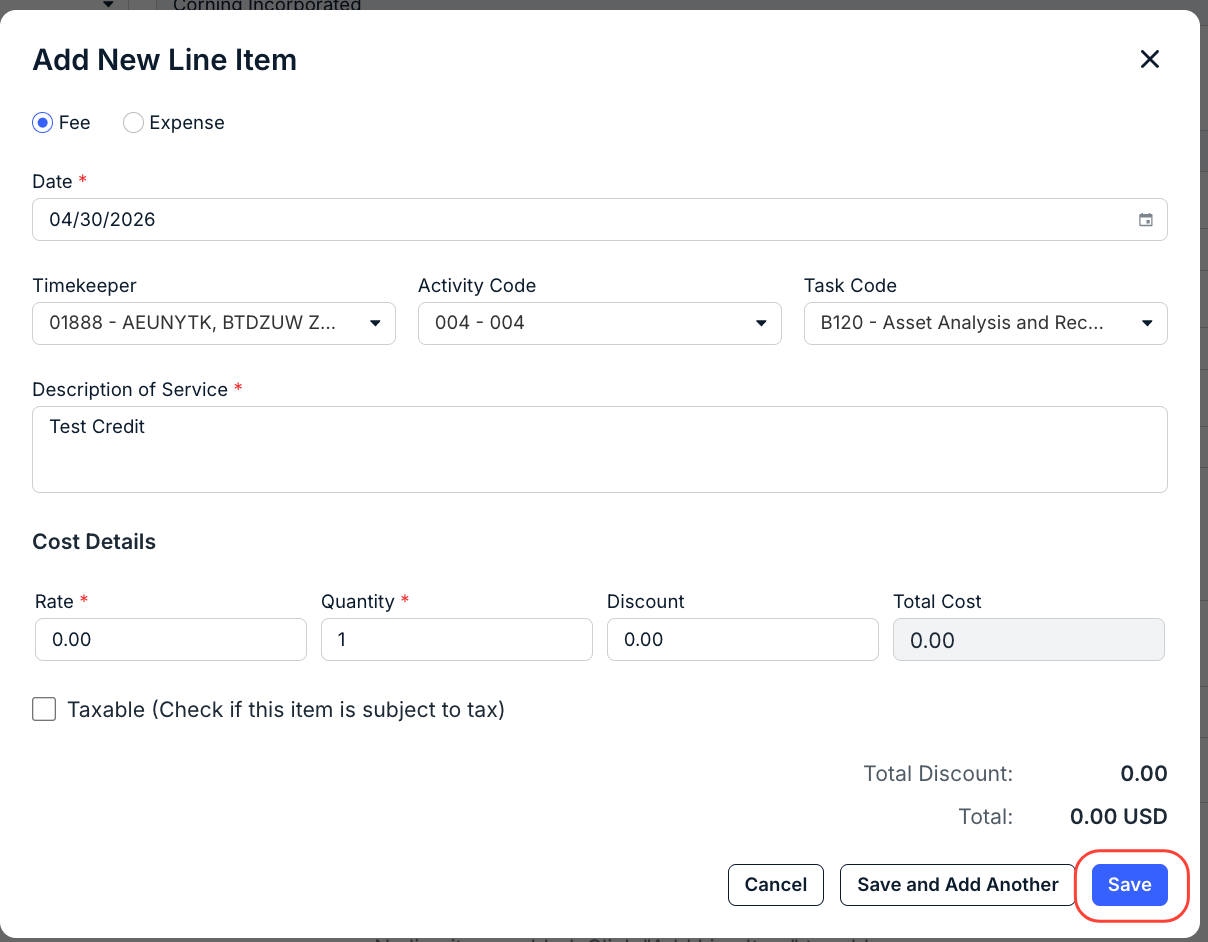
- Add either 1 fee or 1 expense line (use a fee if the credit is a fee credit or an expense if the credit is an expense credit).
List the cost as $0 and the quantity as 1. Click Save to save or Cancel to back out.
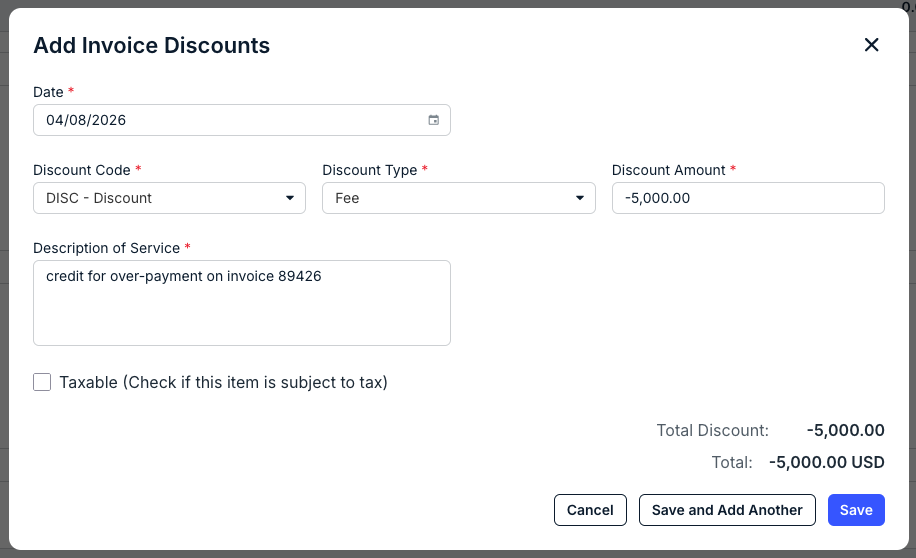
- Add a discount line item for the amount of your credit (as a negative value), and choose either fee discount or expense discount based on the line type you added above.
This will result in a negative invoice total equal to the credit amount.
- Add either 1 fee or 1 expense line (use a fee if the credit is a fee credit or an expense if the credit is an expense credit).