Here's how to edit a failed invoice in Counsel Exchange:
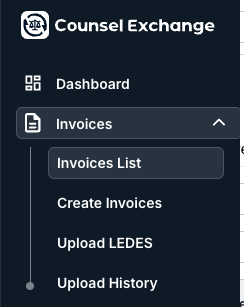
- Go to "Invoices List" on the left-hand side menu in Counsel Exchange.
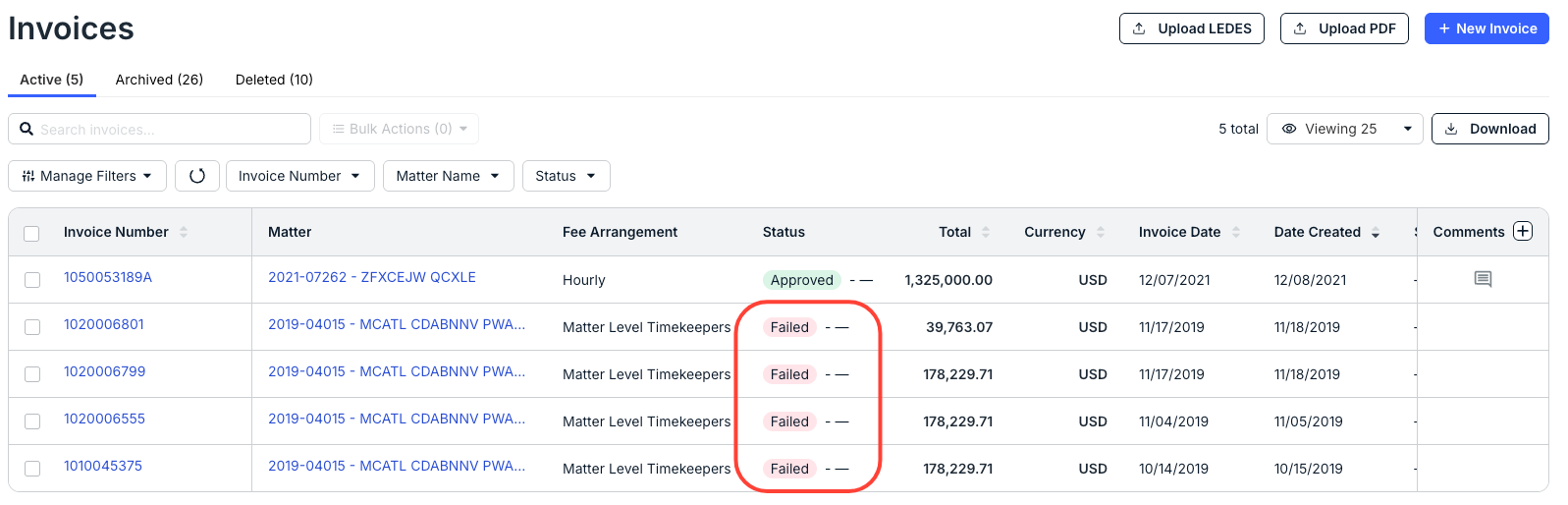
- The list of invoices will appear on the screen.
Failed invoices will be marked with a Failed status.
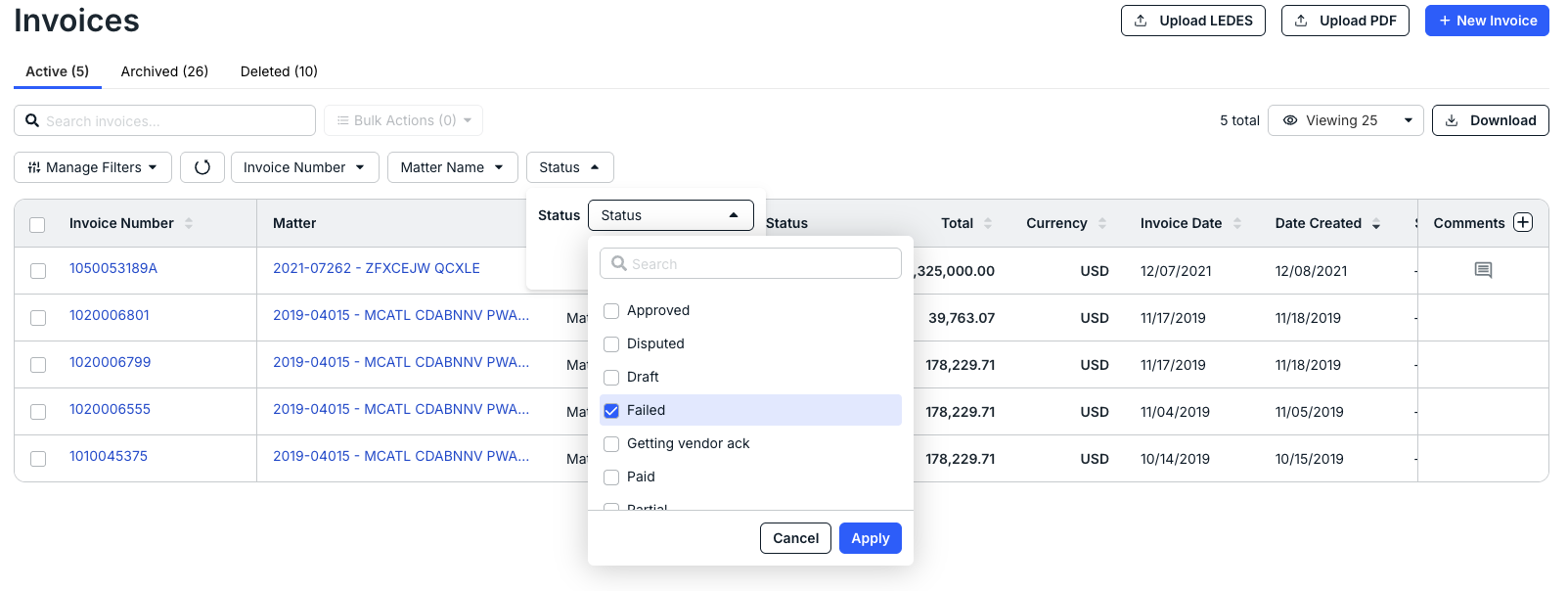
You can also use the Status filter to show only the Failed invoices.
- Click into the Failed invoice you want to work on.
The Invoice Details screen will appear; note that the Failed status is displayed at the top of the screen.
Note that you can use the bottom tabs to switch between Line Items, Validation Insights, TK Report, Matter Spend, Payment History, and Comments.
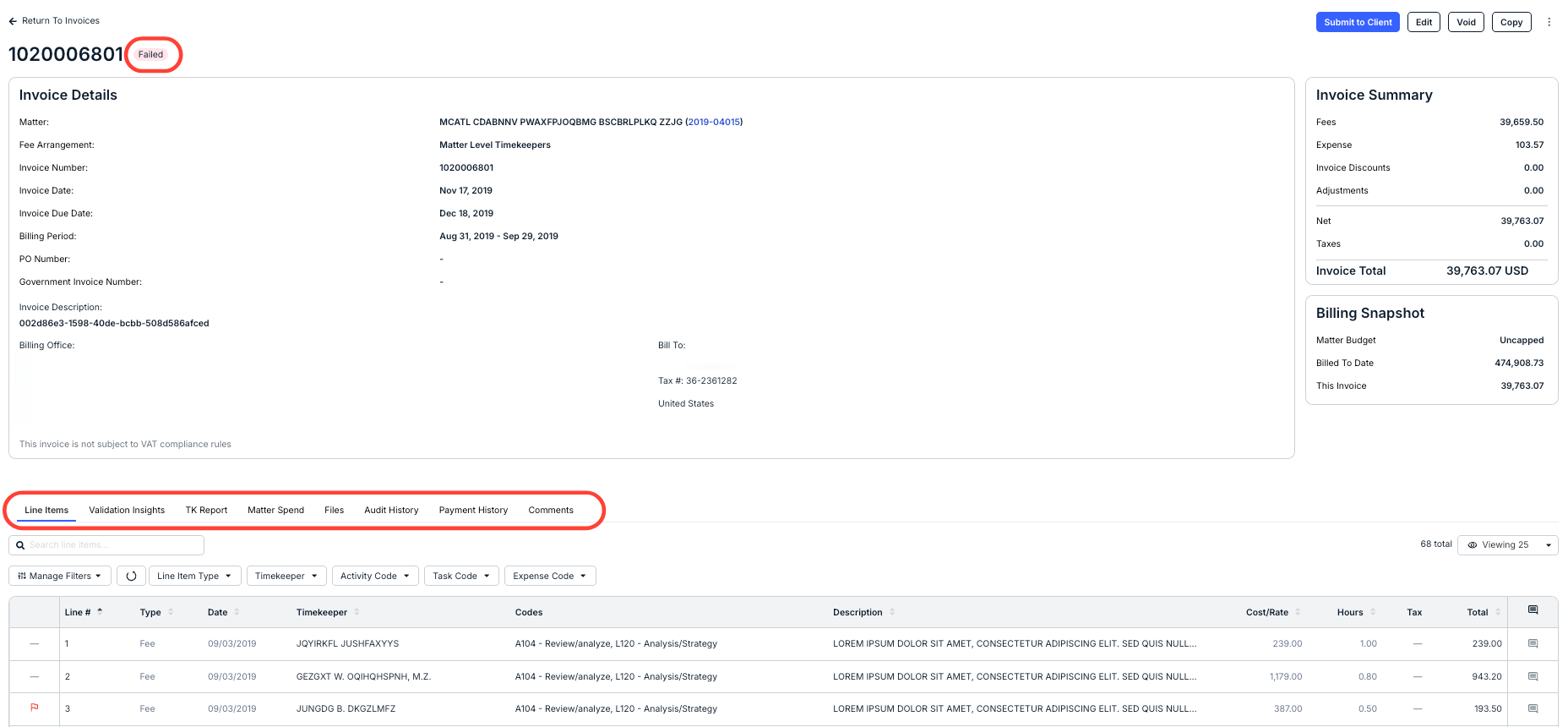
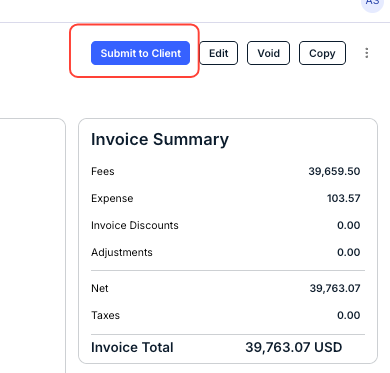
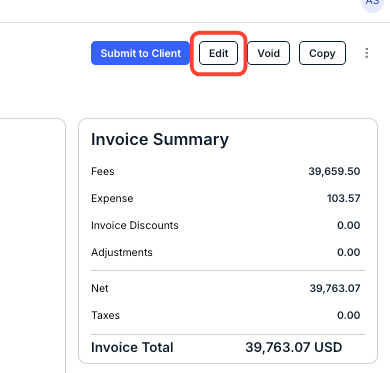
- Click on "Edit" to adjust the invoice.
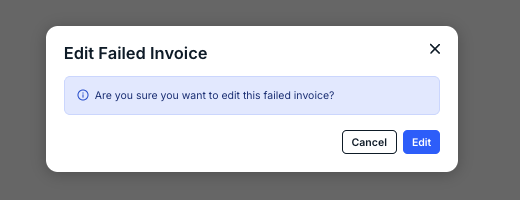
This screen will appear; click Edit to edit the invoice or Cancel to back out.
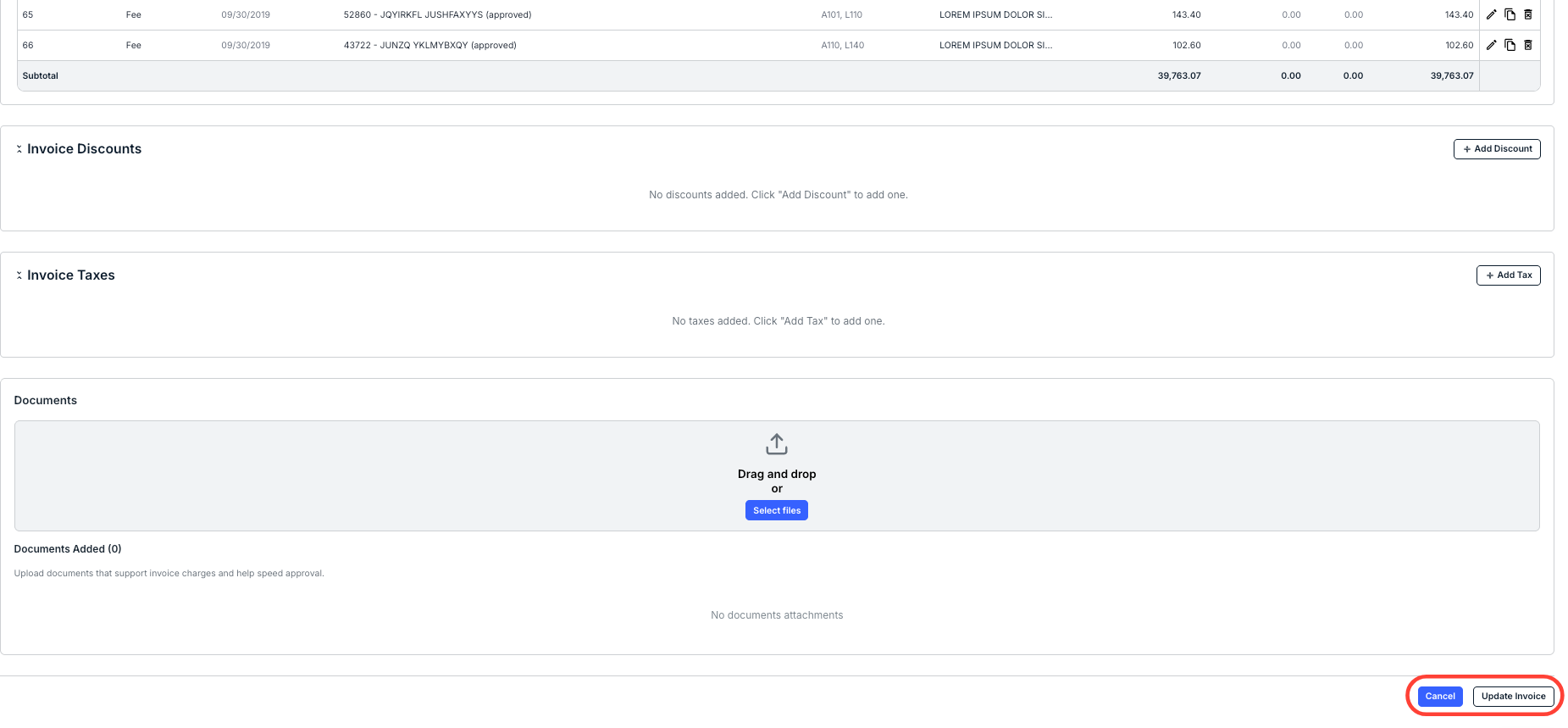
- Make any necessary changes, then scroll to the bottom of the screen and click "Update Invoice."
You can also click Cancel to back out of your changes.
- Click "Submit to Client" to send back to the client for their review.