Here is how to view and edit the Tax Code Mapping Settings in Counsel Exchange:
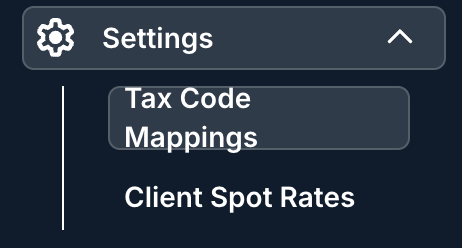
- Go to the "Settings" section on the left-hand-side menu and select "Tax Code Mappings" from the drop-down menu.
Note that you should be in the standard client view to select this option.
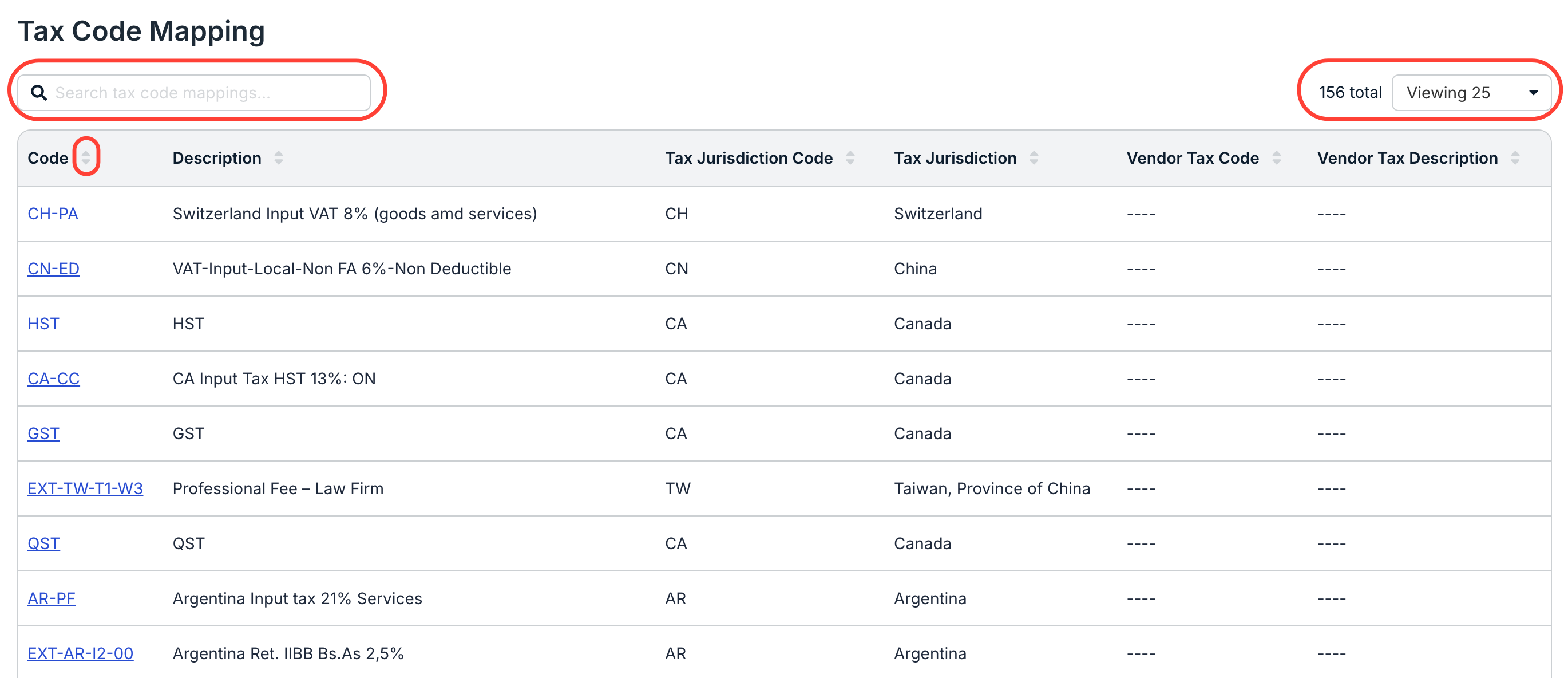
- The Tax Code Mapping screen displays key code information.
You'll see the Code, Description, Tax Jurisdiction, Vendor Tax Code, and Vendor Tax Description in this directory. Click the up/down arrows at the top of every column to sort by that column. Use the search bar to search for a specific code, and the drop-down Viewing menu to customize how much you'd like to see on the screen.
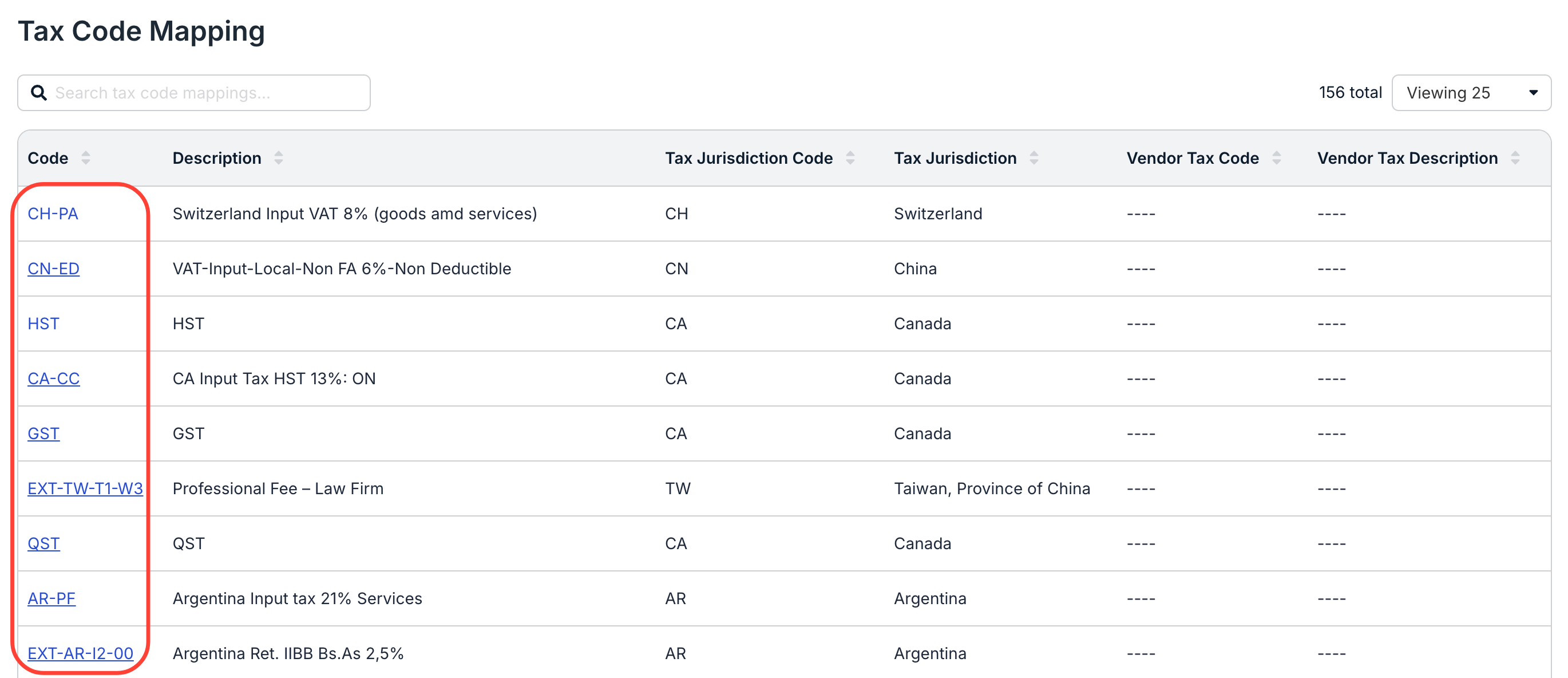
- Click on an individual code to view and edit the code information.
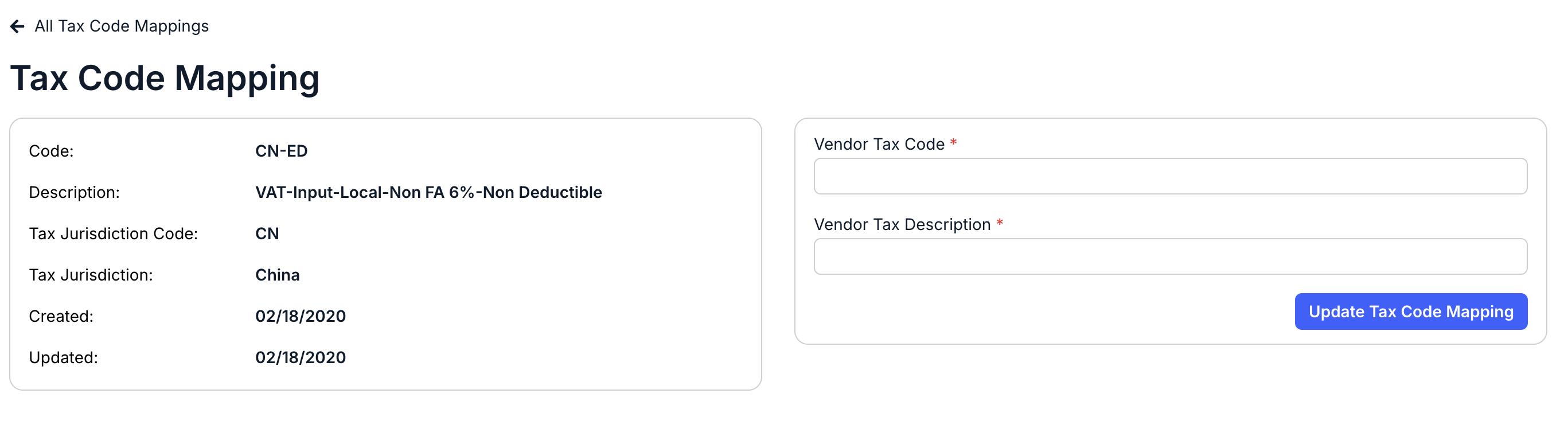
- The individual code screen will appear. You can update the Vendor Tax Code and the Vendor Tax Description.
You'll see the Code, Description, Tax Jurisdiction Code, Tax Jurisdiction, Created date, and Updated date on the screen.
Click Update Tax Code Mapping to update the information.
The mapped tax code will appear on the list and can be used in LEDES file uploads.
- The individual code screen will appear. You can update the Vendor Tax Code and the Vendor Tax Description.