If you have to edit a timekeeper profile (for a misspelled name, updated address, etc.), you'll have to use the Timekeepers feature.
Here's how to edit a timekeeper within Counsel Exchange:
Note: To edit timekeepers in Counsel Exchange, you need to be logged in to Master Settings (Timekeeper Profiles and Settings).
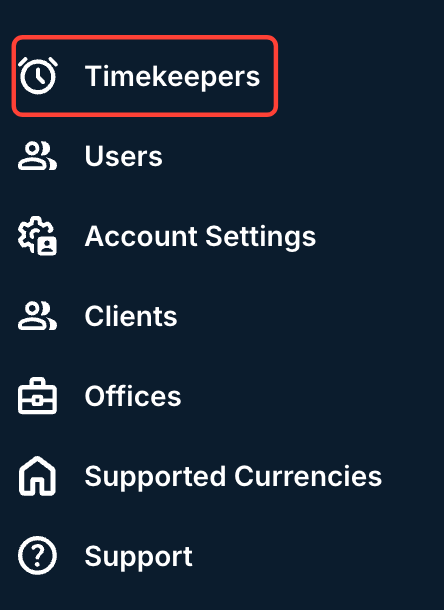
- Go to the Timekeepers section on the left-hand side Counsel Exchange menu.
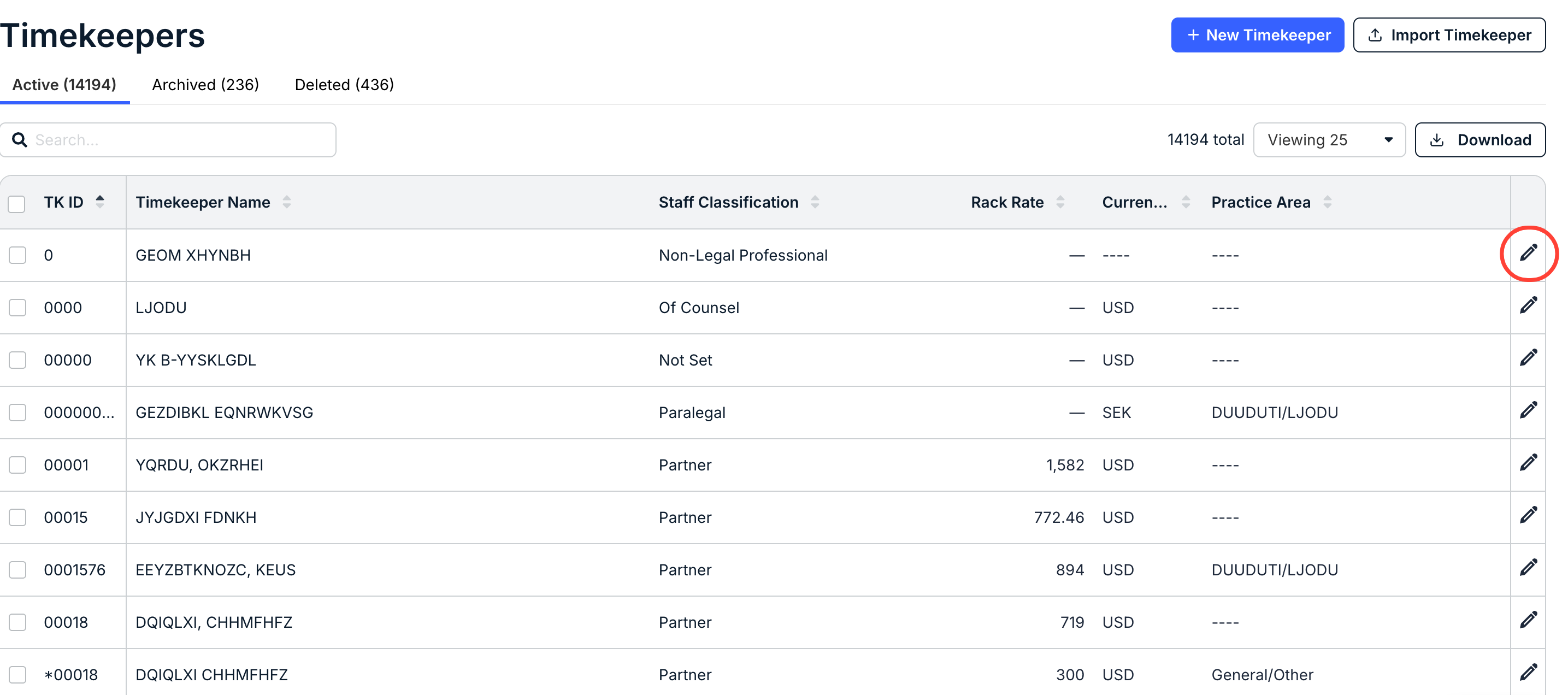
- You'll see the full directory of timekeepers. Click on the Edit (pencil) button to edit the timekeeper.
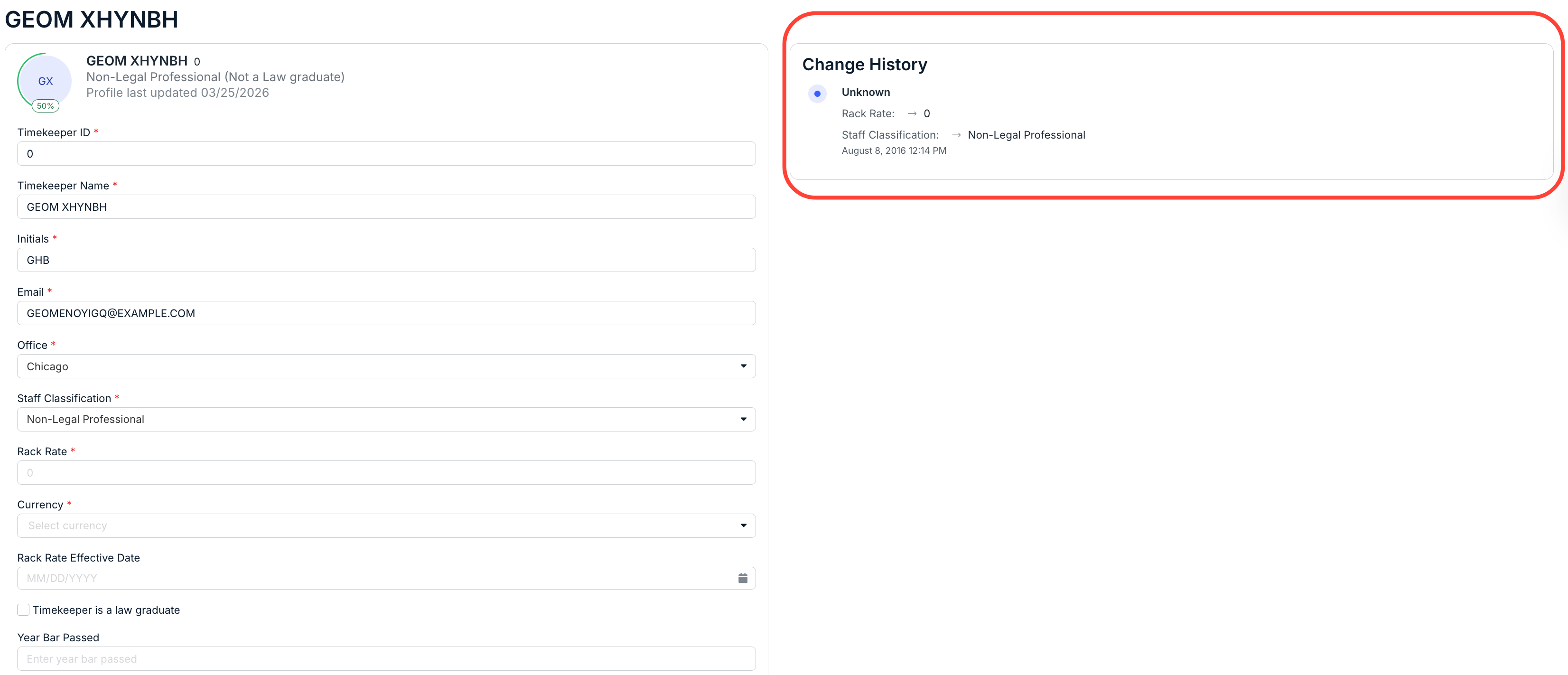
- Update the timekeeper’s profile as needed.
Anything with a red asterisk is required (note: Date Bar Passed and First Practiced Year are only required if the timekeeper is a law graduate). Click the X in selected fields to remove a selection. Click Update Timekeeper once your edits are complete.
Users can edit:
- The Timekeeper ID
- The Timekeeper Name
- The Initials of the timekeeper
- The timekeeper Email
- The Office (drop-down menu)
- The Staff Classification (drop-down menu)
- The Rack Rate
- The Currency (drop-down menu)
- The Rack Rate Effective Date (calendar)
- Whether the Timekeeper is a law graduate; check or uncheck the Check if this timekeeper is a law graduate box.
- The Year Bar Passed
- The First Practiced date
- The Practice Area (drop-down menu)
- The timekeeper Profile Link
- The timekeeper Resume
- The Bio of the timekeeper
- The Gender (drop-down menu)
- The Race/Ethnicity (drop-down menu)
- Whether the timekeeper is a Veteran or not (drop-down menu)
- Whether the timekeeper has a Disability or not (drop-down menu)
- Whether the timekeeper is LGBTQ or not (drop-down menu)
Note that you can also view the Change History of this timekeeper on the right-hand side.
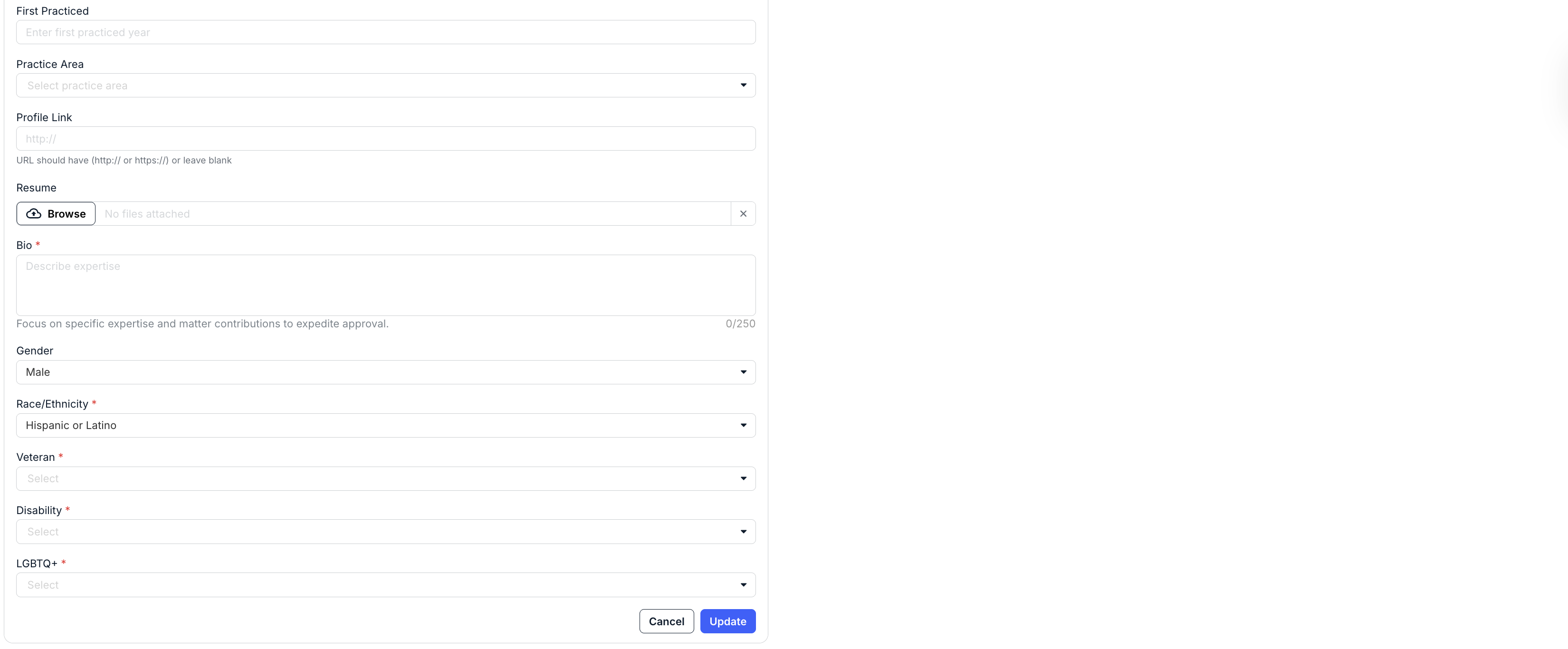
- Click on Update to update the timekeeper.